# Connecting Multiple Blue Pill Panels

Tutorials on different workflows for connecting multiple Blue Pill panels

# Raw Panel Mode or Using One Blue Pill Panel as the Main Unit

<div data-block-id="block-ab30508e-e883-44e1-af05-bd9c0dee37eb" id="bkmrk-there-are-two-ways-t">There are a couple of workflows that require the panel to be set into Raw Panel Mode. This is mainly used if you are having a 3rd party program take control of the Skaarhoj Panel in a custom integration or if you are connecting multiple Skaarhoj Panels with one panel set as the main unit. </div><div data-block-id="block-ab30508e-e883-44e1-af05-bd9c0dee37eb" id="bkmrk-"></div><div data-block-id="block-ab30508e-e883-44e1-af05-bd9c0dee37eb" id="bkmrk--1"></div><div data-block-id="block-ab30508e-e883-44e1-af05-bd9c0dee37eb" id="bkmrk--2"></div><div data-block-id="block-ab30508e-e883-44e1-af05-bd9c0dee37eb" id="bkmrk-new-method">**New Method**  
</div><div data-block-id="block-ab30508e-e883-44e1-af05-bd9c0dee37eb" id="bkmrk-starting-with-system">Starting with System Manager version 1.0.6, it is now possible to set a Blue Pill device into 'Raw Panel Mode' on the Settings Page. </div><div data-block-id="block-ab30508e-e883-44e1-af05-bd9c0dee37eb" id="bkmrk--3"></div><div data-block-id="block-ab30508e-e883-44e1-af05-bd9c0dee37eb" id="bkmrk-enabling-the-raw-pan">Enabling the Raw Panel Mode toggle on the Settings page does the same as step 3 in the Old Method for setting it up. After Enabling. </div>![Screenshot 2024-09-27 at 09.48.12.png](https://wiki.skaarhoj.com/uploads/images/gallery/2024-09/scaled-1680-/screenshot-2024-09-27-at-09-48-12.png)

Once enabling, you are given the option to disable the Reactor Package. In most workflows this is what you will want to do.

![Screenshot 2024-09-27 at 09.37.53.png](https://wiki.skaarhoj.com/uploads/images/gallery/2024-09/scaled-1680-/screenshot-2024-09-27-at-09-37-53.png)

After it is enabled, you can set the specific port you need. Our default communication port for Raw Panel Mode is 9923.

![Screenshot 2024-09-27 at 09.38.02.png](https://wiki.skaarhoj.com/uploads/images/gallery/2024-09/scaled-1680-/screenshot-2024-09-27-at-09-38-02.png)

<div data-block-id="block-ab30508e-e883-44e1-af05-bd9c0dee37eb" id="bkmrk-old-method">**Old Method**</div><div data-block-id="block-ab30508e-e883-44e1-af05-bd9c0dee37eb" id="bkmrk-to-set-up-multiple-b">To set up multiple Blue Pill Inside units to work in a group together, it is necessary to change some settings in the connected panels to allow them to be controlled by the main Blue Pill panel. </div><div data-block-id="block-ab30508e-e883-44e1-af05-bd9c0dee37eb" id="bkmrk--7"></div><div data-block-id="block-9414c54f-89b2-4c6f-bf7d-e4f2c6fe919a" id="bkmrk-the-connected-unit-n">The connected unit needs the following changes:</div>1. Stop Reactor  
      
    ![Screenshot 2024-09-27 at 09.52.41.png](https://wiki.skaarhoj.com/uploads/images/gallery/2024-09/scaled-1680-/screenshot-2024-09-27-at-09-52-41.png)
2. Disable Auto-Start  
    ![Screenshot 2024-09-27 at 09.53.40.png](https://wiki.skaarhoj.com/uploads/images/gallery/2024-09/scaled-1680-/screenshot-2024-09-27-at-09-53-40.png)
3. Enable Listen on Port in Hardware Manager ![hardware manager new.png](https://wiki.skaarhoj.com/uploads/images/gallery/2022-04/scaled-1680-/hardware-manager-new.png)

<div data-block-id="block-000f25ff-ed74-4672-a42b-56d3330731df" id="bkmrk-4.-save-and-restart">4. Save and restart</div><div data-block-id="block-1cff59c5-adf3-405e-9fce-1f8b935245b1" id="bkmrk-5.-add-as-normal-pan">5. Add as normal panel to the main BP/BPI  
  
</div><p class="callout info">Please Note, turning off Reactor will limit the page selections to Package and Settings. All other pages are part of the Reactor firmware package. </p>

# Sharing Device Cores Across Different Blue Pills

<div data-block-id="block-75471069-984d-4759-ac1d-0db0ec5f6a2a" id="bkmrk-for-some-workflows-i">For some workflows it may be necessary to have a package running on a one Blue Pill and use it on another. </div><div data-block-id="block-75471069-984d-4759-ac1d-0db0ec5f6a2a" id="bkmrk-"></div><div data-block-id="block-75471069-984d-4759-ac1d-0db0ec5f6a2a" id="bkmrk--1"></div><div data-block-id="block-75471069-984d-4759-ac1d-0db0ec5f6a2a" id="bkmrk-example-1%3A-you-are-c">**Example 1:** You are controlling and Atem, and are on a different continent, the latency would probably not work well over the distance with Atem's own protocol, so you use the Blue Pill, then the Blue Pill to Blue Pill communication does handle latency better. </div><div data-block-id="block-75471069-984d-4759-ac1d-0db0ec5f6a2a" id="bkmrk--2"></div><div data-block-id="block-75471069-984d-4759-ac1d-0db0ec5f6a2a" id="bkmrk-example-2%3A-when-comb">**Example 2:** When using a Blue Pill connected to a camera with a USB cable, you have to run the cores locally as they need serial access, but you probably want a central instance of reactor controlling all of them. </div><div data-block-id="block-75471069-984d-4759-ac1d-0db0ec5f6a2a" id="bkmrk--3"></div><div data-block-id="block-75471069-984d-4759-ac1d-0db0ec5f6a2a" id="bkmrk--0"></div><div data-block-id="block-75471069-984d-4759-ac1d-0db0ec5f6a2a" id="bkmrk-process%3A">**Process:**</div><div data-block-id="block-75471069-984d-4759-ac1d-0db0ec5f6a2a" id="bkmrk-to-connect-two-bp%2Fbp">To connect two Blue Pill devices when a device core/package is running on one but not the other:  
  
</div><p class="callout info">Instructions are compatible with System Manager v1.0.11 and above. For older System Manager methods, please see Old Method instructions at the end of the article. </p>

1. Navigate to the Settings Page on the BP running the needed package locally.
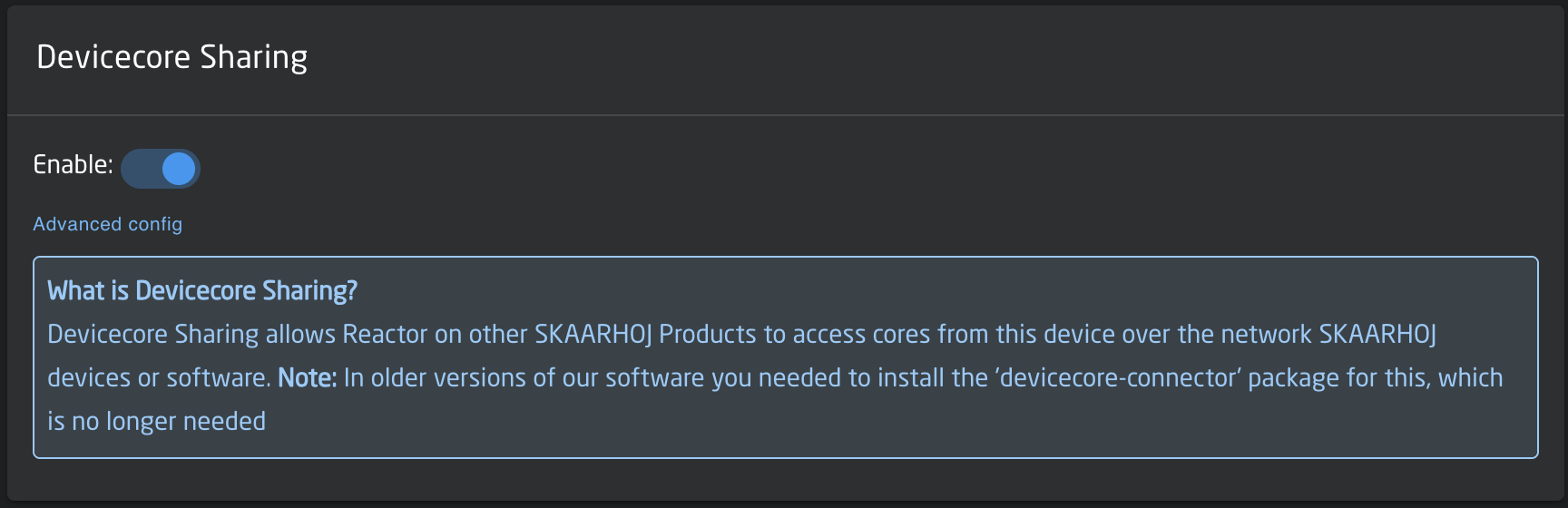
2. Enable Device Core sharing ![Screenshot 2026-02-03 at 12.04.46 PM.png](https://wiki.skaarhoj.com/uploads/images/gallery/2026-02/scaled-1680-/screenshot-2026-02-03-at-12-04-46-pm.png)
3. On the BP not running the package locally, select Add Device on the Home Page  

    ![Screenshot 2025-11-04 at 12.01.58 PM.png](https://wiki.skaarhoj.com/uploads/images/gallery/2025-11/scaled-1680-/screenshot-2025-11-04-at-12-01-58-pm.png)
4. Search for shared core, selecting the specific core on the panel that you are looking to connect to.
    
    <p class="callout info">Please note, the shared core will not come up if searching by the Device Core name, only by the Device Name which is Shared Core. Selecting the specific shared core will bring in all individual devices connected to by that core on the remote Blue Pill device. </p>
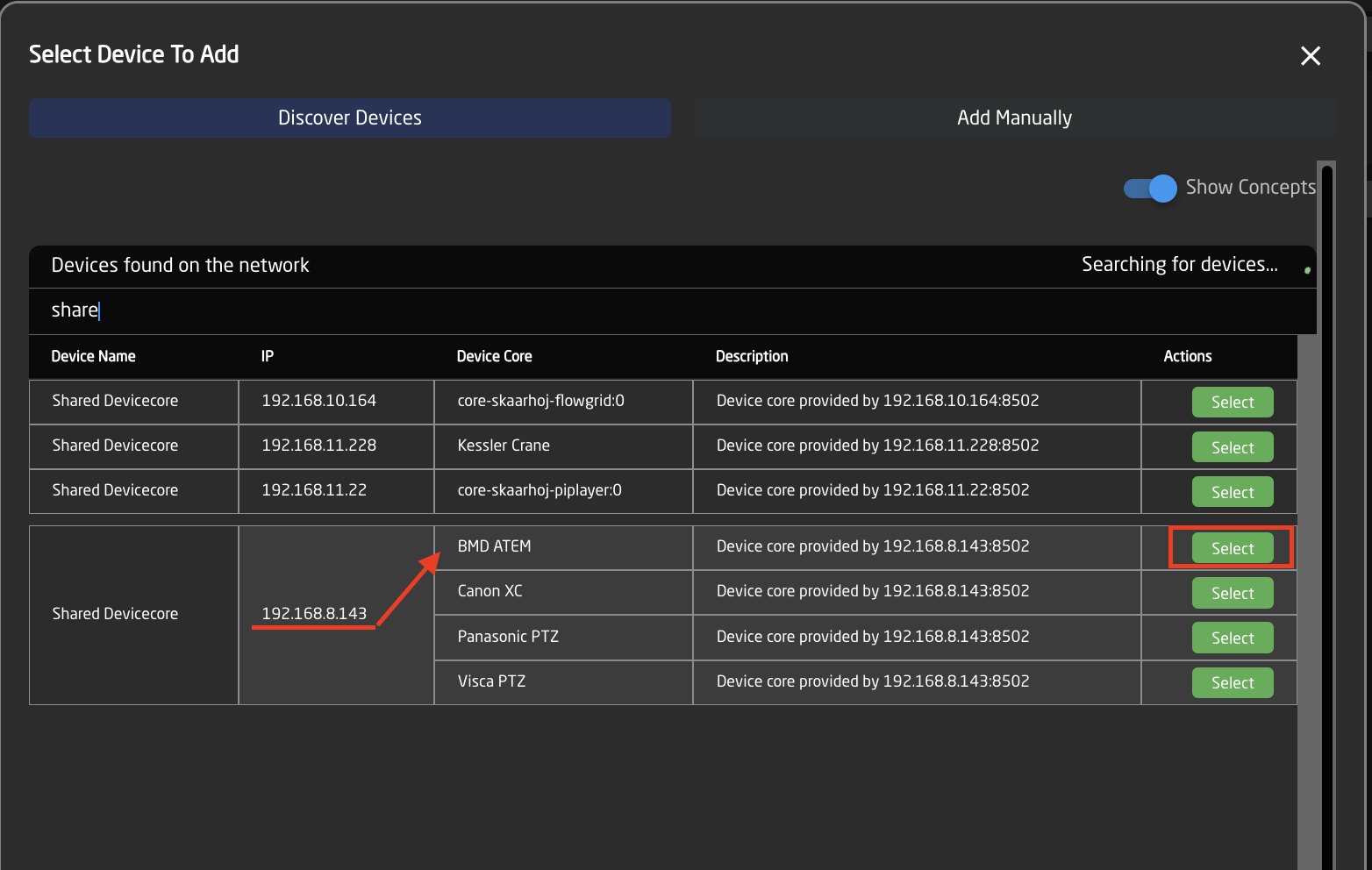
    
    ![Screenshot 2025-11-04 at 12.03.52 PM.png](https://wiki.skaarhoj.com/uploads/images/gallery/2025-11/scaled-1680-/screenshot-2025-11-04-at-12-03-52-pm.png)
5. After adding the desired remote core it should show in the Device Core name the IP address it is connecting to the core from.
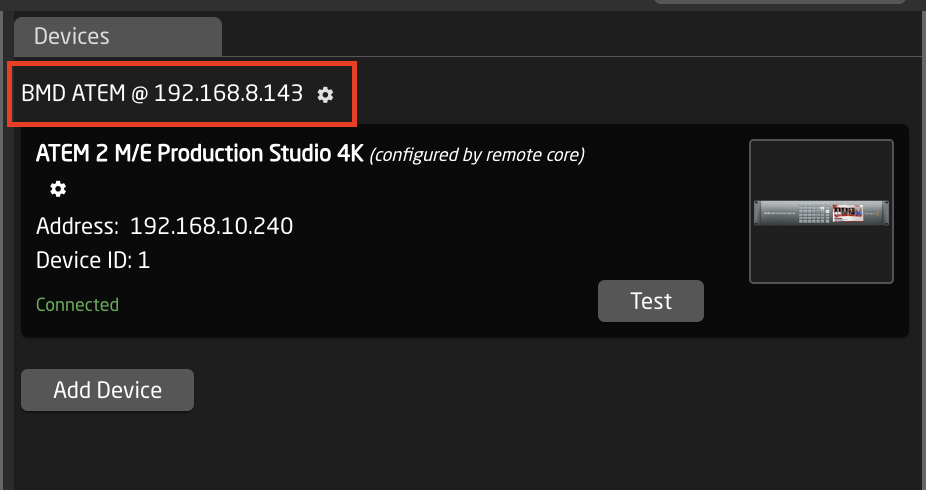
    
    ![Screenshot 2025-11-04 at 12.31.17 PM.png](https://wiki.skaarhoj.com/uploads/images/gallery/2025-11/scaled-1680-/screenshot-2025-11-04-at-12-31-17-pm.png)
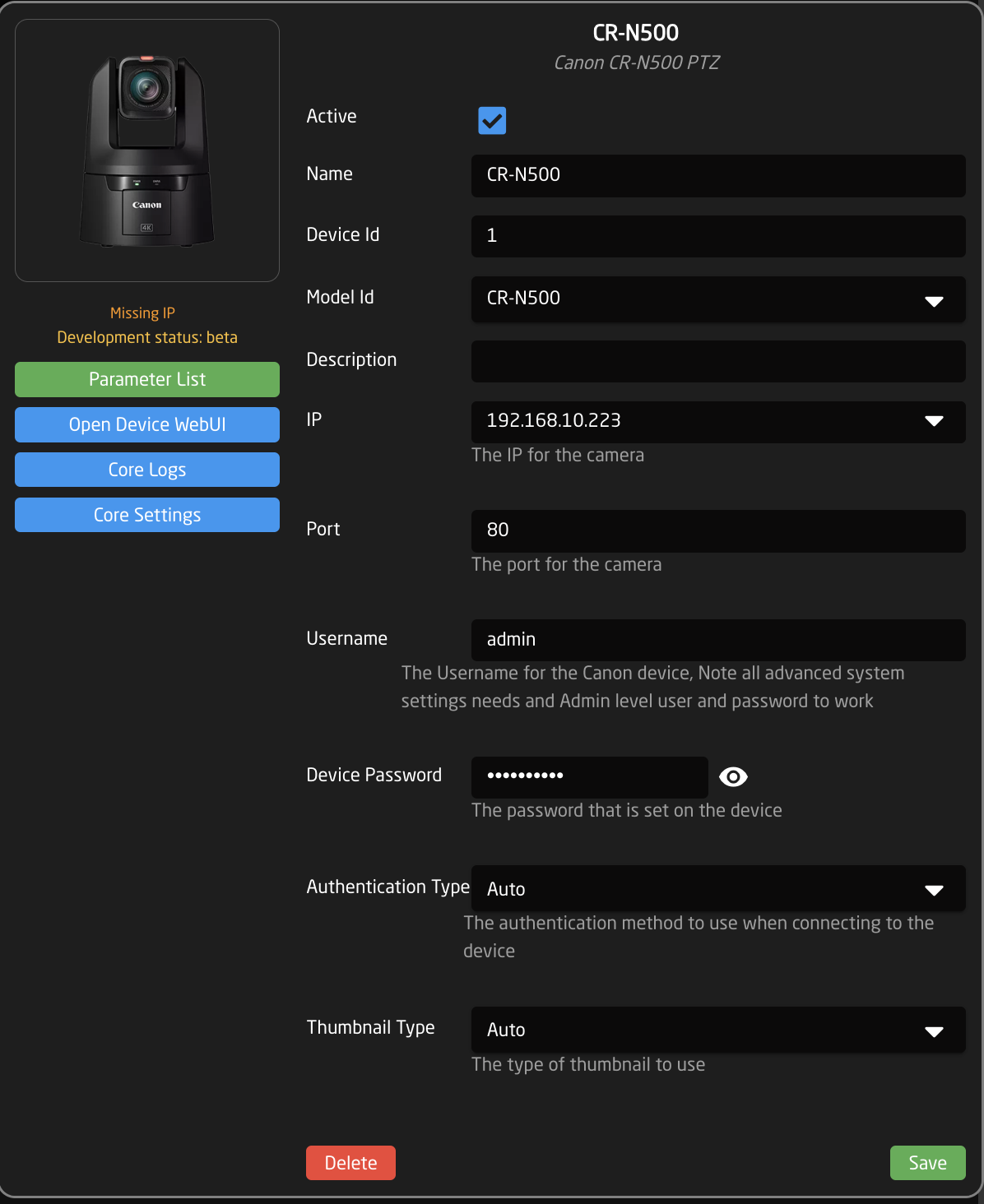
6. If it is not possible to autodiscover the shared core, it can be added manually by adding the device to be controlled.
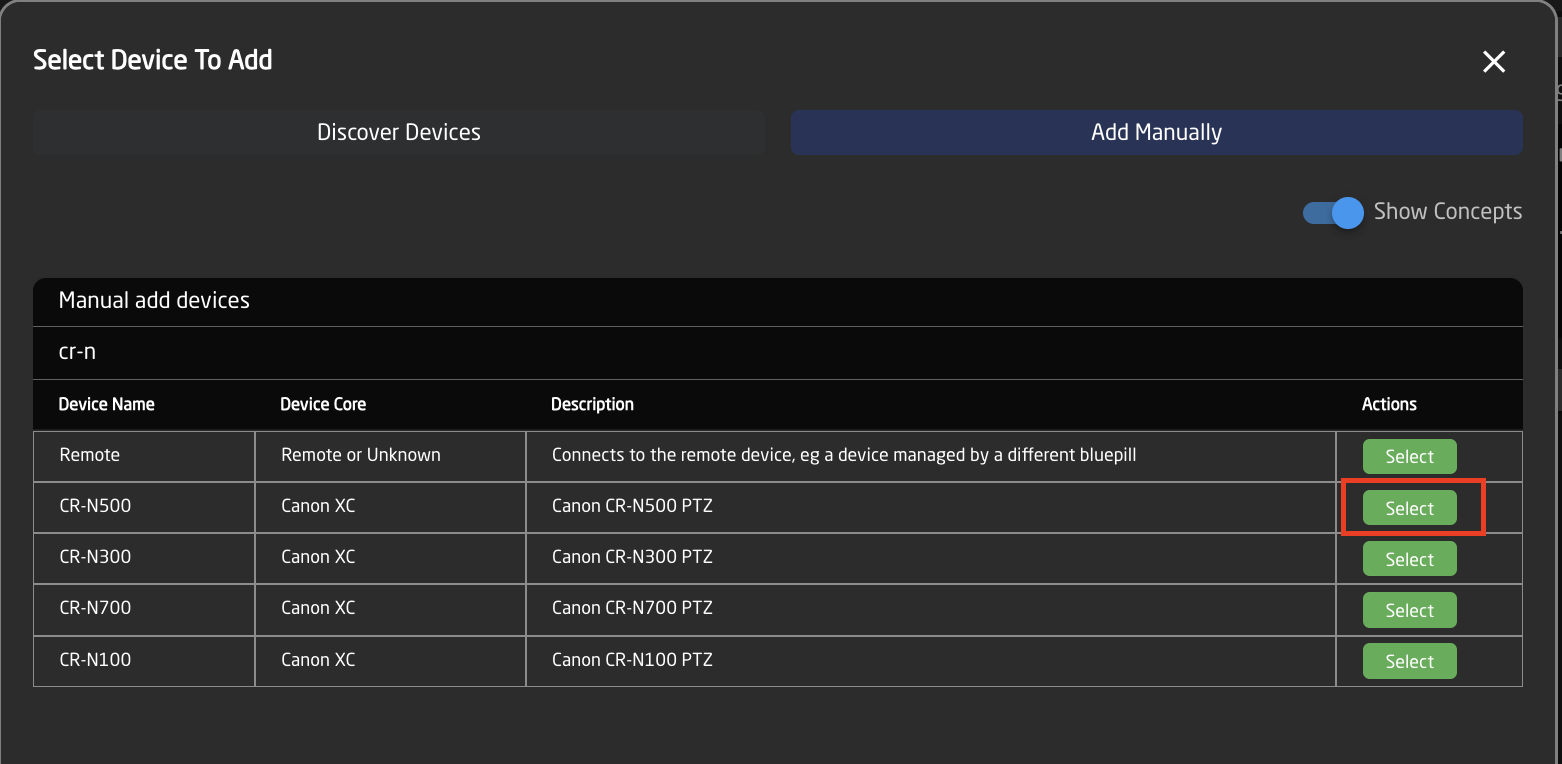
    
    ![Screenshot 2025-11-04 at 12.43.21 PM.png](https://wiki.skaarhoj.com/uploads/images/gallery/2025-11/scaled-1680-/screenshot-2025-11-04-at-12-43-21-pm.png)
7. Setting the proper device details for the device.
    
      
    ![Screenshot 2025-11-04 at 12.44.29 PM.png](https://wiki.skaarhoj.com/uploads/images/gallery/2025-11/scaled-1680-/screenshot-2025-11-04-at-12-44-29-pm.png)
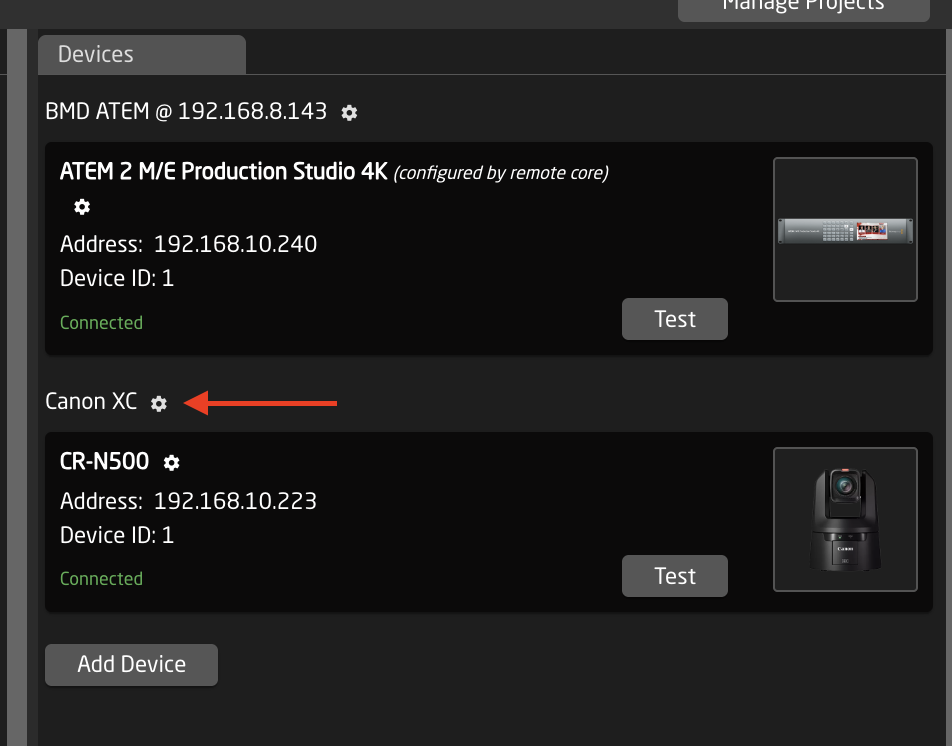
8. Click into the Device Core Details for the device.
    
      
    ![Screenshot 2025-11-04 at 12.46.09 PM.png](https://wiki.skaarhoj.com/uploads/images/gallery/2025-11/scaled-1680-/screenshot-2025-11-04-at-12-46-09-pm.png)
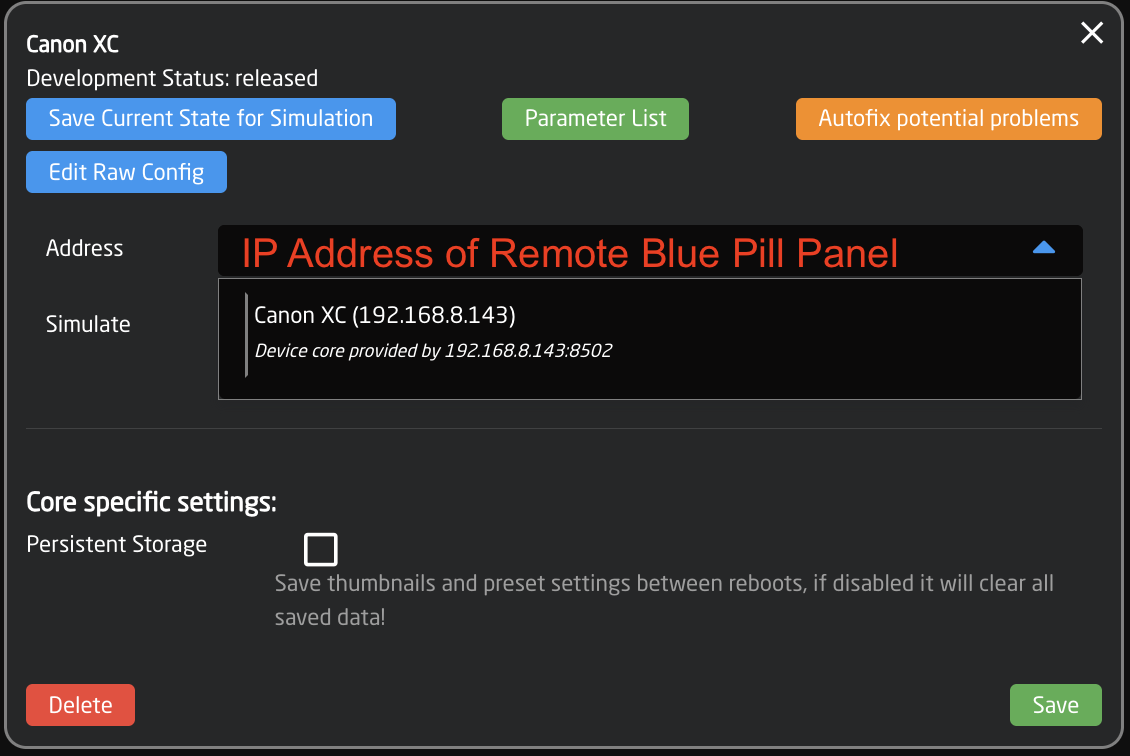
9. Enter the IP address of the remote Blue Pill that will be hosting the device core locally. Or select it from the drop down if it appears.
    
      
    ![Screenshot 2025-11-04 at 12.47.03 PM.png](https://wiki.skaarhoj.com/uploads/images/gallery/2025-11/scaled-1680-/screenshot-2025-11-04-at-12-47-03-pm.png)

**Old Method (Pre System Manager v1.0.11)**

1. Install DeviceCore-Connector package on the BP running the needed package locally.
2. AccessMode= default-allow[![connector.png](https://wiki.skaarhoj.com/uploads/images/gallery/2022-03/scaled-1680-/connector.png)](https://wiki.skaarhoj.com/uploads/images/gallery/2022-03/connector.png)
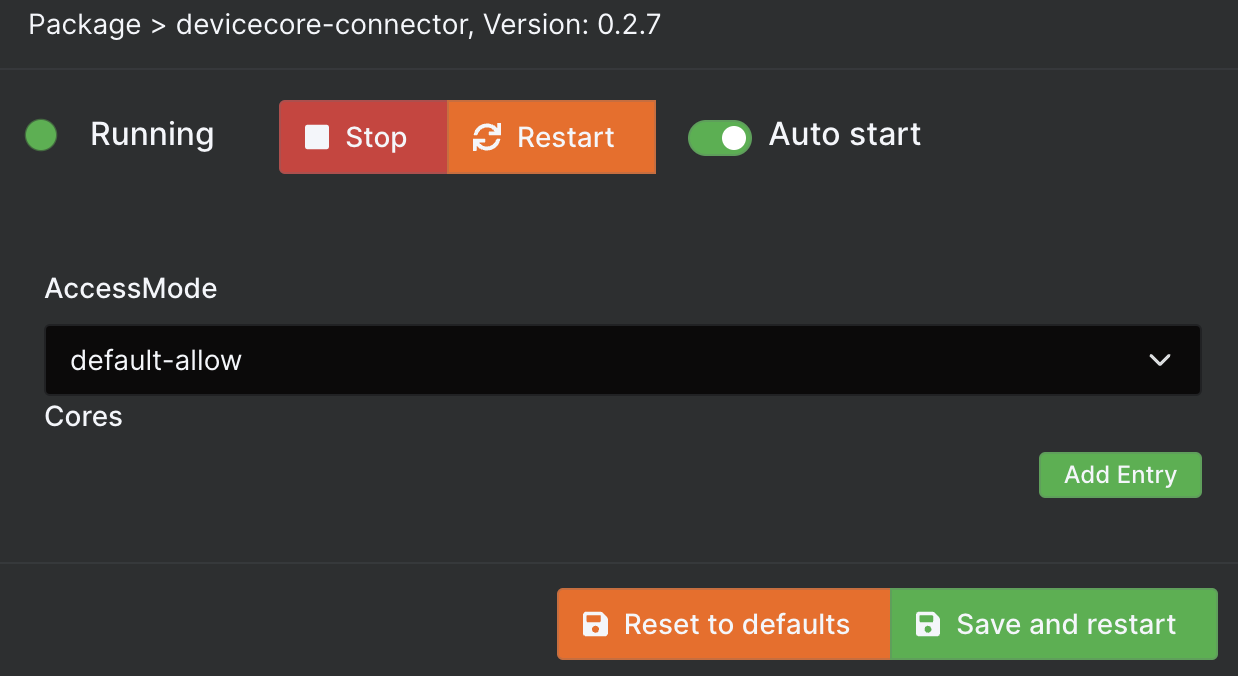
All other steps are the same as the current method.