# Blue Pill / Reactor

# Blue Pill Server - Getting Started

Step by step guide to initial set up of a stand alone Blue Pill

# Networking

Unlike UniSketch where a change of configuration and included device cores needed an online exchange with the SKAARHOJ server, on Blue Pill everything is stored and enabled and disabled locally in Reactor. Only software updates or installations of non-existing device cores and applications need communication with the SKAARHOJ server over the internet. All changes in configurations can be done via the local network.

**Network Requirements**

- SKAARHOJ Blue Pill controllers have a 1 GBit network interface
- 5W-30W PoE (+)
- PoE Standard: IEEE 802.3af/t

Remember a SKAARHOJ controller and client must be on the same subnet (192.168.10.\* or one defined for the local network used by the controller). With multiple SKAARHOJ units connected to the same network they need to have different IP addresses!

**Power over Ethernet (PoE) Specifications**

We use the PoE industry standard 5W-30W PoE (+) IEEE802.3af/t. To power our controllers using PoE it is important the switch supports this standard. Please notice some manufactures such as Ubiquity have their own non-standard 24V type of PoE which is incompatible with our controllers. Especially pay attention to the standard when using a PoE injector.

**Network Layout**

We recommend connecting SKAARHOJ UniSketch controllers and Blue Pill via professional PoE network switches, such as NetGears M4250-series which are at the same time designed for AV network traffic such as NDI video.

A PTZ Pro, Frame Shot,<span class="Apple-converted-space"> </span>Blue Pill, and PTZ camera configuration could look like this:

[![image-1648115906507.png](https://wiki.skaarhoj.com/uploads/images/gallery/2022-03/scaled-1680-/image-1648115906507.png)](https://wiki.skaarhoj.com/uploads/images/gallery/2022-03/image-1648115906507.png)

Please note, we are not networking experts and are not able to assist in network set up.

# Accessing Blue Pill Server

**DHCP or Static IP**

The Blue Pill’s user interface is accessed via the device’s IP Address and any web browser. The IP address can be found on the display after it is plugged into a network connection with PoE or a network connection and a power supply (5V Micro USB). By default the Blue Pill should get an IP address via DHCP, if that fails it should fallback to 192.168.10.99.

[![image-1648117600637.png](https://wiki.skaarhoj.com/uploads/images/gallery/2022-03/scaled-1680-/image-1648117600637.png)](https://wiki.skaarhoj.com/uploads/images/gallery/2022-03/image-1648117600637.png)

Entering the IP address into the address bar of a search engine will bring up a prompt for username and password. The default is username: **admin** password: **skaarhoj<span class="Apple-converted-space"> </span>**

<p class="callout info"><span class="Apple-converted-space">Please note that by signing in you are accepting the terms of the [user agreement](https://wiki.skaarhoj.com/books/blue-pill-reactor/page/end-user-license-agreement). </span></p>
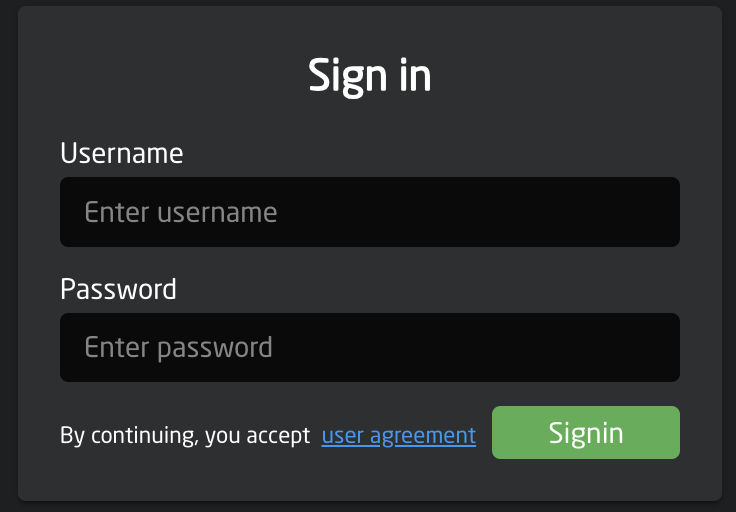
![Screenshot 2025-06-05 at 9.31.03 AM.png](https://wiki.skaarhoj.com/uploads/images/gallery/2025-06/scaled-1680-/screenshot-2025-06-05-at-9-31-03-am.png)

**Link from SKAARHOJ Discovery App**

If the SKAARHOJ Discovery open on a computer running on the same subnet as the Blue Pill, the Blue Pill should appear below the main controller access buttons of the updater. Clicking on Configure next to the panel’s information will open the web interface directly. The Blue Pill does not need to be connected to the computer via USB. <span class="Apple-converted-space"> </span>
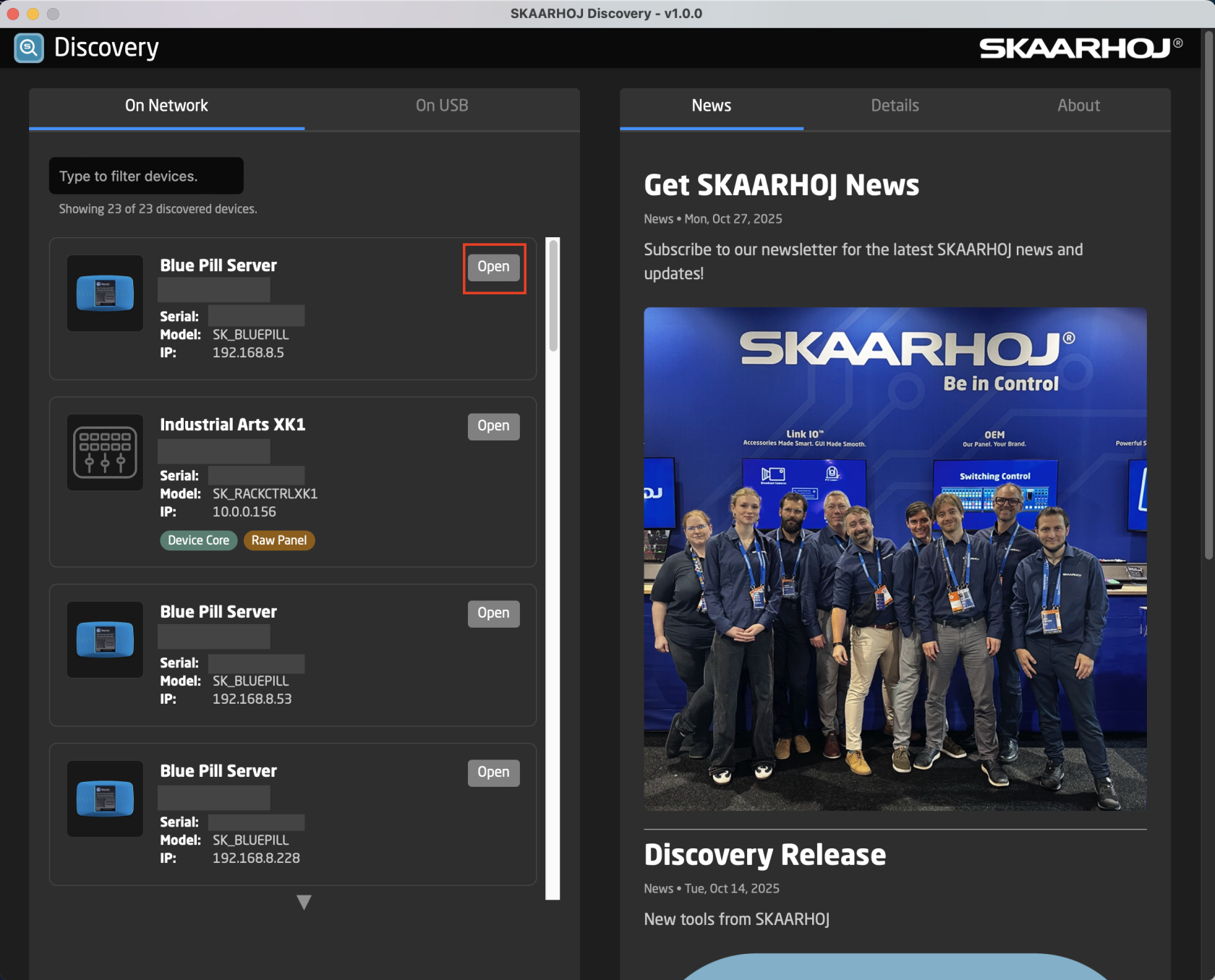
![Screenshot 2026-02-03 at 2.22.30 PM.png](https://wiki.skaarhoj.com/uploads/images/gallery/2026-02/scaled-1680-/screenshot-2026-02-03-at-2-22-30-pm.png)

**SKAARHOJ Discovery and Micro USB**

If a network connection to the Blue Pill in not available, the IP address can be set using a Micro USB cable. In this case the Blue Pill will appear in the “On USB” tab in the Discovery App can be used to set the IP address:
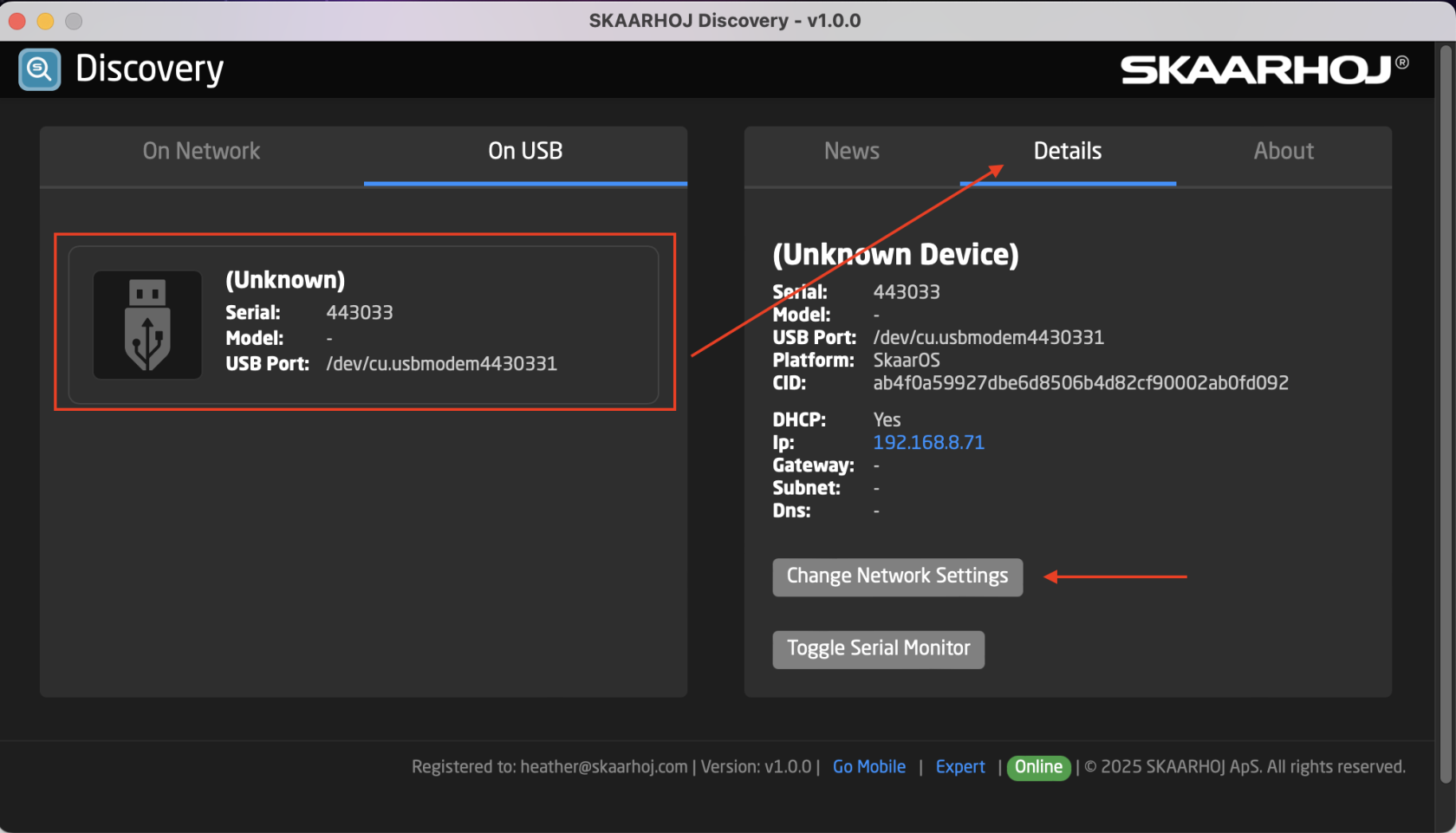
![Screenshot 2026-02-03 at 2.29.19 PM.png](https://wiki.skaarhoj.com/uploads/images/gallery/2026-02/scaled-1680-/L8vscreenshot-2026-02-03-at-2-29-19-pm.png)

It is possible to toggle between DHCP and Static IP. After setting the IP address, Subnet Mask, and Gateway, press Update to apply.
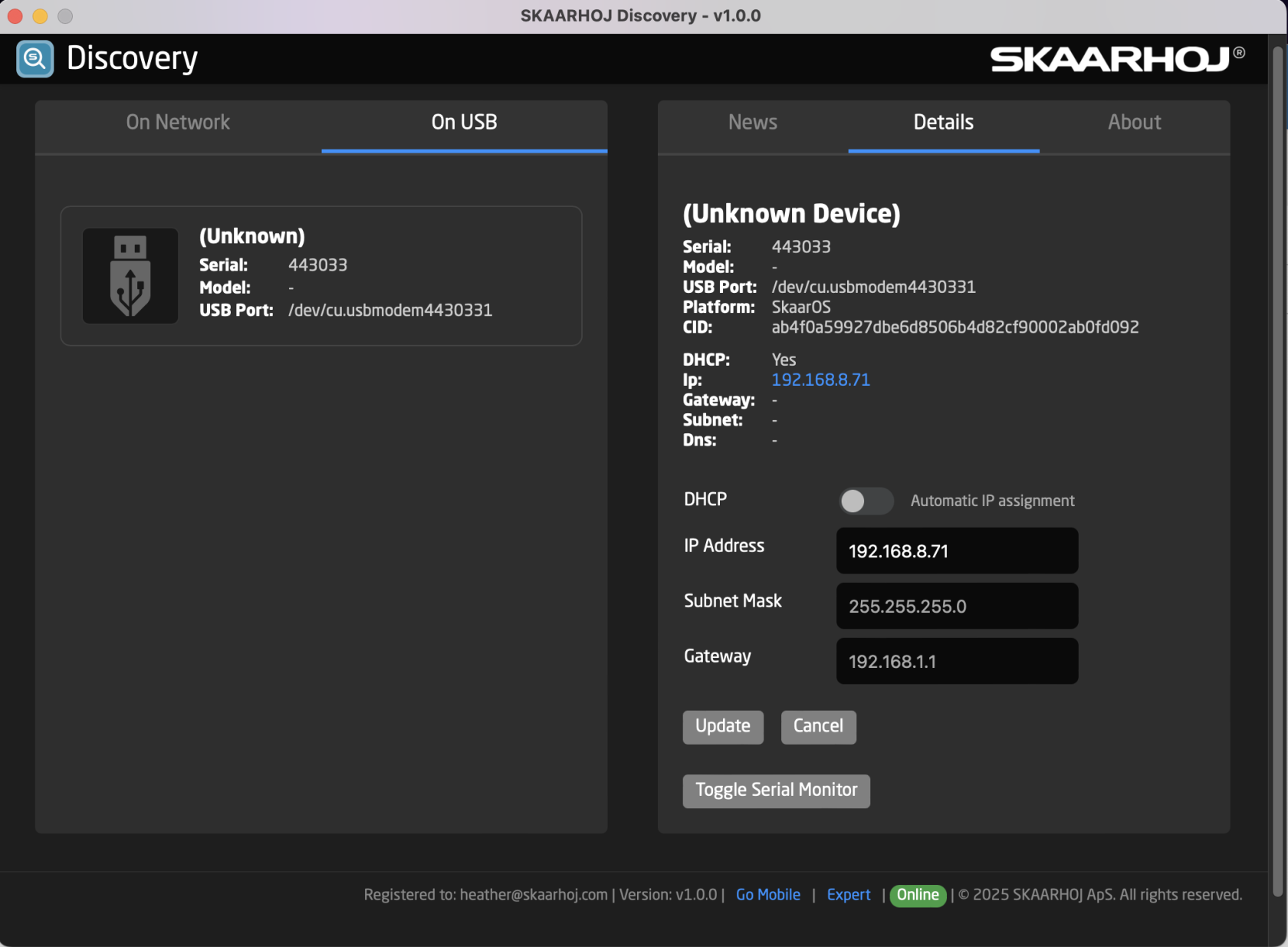
![Screenshot 2026-02-03 at 2.32.17 PM.png](https://wiki.skaarhoj.com/uploads/images/gallery/2026-02/scaled-1680-/screenshot-2026-02-03-at-2-32-17-pm.png)

**Wi-Fi Access Point**

If the Blue Pill is not displaying an IP address, the web interface is accessible by enabling the internal Wi-Fi access point.<span class="Apple-converted-space"> </span>

To enable the Wi-Fi access point, gently press and hold the config button on the Blue Pill device for about 3 seconds (see image below). Use a flat screw driver, a paper clip or similar - you should feel the springy button-click when pushing it.

[![config-button.jpg](https://wiki.skaarhoj.com/uploads/images/gallery/2025-06/scaled-1680-/0cHconfig-button.jpg)](https://wiki.skaarhoj.com/uploads/images/gallery/2025-06/0cHconfig-button.jpg)
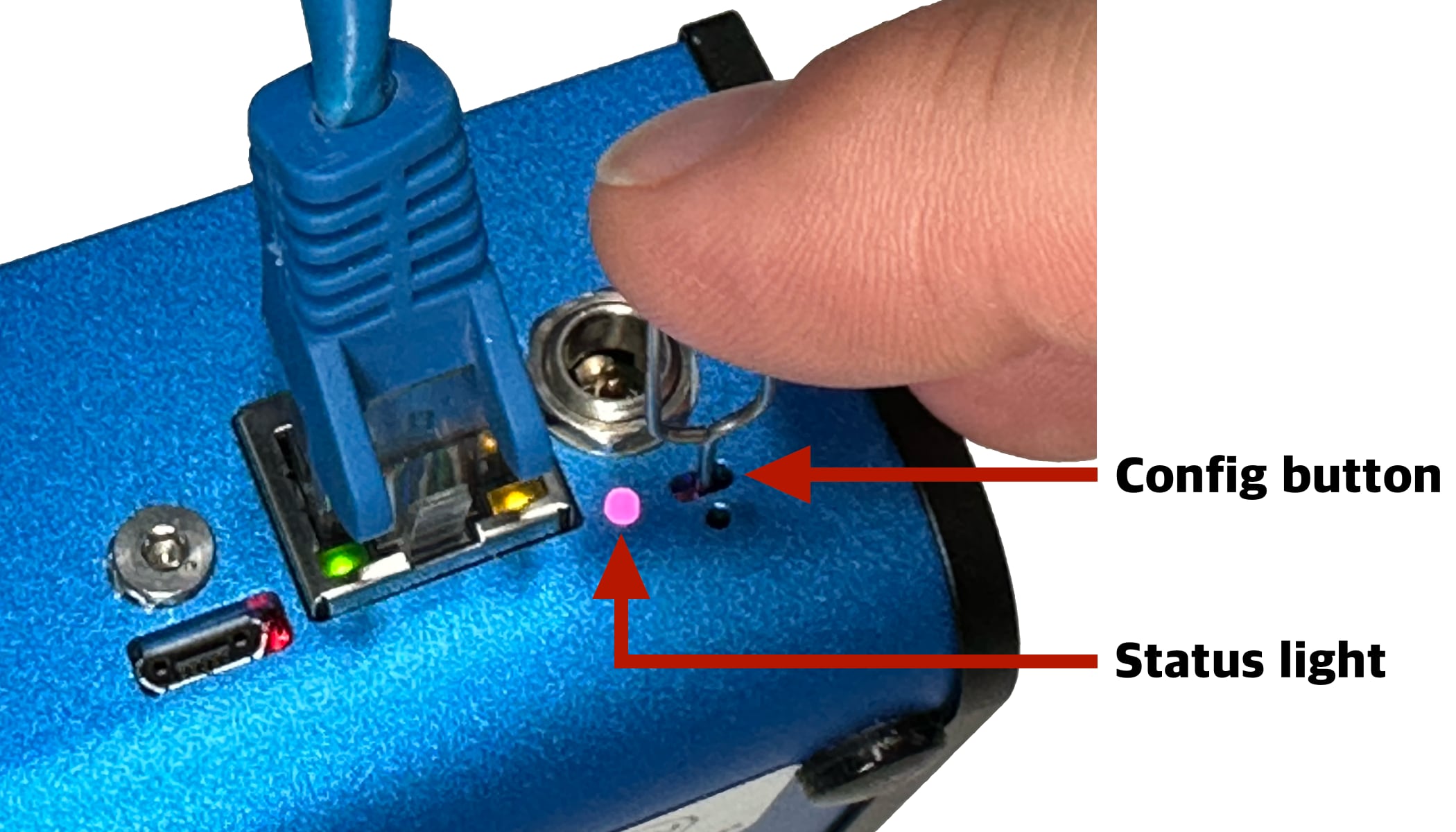
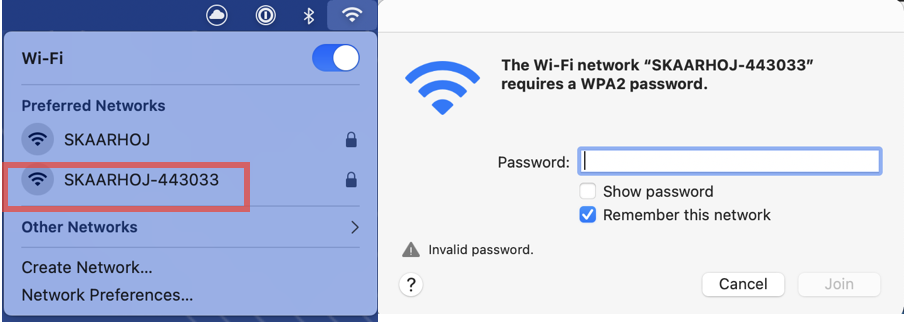
After holding Config button for 3 seconds the internal Wi-Fi Access Point is enabled and the Status LED will light up purple. It will show up in the Wi-Fi networks list as SKAARHOJ-XXXXXX (Blue Pill’s serial number).<span class="Apple-converted-space"> </span>

The default password is: **skaarhoj**

The web interface is then accessed at the IP address: **192.168.4.1**<span class="Apple-converted-space"> </span>

[![image-1648117650328.png](https://wiki.skaarhoj.com/uploads/images/gallery/2022-03/scaled-1680-/image-1648117650328.png)](https://wiki.skaarhoj.com/uploads/images/gallery/2022-03/image-1648117650328.png)

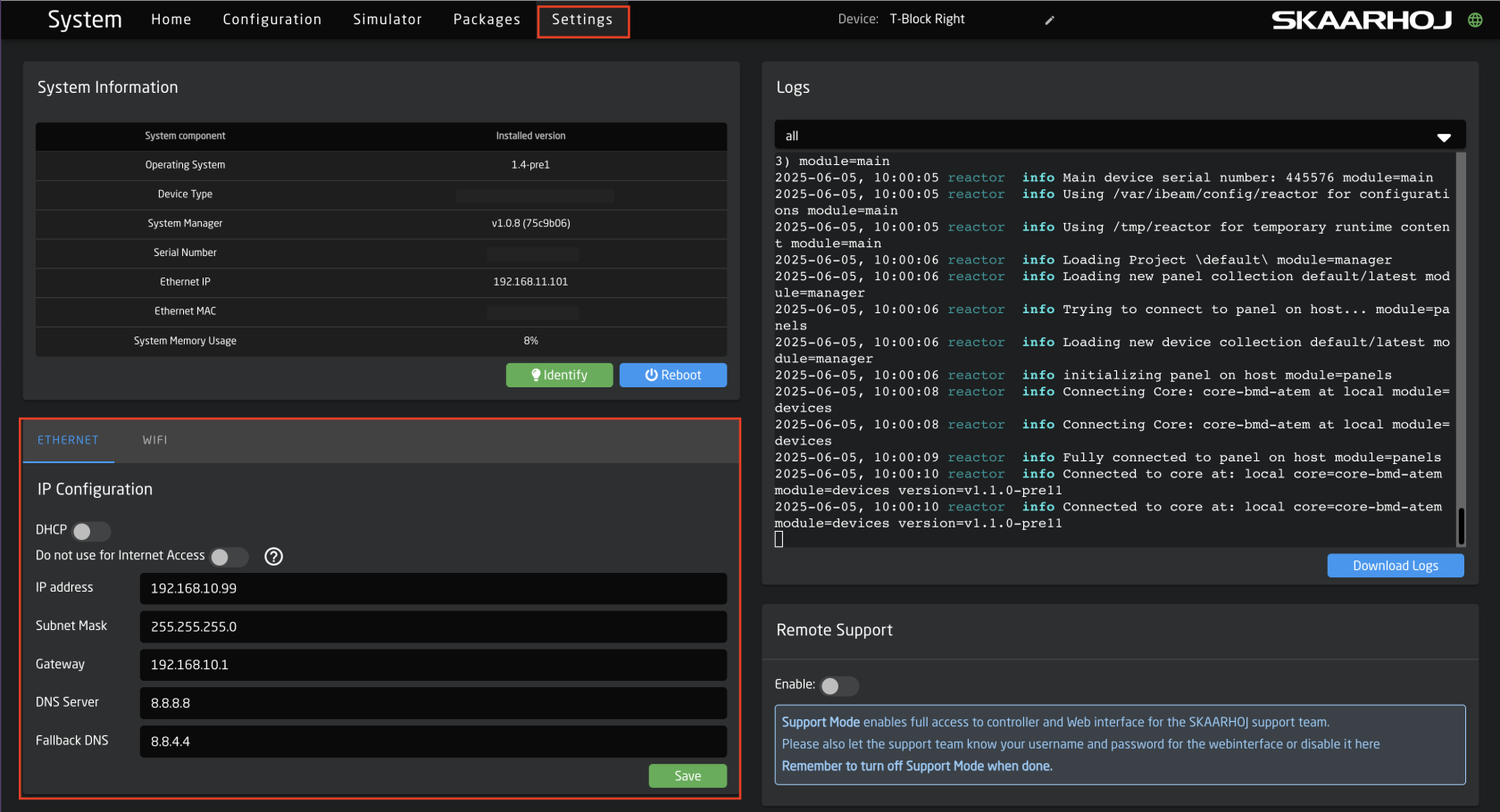
After accessing the Blue Pill it is best to navigate to the System/Settings page to set a static IP address. Once saved, the new IP address will appear on the Blue Pill’s display, it may be necessary to reboot or power cycle the device afterwards. <span class="Apple-converted-space"> </span>
![Screenshot 2025-06-05 at 10.00.54 AM.png](https://wiki.skaarhoj.com/uploads/images/gallery/2025-06/scaled-1680-/screenshot-2025-06-05-at-10-00-54-am.png)

<details id="bkmrk-using-legacy-skaarho"><summary>Using Legacy Skaarhoj Firmware Updater Application</summary>

**Link from SKAARHOJ Firmware Updater**

If the SKAARHOJ Firmware Updater open on a computer running on the same subnet as the Blue Pill, the Blue Pill should appear below the main controller access buttons of the updater. Clicking on Configure next to the panel’s information will open the web interface directly. The Blue Pill does not need to be connected to the computer via USB. <span class="Apple-converted-space"> </span>[![image-1648117812215.png](https://wiki.skaarhoj.com/uploads/images/gallery/2022-03/scaled-1680-/image-1648117812215.png)](https://wiki.skaarhoj.com/uploads/images/gallery/2022-03/image-1648117812215.png)

**SKAARHOJ Firmware Updater and Micro USB**

If a network connection to the Blue Pill in not available, the IP address can be set using a Micro USB cable. In this case the Blue Pill will appear in the “Select Device” dropdown and the “IP Config” tab in the Firmware Updater can be used to set the IP address (same procedure from UniSketch):[![image-1648117856204.png](https://wiki.skaarhoj.com/uploads/images/gallery/2022-03/scaled-1680-/image-1648117856204.png)](https://wiki.skaarhoj.com/uploads/images/gallery/2022-03/image-1648117856204.png)

<span class="Apple-converted-space"> </span>

In this case it was identified as “/dev/tty.usbmodem4430361” (on MacOS) and pressing IP Config will open the IP set up page:

[![image-1648117879460.png](https://wiki.skaarhoj.com/uploads/images/gallery/2022-03/scaled-1680-/image-1648117879460.png)](https://wiki.skaarhoj.com/uploads/images/gallery/2022-03/image-1648117879460.png)

If/When the warning below appears, press “Submit” and reboot the Blue Pill:

[![image-1648117911755.png](https://wiki.skaarhoj.com/uploads/images/gallery/2022-03/scaled-1680-/image-1648117911755.png)](https://wiki.skaarhoj.com/uploads/images/gallery/2022-03/image-1648117911755.png)

</details><span class="Apple-converted-space"></span>

# Adding Panels

There are two ways a panel can be added, Auto Discover and Manually. <span class="Apple-converted-space"> </span>

**Auto Discover**

Panels can easily be discovered by mDNS look ups on the same subnet the Blue Pill is on. This makes it very easy to discover and include a panel in the configuration. mDNS will usually search the current subnet, but with a correctly configured Blue Pill, panels on other subnets can easily be included too as long as the IP and port is known to the user.

[![image-1648118175815.png](https://wiki.skaarhoj.com/uploads/images/gallery/2022-03/scaled-1680-/image-1648118175815.png)](https://wiki.skaarhoj.com/uploads/images/gallery/2022-03/image-1648118175815.png)

Pressing SHIFT + the green Select button will allow for multiple panel selection.<span class="Apple-converted-space"> </span>

**Manually Added**

Panels can be picked from SKAARHOJs included library of products. Following a manual choice of panel, the user will have to enter the IP address himself including any constraints desired. See the Panel Details section for set up.<span class="Apple-converted-space"> </span>

![Screenshot 2025-06-05 at 9.08.28 AM.png](https://wiki.skaarhoj.com/uploads/images/gallery/2025-06/scaled-1680-/screenshot-2025-06-05-at-9-08-28-am.png)

**Panel Details**

Panels have their status displayed clearly in the overviews on the Home screen.<span class="Apple-converted-space"> </span>

![Screenshot 2025-06-05 at 9.15.18 AM.png](https://wiki.skaarhoj.com/uploads/images/gallery/2025-06/scaled-1680-/screenshot-2025-06-05-at-9-15-18-am.png)

There is a button for panel identification which can be used to light up the panel temporarily. This is very useful with large collections of panels.

![Screenshot 2025-06-05 at 9.16.34 AM.png](https://wiki.skaarhoj.com/uploads/images/gallery/2025-06/scaled-1680-/screenshot-2025-06-05-at-9-16-34-am.png)

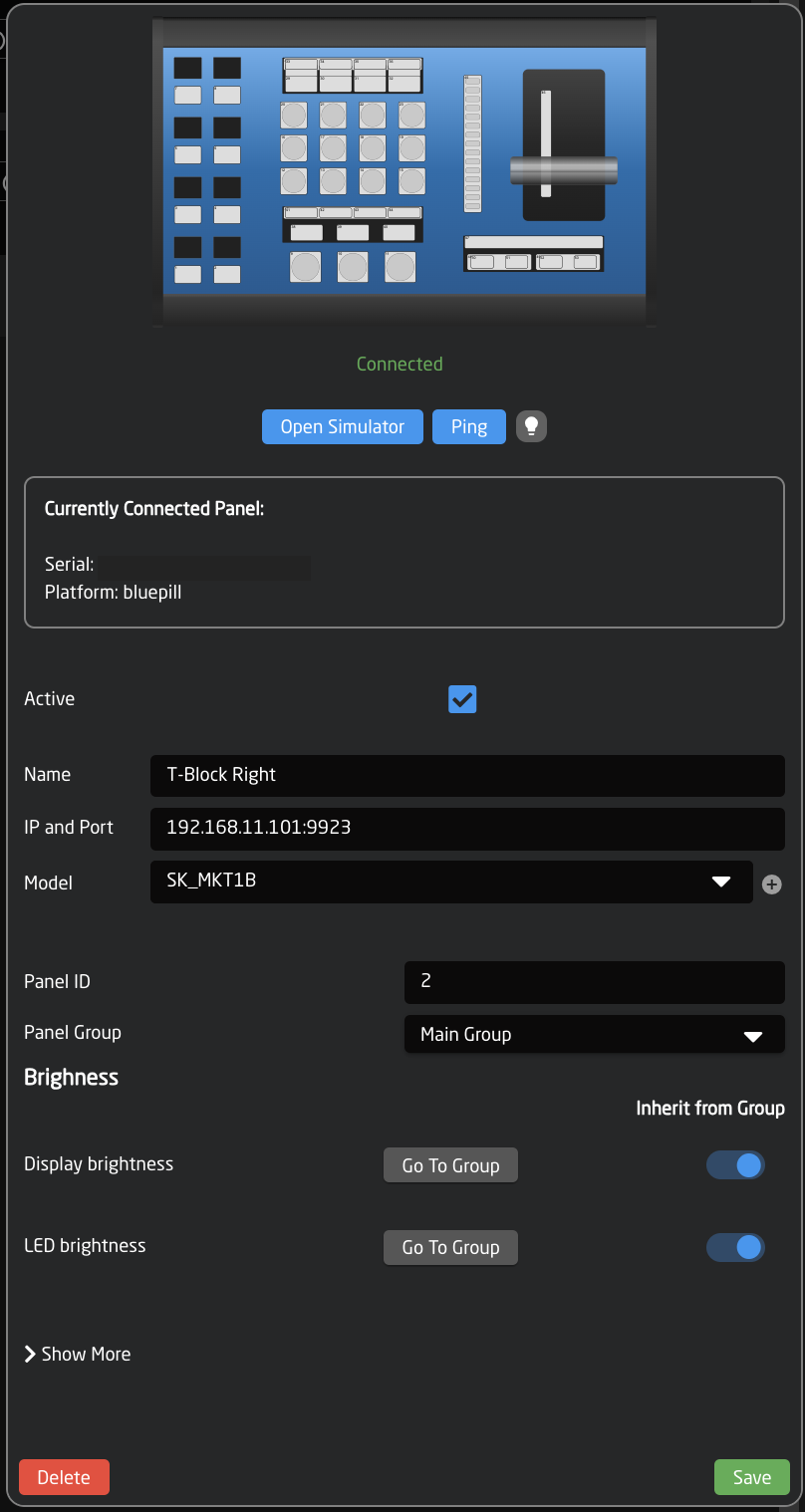
Clicking on a panel name in the Panels section will open up the details. Here the name, ID number, and Active status of the panel can be changed. By default the controller name will be the common name of the model name, the ID will be auto generated in order, and the status will be active.

<p class="callout warning"> A controller’s status needs to be active for use. <span class="Apple-converted-space"> </span></p>
![Screenshot 2025-06-05 at 9.21.16 AM.png](https://wiki.skaarhoj.com/uploads/images/gallery/2025-06/scaled-1680-/screenshot-2025-06-05-at-9-21-16-am.png)

By default our controllers connect using port 9923. It is important to include the port number, separated from the IP address by a colon (:), for example 192.168.50.236:9923<span class="Apple-converted-space">   
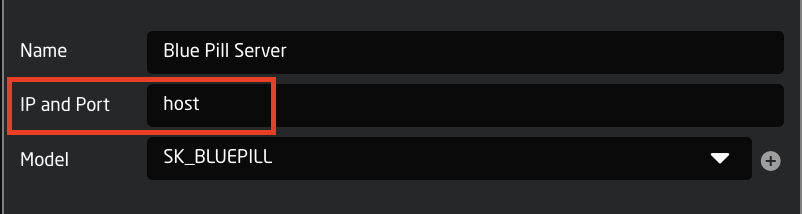
A panel with Blue Pill inside that is operating as the main panel will not show its IP address or port in the panel details, but will instead say **host**. This has indicates internal connection instead of an external connection.   
</span>

![Screenshot 2025-06-05 at 9.23.22 AM.png](https://wiki.skaarhoj.com/uploads/images/gallery/2025-06/scaled-1680-/screenshot-2025-06-05-at-9-23-22-am.png)

**Confirm Connection**

A panel that has established a connection with a blue pill will no longer display “Waiting for Blue Pill” or “Waiting for Raw Panel”.<span class="Apple-converted-space"> </span>

[![image-1648118037898.png](https://wiki.skaarhoj.com/uploads/images/gallery/2022-03/scaled-1680-/image-1648118037898.png)](https://wiki.skaarhoj.com/uploads/images/gallery/2022-03/image-1648118037898.png)

# Select Configuration

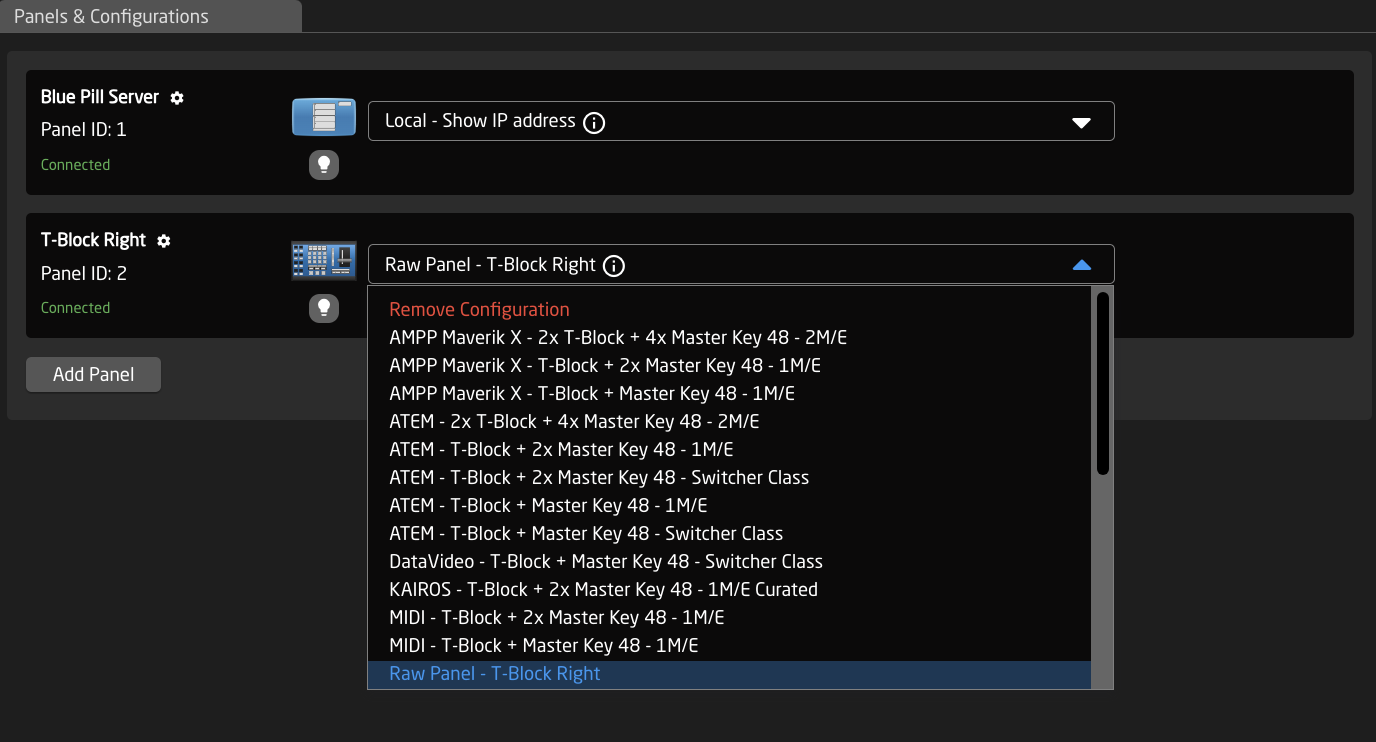
The controller’s layout is determined by the configuration. In most cases, the Generic configuration is all that is needed, though for some combinations of panel and device, there are specific configurations.<span class="Apple-converted-space"> </span>

The configuration is chosen in the drop down next to the panel.<span class="Apple-converted-space"> </span>

![Screenshot 2025-06-05 at 9.29.26 AM.png](https://wiki.skaarhoj.com/uploads/images/gallery/2025-06/scaled-1680-/screenshot-2025-06-05-at-9-29-26-am.png)

# Adding Devices

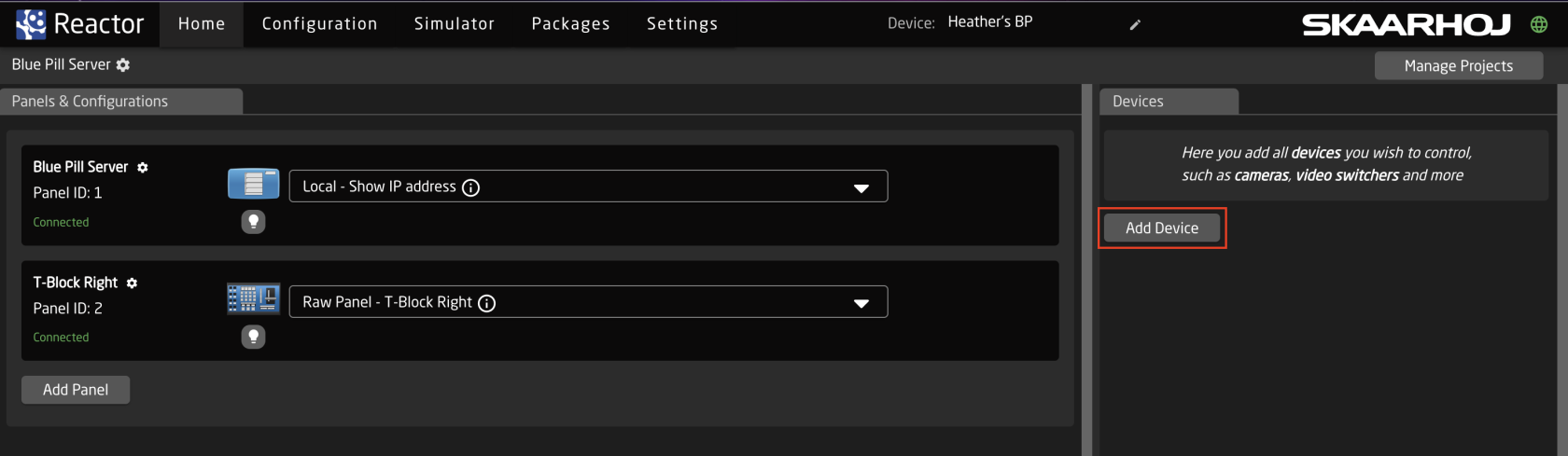
There are two main ways a device can be added to a new Blue Pill, Auto Discover and Manually. <span class="Apple-converted-space"> </span>

![Screenshot 2025-06-05 at 11.27.33 AM.png](https://wiki.skaarhoj.com/uploads/images/gallery/2025-06/scaled-1680-/UfSscreenshot-2025-06-05-at-11-27-33-am.png)

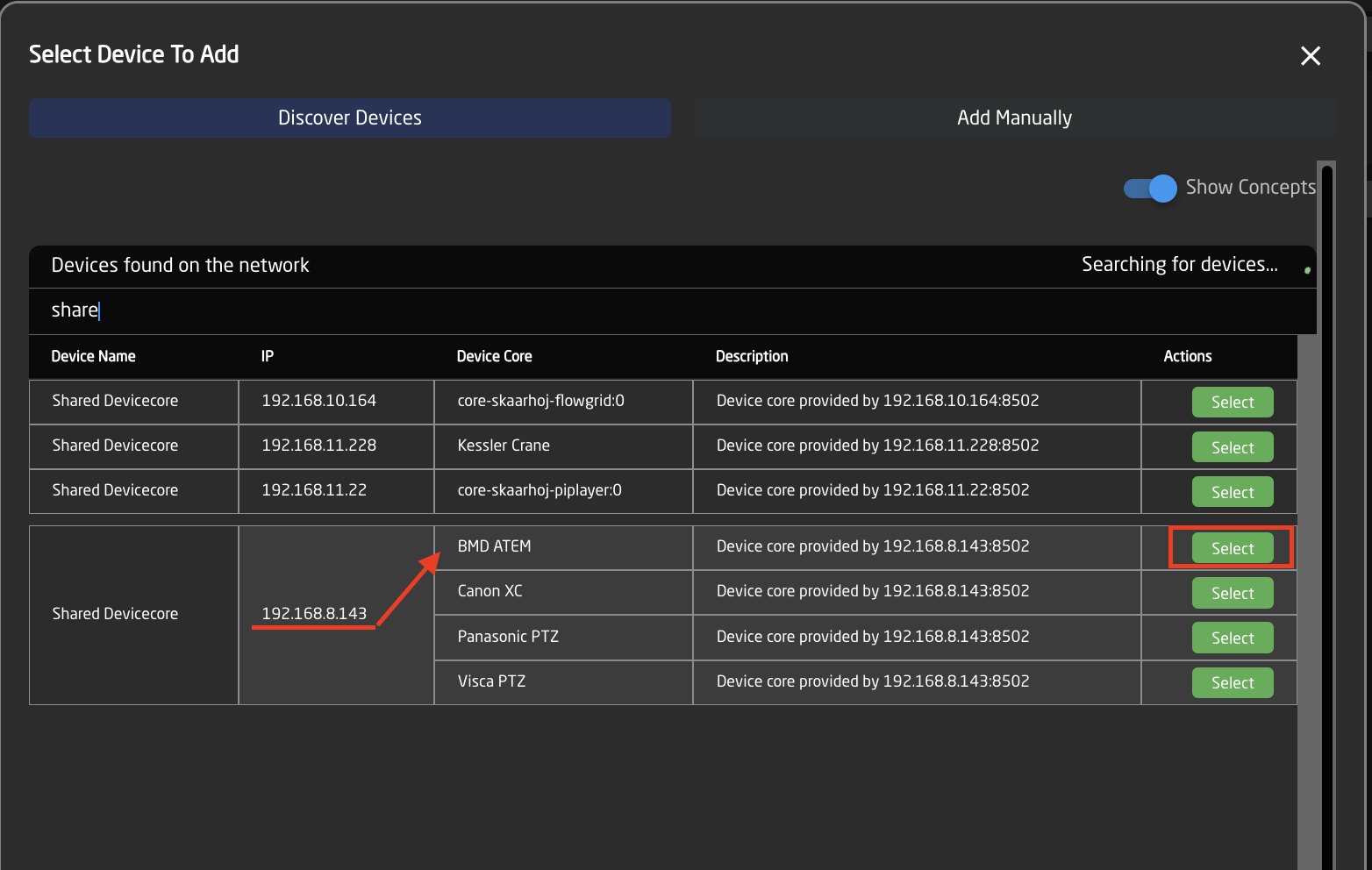
**Auto Discover**

Searching on the network for devices will find many types by a combination of mDNS look-ups and other methods. However, not all devices can be discovered easily, but with those that can, it’s a simple click of a button to add it to the Blue Pill device collection. Following an Auto Discover some device details may still be needed to establish connectivity. See Device Details section for set up. <span class="Apple-converted-space"> </span>

![Screenshot 2025-06-05 at 11.29.20 AM.png](https://wiki.skaarhoj.com/uploads/images/gallery/2025-06/scaled-1680-/screenshot-2025-06-05-at-11-29-20-am.png)

Pressing SHIFT + the green Select button will allow for multiple device selection.

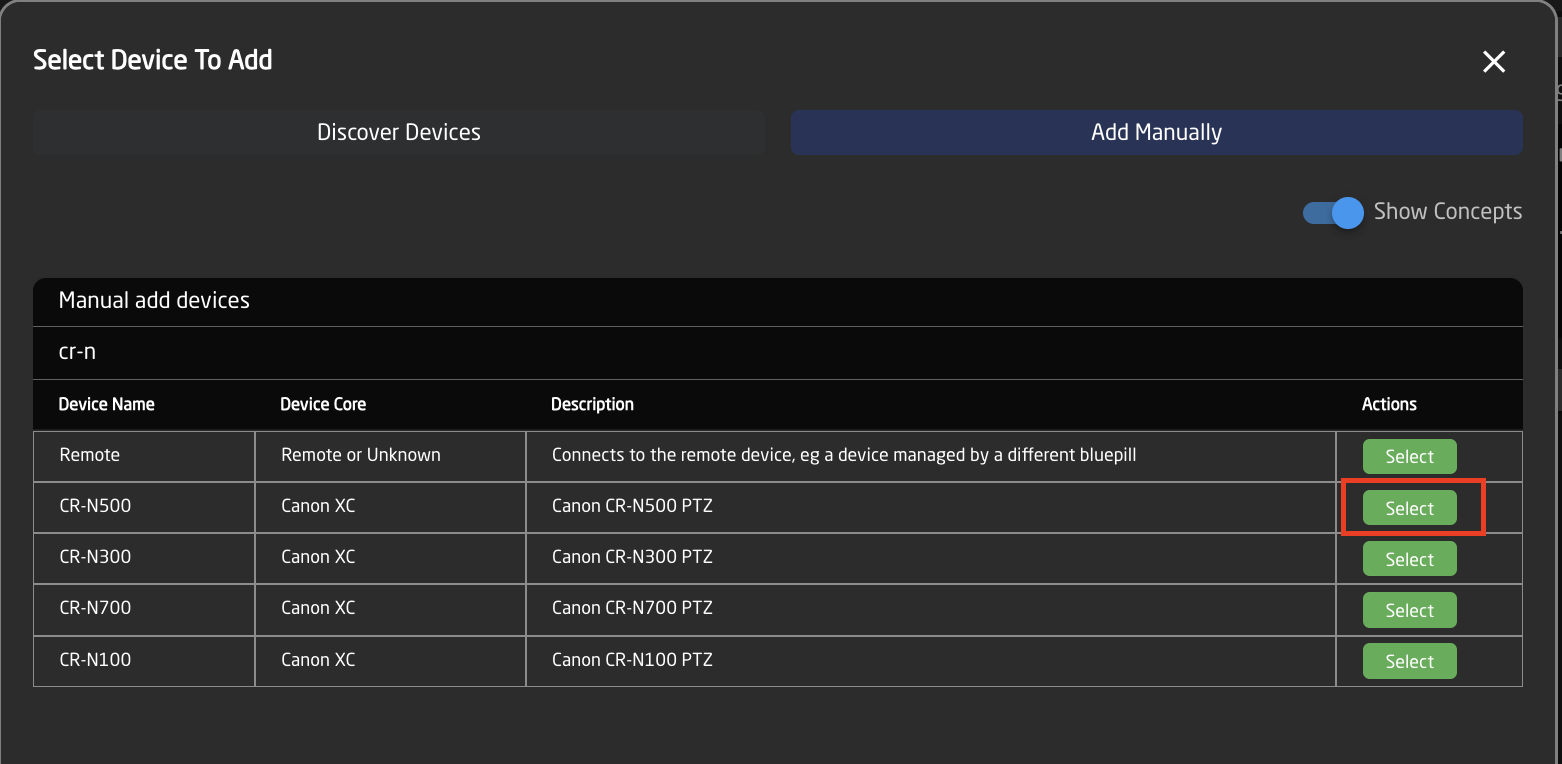
**Manually Added**

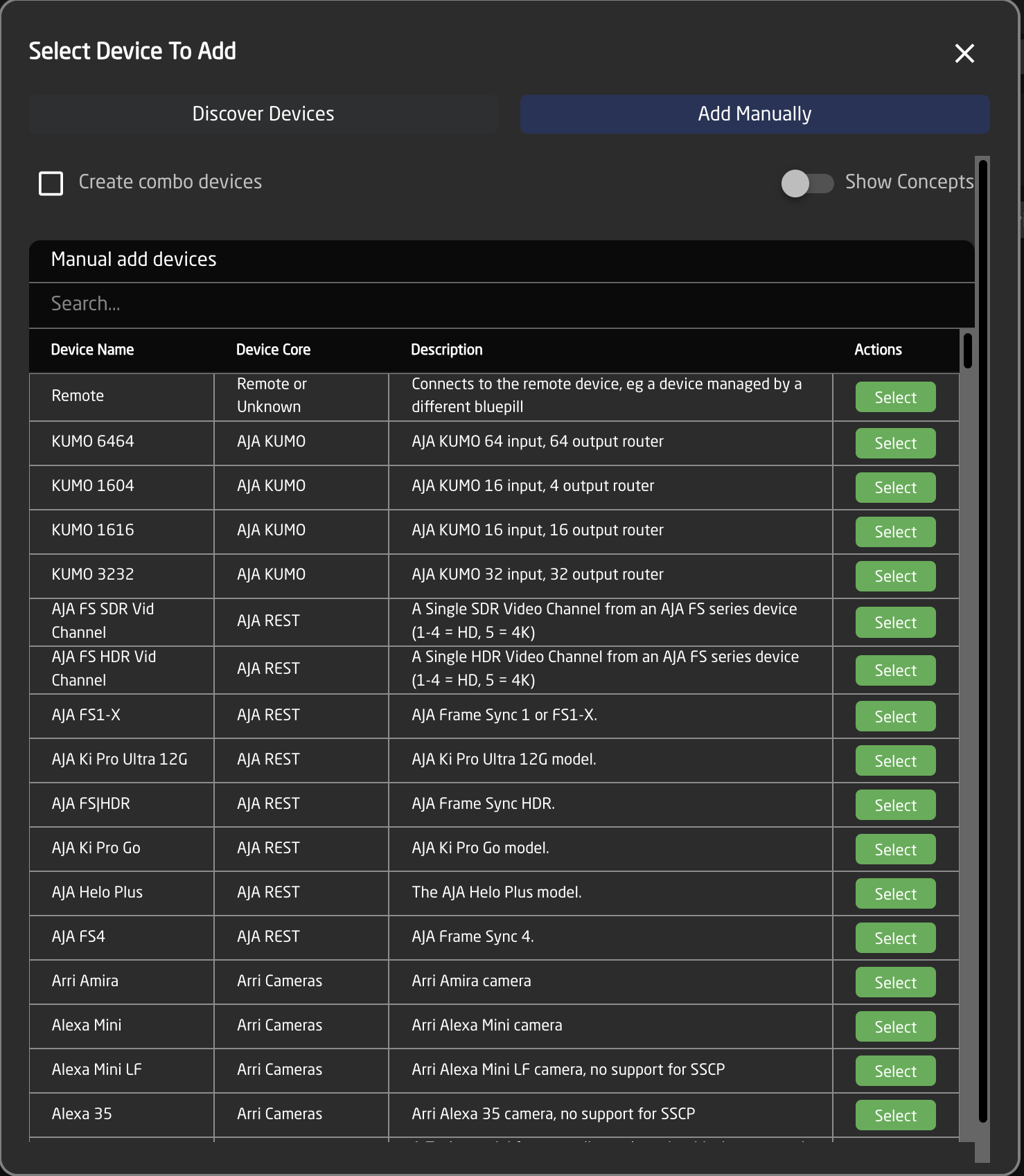
If a device must be added manually, it’s easy to look it up in the list of supported models. Following a manual choice of device, the user will have to enter the IP address and other possible device detail information. See the Device Details section for set up.<span class="Apple-converted-space"> </span>

![Screenshot 2025-06-05 at 11.30.30 AM.png](https://wiki.skaarhoj.com/uploads/images/gallery/2025-06/scaled-1680-/screenshot-2025-06-05-at-11-30-30-am.png)

<span class="Apple-converted-space"> </span>Pressing SHIFT + the green Add Device button will allow for multiple device selection.

**Device Details**

Devices have their status displayed clearly in the overviews on the Home screen.<span class="Apple-converted-space"> </span>

[![image-1648118451986.png](https://wiki.skaarhoj.com/uploads/images/gallery/2022-03/scaled-1680-/image-1648118451986.png)](https://wiki.skaarhoj.com/uploads/images/gallery/2022-03/image-1648118451986.png)

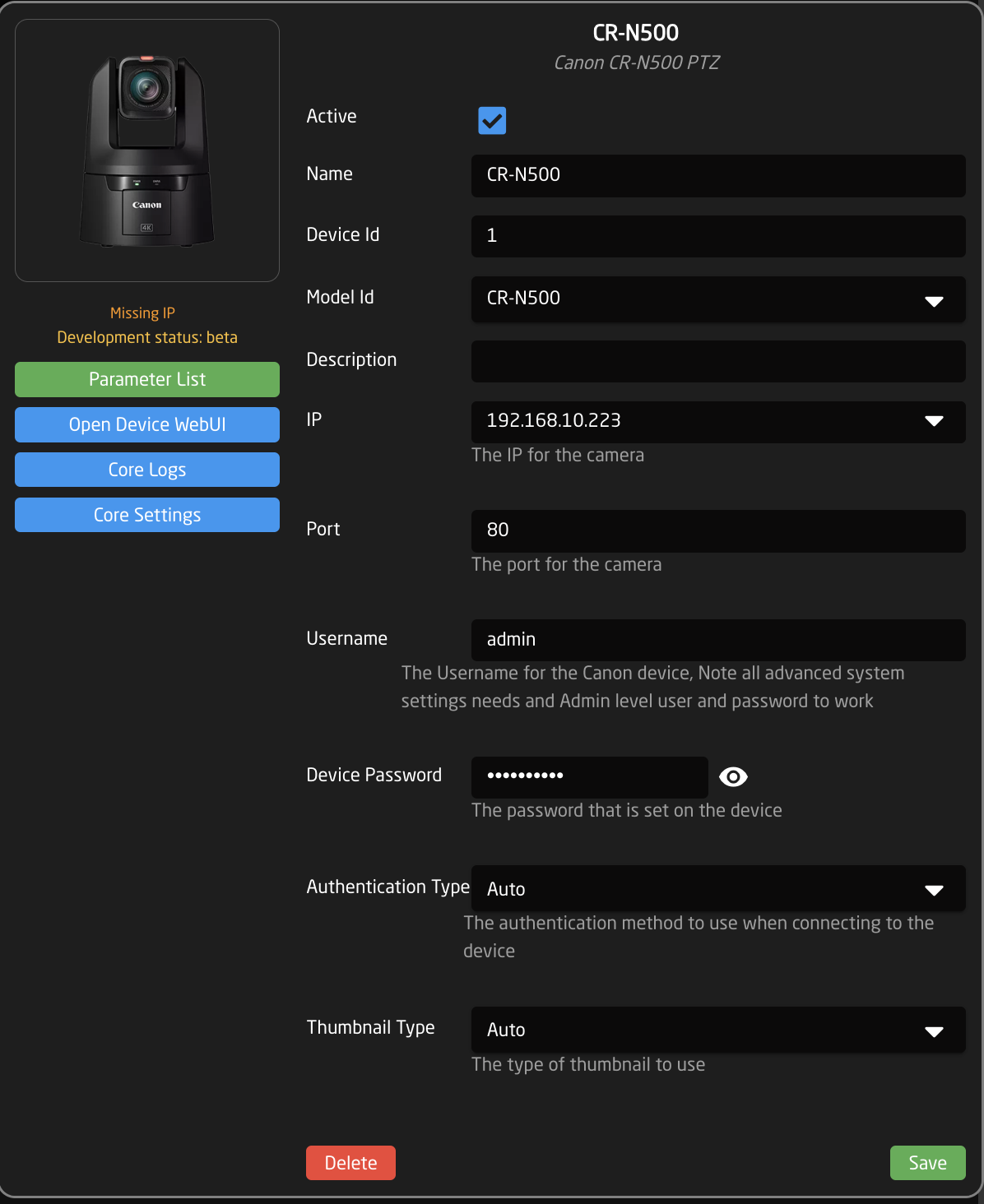
Clicking on a device name in the Devices section will open up the details. Here the name, ID number, and Active status of the devices can be changed. By default the device name will be the same as the model name, the ID will be auto generated in order, and the status will be active.<span class="Apple-converted-space"> </span>When applicable to the device, the option for connecting is a specific username and password will also be available along with other device specific options. Without setting a specific username and password, in most cases the core will try to connect to the device’s default username and password.<span class="Apple-converted-space"> </span>

<p class="callout warning"><span class="Apple-converted-space">A device needs to be set to Active for use. </span></p>

![Screenshot 2025-06-05 at 1.02.59 PM.png](https://wiki.skaarhoj.com/uploads/images/gallery/2025-06/scaled-1680-/screenshot-2025-06-05-at-1-02-59-pm.png)

# Populating Settings Tables

The final step is to fill in any settings table. The settings tables are available based on the chosen configuration and should contain entries such as specific cameras for a PTZ controller, or the inputs for a video switcher etc. They can be found in a large number of our configurations.

The settings tables will auto save and quickly appear on displays and enable the function. <span class="Apple-converted-space"> </span>

[![Screenshot 2025-06-05 at 1.22.54 PM.png](https://wiki.skaarhoj.com/uploads/images/gallery/2025-06/scaled-1680-/screenshot-2025-06-05-at-1-22-54-pm.png)](https://wiki.skaarhoj.com/uploads/images/gallery/2025-06/screenshot-2025-06-05-at-1-22-54-pm.png)

An example of a settings table would be a camera selector and can be seen below. These can be different depending on the selected configuration. From here the order on the camera selector row of the panel will be set as well as the desired name on the displays.<span class="Apple-converted-space"> </span>

[![Screenshot 2025-06-05 at 1.25.56 PM.png](https://wiki.skaarhoj.com/uploads/images/gallery/2025-06/scaled-1680-/screenshot-2025-06-05-at-1-25-56-pm.png)](https://wiki.skaarhoj.com/uploads/images/gallery/2025-06/screenshot-2025-06-05-at-1-25-56-pm.png)

<table border="1" cellpadding="0" cellspacing="0" id="bkmrk-column-description-d" style="border-collapse: collapse; border-color: rgb(0, 0, 0); width: 100%; height: 583.367px;"><tbody><tr style="height: 35.3984px;"><td style="width: 8.64118%; height: 35.3984px;" valign="top"><span style="color: #000000; font-family: Avenir Next; font-size: xx-small;">**Column**</span>

</td><td style="width: 91.2398%; height: 35.3984px;" valign="top"><span style="color: #000000; font-family: Avenir Next; font-size: xx-small;">**Description**</span>

</td></tr><tr style="height: 35.3984px;"><td style="width: 8.64118%; height: 35.3984px;" valign="top"><span style="color: #000000; font-family: Avenir Next; font-size: xx-small;">Order</span>

</td><td style="width: 91.2398%; height: 35.3984px;" valign="top"><span style="color: #000000; font-family: Avenir Next; font-size: xx-small;">Allows for quick rearranging of camera order. Right clicking on drag will allow for deleting the row.</span>

</td></tr><tr style="height: 35.3984px;"><td style="width: 8.64118%; height: 35.3984px;" valign="top"><span style="color: #000000; font-family: Avenir Next; font-size: xx-small;">Mute</span>

</td><td style="width: 91.2398%; height: 35.3984px;" valign="top"><span style="color: #000000; font-family: Avenir Next; font-size: xx-small;">Allows for removing access to a specific camera or to leave a blank spot on the panel</span>

</td></tr><tr style="height: 57.7969px;"><td style="width: 8.64118%; height: 57.7969px;" valign="top"><span style="color: #000000; font-family: Avenir Next; font-size: xx-small;">Bound Device</span>

</td><td style="width: 91.2398%; height: 57.7969px;" valign="top"><span style="color: #000000; font-family: Avenir Next; font-size: xx-small;">Allows for the selecting of a specific connected camera</span>

</td></tr><tr style="height: 57.7969px;"><td style="width: 8.64118%; height: 57.7969px;" valign="top"><span style="color: #000000; font-family: Avenir Next; font-size: xx-small;">Device ID</span>

</td><td style="width: 91.2398%; height: 57.7969px;" valign="top"><span style="color: #000000; font-family: Avenir Next; font-size: xx-small;">Ties the camera selector to the specific device. This is found in the Devices section. Each device will have a unique device number per device core. This box should auto-populate when a camera is selected in binding</span>

</td></tr><tr style="height: 57.7969px;"><td style="width: 8.64118%; height: 57.7969px;" valign="top"><span style="color: #000000; font-family: Avenir Next; font-size: xx-small;">Camera Name</span>

</td><td style="width: 91.2398%; height: 57.7969px;" valign="top"><span style="color: #000000; font-family: Avenir Next; font-size: xx-small;">Customizable name to appear on the displays. Character limit is determined by size of display and can vary.<span class="Apple-converted-space"> </span></span>

</td></tr><tr style="height: 57.7969px;"><td style="width: 8.64118%; height: 57.7969px;" valign="top"><span style="color: #000000; font-family: Avenir Next; font-size: xx-small;">Camera Config</span>

</td><td style="width: 91.2398%; height: 57.7969px;" valign="top"><span style="color: #000000; font-family: Avenir Next; font-size: xx-small;">Selects the protocol based configuration associated with camera. Needed protocol can be seen in the Devices section, each device is grouped into their native protocols. **Double check the correct configuration is selected. Improper selection will effect camera control.**</span>

</td></tr><tr style="height: 50.7969px;"><td class="align-center" style="width: 8.64118%; height: 50.7969px;" valign="top"><span style="color: #000000; font-family: Avenir Next; font-size: xx-small;">Tally Index</span></td><td style="width: 91.2398%; height: 50.7969px;" valign="top"><span style="color: #000000; font-family: Avenir Next; font-size: xx-small;">Sets the Tally Index number to connect with associated tally source device. See Blue Pill/Reactor Manual for more information. **This column does not need to be filled out for standard operation.**</span></td></tr><tr style="height: 57.7969px;"><td style="width: 8.64118%; height: 57.7969px;" valign="top"><span style="color: #000000; font-family: Avenir Next; font-size: xx-small;">Route Index</span>

</td><td style="width: 91.2398%; height: 57.7969px;" valign="top"><span style="color: #000000; font-family: Avenir Next; font-size: xx-small;">Sets the Route Index number to connect with associated routing device. See Blue Pill/Reactor Manual for more information. **This column does not need to be filled out for standard operation.**</span>

</td></tr><tr style="height: 37.7969px;"><td style="width: 8.64118%; height: 37.7969px;" valign="top"><span style="color: #000000; font-family: Avenir Next; font-size: xx-small;">Color </span>

</td><td style="width: 91.2398%; height: 37.7969px;" valign="top"> <span style="color: #000000; font-family: Avenir Next; font-size: xx-small;">Sets the button color for the associated camera select button. **This column does not need to be filled out for standard operation.**</span>

</td></tr><tr style="height: 57.7969px;"><td style="width: 8.64118%; height: 57.7969px;" valign="top"><span style="color: #000000; font-family: Avenir Next; font-size: xx-small;">Presets</span>

</td><td style="width: 91.2398%; height: 57.7969px;" valign="top"><span style="color: #000000; font-family: Avenir Next; font-size: xx-small;">Allows for the setting of preset names for applicable configurations. **This column does not need to be filled out for standard operation.**</span>

</td></tr><tr style="height: 41.7969px;"><td style="width: 8.64118%; height: 41.7969px;">[![Screenshot 2025-06-05 at 1.58.50 PM.png](https://wiki.skaarhoj.com/uploads/images/gallery/2025-06/scaled-1680-/screenshot-2025-06-05-at-1-58-50-pm.png)](https://wiki.skaarhoj.com/uploads/images/gallery/2025-06/screenshot-2025-06-05-at-1-58-50-pm.png)

</td><td style="width: 91.2398%; height: 41.7969px;"><span style="color: #000000; font-family: Avenir Next; font-size: xx-small;">Deletes the row. </span>

</td></tr></tbody></table>

# Connecting UniSketch Controllers

The Blue Pill works as a wonderful add-on to connect and control<span class="Apple-converted-space"> </span>UniSketch controllers like never before. There are three ways to set a UniSketch controller to allow for connection to the Blue Pill. Two of the methods will involve using the SKAARHOJ Firmware Updater available [<span class="s1">here</span>](https://www.skaarhoj.com/support/firmware-updater): ([<span class="s1">https://www.skaarhoj.com/support/firmware-updater</span>](https://www.skaarhoj.com/support/firmware-updater)). The controller will need to be connected to the computer by USB cable. After the controller is set to Blue Pill Mode, it will no longer need USB connection for programming. This will be done through the Blue Pill web interface.<span class="Apple-converted-space"> </span>

[![image-1648119166907.png](https://wiki.skaarhoj.com/uploads/images/gallery/2022-03/scaled-1680-/image-1648119166907.png)](https://wiki.skaarhoj.com/uploads/images/gallery/2022-03/image-1648119166907.png)

**Blue Pill Mode - Via Serial monitor**

Starting with UniSketch v2.5.14, it is possible to put the panel into Blue Pill Mode with a command in the serial monitor. Using this method the controller will be assigned an IP address only via DHCP.<span class="Apple-converted-space"> </span>

To enter Blue Pill mode, type in: **TakeTheBluePill** in the serial monitor. The mode will be confirmed:<span class="Apple-converted-space"> </span>

[![image-1648119194677.png](https://wiki.skaarhoj.com/uploads/images/gallery/2022-03/scaled-1680-/image-1648119194677.png)](https://wiki.skaarhoj.com/uploads/images/gallery/2022-03/image-1648119194677.png)

The IP address of the controller will now be confirmed in the boot up information for the controller:<span class="Apple-converted-space"> </span>

[![image-1648119205005.png](https://wiki.skaarhoj.com/uploads/images/gallery/2022-03/scaled-1680-/image-1648119205005.png)](https://wiki.skaarhoj.com/uploads/images/gallery/2022-03/image-1648119205005.png)

The IP address will also be displayed on the panel along with “Waiting for Blue Pill”<span class="Apple-converted-space"> </span>

[![image-1648119234092.png](https://wiki.skaarhoj.com/uploads/images/gallery/2022-03/scaled-1680-/image-1648119234092.png)](https://wiki.skaarhoj.com/uploads/images/gallery/2022-03/image-1648119234092.png)

An advantage of Blue Pill Mode is, that it will not destroy any existing configuration on the panel and can easily be exited from again by writing “**reset**” or pressing the reset button in the serial monitor. Blue Pill Mode is meant as a quick way to get in and out of Blue Pill Mode when using UniSketch panels in both ways regularly.

**Blue Pill Mode - Via Special Key**

Blue Pill Mode can be enabled and disabled without the serial monitor on most UniSketch panels running firmware version 2.5.14 and above.

- *Enter Blue Pill Mode:* During power-up, when the color animation first appears across the buttons, press the button in the lower left corner of the controller twice. When the color animation completes, it should sweep across the controller with just blue color - and it will reboot Blue Pill Mode
- Exit Blue Pill Mode: Same procedure as above. When Blue Pill Mode is exited, the color sweep to confirm it will be white instead of blue.

The IP address will also be displayed on the panel along with “Waiting for Blue Pill” the same as when using the serial monitor to enter Blue Pill Mode. Using this method the controller will be assigned an IP address only via DHCP.<span class="Apple-converted-space"> </span>

**Fixed Configuration**

If a static IP is needed it is possible to do so by selecting the default configuration called Blue Pill Mode and loading it onto the controller. This uses our SKAARHOJ Raw Panel integration with the needed device core options already selected.<span class="Apple-converted-space"> </span>We recommend this type of configuration for any static or long term installation.

[![image-1648119292161.png](https://wiki.skaarhoj.com/uploads/images/gallery/2022-03/scaled-1680-/image-1648119292161.png)](https://wiki.skaarhoj.com/uploads/images/gallery/2022-03/image-1648119292161.png)

Once it has been selected the IP address can be set either in the Network Configurations section in the Simple Configuration page before the firmware is loaded onto the controller via the Update Configuration/Firmware button on the updater. <span class="Apple-converted-space"> </span>

[![image-1648119316696.png](https://wiki.skaarhoj.com/uploads/images/gallery/2022-03/scaled-1680-/image-1648119316696.png)](https://wiki.skaarhoj.com/uploads/images/gallery/2022-03/image-1648119316696.png)

Or it can be set in the IP Config tab of the SKAARHOJ Firmware Updater.<span class="Apple-converted-space"> </span>

[![image-1648119338365.png](https://wiki.skaarhoj.com/uploads/images/gallery/2022-03/scaled-1680-/image-1648119338365.png)](https://wiki.skaarhoj.com/uploads/images/gallery/2022-03/image-1648119338365.png)

Please note, in both methods, the IP address for the UniSketch Raw Panel device core does not need to be set to a specific IP as it has been set to Server Mode and is being connected to and not connecting to anything. Having it Enabled is enough.<span class="Apple-converted-space"> </span>

The IP address will also be displayed on the panel along with “Waiting for Raw Panel”<span class="Apple-converted-space"> </span>

[![image-1648119361938.png](https://wiki.skaarhoj.com/uploads/images/gallery/2022-03/scaled-1680-/image-1648119361938.png)](https://wiki.skaarhoj.com/uploads/images/gallery/2022-03/image-1648119361938.png)

# Watch Youtube videos

In addition to our written guides, you can also watch our Youtube videos on how to get started.

• Get started with Blue Pill Server  
 [https://youtu.be/EROUURQU9pE](https://youtu.be/EROUURQU9pE)

• Get Started with Blue Pill Inside  
 [https://youtu.be/VtdJ9xVu3qA](https://youtu.be/VtdJ9xVu3qA)

• Access without DHCP  
 [https://youtu.be/59d2fc1kAuQ](https://youtu.be/59d2fc1kAuQ)

# Blue Pill Inside (BPI) - Getting Started

Step by step guide to initial set up of a Blue Pill Inside device.

# Networking

Unlike UniSketch where a change of configuration and included device cores needed an online exchange with the SKAARHOJ server, on Blue Pill everything is stored and enabled and disabled locally in Reactor. Only software updates or installations of non-existing device cores and applications need communication with the SKAARHOJ server over the internet. All changes in configurations can be done via the local network.

**Network Requirements**

- SKAARHOJ Blue Pill controllers have a 1 GBit network interface
- 5W-30W PoE (+)
- PoE Standard: IEEE 802.3af/t

Remember a SKAARHOJ controller and client must be on the same subnet (192.168.10.\* or one defined for the local network used by the controller). With multiple SKAARHOJ units connected to the same network they need to have different IP addresses!

**Power over Ethernet (PoE) Specifications**

We use the PoE industry standard 5W-30W PoE (+) IEEE802.3af7t. To power our controllers using PoE it is important the switch supports this standard. Please notice some manufactures such as Ubiquity have their own non-standard 24V type of PoE which is incompatible with our controllers. Especially pay attention to the standard when using a PoE injector.

**Network Layout**

We recommend connecting SKAARHOJ Blue Pill controllers via professional PoE network switches, such as NetGears M4250-series which are at the same time designed for AV network traffic such as NDI video.

A RCP Pro and cameras configuration could look like this:<span class="Apple-converted-space"> </span>

[![image-1648119643508.png](https://wiki.skaarhoj.com/uploads/images/gallery/2022-03/scaled-1680-/image-1648119643508.png)](https://wiki.skaarhoj.com/uploads/images/gallery/2022-03/image-1648119643508.png)

Please note, we are not networking experts and are not able to assist in network set up.

# Accessing Blue Pill

**DHCP or Static IP**

The Blue Pill’s user interface is accessed via the device’s IP Address and any web browser. The IP address can be found on the display after it is plugged into a network connection with PoE or a network connection and a power supply (5V Micro USB). <span class="Apple-converted-space"> By default the Blue Pill should get an IP address via DHCP, if that fails it should fallback to 192.168.10.99. </span>

[![image-1648119813575.png](https://wiki.skaarhoj.com/uploads/images/gallery/2022-03/scaled-1680-/image-1648119813575.png)](https://wiki.skaarhoj.com/uploads/images/gallery/2022-03/image-1648119813575.png)

Entering the IP address into the address bar of a search engine will bring up a prompt for username and password. The default is username: **admin** password: **skaarhoj<span class="Apple-converted-space"> </span>**

<p class="callout info"><span class="Apple-converted-space">Please note that by signing in you are accepting the terms of the [user agreement](https://wiki.skaarhoj.com/books/blue-pill-reactor/page/end-user-license-agreement). </span></p>

![Screenshot 2025-06-05 at 9.31.03 AM.png](https://wiki.skaarhoj.com/uploads/images/gallery/2025-06/scaled-1680-/screenshot-2025-06-05-at-9-31-03-am.png)

**Link from SKAARHOJ Discovery App**

If the SKAARHOJ Discovery open on a computer running on the same subnet as the Blue Pill, the Blue Pill should appear below the main controller access buttons of the updater. Clicking on Configure next to the panel’s information will open the web interface directly. The Blue Pill does not need to be connected to the computer via USB. <span class="Apple-converted-space"> </span>

![Screenshot 2026-02-03 at 2.22.30 PM.png](https://wiki.skaarhoj.com/uploads/images/gallery/2026-02/scaled-1680-/screenshot-2026-02-03-at-2-22-30-pm.png)

**SKAARHOJ Discovery and Micro USB**

If a network connection to the Blue Pill in not available, the IP address can be set using a Micro USB cable. In this case the Blue Pill will appear in the “On USB” tab in the Discovery App can be used to set the IP address:

![Screenshot 2026-02-03 at 2.29.19 PM.png](https://wiki.skaarhoj.com/uploads/images/gallery/2026-02/scaled-1680-/L8vscreenshot-2026-02-03-at-2-29-19-pm.png)

It is possible to toggle between DHCP and Static IP. After setting the IP address, Subnet Mask, and Gateway, press Update to apply.

![Screenshot 2026-02-03 at 2.32.17 PM.png](https://wiki.skaarhoj.com/uploads/images/gallery/2026-02/scaled-1680-/screenshot-2026-02-03-at-2-32-17-pm.png)

**Wi-Fi Access Point**

If the Blue Pill is not displaying an IP address, the web interface is accessible by enabling the internal Wi-Fi access point.<span class="Apple-converted-space"> </span>

To enable the Wi-Fi access point, gently press and hold the config button on the Blue Pill device for about 3 seconds (see image below). Use a flat screw driver, a paper clip or similar - you should feel the springy button-click when pushing it.

[![config-button.jpg](https://wiki.skaarhoj.com/uploads/images/gallery/2025-06/scaled-1680-/0cHconfig-button.jpg)](https://wiki.skaarhoj.com/uploads/images/gallery/2025-06/0cHconfig-button.jpg)

After holding Config button for 3 seconds the internal Wi-Fi Access Point is enabled and the Status LED will light up purple. It will show up in the Wi-Fi networks list as SKAARHOJ-XXXXXX (Blue Pill’s serial number).<span class="Apple-converted-space"> </span>

The default password is: **skaarhoj**

The web interface is then accessed at the IP address: **192.168.4.1**<span class="Apple-converted-space"> </span>

[![image-1648117650328.png](https://wiki.skaarhoj.com/uploads/images/gallery/2022-03/scaled-1680-/image-1648117650328.png)](https://wiki.skaarhoj.com/uploads/images/gallery/2022-03/image-1648117650328.png)

After accessing the Blue Pill it is best to navigate to the System/Settings page to set a static IP address. Once saved, the new IP address will appear on the Blue Pill’s display, it may be necessary to reboot or power cycle the device afterwards. <span class="Apple-converted-space"> </span>

![Screenshot 2025-06-05 at 10.00.54 AM.png](https://wiki.skaarhoj.com/uploads/images/gallery/2025-06/scaled-1680-/screenshot-2025-06-05-at-10-00-54-am.png)

<details id="bkmrk-using-legacy-skaarho"><summary>Using Legacy Skaarhoj Firmware Updater Application</summary>

**Link from SKAARHOJ Firmware Updater**

If the SKAARHOJ Firmware Updater open on a computer running on the same subnet as the Blue Pill, the Blue Pill should appear below the main controller access buttons of the updater. Clicking on Configure next to the panel’s information will open the web interface directly. The Blue Pill does not need to be connected to the computer via USB. <span class="Apple-converted-space"> </span>[![image-1648117812215.png](https://wiki.skaarhoj.com/uploads/images/gallery/2022-03/scaled-1680-/image-1648117812215.png)](https://wiki.skaarhoj.com/uploads/images/gallery/2022-03/image-1648117812215.png)

**SKAARHOJ Firmware Updater and Micro USB**

If a network connection to the Blue Pill in not available, the IP address can be set using a Micro USB cable. In this case the Blue Pill will appear in the “Select Device” dropdown and the “IP Config” tab in the Firmware Updater can be used to set the IP address (same procedure from UniSketch):[![image-1648117856204.png](https://wiki.skaarhoj.com/uploads/images/gallery/2022-03/scaled-1680-/image-1648117856204.png)](https://wiki.skaarhoj.com/uploads/images/gallery/2022-03/image-1648117856204.png)

<span class="Apple-converted-space"> </span>

In this case it was identified as “/dev/tty.usbmodem4430361” (on MacOS) and pressing IP Config will open the IP set up page:

[![image-1648117879460.png](https://wiki.skaarhoj.com/uploads/images/gallery/2022-03/scaled-1680-/image-1648117879460.png)](https://wiki.skaarhoj.com/uploads/images/gallery/2022-03/image-1648117879460.png)

If/When the warning below appears, press “Submit” and reboot the Blue Pill:

[![image-1648117911755.png](https://wiki.skaarhoj.com/uploads/images/gallery/2022-03/scaled-1680-/image-1648117911755.png)](https://wiki.skaarhoj.com/uploads/images/gallery/2022-03/image-1648117911755.png)

</details>

# Select Configuration

The controller’s layout is determined by the configuration. In most cases, the Generic configuration is all that is needed, though for some combinations of panel and device, there are specific configurations.<span class="Apple-converted-space"> </span>

The configuration is chosen in the drop down next to the panel.<span class="Apple-converted-space"> </span>

![Screenshot 2025-06-05 at 9.29.26 AM.png](https://wiki.skaarhoj.com/uploads/images/gallery/2025-06/scaled-1680-/screenshot-2025-06-05-at-9-29-26-am.png)

# Adding Devices

There are two main ways a device can be added to a new Blue Pill, Auto Discover and Manually. <span class="Apple-converted-space"> </span>

![Screenshot 2025-06-05 at 11.27.33 AM.png](https://wiki.skaarhoj.com/uploads/images/gallery/2025-06/scaled-1680-/UfSscreenshot-2025-06-05-at-11-27-33-am.png)

**Auto Discover**

Searching on the network for devices will find many types by a combination of mDNS look-ups and other methods. However, not all devices can be discovered easily, but with those that can, it’s a simple click of a button to add it to the Blue Pill device collection. Following an Auto Discover some device details may still be needed to establish connectivity. See Device Details section for set up. <span class="Apple-converted-space"> </span>

![Screenshot 2025-06-05 at 11.29.20 AM.png](https://wiki.skaarhoj.com/uploads/images/gallery/2025-06/scaled-1680-/screenshot-2025-06-05-at-11-29-20-am.png)

Pressing SHIFT + the green Select button will allow for multiple device selection.

**Manually Added**

If a device must be added manually, it’s easy to look it up in the list of supported models. Following a manual choice of device, the user will have to enter the IP address and other possible device detail information. See the Device Details section for set up.<span class="Apple-converted-space"> </span>

![Screenshot 2025-06-05 at 11.30.30 AM.png](https://wiki.skaarhoj.com/uploads/images/gallery/2025-06/scaled-1680-/screenshot-2025-06-05-at-11-30-30-am.png)

<span class="Apple-converted-space"> </span>Pressing SHIFT + the green Add Device button will allow for multiple device selection.

**Device Details**

Devices have their status displayed clearly in the overviews on the Home screen.<span class="Apple-converted-space"> </span>

[![image-1648118451986.png](https://wiki.skaarhoj.com/uploads/images/gallery/2022-03/scaled-1680-/image-1648118451986.png)](https://wiki.skaarhoj.com/uploads/images/gallery/2022-03/image-1648118451986.png)

Clicking on a device name in the Devices section will open up the details. Here the name, ID number, and Active status of the devices can be changed. By default the device name will be the same as the model name, the ID will be auto generated in order, and the status will be active.<span class="Apple-converted-space"> </span>When applicable to the device, the option for connecting is a specific username and password will also be available along with other device specific options. Without setting a specific username and password, in most cases the core will try to connect to the device’s default username and password.<span class="Apple-converted-space"> </span>

<p class="callout warning"><span class="Apple-converted-space">A device needs to be set to Active for use. </span></p>

![Screenshot 2025-06-05 at 1.02.59 PM.png](https://wiki.skaarhoj.com/uploads/images/gallery/2025-06/scaled-1680-/screenshot-2025-06-05-at-1-02-59-pm.png)

# Populating Settings Tables

The final step is to fill in any settings table. The settings tables are available based on the chosen configuration and should contain entries such as specific cameras for a PTZ controller, or the inputs for a video switcher etc. They can be found in a large number of our configurations.

The settings tables will auto save and quickly appear on displays and enable the function. <span class="Apple-converted-space"> </span>

[![Screenshot 2025-06-05 at 1.22.54 PM.png](https://wiki.skaarhoj.com/uploads/images/gallery/2025-06/scaled-1680-/screenshot-2025-06-05-at-1-22-54-pm.png)](https://wiki.skaarhoj.com/uploads/images/gallery/2025-06/screenshot-2025-06-05-at-1-22-54-pm.png)

An example of a settings table would be a camera selector and can be seen below. These can be different depending on the selected configuration. From here the order on the camera selector row of the panel will be set as well as the desired name on the displays.<span class="Apple-converted-space"> </span>

[![Screenshot 2025-06-05 at 1.25.56 PM.png](https://wiki.skaarhoj.com/uploads/images/gallery/2025-06/scaled-1680-/screenshot-2025-06-05-at-1-25-56-pm.png)](https://wiki.skaarhoj.com/uploads/images/gallery/2025-06/screenshot-2025-06-05-at-1-25-56-pm.png)

<table border="1" cellpadding="0" cellspacing="0" id="bkmrk-column-description-d" style="width: 100%;"><tbody><tr><td style="width: 9.89018%;" valign="top">**Column**

</td><td style="width: 90.1098%;" valign="top">**Description**

</td></tr><tr><td style="width: 9.89018%;" valign="top">Order

</td><td style="width: 90.1098%;" valign="top">Allows for quick rearranging of camera order. Right clicking on drag will allow for deleting the row.

</td></tr><tr><td style="width: 9.89018%;" valign="top">Mute

</td><td style="width: 90.1098%;" valign="top">Allows for removing access to a specific camera or to leave a blank spot on the panel

</td></tr><tr><td style="width: 9.89018%;" valign="top">Bound Device

</td><td style="width: 90.1098%;" valign="top">Allows for the selecting of a specific connected camera

</td></tr><tr><td style="width: 9.89018%;" valign="top">Device ID

</td><td style="width: 90.1098%;" valign="top">Ties the camera selector to the specific device. This is found in the Devices section. Each device will have a unique device number per device core. This box should auto-populate when a camera is selected in binding

</td></tr><tr><td style="width: 9.89018%;" valign="top">Camera Name

</td><td style="width: 90.1098%;" valign="top">Customizable name to appear on the displays. Character limit is determined by size of display and can vary.<span class="Apple-converted-space"> </span>

</td></tr><tr><td style="width: 9.89018%;" valign="top">Camera Config

</td><td style="width: 90.1098%;" valign="top">Selects the protocol based configuration associated with camera. Needed protocol can be seen in the Devices section, each device is grouped into their native protocols. **Double check the correct configuration is selected. Improper selection will effect camera control.**

</td></tr><tr><td class="align-center" style="width: 9.89018%;" valign="top">Tally Index</td><td style="width: 90.1098%;" valign="top">Sets the Tally Index number to connect with associated tally source device. See Blue Pill/Reactor Manual for more information. **This column does not need to be filled out for standard operation.**</td></tr><tr><td style="width: 9.89018%;" valign="top">Route Index

</td><td style="width: 90.1098%;" valign="top">Sets the Route Index number to connect with associated routing device. See Blue Pill/Reactor Manual for more information. **This column does not need to be filled out for standard operation.**

</td></tr><tr><td style="width: 9.89018%;" valign="top">Color

</td><td style="width: 90.1098%;" valign="top"> Sets the button color for the associated camera select button. **This column does not need to be filled out for standard operation.**

</td></tr><tr><td style="width: 9.89018%;" valign="top">Presets

</td><td style="width: 90.1098%;" valign="top">Allows for the setting of preset names for applicable configurations. **This column does not need to be filled out for standard operation.**

</td></tr><tr><td style="width: 9.89018%;">[![Screenshot 2025-06-05 at 1.58.50 PM.png](https://wiki.skaarhoj.com/uploads/images/gallery/2025-06/scaled-1680-/screenshot-2025-06-05-at-1-58-50-pm.png)](https://wiki.skaarhoj.com/uploads/images/gallery/2025-06/screenshot-2025-06-05-at-1-58-50-pm.png)

</td><td style="width: 90.1098%;">Deletes the row.

</td></tr></tbody></table>

# Watch Youtube videos

In addition to our written guides, you can also watch our Youtube videos on how to get started.

• Get Started with **Blue Pill Inside** products  
 [https://youtu.be/VtdJ9xVu3qA](https://youtu.be/VtdJ9xVu3qA)

• Get started with **Blue Pill Server**  
 [https://youtu.be/EROUURQU9pE](https://youtu.be/EROUURQU9pE)

• Reactor overview  
 [https://youtu.be/dAPuzK6G5AQ](https://youtu.be/dAPuzK6G5AQ)

• How to change IP address  
 [https://youtu.be/tr8ucKOvuAE](https://youtu.be/tr8ucKOvuAE)

• Access without DHCP &lt;-- old version of 'How to change IP address'  
 [https://youtu.be/59d2fc1kAuQ](https://youtu.be/59d2fc1kAuQ)

• Manage and Backup Projects  
 [https://youtu.be/npju0vfzCSw](https://youtu.be/npju0vfzCSw)

# Advanced Configuration

Information and references which are useful for integrators using Reactor to create advanced configurations in Config tab or JSON editor.

# Advanced Fader Range Setup

<div class="ql-block" data-block-id="block-4af2cf47-fe51-47dd-96c1-d047a949a538" id="bkmrk-this-is-an-example-o">This is an example of an eventhandler that makes it so moving the full range of the physical fader only moved the top half of the actual "fader" parameter, using the "Analog to Analog" conversion and Map1:</div>[![image.png](https://wiki.skaarhoj.com/uploads/images/gallery/2023-01/scaled-1680-/8PXimage.png)](https://wiki.skaarhoj.com/uploads/images/gallery/2023-01/8PXimage.png)

```
"EventHandlers": {
    "change": {
        "EventPreProc": {
            "A2A": {
                "InputMapping": {
                    "Default": {
                        "Map1": {
                            "InputEnd": 1000,
                            "OutputStart": 500,
                            "OutputEnd": 1000
                        }
                    }
                }
            }
        },
        "BinarySetValues": {},
        "IOReference": {}
    }
},
```

<div class="ql-block" data-block-id="block-57ec6ed5-5b0d-46e3-a211-a6c4968f66af" id="bkmrk--0">  
</div><div class="ql-block" data-block-id="block-4ecb81e3-cc6c-4679-96d6-acbb5d6ea59a" id="bkmrk-this-does-however-co"><div class="ql-block" data-block-id="block-4ecb81e3-cc6c-4679-96d6-acbb5d6ea59a">This does however completly remove the option to go to 0 on the param, if you want that you might want this kind of code instead where Map2 makes it so the last 5% of the physical fader makes it jump down to 0 or "inf" when talking audio faders, while still keeping the scaling on the rest of the fader positions:  
</div></div>[![image.png](https://wiki.skaarhoj.com/uploads/images/gallery/2023-01/scaled-1680-/1tgimage.png)](https://wiki.skaarhoj.com/uploads/images/gallery/2023-01/1tgimage.png)

```
"EventHandlers": {
    "change": {
        "EventPreProc": {
            "A2A": {
                "InputMapping": {
                    "Default": {
                        "Map1": {},
                        "Map2": {
                            "InputStart": 50,
                            "InputEnd": 1000,
                            "OutputStart": 500,
                            "OutputEnd": 1000
                        }
                    }
                }
            }
        },
        "BinarySetValues": {},
        "IOReference": {}
    }
},
```

<div class="ql-block" data-block-id="block-73cbb8b3-0813-49aa-83f6-34aabcb20dcf" id="bkmrk--2">  
</div><div class="ql-block" data-block-id="block-1f58d13d-c39b-46d1-a0cf-54417389ed2a" id="bkmrk-all-values-here-are-">All Values here are set in a "Normalized" range, so this will always be a number between 0 and 1000, think of it as a % of the values on your param where 1000 = 100%, 500 = 50% and so on.</div><div class="ql-block" data-block-id="block-ec33ce14-cdbd-4d4f-8744-51be647e10d6" id="bkmrk--3">  
</div><div class="ql-block" data-block-id="block-3875e42d-2daf-4274-bba8-d5620d97dd51" id="bkmrk-inputstart-and-input">InputStart and InputEnd controls the max movement of the physical fader, so setting these can give you "deadzones" at the ends of a fader, if you'r newer quite able to hit the max and min values.</div><div class="ql-block" data-block-id="block-62f4c855-1825-460a-8bc6-ecf68c21986b" id="bkmrk--4">  
</div><div class="ql-block" data-block-id="block-dc28c0d5-56f5-4968-b5b1-7246affda738" id="bkmrk-by-default-you-would">by default you would always want them on 0 or 1000 on a fader when using map1.</div><div class="ql-block" data-block-id="block-48f22ce0-8330-49c2-83b3-6d6b3ae2ba1c" id="bkmrk-if-you%27re-using-map2">If you're using map2 you might want the lower one to be a certain % above 0, so our recommendation would be to start at 50 (5%) or 100 (10%) and experiment from there, and keeping the max on 1000.</div><div class="ql-block" data-block-id="block-6faeeab0-980d-47cf-a54e-6e522bc22d2e" id="bkmrk--5">  
</div><div class="ql-block" data-block-id="block-11d2744f-1d89-4feb-9a9f-209704b1aed1" id="bkmrk-outputstart-is-the-m">OutputStart is the minimum value you want the fader to set</div><div class="ql-block" data-block-id="block-d11800d6-2cd8-4d6d-9f67-26f01bc331fc" id="bkmrk-outputend-is-the-max">OutputEnd is the maximum value you want the fader to set</div><div class="ql-block" data-block-id="block-b63bc625-7f18-478e-8474-4c7875e9b05c" id="bkmrk--6">  
</div><div class="ql-block" data-block-id="block-e5f19871-4741-4a4e-b63a-7f98645e908f" id="bkmrk-in-the-example-above">In the example above you will see them limit the output values to only cover the upper 50% of the parameter by using the values 500 and 1000. play around with these to fit your desired outcome range.</div><div class="ql-block" data-block-id="block-e5f19871-4741-4a4e-b63a-7f98645e908f" id="bkmrk--7"></div>### Feedback

The above section only covers how to configure the eventhandler. For getting correct feedback for motorfaders, an additional step is needed.

Open the default feedback handler, and open the advanced feedback options. Select a Static Value Mapping Type of 'Coords'. Now add the Static Value Mapping Coords graph. Open the Coords popup and press '+' to add a new point. Set this new point to the same mapping as the eventhandler map. This might take some experimenting.

The Json should look something like this:

```json
"FeedbackDefault": {
        "Extended": {
            "IOReference": {},
            "StaticValueMapping": {
                "Type": "Coords",
                "CoordPairs": [
                    [
                        0,
                        0
                    ],
                    [
                        900,
                        1000
                    ],
                    [
                        1000,
                        1000
                    ]
                ]
            }
        }
    }
```

# Double click button

You may wish to detect 'double-click' or 'triple-click' on buttons. This would be useful for showing special menus (layers) - or sending commands that need a little more security.

To detect 'multiple-clicks' we use 'Event handler - preprocessor'.

In this simple guide we want to control a variable called "ShowMenu". It has just two options: off / on.  
We create a behavior on a button - It must be double-clicked in order to set "ShowMenu" to 'on'

##### Create button behavior

• right-click desired button and select 'Create behavior'  
\- Parameter: Var:ShowMenu  
\- Settings template: \[leave blank\]

##### Create Event handler

• click 'Show more' &gt; locate Event handler section &gt; enter name "DblPress" and click 'Create' &gt; click new Event handler to open it  
\- Handler type: Binary  
\- Set values: 'on'

[![behavior.png](https://wiki.skaarhoj.com/uploads/images/gallery/2023-07/scaled-1680-/behavior.png)](https://wiki.skaarhoj.com/uploads/images/gallery/2023-07/behavior.png)

##### Create preprocessor (from binary)

• Locate the Event Preprocessor section &gt; next to From binary &gt; click '+' to create &gt; click it to edit  
• select 'Default' &gt; click '+' to create &gt; click 'ActDown' to open settings  
\- Repeat: Delayed &lt;-- start a timer  
\- Repeat delay: 300 &lt;-- timer lenght in milleseconds  
\- Burst count: 2 &lt;-- number of required button presses to proceed with output trigger  
\- Output trigger: ActDown

[![preprocessor.png](https://wiki.skaarhoj.com/uploads/images/gallery/2023-07/scaled-1680-/preprocessor.png)](https://wiki.skaarhoj.com/uploads/images/gallery/2023-07/preprocessor.png)

With the above, you must press button 2 times within 300ms for the action to proceed (ie. set ShowMenu to 'on')

# External Camera Select

With a few simple steps it is easy to set up an external camera selector on your [Standard](https://wiki.skaarhoj.com/books/blue-pill-reactor/page/standard-class-configurations) or [Pro](https://wiki.skaarhoj.com/books/blue-pill-reactor/page/pro-class-configurations) Class Skaarhoj PTZ panels. This can be used to have the camera select of your PTZ panel follow along with a video router or video switcher or it could be used to set up an additional Skaarhoj panel for an expanded camera select.

<details id="bkmrk-external-camera-sele"><summary>External Camera Select from External Device</summary>

1. Make sure you have connected to all your needed devices on the Home Page
2. On the Home Page, open the Camera Selector settings table.  
    ![Screenshot 2025-05-26 at 11.53.11 AM.png](https://wiki.skaarhoj.com/uploads/images/gallery/2025-05/scaled-1680-/screenshot-2025-05-26-at-11-53-11-am.png)
3. Enable Show Advanced in the Camera Selector  
    ![Screenshot 2025-05-26 at 11.52.36 AM.png](https://wiki.skaarhoj.com/uploads/images/gallery/2025-05/scaled-1680-/screenshot-2025-05-26-at-11-52-36-am.png)
4. Input a unique number to associate with the camera in the Ext. Cam Number column. <p class="callout info"> It is recommended to use the same number as is used for the input on the triggering device. Example if using a BMD VideoHub and the camera is Input 5, set the Ext. Cam Number to 5 as well. </p>
    
    ![Screenshot 2025-05-26 at 11.53.51 AM.png](https://wiki.skaarhoj.com/uploads/images/gallery/2025-05/scaled-1680-/screenshot-2025-05-26-at-11-53-51-am.png)
5. Navigate to the Configuration Page.
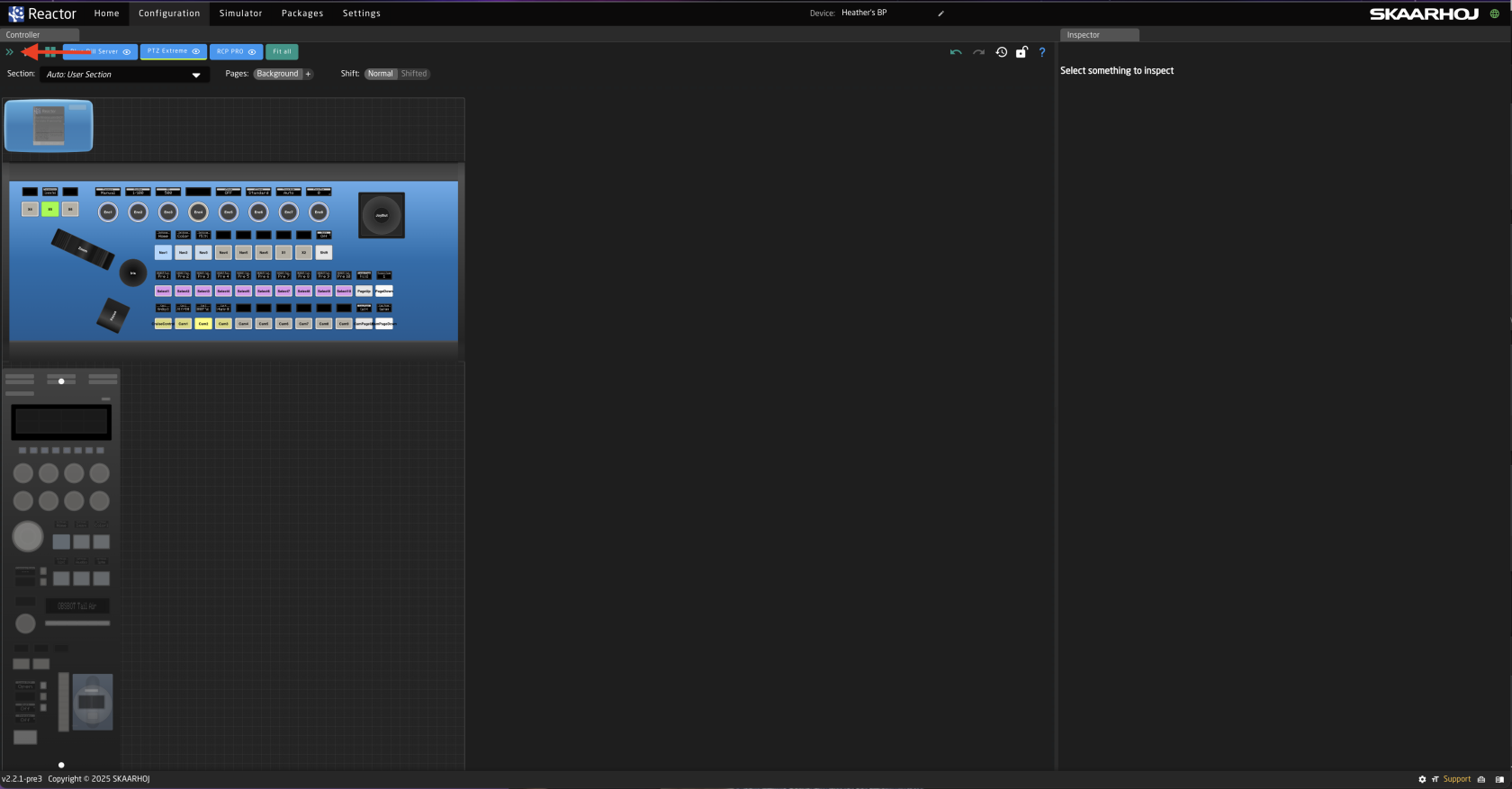
6. If setting up for a single panel only, click anywhere on the panel background (blue part) to open the Inspector on the configuration base layer. ![Screenshot 2025-05-26 at 12.01.59 PM.png](https://wiki.skaarhoj.com/uploads/images/gallery/2025-05/scaled-1680-/screenshot-2025-05-26-at-12-01-59-pm.png)
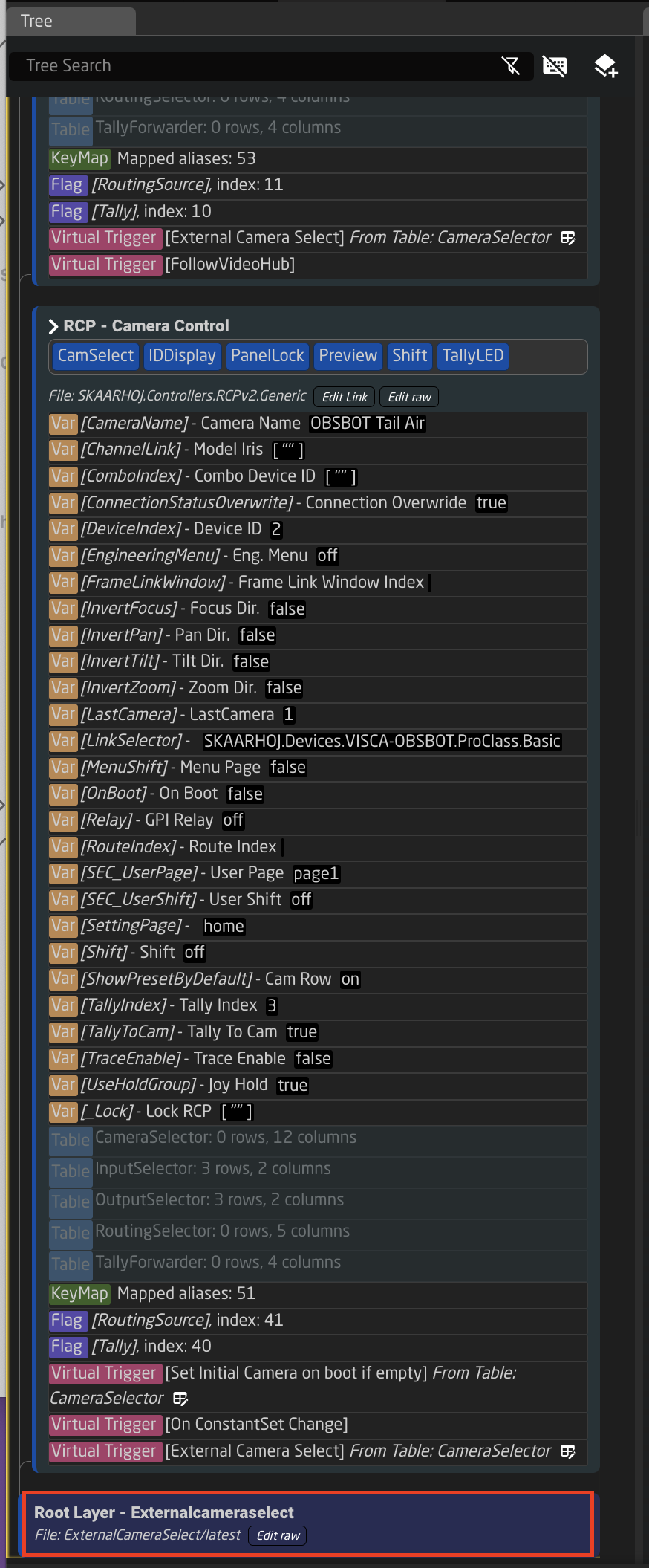
7. If setting up for multiple panels within the same project, open the Configuration Tree and click on the Root Layer at the bottom.   
    ![Screenshot 2025-05-26 at 1.13.02 PM.png](https://wiki.skaarhoj.com/uploads/images/gallery/2025-05/scaled-1680-/screenshot-2025-05-26-at-1-13-02-pm.png)
    
    ![Screenshot 2025-05-26 at 1.16.46 PM.png](https://wiki.skaarhoj.com/uploads/images/gallery/2025-05/scaled-1680-/screenshot-2025-05-26-at-1-16-46-pm.png)
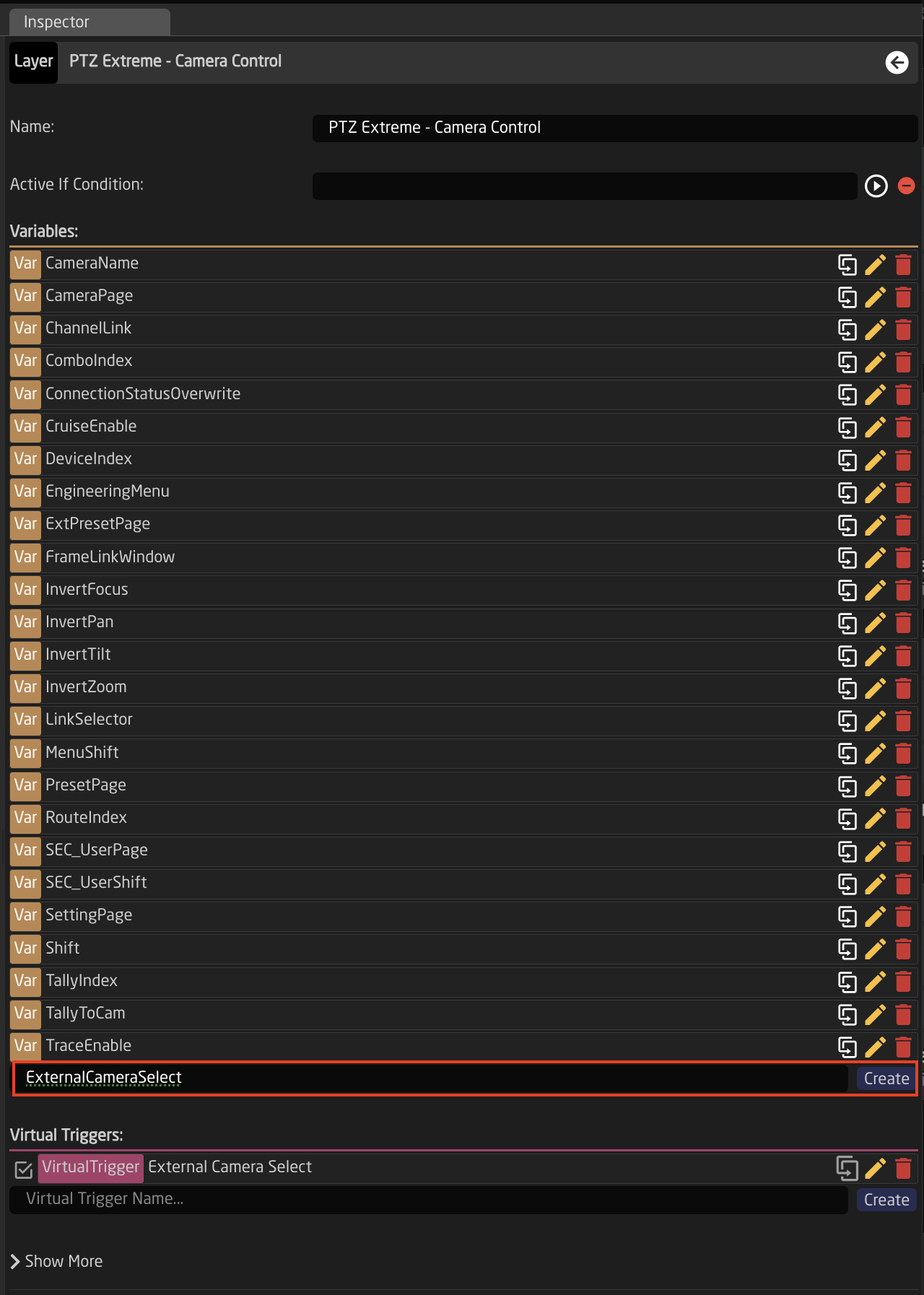
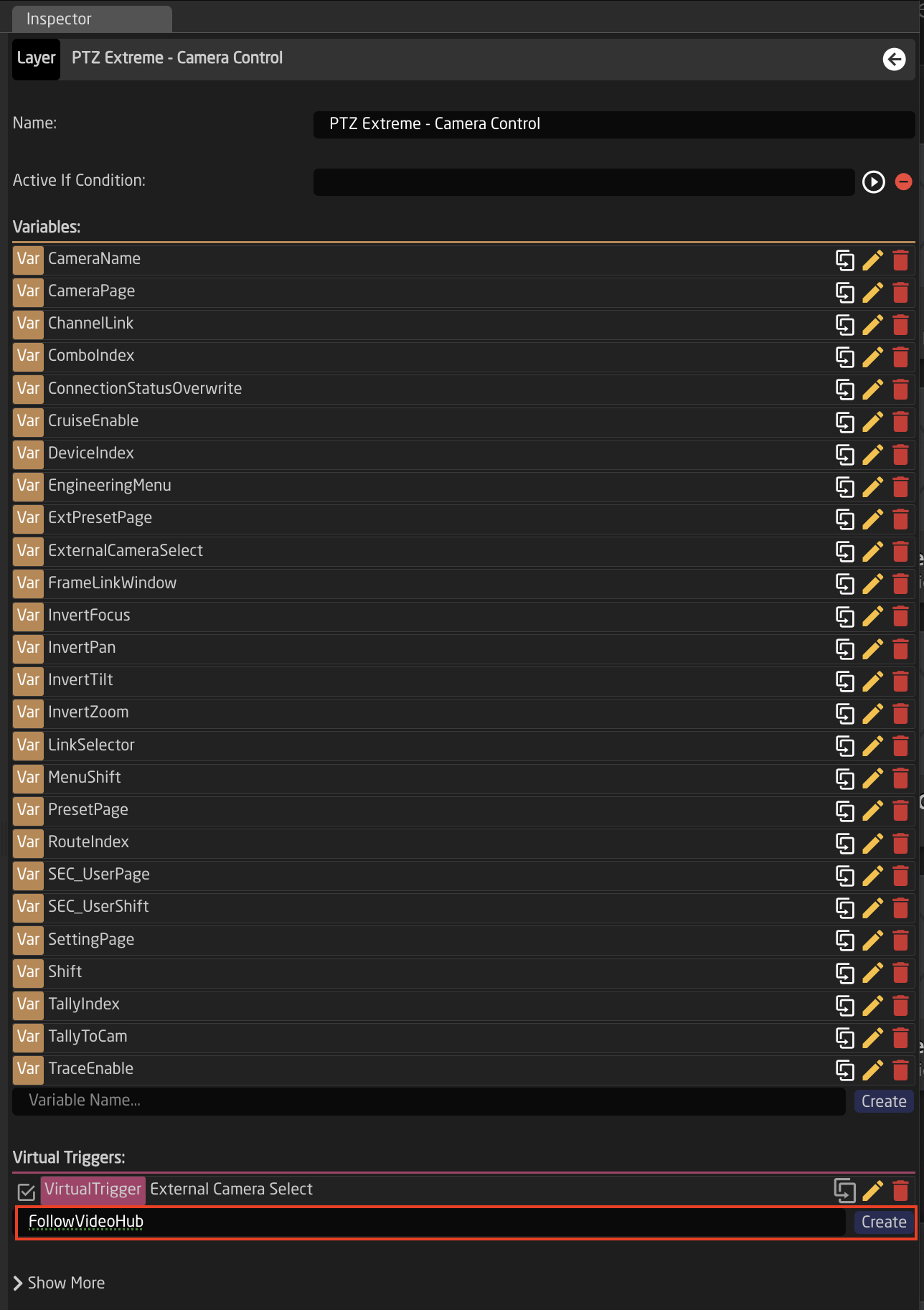
8. Create Variable called **ExternalCameraSelect** Exact name is needed as it is prebuilt into a Virtual Trigger.   
    ![Screenshot 2025-05-26 at 11.19.14 AM.png](https://wiki.skaarhoj.com/uploads/images/gallery/2025-05/scaled-1680-/mJfscreenshot-2025-05-26-at-11-19-14-am.png)
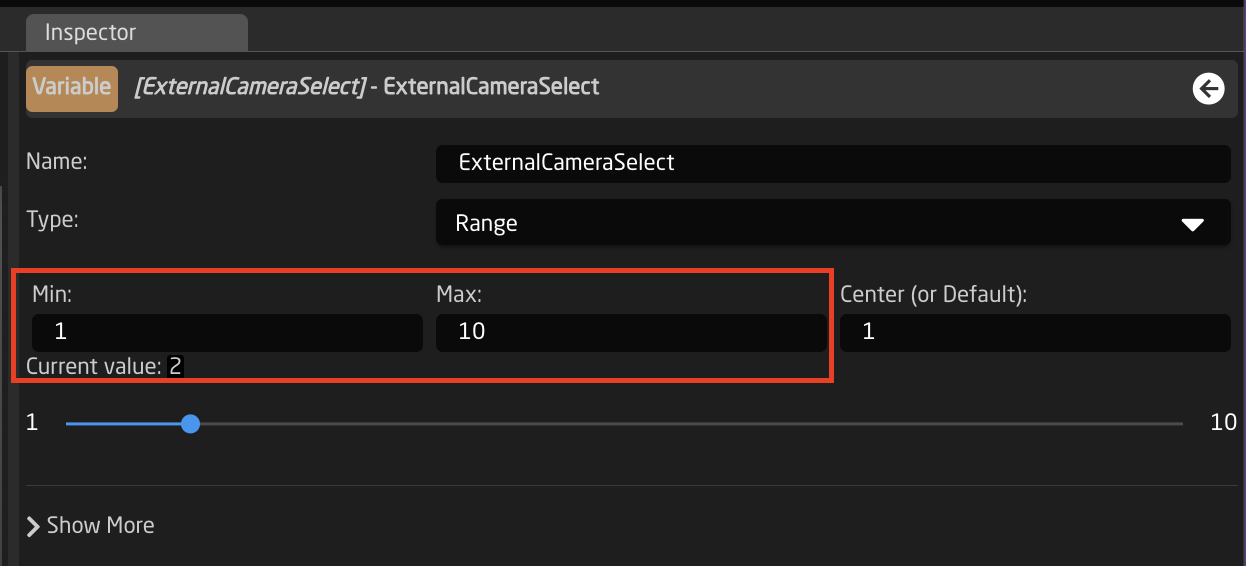
9. Adjust the needed range of the Variable based on numbers used in the Camera Selector on the Home Page for the Ext. Cam Number. The range used should encompass all numbers you have defined. By default the range is 1-10, if that is all that is needed, then no adjustment is required. ![Screenshot 2025-05-26 at 12.27.42 PM.png](https://wiki.skaarhoj.com/uploads/images/gallery/2025-05/scaled-1680-/screenshot-2025-05-26-at-12-27-42-pm.png)
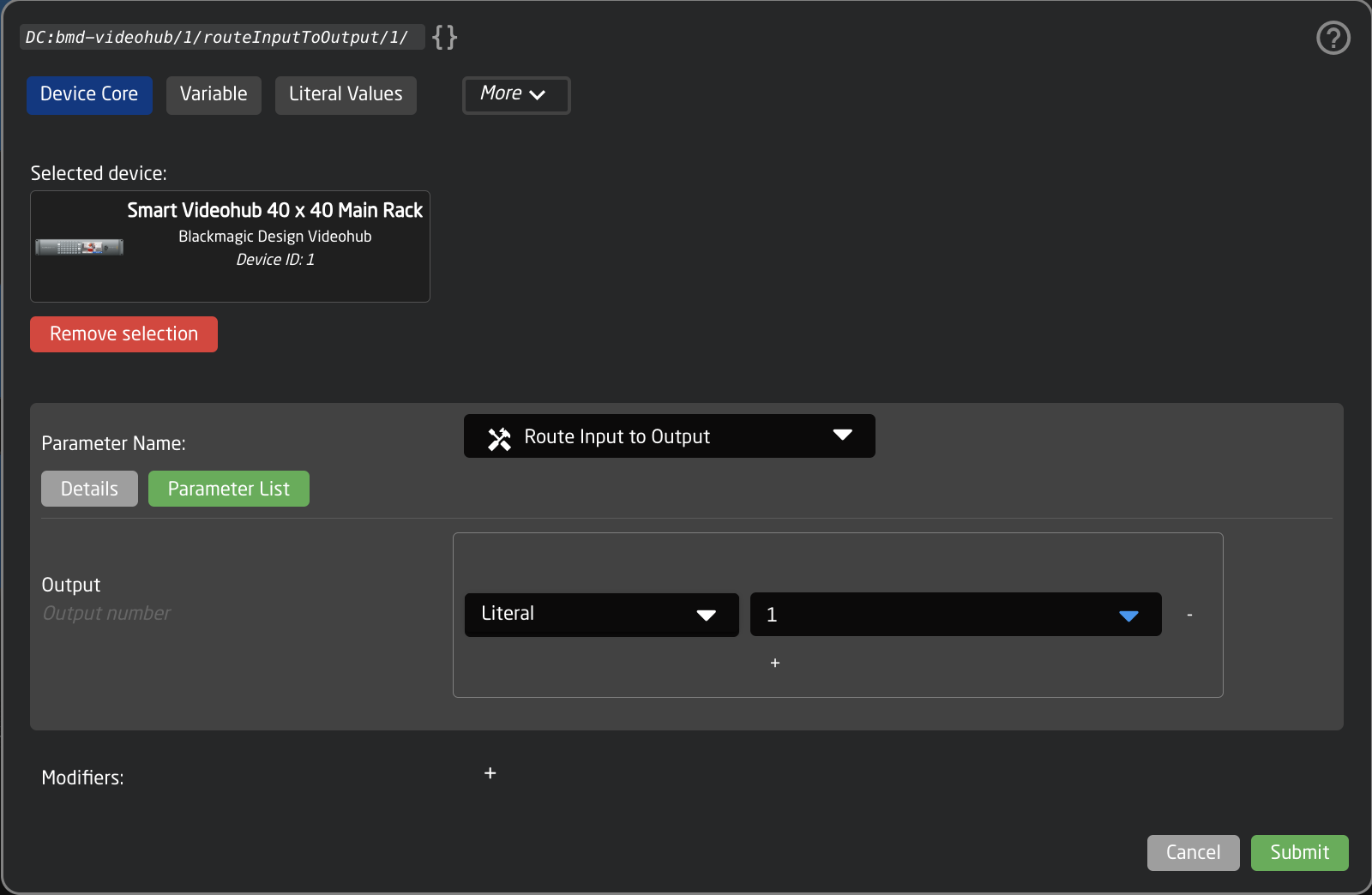
10. Create a Virtual Trigger to set the ExternalCameraSelect Variable based on desired parameter. Name the Virtual Trigger something that will allow you to easily identify what it is doing. <p class="callout info">Shown is an example using a Blackmagic VideoHub, but it can be any other device.  
    </p>
    
    ![Screenshot 2025-05-26 at 11.20.10 AM.png](https://wiki.skaarhoj.com/uploads/images/gallery/2025-05/scaled-1680-/screenshot-2025-05-26-at-11-20-10-am.png)
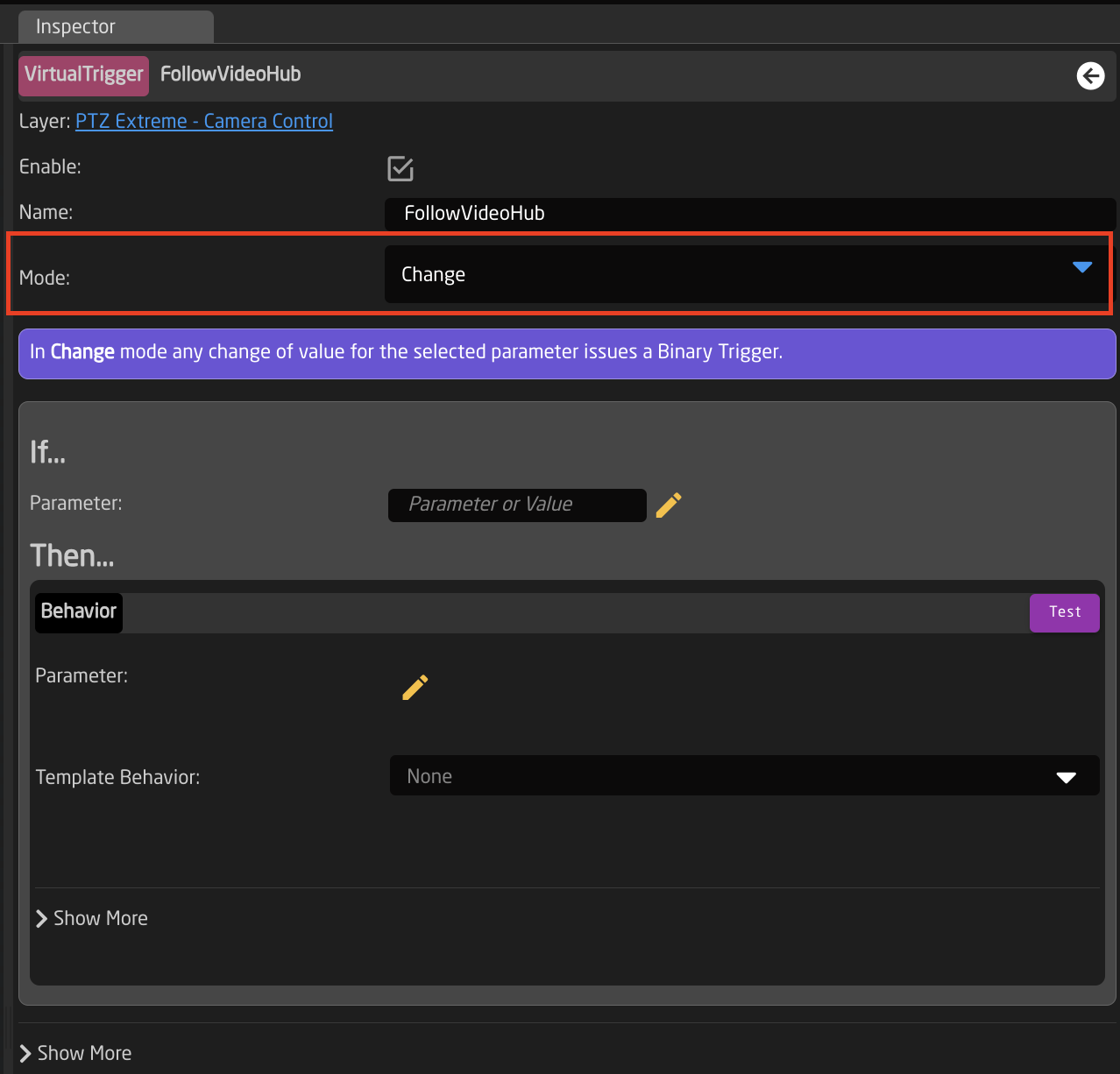
11. Open the newly created Virtual Trigger.
12. Set the Mode to Change.   
    ![Screenshot 2025-05-26 at 12.49.03 PM.png](https://wiki.skaarhoj.com/uploads/images/gallery/2025-05/scaled-1680-/screenshot-2025-05-26-at-12-49-03-pm.png)
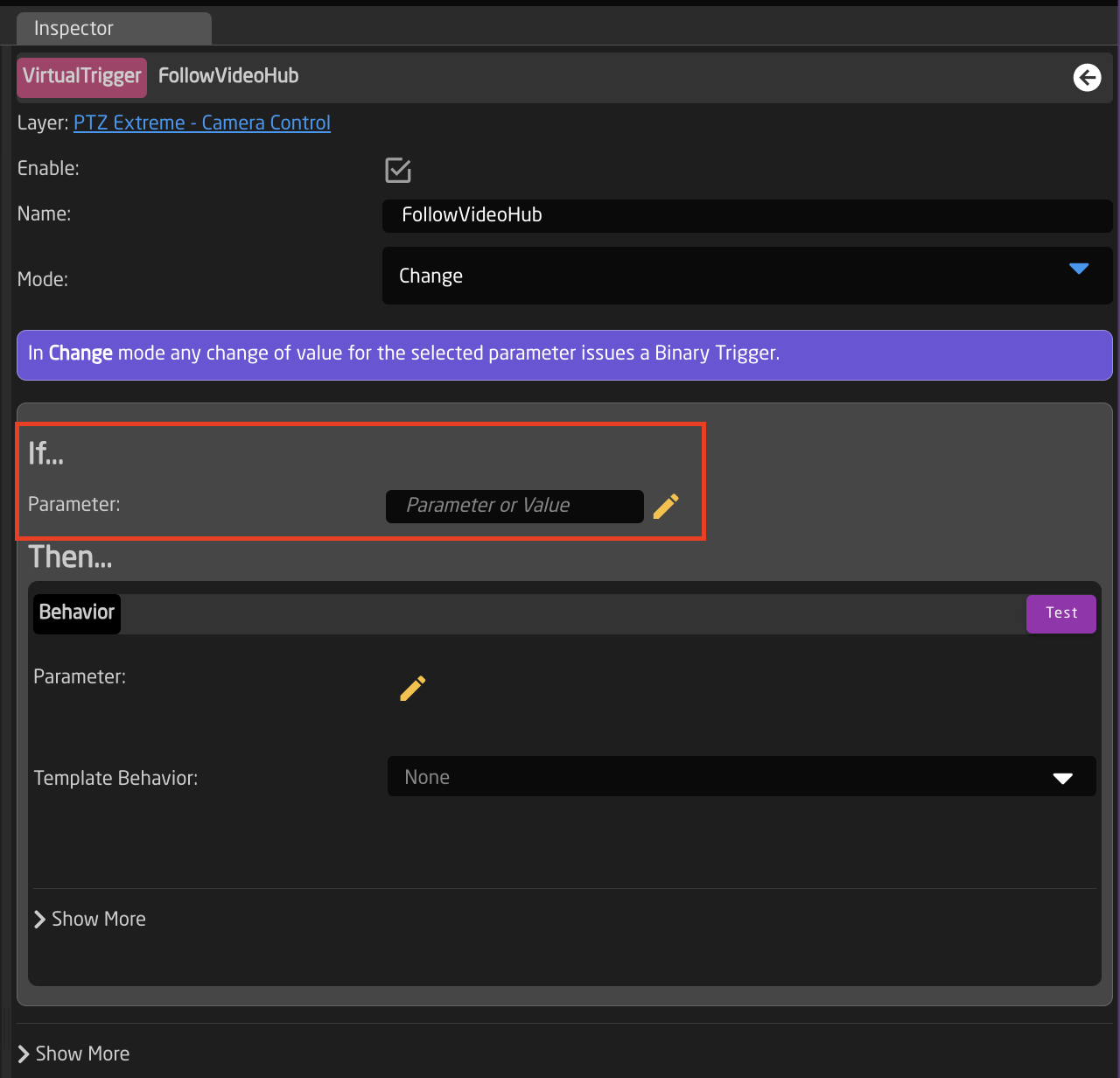
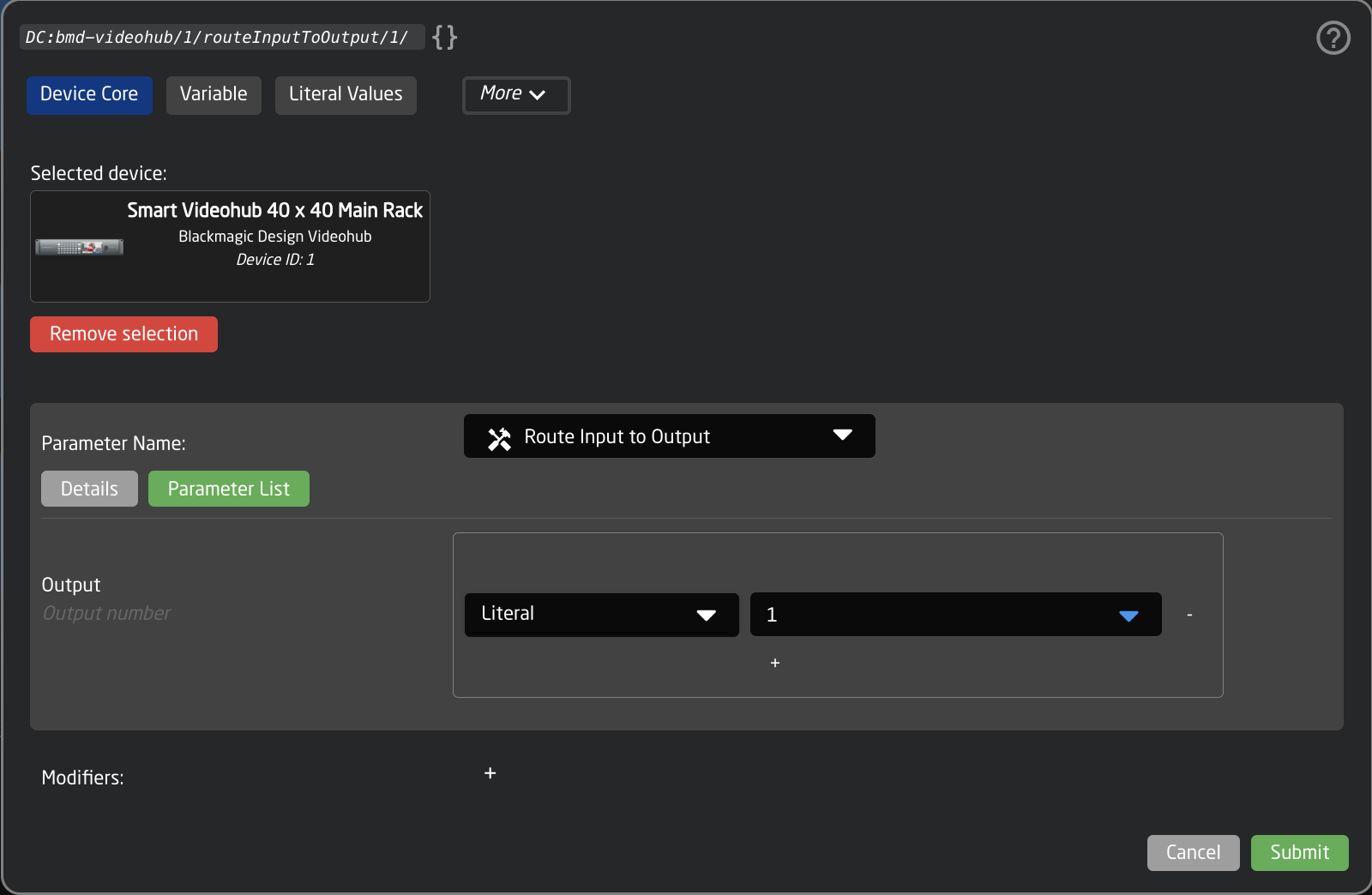
13. For the IF parameter, set the source of the trigger. In this instance a route of the VideoHub on a specific output will be used to change the ExternalCameraSelect variable.   
    ![Screenshot 2025-05-26 at 12.56.35 PM.png](https://wiki.skaarhoj.com/uploads/images/gallery/2025-05/scaled-1680-/screenshot-2025-05-26-at-12-56-35-pm.png)
    
      
    ![Screenshot 2025-05-26 at 11.20.51 AM.png](https://wiki.skaarhoj.com/uploads/images/gallery/2025-05/scaled-1680-/screenshot-2025-05-26-at-11-20-51-am.png)
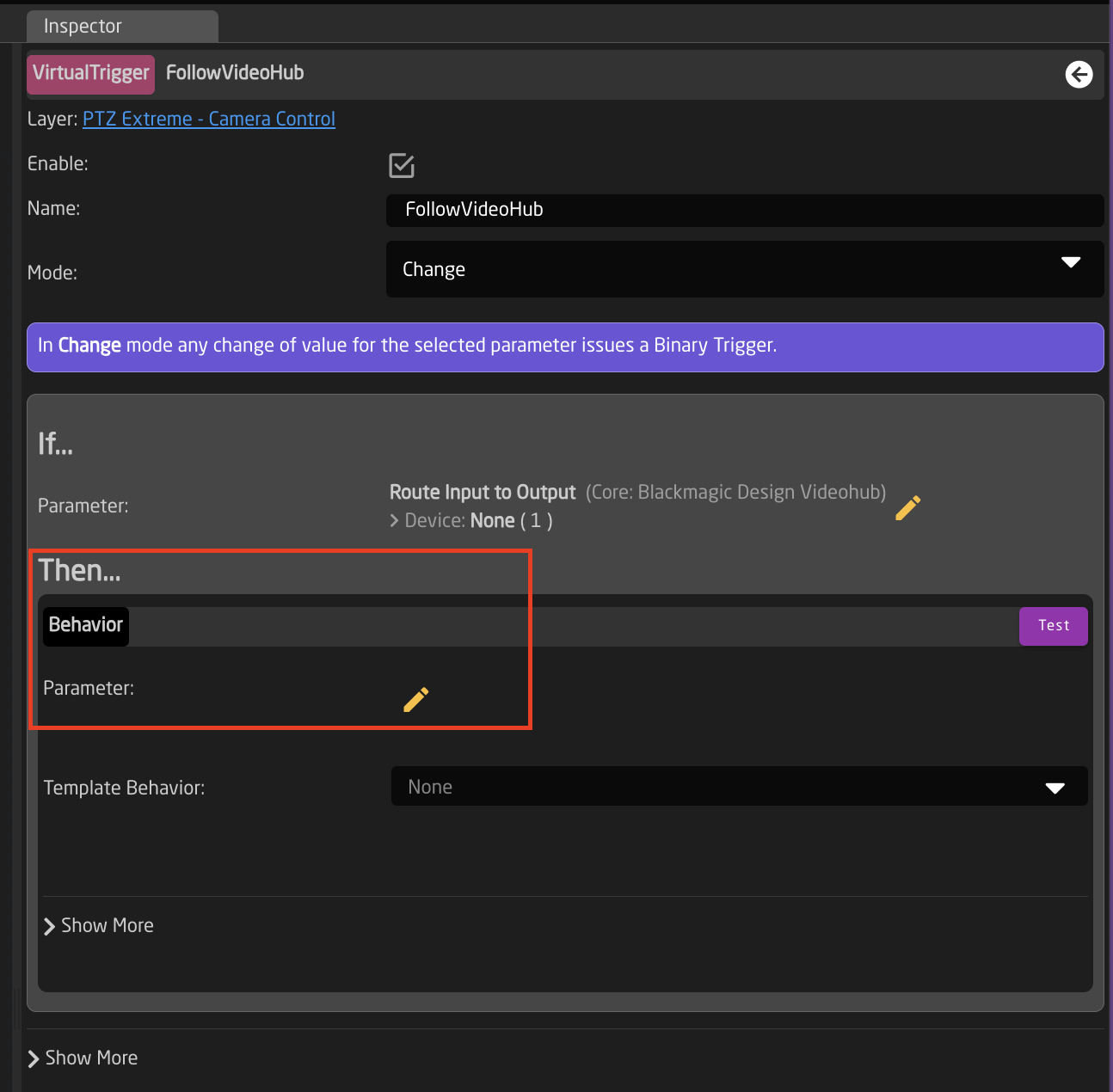
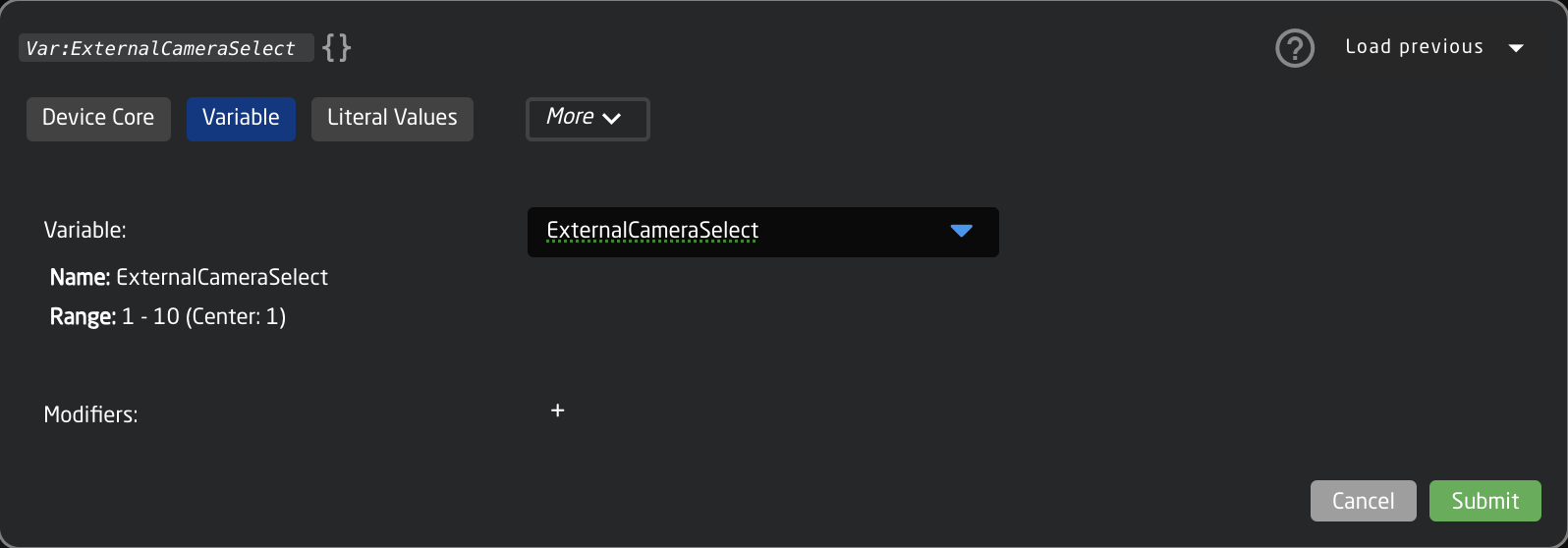
14. For the THEN parameter, select the ExternalCameraSelect Variable   
    ![Screenshot 2025-05-26 at 12.57.57 PM.png](https://wiki.skaarhoj.com/uploads/images/gallery/2025-05/scaled-1680-/screenshot-2025-05-26-at-12-57-57-pm.png)
    
    ![Screenshot 2025-05-26 at 11.21.21 AM.png](https://wiki.skaarhoj.com/uploads/images/gallery/2025-05/scaled-1680-/screenshot-2025-05-26-at-11-21-21-am.png)
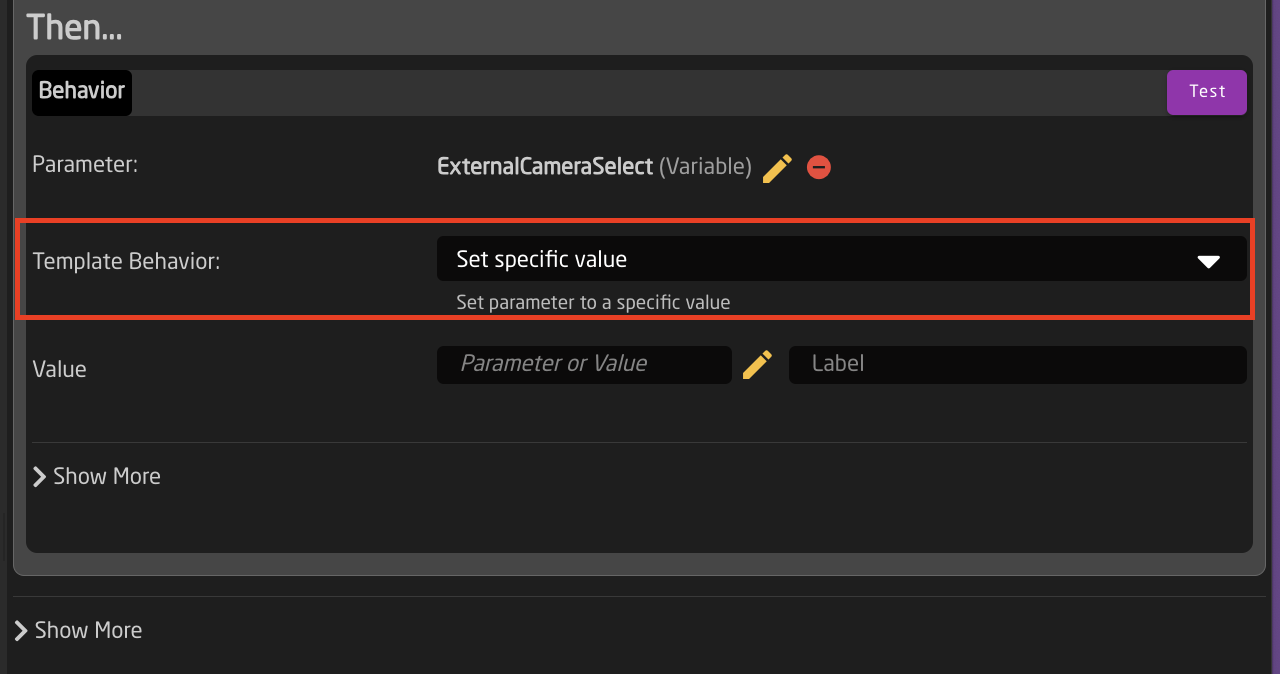
15. The needed Template Behavior for the THEN should be auto suggested. If it is not, you will want to select SET SPECIFIC VALUE.   
    ![Screenshot 2025-05-26 at 1.00.22 PM.png](https://wiki.skaarhoj.com/uploads/images/gallery/2025-05/scaled-1680-/screenshot-2025-05-26-at-1-00-22-pm.png)
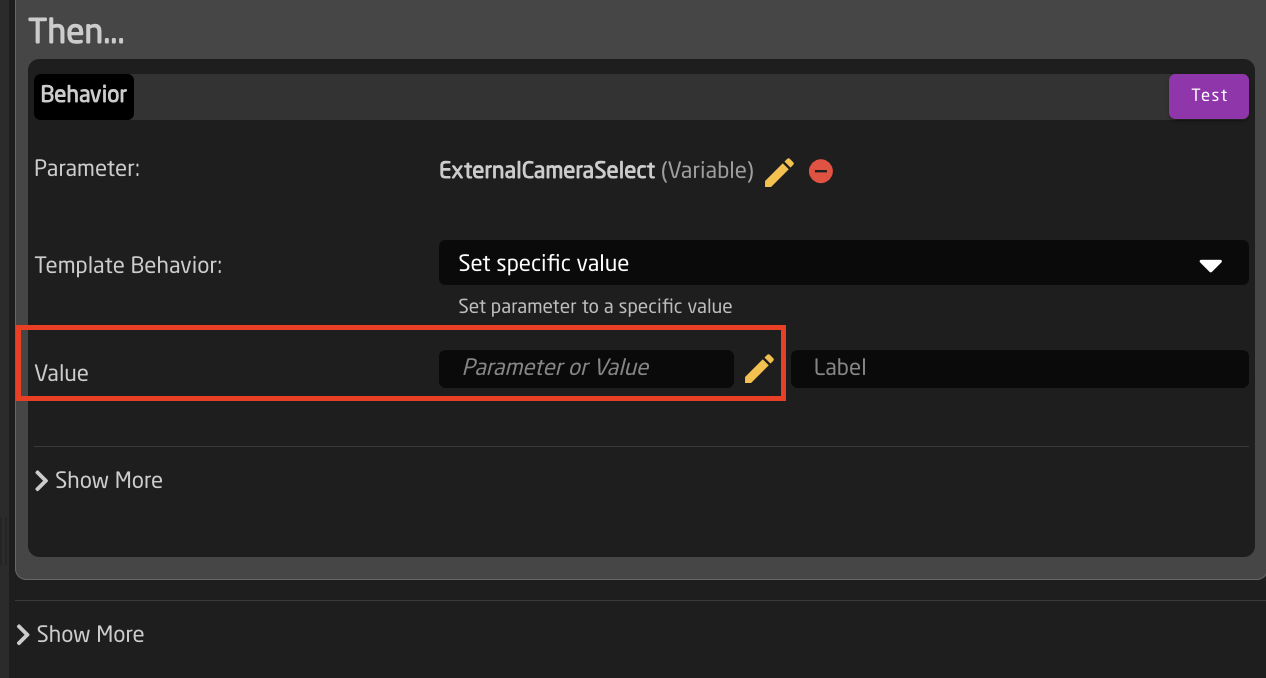
16. For the Value, set again the same parameter you used for the IF parameter. In this example it was Output 1 of a Blackmagic VideoHub. <p class="callout warning">This is why it is recommended to set the Ex. Cam Number in the Camera Selector Settings Table to match the Input number from the trigger source. It can then easily be synced. </p>
    
    ![Screenshot 2025-05-26 at 1.02.01 PM.png](https://wiki.skaarhoj.com/uploads/images/gallery/2025-05/scaled-1680-/screenshot-2025-05-26-at-1-02-01-pm.png)
    
    ![Screenshot 2025-05-26 at 11.20.51 AM.png](https://wiki.skaarhoj.com/uploads/images/gallery/2025-05/scaled-1680-/KUTscreenshot-2025-05-26-at-11-20-51-am.png)
17. The trigger is now set up and can be used. Note that any change in the source trigger's status will trigger the route (within the variable range set) but you are able to freely choose a different camera to control from the camera select row without it retriggering.

</details><details id="bkmrk-external-camera-sele-2"><summary>External Camera Select from External TCP Command</summary>

1. Add an instance of TCP Server as a device on the Home Page.   
    ![Screenshot 2025-10-30 at 11.54.34 AM.png](https://wiki.skaarhoj.com/uploads/images/gallery/2025-10/scaled-1680-/screenshot-2025-10-30-at-11-54-34-am.png)
2. On the Home Page, open the Camera Selector settings table.  
    ![Screenshot 2025-10-30 at 12.10.45 PM.png](https://wiki.skaarhoj.com/uploads/images/gallery/2025-10/scaled-1680-/screenshot-2025-10-30-at-12-10-45-pm.png)
3. Enable Show Advanced in the Camera Selector  
    ![Screenshot 2025-10-30 at 12.11.29 PM.png](https://wiki.skaarhoj.com/uploads/images/gallery/2025-10/scaled-1680-/screenshot-2025-10-30-at-12-11-29-pm.png)
4. Input a unique number to associate with the camera in the Ext. Cam Number column. ![Screenshot 2025-10-30 at 12.12.30 PM.png](https://wiki.skaarhoj.com/uploads/images/gallery/2025-10/scaled-1680-/screenshot-2025-10-30-at-12-12-30-pm.png)
5. Navigate to the Configuration Page.
6. Click on the background of the panel in the controller section to open the background layer of the configuration in the Inspector.   
    ![Screenshot 2025-10-30 at 12.09.26 PM.png](https://wiki.skaarhoj.com/uploads/images/gallery/2025-10/scaled-1680-/screenshot-2025-10-30-at-12-09-26-pm.png)
7. Create Variable called **ExternalCameraSelect** Exact name is needed as it is prebuilt into a Virtual Trigger.   
    ![Screenshot 2025-10-30 at 12.15.08 PM.png](https://wiki.skaarhoj.com/uploads/images/gallery/2025-10/scaled-1680-/screenshot-2025-10-30-at-12-15-08-pm.png)
8. Adjust the needed range of the Variable based on numbers used in the Camera Selector on the Home Page for the Ext. Cam Number. The range used should encompass all numbers you have defined. By default the range is 1-10, if that is all that is needed, then no adjustment is required. ![Screenshot 2025-05-26 at 12.27.42 PM.png](https://wiki.skaarhoj.com/uploads/images/gallery/2025-05/scaled-1680-/screenshot-2025-05-26-at-12-27-42-pm.png)
9. Create a Virtual Trigger to set the ExternalCameraSelect Variable based on external trigger. Name the Virtual Trigger something that will allow you to easily identify what it is doing. ![Screenshot 2025-10-30 at 12.17.05 PM.png](https://wiki.skaarhoj.com/uploads/images/gallery/2025-10/scaled-1680-/screenshot-2025-10-30-at-12-17-05-pm.png)
10. Open the newly created Virtual Trigger.
11. Set the Mode to Change.
    
    ![Screenshot 2025-10-30 at 12.18.43 PM.png](https://wiki.skaarhoj.com/uploads/images/gallery/2025-10/scaled-1680-/screenshot-2025-10-30-at-12-18-43-pm.png)
12. For the IF parameter, set the source of the trigger. In this instance a specific TCP command will be used to change the ExternalCameraSelect variable.   
    ![Screenshot 2025-10-30 at 12.26.42 PM.png](https://wiki.skaarhoj.com/uploads/images/gallery/2025-10/scaled-1680-/screenshot-2025-10-30-at-12-26-42-pm.png)
    
      
    Device Core: TCP Server  
    Parameter Name: Integer Value  
    Number: Literal: 1  
    ![Screenshot 2025-11-20 at 1.25.07 PM.png](https://wiki.skaarhoj.com/uploads/images/gallery/2025-11/scaled-1680-/screenshot-2025-11-20-at-1-25-07-pm.png)
13. For the THEN parameter, select the ExternalCameraSelect Variable  
    First Expand System to select Change Variable behavior   
    ![Screenshot 2025-11-20 at 1.27.09 PM.png](https://wiki.skaarhoj.com/uploads/images/gallery/2025-11/scaled-1680-/screenshot-2025-11-20-at-1-27-09-pm.png)
    
      
    Second click to edit the parameter
    
    ![Screenshot 2025-11-20 at 1.29.10 PM.png](https://wiki.skaarhoj.com/uploads/images/gallery/2025-11/scaled-1680-/screenshot-2025-11-20-at-1-29-10-pm.png)
    
      
    Third select the ExternalCameraSelectVariable
    
    ![Screenshot 2025-10-30 at 12.35.12 PM.png](https://wiki.skaarhoj.com/uploads/images/gallery/2025-10/scaled-1680-/screenshot-2025-10-30-at-12-35-12-pm.png)  
    Fourth select Confirm when prompted.
    
    [![Screenshot 2025-10-30 at 12.37.02 PM.png](https://wiki.skaarhoj.com/uploads/images/gallery/2025-10/scaled-1680-/screenshot-2025-10-30-at-12-37-02-pm.png)](https://wiki.skaarhoj.com/uploads/images/gallery/2025-10/screenshot-2025-10-30-at-12-37-02-pm.png)
14. The needed Template Behavior for the THEN should be auto suggested. If it is not, you will want to select SET SPECIFIC VALUE.   
    ![Screenshot 2025-10-30 at 12.38.27 PM.png](https://wiki.skaarhoj.com/uploads/images/gallery/2025-10/scaled-1680-/screenshot-2025-10-30-at-12-38-27-pm.png)
15. For the Value, set again the same parameter you used for the IF parameter. ![Screenshot 2025-10-30 at 12.40.02 PM.png](https://wiki.skaarhoj.com/uploads/images/gallery/2025-10/scaled-1680-/screenshot-2025-10-30-at-12-40-02-pm.png)
    
    ![Screenshot 2025-11-20 at 1.25.07 PM.png](https://wiki.skaarhoj.com/uploads/images/gallery/2025-11/scaled-1680-/sX4screenshot-2025-11-20-at-1-25-07-pm.png)
16. The trigger is now set up and can be used by sending the command **Int#1=X** (X = the number set in Ex. Cam Number column in the Camera Select Settings Table on the Home Page) to the IP address of the Blue Pill device and the port defined in the TCP Server device details on the home page.  
    ![Screenshot 2025-10-30 at 12.44.12 PM.png](https://wiki.skaarhoj.com/uploads/images/gallery/2025-10/scaled-1680-/screenshot-2025-10-30-at-12-44-12-pm.png)  
    Example using a Terminal window on Mac.
    
    ![Screenshot 2025-11-20 at 1.31.12 PM.png](https://wiki.skaarhoj.com/uploads/images/gallery/2025-11/scaled-1680-/screenshot-2025-11-20-at-1-31-12-pm.png)

</details><details id="bkmrk-external-camera-sele-1"><summary>External Camera Select from Skaarhoj Panel in the Same Project</summary>

1. Make sure you have connected to all your needed devices on the Home Page
2. On the Home Page, open the Camera Selector settings table.  
    ![Screenshot 2025-05-26 at 11.53.11 AM.png](https://wiki.skaarhoj.com/uploads/images/gallery/2025-05/scaled-1680-/screenshot-2025-05-26-at-11-53-11-am.png)
3. Enable Show Advanced in the Camera Selector  
    ![Screenshot 2025-05-26 at 11.52.36 AM.png](https://wiki.skaarhoj.com/uploads/images/gallery/2025-05/scaled-1680-/screenshot-2025-05-26-at-11-52-36-am.png)
4. Input a unique number to associate with the camera in the Ext. Cam Number column. ![Screenshot 2025-05-26 at 11.53.51 AM.png](https://wiki.skaarhoj.com/uploads/images/gallery/2025-05/scaled-1680-/screenshot-2025-05-26-at-11-53-51-am.png)
5. Repeat the process for your second panel. <p class="callout info">The camera select doesn't need to be in the same order, but the same number needs to be associated with each camera.</p>
6. Navigate to the Configuration Page.
7. Open the Configuration Tree and click on the Root Layer at the bottom.   
    ![Screenshot 2025-05-26 at 1.13.02 PM.png](https://wiki.skaarhoj.com/uploads/images/gallery/2025-05/scaled-1680-/screenshot-2025-05-26-at-1-13-02-pm.png)
    
    ![Screenshot 2025-05-26 at 1.16.46 PM.png](https://wiki.skaarhoj.com/uploads/images/gallery/2025-05/scaled-1680-/screenshot-2025-05-26-at-1-16-46-pm.png)
8. Create Variable called **ExternalCameraSelect** Exact name is needed as it is prebuilt into a Virtual Trigger.   
    ![Screenshot 2025-05-26 at 11.19.14 AM.png](https://wiki.skaarhoj.com/uploads/images/gallery/2025-05/scaled-1680-/mJfscreenshot-2025-05-26-at-11-19-14-am.png)
9. Adjust the needed range of the Variable based on numbers used in the Camera Selector on the Home Page for the Ext. Cam Number. The range used should encompass all numbers you have defined. By default the range is 1-10, if that is all that is needed, then no adjustment is required. ![Screenshot 2025-05-26 at 12.27.42 PM.png](https://wiki.skaarhoj.com/uploads/images/gallery/2025-05/scaled-1680-/screenshot-2025-05-26-at-12-27-42-pm.png)
10. Close the Configuration Tree but remain on the configuration page.
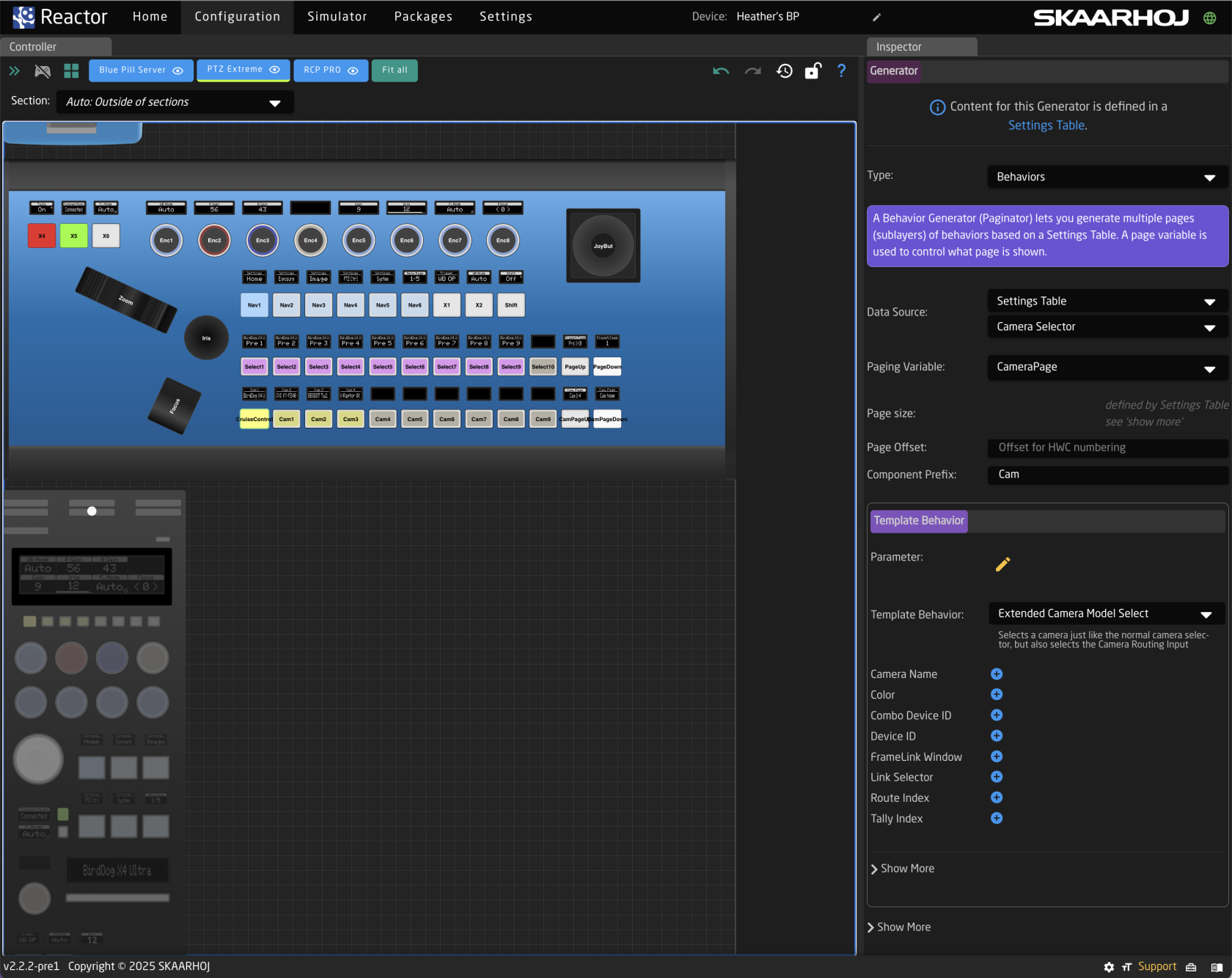
11. Click on any of the camera select buttons for the panel you want to trigger the external camera select from. This will open the details in the Inspector. ![Screenshot 2025-06-30 at 10.36.56 AM.png](https://wiki.skaarhoj.com/uploads/images/gallery/2025-06/scaled-1680-/screenshot-2025-06-30-at-10-36-56-am.png)
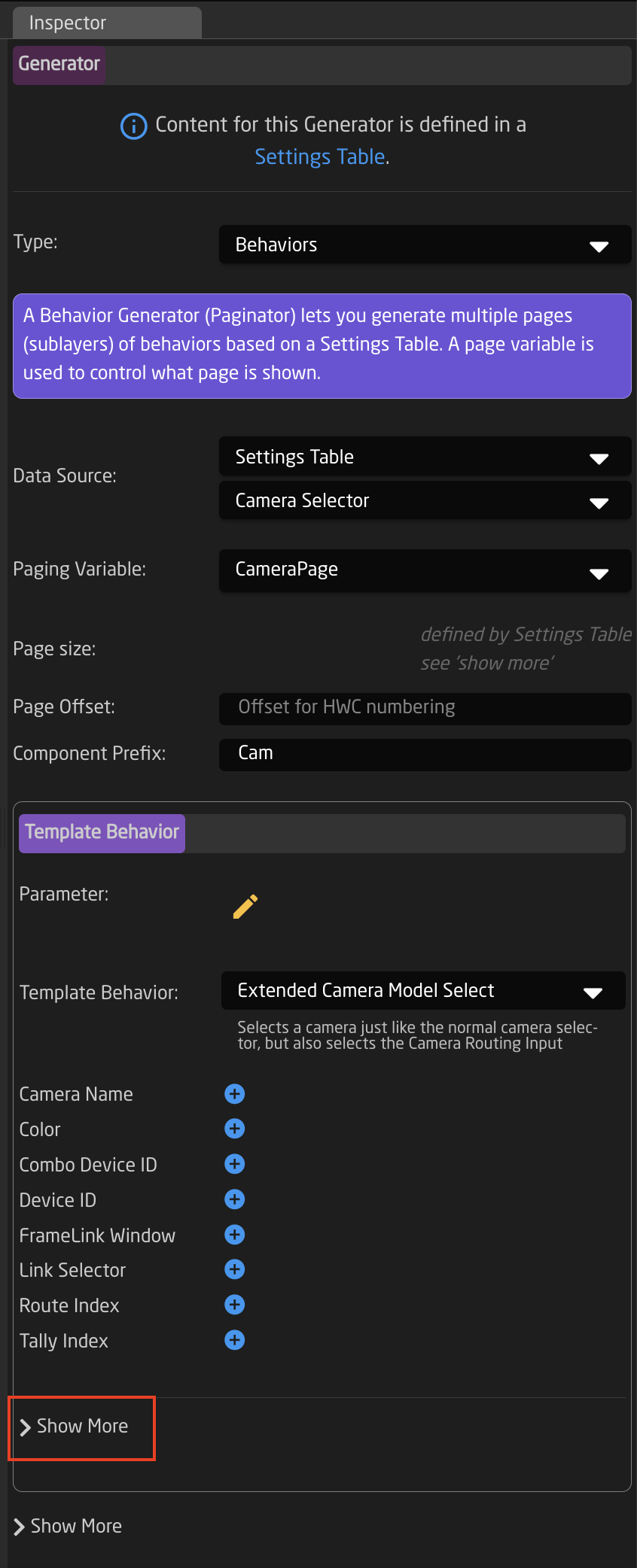
12. In the Inspector, click on the first Show More to expand it.   
    ![Screenshot 2025-06-30 at 10.41.10 AM.png](https://wiki.skaarhoj.com/uploads/images/gallery/2025-06/scaled-1680-/screenshot-2025-06-30-at-10-41-10-am.png)
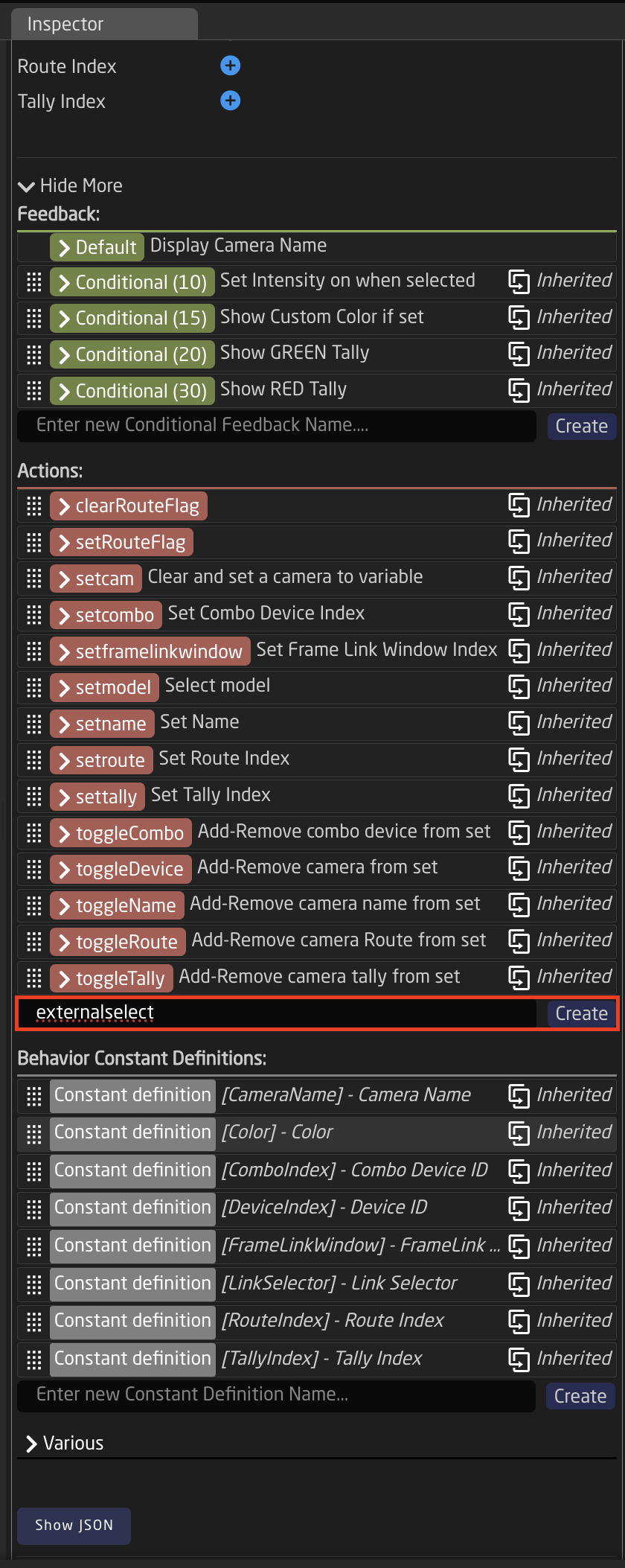
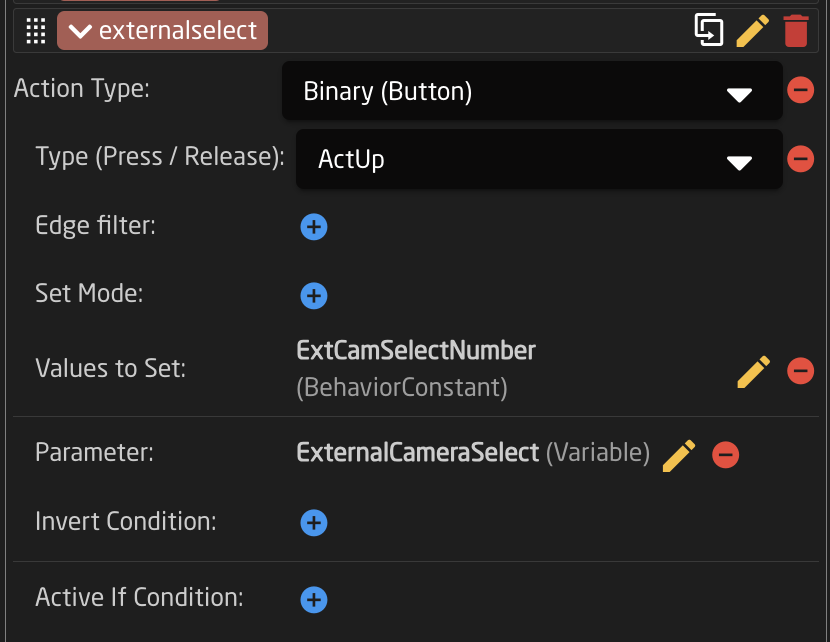
13. Create another Action called **externalselect** ![Screenshot 2025-06-30 at 10.58.05 AM.png](https://wiki.skaarhoj.com/uploads/images/gallery/2025-06/scaled-1680-/screenshot-2025-06-30-at-10-58-05-am.png)
14. Set up the action as follows:  
    ![Screenshot 2025-06-30 at 11.02.47 AM.png](https://wiki.skaarhoj.com/uploads/images/gallery/2025-06/scaled-1680-/screenshot-2025-06-30-at-11-02-47-am.png)Action Type: Binary (Button)  
    Type (Press/Release): ActUp  
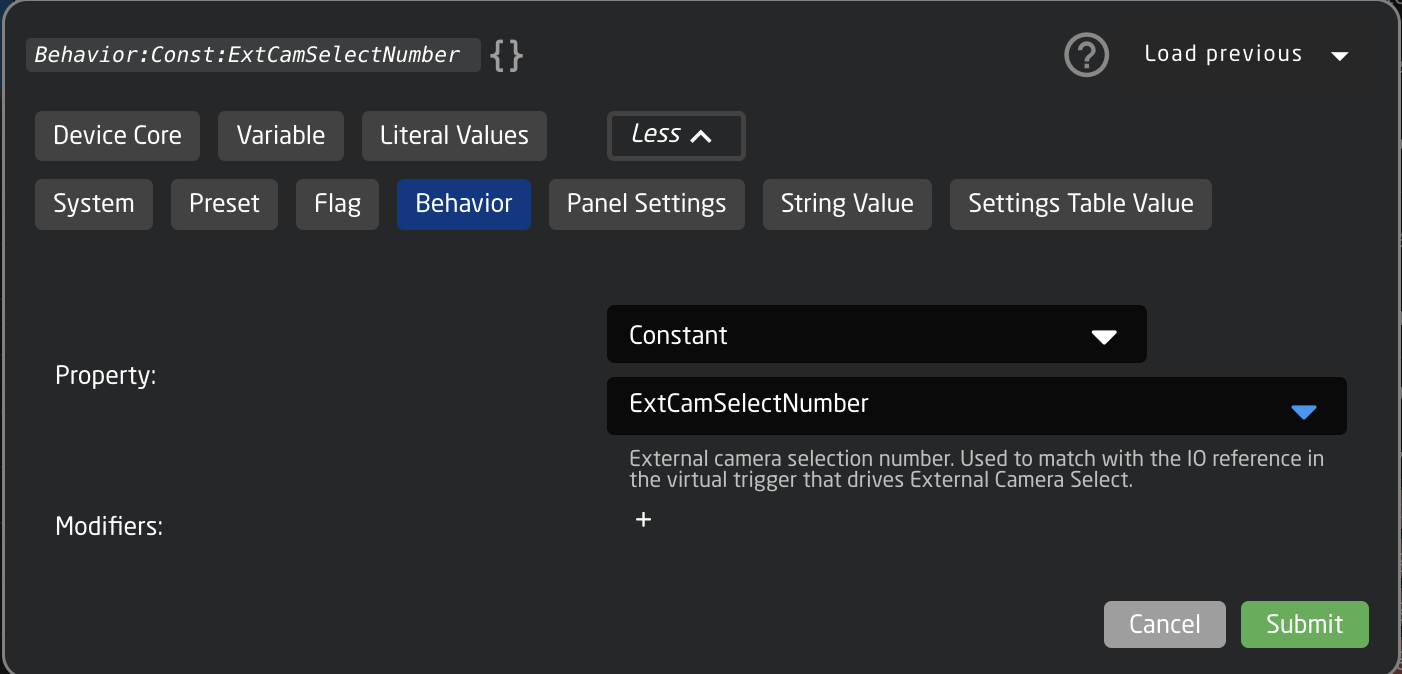
    Values to Set: Behavior:Const:ExtCamSelect   
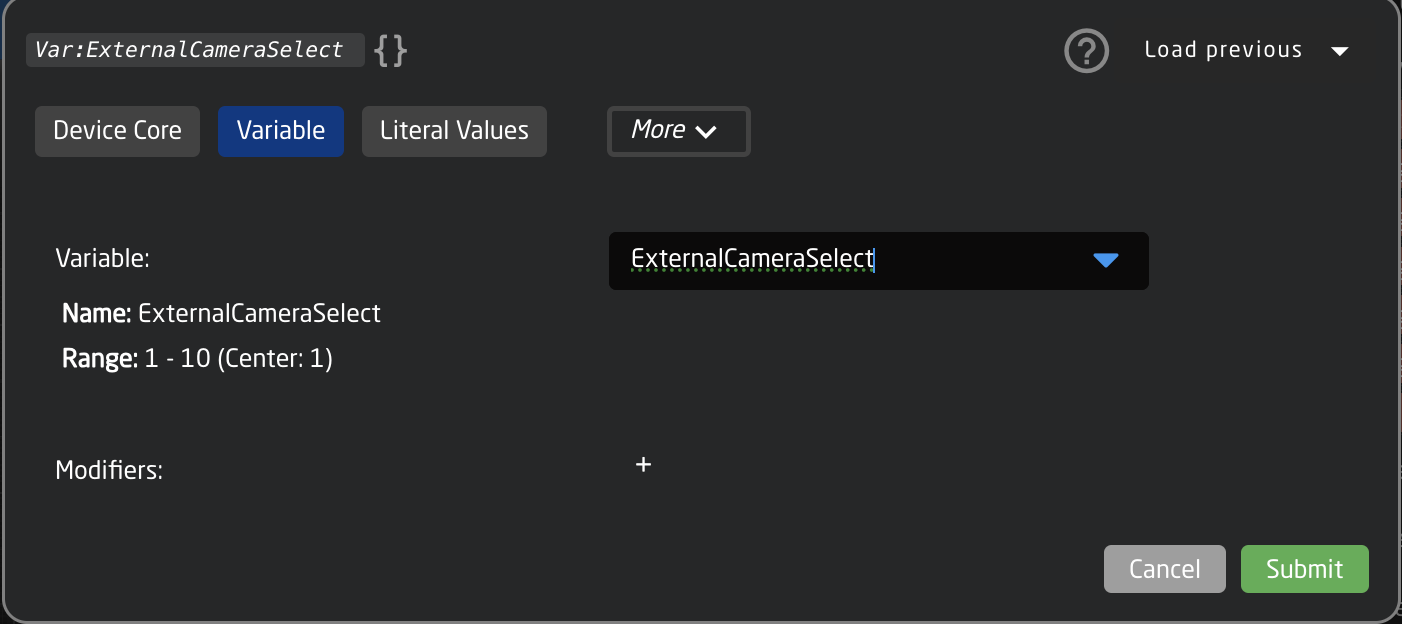
    ![Screenshot 2025-06-30 at 11.02.07 AM.png](https://wiki.skaarhoj.com/uploads/images/gallery/2025-06/scaled-1680-/screenshot-2025-06-30-at-11-02-07-am.png)Parameter: Var:ExternalCameraSelect
    
    ![Screenshot 2025-06-30 at 11.02.29 AM.png](https://wiki.skaarhoj.com/uploads/images/gallery/2025-06/scaled-1680-/screenshot-2025-06-30-at-11-02-29-am.png)
15. If you would like to trigger the external camera select to go both ways, repeat steps 11-14 for additional panels.

</details>

# Fader custom curve

#### What is a fader curve

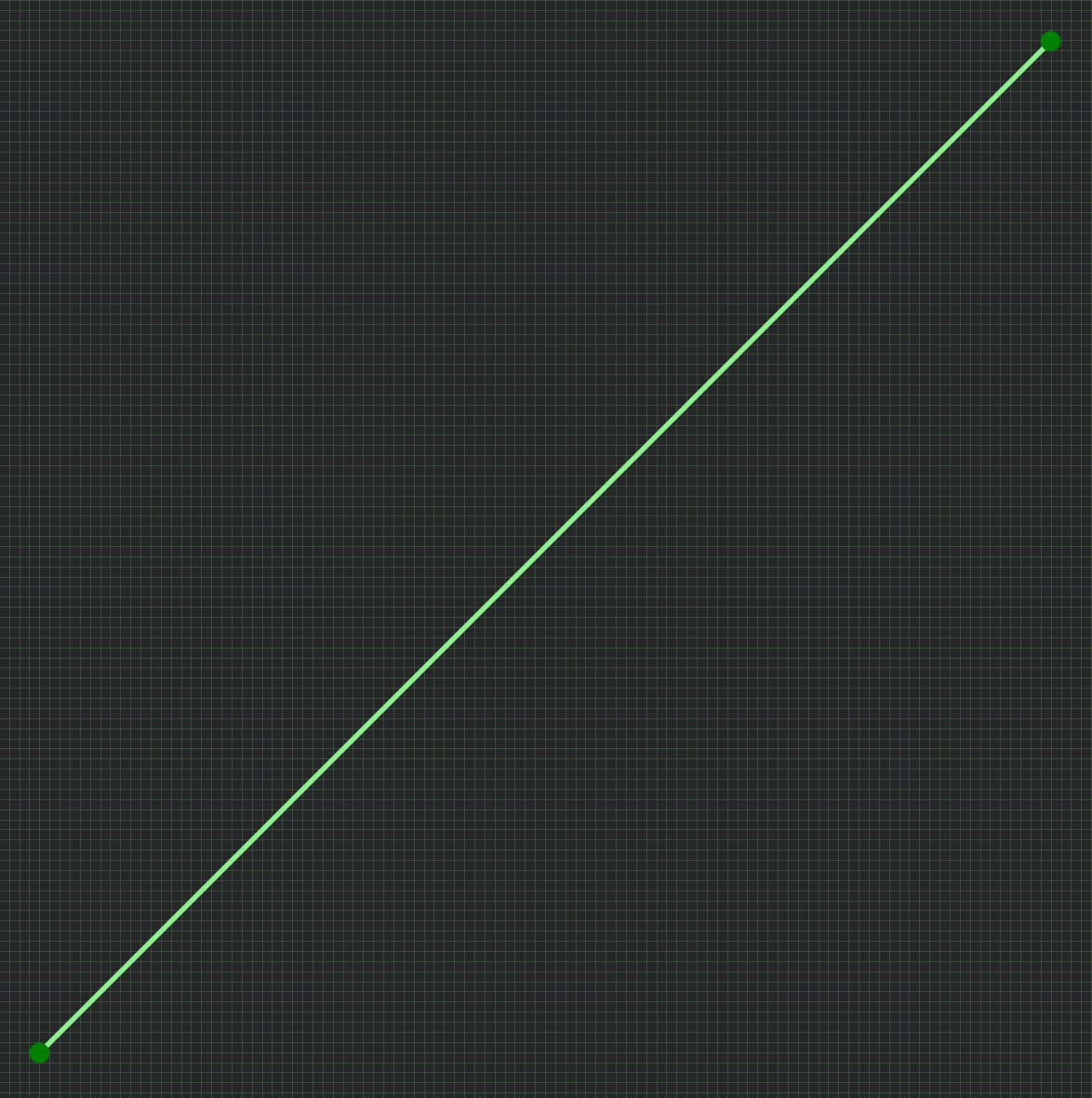
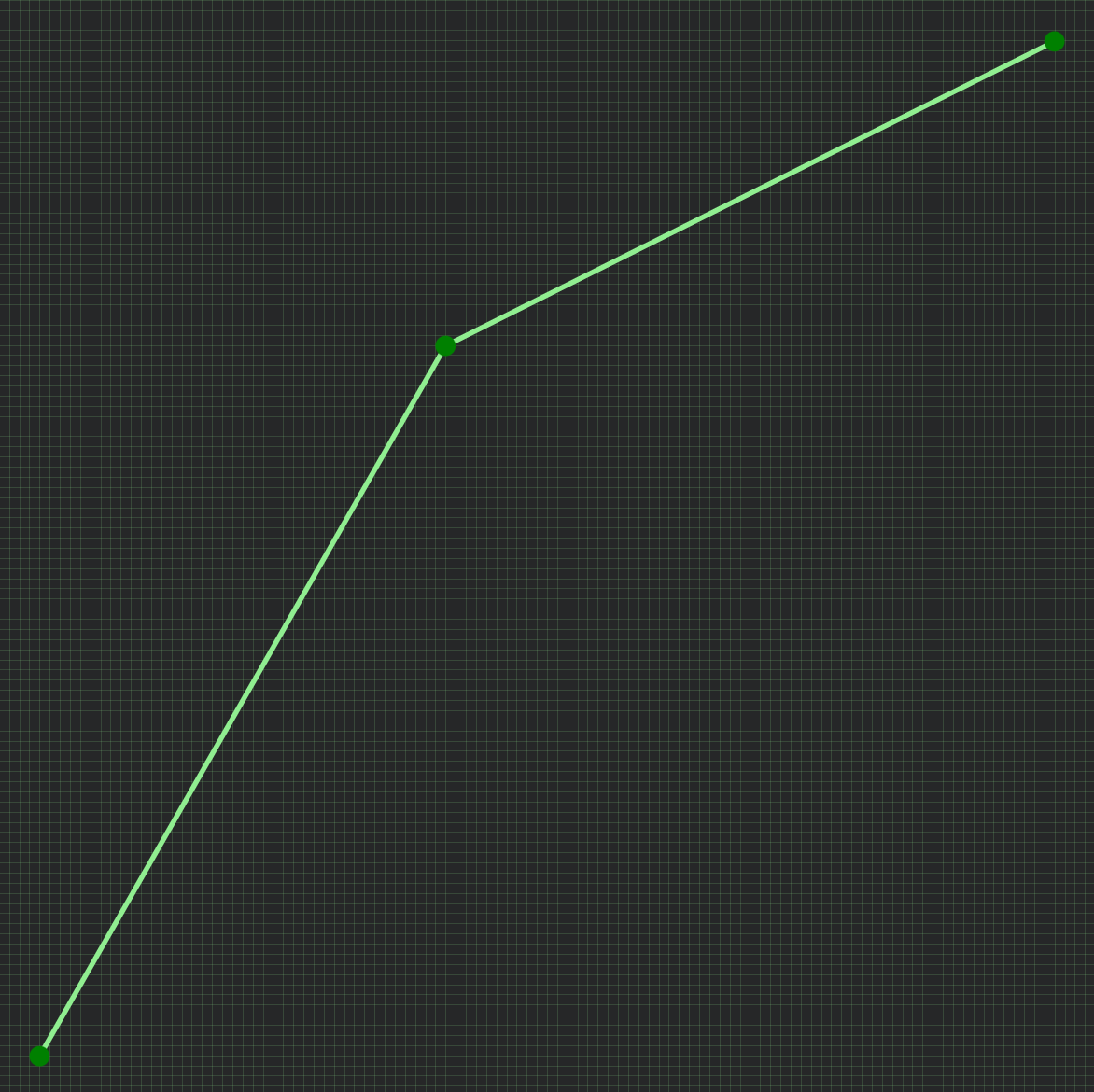
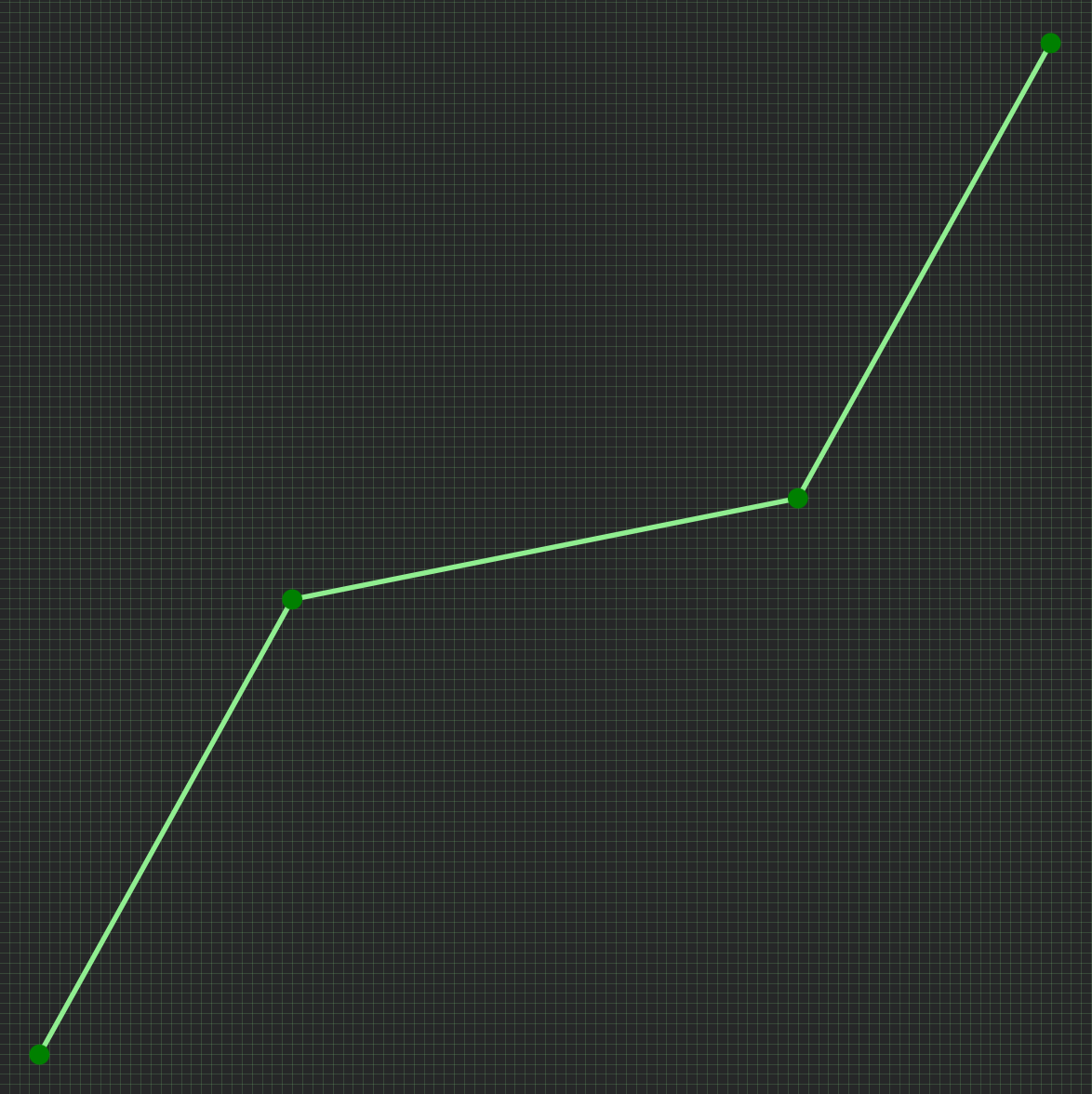
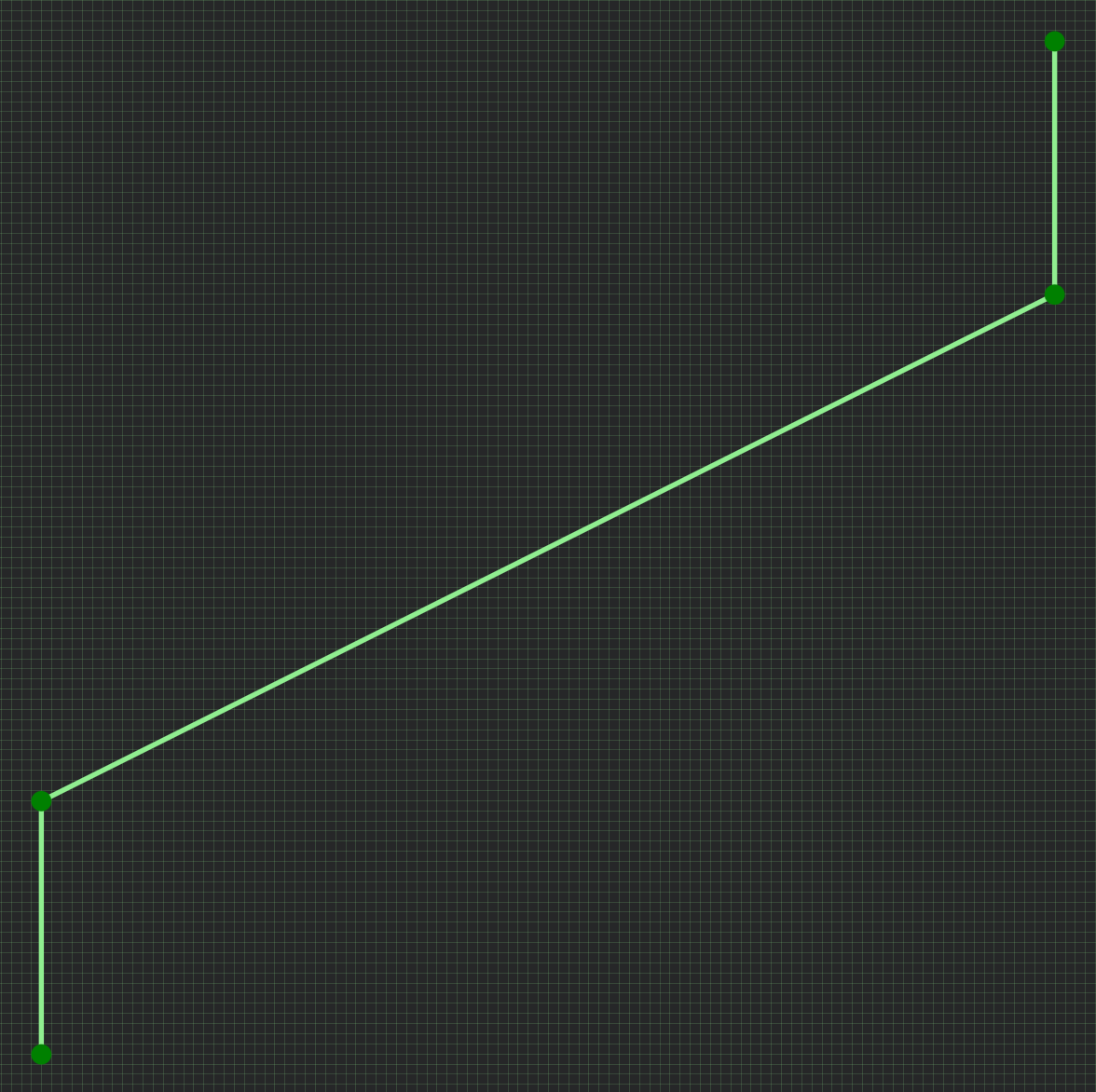
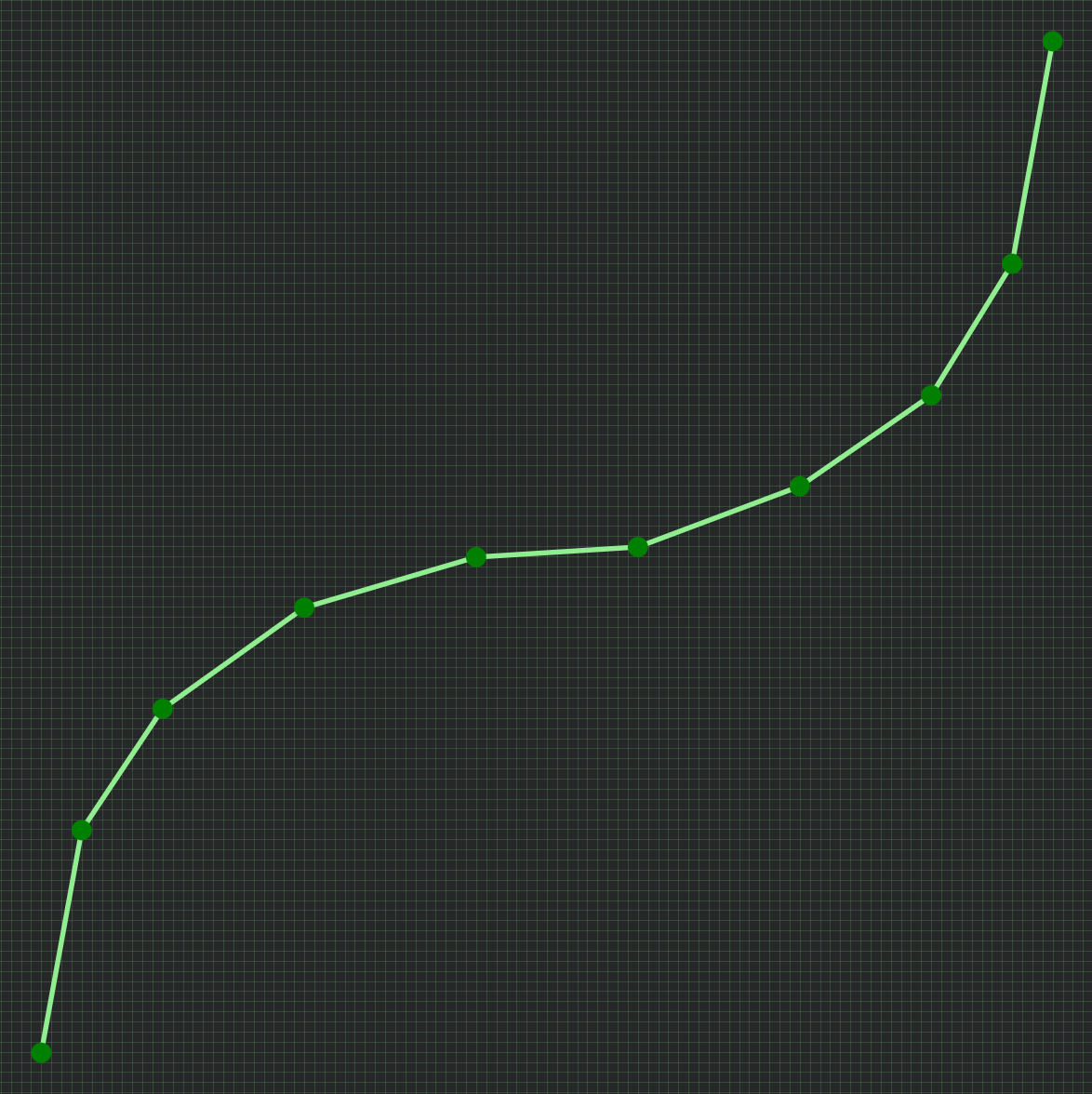
Fader movement from bottom to top has a range from 0-1000, and by default this is a straight line - or **linear**. But sometimes you want the fader to have more details - or 'throw' - in certain areas, on the cost of less details in other areas. This can be described with points on the line that bends it in different ways - we call this a fader curve.

See these examples:

<table border="1" id="bkmrk-linear-%28default%29-det" style="border-collapse: collapse; width: 100%;"><colgroup><col style="width: 20%;"></col><col style="width: 20%;"></col><col style="width: 20%;"></col><col style="width: 20%;"></col><col style="width: 20%;"></col></colgroup><tbody><tr><td>[![linear.png](https://wiki.skaarhoj.com/uploads/images/gallery/2025-07/scaled-1680-/e2ylinear.png)](https://wiki.skaarhoj.com/uploads/images/gallery/2025-07/e2ylinear.png)

Linear (default)

</td><td>[![flat-top.png](https://wiki.skaarhoj.com/uploads/images/gallery/2025-07/scaled-1680-/a5Hflat-top.png)](https://wiki.skaarhoj.com/uploads/images/gallery/2025-07/a5Hflat-top.png)

Details in top

</td><td>[![flat-middle.png](https://wiki.skaarhoj.com/uploads/images/gallery/2025-07/scaled-1680-/LHNflat-middle.png)](https://wiki.skaarhoj.com/uploads/images/gallery/2025-07/LHNflat-middle.png)

Details in middle

</td><td>[![no-top-bottom.png](https://wiki.skaarhoj.com/uploads/images/gallery/2025-07/scaled-1680-/OQsno-top-bottom.png)](https://wiki.skaarhoj.com/uploads/images/gallery/2025-07/OQsno-top-bottom.png)

No top/bottom

</td><td>[![more-points.png](https://wiki.skaarhoj.com/uploads/images/gallery/2025-07/scaled-1680-/more-points.png)](https://wiki.skaarhoj.com/uploads/images/gallery/2025-07/more-points.png)

More points = smooth

</td></tr></tbody></table>

This means: The more vertical the line is, the faster it moves past an area (less detailed). And opposite: The more horisontal the line is, the longer it stays in the same area (more detailed).

So, if you have an audio channel and want more fader accuracy in the loud end, you'd make a curve similar to example 2; 'Details in top'.


#### Access the curve editor

Reactor has a built-in graphic curve editor. It allows you to create any custom fader curve you want, including the examples above. You access it on the Configuration page by selecting a fader hardware component, and open the advanced settings within the Inpector. The curve editor is, of course, only available when selecting a 'fader' component, and not on buttons or knobs.

<table border="1" id="bkmrk-click-a-fader-to-sel" style="font-family: -apple-system, 'system-ui', 'Segoe UI', Oxygen, Ubuntu, Roboto, Cantarell, 'Fira Sans', 'Droid Sans', 'Helvetica Neue', sans-serif; font-size: 14px; width: 100%; border-collapse: collapse; border-width: 0px;"><colgroup><col style="width: 52.381%;"></col><col style="width: 47.619%;"></col></colgroup><tbody><tr><td style="border-width: 0px;">Guide to open the curve editor:

1. click a fader to select it in Inspector
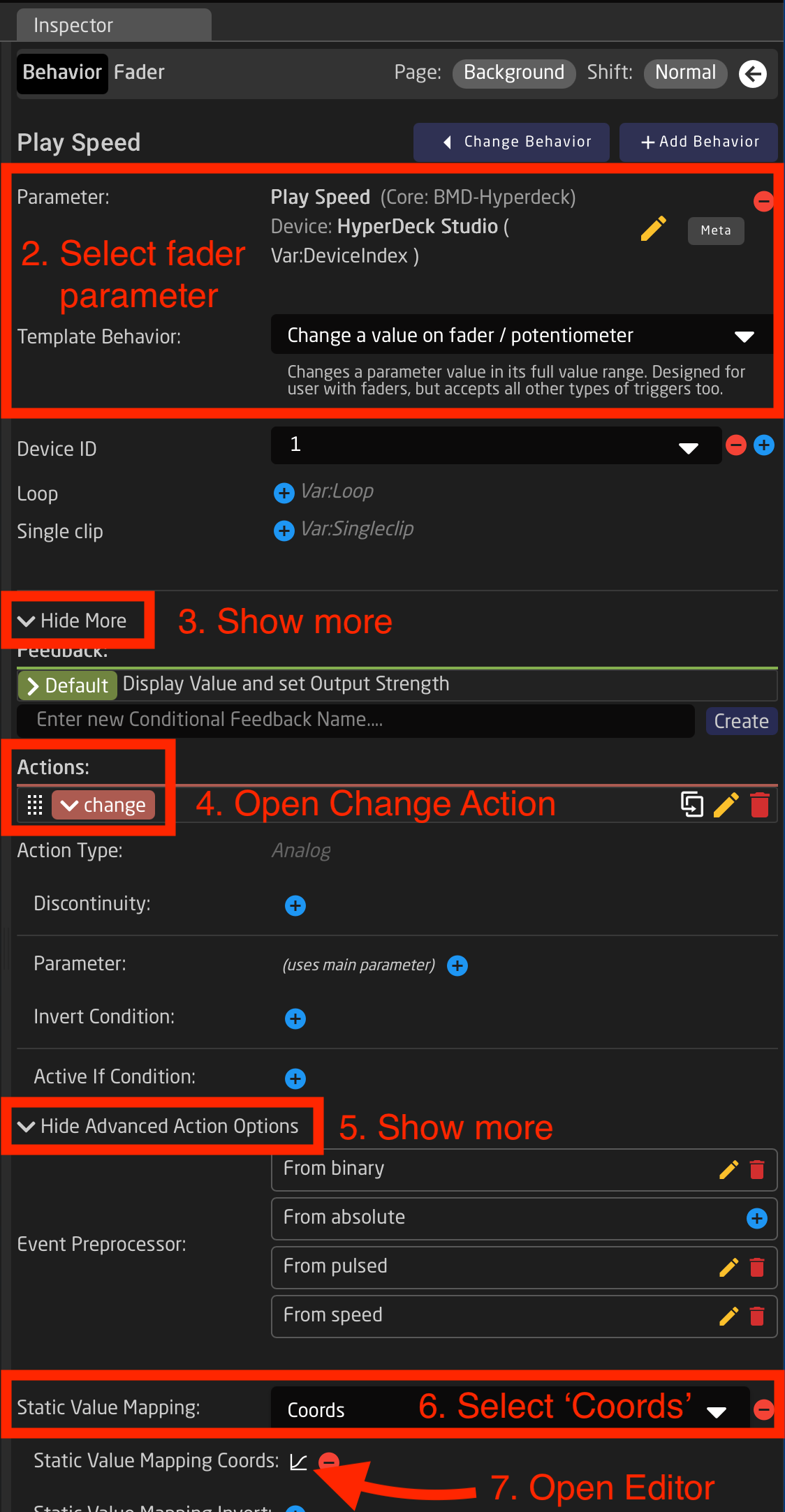
2. select a parameter that uses a behavior for 'Change value on fader' (fx. Audio volume / Camera Iris / Hyperdeck PlaySpeed)
3. click 'Show more'
4. click the Action 'Change' to open it
5. click 'Show Advanced Action Options
6. in 'Static Value Mapping' select 'Coords'
7. next to 'Static Value Mapping Coords' click '+' to create curve, and click the small white 'curve' icon to open the curve editor

</td><td style="border-width: 0px;">[![access-curve-editor.png](https://wiki.skaarhoj.com/uploads/images/gallery/2025-07/scaled-1680-/cgBaccess-curve-editor.png)](https://wiki.skaarhoj.com/uploads/images/gallery/2025-07/cgBaccess-curve-editor.png)

</td></tr></tbody></table>


#### Edit curve

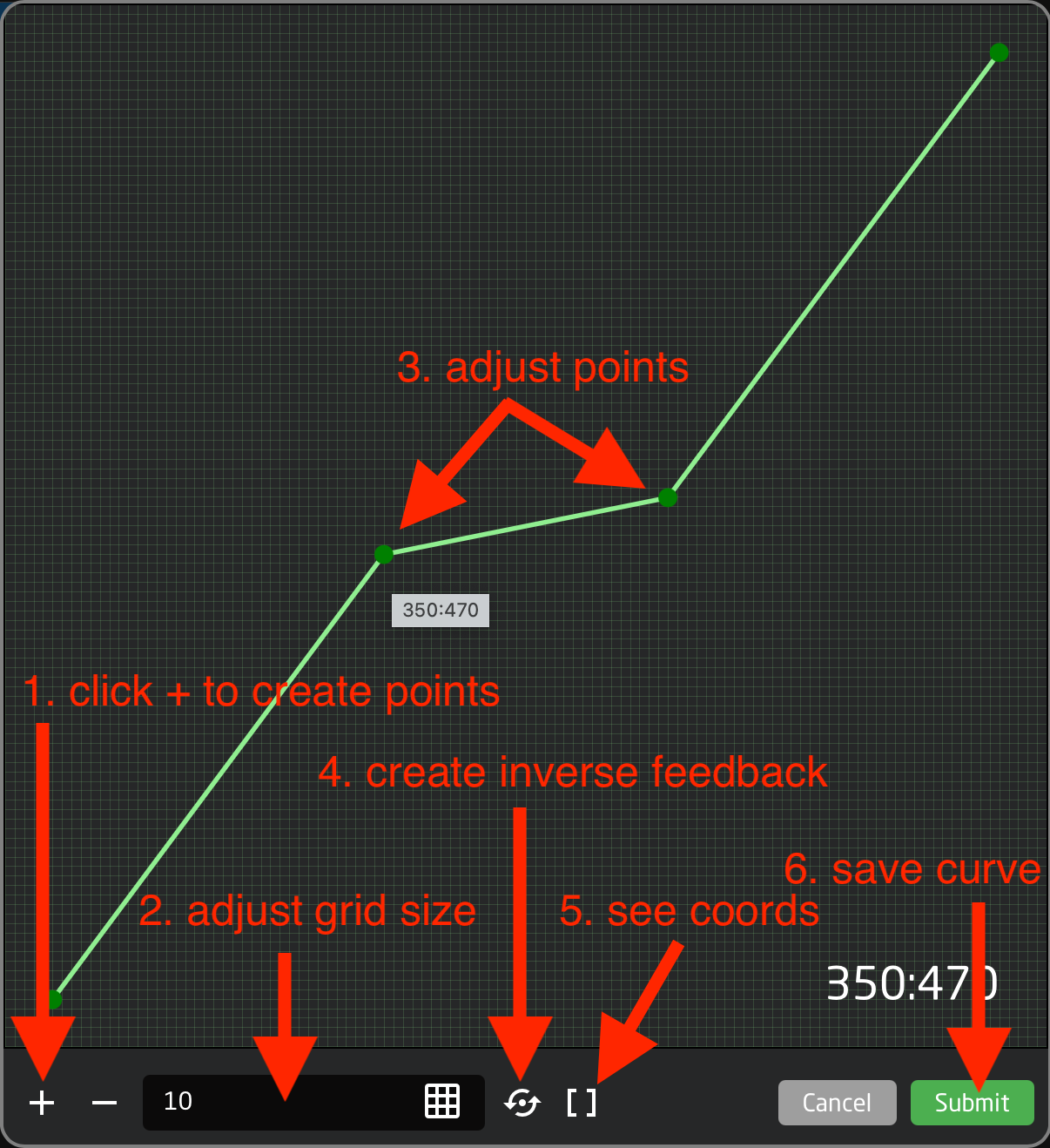
<table border="1" id="bkmrk-in-the-curve-editor-" style="font-family: -apple-system, 'system-ui', 'Segoe UI', Oxygen, Ubuntu, Roboto, Cantarell, 'Fira Sans', 'Droid Sans', 'Helvetica Neue', sans-serif; font-size: 14px; width: 100%; border-collapse: collapse; border-width: 0px;"><colgroup><col style="width: 51.6072%;"></col><col style="width: 48.512%;"></col></colgroup><tbody><tr><td style="border-width: 0px;">In the curve editor you add points, and drag them in the 0-1000 grid (0,0 being bottom and 1000,1000 being top).

Here's a guide to the features:

1. click '+' or '-' to add or delete points.
2. adjust the grid size. For many uses 100x100 is fine.
3. drag points to adjust the curve. It always start in bottom left and ends in top right. Steeper vertical means less detail in this area - more horisontal means more detail in this area.
4. click the 'circle-arrow' icon to create an 'inverted feedback'. This can be vital to match return-values from the device you control, and avoid fader jumps.
5. hover mouse over 'brackets' icon to see all coordinates.
6. click 'Submit' to save the curve. Changes are applied immediately.

</td><td style="border-width: 0px;">[![curve-editor.png](https://wiki.skaarhoj.com/uploads/images/gallery/2025-07/scaled-1680-/nGocurve-editor.png)](https://wiki.skaarhoj.com/uploads/images/gallery/2025-07/nGocurve-editor.png)

</td></tr></tbody></table>

#### Inverted feedback

Please know that often a SKAARHOJ panel **sends** values to a device - and then it **listens** for return-values from the device. So, you may move the motor-fader, but the fader position is actually updated by the return-value from the device.

In this case, having a custom curve on the data you send (the **Action**) - also makes it necessary to have an **inverted** version of the same curve on the data you listen for (the **Feedback**). This will prevent the fader from 'jumping' in strange ways.

As mentioned above (in line 5), you simply click the 'circle-arrow' icon to automatically create a feedback with an inverted curve. And do remember to click it again to update it, if you have edited the curve.

# IO References

<p class="callout warning">This documentation has moved, see here: [https://docs.skaarhoj.com/3\_configuration/ioreference.html](https://docs.skaarhoj.com/3_configuration/ioreference.html "Reactor Manual - IOReference")</p>

# Joystick Override / Hold Group guide

This is a guide on how to handle 'Joystick override' and 'Hold groups' for CCU operators - allowing automatic routing of cameras to a confidence monitor.

Imagine these operator steps:

1. CCU 1 presses the joystick :: Route cam 1 to monitor
2. CCU 4 presses the joystick :: Route cam 4 to monitor
3. CCU 2 presses the joystick :: Route cam 2 to monitor  
    ...
4. CCU 4 lets go of the joystick :: (nothing happens)
5. CCU 2 lets go of the joystick :: Return to route cam 1 to monitor
6. CCU 1 lets go of the joystick :: Return to original input for monitor

You can of course have more CCU's - and the order of who does what when is remembered by the system.

#### Prerequisite

This setup requires a 4 things:

- Blue Pill device --&gt; Is the brain, running the config and controlling both ETH-GPI Link and video switcher/router  
    For example 'Blue Pill Server' : [https://www.skaarhoj.com/product/blue-pill-server](https://www.skaarhoj.com/product/blue-pill-server)
- ETH-GPI Link --&gt; Handles the GP inputs from the CCU's  
    [https://www.skaarhoj.com/product/eth-gpi-link](https://www.skaarhoj.com/product/eth-gpi-link)
- A number of CCU's with GP output for joystick press
- A video switcher/router (for example; Aja Kumo, ATEM, Tricaster, vMix etc.)

<span style="color: rgb(224, 62, 45);">NOTE:</span> The Blue Pill device must have Reactor 2.2.3-pre10 or later installed. This is handled on the 'Packages' page.  
<span style="color: rgb(224, 62, 45);">NOTE:</span> The ETH-GPI Link must be in 'Blue Pill Mode', which means it's controlled by a Blue Pill device.

#### Configuration

1. Goto IP address of Blue Pill device to see Reactor, the configuration manager.
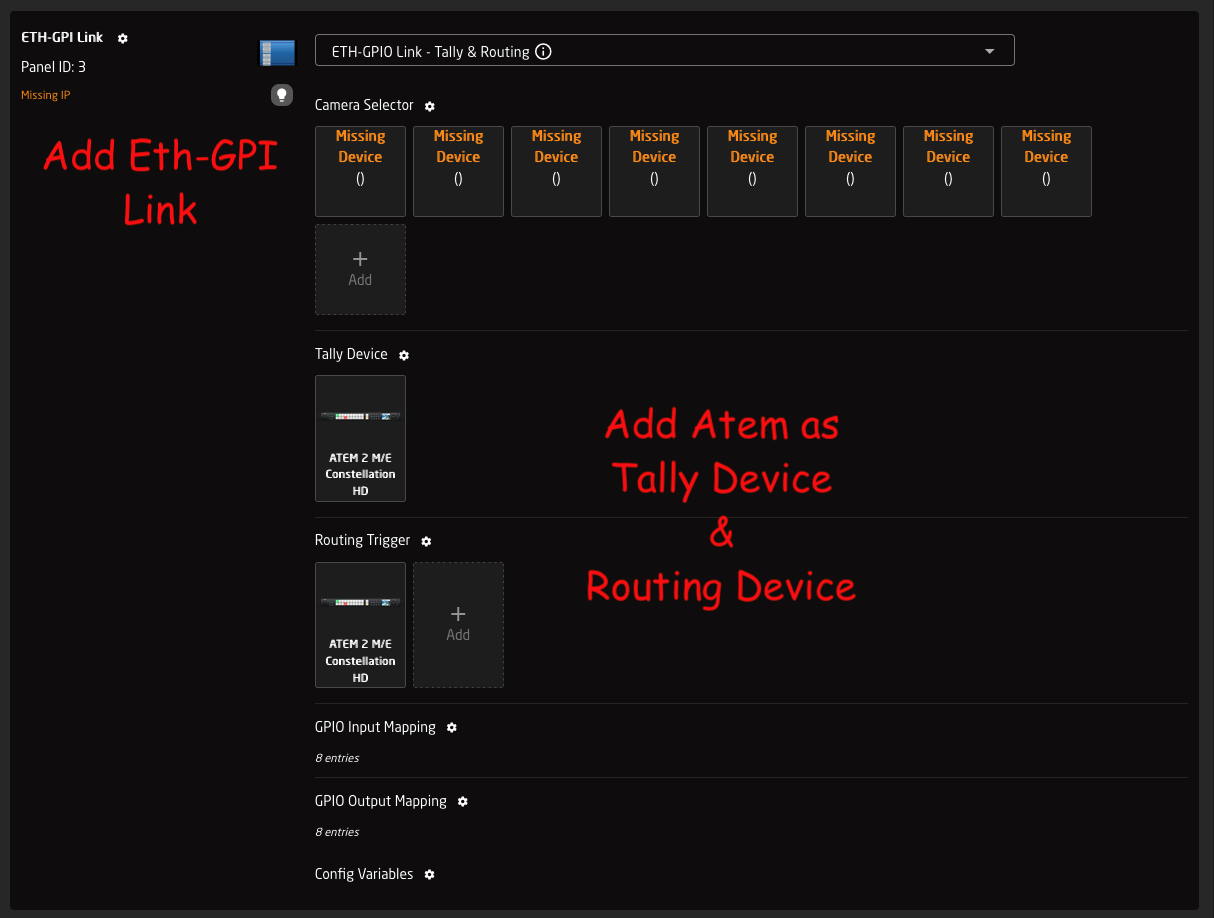
2. Click '**Add panel'** and select your ETH-GPI Link
3. Click '**Add device**' and select your routing device
4. In the ETH-GPI Link configuration drop-down menu, **select default configuration** 'Tally &amp; Routing'
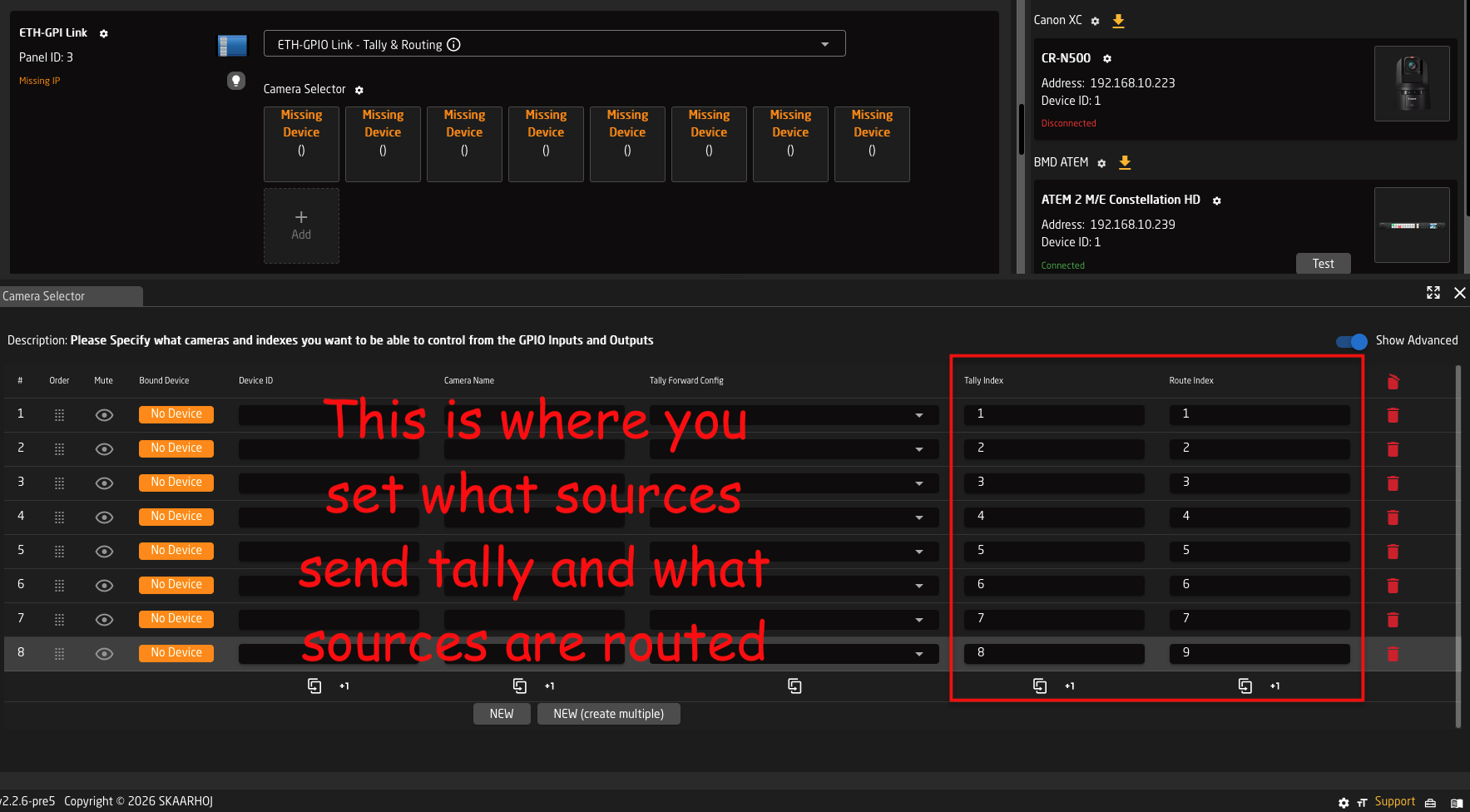
5. Click '**Camera Selector**' to open settings -&gt; Add empty rows (by holding Shift) -&gt; Set route index \[1, 2, 3..\]  
    (these are the camera inputs on the switcher/router)
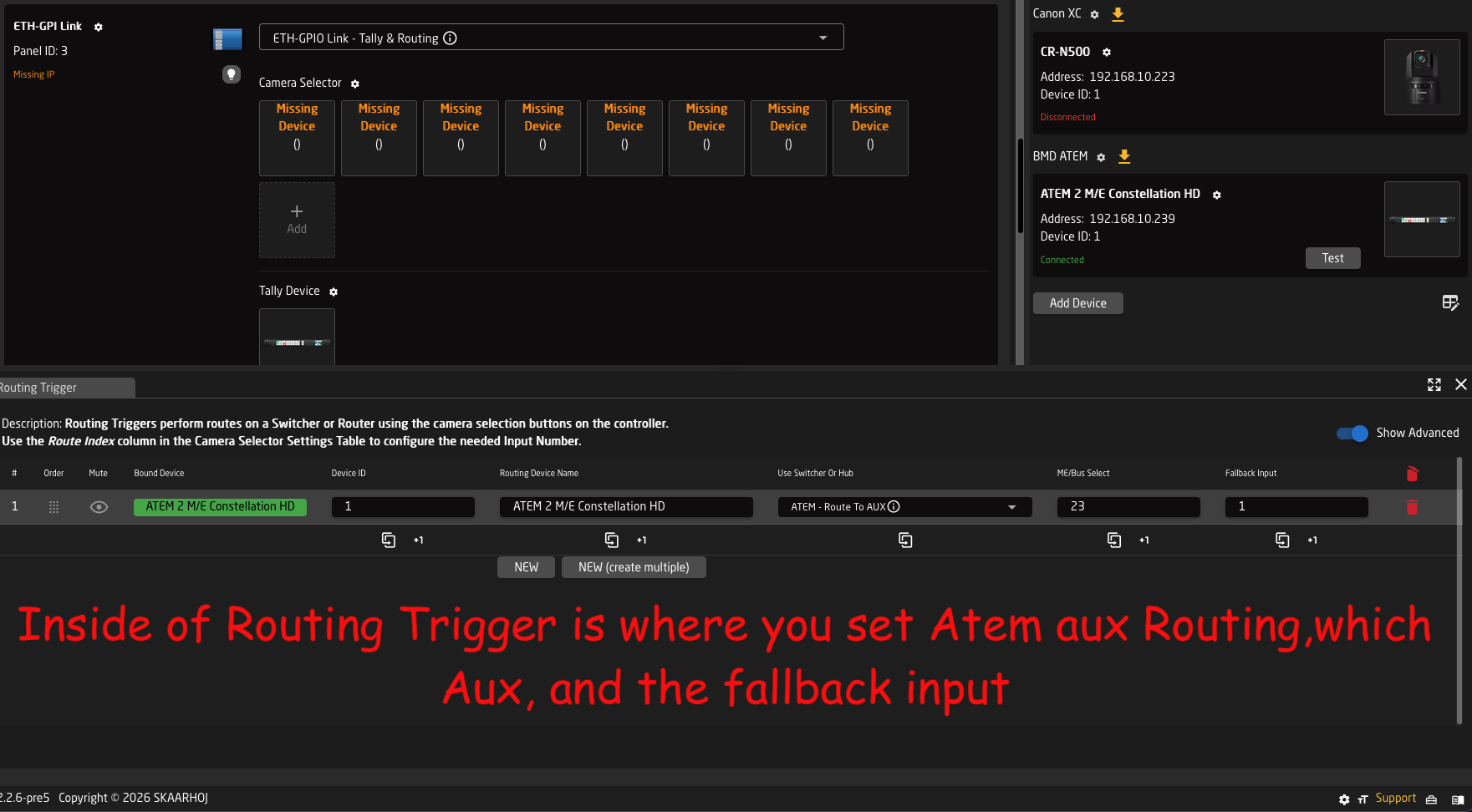
6. Click '**Routing Trigger**' to open settings -&gt; Select the output to route to
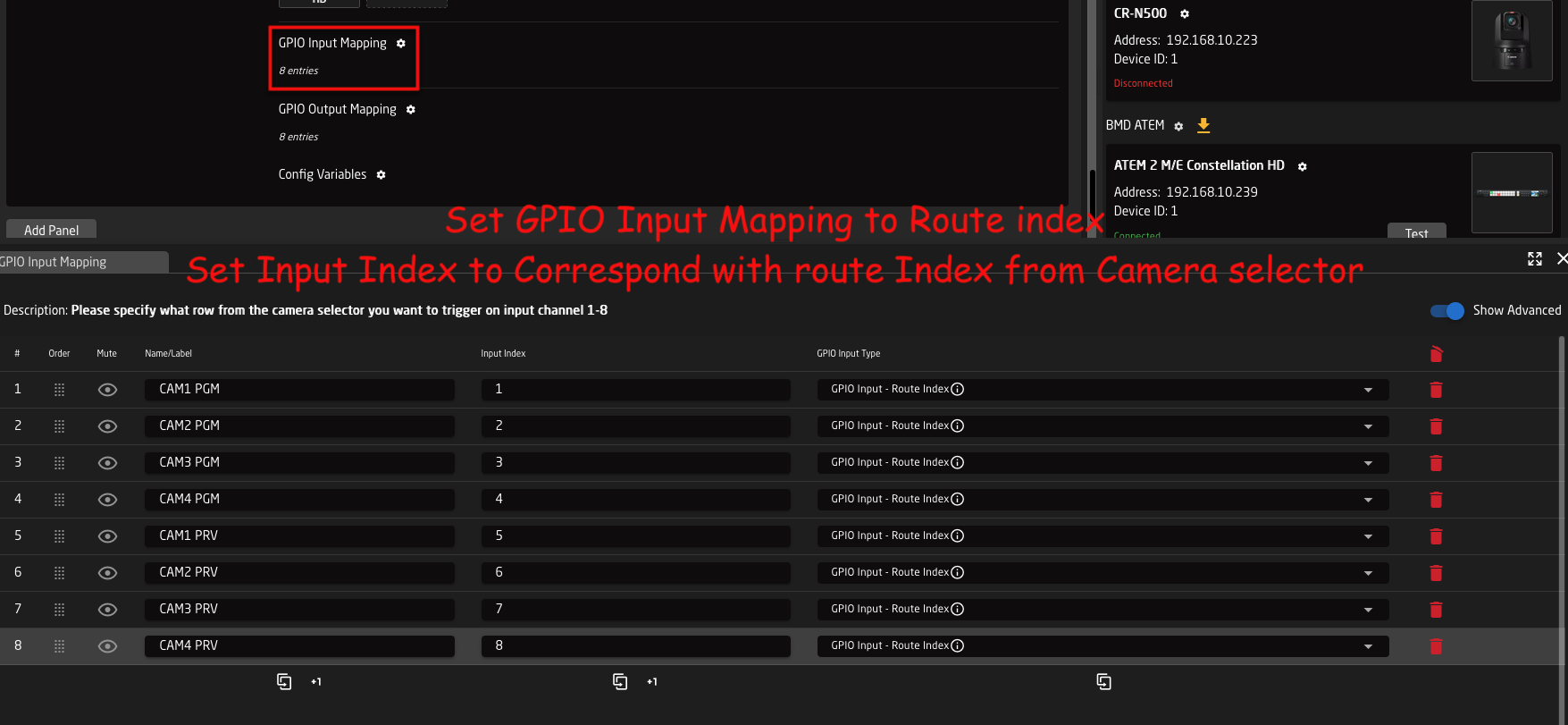
7. Click '**GPIO Input mapping**' to open settings -&gt; Change type from ‘Tally Program’ to ‘Route Index’
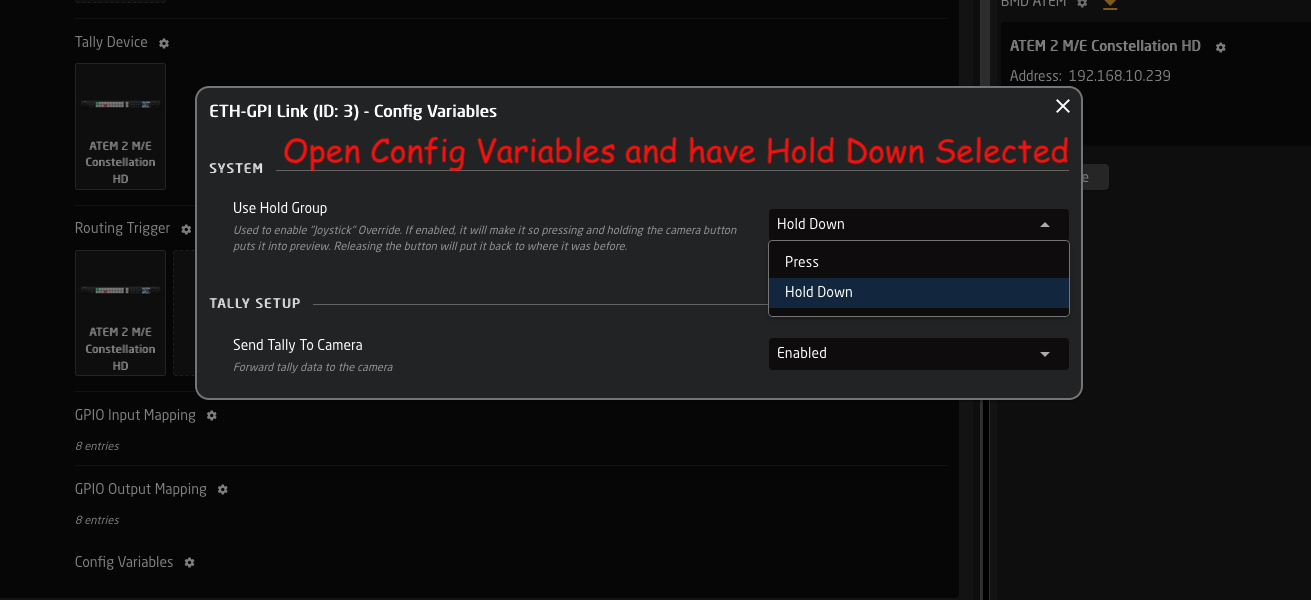
8. Click '**Config Variables**' to open settings -&gt; Select 'Press' or ‘Hold down’

Advanced step to share stack between multiple \[Blue Pill Inside\] RCP panels in the same configuration:

1. Goto Configuration page -&gt; click '&gt;&gt;' in window left/top top show Layer Tree
2. Find variable: HoldGroupState -&gt; right-click it and copy it
3. Scroll down to lowest Root layer -&gt; right-click it and paste variable here (variables here are shared by all panels)

#### Screenshots

Same as config steps above

2:  
[![2-add-panel.png](https://wiki.skaarhoj.com/uploads/images/gallery/2026-03/scaled-1680-/2-add-panel.png)](https://wiki.skaarhoj.com/uploads/images/gallery/2026-03/2-add-panel.png)

5:  
![5-camera-selector.png](https://wiki.skaarhoj.com/uploads/images/gallery/2026-03/scaled-1680-/5-camera-selector.png)

6:  
![6-routing-trigger.png](https://wiki.skaarhoj.com/uploads/images/gallery/2026-03/scaled-1680-/6-routing-trigger.png)

7:  
![7-gpio-input-mapping.png](https://wiki.skaarhoj.com/uploads/images/gallery/2026-03/scaled-1680-/7-gpio-input-mapping.png)

8:![8-config-variables.png](https://wiki.skaarhoj.com/uploads/images/gallery/2026-03/scaled-1680-/8-config-variables.png)

# Page Layers

<p class="callout info">Please note: This video is made for Reactor 1.x  
We have since released Reactor 2.x - and the video is no longer up-to-date.</p>

This guide show you how to make Page Layers.

Say you wish control 8 parameters on a camera, but only have 4 encoders on your controller. In this case you make two 'Pages' - or layers - and assign different commands in each 'Page'. You then assign a button to toggle between the pages.

<div id="bkmrk-" style="padding: 75% 0 0 0; position: relative;"><iframe allowfullscreen="allowfullscreen" frameborder="0" src="https://player.vimeo.com/video/744552710?h=4e35e5dc54&badge=0&autopause=0&player_id=0&app_id=58479" style="position: absolute; top: 0; left: 0; width: 100%; height: 100%;" title="Reactor - Page Layers guide.mov"></iframe>

</div>

# Pan/Tilt/Zoom Rocker Sensitivity and Curve Setup

For all our default PTZ configs we have pre-defined up to 4 variables for you to use to tune the feeling of the joystick and zoom rocker to fit the feeling between multiple cameras to your liking.

Before in time, you would find one param that would control all 3 axes on the joystick (L/R, U/D &amp; Rotate) as well as the Zoom rocker. This has now been split out by default to these for options that can be set pr. camera and that will remember their values between reboots, so you don't have to remember them.

The for new params are:

1. PT\_Speed -&gt; Controls the scale on U/D, L/R Joystick movements (Max Speed)
2. PT\_Curve -&gt; Controls the curve for U/D, L/R Joystick movements (Expo)
3. Z\_Speed -&gt; Controls the scale of the Zoom rocker and Joystick rotation (Max Speed)
4. Z\_Curve -&gt; Controls the curve of the Zoom rocker and Joystick rotation (Expo)

The two-speed variables are direct replacements for the old JoystickSens variable and they go just like the old variable from 1-10, with the default being 10. This correlates to a min setting of 10% of the max speed and up to the full 100% speed.  
So in short 1 = 10%, 2 = 20%, 5 = 50% and 10 = 100% speed on a fully deflected joystick/rocker.

Then we have the Two new curve variables that actually replace the old JoystickExpo variable. The chances of you having seen that variable in Reactor are very slim as it's not been part of the configs before, even though it has been set as an option in all configs.  
The new PT\_Curve and Z\_Curve replace this old variable with a name that makes more sense as well. What we control here is the amount of Expo we want on the joystick. These variables go from 0-25 giving us a wide selection from 0 = linear to 25 = 75% expo. The reason we have limited it by default to a max of 75% is that otherwise it gets so sharp that it's basically just an on/off behaviour. Adjusting this variable will give you more resolution in the middle of the joystick without losing max speed at the ends. combine this with the speed above to get the best feeling for you.

In order to visualise what the curve variables do, please take a look at this image, if you have the curve set to 0 then your joystick will follow the green curve, then as you move up towards 25 you will get closer and closer to the red curve. Thus giving you more resolution in the middle.

[![image.png](https://wiki.skaarhoj.com/uploads/images/gallery/2023-11/scaled-1680-/p1yimage.png)](https://wiki.skaarhoj.com/uploads/images/gallery/2023-11/p1yimage.png)

Image showing these four variables mapped to the encoders in a config:

[![image.png](https://wiki.skaarhoj.com/uploads/images/gallery/2023-11/scaled-1680-/TGCimage.png)](https://wiki.skaarhoj.com/uploads/images/gallery/2023-11/TGCimage.png)

Example of the P/T Speed and P/T Curve variable setup (Note that they also have "Persistent" = true):

[![image.png](https://wiki.skaarhoj.com/uploads/images/gallery/2023-11/scaled-1680-/TXximage.png)](https://wiki.skaarhoj.com/uploads/images/gallery/2023-11/TXximage.png)

[![image.png](https://wiki.skaarhoj.com/uploads/images/gallery/2023-11/scaled-1680-/TWximage.png)](https://wiki.skaarhoj.com/uploads/images/gallery/2023-11/TWximage.png)

Here is the full definition of the 4 variables in their full JSON setup:  
This snippet is taken from the file: SKAARHOJ.Devices.Canon-XC.ProClass.Basic

```json
        "PT_Curve": {
            "Name": "P/T Curve",
            "Description": "Pan/Tilt Joystick Curve (0 = Linear, 25 = Exponential)",
            "MinMaxCenterValue": [
                0,
                25
            ],
            "Default": [
                "0"
            ],
            "Persistent": true
        },
        "PT_Speed": {
            "Name": "P/T Speed",
            "Description": "Pan/Tilt Joystick Max Speed (1 = 10%, 10 = 100%)",
            "MinMaxCenterValue": [
                1,
                10
            ],
            "Default": [
                "10"
            ],
            "Persistent": true
        },
        "Z_Curve": {
            "Name": "Z Curve",
            "Description": "Zoom Rocker Curve (0 = Linear, 25 = Exponential)",
            "MinMaxCenterValue": [
                0,
                25
            ],
            "Default": [
                "0"
            ],
            "Persistent": true
        },
        "Z_Speed": {
            "Name": "Z Speed",
            "Description": "Zoom Rocker Max Speed (1 = 10%, 10 = 100%)",
            "MinMaxCenterValue": [
                1,
                10
            ],
            "Default": [
                "10"
            ],
            "Persistent": true
        }

```

One thing you will notice when you go to look at a PTZ behaviour is that you cant find where these variables are actually used, as for the moment this is not visible in the UI, so, for now, you will have to add or change this via the JSON editor.

If we go take a look at where this would become visible at some point in the future, then that would be here inside the blue box, inside a part called "ValueMapping":

[![image.png](https://wiki.skaarhoj.com/uploads/images/gallery/2023-11/scaled-1680-/iyIimage.png)](https://wiki.skaarhoj.com/uploads/images/gallery/2023-11/iyIimage.png)

If we then Click the "Show JSON" button then, we will see the full config for the Pan joystick setup for Canon XC:

```json
{
    "ParentID": "SKAARHOJ:SpeedControl",
    "Name": "Pan",
    "EventHandlers": {
        "value": {
            "ValueMapping": {
                "ScalingDivisor": 10,
                "ScalingIOReference": {
                    "Raw": "Var:PT_Speed"
                },
                "ExpoDivisor": 30,
                "ExpoIOReference": {
                    "Raw": "Var:PT_Curve"
                }
            },
            "InvertCondition": "Var:InvertPan == true"
        }
    },
    "IOReference": {
        "Raw": "DC:canon-xc/Var:DeviceIndex/panSpeed"
    }
}
```

What we look for is again the "ValueMapping" field where we can see a ScallingDivisor so that's how we get the 10% steps on the PT\_Speed variable 100%/10 = 10% step size

Then the same for the Curve, we have an ExpoDivisor that is set to 30 so 100%/30 = 3% expo pr step and by having our PT\_Curve variable limited to only 25 limits the max setting on the controller to 25 \* 3% = 75% expo. Thus preventing the curve from becoming unusably sharp.  
  
Don't hesitate to play around with these options to get the tunning fully right to your liking.

# Presets Functions

### Presets

\- Generally speaking, presets store and recall parameter values and triggers in Reactor  
\- The values to be stored can be predefined in a preset profile or they can be completely arbitrary (recording what changes)  
\- A preset profile can define values across device cores, device IDs and parameter dimensions - or they can be narrowed down  
\- With narrow preset profiles, there are inherent opportunities to use presets to copy/paste sets of values between devices and dimensions  
\- Reactor supports an infinite amount of preset profiles (re-)defined anywhere in the layer tree  
\- Storage and recall of a preset can work either instantaneously or played back over time  
\- When recorded and played back over time, values are organized in multiple segments. Each segment is essentially a time line and at the end of a timeline, playback will continue to the next segment either automatically or by user invocation (waiting for user input).  
\- Playback order of segments can be shuffled and waiting time between segments can be randomized. Playback for a timeline can be looped  
\- Recording and playback allows cancellation which will restore the state before recording or playback.  
\- Support for ganged recording and playback of multiple preset numbers, device ids, and dimensions (fairly exotic, honestly)  
\- Prepared for parameter animation (must be implemented in devicecollection)

### Commands:

**NextSegment (trigger)**  
During recording, this will end the segment and start a new one assuming there has been values added.  
During playback, this will skip to next segment

**AddUserWait (trigger)**  
Like NextSegment, but when used during recording it will insert a User Wait at the end and cap the segment length to the last added value.

**Play (trigger)**  
Starts playback

**PlayToggle (trigger)**  
Starts or stops playback

**PlayToggleNext (trigger)**  
Starts or stops playback, except if waiting in which case it will

**PlaySkip (trigger)**  
Starts playback, and skips to next segment if already playing (which may result in stopping altogether)

**PlayPause**  
Starts playback and toggles pause if already playing

**PlayPauseNext**  
Starts playback and toggles pause if already playing, unless at a user wait in which case it skips to next.

**Record (trigger)**  
Starts recording

**RecordToggle (trigger)**  
Starts or stops recording

**RecordNewSegment (trigger)**  
Starts recording, and creates new segment on second press

**RecordAddUserWait (trigger)**  
Starts recording, and creates new segment with user wait on second press

**Stop (trigger)**  
Stops recording or playing

**Delete (trigger)**  
Deletes preset if it is not recording or playing

**Cancel (trigger)**  
If recording, it will stop recording, recall the values from before recording and reinstate the previous content for the preset   
If playing, it will stop playing and recall the values from before playing.

**Recall (trigger)**  
Instantly recalls the final values of the first segment of a preset.

**RecallStateFromBeforeRecording (trigger)**  
Recalls the initially stored state of a given preset

**DurationRandomExtension (Integer value, ms)**  
Sets the Random extension value for a given recorded preset.

**Loop (bool)**  
Enable looping for a preset

**Shuffle (bool)**  
Enable shuffle for a preset

# RCP Pro / RCPv2 :: Control more than 8 cameras

#### Optimal control

For optimal control we suggest having a separate RCP panel for each camera.  
This is how camera control was intended, when Sony invented the RCP form factor in the beginning of time.

#### Default 'Camera Control' configuration

RCP Pro and RPCv2 panels have a feature rich pre-made default configuration called 'Camera Control'.  
It is selected on Home page in the configuration drop-down menu, right next to the panel icon.

This configuration allow you to add up to 8 cameras, even from different brands.  
And the 8 small buttons in the panel top are a perfect fit to use for 'Camera Select 1-8'.

[![rcp-pro-top.png](https://wiki.skaarhoj.com/uploads/images/gallery/2025-05/scaled-1680-/nDPrcp-pro-top.png)](https://wiki.skaarhoj.com/uploads/images/gallery/2025-05/nDPrcp-pro-top.png)

#### Options for more cameras

If you need to control more cameras you can..

- purchase more RCP panels
- create your own custom configuration from scratch
- modify the 'Camera Control' configuration to handle more cameras

#### How to modify the 'Camera Control' configuration

This includes:

- increasing the allowed number of cameras on Home page
- create a variable to store 'current camera selector page'
- assign the variable to the Generator for camera select (to automatically create more pages)
- assign the variable to a button (to toggle pages)

You can watch a screen recording video (2min 24sec), that shows you how to modify the configuration step-by-step.  
Download the video here:  
[https://drive.google.com/file/d/1GC\_ap9sWij\_W8nkptEJa7tfiHDLgNYlp/view?usp=drive\_link](https://drive.google.com/file/d/1GC_ap9sWij_W8nkptEJa7tfiHDLgNYlp/view?usp=drive_link)

And here's a written guide on how to do it:

Add cameras  
• Home page  
• in window right, click ‘Add device’ -&gt; add all cameras  
• in window center, select ‘Camera Control’ in the configuration menu  
• click ‘+ icon’ -&gt; click ‘Add all supported devices’

Expand max number of cameras to more than 8 before the ‘+’ button disappears  
• goto Configuration page  
• click ‘&gt;&gt;’ icon to show Object Tree  
• in very bottom/right of page, click ‘cogwheel’ icon to open Settings -&gt; enable ‘Show IncludeLayers’  
• now you see the layer ‘Default RCP PRO Configurattion’ -&gt; click 'CameraSelector' to show it in Inspector  
• scroll down, click ‘Show more’ -&gt; edit ‘Max items’ from 8 to 16 (or how many you need)  
• goto Home page -&gt; add more cameras

Make sure the 8 buttons in panel top are used for ‘camera select’ - and not for ‘presets’  
• goto Simulator page / or press buttons on actual panel  
• press two buttons to open Engineering menu -&gt; set Cam-row to ‘Cameras’

Create new variable to store ‘Selected page’  
• goto Configuration page  
• click panel background to see variables -&gt; create new ‘CamSelectPage’ variable -&gt; click it to open it -&gt; set range max 2

Use variable in generator for 'Cam selectors' to automatically build more pages  
• in Object Tree, open layer RCP &gt; Camera Control &gt; Normal Operation -&gt; Cam 1-8  
• click any of the 8 Cam buttons to select the generator in Inspector -&gt; set ‘Paging Variable’ to the new ‘CamSelectPage’

Assign variable to button, to use for page-select  
• click ‘&lt;&lt;‘ icon to hide Object tree  
• click an available button, fx. X4  
• select System &gt; Change Variable &gt; select the new CamSelectPage -&gt; click Submit + confirm

Done.! The 8 camera select buttons in panel top now has 2 pages, and use button X4 to toggle between them.

# Separating Zoom Sensitivity from Pan and Tilt Sensitivity

<p class="callout warning">This page has been made obsolete in newer versions of Reactor. </p>

By default Pan, Tilt, and Zoom are all controlled by the setting Joystick Sensitivity. This is not ideal for some users who would like Zoom to be controllable at its own sensitivity. To separate this out it is necessary to dive into the configuration and the json editor, but don't worry, it isn't too difficult.

This example will be done on the PTZ Extreme but can be applied to all configurations.

Joystick sensitivity is not set for the whole controller, but per camera configuration based on device core. The configuration in this instance is different from the panel mapping. There will be a different configuration added for each device core used.

<p class="callout info">Different brands might use the same device core, example: BirdDog, NewTek, Marshall all use the Visca device core. </p>

<p class="callout info">This example was made on a Blue Pill running the following version:  
SkaarOS v1.0  
Reactor v1.0.5-pre11  
System Manager v1.0.1-pre1  
Hardware Manager v1.0.2-pre3  
Using earlier versions can affect the look of the interface causing it to appear different. We recommend using at least the indicated versions or newer. </p>

1\. Determine the number of PTZ configuration in your set up.   
In the set up example there are 3 different device cores used as indicated in the Devices section. All devices will be grouped by the used core in this section. ![Screenshot 2022-12-16 at 13.29.42.png](https://wiki.skaarhoj.com/uploads/images/gallery/2022-12/scaled-1680-/screenshot-2022-12-16-at-13-29-42.png)

2\. Navigate to the Configuration Tab.

![Screenshot 2022-12-16 at 13.46.26.png](https://wiki.skaarhoj.com/uploads/images/gallery/2022-12/scaled-1680-/screenshot-2022-12-16-at-13-46-26.png)

3\. Open the Tree to navigate to the Device Core Configurations. The tree expands from the bottom up, like a tree starting at the roots. (This is shown in a collapsed view)

![Screen Shot 2022-12-19 at 8.44.20 AM.png](https://wiki.skaarhoj.com/uploads/images/gallery/2022-12/scaled-1680-/screen-shot-2022-12-19-at-8-44-20-am.png)

4\. Navigate to the Joystick Sensitivity variable for a Device Core Configuration.

![Screenshot 2022-12-16 at 13.48.52.png](https://wiki.skaarhoj.com/uploads/images/gallery/2022-12/scaled-1680-/screenshot-2022-12-16-at-13-48-52.png)

5\. Open the Tree Layer with the Joystick Sensitivity Variable. When selected the layer will change color and you will see it open in the Inspector on the right side of the screen.

![Screenshot 2022-12-16 at 13.52.30.png](https://wiki.skaarhoj.com/uploads/images/gallery/2022-12/scaled-1680-/screenshot-2022-12-16-at-13-52-30.png)

6\. Create a new variable called **ZoomSens**. This could be named anything, but it is best to use something that will be easy to remember and type later.

![Screenshot 2022-12-16 at 13.58.04.png](https://wiki.skaarhoj.com/uploads/images/gallery/2022-12/scaled-1680-/screenshot-2022-12-16-at-13-58-04.png)

7\. Open the ZoomSens variable to edit the details. Use the same details as the JoystickSens variable.   
The name is however you would like it to display on the controller.   
The type is Range  
The Min is 1  
The Max is 10 (The scale should not exceed 10)  
Default value is 10

![Screenshot 2022-12-16 at 14.02.05.png](https://wiki.skaarhoj.com/uploads/images/gallery/2022-12/scaled-1680-/screenshot-2022-12-16-at-14-02-05.png)

8\. Go back to the Tree and select the JoyRot box in the same layer you are working in. This will open the joystick rotation (zoom) in the inspector.

![Screenshot 2022-12-16 at 14.08.36.png](https://wiki.skaarhoj.com/uploads/images/gallery/2022-12/scaled-1680-/screenshot-2022-12-16-at-14-08-36.png)

9\. DON'T PANIC

10\. Open Show JSON for the JoyROT component.

![Screenshot 2022-12-16 at 14.09.54.png](https://wiki.skaarhoj.com/uploads/images/gallery/2022-12/scaled-1680-/screenshot-2022-12-16-at-14-09-54.png)

11\. Select Format

![Screenshot 2022-12-16 at 14.11.57.png](https://wiki.skaarhoj.com/uploads/images/gallery/2022-12/scaled-1680-/screenshot-2022-12-16-at-14-11-57.png)

12\. Select Show Parent Behavior

![Screenshot 2022-12-16 at 17.56.39.png](https://wiki.skaarhoj.com/uploads/images/gallery/2022-12/scaled-1680-/screenshot-2022-12-16-at-17-56-39.png)

13\. In the Window the pops up, select Format again. This will expand the data to see the whole JSON text.

![Screen Shot 2022-12-19 at 8.55.43 AM.png](https://wiki.skaarhoj.com/uploads/images/gallery/2022-12/scaled-1680-/screen-shot-2022-12-19-at-8-55-43-am.png)

14\. Scroll down to the Joystick Sensitivity commands and copy the whole command set as seen below, every part is essential:

<div id="bkmrk-%22valuemapping%22%3A-%7B-%22s"><div><div><div>**"ValueMapping": {**</div><div>**"ScalingDivisor": 10,**</div><div>**"ScalingIOReference": {**</div><div>**"Raw": "Var:JoystickSens"**</div><div>**}**</div><div>**},**</div><div>  
</div></div></div></div>![Screen Shot 2022-12-19 at 8.57.39 AM.png](https://wiki.skaarhoj.com/uploads/images/gallery/2022-12/scaled-1680-/screen-shot-2022-12-19-at-8-57-39-am.png)

15\. Close this window.

16\. In the Inspector, find the BehaviorSetValues text in the JSON editor. Click after the comma and hit enter.

![Screenshot 2022-12-16 at 18.10.15.png](https://wiki.skaarhoj.com/uploads/images/gallery/2022-12/scaled-1680-/screenshot-2022-12-16-at-18-10-15.png)

17\. Paste in the text you copied from the Parent Behavior pop up.

![Screenshot 2022-12-16 at 18.12.52.png](https://wiki.skaarhoj.com/uploads/images/gallery/2022-12/scaled-1680-/screenshot-2022-12-16-at-18-12-52.png)

18\. Find the text in the pasted in command that say: **"Var:JoystickSens"**

![Screenshot 2022-12-16 at 18.14.17.png](https://wiki.skaarhoj.com/uploads/images/gallery/2022-12/scaled-1680-/screenshot-2022-12-16-at-18-14-17.png)

19\. Edit this text to say: **"Var:ZoomSens"** then press Save

 If you did not name the variable you created earlier ZoomSens, you will type the name you did create here after the **:**

![Screenshot 2022-12-16 at 18.16.20.png](https://wiki.skaarhoj.com/uploads/images/gallery/2022-12/scaled-1680-/screenshot-2022-12-16-at-18-16-20.png)

20\. If there is a Zoom Rocker, you will need to do steps 18 + 19 for that hardware component as well.

![Screenshot 2022-12-16 at 18.20.24.png](https://wiki.skaarhoj.com/uploads/images/gallery/2022-12/scaled-1680-/screenshot-2022-12-16-at-18-20-24.png)

21\. The variable and command have now both been set up. The last step is to assign control of the variable to an encoder.

22\. Go back to the tree view and navigate deeper in that device core configuration to the Camera Adjustment layer and open it. This will open the tree to see the different page layers of settings for the camera. They should be named based on the what they contain. [![Screenshot 2022-12-16 at 18.40.43.png](https://wiki.skaarhoj.com/uploads/images/gallery/2022-12/scaled-1680-/screenshot-2022-12-16-at-18-40-43.png)](https://wiki.skaarhoj.com/uploads/images/gallery/2022-12/screenshot-2022-12-16-at-18-40-43.png)

23\. Navigate to and select the System layer, this is where the Joystick Sensitivity control is usually located but may also be on the Home page. This should be the same across all device core configurations. The number and names of layers will be different for each device core configuration. On each of them should be a Home and a System page.

![Screenshot 2022-12-16 at 18.50.52.png](https://wiki.skaarhoj.com/uploads/images/gallery/2022-12/scaled-1680-/screenshot-2022-12-16-at-18-50-52.png)

24\. Find one of the encoders that does not currently have something assigned to it, you can see this by going to that page on your physical panel and seeing where a good place to put the Zoom Sensitivity Control would be. In this example I am using Encoder 4 (from right to left on the physical panel).![Screenshot 2022-12-16 at 18.54.13.png](https://wiki.skaarhoj.com/uploads/images/gallery/2022-12/scaled-1680-/screenshot-2022-12-16-at-18-54-13.png)

25\. In the Inspector select Edit next to the Parameter.

![Screenshot 2022-12-16 at 18.56.14.png](https://wiki.skaarhoj.com/uploads/images/gallery/2022-12/scaled-1680-/screenshot-2022-12-16-at-18-56-14.png)

26\. In the pop up window, select Variable.

![Screenshot 2022-12-16 at 18.57.15.png](https://wiki.skaarhoj.com/uploads/images/gallery/2022-12/scaled-1680-/screenshot-2022-12-16-at-18-57-15.png)

27\. In the drop down next to Variable Name, select **ZoomSens** and press Submit.![Screenshot 2022-12-16 at 19.33.39.png](https://wiki.skaarhoj.com/uploads/images/gallery/2022-12/scaled-1680-/screenshot-2022-12-16-at-19-33-39.png)

28\. After submitting the Behavior should either suggest or auto-assign Step Change. This is the correct behavior.

![Screenshot 2022-12-16 at 19.34.48.png](https://wiki.skaarhoj.com/uploads/images/gallery/2022-12/scaled-1680-/screenshot-2022-12-16-at-19-34-48.png)

29\. You should now be able to control Zoom Sensitivity separately from Pan and Tilt.

![Screenshot 2022-12-16 at 19.36.29.png](https://wiki.skaarhoj.com/uploads/images/gallery/2022-12/scaled-1680-/screenshot-2022-12-16-at-19-36-29.png)

30\. If you are combining cameras that use multiple device cores on your panel, you will need to go in and do the same in each device core configuration. In the example below there are 3 different configurations and we made the changes to the Canon configuration.

![Screen Shot 2022-12-19 at 9.00.26 AM.png](https://wiki.skaarhoj.com/uploads/images/gallery/2022-12/scaled-1680-/screen-shot-2022-12-19-at-9-00-26-am.png)

# Switching Projects via a Button in Reactor

Reactor allows to switch the current project easily using a button.

<p class="callout warning">Please Note, changing the current project will disconnect controllers if they are not configured in the project that is being switched to. </p>

<p class="callout warning">Make sure to configure the projects to be switched between in each project. </p>

In the Project Manager, open the project details for the project you want to switch to. Copy the project's Filename exactly. It is necessary to toggle on Show Advanced to see the file name.

[![Screenshot 2023-11-08 at 1.54.39 PM.png](https://wiki.skaarhoj.com/uploads/images/gallery/2023-11/scaled-1680-/screenshot-2023-11-08-at-1-54-39-pm.png) ](https://wiki.skaarhoj.com/uploads/images/gallery/2023-11/screenshot-2023-11-08-at-1-54-39-pm.png)

  
On the Configuration Page, select the button to configure. In the Inspector, select Switch Project under the System options.

[![Screenshot 2023-11-09 at 11.37.15.png](https://wiki.skaarhoj.com/uploads/images/gallery/2023-11/scaled-1680-/screenshot-2023-11-09-at-11-37-15.png)](https://wiki.skaarhoj.com/uploads/images/gallery/2023-11/screenshot-2023-11-09-at-11-37-15.png)

In the Inspector box, the parameter should open with a preselected selected Settings Template.

![Screenshot 2023-11-09 at 12.18.57.png](https://wiki.skaarhoj.com/uploads/images/gallery/2023-11/scaled-1680-/screenshot-2023-11-09-at-12-18-57.png)

Fill in the Project Filename that was copied from the Project Manager into the Value field next to Project Filename. It is important that the file name is copied exactly as found in the Project Manager.

[![Screenshot 2023-11-09 at 12.19.47.png](https://wiki.skaarhoj.com/uploads/images/gallery/2023-11/scaled-1680-/screenshot-2023-11-09-at-12-19-47.png)](https://wiki.skaarhoj.com/uploads/images/gallery/2023-11/screenshot-2023-11-09-at-12-19-47.png)

The project name should now appear on the display above the button (if the button does have an associated display).

<p class="callout info">Please Note, the switch is activated by a 1 second hold down of the button. </p>

[![Screenshot 2023-11-09 at 12.20.05.png](https://wiki.skaarhoj.com/uploads/images/gallery/2023-11/scaled-1680-/screenshot-2023-11-09-at-12-20-05.png)](https://wiki.skaarhoj.com/uploads/images/gallery/2023-11/screenshot-2023-11-09-at-12-20-05.png)

Another way to do it without the 1 second hold down.

On the Configuration Page, select the button to configure. In the Inspector, select Choose Other Parameter under the System option.

[![Screenshot 2023-11-09 at 12.35.30.png](https://wiki.skaarhoj.com/uploads/images/gallery/2023-11/scaled-1680-/screenshot-2023-11-09-at-12-35-30.png)](https://wiki.skaarhoj.com/uploads/images/gallery/2023-11/screenshot-2023-11-09-at-12-35-30.png)

In the dialog box that pops up select: Reactor/CurrentProject then Submit

[![projectswitch ioref.png](https://wiki.skaarhoj.com/uploads/images/gallery/2023-06/scaled-1680-/projectswitch-ioref.png)](https://wiki.skaarhoj.com/uploads/images/gallery/2023-06/projectswitch-ioref.png)

Returning to the Inspector, select Show More if you do not see Settings Template available.

![Screenshot 2023-11-08 at 2.06.58 PM.png](https://wiki.skaarhoj.com/uploads/images/gallery/2023-11/scaled-1680-/screenshot-2023-11-08-at-2-06-58-pm.png)

In the Settings Template, select Set Value Directly:

[![Screenshot 2023-11-08 at 2.07.21 PM.png](https://wiki.skaarhoj.com/uploads/images/gallery/2023-11/scaled-1680-/screenshot-2023-11-08-at-2-07-21-pm.png)](https://wiki.skaarhoj.com/uploads/images/gallery/2023-11/screenshot-2023-11-08-at-2-07-21-pm.png)

This should then give you the option to define the value needed.

The first box will contain the Project File Name as directly copied from the Project Details. The second box can contain any name you would like to be displayed on the hardware panel.

[![Screenshot 2023-11-08 at 2.08.03 PM.png](https://wiki.skaarhoj.com/uploads/images/gallery/2023-11/scaled-1680-/screenshot-2023-11-08-at-2-08-03-pm.png)](https://wiki.skaarhoj.com/uploads/images/gallery/2023-11/screenshot-2023-11-08-at-2-08-03-pm.png)

You should end up with a button like this:

[![Screenshot 2023-11-08 at 2.25.37 PM.png](https://wiki.skaarhoj.com/uploads/images/gallery/2023-11/scaled-1680-/screenshot-2023-11-08-at-2-25-37-pm.png)](https://wiki.skaarhoj.com/uploads/images/gallery/2023-11/screenshot-2023-11-08-at-2-25-37-pm.png)

# Switching Projects via external HTTP Request

Reactor allows to switch the current project via an external HTTP POST request.  
  
The endpoint used is: /reactorapi/selectproject

This request allows to use the skaarOS authentication via HTTP Basic Authentication (Use the latest version of system-manager to allow this (v1.0.1-pre1 and higher))

  
Curl example:  
curl --location --request POST '192.168.0.20/reactorapi/selectproject' \\  
\--header 'Authorization: Basic YWRtaW46c2thYXJob2o=' \\  
\--header 'Content-Type: application/json' \\  
\--data-raw '{"Filename":"MyProject"}'

# Understanding Flags

<p class="callout warning">This documentation might be outdated. Please consult the Reactor manual at [https://docs.skaarhoj.com/11\_advanced\_topics/flag-groups.html](https://docs.skaarhoj.com/11_advanced_topics/flag-groups.html)</p>

Inside reactor we have support for setting flags true or false. These flags are based around how TSL works to some extent and provides a list of true/false states with 4 "bits" per index.

Flags in reactor consists of 4 bits per index, that can be set true or false individually, each of these flag bits can be used for different things but you will mainly see them used for providing tally and routing support in configs as they are a great way to store the intermediate state that comes in from a GPI pin or from a device like an ATEM switcher. Then use the stored state to send the Tally to the cameras

The 4 "colors/bits" main use cases in the default configs for each color are:

<table border="1" id="bkmrk-red-mainly-used-for-" style="border-collapse: collapse; width: 100%;"><colgroup><col style="width: 17.5927%;"></col><col style="width: 82.5309%;"></col></colgroup><tbody><tr><td>Red

</td><td>Mainly used for Program Tally</td></tr><tr><td>Green</td><td>Mainly used for Preview Tally </td></tr><tr><td>Blue</td><td>Not widely used in default configs yet</td></tr><tr><td>White</td><td>Mainly used for storing what camera to Route on a mixer/videohub</td></tr></tbody></table>

These are not limited to this use case, but this is the current convention we use internally.

#### Define flag groups and sync them up

When you use flags you will need to add them to your project as "Flaggroups" with a name and an Index.  
One Important note is that ANY config that you have loaded in the project that uses the same Group ID will be synced even if you have different names for them. This means that you can "sync" up tally or routing between 2 or more controllers running in the same reactor just by changing the flaggroup ID for "Tally" to be the same on both panels. This is also a very simple way to add a GPIO or Tally box to an existing system/setup.  
  
This also brings the problem of if you happen to set your Routing group to the same ID as your Tally group, funny stuff might happen. But since we are using different Bit's for it, you should be fine and not risk having "crosstalk" between them. For simplicity we have made sure to make them on different group ID's in all default configs.  
  
Here is an example from a PTZ Extreme about how these groups are defined on Index 10 and 11:

[![image.png](https://wiki.skaarhoj.com/uploads/images/gallery/2022-10/scaled-1680-/image.png)](https://wiki.skaarhoj.com/uploads/images/gallery/2022-10/image.png)

#### How to set a flag

The simplest way to set a flag is to use the normal "SKAARHOJ:HoldDown" behavior on a button/GPI pin or in a virtual trigger where you might use the tally status reported by your switcher.  
  
When setting flags we are looking at an IORefrence structure that looks like this:

**Flag:Tally/Red/Var:TallyIndex/**

So to break it down we have:

**Flag:\[Group Name\]/\[Color\]/\[Index\]** Often you will see us use a variable for the index. In most cases we use it together with a constant set where the user can fill in what routing input or tally index it should follow. For a mixer setup the tally index would correlate with what input number is active on the mixer.

##### Some examples of this in use

Here is a couple of examples of how these setups look, they are posted here in json format as it's the simplest way to get a condensed look at the setup:

**From an RCP using the GPI input to set the red tally flag on the selected camera:**

[![image.png](https://wiki.skaarhoj.com/uploads/images/gallery/2022-10/scaled-1680-/8xKimage.png)](https://wiki.skaarhoj.com/uploads/images/gallery/2022-10/8xKimage.png)

```json
{
    "ParentID": "SKAARHOJ:HoldDown",
    "IOReference": {
        "Raw": "Flag:Tally/Red/Var:TallyIndex"
    }
}
```

**And here for the preview button (same as pressing the joystick) on the same RCP, that sets a Routing Flag instead:**

[![image.png](https://wiki.skaarhoj.com/uploads/images/gallery/2022-10/scaled-1680-/efZimage.png)](https://wiki.skaarhoj.com/uploads/images/gallery/2022-10/efZimage.png)

```java
{
    "ParentID": "SKAARHOJ:HoldDown",
    "IOReference": {
        "Raw": "Flag:RoutingSource/White/Var:RouteIndex"
    },
    "FeedbackDefault": {
        "DisplayText": {
            "Title": "Preview"
        }
    }
}
```

**A more extreme setup of using a Virtual Trigger for setting the tally flags with tally status from an ATEM mixer:**

This is the file you load when you select a tally device in the constant set:

[![image.png](https://wiki.skaarhoj.com/uploads/images/gallery/2022-10/scaled-1680-/sNnimage.png)](https://wiki.skaarhoj.com/uploads/images/gallery/2022-10/sNnimage.png)

[![image.png](https://wiki.skaarhoj.com/uploads/images/gallery/2022-10/scaled-1680-/dxrimage.png)](https://wiki.skaarhoj.com/uploads/images/gallery/2022-10/dxrimage.png)  
Inside it has two Virtual Triggers that set the Program and Preview Tally and they do the same thing where they read the state of the tally parameter on the ATEM and store it into the flags on either the color red or green, depending on if it's the program or preview tigger.

[![image.png](https://wiki.skaarhoj.com/uploads/images/gallery/2022-10/scaled-1680-/4q6image.png)](https://wiki.skaarhoj.com/uploads/images/gallery/2022-10/4q6image.png)

[![image.png](https://wiki.skaarhoj.com/uploads/images/gallery/2022-10/scaled-1680-/XUqimage.png)](https://wiki.skaarhoj.com/uploads/images/gallery/2022-10/XUqimage.png)

[![image.png](https://wiki.skaarhoj.com/uploads/images/gallery/2022-10/scaled-1680-/lF9image.png)](https://wiki.skaarhoj.com/uploads/images/gallery/2022-10/lF9image.png)

Full code for the ATEM Tally snippet:

```json
{
    "Name": "ATEM - Global Tally By Source Tally Flags",
    "MetaData": {
        "DeviceCoresInside": {
            "bmd-atem": []
        },
        "Priority": 150
    },
    "VirtualTriggers": [
        {
            "Name": "Set Program Tally",
            "ConstantSetReference": "CameraSelector",
            "Mode": "Binary",
            "BinaryActiveIf": "DC:bmd-atem/Var:TallyDeviceIndex/TallyBySourceTallyFlags/Behavior:Const:TallyIndex/1 == true",
            "AnalogIOref": {},
            "HoldGroupFinalValue": {},
            "Behavior": {
                "ParentID": "SKAARHOJ:HoldDown",
                "IOReference": {
                    "Raw": "Flag:Tally/Red/Behavior:Const:TallyIndex"
                }
            }
        },
        {
            "Name": "Set Preview Tally",
            "ConstantSetReference": "CameraSelector",
            "Mode": "Binary",
            "BinaryActiveIf": "DC:bmd-atem/Var:TallyDeviceIndex/TallyBySourceTallyFlags/Behavior:Const:TallyIndex/2 == true",
            "AnalogIOref": {},
            "HoldGroupFinalValue": {},
            "Behavior": {
                "ParentID": "SKAARHOJ:HoldDown",
                "IOReference": {
                    "Raw": "Flag:Tally/Green/Behavior:Const:TallyIndex"
                }
            }
        }
    ]
}
```

#### How to read a flag  


Reading a flag is very similar to setting a flag, but now we look at the feedback value of it instead and compare it against if it's true or false.

The simplest way to read a flag is to use the "SKAARHOJ:Output" behavior on a LED or GPO pin or in a virtual trigger where you might use the tally status reported by your switcher.

##### Some examples of this in use

Here is a couple of examples of how these setups look, they are posted here in json format as it's the simplest way to get a condensed look at the setup:  
  
**First the simplest way of reading it is for a GPO pin on an RCP for providing routing support externally:**

[![image.png](https://wiki.skaarhoj.com/uploads/images/gallery/2022-10/scaled-1680-/BONimage.png)](https://wiki.skaarhoj.com/uploads/images/gallery/2022-10/BONimage.png)

```json
{
    "ParentID": "SKAARHOJ:Output",
    "IOReference": {
        "Raw": "Flag:RoutingSource/White/Var:RouteIndex"
    }
}
```

**Another use case for a Tally LED on a Blue Pill or RCP where you will see a setup like this, where it reads both the Red and Green Tally bit:**

[![image.png](https://wiki.skaarhoj.com/uploads/images/gallery/2022-10/scaled-1680-/Mlkimage.png)](https://wiki.skaarhoj.com/uploads/images/gallery/2022-10/Mlkimage.png)

```json
{
    "Name": "Tally LED - Selected",
    "Description": "Show tally for selected tally index (in TallyIndex variable, using Tally Flag group)",
    "IOReference": {},
    "FeedbackDefault": {
        "Intensity": "Dimmed"
    },
    "FeedbackConditional": {
        "20": {
            "ActiveIf": "Flag:Tally/Green/Var:TallyIndex == true",
            "Color": {
                "ColorCode": "GREEN"
            },
            "Intensity": "On"
        },
        "30": {
            "ActiveIf": "Flag:Tally/Red/Var:TallyIndex == true",
            "Color": {
                "ColorCode": "RED"
            },
            "Intensity": "On"
        }
    }
}
```

**The last two main use cases that we will look at is reading a flag and then sending some command to a BMD Video hub for providing routing control, this is using virtual triggers:**

This is the file you load when you select a routing device in the constant set:

[![image.png](https://wiki.skaarhoj.com/uploads/images/gallery/2022-10/scaled-1680-/L5Iimage.png)](https://wiki.skaarhoj.com/uploads/images/gallery/2022-10/L5Iimage.png)

[![image.png](https://wiki.skaarhoj.com/uploads/images/gallery/2022-10/scaled-1680-/xluimage.png)](https://wiki.skaarhoj.com/uploads/images/gallery/2022-10/xluimage.png)

Inside it has virtual triggers that read the stored routing flag and sends the routing selected and sends it to the parameter on the Videohub.

[![image.png](https://wiki.skaarhoj.com/uploads/images/gallery/2022-10/scaled-1680-/bkMimage.png)](https://wiki.skaarhoj.com/uploads/images/gallery/2022-10/bkMimage.png)

[![image.png](https://wiki.skaarhoj.com/uploads/images/gallery/2022-10/scaled-1680-/norimage.png)](https://wiki.skaarhoj.com/uploads/images/gallery/2022-10/norimage.png)

[![image.png](https://wiki.skaarhoj.com/uploads/images/gallery/2022-10/scaled-1680-/GhVimage.png)](https://wiki.skaarhoj.com/uploads/images/gallery/2022-10/GhVimage.png)

```json
{
    "Name": "Basic V-Trigger",
    "ActiveIf": "Var:UseHoldGroup:Current == false",
    "VirtualTriggers": [
        {
            "Name": "Set Routing Source",
            "ConstantSetReference": "CameraSelector",
            "Mode": "Binary",
            "BinaryActiveIf": "Flag:RoutingSource/White/Behavior:Const:RouteIndex == true",
            "AnalogIOref": {},
            "HoldGroupFinalValue": {},
            "Behavior": {
                "ParentID": "SKAARHOJ:SetValue",
                "IOReference": {
                    "Raw": "DC:bmd-videohub/Var:RoutingDeviceIndex/routeInputToOutput/Var:RoutingBusSelect"
                },
                "EventHandlers": {
                    "trigger": {
                        "BinarySetValues": {
                            "Raw": "Behavior:Const:RouteIndex"
                        },
                        "IOReference": {}
                    }
                }
            }
        }
    ]
}
```

**The last main use case to show of here is doing the same as for routing but for forwarding the tally states directly to any camera connected. We will look at the setup for the Canon PTZ cameras in this example:** This example is taken from an ETH-GPIO Link, but it's the exact same code used on all PTZ controllers.  
Inside the Camera Selector you will have a field for the "Tally Forward Config", this should auto fill for you and look something like this:

[![image.png](https://wiki.skaarhoj.com/uploads/images/gallery/2022-10/scaled-1680-/zmqimage.png)](https://wiki.skaarhoj.com/uploads/images/gallery/2022-10/zmqimage.png)  
This will then load up like this inside the config, in something that should look familiar by now, as it's the same setup as for the tally and routing setups mentioned above.

[![image.png](https://wiki.skaarhoj.com/uploads/images/gallery/2022-10/scaled-1680-/l20image.png)](https://wiki.skaarhoj.com/uploads/images/gallery/2022-10/l20image.png)

The big difference here is that this setup will very a lot depending on how the cameras handle tally, but one thing they will all have in common is that they have a trigger for disabling tally altogether, and that they all use the same flags, red and green for the tally feedback. On the Canon PTZ's you will see a total of 4 Virtual triggers. We will only look at the "Set Red" trigger.

[![image.png](https://wiki.skaarhoj.com/uploads/images/gallery/2022-10/scaled-1680-/9bOimage.png)](https://wiki.skaarhoj.com/uploads/images/gallery/2022-10/9bOimage.png)

[![image.png](https://wiki.skaarhoj.com/uploads/images/gallery/2022-10/scaled-1680-/vMWimage.png)](https://wiki.skaarhoj.com/uploads/images/gallery/2022-10/vMWimage.png)

[![image.png](https://wiki.skaarhoj.com/uploads/images/gallery/2022-10/scaled-1680-/FZ1image.png)](https://wiki.skaarhoj.com/uploads/images/gallery/2022-10/FZ1image.png)

```json
{
    "Name": "Set Red Tally",
    "ActiveIf": "Var:TallyToCam == true",
    "Mode": "Binary",
    "BinaryActiveIf": "Flag:Tally/Red/Var:TallyIndex == true",
    "AnalogIOref": {},
    "HoldGroupFinalValue": {},
    "Behavior": {
        "ParentID": "SKAARHOJ:SetValue",
        "Constants": {
            "MatchValue": {
                "Values": [
                    "1"
                ]
            }
        },
        "IOReference": {
            "Raw": "DC:canon-xc/Var:DeviceIndex/f.tally.mode"
        }
    }
}
```

As seen above, it's basically the same thing the difference is only that here we have a "MatchValue" to select that it's the program we want to set on the Canon PTZ, if we want to swap the colors on the PTZ, then it's just a matter of changing this from a 1 to a number 2 and the reverse on the preview trigger. This is because of the options available on the camera, to look more at these option please refer to the parameter list for the Canon-XC core.  
  
Here is the full JSON for this layer with all 4 virtual triggers, in their current form:

```json
{
    "Name": "Canon XC - Tally",
    "MetaData": {
        "DeviceCoresInside": {
            "canon-xc": []
        },
        "Priority": 100
    },
    "VirtualTriggers": [
        {
            "Name": "Disable Tally To Cam",
            "Mode": "Binary",
            "BinaryActiveIf": "Var:TallyToCam == false",
            "AnalogIOref": {},
            "HoldGroupFinalValue": {},
            "Behavior": {
                "ParentID": "SKAARHOJ:SetValue",
                "Constants": {
                    "MatchValue": {
                        "Values": [
                            "0"
                        ]
                    }
                },
                "IOReference": {
                    "Raw": "DC:canon-xc/Var:DeviceIndex/f.tally"
                }
            }
        },
        {
            "Name": "Toggle Tally lamp",
            "ActiveIf": "Var:TallyToCam == true",
            "Mode": "Binary",
            "BinaryActiveIf": "Flag:Tally/Red/Var:TallyIndex == true || Flag:Tally/Green/Var:TallyIndex == true",
            "AnalogIOref": {},
            "HoldGroupFinalValue": {},
            "Behavior": {
                "ParentID": "SKAARHOJ:HoldDown",
                "IOReference": {
                    "Raw": "DC:canon-xc/Var:DeviceIndex/f.tally"
                }
            }
        },
        {
            "Name": "Set Red Tally",
            "ActiveIf": "Var:TallyToCam == true",
            "Mode": "Binary",
            "BinaryActiveIf": "Flag:Tally/Red/Var:TallyIndex == true",
            "AnalogIOref": {},
            "HoldGroupFinalValue": {},
            "Behavior": {
                "ParentID": "SKAARHOJ:SetValue",
                "Constants": {
                    "MatchValue": {
                        "Values": [
                            "1"
                        ]
                    }
                },
                "IOReference": {
                    "Raw": "DC:canon-xc/Var:DeviceIndex/f.tally.mode"
                }
            }
        },
        {
            "Name": "Set Green Tally",
            "ActiveIf": "Var:TallyToCam == true",
            "Mode": "Binary",
            "BinaryActiveIf": "Flag:Tally/Green/Var:TallyIndex == true && Flag:Tally/Red/Var:TallyIndex == false",
            "AnalogIOref": {},
            "HoldGroupFinalValue": {},
            "Behavior": {
                "ParentID": "SKAARHOJ:SetValue",
                "Constants": {
                    "MatchValue": {
                        "Values": [
                            "0"
                        ]
                    }
                },
                "IOReference": {
                    "Raw": "DC:canon-xc/Var:DeviceIndex/f.tally.mode"
                }
            }
        }
    ]
}
```

### Flags used in Routing Triggers  


Routing Triggers in SKAARHOJ PTZ Controller configurations utilize a flag named "RoutingSource". This flag is used to communicate between the camera selector and a virtual trigger, providing information about the input source to be routed to a specific video switcher or hub when a camera is selected. The "RoutingSource" flag index varies across different controller configurations. For instance, the index for a PTZ Extreme is set to "11":

[![Screenshot 2024-01-24 at 10.23.16.png](https://wiki.skaarhoj.com/uploads/images/gallery/2024-01/scaled-1680-/screenshot-2024-01-24-at-10-23-16.png)](https://wiki.skaarhoj.com/uploads/images/gallery/2024-01/screenshot-2024-01-24-at-10-23-16.png)

When managing multiple PTZ Extremes with the same configuration, a conflict arises as each controller's Routing Trigger setup uses the same index (11). This duplication can lead to operational issues. That same is true for other controllers and their configurations being shared.

**Solution to the Index Conflict**

The solution lies in creating a flag by the same name in the tree on a parent layer to the shared configuration. The "RoutingSource" flag (a "TreeDweller" property in the configuration tree) is not set with the "Always Define" flag. This allows for an alternate definition of "RoutingSource" on the parent layer of the configuration. When defined on this parent layer, it prevents the value inside the PTZ Extreme Configuration from overriding. Thus, for any additional configurations of similar controllers, you can assign a different index number to the "RoutingSource" flag by setting it on the parent layer. See below:

[![Screenshot 2024-01-24 at 10.29.02.png](https://wiki.skaarhoj.com/uploads/images/gallery/2024-01/scaled-1680-/screenshot-2024-01-24-at-10-29-02.png)](https://wiki.skaarhoj.com/uploads/images/gallery/2024-01/screenshot-2024-01-24-at-10-29-02.png)

Adding a new flag is done from the tree by clicking the layer name and adding a flag in the Inspector:

[![image.png](https://wiki.skaarhoj.com/uploads/images/gallery/2024-01/scaled-1680-/CGUimage.png)](https://wiki.skaarhoj.com/uploads/images/gallery/2024-01/CGUimage.png)

[![image.png](https://wiki.skaarhoj.com/uploads/images/gallery/2024-01/scaled-1680-/5qdimage.png)](https://wiki.skaarhoj.com/uploads/images/gallery/2024-01/5qdimage.png)

# Variables

<p class="callout warning">This documentation might be outdated. Please consult the Reactor manual at [https://docs.skaarhoj.com/3\_configuration/variables-conditions.html](https://docs.skaarhoj.com/3_configuration/variables-conditions.html)</p>

For increased flexibility in a configuration Variables are often applied. A variable works as an adjustable value which can be numerical or text based that can be used in place of a set value.

Variables live on the layers of the tree but are used in lots of different places and in different ways. It is on the layers that you can see what Variables are available, their names, and their current value. In the example below you can see how:

![Screenshot 2023-12-06 at 12.51.17 PM.png](https://wiki.skaarhoj.com/uploads/images/gallery/2023-12/scaled-1680-/screenshot-2023-12-06-at-12-51-17-pm.png)

<p class="callout info">Please note, Variables in the tree are only accessible to the same layer they are created on or higher in the tree, unless defined otherwise in the variable set up. Additionally, layers limited by Active If conditions also set limits on the variable. </p>

There are two types of variables; range or options.

<details id="bkmrk-range-variables-name"><summary>Range Variables</summary>

  
![Screenshot 2024-01-17 at 12.40.48.png](https://wiki.skaarhoj.com/uploads/images/gallery/2024-01/scaled-1680-/screenshot-2024-01-17-at-12-40-48.png)

<table border="1" style="border-collapse: collapse; width: 83.5802%; height: 195.578px;"><colgroup><col style="width: 17.7998%;"></col><col style="width: 82.2002%;"></col></colgroup><tbody><tr style="height: 29.7969px;"><td style="height: 29.7969px;">Name</td><td style="height: 29.7969px;">Variable's name</td></tr><tr style="height: 29.7969px;"><td style="height: 29.7969px;">Description</td><td class="align-center" style="height: 29.7969px;">Easy to understand description to help identify the variable's purpose</td></tr><tr style="height: 29.7969px;"><td style="height: 29.7969px;">Type</td><td style="height: 29.7969px;">Range or Options </td></tr><tr style="height: 29.7969px;"><td style="height: 29.7969px;">Min</td><td style="height: 29.7969px;">Minimum value for the variable (must be lower than the max). Can be set to 0</td></tr><tr style="height: 29.7969px;"><td style="height: 29.7969px;">Max</td><td style="height: 29.7969px;">Maximum value for the variable (must be higher than the max)</td></tr><tr style="height: 46.5938px;"><td style="height: 46.5938px;">Center (or Default)</td><td style="height: 46.5938px;">Default value for the variable if not saved on panel reboot. </td></tr></tbody></table>

![Screenshot 2024-01-17 at 12.40.59.png](https://wiki.skaarhoj.com/uploads/images/gallery/2024-01/scaled-1680-/screenshot-2024-01-17-at-12-40-59.png)

<table border="1" style="border-collapse: collapse; width: 90.8642%;"><colgroup><col style="width: 21.4966%;"></col><col style="width: 78.5034%;"></col></colgroup><tbody><tr><td>Default to first</td><td>Sets default value to the first.</td></tr><tr><td>Default Value</td><td>Define the default value if not first.</td></tr><tr><td>Always define</td><td>Separates this instance of the variable from ones of the same name lower in the tree (overridden by Expand Scope).</td></tr><tr><td>Accept Any Value</td><td>Allows any value to be accepted during conformity check. </td></tr><tr><td>Expand Scope</td><td>Allows the variable to be used lower in the tree towards the root.</td></tr><tr><td>Capture</td><td>Allows a variable to capture any expanded-scope variable from a branch.</td></tr><tr><td>Persistent</td><td>Saves value between panel reboots.</td></tr><tr><td>Zero set Allow</td><td>Allows for the variable to be blank </td></tr><tr><td>Force value (test)</td><td>Force set a value for the variable, use for testing</td></tr></tbody></table>

**Variable Use Case**

Range variables are great for creating dynamic device parameters. In the example below, the variable is set within a parameter.

<p class="callout info">This is only a single example of the use of Options Variables. </p>

First looking at a breakdown of the parameter the variable is going to be added into: Atem Program Input Video Source

DC:bmd-atem/1/ProgramInputVideoSource/1/1

  
**DC** (DEVICE CORE) **:bmd-atem** (BMD-ATEM) **/1** (DEVICE ID 1) **/ProgramInputVideoSource** (Specified parameter)   
**/1** (M/E number) **/1** (Input Number)

A range variable would most naturally be put in place of numerical values, making Device ID, M/E Number, or Input Number great places use a variable. Using the variable in place of the Device ID will allow for switching instances of the Atem.   
It is possible to find the specific Device ID number of the Atems in the Device Details on the Home Page of Reactor.

![Screenshot 2024-02-06 at 10.33.51 AM.png](https://wiki.skaarhoj.com/uploads/images/gallery/2024-02/scaled-1680-/screenshot-2024-02-06-at-10-33-51-am.png)

  
When creating the variable it is best to name is something easy to identify the place it should be used. ![Screenshot 2024-02-06 at 10.34.51 AM.png](https://wiki.skaarhoj.com/uploads/images/gallery/2024-02/scaled-1680-/screenshot-2024-02-06-at-10-34-51-am.png)

Insetting that variable in the command would look like this:

 DC:bmd-atem/**Var:DeviceIndex**/ProgramInputVideoSource/1/1

<p class="callout info">Please note: Formatting is important for the variable name. </p>

 After setting the variable into a parameter it is important to set up a way to control the variable.

![Screenshot 2024-02-06 at 10.59.14 AM.png](https://wiki.skaarhoj.com/uploads/images/gallery/2024-02/scaled-1680-/screenshot-2024-02-06-at-10-59-14-am.png)

The feedback will look like:

![Screenshot 2024-02-06 at 10.56.22 AM.png](https://wiki.skaarhoj.com/uploads/images/gallery/2024-02/scaled-1680-/screenshot-2024-02-06-at-10-56-22-am.png)

Confirm the variable is changing properly in the tree:

![Screenshot 2024-02-06 at 10.56.41 AM.png](https://wiki.skaarhoj.com/uploads/images/gallery/2024-02/scaled-1680-/screenshot-2024-02-06-at-10-56-41-am.png)

</details><details id="bkmrk-options-variable-nam"><summary>Options Variable</summary>

**Variable Set Up**![Screenshot 2024-01-17 at 12.41.28.png](https://wiki.skaarhoj.com/uploads/images/gallery/2024-01/scaled-1680-/screenshot-2024-01-17-at-12-41-28.png)

<table border="1" style="border-collapse: collapse; width: 83.5802%; height: 314.766px;"><colgroup><col style="width: 17.7517%;"></col><col style="width: 82.2495%;"></col></colgroup><tbody><tr style="height: 29.7969px;"><td style="height: 29.7969px;">Name</td><td style="height: 29.7969px;">Variable's name</td></tr><tr style="height: 29.7969px;"><td style="height: 29.7969px;">Description</td><td class="align-left" style="height: 29.7969px;">Easy to understand description to help identify the variable's purpose</td></tr><tr style="height: 29.7969px;"><td style="height: 29.7969px;">Type</td><td style="height: 29.7969px;">Range or Options </td></tr><tr style="height: 29.7969px;"><td style="height: 29.7969px;">Value</td><td style="height: 29.7969px;">Value string for the variable</td></tr><tr style="height: 29.7969px;"><td style="height: 29.7969px;">Label</td><td style="height: 29.7969px;">Easy to understand label used for feedback</td></tr><tr style="height: 29.7969px;"><td style="height: 29.7969px;">Flag</td><td style="height: 29.7969px;">Sets the option as the default value</td></tr><tr style="height: 29.7969px;"><td style="height: 29.7969px;">Trash</td><td style="height: 29.7969px;">Deletes the Option</td></tr><tr style="height: 29.7969px;"><td style="height: 29.7969px;">Duplicate</td><td style="height: 29.7969px;">Duplicates the line</td></tr><tr style="height: 29.7969px;"><td style="height: 29.7969px;">+1</td><td style="height: 29.7969px;">Increments the line by +1</td></tr><tr style="height: 46.5938px;"><td style="height: 46.5938px;">Add option</td><td style="height: 46.5938px;">Default value for the variable if not saved on panel reboot. </td></tr></tbody></table>

![Screenshot 2024-01-17 at 12.42.01.png](https://wiki.skaarhoj.com/uploads/images/gallery/2024-01/scaled-1680-/screenshot-2024-01-17-at-12-42-01.png)

<table border="1" style="border-collapse: collapse; width: 90.8642%;"><colgroup><col style="width: 21.4966%;"></col><col style="width: 78.5034%;"></col></colgroup><tbody><tr><td>Default to first</td><td>Sets default value to the first.</td></tr><tr><td>Default Value</td><td>Define the default value if not first.</td></tr><tr><td>Always define</td><td>Separates this instance of the variable from ones of the same name lower in the tree (overridden by Expand Scope).</td></tr><tr><td>Accept Any Value</td><td>Allows any value to be accepted during conformity check. </td></tr><tr><td>Expand Scope</td><td>Allows the variable to be used lower in the tree towards the root.</td></tr><tr><td>Capture</td><td>Allows a variable to capture any expanded-scope variable from a branch.</td></tr><tr><td>Persistent</td><td>Saves value between panel reboots.</td></tr><tr><td>Zero set Allow</td><td>Allows for the variable to be blank </td></tr><tr><td>Force value (test)</td><td>Force set a value for the variable, use for testing</td></tr></tbody></table>

**Variable Use Case**

Options variables are great for Active If conditions on layers of the tree. In the example below, the variable is set up to make active different page layers in the tree.

<p class="callout info">This is only a single example of the use of Options Variables. </p>

![Screenshot 2024-01-22 at 2.33.34 PM.png](https://wiki.skaarhoj.com/uploads/images/gallery/2024-01/scaled-1680-/screenshot-2024-01-22-at-2-33-34-pm.png)

In the tree it would look like this. The blue line next to a layer indicates it is the active layer. In the layer where the variable lives, the variable also shows what its current value is.

![Screenshot 2024-01-22 at 2.33.54 PM.png](https://wiki.skaarhoj.com/uploads/images/gallery/2024-01/scaled-1680-/screenshot-2024-01-22-at-2-33-54-pm.png)

On the page layer, the variable is set as the Active If conditions, meaning that need to be true for the layer to be the active layer.

![Screenshot 2024-01-22 at 2.36.04 PM.png](https://wiki.skaarhoj.com/uploads/images/gallery/2024-01/scaled-1680-/screenshot-2024-01-22-at-2-36-04-pm.png)

 There are two main way to select the value of the parameter.

To set a specific value, mainly on key press or by trigger, select the variable as a parameter with the Settings Template as Set a Value Directly.

![Screenshot 2024-01-22 at 2.44.19 PM.png](https://wiki.skaarhoj.com/uploads/images/gallery/2024-01/scaled-1680-/screenshot-2024-01-22-at-2-44-19-pm.png)

The feedback will look like this:

![Screenshot 2024-01-22 at 2.34.02 PM.png](https://wiki.skaarhoj.com/uploads/images/gallery/2024-01/scaled-1680-/screenshot-2024-01-22-at-2-34-02-pm.png)

To cycle through the values, mainly on the pulse of an encoder, select the variable as a parameter with the Settings Template as Change Variable.

![Screenshot 2024-01-22 at 2.44.05 PM.png](https://wiki.skaarhoj.com/uploads/images/gallery/2024-01/scaled-1680-/screenshot-2024-01-22-at-2-44-05-pm.png)

The feedback will look like this:

![Screenshot 2024-01-22 at 2.47.41 PM.png](https://wiki.skaarhoj.com/uploads/images/gallery/2024-01/scaled-1680-/screenshot-2024-01-22-at-2-47-41-pm.png)

</details>

# Virtual Triggers

<p class="callout warning">This documentation might be outdated. Please consult the Reactor manual at [https://docs.skaarhoj.com/3\_configuration/virtual-triggers.html](https://docs.skaarhoj.com/3_configuration/virtual-triggers.html)</p>

Sometimes you want to create interaction between devices using Reactor, or use the state of a device to change Variables in the system (eg changing the visible layer depending on the currently active camera)  
  
This is what Virtual Triggers are for, providing the ability to use Conditions and Values of Devicecores to change other values in the system or even on other devices  
  
  
**Virtual Triggers** in Reactor can be created on Layers in the Configurator and have 3 modes:

<table border="1" id="bkmrk-binary-analog-schedu" style="border-collapse: collapse; width: 100%;"><tbody><tr><td style="width: 33.2919%;">**Binary**

</td><td style="width: 33.2919%;">**Analog**

</td><td style="width: 33.2928%;">**Schedule**

</td></tr><tr><td style="width: 33.2919%;">In Binary mode a condition will be interpreted like a Binary trigger (basically imitating a button).

While the condition is true the VirtualTrigger is "pressed" and while its false it is "released"

</td><td style="width: 33.2919%;">In Analog mode the selected parameter becomes an Analog Trigger (basically imitating a fader).

Everytime the value is changed a new Analog Value is sent to the defined Behavior

</td><td style="width: 33.2928%;">In Schedule mode you can configure a schedule of when your trigger will be executed using **cron** like syntax.

Everytime the specified time is reached the Virtual trigger will send a Binary trigger (basically a buttonpress) to the defined behavior

</td></tr></tbody></table>

---

### Cron explained

Cron is a UNIX utility that schedules a command or script on your server to run automatically at a specified time and date.

Not only does it allow for precise timing of unattended events, but it has a straightforward syntax

<table border="1" id="bkmrk-%2A-%2A-%2A-%2A-%2A-%2A-field-na" style="border-collapse: collapse; width: 100%; height: 169.578px;"><tbody><tr style="height: 29.7969px;"><td style="width: 14.3387%; height: 29.7969px;">  
</td><td class="align-center" style="width: 14.3387%; height: 29.7969px;">**\***</td><td class="align-center" style="width: 14.3387%; height: 29.7969px;">**\***</td><td class="align-center" style="width: 14.3387%; height: 29.7969px;">**\***</td><td class="align-center" style="width: 14.3387%; height: 29.7969px;">**\***</td><td class="align-center" style="width: 14.3387%; height: 29.7969px;">**\***</td><td class="align-center" style="width: 14.3387%; height: 29.7969px;">**\***</td></tr><tr style="height: 29.7969px;"><td style="width: 14.3387%; height: 29.7969px;">**Field name**</td><td class="align-center" style="width: 14.3387%; height: 29.7969px;">Seconds</td><td class="align-center" style="width: 14.3387%; height: 29.7969px;">Minutes</td><td class="align-center" style="width: 14.3387%; height: 29.7969px;">Hours</td><td class="align-center" style="width: 14.3387%; height: 29.7969px;">Day of month</td><td class="align-center" style="width: 14.3387%; height: 29.7969px;">Month</td><td class="align-center" style="width: 14.3387%; height: 29.7969px;">Day of week </td></tr><tr style="height: 46.5938px;"><td style="width: 14.3387%; height: 46.5938px;">**Allowed values**</td><td class="align-center" style="width: 14.3387%; height: 46.5938px;">0-59</td><td class="align-center" style="width: 14.3387%; height: 46.5938px;">0-59</td><td class="align-center" style="width: 14.3387%; height: 46.5938px;">0-23</td><td class="align-center" style="width: 14.3387%; height: 46.5938px;">1-31 </td><td class="align-center" style="width: 14.3387%; height: 46.5938px;">1-12 or   
JAN-DEC</td><td class="align-center" style="width: 14.3387%; height: 46.5938px;">0-6 or   
SUN-SAT</td></tr><tr style="height: 63.3906px;"><td style="width: 14.3387%; height: 63.3906px;">**Allowed special characters**</td><td class="align-center" style="width: 14.3387%; height: 63.3906px;">\* / , -</td><td class="align-center" style="width: 14.3387%; height: 63.3906px;">\* / , -</td><td class="align-center" style="width: 14.3387%; height: 63.3906px;">\* / , -</td><td class="align-center" style="width: 14.3387%; height: 63.3906px;">\* / , - ?</td><td class="align-center" style="width: 14.3387%; height: 63.3906px;">\* / , -</td><td class="align-center" style="width: 14.3387%; height: 63.3906px;">\* / , - ?</td></tr></tbody></table>

> All 6 points of information is required.

**Allowed special characters explained:**

 Asterisk ( **\*** )  
*The asterisk indicates that the cron expression will match for all values of the field; e.g., using an asterisk in the 5th field (month) would indicate every month.*

 Slash ( **/** )  
*Slashes are used to describe increments of ranges. For example 3-59/15 in the 1st field (minutes) would indicate the 3rd minute of the hour and every 15 minutes thereafter. The form "\*\\/..." is equivalent to the form "first-last/...", that is, an increment over the largest possible range of the field. The form "N/..." is accepted as meaning "N-MAX/...", that is, starting at N, use the increment until the end of that specific range. It does not wrap around.*

 Comma ( **,** )  
*Commas are used to separate items of a list. For example, using "MON,WED,FRI" in the 5th field (day of week) would mean Mondays, Wednesdays and Fridays.*

 Hyphen ( **-** )  
*Hyphens are used to define ranges. For example, 9-17 would indicate every hour between 9am and 5pm inclusive.*

 Question mark ( **?** )  
*Question mark may be used instead of '\*' for leaving either day-of-month or day-of-week blank.*

##### Alternatively we also allow these inputs:

<table border="1" id="bkmrk-entry%C2%A0-description-e" style="border-collapse: collapse; width: 100%;"><tbody><tr><td style="width: 28.4326%;">**Entry** </td><td style="width: 38.3165%;">**Description**</td><td style="width: 33.3745%;">**Equivalent To**</td></tr><tr><td style="width: 28.4326%;">@yearly (or @annually)</td><td style="width: 38.3165%;">Run once a year, midnight, Jan. 1st</td><td style="width: 33.3745%;">0 0 0 1 1 \*</td></tr><tr><td style="width: 28.4326%;">@monthly</td><td style="width: 38.3165%;">Run once a month, midnight, first of month</td><td style="width: 33.3745%;">0 0 0 1 \* \*</td></tr><tr><td style="width: 28.4326%;">@weekly</td><td style="width: 38.3165%;">Run once a week, midnight between Sat/Sun</td><td style="width: 33.3745%;">0 0 0 \* \* 0</td></tr><tr><td style="width: 28.4326%;">@daily (or @midnight) </td><td style="width: 38.3165%;">Run once a day, midnight</td><td style="width: 33.3745%;">0 0 0 \* \* \*</td></tr><tr><td style="width: 28.4326%;">@hourly</td><td style="width: 38.3165%;">Run once an hour, beginning of hour </td><td style="width: 33.3745%;">0 0 \* \* \* \*</td></tr></tbody></table>

---

#### Videos

In these videos Kasper shows some examples of how to work with Virtual Triggers.  
  
<iframe allowfullscreen="allowfullscreen" height="314" src="https://www.youtube.com/embed/_NHMzD10Qzc" width="560"></iframe>

<iframe allowfullscreen="allowfullscreen" height="314" src="https://www.youtube.com/embed/k-vT89Z5BUk" width="560"></iframe>

<iframe allowfullscreen="allowfullscreen" height="314" src="https://www.youtube.com/embed/PELylIUdY4k?t=1095s" width="560"></iframe>

# Apps

Special application packages running on Blue Pill devices that allow for more advanced configuration of some device cores. 

# Analog Component Calibration (BP Inside Devices)

### **Enable Calibration Profiles**

<p class="callout info">Please note, The Calibration Tool is only for Blue Pill Inside panels running hardware-manager version 1.0.3-pre15 or higher. This is not for use with UniSketch OS panels. </p>

1\. One has to access the controllers web interface, navigate to packages tab and click on hardware-manager package.

[![Pasted Graphic 22.png](https://wiki.skaarhoj.com/uploads/images/gallery/2023-10/scaled-1680-/pasted-graphic-22.png)](https://wiki.skaarhoj.com/uploads/images/gallery/2023-10/pasted-graphic-22.png)

2\. Next you will see hardware-manager settings page.

[![Pasted Graphic 21.png](https://wiki.skaarhoj.com/uploads/images/gallery/2023-10/scaled-1680-/pasted-graphic-21.png)](https://wiki.skaarhoj.com/uploads/images/gallery/2023-10/pasted-graphic-21.png)

3\. In order to establish a TCP connection to the controller, make sure to enable the ListenOnPort option.  
Enable the “CalibrationEnabled” toggle button, click save, and restart.

[![Pasted Graphic 23.png](https://wiki.skaarhoj.com/uploads/images/gallery/2023-10/scaled-1680-/pasted-graphic-23.png)](https://wiki.skaarhoj.com/uploads/images/gallery/2023-10/pasted-graphic-23.png)

4\. Use either the Hardware Calibrator App to connect and calibrate or manually connect over TCP to the BluePill device and calibrate it that way. To do this, follow one of the two guides below:

### **Calibrate With The Hardware Calibrator App**

<p class="callout info">Please make sure you have system-manager version 1.0.5-pre2 or higher installed on the controller on which you want to run the Hardware Calibrator app</p>

Ensure that you have the Hardware Calibrator App installed on at least one BP device in your network. You only need one of your devices to have this as it can connect to any BPI (BluePill Inside) device over the network. Fell free to install it on more than one but it's not required.

##### 1.A Online install

*(if you have internet access from the BPI device)*

<div class="v-toolbar__items hidden-sm-and-down" id="bkmrk-in-order-to-install-">In order to install the app, go to packages search for "**hardware-calibrator**" and click install:</div>[![image.png](https://wiki.skaarhoj.com/uploads/images/gallery/2024-06/scaled-1680-/2kXimage.png)](https://wiki.skaarhoj.com/uploads/images/gallery/2024-06/2kXimage.png)

When it's done installing, enable "**Autostart**" and "**Start now**" as seen here:

[![image.png](https://wiki.skaarhoj.com/uploads/images/gallery/2024-06/scaled-1680-/wDkimage.png)](https://wiki.skaarhoj.com/uploads/images/gallery/2024-06/wDkimage.png)

##### 1.B Offline Install

*(if you are working with no public internet access on your BPI device)*

Download the "**hardware-calibrator**" package from [https://devices.skaarhoj.com/otherpackages](https://devices.skaarhoj.com/otherpackages "Devices Skaarhoj.com other packages")

Go to the packages tab seen here and upload the downloaded package to your device via the button at the lower right corner of the packages tab on your device:

[![image.png](https://wiki.skaarhoj.com/uploads/images/gallery/2024-06/scaled-1680-/8jeimage.png)](https://wiki.skaarhoj.com/uploads/images/gallery/2024-06/8jeimage.png)

Select your downloaded file and click install

When it's done installing, enable "A**utostart**" and "**start now**", as seen here:

[![image.png](https://wiki.skaarhoj.com/uploads/images/gallery/2024-06/scaled-1680-/wDkimage.png)](https://wiki.skaarhoj.com/uploads/images/gallery/2024-06/wDkimage.png)

##### 2. Open the App

After installing, you should now see a new tab at the top of your screen called "**Apps**", go to it and select the Hardware calibrator app.

[![image.png](https://wiki.skaarhoj.com/uploads/images/gallery/2024-06/scaled-1680-/du6image.png)](https://wiki.skaarhoj.com/uploads/images/gallery/2024-06/du6image.png)

If you do not see it here, or there is no "Apps" tab, go back to packages and ensure that the package for Hardware calibrator is running and that "**system-manager"** is updated.

##### 3. Connect to the device from Hardware Calibrator

If you wanna adjust the calibration on the same device as the one you are running hardware calibrator from, then you don't need to touch anything. Just click the "Connect" button marked in red.

If you want to connect to a different device, please fill in the IP of that device and the port if you have changed it; if you don't know, then leave the port as it is. :) Press the "Connect" button marked in red to connect.

[![image.png](https://wiki.skaarhoj.com/uploads/images/gallery/2024-06/scaled-1680-/U5Iimage.png)](https://wiki.skaarhoj.com/uploads/images/gallery/2024-06/U5Iimage.png)

If you get a message like this, then please check the Hardware-Manager version, as well as the **IP** and **port**. If you are unsure about the port, you can find it inside Hardware-Manager:

You will also get this warning when connecting to a panel or Bluepill server that does not support calibration or where you might have skipped the steps at the top of this page about enabling the calibration profiles.

[![image.png](https://wiki.skaarhoj.com/uploads/images/gallery/2024-06/scaled-1680-/DiRimage.png)](https://wiki.skaarhoj.com/uploads/images/gallery/2024-06/DiRimage.png)

##### 4. Understanding the "Calibration Profile" shown when connected

When connected, it will present you with a list of all the components on your device that you can manipulate, as well as two buttons, a reset and a save.  
  
The reset button will poll the original calibration that your device came with and save that to the device. This functions as a Factory Reset button. After pressing it to update the UI, you must click "**Connect**" again. This will be fixed in a later version so it auto-updates.

"**Save**", does as it says on the button it saves all the settings currently shown on your screen with any changes you might have made. Any changes will only take effect when saved.

<p class="callout danger">Note: Any changes, both saves and factory resets, only take effect after restarting the device or hardware-manager itself!</p>

[![image.png](https://wiki.skaarhoj.com/uploads/images/gallery/2024-06/scaled-1680-/VT4image.png)](https://wiki.skaarhoj.com/uploads/images/gallery/2024-06/VT4image.png)

Depending on the type of hardware components the connected device has available, different options will be available or locked out.

What do these settings then mean and control:

- **Centre point** allows you to move the centre of your value range, mainly found on components like the rotating component on the PTZ joysticks on a PTZ extreme. This can compensate for a slight drift in one or the other direction when you let go of the rotation. This also defines where the centre of the halfway point is on motorized faders.
- **Deadzone** adjusts the "padding" around the centre value and how far you need to move it before it starts "moving." You would adjust this on a PTZ joystick or zoom rocker to change how sensitive it is in the middle.
- **End Point** and **Start Point** control the 2 ends of the component, think all the way up/down of a fader or T-bar, but all so the max movement range on a joystick or zoom rocker. If you find that you are not able to move a T-bar from 0-1000 in its raw value but instead you might only get something like 100-950 then you would move these values closer to the middle in order for the component to hit "Max/Min" before hitting the physical limit of its movement range. In the same manner, if you find that you have a lot of dead space at the ends, you can move these sliders further out to gain more resolution.
- **Tolerance** is used to define how big or small a change is needed before the component sends a "change." In 99% of cases, this is not worth messing with, but if you have a stutter or maybe more than normal EMC (electromagnetic noise) in your environment, it might be worth raising this to prevent unintended movement. But again, this is only in very extreme cases.

Most people will only need to play with the "**Deadzone**" for any speed components like if you like a more sensitive Joystick. Or the "**Start/End point**" if you have a T-Bar, Fader, RCP-Joystick or a Potentiometer that is not going the full range.

##### 5. Test out your new Calibration

The simplest way to test out your new calibration is either by just playing with it on your setup or by using our build in hardware component testing tool, that's included in reactor.  
  
To use this tool, make sure your panel is connected to Reactor and showing up, then go to the "**Tools**" page via this small button at the bottom right of Reactor's home page:

[![image.png](https://wiki.skaarhoj.com/uploads/images/gallery/2024-06/scaled-1680-/Vmoimage.png)](https://wiki.skaarhoj.com/uploads/images/gallery/2024-06/Vmoimage.png)

Or go to: http://&lt;your reactor ip&gt;/tools

Look at the window called "HW Event Log" This should show you all the values sent by hardware-manager to the reactor when you move or press any hardware components. if it's not showing up like below, reload the page:

[![image.png](https://wiki.skaarhoj.com/uploads/images/gallery/2024-06/scaled-1680-/7fTimage.png)](https://wiki.skaarhoj.com/uploads/images/gallery/2024-06/7fTimage.png)

### **Manual Calibration<span class="Apple-converted-space"> Over TCP</span>**

<p class="callout info">Please make sure the computer you will use has some sort of tool to maintain a TCP connection to the controller  
Netcat utility can provide this functionality.  
For Microsoft Windows the easiest way is to [install Nmap package](https://nmap.org/download.html)  
For macOS, you can [install it using Brew.](https://formulae.brew.sh/formula/netcat)  
Please make sure your computer and controller are on the same network.</p>

#### Step-by-step guide:

As the next step, we can now establish the TCP connection to the controller and verify that calibration is enabled.

Open your terminal app and run the following command:

nc 192.168.5.151 9923<span class="Apple-converted-space"> </span>

Of course the ip you use must be the ip of your controller and 9923 is the default port value, unless you have changed it in hardware-manager settings page.

Next, send the following command:

list

Verify that this is the controller you have intended to adjust by comparing the model and serial number.<span class="Apple-converted-space"> </span>

Also, please verify that you see “Calibration” among other supported features.

[![Pasted Graphic 26.png](https://wiki.skaarhoj.com/uploads/images/gallery/2023-10/scaled-1680-/pasted-graphic-26.png)](https://wiki.skaarhoj.com/uploads/images/gallery/2023-10/pasted-graphic-26.png)

Next, type the following command:

CalibrationProfile?

In response, one should see a JSON-formatted array of analog component parameters allowed to be modified by the user.

[![Pasted Graphic 27.png](https://wiki.skaarhoj.com/uploads/images/gallery/2023-10/scaled-1680-/pasted-graphic-27.png)](https://wiki.skaarhoj.com/uploads/images/gallery/2023-10/pasted-graphic-27.png)

For example, we will modify the deadzone of the joystick on PTZ Extreme Controller.  
One can look up the HWC assignments specific per controller on [<span class="s2">https://devices.skaarhoj.com/panels</span>](https://devices.skaarhoj.com/panels)<span class="Apple-converted-space"> </span>

In case of PTZ Extreme, HWC ids for joystick : 60- horizontal(LR-left/right), 61-vertical axis(UD-up/down). Please note down the values.

As the next step, we need to copy the array after the \_defaultCalibrationProfile= or the whole thing together.

\_defaultCalibrationProfile=\[{"HWCid":58,"AnalogKey":"Speed01","Config":{"Type":"Speed","Comment":"LR","Deadzone":300,"End":415,"Start":3680,"Tolerance":30}},{"HWCid":60,"AnalogKey":"Speed02","Config":{"Type":"Speed","Comment":"LR","Deadzone":300,"End":3895,"Start":200,"Tolerance":60}},{"HWCid":61,"AnalogKey":"Speed03","Config":{"Type":"Speed","Comment":"UD","Deadzone":300,"End":200,"Start":3895,"Tolerance":60}},{"HWCid":62,"AnalogKey":"Speed04","Config":{"Type":"Speed","Comment":"Rotate","Deadzone":300,"End":3895,"Start":200,"Tolerance":60}}\]

Next, we substitute \_defaultCalibrationProfile with SetCalibrationProfile and modify the deadzone of HWCid 60 and 61 to a value of 200, for example.

As a result, the final command we need to send back should look like below.<span class="Apple-converted-space"> </span>

SetCalibrationProfile=\[{"HWCid":58,"AnalogKey":"Speed01","Config":{"Type":"Speed","Comment":"LR","Deadzone":300,"End":415,"Start":3680,"Tolerance":30}},{"HWCid":60,"AnalogKey":"Speed02","Config":{"Type":"Speed","Comment":"LR","Deadzone":200,"End":3895,"Start":200,"Tolerance":60}},{"HWCid":61,"AnalogKey":"Speed03","Config":{"Type":"Speed","Comment":"UD","Deadzone":200,"End":200,"Start":3895,"Tolerance":60}},{"HWCid":62,"AnalogKey":"Speed04","Config":{"Type":"Speed","Comment":"Rotate","Deadzone":300,"End":3895,"Start":200,"Tolerance":60}}\]

If all is fine you should not get any response back. After sending CalibrationProfile? again you should see a similar message as first time, although \_calibrationProfile= will have the new parameters you have just set manually.

[![Pasted Graphic 31.png](https://wiki.skaarhoj.com/uploads/images/gallery/2023-10/scaled-1680-/pasted-graphic-31.png)](https://wiki.skaarhoj.com/uploads/images/gallery/2023-10/pasted-graphic-31.png)

Additional verification can be found in the logs of hardware manager. If correct calibration profile was sent, you will find confirmation in the log, as seen below.

[![Pasted Graphic 28.png](https://wiki.skaarhoj.com/uploads/images/gallery/2023-10/scaled-1680-/pasted-graphic-28.png)](https://wiki.skaarhoj.com/uploads/images/gallery/2023-10/pasted-graphic-28.png)

\*If you get “nack” in response, the content received by JSON is not valid.

 **At this moment the new “parameters” are saved and will take effect next time hardware-manager starts.**   
**So either power cycle the unit or restart the hardware-manager to test new settings.**

You can always "roll-back" to original settings either by simply disabling the "CalibrationEnabled" in the settings and restarting, or copy-pasting values from \_defaultCalibrationProfile to SetCalibrationProfile command and restarting.

# Demo Mode

The Raw Panel Demo application connects to one or more Raw Panel units, retrieves their topology data, and provides dynamic feedback to their hardware components. This includes updating button colors, display contents, and other visual elements in a cyclic manner, showcasing the panel's capabilities.

Additionally, the application responds to triggers from the connected panels, such as button presses, knob rotations, fader movements, and joystick interactions. These interactions are reflected both on the panels themselves and in the application logs, creating a comprehensive demonstration of the panels' functionality.

Install the raw-panel-demo package on the packages page.

![Screenshot 2025-10-31 at 12.14.00.png](https://wiki.skaarhoj.com/uploads/images/gallery/2025-10/scaled-1680-/screenshot-2025-10-31-at-12-14-00.png)

Click in the package to set the parameters, connect to other panels, to run in, and access its own web interface.

<p class="callout info">**Panels MUST be in 'Raw Panel Mode' in order for the Demo app to connect to them.**  
You can enable and disable Raw Panel Mode on the Settings page.  
This also means that Reactor cannot run at the same time.</p>

[![Screenshot 2025-10-31 at 12.40.09.png](https://wiki.skaarhoj.com/uploads/images/gallery/2025-10/scaled-1680-/screenshot-2025-10-31-at-12-40-09.png)](https://wiki.skaarhoj.com/uploads/images/gallery/2025-10/screenshot-2025-10-31-at-12-40-09.png)

It is possible to set up the demo mode straight from the package details.

![Screenshot 2025-10-31 at 12.50.18.png](https://wiki.skaarhoj.com/uploads/images/gallery/2025-10/scaled-1680-/screenshot-2025-10-31-at-12-50-18.png)

Accessing it via it's own interface gives the same options in a cleaner application interface.

<p class="callout info">If the Open WebUI button is not visible, make sure the package is running and try refreshing the page. </p>

![Screenshot 2025-10-31 at 12.55.16.png](https://wiki.skaarhoj.com/uploads/images/gallery/2025-10/scaled-1680-/screenshot-2025-10-31-at-12-55-16.png)

Within the application's interface:

 The settings tab exposes the parameters that can be set for the demo mode.

![Screenshot 2025-10-31 at 13.06.20.png](https://wiki.skaarhoj.com/uploads/images/gallery/2025-10/scaled-1680-/screenshot-2025-10-31-at-13-06-20.png)

Panels tab allows for adding panels manually, running demo mode on them or removing them.

![Screenshot 2025-10-31 at 13.06.13.png](https://wiki.skaarhoj.com/uploads/images/gallery/2025-10/scaled-1680-/screenshot-2025-10-31-at-13-06-13.png)

The Search tab allows for adding panels in Raw Panel Mode that are discovered on the network.

<p class="callout info">Corrected image coming soon. </p>

  
![Screenshot 2025-10-31 at 13.06.36.png](https://wiki.skaarhoj.com/uploads/images/gallery/2025-10/scaled-1680-/screenshot-2025-10-31-at-13-06-36.png)

The last section is for a readout of the logs.

![Screenshot 2025-10-31 at 13.06.25.png](https://wiki.skaarhoj.com/uploads/images/gallery/2025-10/scaled-1680-/screenshot-2025-10-31-at-13-06-25.png)

# Test Tube

Our Test Tube application is a great resource for troubleshooting issues that may come up while configuring a panel. This allows you to explore control and feedback of individual parameters of devices that have been added in Reactor.

Start by installing it on the packages page.

[![Screenshot 2025-10-02 at 2.47.30 PM.png](https://wiki.skaarhoj.com/uploads/images/gallery/2025-10/scaled-1680-/screenshot-2025-10-02-at-2-47-30-pm.png)](https://wiki.skaarhoj.com/uploads/images/gallery/2025-10/screenshot-2025-10-02-at-2-47-30-pm.png)

Click into the package to start it before refreshing the page.

[![Screenshot 2025-10-17 at 11.06.33.png](https://wiki.skaarhoj.com/uploads/images/gallery/2025-10/scaled-1680-/screenshot-2025-10-17-at-11-06-33.png)](https://wiki.skaarhoj.com/uploads/images/gallery/2025-10/screenshot-2025-10-17-at-11-06-33.png)

After refreshing the page the Open WebUI button will be available. Clicking this will open the interface for the internal application.

<p class="callout info">Using the Show in Menu toggle will create a tab to access the application from the upper menu bar. </p>

[![Screenshot 2025-10-17 at 11.08.04.png](https://wiki.skaarhoj.com/uploads/images/gallery/2025-10/scaled-1680-/screenshot-2025-10-17-at-11-08-04.png)](https://wiki.skaarhoj.com/uploads/images/gallery/2025-10/screenshot-2025-10-17-at-11-08-04.png)

In the WebUI for the Test Tube application click on the Selected Core text to expand the view and see currently running device cores.

[![Screenshot 2025-10-17 at 12.37.15.png](https://wiki.skaarhoj.com/uploads/images/gallery/2025-10/scaled-1680-/kR3screenshot-2025-10-17-at-12-37-15.png)](https://wiki.skaarhoj.com/uploads/images/gallery/2025-10/kR3screenshot-2025-10-17-at-12-37-15.png)

Using the drop down for the select core will allow you to select any of the currently running core.

[![Screenshot 2025-10-17 at 13.23.44.png](https://wiki.skaarhoj.com/uploads/images/gallery/2025-10/scaled-1680-/screenshot-2025-10-17-at-13-23-44.png)](https://wiki.skaarhoj.com/uploads/images/gallery/2025-10/screenshot-2025-10-17-at-13-23-44.png)

Using the drop down for the Current Device allows for the select of the specific device using the core.

[![Screenshot 2025-10-17 at 13.24.34.png](https://wiki.skaarhoj.com/uploads/images/gallery/2025-10/scaled-1680-/screenshot-2025-10-17-at-13-24-34.png)](https://wiki.skaarhoj.com/uploads/images/gallery/2025-10/screenshot-2025-10-17-at-13-24-34.png)

After selecting the specific device instance, the parameter list will generate allowing for the selection of the parameter to test.

[![Screenshot 2025-10-17 at 13.49.46.png](https://wiki.skaarhoj.com/uploads/images/gallery/2025-10/scaled-1680-/screenshot-2025-10-17-at-13-49-46.png)](https://wiki.skaarhoj.com/uploads/images/gallery/2025-10/screenshot-2025-10-17-at-13-49-46.png)

Selecting a parameter will open it see all the available dimensions of the parameter and the expected feedback.

[![Screenshot 2025-10-17 at 13.52.59.png](https://wiki.skaarhoj.com/uploads/images/gallery/2025-10/scaled-1680-/screenshot-2025-10-17-at-13-52-59.png)](https://wiki.skaarhoj.com/uploads/images/gallery/2025-10/screenshot-2025-10-17-at-13-52-59.png)

From the dimension inspector it is possible to set parameters directly from the core. This helps to test if that parameter used by the core is correct and working. If it is, then any issue could be in the configuration.

[![Screenshot 2025-10-29 at 14.04.51.png](https://wiki.skaarhoj.com/uploads/images/gallery/2025-10/scaled-1680-/screenshot-2025-10-29-at-14-04-51.png)](https://wiki.skaarhoj.com/uploads/images/gallery/2025-10/screenshot-2025-10-29-at-14-04-51.png)

# Config Classes

Explanation of default configurations for devicecores

# What are Configuration Classes ?

When getting started in Reactor you most likely want to get your configuration done fast, so you can focus on your valuable production. But to do so you need to setup you devices, likely multiple of them, from different manufacturers or of different models.  
  
To make this process easier and to make combining cameras a breeze we have created the concept of **configuration classes**. The different configuration classes basically suggest a group of panels, and define a standardized way of setting up default configurations. With all device cores in reactor supporting this "format" you can now easily combine different devices on a panel, without having to worry about assigning individual actions for these different devices to your controller.

Reactor will cleverly combine the default configuration classes to give you **the best experience out of the box**!

---

##### See what Configuration Class your Panel belongs to here:

[Pro Class Configurations](https://wiki.skaarhoj.com/books/reactor/page/proclass-configurations "ProClass Configurations")

[Standard Class Configurations](https://wiki.skaarhoj.com/books/reactor/page/standardclass-configurations "StandardClass Configurations")

[Light Class Configurations](https://wiki.skaarhoj.com/books/reactor/page/liteclass-configurations "LiteClass Configurations")

[Quick Class Configurations](https://wiki.skaarhoj.com/books/blue-pill-reactor/page/quick-class-configurations)

[Switcher Class Congratulations ](https://wiki.skaarhoj.com/books/blue-pill-reactor/page/switcher-class-configurations)

[Audio Class Congratulations](https://wiki.skaarhoj.com/books/blue-pill-reactor/page/audio-class-configuration "Audio Class Configuration")

# Audio Class Configuration

**Audio Class** configurations are default configurations provided by SKAARHOJ that work with controllers that have at least **4 Faders** as their main components.

To use them in Reactor, select a "Generic Audio" configuration for your panel, then fill the channel config with devices.  
See [Audio Class Config](https://wiki.skaarhoj.com/books/blue-pill-reactor/page/audio-channel-config "Audio Class Config") to learn how to configure it.

All **Audio Class** compatible controllers are:

#### Wave Board (V2)

[![WAVEBOARDV2-Top-s254.png](https://wiki.skaarhoj.com/uploads/images/gallery/2023-11/scaled-1680-/waveboardv2-top-s254.png)](https://wiki.skaarhoj.com/uploads/images/gallery/2023-11/waveboardv2-top-s254.png)

#### Wave Board Mini

[![WAVEBOARDMINI-Top-s254.png](https://wiki.skaarhoj.com/uploads/images/gallery/2023-11/scaled-1680-/waveboardmini-top-s254.png)](https://wiki.skaarhoj.com/uploads/images/gallery/2023-11/waveboardmini-top-s254.png)

#### Color Fly (V2, V3)

[![COLORFLYV3-Top-s254.png](https://wiki.skaarhoj.com/uploads/images/gallery/2023-11/scaled-1680-/colorflyv3-top-s254.png)](https://wiki.skaarhoj.com/uploads/images/gallery/2023-11/colorflyv3-top-s254.png)

#### Wave Board (V1)

Wave Board V1 has an alternative setup utilizing the extra two buttons instead of the encoder.

[![WaveBoard_BB_Topview_ID.png](https://wiki.skaarhoj.com/uploads/images/gallery/2023-11/scaled-1680-/DpWwaveboard-bb-topview-id.png)](https://wiki.skaarhoj.com/uploads/images/gallery/2023-11/DpWwaveboard-bb-topview-id.png)

# Light Class Configurations

**Light Class** configurations are default configurations provided by SKAARHOJ that work with Controllers that have 2 **Encoders** as the main components.

To use them in Reactor, select a "Generic" configuration for your panel, then fill the camera Selector with devices that support **Light Class** controllers.

All **Light Class** compatible controllers are:

#### PTZ Wiz

[![image-1653035991093.png](https://wiki.skaarhoj.com/uploads/images/gallery/2022-05/scaled-1680-/image-1653035991093.png)](https://wiki.skaarhoj.com/uploads/images/gallery/2022-05/image-1653035991093.png)

#### PTZ Wiz + Frame Shot

[![image-1653036004749.png](https://wiki.skaarhoj.com/uploads/images/gallery/2022-05/scaled-1680-/image-1653036004749.png)](https://wiki.skaarhoj.com/uploads/images/gallery/2022-05/image-1653036004749.png)

[![image-1646906858300.png](https://wiki.skaarhoj.com/uploads/images/gallery/2022-03/scaled-1680-/image-1646906858300.png)](https://wiki.skaarhoj.com/uploads/images/gallery/2022-03/image-1646906858300.png)

#### Air Fly Pro (V2 and V3)

Some Controllers like the Air Fly Pro, includes an embedded PTZ Wiz, and this part of the controller can be used to map a PTZ LIght Class Configuration. When paired with a config that supports it.

[![image-1653036171459.png](https://wiki.skaarhoj.com/uploads/images/gallery/2022-05/scaled-1680-/image-1653036171459.png)](https://wiki.skaarhoj.com/uploads/images/gallery/2022-05/image-1653036171459.png)

# Pro Class Configurations

**Pro Class** configurations are default configurations provided by SKAARHOJ that work with controllers that have **8 Encoders** as their main components.

To use them in Reactor, select a "Generic" configuration for your panel, then fill the camera selector with devices that support **Pro Class** controllers.

All **Pro Class** compatible controllers are:

#### RCPv2, RCP Pro

[![image-1646840149407.png](https://wiki.skaarhoj.com/uploads/images/gallery/2022-03/scaled-1680-/image-1646840149407.png)](https://wiki.skaarhoj.com/uploads/images/gallery/2022-03/image-1646840149407.png)

#### PTZ Extreme (V1 and V2)

[![image-1646840183556.png](https://wiki.skaarhoj.com/uploads/images/gallery/2022-03/scaled-1680-/image-1646840183556.png)](https://wiki.skaarhoj.com/uploads/images/gallery/2022-03/image-1646840183556.png)

# Standard Class Configurations

**Standard Class** configurations are default configurations provided by SKAARHOJ that work with controllers that have 4 **Encoders** as their main components.

To use them in Reactor, select a "Generic" configuration for your panel, then fill the camera selector with devices that support **Standard Class** controllers.

All **Standard Class** compatible controllers are:

### PTZ Fly

[![image-1646839840382.png](https://wiki.skaarhoj.com/uploads/images/gallery/2022-03/scaled-1680-/image-1646839840382.png)](https://wiki.skaarhoj.com/uploads/images/gallery/2022-03/image-1646839840382.png)

### PTZ Pro

[![image-1646839896364.png](https://wiki.skaarhoj.com/uploads/images/gallery/2022-03/scaled-1680-/image-1646839896364.png)](https://wiki.skaarhoj.com/uploads/images/gallery/2022-03/image-1646839896364.png)

### MKA 2

[![image-1646839905516.png](https://wiki.skaarhoj.com/uploads/images/gallery/2022-03/scaled-1680-/image-1646839905516.png)](https://wiki.skaarhoj.com/uploads/images/gallery/2022-03/image-1646839905516.png)

### INLINE 22 + XC 7

[![image-1646839914138.png](https://wiki.skaarhoj.com/uploads/images/gallery/2022-03/scaled-1680-/image-1646839914138.png)](https://wiki.skaarhoj.com/uploads/images/gallery/2022-03/image-1646839914138.png)

### Color Fly

[![image-1646839925058.png](https://wiki.skaarhoj.com/uploads/images/gallery/2022-03/scaled-1680-/image-1646839925058.png)](https://wiki.skaarhoj.com/uploads/images/gallery/2022-03/image-1646839925058.png)

# Switcher Class Configurations

**Switcher Class** configurations are out of the box ready configurations!   
They will provide you with all the most common functions that most people will need to control a switcher system. But we have also provided many layers of advanced features and options, that allow you to fully control most aspects of your device.

All **Switcher Class** compatible controllers are:

### Air Fly

[![image-1657288230177.png](https://wiki.skaarhoj.com/uploads/images/gallery/2022-07/scaled-1680-/image-1657288230177.png)](https://wiki.skaarhoj.com/uploads/images/gallery/2022-07/image-1657288230177.png)<sup>Air fly - for reference </sup>

### Air Fly Pro (V1, V2, V3)

[![image-1657288143792.png](https://wiki.skaarhoj.com/uploads/images/gallery/2022-07/scaled-1680-/image-1657288143792.png)](https://wiki.skaarhoj.com/uploads/images/gallery/2022-07/image-1657288143792.png)<sup>Air Fly Pro V2 - for reference</sup>

###   


### Master Key One (V1, V2)

[![image-1657288307134.png](https://wiki.skaarhoj.com/uploads/images/gallery/2022-07/scaled-1680-/image-1657288307134.png)](https://wiki.skaarhoj.com/uploads/images/gallery/2022-07/image-1657288307134.png)<sup>Master Key One - for reference</sup>

# Quick Class Configurations

**Quick Class** configurations are parts of a configurations provided by SKAARHOJ that work with a Quick Bar and Selected controllers that have a section of 6 4-way buttons.

To use them in Reactor, select a configuration supporting **Quick Class** for your panel, then fill the **Quick Class** selector with devices you want to control.

This controllers have already configurations supporting **Quick Class**:

### Air Fly

[![image-1651653305069.png](https://wiki.skaarhoj.com/uploads/images/gallery/2022-05/scaled-1680-/image-1651653305069.png)](https://wiki.skaarhoj.com/uploads/images/gallery/2022-05/image-1651653305069.png)

### Air Fly Pro (v1, v2 and v3)

[![image-1651653380403.png](https://wiki.skaarhoj.com/uploads/images/gallery/2022-05/scaled-1680-/image-1651653380403.png)](https://wiki.skaarhoj.com/uploads/images/gallery/2022-05/image-1651653380403.png)

### Master Key One (v1 and V2)

[![image-1651653457217.png](https://wiki.skaarhoj.com/uploads/images/gallery/2022-05/scaled-1680-/image-1651653457217.png)](https://wiki.skaarhoj.com/uploads/images/gallery/2022-05/image-1651653457217.png)

### Mega Panel (MK48)

[![image.png](https://wiki.skaarhoj.com/uploads/images/gallery/2023-06/scaled-1680-/3EXimage.png)](https://wiki.skaarhoj.com/uploads/images/gallery/2023-06/3EXimage.png)

### PTZ Extreme

[![image.png](https://wiki.skaarhoj.com/uploads/images/gallery/2023-06/scaled-1680-/T70image.png)](https://wiki.skaarhoj.com/uploads/images/gallery/2023-06/T70image.png)

### Quick Shot

[![image.png](https://wiki.skaarhoj.com/uploads/images/gallery/2023-06/scaled-1680-/0Esimage.png)](https://wiki.skaarhoj.com/uploads/images/gallery/2023-06/0Esimage.png)

### Quick Pad

[![image-1653035902525.png](https://wiki.skaarhoj.com/uploads/images/gallery/2022-05/scaled-1680-/image-1653035902525.png)](https://wiki.skaarhoj.com/uploads/images/gallery/2022-05/image-1653035902525.png)

### Quick Bar

[![image-1651653518891.png](https://wiki.skaarhoj.com/uploads/images/gallery/2022-05/scaled-1680-/image-1651653518891.png)](https://wiki.skaarhoj.com/uploads/images/gallery/2022-05/image-1651653518891.png)

# Connecting Multiple Blue Pill Panels

Tutorials on different workflows for connecting multiple Blue Pill panels

# Raw Panel Mode or Using One Blue Pill Panel as the Main Unit

<div data-block-id="block-ab30508e-e883-44e1-af05-bd9c0dee37eb" id="bkmrk-there-are-two-ways-t">There are a couple of workflows that require the panel to be set into Raw Panel Mode. This is mainly used if you are having a 3rd party program take control of the Skaarhoj Panel in a custom integration or if you are connecting multiple Skaarhoj Panels with one panel set as the main unit. </div><div data-block-id="block-ab30508e-e883-44e1-af05-bd9c0dee37eb" id="bkmrk-"></div><div data-block-id="block-ab30508e-e883-44e1-af05-bd9c0dee37eb" id="bkmrk--1"></div><div data-block-id="block-ab30508e-e883-44e1-af05-bd9c0dee37eb" id="bkmrk--2"></div><div data-block-id="block-ab30508e-e883-44e1-af05-bd9c0dee37eb" id="bkmrk-new-method">**New Method**  
</div><div data-block-id="block-ab30508e-e883-44e1-af05-bd9c0dee37eb" id="bkmrk-starting-with-system">Starting with System Manager version 1.0.6, it is now possible to set a Blue Pill device into 'Raw Panel Mode' on the Settings Page. </div><div data-block-id="block-ab30508e-e883-44e1-af05-bd9c0dee37eb" id="bkmrk--3"></div><div data-block-id="block-ab30508e-e883-44e1-af05-bd9c0dee37eb" id="bkmrk-enabling-the-raw-pan">Enabling the Raw Panel Mode toggle on the Settings page does the same as step 3 in the Old Method for setting it up. After Enabling. </div>![Screenshot 2024-09-27 at 09.48.12.png](https://wiki.skaarhoj.com/uploads/images/gallery/2024-09/scaled-1680-/screenshot-2024-09-27-at-09-48-12.png)

Once enabling, you are given the option to disable the Reactor Package. In most workflows this is what you will want to do.

![Screenshot 2024-09-27 at 09.37.53.png](https://wiki.skaarhoj.com/uploads/images/gallery/2024-09/scaled-1680-/screenshot-2024-09-27-at-09-37-53.png)

After it is enabled, you can set the specific port you need. Our default communication port for Raw Panel Mode is 9923.

![Screenshot 2024-09-27 at 09.38.02.png](https://wiki.skaarhoj.com/uploads/images/gallery/2024-09/scaled-1680-/screenshot-2024-09-27-at-09-38-02.png)

<div data-block-id="block-ab30508e-e883-44e1-af05-bd9c0dee37eb" id="bkmrk-old-method">**Old Method**</div><div data-block-id="block-ab30508e-e883-44e1-af05-bd9c0dee37eb" id="bkmrk-to-set-up-multiple-b">To set up multiple Blue Pill Inside units to work in a group together, it is necessary to change some settings in the connected panels to allow them to be controlled by the main Blue Pill panel. </div><div data-block-id="block-ab30508e-e883-44e1-af05-bd9c0dee37eb" id="bkmrk--7"></div><div data-block-id="block-9414c54f-89b2-4c6f-bf7d-e4f2c6fe919a" id="bkmrk-the-connected-unit-n">The connected unit needs the following changes:</div>1. Stop Reactor  
      
    ![Screenshot 2024-09-27 at 09.52.41.png](https://wiki.skaarhoj.com/uploads/images/gallery/2024-09/scaled-1680-/screenshot-2024-09-27-at-09-52-41.png)
2. Disable Auto-Start  
    ![Screenshot 2024-09-27 at 09.53.40.png](https://wiki.skaarhoj.com/uploads/images/gallery/2024-09/scaled-1680-/screenshot-2024-09-27-at-09-53-40.png)
3. Enable Listen on Port in Hardware Manager ![hardware manager new.png](https://wiki.skaarhoj.com/uploads/images/gallery/2022-04/scaled-1680-/hardware-manager-new.png)

<div data-block-id="block-000f25ff-ed74-4672-a42b-56d3330731df" id="bkmrk-4.-save-and-restart">4. Save and restart</div><div data-block-id="block-1cff59c5-adf3-405e-9fce-1f8b935245b1" id="bkmrk-5.-add-as-normal-pan">5. Add as normal panel to the main BP/BPI  
  
</div><p class="callout info">Please Note, turning off Reactor will limit the page selections to Package and Settings. All other pages are part of the Reactor firmware package. </p>

# Sharing Device Cores Across Different Blue Pills

<div data-block-id="block-75471069-984d-4759-ac1d-0db0ec5f6a2a" id="bkmrk-for-some-workflows-i">For some workflows it may be necessary to have a package running on a one Blue Pill and use it on another. </div><div data-block-id="block-75471069-984d-4759-ac1d-0db0ec5f6a2a" id="bkmrk-"></div><div data-block-id="block-75471069-984d-4759-ac1d-0db0ec5f6a2a" id="bkmrk--1"></div><div data-block-id="block-75471069-984d-4759-ac1d-0db0ec5f6a2a" id="bkmrk-example-1%3A-you-are-c">**Example 1:** You are controlling and Atem, and are on a different continent, the latency would probably not work well over the distance with Atem's own protocol, so you use the Blue Pill, then the Blue Pill to Blue Pill communication does handle latency better. </div><div data-block-id="block-75471069-984d-4759-ac1d-0db0ec5f6a2a" id="bkmrk--2"></div><div data-block-id="block-75471069-984d-4759-ac1d-0db0ec5f6a2a" id="bkmrk-example-2%3A-when-comb">**Example 2:** When using a Blue Pill connected to a camera with a USB cable, you have to run the cores locally as they need serial access, but you probably want a central instance of reactor controlling all of them. </div><div data-block-id="block-75471069-984d-4759-ac1d-0db0ec5f6a2a" id="bkmrk--3"></div><div data-block-id="block-75471069-984d-4759-ac1d-0db0ec5f6a2a" id="bkmrk--0"></div><div data-block-id="block-75471069-984d-4759-ac1d-0db0ec5f6a2a" id="bkmrk-process%3A">**Process:**</div><div data-block-id="block-75471069-984d-4759-ac1d-0db0ec5f6a2a" id="bkmrk-to-connect-two-bp%2Fbp">To connect two Blue Pill devices when a device core/package is running on one but not the other:  
  
</div><p class="callout info">Instructions are compatible with System Manager v1.0.11 and above. For older System Manager methods, please see Old Method instructions at the end of the article. </p>

1. Navigate to the Settings Page on the BP running the needed package locally.
2. Enable Device Core sharing ![Screenshot 2026-02-03 at 12.04.46 PM.png](https://wiki.skaarhoj.com/uploads/images/gallery/2026-02/scaled-1680-/screenshot-2026-02-03-at-12-04-46-pm.png)
3. On the BP not running the package locally, select Add Device on the Home Page  
    ![Screenshot 2025-11-04 at 12.01.58 PM.png](https://wiki.skaarhoj.com/uploads/images/gallery/2025-11/scaled-1680-/screenshot-2025-11-04-at-12-01-58-pm.png)
4. Search for shared core, selecting the specific core on the panel that you are looking to connect to.
    
    <p class="callout info">Please note, the shared core will not come up if searching by the Device Core name, only by the Device Name which is Shared Core. Selecting the specific shared core will bring in all individual devices connected to by that core on the remote Blue Pill device. </p>
    
    ![Screenshot 2025-11-04 at 12.03.52 PM.png](https://wiki.skaarhoj.com/uploads/images/gallery/2025-11/scaled-1680-/screenshot-2025-11-04-at-12-03-52-pm.png)
5. After adding the desired remote core it should show in the Device Core name the IP address it is connecting to the core from.
    
    ![Screenshot 2025-11-04 at 12.31.17 PM.png](https://wiki.skaarhoj.com/uploads/images/gallery/2025-11/scaled-1680-/screenshot-2025-11-04-at-12-31-17-pm.png)
6. If it is not possible to autodiscover the shared core, it can be added manually by adding the device to be controlled.
    
    ![Screenshot 2025-11-04 at 12.43.21 PM.png](https://wiki.skaarhoj.com/uploads/images/gallery/2025-11/scaled-1680-/screenshot-2025-11-04-at-12-43-21-pm.png)
7. Setting the proper device details for the device.
    
      
    ![Screenshot 2025-11-04 at 12.44.29 PM.png](https://wiki.skaarhoj.com/uploads/images/gallery/2025-11/scaled-1680-/screenshot-2025-11-04-at-12-44-29-pm.png)
8. Click into the Device Core Details for the device.
    
      
    ![Screenshot 2025-11-04 at 12.46.09 PM.png](https://wiki.skaarhoj.com/uploads/images/gallery/2025-11/scaled-1680-/screenshot-2025-11-04-at-12-46-09-pm.png)
9. Enter the IP address of the remote Blue Pill that will be hosting the device core locally. Or select it from the drop down if it appears.
    
      
    ![Screenshot 2025-11-04 at 12.47.03 PM.png](https://wiki.skaarhoj.com/uploads/images/gallery/2025-11/scaled-1680-/screenshot-2025-11-04-at-12-47-03-pm.png)

**Old Method (Pre System Manager v1.0.11)**

1. Install DeviceCore-Connector package on the BP running the needed package locally.
2. AccessMode= default-allow[![connector.png](https://wiki.skaarhoj.com/uploads/images/gallery/2022-03/scaled-1680-/connector.png)](https://wiki.skaarhoj.com/uploads/images/gallery/2022-03/connector.png)

All other steps are the same as the current method.

# Device Core Parameter Lists


# Finding Device Core Parameter Lists

There are four ways to access the parameter list for your devices.

<details id="bkmrk-configuration-page-i"><summary>Configuration Page Inspector</summary>

When editing a parameter from the Inspector on the Configuration page, you can access the parameter list.

[![insp 1.png](https://wiki.skaarhoj.com/uploads/images/gallery/2023-08/scaled-1680-/insp-1.png)](https://wiki.skaarhoj.com/uploads/images/gallery/2023-08/insp-1.png)

If there was not a parameter previously selected for that HWC, then you will need to select which device will be controlled.

If you select to control a single device, when clicking 'Parameter List' you will be directed to the parameter list for that specific model of device.

[![insp dev.png](https://wiki.skaarhoj.com/uploads/images/gallery/2023-08/scaled-1680-/insp-dev.png)](https://wiki.skaarhoj.com/uploads/images/gallery/2023-08/insp-dev.png)

If you select to control the device core (prefered when control multiple of same type of device), when clicking 'Parameter List' you will be directed to the parameter list for the the entire device core and all models within.

</details><details id="bkmrk-device-details-click"><summary>Device Details</summary>

Click the name of the device you want to know about, to access this popop.

![device det.png](https://wiki.skaarhoj.com/uploads/images/gallery/2023-08/scaled-1680-/device-det.png)

Then click on 'Parameter List'

![device param.png](https://wiki.skaarhoj.com/uploads/images/gallery/2023-08/scaled-1680-/device-param.png)

This will then open the web link to the full parameter list only for that specific model device.

</details><details id="bkmrk-device-core-details-"><summary>Device Core Details</summary>

Click the title above a device you want to know about, to access this popop.

![Screenshot 2023-08-18 at 12.04.45 PM.png](https://wiki.skaarhoj.com/uploads/images/gallery/2023-08/scaled-1680-/screenshot-2023-08-18-at-12-04-45-pm.png)

Then click on 'Parameter List'

![param list.png](https://wiki.skaarhoj.com/uploads/images/gallery/2023-08/scaled-1680-/param-list.png)

This will then open the web link to the full parameter list for that device core and all supported models within.

</details><details id="bkmrk-devices.skaarhoj.com"><summary>Devices.Skaarhoj.com</summary>

All devices we integrate with can be searched on our web page [devices.skaarhoj.com ](https://devices.skaarhoj.com/)

 Clicking on 'Supported Parameter List' from the main page will then open the web link to the full parameter list only for that specific model device. [![ind param.png](https://wiki.skaarhoj.com/uploads/images/gallery/2023-08/scaled-1680-/fjNind-param.png)](https://wiki.skaarhoj.com/uploads/images/gallery/2023-08/fjNind-param.png)

Clicking into the device for additional information will give you two options. Clicking on specific device name will then open the web link to the full parameter list only for that specific model device.

[![indiv params.png](https://wiki.skaarhoj.com/uploads/images/gallery/2023-08/scaled-1680-/indiv-params.png)](https://wiki.skaarhoj.com/uploads/images/gallery/2023-08/indiv-params.png)

Clicking on 'See Parameter List' will open the web link to the full parameter list for that device core and all supported models within.

[![full param.png](https://wiki.skaarhoj.com/uploads/images/gallery/2023-08/scaled-1680-/full-param.png)](https://wiki.skaarhoj.com/uploads/images/gallery/2023-08/full-param.png)

</details>

# Parameter List- How To Read

The Parameter List gives a detailed breakdown of all of the supported parameters and the values available within.

The parameter list generated per device core, which is the controlling firmware package for the device's remote protocol. Multiple devices can be controlled by the same device core.

<p class="callout info">Find out how to access the parameter list per device core or per device here: https://wiki.skaarhoj.com/books/blue-pill-reactor/page/finding-device-core-parameter-lists</p>

![Screenshot 2025-06-05 at 2.49.50 PM.png](https://wiki.skaarhoj.com/uploads/images/gallery/2025-06/scaled-1680-/screenshot-2025-06-05-at-2-49-50-pm.png)

At the top of the Parameter List page is listed details about the core overall. Here you find the Core Name, Firmware Version used for the list (will be the most recent), development status of the core, a general description of the core, the number of parameters available (each contained model can have different amounts), which model the list is showing (or all ), and what type of parameters you are seeing (or all).

![Screenshot 2025-06-05 at 2.50.29 PM.png](https://wiki.skaarhoj.com/uploads/images/gallery/2025-06/scaled-1680-/screenshot-2025-06-05-at-2-50-29-pm.png)

[ ](https://wiki.skaarhoj.com/uploads/images/gallery/2023-08/topdetails.png)

Looking at the individually controlled devices there is more information on each one. Here you find the model name of the device, the internally used model number, a brief description of the unit, the development status for that specific model, and the number of available parameters for that model.

<p class="callout info">The development status for a specific model may differ from the device core's overall development status.   
See further in this article for a breakdown of development status descriptions. </p>

![Screenshot 2025-06-05 at 2.52.49 PM.png](https://wiki.skaarhoj.com/uploads/images/gallery/2025-06/scaled-1680-/screenshot-2025-06-05-at-2-52-49-pm.png)

Looking at the individually supported parameters there is the easy to read parameter name, general description of the parameter, and the internal parameter command name. ![param.png](https://wiki.skaarhoj.com/uploads/images/gallery/2023-08/scaled-1680-/param.png)

Looking at the individually supported parameter details can give a lot of information about how we have control.

**Control**: The value range available

**Feedback**: What information we receive back from the camera

**Dimensions**: Sub parameters available, each with their own feedback and control

**---** : Additional information such as the type of parameter it is (Simple or Helper) and if it is used in the configuration (only see when accessed via parameters from the configuration page of Reactor).

![Screenshot 2025-06-05 at 2.54.24 PM.png](https://wiki.skaarhoj.com/uploads/images/gallery/2025-06/scaled-1680-/screenshot-2025-06-05-at-2-54-24-pm.png)

The main part of the Parameter List is broken up in a grid fashion, with the parameters creating the the rows and the devices forming the columns. For ease of reading, the rows are broken up into categories.

![Screenshot 2025-06-05 at 2.57.03 PM.png](https://wiki.skaarhoj.com/uploads/images/gallery/2025-06/scaled-1680-/screenshot-2025-06-05-at-2-57-03-pm.png)

Looking at the parameters, in the below example Audio Gain is supported by all four models of cameras and with the same value ranges and feedback. However, Audio Source, while still supported by all three models has a different value range for Komodo then for Komodo-X and V-Raptor.

![Screenshot 2025-06-05 at 2.57.55 PM.png](https://wiki.skaarhoj.com/uploads/images/gallery/2025-06/scaled-1680-/screenshot-2025-06-05-at-2-57-55-pm.png)

When you see the below symbol, that parameter is not supported by the model of device.

[![not supported.png](https://wiki.skaarhoj.com/uploads/images/gallery/2023-08/scaled-1680-/oLGnot-supported.png)](https://wiki.skaarhoj.com/uploads/images/gallery/2023-08/oLGnot-supported.png)

<details id="bkmrk-development-status-e"><summary>Development Status</summary>

Each device core and individual device has a stated development status. Here you can see a description of all of the statuses.

**CONCEPT**, Early development

- Everything is allowed to change
- Core is not guaranteed to work
- Core is not guaranteed to be finalized
- Only pre-release, not enabled in Reactor yet
- Not officially supported, minimum help available from Support

**BETA**

- Core connects without issues
- Core is tested partly by the developer
- There is not necessary a configuration yet
- The core has a description, category, and correct name
- Parameter names can changed if needed
- Only pre-release but enabled in Reactor
- Core is not guaranteed to be finalized
- Not officially supported, minimum help available from Support

**RELEASED**

- R&amp;D has implemented everything needed for a stable release
- Device core is QC tested
- There is at least one configuration for the device core
- The core has been proofread, parameter names can not be changed any more
- The core has graphics
- Device test is implemented
- **The core is in Stable Release**

**MATURE**

- Feedback from customers does not indicate there are any major problem
- At Least 4 months since state RELEASED was set
- Partner approves of a Core after they have tested it on their side

</details><details id="bkmrk-csv-export-on-blue-p"><summary>CSV export</summary>

On Blue Pill devices, it is also possible to export a CSV file of all the parameters. To do this, add 'csv' in front of the corename in the url, such as:  
[http://192.168.11.97/coremanual/csv/core-bmd-atem](http://192.168.11.97/coremanual/csv/core-bmd-atem)

This file can then be opened and sorted in Excel or Google Sheets.

</details>

# Hardware Details

Here you will find hardware diagrams for various components and general hardware information.

# Blue Pill Panel Connections

**Blue Pill Units**

**[![BP Connections.png](https://wiki.skaarhoj.com/uploads/images/gallery/2022-10/scaled-1680-/bp-connections.png)](https://wiki.skaarhoj.com/uploads/images/gallery/2022-10/bp-connections.png)**

<table border="1" class="align-center" id="bkmrk-1-usb-a-port.-see-se" style="border-collapse: collapse; width: 90%; border: 2px solid rgb(0, 0, 0); height: 215.578px;"><colgroup><col style="width: 7.79703%;"></col><col style="width: 92.203%;"></col></colgroup><tbody><tr style="height: 30.7969px;"><td style="border-width: 2px; border-color: rgb(0, 0, 0); height: 30.7969px;">**1**</td><td class="align-left" style="border-width: 2px; border-color: rgb(0, 0, 0); height: 30.7969px;">USB-A Port. See Settings page for more details</td></tr><tr style="height: 30.7969px;"><td style="border-width: 2px; border-color: rgb(0, 0, 0); height: 30.7969px;">**2**</td><td class="align-left" style="border-width: 2px; border-color: rgb(0, 0, 0); height: 30.7969px;">SKAARHOJ Expansion Slot. See extension cables section for more details (coming soon)</td></tr><tr style="height: 30.7969px;"><td style="border-width: 2px; border-color: rgb(0, 0, 0); height: 30.7969px;">**3**</td><td class="align-left" style="border-width: 2px; border-color: rgb(0, 0, 0); height: 30.7969px;">HDMI Port serial diagnostics and debugging</td></tr><tr style="height: 30.7969px;"><td style="border-width: 2px; border-color: rgb(0, 0, 0); height: 30.7969px;">**4**</td><td class="align-left" style="border-width: 2px; border-color: rgb(0, 0, 0); height: 30.7969px;">Config Button to enable WiFi Access Point. See Accessing Blue Pill section in Getting Started Guide</td></tr><tr style="height: 30.7969px;"><td style="border-width: 2px; border-color: rgb(0, 0, 0); height: 30.7969px;">**5**</td><td class="align-left" style="border-width: 2px; border-color: rgb(0, 0, 0); height: 30.7969px;">Status LED for monitoring and debugging</td></tr><tr style="height: 30.7969px;"><td style="border-width: 2px; border-color: rgb(0, 0, 0); height: 30.7969px;">**6**</td><td class="align-left" style="border-width: 2px; border-color: rgb(0, 0, 0); height: 30.7969px;">IP Network RJ45 Port for IP control and 5W-30W PoE (+)/PoE Standard: IEEE 802.3af/t</td></tr><tr style="height: 30.7969px;"><td style="border-width: 2px; border-color: rgb(0, 0, 0); height: 30.7969px;">**7**</td><td class="align-left" style="border-width: 2px; border-color: rgb(0, 0, 0); height: 30.7969px;">Micro USB Port for serial communication and 5V power</td></tr></tbody></table>

**Blue Pill Inside Units**

**[![BPI Connections.png](https://wiki.skaarhoj.com/uploads/images/gallery/2022-10/scaled-1680-/bpi-connections.png)](https://wiki.skaarhoj.com/uploads/images/gallery/2022-10/bpi-connections.png)**

<table border="1" class="align-center" id="bkmrk-1-micro-usb-port-for" style="border-collapse: collapse; width: 88.0247%; border: 2px solid rgb(0, 0, 0); height: 215.578px;"><colgroup><col style="width: 8.16832%;"></col><col style="width: 91.8317%;"></col></colgroup><tbody><tr style="height: 30.7969px;"><td style="border-width: 2px; border-color: rgb(0, 0, 0); height: 30.7969px;">**1**</td><td class="align-left" style="border-width: 2px; border-color: rgb(0, 0, 0); height: 30.7969px;">Micro USB Port for serial communication with SKAARHOJ Firmware Updater</td></tr><tr style="height: 30.7969px;"><td style="border-width: 2px; border-color: rgb(0, 0, 0); height: 30.7969px;">**2**</td><td class="align-left" style="border-width: 2px; border-color: rgb(0, 0, 0); height: 30.7969px;">IP Network RJ45 Port for IP control and 5W-30W PoE (+)/PoE Standard: IEEE 802.3af/t</td></tr><tr style="height: 30.7969px;"><td style="border-width: 2px; border-color: rgb(0, 0, 0); height: 30.7969px;">**3**</td><td class="align-left" style="border-width: 2px; border-color: rgb(0, 0, 0); height: 30.7969px;">Status LED for monitoring and debugging</td></tr><tr style="height: 30.7969px;"><td style="border-width: 2px; border-color: rgb(0, 0, 0); height: 30.7969px;">**4**</td><td class="align-left" style="border-width: 2px; border-color: rgb(0, 0, 0); height: 30.7969px;">Reset button. Use only under the guidance of SKAARHOJ support</td></tr><tr style="height: 30.7969px;"><td style="border-width: 2px; border-color: rgb(0, 0, 0); height: 30.7969px;">**5**</td><td class="align-left" style="border-width: 2px; border-color: rgb(0, 0, 0); height: 30.7969px;">Config Button to enable WiFi Access Point. See Accessing Blue Pill in the Getting Started Guide</td></tr><tr style="height: 30.7969px;"><td style="border-width: 2px; border-color: rgb(0, 0, 0); height: 30.7969px;">**6**</td><td class="align-left" style="border-width: 2px; border-color: rgb(0, 0, 0); height: 30.7969px;">12V DC Power Supply for connection to the supplied DC power adaptor</td></tr><tr style="height: 30.7969px;"><td style="border-width: 2px; border-color: rgb(0, 0, 0); height: 30.7969px;">**7**</td><td class="align-left" style="border-width: 2px; border-color: rgb(0, 0, 0); height: 30.7969px;">USB-A Port. See Settings page for more details, not available on all models</td></tr></tbody></table>

**Color Fly DB-25 Connector**

<p class="callout info">GPI is an add on option for the Color Fly v3B, it does not come standard.</p>

**[![Eth-GPI.png](https://wiki.skaarhoj.com/uploads/images/gallery/2022-10/scaled-1680-/eth-gpi.png)](https://wiki.skaarhoj.com/uploads/images/gallery/2022-10/eth-gpi.png)**

**RCP Pro DB-9 Connector**

<p class="callout info">The RCP Pro only has 3x GPI Input and 3x GPI Outputs that are programmable, this is different than the RCPv2.</p>

**[![DB15 Connector.png](https://wiki.skaarhoj.com/uploads/images/gallery/2022-10/scaled-1680-/db15-connector.png)](https://wiki.skaarhoj.com/uploads/images/gallery/2022-10/db15-connector.png)**

**3G SDI Arduino Shield**

<p class="callout info">SDI is an add on option for the Color Fly v3B, it does not come standard.</p>

**[![SDI.png](https://wiki.skaarhoj.com/uploads/images/gallery/2022-10/scaled-1680-/sdi.png)](https://wiki.skaarhoj.com/uploads/images/gallery/2022-10/sdi.png)**The Blackmagic 3G-SDI Arduino Shield supports the following formats using SDI Level B: 720p50, 720p59.94, 720p60, 1080i50, 1080i59.94, 1080i60, 1080p23.98, 1080p24, 1080p25, 1080p29.97, 1080p30, 1080p50 (output only), 1080p59.94 (output only) and 1080p60 (output only), but the camera doesn't have to be running the same video format as the program input, so you can use cameras in Ultra HD while the camera protocol is sent over HD signal to the camera.

# Graphical Displays

**Graphical Display**

The Blue Pill has a graphical LED Display. By default this is set to go into a sleep mode to prevent image burn-in. The unit is still operational during sleep mode, it is only the display that effected. Burn-In caused after disabling sleep mode is not covered by our standard warranty.   
To wake the Blue Pill up from sleep mode, it should only be necessary to tap the unit. It is not necessary to shake it like a polaroid picture.

# Operating Temperatures

**Operating Temperature:** 0° C to +40° C / +32° F to +104° F

**Max Internal Temperature:** 80°C / 176°F

**Storage Temperature:** -20° C to +45° C / -4° F to +113° F

**Humidity:** 90\\% RH, non-condensing, from -20° C to +45° C

The Blue Pill device’s internal processes statics is accessible by following the instructions on our wiki page:

[https://wiki.skaarhoj.com/books/blue-pill-reactor/page/internal-processes-stats](https://wiki.skaarhoj.com/books/blue-pill-reactor/page/internal-processes-stats)

# Power over Ethernet (PoE) Specifications 

**Power over Ethernet (PoE) Specifications**

We use the PoE industry standard 5W-30W PoE (+) IEEE802.3af/t. To power our controllers using PoE it is important the switch supports this standard. Please notice some manufactures such as Ubiquity have their own non-standard 24V type of PoE which is incompatible with our controllers. Especially pay attention to the standard when using a PoE injector.

# UniSketch Panel Connections

**3G SDI Arduino Shield**

<p class="callout info">The 3G SDI Arduino Shield imbedded in UniSketch panels is not compatible when using the UniSketch panel with a Blue Pill device. It will only function when working only via the UniSketch platform.</p>

**[![SDI.png](https://wiki.skaarhoj.com/uploads/images/gallery/2022-10/scaled-1680-/sdi.png)](https://wiki.skaarhoj.com/uploads/images/gallery/2022-10/sdi.png)**<span style="color: rgb(0, 0, 0);">The Blackmagic 3G-SDI Arduino Shield supports the following formats using SDI Level B: 720p50, 720p59.94, 720p60, 1080i50, 1080i59.94, 1080i60, 1080p23.98, 1080p24, 1080p25, 1080p29.97, 1080p30, 1080p50 (output only), 1080p59.94 (output only) and 1080p60 (output only), but the camera does not have to be running the same video format as the program input, so you can use cameras in Ultra HD while the camera protocol is sent over HD signal to the camera.</span>

**Eth-GPI Link and Color Fly DB-25 Connector**

<p class="callout info">The Eth-GPI Link and Color Fly have 8x GPI Inputs and 8x GPI Outputs, this is different than the SDI-GPI Link.</p>

**[![Eth-GPI.png](https://wiki.skaarhoj.com/uploads/images/gallery/2022-10/scaled-1680-/eth-gpi.png)](https://wiki.skaarhoj.com/uploads/images/gallery/2022-10/eth-gpi.png)**

**RCP v2 DB-9 Connector**

<p class="callout info">The RCPv2 only has 1x GPI Input that is programmable, this is different than the RCP Pro.</p>

**[![DB-9 RCPv2.png](https://wiki.skaarhoj.com/uploads/images/gallery/2022-10/scaled-1680-/db-9-rcpv2.png)](https://wiki.skaarhoj.com/uploads/images/gallery/2022-10/db-9-rcpv2.png)**

**SDI-GPI Link DB-25 Connector**

<p class="callout info">The SDI-GPI Link has 16x GPI Inputs and 0x GPI Outputs, this is different than the Eth-GPI Link.</p>

**[![SDI-GPI.png](https://wiki.skaarhoj.com/uploads/images/gallery/2022-10/scaled-1680-/sdi-gpi.png)](https://wiki.skaarhoj.com/uploads/images/gallery/2022-10/sdi-gpi.png)**

**Tally Box and Lights**

The pinout of the RJ-45 connector is as follows:

1\. GND

2\. 12V

3\. 5V control signal for red tally 1

4\. 5V control signal for green tally 1 The next four are for daisy-chaining tally lamps:

5\. 5V control signal for red tally 2

6\. 5V control signal for green tally 2

7\. 5V control signal for red tally 3

8\. 5V control signal for green tally 3

Our tally lamps need 12V power in order to light up the LEDs. The control signals are 5V so whenever you apply 5V on one of the pins the corresponding LEDs will illuminate.

**[![Tally Box.png](https://wiki.skaarhoj.com/uploads/images/gallery/2022-10/scaled-1680-/tally-box.png)](https://wiki.skaarhoj.com/uploads/images/gallery/2022-10/tally-box.png)**

# Panel Diagrams

Diagrams of the panels.

# Air Fly

[![Air Fly.png](https://wiki.skaarhoj.com/uploads/images/gallery/2022-10/scaled-1680-/air-fly.png)](https://wiki.skaarhoj.com/uploads/images/gallery/2022-10/air-fly.png)

# Air Fly Pro v2

[![Air Fly Pro v2.png](https://wiki.skaarhoj.com/uploads/images/gallery/2022-10/scaled-1680-/air-fly-pro-v2.png)](https://wiki.skaarhoj.com/uploads/images/gallery/2022-10/air-fly-pro-v2.png)

# Air Fly Pro v3

[![Air Fly Pro v3.png](https://wiki.skaarhoj.com/uploads/images/gallery/2022-10/scaled-1680-/air-fly-pro-v3.png)](https://wiki.skaarhoj.com/uploads/images/gallery/2022-10/air-fly-pro-v3.png)

# Blue Pill Server

[![Blue Pill.png](https://wiki.skaarhoj.com/uploads/images/gallery/2022-10/scaled-1680-/blue-pill.png)](https://wiki.skaarhoj.com/uploads/images/gallery/2022-10/blue-pill.png)

# Color Fly v2

**Standard**

[![Color Fly v2.png](https://wiki.skaarhoj.com/uploads/images/gallery/2022-10/scaled-1680-/color-fly-v2.png)](https://wiki.skaarhoj.com/uploads/images/gallery/2022-10/color-fly-v2.png)

**With SDI Option**

**[![Color Fly v2 SDI.png](https://wiki.skaarhoj.com/uploads/images/gallery/2022-10/scaled-1680-/color-fly-v2-sdi.png)](https://wiki.skaarhoj.com/uploads/images/gallery/2022-10/color-fly-v2-sdi.png)**

# Color Fly v3

![Screenshot 2023-04-24 at 1.29.47 PM.png](https://wiki.skaarhoj.com/uploads/images/gallery/2023-04/scaled-1680-/screenshot-2023-04-24-at-1-29-47-pm.png)

# Eth-B4 Link

[![Eth-B4 Link.png](https://wiki.skaarhoj.com/uploads/images/gallery/2022-10/scaled-1680-/eth-b4-link.png)](https://wiki.skaarhoj.com/uploads/images/gallery/2022-10/eth-b4-link.png)

# Eth-GPI Link

**Standard**

[![Eth-GPI Link.png](https://wiki.skaarhoj.com/uploads/images/gallery/2022-10/scaled-1680-/eth-gpi-link.png)](https://wiki.skaarhoj.com/uploads/images/gallery/2022-10/eth-gpi-link.png)

**Dual**

[![Eth-GPI Link Dual.png](https://wiki.skaarhoj.com/uploads/images/gallery/2022-10/scaled-1680-/eth-gpi-link-dual.png)](https://wiki.skaarhoj.com/uploads/images/gallery/2022-10/eth-gpi-link-dual.png)

# Eth-Lanc Link

[![Eth-Lanc.png](https://wiki.skaarhoj.com/uploads/images/gallery/2022-10/scaled-1680-/eth-lanc.png)](https://wiki.skaarhoj.com/uploads/images/gallery/2022-10/eth-lanc.png)

# Eth-SDI Link

[![Eth-SDI.png](https://wiki.skaarhoj.com/uploads/images/gallery/2022-10/scaled-1680-/eth-sdi.png)](https://wiki.skaarhoj.com/uploads/images/gallery/2022-10/eth-sdi.png)

# Frame Shot Plus

Formerly MKA1

[![MKA1.png](https://wiki.skaarhoj.com/uploads/images/gallery/2022-10/scaled-1680-/mka1.png)](https://wiki.skaarhoj.com/uploads/images/gallery/2022-10/mka1.png)

# Inline 10

**Standard**

[![Inline 10.png](https://wiki.skaarhoj.com/uploads/images/gallery/2022-10/scaled-1680-/inline-10.png)](https://wiki.skaarhoj.com/uploads/images/gallery/2022-10/inline-10.png)

**SDI Option**

**[![Inline 10 SDI.png](https://wiki.skaarhoj.com/uploads/images/gallery/2022-10/scaled-1680-/inline-10-sdi.png)](https://wiki.skaarhoj.com/uploads/images/gallery/2022-10/inline-10-sdi.png)**

# Inline 22

[![Inline 22.png](https://wiki.skaarhoj.com/uploads/images/gallery/2022-10/scaled-1680-/inline-22.png)](https://wiki.skaarhoj.com/uploads/images/gallery/2022-10/inline-22.png)

# Live Fly

[![Live Fly.png](https://wiki.skaarhoj.com/uploads/images/gallery/2022-10/scaled-1680-/live-fly.png)](https://wiki.skaarhoj.com/uploads/images/gallery/2022-10/live-fly.png)

# Master Key 36

[![Master Key 36.png](https://wiki.skaarhoj.com/uploads/images/gallery/2022-10/scaled-1680-/master-key-36.png)](https://wiki.skaarhoj.com/uploads/images/gallery/2022-10/master-key-36.png)

# Master Key One v1

[![Master Key One v1.png](https://wiki.skaarhoj.com/uploads/images/gallery/2022-10/scaled-1680-/master-key-one-v1.png)](https://wiki.skaarhoj.com/uploads/images/gallery/2022-10/master-key-one-v1.png)

# Master Key One v2

[![Master Key One v2.png](https://wiki.skaarhoj.com/uploads/images/gallery/2022-10/scaled-1680-/master-key-one-v2.png)](https://wiki.skaarhoj.com/uploads/images/gallery/2022-10/master-key-one-v2.png)

# Mega Panel 2M/E Frame

[![Mega Panel Frame 2 ME.png](https://wiki.skaarhoj.com/uploads/images/gallery/2022-10/scaled-1680-/mega-panel-frame-2-me.png)](https://wiki.skaarhoj.com/uploads/images/gallery/2022-10/mega-panel-frame-2-me.png)

# Micro Fly

[![Micro Fly.png](https://wiki.skaarhoj.com/uploads/images/gallery/2022-10/scaled-1680-/micro-fly.png)](https://wiki.skaarhoj.com/uploads/images/gallery/2022-10/micro-fly.png)

# Mini Fly

[![Mini Fly.png](https://wiki.skaarhoj.com/uploads/images/gallery/2022-10/scaled-1680-/mini-fly.png)](https://wiki.skaarhoj.com/uploads/images/gallery/2022-10/mini-fly.png)

# MK48

[![MK48.png](https://wiki.skaarhoj.com/uploads/images/gallery/2022-10/scaled-1680-/mk48.png)](https://wiki.skaarhoj.com/uploads/images/gallery/2022-10/mk48.png)

# MKA3

[![MKA3.png](https://wiki.skaarhoj.com/uploads/images/gallery/2022-10/scaled-1680-/mka3.png)](https://wiki.skaarhoj.com/uploads/images/gallery/2022-10/mka3.png)

# MKAB

[![MKAB.png](https://wiki.skaarhoj.com/uploads/images/gallery/2022-10/scaled-1680-/mkab.png)](https://wiki.skaarhoj.com/uploads/images/gallery/2022-10/mkab.png)

# PTZ Extreme v2

[![PTZ Extreme v2.png](https://wiki.skaarhoj.com/uploads/images/gallery/2022-10/scaled-1680-/ptz-extreme-v2.png)](https://wiki.skaarhoj.com/uploads/images/gallery/2022-10/ptz-extreme-v2.png)

# PTZ Fly

**Standard**

[![PTZ Fly.png](https://wiki.skaarhoj.com/uploads/images/gallery/2022-10/scaled-1680-/ptz-fly.png)](https://wiki.skaarhoj.com/uploads/images/gallery/2022-10/ptz-fly.png)

**Hall Effect Joystick Option SDI Option**

[![PTZ Fly HE.png](https://wiki.skaarhoj.com/uploads/images/gallery/2022-10/scaled-1680-/ptz-fly-he.png)](https://wiki.skaarhoj.com/uploads/images/gallery/2022-10/ptz-fly-he.png)

# PTZ Pro v1

**Standard**

[![PTZ Pro v1.png](https://wiki.skaarhoj.com/uploads/images/gallery/2022-10/scaled-1680-/ptz-pro-v1.png)](https://wiki.skaarhoj.com/uploads/images/gallery/2022-10/ptz-pro-v1.png)

**Hall Effect Joystick Option**

**[![PTZ Pro v1 HE.png](https://wiki.skaarhoj.com/uploads/images/gallery/2022-10/scaled-1680-/ptz-pro-v1-he.png)](https://wiki.skaarhoj.com/uploads/images/gallery/2022-10/ptz-pro-v1-he.png)**

# PTZ Pro v2

**Standard**

**[![PTZ Pro v2.png](https://wiki.skaarhoj.com/uploads/images/gallery/2022-10/scaled-1680-/ptz-pro-v2.png)](https://wiki.skaarhoj.com/uploads/images/gallery/2022-10/ptz-pro-v2.png)**

**Hall Effect Joystick Option**

**[![PTZ Pro v2 HE.png](https://wiki.skaarhoj.com/uploads/images/gallery/2022-10/scaled-1680-/ptz-pro-v2-he.png)](https://wiki.skaarhoj.com/uploads/images/gallery/2022-10/ptz-pro-v2-he.png)**

# PTZ View

Formerly MKA2

[![MKA2.png](https://wiki.skaarhoj.com/uploads/images/gallery/2022-10/scaled-1680-/mka2.png)](https://wiki.skaarhoj.com/uploads/images/gallery/2022-10/mka2.png)

# PTZ Wiz v1

[![PTZ Wiz v1.png](https://wiki.skaarhoj.com/uploads/images/gallery/2022-10/scaled-1680-/ptz-wiz-v1.png)](https://wiki.skaarhoj.com/uploads/images/gallery/2022-10/ptz-wiz-v1.png)

# PTZ Wiz v2

[![PTZ Wiz v2.png](https://wiki.skaarhoj.com/uploads/images/gallery/2022-10/scaled-1680-/ptz-wiz-v2.png)](https://wiki.skaarhoj.com/uploads/images/gallery/2022-10/ptz-wiz-v2.png)

# Quick Bar

[![Quick Bar.png](https://wiki.skaarhoj.com/uploads/images/gallery/2022-10/scaled-1680-/quick-bar.png)](https://wiki.skaarhoj.com/uploads/images/gallery/2022-10/quick-bar.png)

# Quick Pad

[![Quick Pad.png](https://wiki.skaarhoj.com/uploads/images/gallery/2022-10/scaled-1680-/quick-pad.png)](https://wiki.skaarhoj.com/uploads/images/gallery/2022-10/quick-pad.png)

# Quick Shot

Formerly MKA4

[![MKA4.png](https://wiki.skaarhoj.com/uploads/images/gallery/2022-10/scaled-1680-/mka4.png)](https://wiki.skaarhoj.com/uploads/images/gallery/2022-10/mka4.png)

# Rack Control Duo

[![Rack Control Duo.png](https://wiki.skaarhoj.com/uploads/images/gallery/2022-10/scaled-1680-/rack-control-duo.png)](https://wiki.skaarhoj.com/uploads/images/gallery/2022-10/rack-control-duo.png)

# Rack Control Uno

Formerly Rack Fusion II

[![Rack Control Uno.png](https://wiki.skaarhoj.com/uploads/images/gallery/2022-10/scaled-1680-/rack-control-uno.png)](https://wiki.skaarhoj.com/uploads/images/gallery/2022-10/rack-control-uno.png)

# Rack Fly Duo

[![Rack Fly Duo.png](https://wiki.skaarhoj.com/uploads/images/gallery/2022-10/scaled-1680-/rack-fly-duo.png)](https://wiki.skaarhoj.com/uploads/images/gallery/2022-10/rack-fly-duo.png)

# Rack Fly Trio

[![Rack Fly Trio.png](https://wiki.skaarhoj.com/uploads/images/gallery/2022-10/scaled-1680-/rack-fly-trio.png)](https://wiki.skaarhoj.com/uploads/images/gallery/2022-10/rack-fly-trio.png)

# Rack Fly Uno

[![Rack Fly Uno.png](https://wiki.skaarhoj.com/uploads/images/gallery/2022-10/scaled-1680-/rack-fly-uno.png)](https://wiki.skaarhoj.com/uploads/images/gallery/2022-10/rack-fly-uno.png)

# Rack Fusion Live

**Standard**

[![Rack Fusion Live.png](https://wiki.skaarhoj.com/uploads/images/gallery/2022-10/scaled-1680-/rack-fusion-live.png)](https://wiki.skaarhoj.com/uploads/images/gallery/2022-10/rack-fusion-live.png)

**Hall Effect Joystick Option**

**[![Rack Fusion Live HE.png](https://wiki.skaarhoj.com/uploads/images/gallery/2022-10/scaled-1680-/rack-fusion-live-he.png)](https://wiki.skaarhoj.com/uploads/images/gallery/2022-10/rack-fusion-live-he.png)**

# Rack Pro 1

![image.png](https://wiki.skaarhoj.com/uploads/images/gallery/2023-02/scaled-1680-/image.png)

# Rack Pro 2

[![image.png](https://wiki.skaarhoj.com/uploads/images/gallery/2023-02/scaled-1680-/THeimage.png)](https://wiki.skaarhoj.com/uploads/images/gallery/2023-02/THeimage.png)

# Rack Pro 3

[![image.png](https://wiki.skaarhoj.com/uploads/images/gallery/2023-02/scaled-1680-/Rz5image.png)](https://wiki.skaarhoj.com/uploads/images/gallery/2023-02/Rz5image.png)

# RCP Pro

![Screenshot 2024-11-18 at 7.32.39 AM.png](https://wiki.skaarhoj.com/uploads/images/gallery/2024-11/scaled-1680-/screenshot-2024-11-18-at-7-32-39-am.png)

# RCP v2

**Standard Joystick**

[![RCPv2 Joystick.png](https://wiki.skaarhoj.com/uploads/images/gallery/2022-10/scaled-1680-/rcpv2-joystick.png)](https://wiki.skaarhoj.com/uploads/images/gallery/2022-10/rcpv2-joystick.png)

**Motorized Fader**

[![RCPv2 Fader.png](https://wiki.skaarhoj.com/uploads/images/gallery/2022-10/scaled-1680-/rcpv2-fader.png)](https://wiki.skaarhoj.com/uploads/images/gallery/2022-10/rcpv2-fader.png)

# SDI-B4 Link

[![Eth-SDI Link.png](https://wiki.skaarhoj.com/uploads/images/gallery/2022-10/scaled-1680-/eth-sdi-link.png)](https://wiki.skaarhoj.com/uploads/images/gallery/2022-10/eth-sdi-link.png)

# SDI-GPI Link

[![SDI-GPI Link.png](https://wiki.skaarhoj.com/uploads/images/gallery/2022-10/scaled-1680-/sdi-gpi-link.png)](https://wiki.skaarhoj.com/uploads/images/gallery/2022-10/sdi-gpi-link.png)

# Tally Box

[![Tally Box.png](https://wiki.skaarhoj.com/uploads/images/gallery/2022-10/scaled-1680-/d5ytally-box.png)](https://wiki.skaarhoj.com/uploads/images/gallery/2022-10/d5ytally-box.png)

# Tally Light

[![Screenshot 2023-04-26 at 11.29.08.png](https://wiki.skaarhoj.com/uploads/images/gallery/2023-04/scaled-1680-/screenshot-2023-04-26-at-11-29-08.png)](https://wiki.skaarhoj.com/uploads/images/gallery/2023-04/screenshot-2023-04-26-at-11-29-08.png)

# T-Block L

Formerly MKT1A

[![MKT1A.png](https://wiki.skaarhoj.com/uploads/images/gallery/2022-10/scaled-1680-/mkt1a.png)](https://wiki.skaarhoj.com/uploads/images/gallery/2022-10/mkt1a.png)

# T-Block R

Formerly MKT1B

[![MKT1B.png](https://wiki.skaarhoj.com/uploads/images/gallery/2022-10/scaled-1680-/mkt1b.png)](https://wiki.skaarhoj.com/uploads/images/gallery/2022-10/mkt1b.png)

# TCP Link for Atem

[![Screenshot 2023-03-23 at 2.45.51 PM.png](https://wiki.skaarhoj.com/uploads/images/gallery/2023-03/scaled-1680-/screenshot-2023-03-23-at-2-45-51-pm.png)](https://wiki.skaarhoj.com/uploads/images/gallery/2023-03/screenshot-2023-03-23-at-2-45-51-pm.png)

# Wave Board Mini

![Screenshot 2023-04-24 at 1.28.51 PM.png](https://wiki.skaarhoj.com/uploads/images/gallery/2023-04/scaled-1680-/screenshot-2023-04-24-at-1-28-51-pm.png)

# Wave Board v1

[![Wave Board v1.png](https://wiki.skaarhoj.com/uploads/images/gallery/2022-10/scaled-1680-/wave-board-v1.png)](https://wiki.skaarhoj.com/uploads/images/gallery/2022-10/wave-board-v1.png)

# Wave Board v2

![Screenshot 2023-04-24 at 1.29.24 PM.png](https://wiki.skaarhoj.com/uploads/images/gallery/2023-04/scaled-1680-/screenshot-2023-04-24-at-1-29-24-pm.png)

# XC-7

[![XC-7.png](https://wiki.skaarhoj.com/uploads/images/gallery/2022-10/scaled-1680-/xc-7.png)](https://wiki.skaarhoj.com/uploads/images/gallery/2022-10/xc-7.png)

# XC-8 v2

[![XC-8 v2.png](https://wiki.skaarhoj.com/uploads/images/gallery/2022-10/scaled-1680-/xc-8-v2.png)](https://wiki.skaarhoj.com/uploads/images/gallery/2022-10/xc-8-v2.png)

# XPoint 24

[![XPoint 24.png](https://wiki.skaarhoj.com/uploads/images/gallery/2022-10/scaled-1680-/xpoint-24.png)](https://wiki.skaarhoj.com/uploads/images/gallery/2022-10/xpoint-24.png)

# XPoint 48

[![XPoint 48.png](https://wiki.skaarhoj.com/uploads/images/gallery/2022-10/scaled-1680-/xpoint-48.png)](https://wiki.skaarhoj.com/uploads/images/gallery/2022-10/xpoint-48.png)

# Parts of Reactor

A breakdown of the different sections and elements within Reactor

# Projects

Projects are the unit that have a title, description and references to a panel collection, a device collection, and a configuration. This design provides the flexibility to use the same set of SKAARHOJ panels but quickly change to another location of devices with other IP addresses for example. Or keep the same devices and panels, but run a different configuration serving a different user group of operators.<span class="Apple-converted-space"> </span>

<span class="Apple-converted-space">When a Blue Pill ships it has a default configuration is as below. It is set in simple view with only the basic information available. </span>

![Screenshot 2025-07-07 at 2.32.34 PM.png](https://wiki.skaarhoj.com/uploads/images/gallery/2025-07/scaled-1680-/screenshot-2025-07-07-at-2-32-34-pm.png)

Over time a project collection could look like below, with different projects sharing some files like device collection, panel collection, or configurations.

<span class="Apple-converted-space">[![complex.png](https://wiki.skaarhoj.com/uploads/images/gallery/2022-10/scaled-1680-/complex.png)](https://wiki.skaarhoj.com/uploads/images/gallery/2022-10/complex.png)</span>

Unlike UniSketch where a change of configuration and device cores needed an online connection to SKAARHOJ server, on Blue Pill everything is stored locally in Reactor. Only software upgrades or installations of non-existing device cores and applications need communication with the server.

<details id="bkmrk-creating-projects-to"><summary>Creating Projects</summary>

To create a new project click Manage Project within Reactor Home.

![Screenshot 2025-11-10 at 2.16.49 PM.png](https://wiki.skaarhoj.com/uploads/images/gallery/2025-11/scaled-1680-/screenshot-2025-11-10-at-2-16-49-pm.png)

Select Create new project on the projects pop up.<span class="Apple-converted-space"> </span>

![Screenshot 2025-11-10 at 2.18.03 PM.png](https://wiki.skaarhoj.com/uploads/images/gallery/2025-11/scaled-1680-/screenshot-2025-11-10-at-2-18-03-pm.png)

There are two main parts of the project: Name and Description.<span class="Apple-converted-space"> </span>

![Screenshot 2025-11-10 at 2.18.41 PM.png](https://wiki.skaarhoj.com/uploads/images/gallery/2025-11/scaled-1680-/screenshot-2025-11-10-at-2-18-41-pm.png)

<table border="1" class="align-center"><colgroup><col></col><col></col></colgroup><tbody><tr><td>Name</td><td class="align-left">Customizable project name</td></tr><tr><td>Description</td><td class="align-left">Option description of the project for reference</td></tr></tbody></table>

Click Create to automatically go into the newly created blank project.

  
</details><details id="bkmrk-import%2Fexport-projec"><summary>Import Projects</summary>

It is possible to import to more easily share between different Blue Pill devices. This option is available next to create new projects in the Manage Projects pop up.<span class="Apple-converted-space"> </span>

![Screenshot 2025-11-10 at 11.55.05 AM.png](https://wiki.skaarhoj.com/uploads/images/gallery/2025-11/scaled-1680-/5uCscreenshot-2025-11-10-at-11-55-05-am.png)

Import allows for a simple file upload. With the option to have the file name become the project name.

![Screenshot 2025-11-10 at 1.21.38 PM.png](https://wiki.skaarhoj.com/uploads/images/gallery/2025-11/scaled-1680-/screenshot-2025-11-10-at-1-21-38-pm.png)

</details><details id="bkmrk-editing-projects-to-"><summary>Editing Projects</summary>

To change the details of the project click the project name within Reactor Home<span class="Apple-converted-space"> </span>

![Screenshot 2025-11-10 at 1.24.11 PM.png](https://wiki.skaarhoj.com/uploads/images/gallery/2025-11/scaled-1680-/screenshot-2025-11-10-at-1-24-11-pm.png)

Or within any of the project detail boxes on the projects pop up. <span class="Apple-converted-space"> </span>

![Screenshot 2025-11-10 at 1.24.40 PM.png](https://wiki.skaarhoj.com/uploads/images/gallery/2025-11/scaled-1680-/screenshot-2025-11-10-at-1-24-40-pm.png)

It is then possible to customize the name and description of the project. Press Save.<span class="Apple-converted-space"> </span>

![Screenshot 2025-11-10 at 1.25.36 PM.png](https://wiki.skaarhoj.com/uploads/images/gallery/2025-11/scaled-1680-/screenshot-2025-11-10-at-1-25-36-pm.png)

Enabling Advanced view brings about extra options for editing the project outside of the basic details.

![Screenshot 2025-11-10 at 2.21.44 PM.png](https://wiki.skaarhoj.com/uploads/images/gallery/2025-11/scaled-1680-/screenshot-2025-11-10-at-2-21-44-pm.png)

<table border="1" class="align-center"><colgroup><col></col><col></col></colgroup><tbody><tr><td class="align-left">**Mode**</td><td class="align-left">1. Normal for normal operation  
2. Devices only for when a Blue Pill will only be used to run device cores and not panels  
</td></tr><tr><td class="align-left">**File Name**</td><td class="align-left">Master name for the file when making new collection, configuration, and exports</td></tr><tr><td class="align-left">**Panel Collection**</td><td class="align-left">Allows for the sharing of panel collections across projects on a Blue Pill device.</td></tr><tr><td class="align-left">**Device Collection**</td><td class="align-left">Allows for the sharing of devices collections across projects on a Blue Pill device.</td></tr><tr><td class="align-left">**Configuration**</td><td class="align-left">Allows for the selection of a specific layer files in the configuration across projects on a Blue Pill device</td></tr><tr><td class="align-left">**Duplicate**</td><td class="align-left">Duplicates the projects</td></tr><tr><td class="align-left">**Delete**</td><td class="align-left">Deletes the project</td></tr><tr><td class="align-left">**Save**</td><td class="align-left">Saves changes to the project details</td></tr><tr><td class="align-left">**New**</td><td class="align-left">Creates a new panel collection, device collection, or configuration file for the project. ![Screenshot 2025-11-10 at 2.27.06 PM.png](https://wiki.skaarhoj.com/uploads/images/gallery/2025-11/scaled-1680-/screenshot-2025-11-10-at-2-27-06-pm.png)

</td></tr></tbody></table>

</details><details id="bkmrk-layer-configuration-"><summary>Layer Configuration Version Look Up</summary>

In the layer configuration section, it is possible to access autosaved versions of the configurations. This is useful when a lot of changes have been made and it is necessary to roll things back a little.<span class="Apple-converted-space"> </span>

When in the Configuration section, click on the little clock symbol next to the layer to see previous versions.

[![configs.png](https://wiki.skaarhoj.com/uploads/images/gallery/2022-10/scaled-1680-/configs.png)](https://wiki.skaarhoj.com/uploads/images/gallery/2022-10/configs.png)

Available versions are: every change from the last 24 hours and as 1 file per day for 10 days.<span class="Apple-converted-space"> </span>

It is also possible to add tags or comments to individual versions. When a tag or comment is added to the version, it will no longer be deleted based on the default time scale and will persist.<span class="Apple-converted-space"> </span>

<span class="Apple-converted-space">[![versions.png](https://wiki.skaarhoj.com/uploads/images/gallery/2022-10/scaled-1680-/versions.png)](https://wiki.skaarhoj.com/uploads/images/gallery/2022-10/versions.png)</span>

</details>

# Panels

The Panels section is where new SKAARHOJ panels are added to the panel collection of the project. By default the Blue Pill or Blue Pill Inside panel will already be in the Panels section.

![Screenshot 2025-12-09 at 3.07.03 PM.png](https://wiki.skaarhoj.com/uploads/images/gallery/2025-12/scaled-1680-/screenshot-2025-12-09-at-3-07-03-pm.png)

There are two ways a panel can be added, Auto Discover and Manually.<span class="Apple-converted-space"> </span>

<p class="callout info">For compatibility with Blue Pill, a UniSketch panel needs to be running UniSketch v2.5.14 or later. Starting with UniSketch v2.5.18, there were changes made to the Raw Panel implementation which is used to connect to the Blue Pill. These changes allow for better hardware mapping inside Blue Pill. </p>

<p class="callout info">Please make sure your UniSketch panel is running the latest UniSketch release version using the [Firmware Updater Application. ](https://www.skaarhoj.com/support/firmware-updater)</p>

<details id="bkmrk-auto-discover-panels"><summary>Auto Discover</summary>

Panels can easily be discovered by mDNS look ups on the same subnet the Blue Pill is on. This makes it very easy to discover and include a panel in the configuration. mDNS will usually search the current subnet, but with a correctly configured Blue Pill, panels on other subnets can easily be included too as long as the IP and port is known to the user.

 [![auto.png](https://wiki.skaarhoj.com/uploads/images/gallery/2022-11/scaled-1680-/auto.png)](https://wiki.skaarhoj.com/uploads/images/gallery/2022-11/auto.png)

Pressing SHIFT + the green Select button will allow for multiple panel selection.<span class="Apple-converted-space"> </span>

</details><details id="bkmrk-manually-added-panel"><summary>Manually Added</summary>

Panels can be picked from SKAARHOJs included library of products. Following a manual choice of panel, the user will have to enter the IP address himself including any constraints desired. See the Panel Details section for set up.<span class="Apple-converted-space"> </span>

![Screenshot 2025-11-10 at 2.49.46 PM.png](https://wiki.skaarhoj.com/uploads/images/gallery/2025-11/scaled-1680-/screenshot-2025-11-10-at-2-49-46-pm.png)

Pressing SHIFT + the green Select button will allow for multiple panel selection.

</details><details id="bkmrk-unknown-skaarhoj-pan"><summary>Unknown Skaarhoj Panel</summary>

Some legacy model UniSketch panels have not yet been added into our manual panel selection. These panels can still be added manually by selecting Enter Details Manually option in the Manually Added panels section.

[![enter panel.png](https://wiki.skaarhoj.com/uploads/images/gallery/2022-11/scaled-1680-/enter-panel.png)](https://wiki.skaarhoj.com/uploads/images/gallery/2022-11/enter-panel.png)

This will bring up the option to add the IP address and communication port for the Blue Pill device to connect to.

![unknown.png](https://wiki.skaarhoj.com/uploads/images/gallery/2022-11/scaled-1680-/unknown.png)

</details><details id="bkmrk-panel-details-the-im"><summary>Panel Details</summary>

The immediate view of a panel in the Home Screen show its name, connectivity status, mapping, and any available constant sets. There is also a small light bulb button for lighting up the panel for quick real world identification. <span class="Apple-converted-space"> </span>

![Screenshot 2025-12-09 at 3.07.03 PM.png](https://wiki.skaarhoj.com/uploads/images/gallery/2025-12/scaled-1680-/zmUscreenshot-2025-12-09-at-3-07-03-pm.png)

Clicking on the panel name will open up the details. Here the general information about the panel, the settings, and the constraints can be seen and adjusted. By default the controller name will be the same as the model name, the ID will be auto generated in order, panels will per default be in the main group and the status will be active. A controller’s status needs to be active for use.<span class="Apple-converted-space"> </span>

Constraints are requirements regarding the panel. Here it is determined which models are allowed, which serials are allowed, which IP and port numbers can be used and if the panel is of the server or client type (Raw Panel protocol related). Empty constraint will allow any value, but consider that a configuration always maps functionality to hardware component IDs which will change with the panel model for obvious reasons, so it’s rarely a good idea to omit constraints such as the allowed models.<span class="Apple-converted-space"> </span>

By default our controllers connect using port 9923. It is important to include the port number, separated from the IP address by a colon (:), for example 192.168.11.124:9923<span class="Apple-converted-space"> </span>

From inside the panel details it is also possible to delete the panel, simulate the panel if it is not immediate available for testing, ping the panel, and adjust some general controller settings.<span class="Apple-converted-space"> </span>

![Screenshot 2025-12-09 at 3.16.23 PM.png](https://wiki.skaarhoj.com/uploads/images/gallery/2025-12/scaled-1680-/screenshot-2025-12-09-at-3-16-23-pm.png)

</details><details id="bkmrk-panel-simulate-the-p"><summary>Panel Simulate</summary>

The Panel Simulate option available in the panel details allows for an interactive simulation of the panel’s behaviors based on the configuration/mapping and devices without needing the physical panel available. Pressing Simulate will immediate relocate to the Simulator page for this panel, it is best to wait on simulating a panel until mapping has been selected and devices added.<span class="Apple-converted-space"> </span>

![Screenshot 2025-12-09 at 3.21.12 PM.png](https://wiki.skaarhoj.com/uploads/images/gallery/2025-12/scaled-1680-/screenshot-2025-12-09-at-3-21-12-pm.png)

</details><details id="bkmrk-panel-groups-multipl"><summary>Panel Groups</summary>

Multiple panels can be arranged in groups. This allows for an easy visual breakdown of controller set ups. To access the information, set the Home screen to show panels by opening the settings menus in the lower right corner of the packages page.

![Screenshot 2025-12-09 at 3.22.30 PM.png](https://wiki.skaarhoj.com/uploads/images/gallery/2025-12/scaled-1680-/screenshot-2025-12-09-at-3-22-30-pm.png)

In the settings pop up, enable Panel Groups.

![Screenshot 2024-05-02 at 10.30.19.png](https://wiki.skaarhoj.com/uploads/images/gallery/2024-05/scaled-1680-/screenshot-2024-05-02-at-10-30-19.png)

 Enter the panel group set up by click the panel group name above the panel details.

![Screenshot 2025-12-09 at 3.23.27 PM.png](https://wiki.skaarhoj.com/uploads/images/gallery/2025-12/scaled-1680-/screenshot-2025-12-09-at-3-23-27-pm.png)

Inside the group details it is possible to edit the group name, view the group as a table, or in an adjustable graphical view.<span class="Apple-converted-space"> Which group a specific panel is in can be set in the Panel Details, by default all panels start in the Main Group.</span>

In Table view the basic information of the set up is given including the panel name, id, status, serial number, model, IP, Port, connection type, and change the default display settings for the group.

![Screenshot 2025-12-09 at 3.24.14 PM.png](https://wiki.skaarhoj.com/uploads/images/gallery/2025-12/scaled-1680-/screenshot-2025-12-09-at-3-24-14-pm.png)

</details><details id="bkmrk-confirm-panel-connec"><summary>Confirm Panel Connection</summary>

A panel that has established a connection with a blue pill will no longer display “Waiting for Blue Pill” or “Waiting for Raw Panel”.

[![image.png](https://wiki.skaarhoj.com/uploads/images/gallery/2022-11/scaled-1680-/image.png)](https://wiki.skaarhoj.com/uploads/images/gallery/2022-11/image.png)
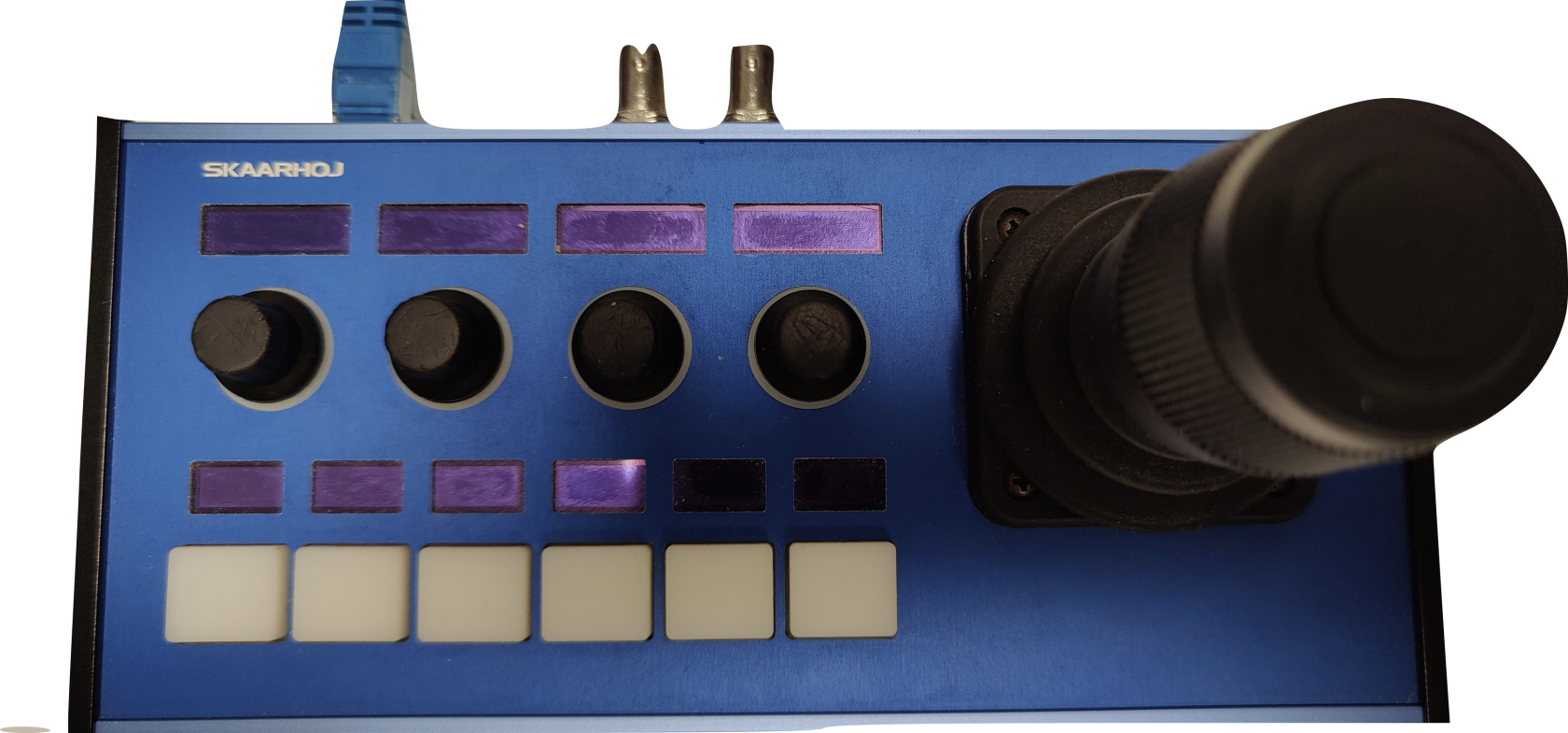
</details>

# Devices

The Devices section is where new devices are added to be connected with the SKAARHOJ panels. There are two ways a device can be added, Auto Discover and Manually.

[![image.png](https://wiki.skaarhoj.com/uploads/images/gallery/2022-11/scaled-1680-/9Bcimage.png)](https://wiki.skaarhoj.com/uploads/images/gallery/2022-11/9Bcimage.png)

<details id="bkmrk-auto-discover-search"><summary>Auto Discover</summary>

Searching on the network for devices will find many types by a combination of mDNS look-ups and other methods. However, not all devices can be discovered easily, but with those that can, it’s a simple click of a button to add it to the Blue Pill device collection. Following an Auto Discover some device details may still be needed to establish connectivity. See Device Details section for set up.
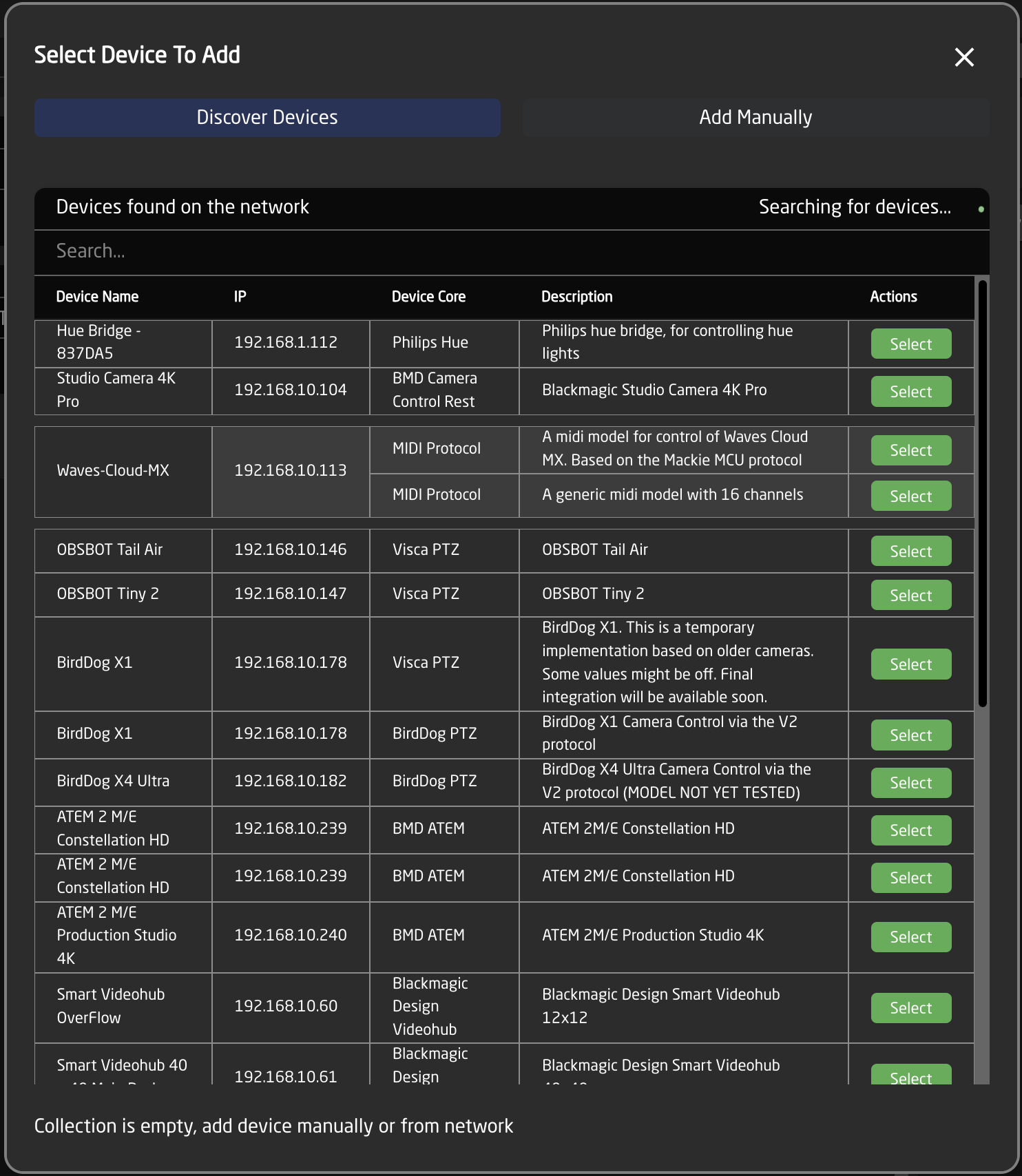
[![image.png](https://wiki.skaarhoj.com/uploads/images/gallery/2022-11/scaled-1680-/evqimage.png)](https://wiki.skaarhoj.com/uploads/images/gallery/2022-11/evqimage.png)

Pressing SHIFT + the green Select button will allow for multiple device selection.

</details><details id="bkmrk-manually-added-if-a-"><summary>Manually Added</summary>

If a device must be added manually, it’s easy to look it up in the list of supported models. Following a manual choice of device, the user will have to enter the IP address and other possible device detail information. See the Device Details section for set up.<span class="Apple-converted-space"> </span>

[![image.png](https://wiki.skaarhoj.com/uploads/images/gallery/2022-11/scaled-1680-/42Mimage.png)](https://wiki.skaarhoj.com/uploads/images/gallery/2022-11/42Mimage.png)

Pressing SHIFT + the green Add Device button will allow for multiple device selection.

</details><details id="bkmrk-adding-based-on-core"><summary>Adding Based on Core</summary>

When the Home screen is in Advanced mode, it becomes possible to add device pre-filtered based on the device core. Both methods of adding the device (discovered and manually) are still available.

[![image.png](https://wiki.skaarhoj.com/uploads/images/gallery/2022-11/scaled-1680-/PtJimage.png)](https://wiki.skaarhoj.com/uploads/images/gallery/2022-11/PtJimage.png)

[![image.png](https://wiki.skaarhoj.com/uploads/images/gallery/2022-11/scaled-1680-/iRsimage.png)](https://wiki.skaarhoj.com/uploads/images/gallery/2022-11/iRsimage.png)

</details><details id="bkmrk-device-details-devic"><summary>Device Details</summary>

Devices are presented in a nice overview with their connectivity status and IP address shown clearly.

[![image.png](https://wiki.skaarhoj.com/uploads/images/gallery/2022-11/scaled-1680-/0vjimage.png)](https://wiki.skaarhoj.com/uploads/images/gallery/2022-11/0vjimage.png)

Clicking on a device’s name in the Devices section will open up the details. Here the active status, IP address, Username and Password, Device Name, DeviceID, ModelID, and Description can be adjusted. (Details shown here are for a Canon CR-N500 PTZ camera, available detail options are device specific) . The device name and description are customizable. The device name will be the default name used by any camera selector for a display name. The status must be Active to control the device. The Ping button will open the ping tool to check the connectivity, stability, and latency on the connection to the device. <span class="Apple-converted-space"> </span>

[![image.png](https://wiki.skaarhoj.com/uploads/images/gallery/2022-11/scaled-1680-/AKhimage.png)](https://wiki.skaarhoj.com/uploads/images/gallery/2022-11/AKhimage.png)

</details><details id="bkmrk-device-core-details-"><summary>Device Core Details</summary>

Devices will be shown broken down into different groups based on their associated device core. Device cores are auto loaded onto the blue pill when a new core is selected via a device.

Clicking on the Device core<span class="Apple-converted-space"> </span>name associated with the devices will open additional details.<span class="Apple-converted-space"> </span>

[![image.png](https://wiki.skaarhoj.com/uploads/images/gallery/2022-11/scaled-1680-/A4nimage.png)](https://wiki.skaarhoj.com/uploads/images/gallery/2022-11/A4nimage.png)

<table border="1" cellpadding="0" cellspacing="0" class="align-center" style="border-collapse: collapse; border-spacing: 0px; border: 1px solid rgb(0, 0, 0); width: 100%;"><tbody><tr><td style="border-width: 1px; padding: 0px; border-color: rgb(0, 0, 0); width: 14.1167%;" valign="top"><span style="color: #000000; font-family: Avenir Next; font-size: xx-small;">**Name**</span>

</td><td class="align-left" style="border-width: 1px; padding: 0px; border-color: rgb(0, 0, 0); width: 85.8833%;" valign="top"><span style="color: #000000; font-family: Avenir Next; font-size: xx-small;">**Description**</span>

</td></tr><tr><td style="border-width: 1px; padding: 0px; border-color: rgb(0, 0, 0); width: 14.1167%;" valign="top"><span style="color: #000000; font-family: Avenir Next; font-size: xx-small;">Maturity Level</span>

</td><td class="align-left" style="border-width: 1px; padding: 0px; border-color: rgb(0, 0, 0); width: 85.8833%;" valign="top"><span style="color: #000000; font-family: Avenir Next; font-size: xx-small;">Development maturity level of the device core. See Packages section for more information on the different levels.<span class="Apple-converted-space"> </span></span>

</td></tr><tr><td style="border-width: 1px; padding: 0px; border-color: rgb(0, 0, 0); width: 14.1167%;" valign="top"><span style="color: #000000; font-family: Avenir Next; font-size: xx-small;">Manual</span>

</td><td class="align-left" style="border-width: 1px; padding: 0px; border-color: rgb(0, 0, 0); width: 85.8833%;" valign="top"><span style="color: #000000; font-family: Avenir Next; font-size: xx-small;">Opens device core manual to see controllable parameter list.</span>

</td></tr><tr><td style="border-width: 1px; padding: 0px; border-color: rgb(0, 0, 0); width: 14.1167%;" valign="top"><span style="color: #000000; font-family: Avenir Next; font-size: xx-small;">Auto-fix Potential Problems</span>

</td><td class="align-left" style="border-width: 1px; padding: 0px; border-color: rgb(0, 0, 0); width: 85.8833%;" valign="top"><span style="color: #000000; font-family: Avenir Next; font-size: xx-small;">Re-syncs device core locally.</span>

</td></tr><tr><td style="border-width: 1px; padding: 0px; border-color: rgb(0, 0, 0); width: 14.1167%;" valign="top"><span style="color: #000000; font-family: Avenir Next; font-size: xx-small;">Address</span>

</td><td class="align-left" style="border-width: 1px; padding: 0px; border-color: rgb(0, 0, 0); width: 85.8833%;" valign="top"><span style="color: #000000; font-family: Avenir Next; font-size: xx-small;">The location of the device core. Local references the core on the individual Blue Pill. To connect to the core running off of a remote Blue Pill, use the IP address of the remote Blue Pill (must be accessible from local subnet).</span>

</td></tr><tr><td style="border-width: 1px; padding: 0px; border-color: rgb(0, 0, 0); width: 14.1167%;" valign="top"><span style="color: #000000; font-family: Avenir Next; font-size: xx-small;">Description</span>

</td><td class="align-left" style="border-width: 1px; padding: 0px; border-color: rgb(0, 0, 0); width: 85.8833%;" valign="top"><span style="color: #000000; font-family: Avenir Next; font-size: xx-small;">Custom description for personal reference.</span>

</td></tr><tr><td style="border-width: 1px; padding: 0px; border-color: rgb(0, 0, 0); width: 14.1167%;" valign="top"><span style="color: #000000; font-family: Avenir Next; font-size: xx-small;">Delete</span>

</td><td class="align-left" style="border-width: 1px; padding: 0px; border-color: rgb(0, 0, 0); width: 85.8833%;" valign="top"><span style="color: #000000; font-family: Avenir Next; font-size: xx-small;">Deletes all devices using the core but not the core itself.<span class="Apple-converted-space"> </span></span>

</td></tr><tr><td style="border-width: 1px; padding: 0px; border-color: rgb(0, 0, 0); width: 14.1167%;" valign="top"><span style="color: #000000; font-family: Avenir Next; font-size: xx-small;">Simulate</span>

</td><td class="align-left" style="border-width: 1px; padding: 0px; border-color: rgb(0, 0, 0); width: 85.8833%;" valign="top"><span style="color: #000000; font-family: Avenir Next; font-size: xx-small;">Runs the device cores in simulation mode to see how it would work on the controller. The individual devices needs to be ‘active’ for it to simulate.</span>

</td></tr><tr><td style="border-width: 1px; padding: 0px; border-color: rgb(0, 0, 0); width: 14.1167%;" valign="top"><span style="color: #000000; font-family: Avenir Next; font-size: xx-small;">UsePrereleases</span>

</td><td class="align-left" style="border-width: 1px; padding: 0px; border-color: rgb(0, 0, 0); width: 85.8833%;" valign="top"><span style="color: #000000; font-family: Avenir Next; font-size: xx-small;">Uses the prerelease versions of the device core.</span>

</td></tr><tr><td style="border-width: 1px; padding: 0px; border-color: rgb(0, 0, 0); width: 14.1167%;" valign="top"><span style="color: #000000; font-family: Avenir Next; font-size: xx-small;">Disable AutoResolve</span>

</td><td class="align-left" style="border-width: 1px; padding: 0px; border-color: rgb(0, 0, 0); width: 85.8833%;" valign="top"><span style="color: #000000; font-family: Avenir Next; font-size: xx-small;">coming soon</span>

</td></tr><tr><td style="border-width: 1px; padding: 0px; border-color: rgb(0, 0, 0); width: 14.1167%;" valign="top"><span style="color: #000000; font-family: Avenir Next; font-size: xx-small;">Use Encryption</span>

</td><td class="align-left" style="border-width: 1px; padding: 0px; border-color: rgb(0, 0, 0); width: 85.8833%;" valign="top"><span style="color: #000000; font-family: Avenir Next; font-size: xx-small;">coming soon</span>

</td></tr><tr><td style="border-width: 1px; padding: 0px; border-color: rgb(0, 0, 0); width: 14.1167%;" valign="top"><span style="color: #000000; font-family: Avenir Next; font-size: xx-small;">Core specific settings</span>

</td><td class="align-left" style="border-width: 1px; padding: 0px; border-color: rgb(0, 0, 0); width: 85.8833%;" valign="top"><span style="color: #000000; font-family: Avenir Next; font-size: xx-small;">Settings specific to the individual device cores. Mouse over the name in the web interface for more details.</span>

</td></tr></tbody></table>

</details>

# Mapping

The Mapping section is built into the Panels section and is designed to provide a view into the current configuration and often it will refer to embedded standard configuration with associated *constant sets* for setting up cameras, router input/outputs or switcher inputs.<span class="Apple-converted-space"> </span>

[![image.png](https://wiki.skaarhoj.com/uploads/images/gallery/2022-11/scaled-1680-/xOKimage.png)](https://wiki.skaarhoj.com/uploads/images/gallery/2022-11/xOKimage.png)

<details id="bkmrk-configuration-the-dr"><summary>Configuration</summary>

The drop down allows you select from the default configurations Skaarhoj has made for the specific panel type and from your user generated configurations, create custom configurations, or remove configurations. Most often the needed default camera control configuration will be the Generic Control configuration. This one is designed to be the most flexible for adding multiple brands of cameras with extreme ease.

[![image.png](https://wiki.skaarhoj.com/uploads/images/gallery/2022-11/scaled-1680-/mIsimage.png)](https://wiki.skaarhoj.com/uploads/images/gallery/2022-11/mIsimage.png)

 User generated or modified configurations will displays with an orange CUSTOMIZED label next to it.   
![Screenshot 2022-11-21 at 11.56.30.png](https://wiki.skaarhoj.com/uploads/images/gallery/2022-11/scaled-1680-/screenshot-2022-11-21-at-11-56-30.png)

</details><details id="bkmrk-constant-sets-the-fi"><summary>Constant Sets</summary>

The final step is to fill in any setup tables, also known as *constant sets*. The constant sets are available based on the chosen configuration and should contain entries such as specific cameras for a PTZ controller, or the inputs for a video switcher etc. They are most common when working with PTZ cameras and routing panels, though may be available for additional device configurations. A detailed breakdown of using available constant sets tables can be found on our wiki page: [https://wiki.skaarhoj.com/books/blue-pill-reactor/chapter/understanding-constant-sets](https://wiki.skaarhoj.com/books/blue-pill-reactor/chapter/understanding-constant-sets)

[![image.png](https://wiki.skaarhoj.com/uploads/images/gallery/2022-11/scaled-1680-/nibimage.png)](https://wiki.skaarhoj.com/uploads/images/gallery/2022-11/nibimage.png)

The setup tables will auto save and quickly appear on displays and enable the function.<span class="Apple-converted-space"> </span>

An example of a setup table would be a camera selector and can be seen below. These can be different depending on the selected configuration. From here the order on the camera selector row of the panel will be set as well as the desired name on the displays.<span class="Apple-converted-space"> </span>

There are a couple of ways to work with the camera selector.<span class="Apple-converted-space"> </span>

In the Panels Section, it is possible to click the ADD button next to the Camera Selector to select a device already in the device collection in the devices section or to add a new discovered or manually added device. Adding one with Discovered or Manually will require additional information added in the Devices section. Using a device from the current Device Collection will auto populate the Camera Selector, though it is still smart to click into the selector to double check the information is correct.<span class="Apple-converted-space"> </span>

It is possible in the click and drag the camera icons in the Panels section to rearrange the camera selector row on your panel. The order that is seen in the home screen will be the order on the panel.<span class="Apple-converted-space"> </span>

[![image.png](https://wiki.skaarhoj.com/uploads/images/gallery/2022-11/scaled-1680-/1Kwimage.png)](https://wiki.skaarhoj.com/uploads/images/gallery/2022-11/1Kwimage.png)

Clicking on the Camera Selector button will open the camera selector’s Constant Set box. In there are a variety of options, some of which are not available in the Panels section. These options are device and configuration specific so may vary.<span class="Apple-converted-space"> </span>

[![image.png](https://wiki.skaarhoj.com/uploads/images/gallery/2022-11/scaled-1680-/mUZimage.png)](https://wiki.skaarhoj.com/uploads/images/gallery/2022-11/mUZimage.png)

<table border="1" cellpadding="0" cellspacing="0" style="border-collapse: collapse; border-spacing: 0px; border-color: #000000; border-style: solid;"><tbody><tr><td style="padding: 0px; border-color: rgb(0, 0, 0);" valign="top"><span style="color: #000000; font-family: Avenir Next; font-size: xx-small;">**Column**</span>

</td><td style="padding: 0px; border-color: rgb(0, 0, 0);" valign="top"><span style="color: #000000; font-family: Avenir Next; font-size: xx-small;">**Description**</span>

</td></tr><tr><td style="padding: 0px; border-color: rgb(0, 0, 0);" valign="top"><span style="color: #000000; font-family: Avenir Next; font-size: xx-small;">Drag</span>

</td><td style="padding: 0px; border-color: rgb(0, 0, 0);" valign="top"><span style="color: #000000; font-family: Avenir Next; font-size: xx-small;">Allows for quick rearranging of camera order. Right clicking on drag will allow for deleting the row.</span>

</td></tr><tr><td style="padding: 0px; border-color: rgb(0, 0, 0);" valign="top"><span style="color: #000000; font-family: Avenir Next; font-size: xx-small;">Mute</span>

</td><td style="padding: 0px; border-color: rgb(0, 0, 0);" valign="top"><span style="color: #000000; font-family: Avenir Next; font-size: xx-small;">Allows for removing access to a specific camera or to leave a blank spot on the panel</span>

</td></tr><tr><td style="padding: 0px; border-color: rgb(0, 0, 0);" valign="top"><span style="color: #000000; font-family: Avenir Next; font-size: xx-small;">Binding</span>

</td><td style="padding: 0px; border-color: rgb(0, 0, 0);" valign="top"><span style="color: #000000; font-family: Avenir Next; font-size: xx-small;">Allows for the selecting of a specific connected camera</span>

</td></tr><tr><td style="padding: 0px; border-color: rgb(0, 0, 0);" valign="top"><span style="color: #000000; font-family: Avenir Next; font-size: xx-small;">Camera Name</span>

</td><td style="padding: 0px; border-color: rgb(0, 0, 0);" valign="top"><span style="color: #000000; font-family: Avenir Next; font-size: xx-small;">Customizable name to appear on the displays. Character limit is determined by size of display and can vary.<span class="Apple-converted-space"> </span></span>

</td></tr><tr><td style="padding: 0px; border-color: rgb(0, 0, 0);" valign="top"><span style="color: #000000; font-family: Avenir Next; font-size: xx-small;">Device Number</span>

</td><td style="padding: 0px; border-color: rgb(0, 0, 0);" valign="top"><span style="color: #000000; font-family: Avenir Next; font-size: xx-small;">Ties the camera selector to the specific device. This is found in the Devices section. Each device will have a unique device number per device core. This box should auto-populate when a camera is selected in binding</span>

</td></tr><tr><td style="padding: 0px; border-color: rgb(0, 0, 0);" valign="top"><span style="color: #000000; font-family: Avenir Next; font-size: xx-small;">Link Selector</span>

</td><td style="padding: 0px; border-color: rgb(0, 0, 0);" valign="top"><span style="color: #000000; font-family: Avenir Next; font-size: xx-small;">Selects the protocol based configuration associated with camera. Needed protocol can be seen in the Devices section, each device is grouped into their native protocols. **Double check the correct configuration is selected. Improper selection will effect camera control.**</span>

</td></tr><tr><td style="padding: 0px; border-color: rgb(0, 0, 0);" valign="top"><span style="color: #000000; font-family: Avenir Next; font-size: xx-small;">Channel Link</span>

</td><td style="padding: 0px; border-color: rgb(0, 0, 0);" valign="top"><span style="color: #000000; font-family: Avenir Next; font-size: xx-small;">Selects the needed protocol for Iris/Master Black control. For cameras without a variable lens this will follow the same protocol as the device. For cameras with a variable lens, select the protocol for the attached lens.<span class="Apple-converted-space"> </span>**Not available on all configuration classes.**</span>

</td></tr><tr><td style="padding: 0px; border-color: rgb(0, 0, 0);" valign="top"><span style="color: #000000; font-family: Avenir Next; font-size: xx-small;">Tally Index</span>

</td><td style="padding: 0px; border-color: rgb(0, 0, 0);" valign="top"><span style="color: #000000; font-family: Avenir Next; font-size: xx-small;">Sets the Tally Index number to connect with associated tally source device. See Blue Pill/Reactor Manual for more information. **This column does not need to be filled out for standard operation.**</span>

</td></tr><tr><td style="padding: 0px; border-color: rgb(0, 0, 0);" valign="top"><span style="color: #000000; font-family: Avenir Next; font-size: xx-small;">Route Index</span>

</td><td style="padding: 0px; border-color: rgb(0, 0, 0);" valign="top"><span style="color: #000000; font-family: Avenir Next; font-size: xx-small;">Sets the Route Index number to connect with associated routing device. See Blue Pill/Reactor Manual for more information. **This column does not need to be filled out for standard operation.**</span>

</td></tr><tr><td style="padding: 0px; border-color: rgb(0, 0, 0);" valign="top"><span style="color: #000000; font-family: Avenir Next; font-size: xx-small;">FrameLink Window</span>

</td><td style="padding: 0px; border-color: rgb(0, 0, 0);" valign="top"><span style="color: #000000; font-family: Avenir Next; font-size: xx-small;">Sets the FrameLink Window value associated with the FrameLink device core for use with FrameLink compatible devices. See Blue Pill/Reactor Manual for more information. **This column does not need to be filled out for standard operation.**</span>

</td></tr></tbody></table>

An example of a router inputs selector can be seen below. These can be different depending on the selected configuration and device. From here the order on the inputs/outputs row of the panel will be set as well as the desired name on the displays and button color.<span class="Apple-converted-space"> </span>

[![image.png](https://wiki.skaarhoj.com/uploads/images/gallery/2022-11/scaled-1680-/a6Uimage.png)](https://wiki.skaarhoj.com/uploads/images/gallery/2022-11/a6Uimage.png)

<table border="1" cellpadding="0" cellspacing="0" style="border-collapse: collapse; border-spacing: 0px; border-color: #000000; border-style: solid;"><tbody><tr><td style="padding: 0px; border-color: rgb(0, 0, 0);" valign="top"><span style="color: #000000; font-family: Avenir Next; font-size: xx-small;">**Column**</span>

</td><td style="padding: 0px; border-color: rgb(0, 0, 0);" valign="top"><span style="color: #000000; font-family: Avenir Next; font-size: xx-small;">**Description**</span>

</td></tr><tr><td style="padding: 0px; border-color: rgb(0, 0, 0);" valign="top"><span style="color: #000000; font-family: Avenir Next; font-size: xx-small;">Drag</span>

</td><td style="padding: 0px; border-color: rgb(0, 0, 0);" valign="top"><span style="color: #000000; font-family: Avenir Next; font-size: xx-small;">Allows for quick rearranging of input/output order on the panel.</span>

</td></tr><tr><td style="padding: 0px; border-color: rgb(0, 0, 0);" valign="top"><span style="color: #000000; font-family: Avenir Next; font-size: xx-small;">Mute</span>

</td><td style="padding: 0px; border-color: rgb(0, 0, 0);" valign="top"><span style="color: #000000; font-family: Avenir Next; font-size: xx-small;">Allows for removing access to a specific input/output or to leave a blank spot on the panel.</span>

</td></tr><tr><td style="padding: 0px; border-color: rgb(0, 0, 0);" valign="top"><span style="color: #000000; font-family: Avenir Next; font-size: xx-small;">Output Number/Input Number</span>

</td><td style="padding: 0px; border-color: rgb(0, 0, 0);" valign="top"><span style="color: #000000; font-family: Avenir Next; font-size: xx-small;">Ties the selector to the specific input/output of the controlled device. This is determined by the individual router.</span>

</td></tr><tr><td style="padding: 0px; border-color: rgb(0, 0, 0);" valign="top"><span style="color: #000000; font-family: Avenir Next; font-size: xx-small;">Alternative Label</span>

</td><td style="padding: 0px; border-color: rgb(0, 0, 0);" valign="top"><span style="color: #000000; font-family: Avenir Next; font-size: xx-small;">Customizable name to appear on the displays. Character limit is determined by size of display and can vary.<span class="Apple-converted-space"> </span></span>

</td></tr><tr><td style="padding: 0px; border-color: rgb(0, 0, 0);" valign="top"><span style="color: #000000; font-family: Avenir Next; font-size: xx-small;">Color</span>

</td><td style="padding: 0px; border-color: rgb(0, 0, 0);" valign="top"><span style="color: #000000; font-family: Avenir Next; font-size: xx-small;">Sets the button feedback color. Color options are: OFF, WHITE, WARM, RED, ROSE, PINK, PURPLE, AMBER, YELLOW, DARKBLUE, BLUE, ICE, CYAN, SPRING, GREEN, MINT.   
The format for color selection is all large letters with no spaces between words.<span class="Apple-converted-space"> </span></span>

</td></tr></tbody></table>

</details>

# Configuration

<p class="callout info">Please Note: This page is about the configuration page but is not a guide on how to make an advanced configuration. For guides on making configurations please check out: [https://wiki.skaarhoj.com/books/blue-pill-reactor/chapter/advanced-configuration](https://wiki.skaarhoj.com/books/blue-pill-reactor/chapter/advanced-configuration)</p>

<p class="callout info">The Configuration page is described how it appears starting with Reactor v2.0.</p>

For a more customized configuration either self constructed or to modify a default configuration used in the Mapping section it is necessary to move off of the Home page and into the Configuration page.

There are three main parts of the Configuration page, however only two of them are directly presented, Controller section for an overall view of the panels and the Inspector where parameters and behaviors are assigned to the hardware components. The third, more advanced section, is the Tree view (not pictured) where you can see the whole mapping of the configuration and gives more advanced ways to configure the panel.

[![Screenshot 2023-11-02 at 15.33.37.png](https://wiki.skaarhoj.com/uploads/images/gallery/2023-11/scaled-1680-/screenshot-2023-11-02-at-15-33-37.png)](https://wiki.skaarhoj.com/uploads/images/gallery/2023-11/screenshot-2023-11-02-at-15-33-37.png)
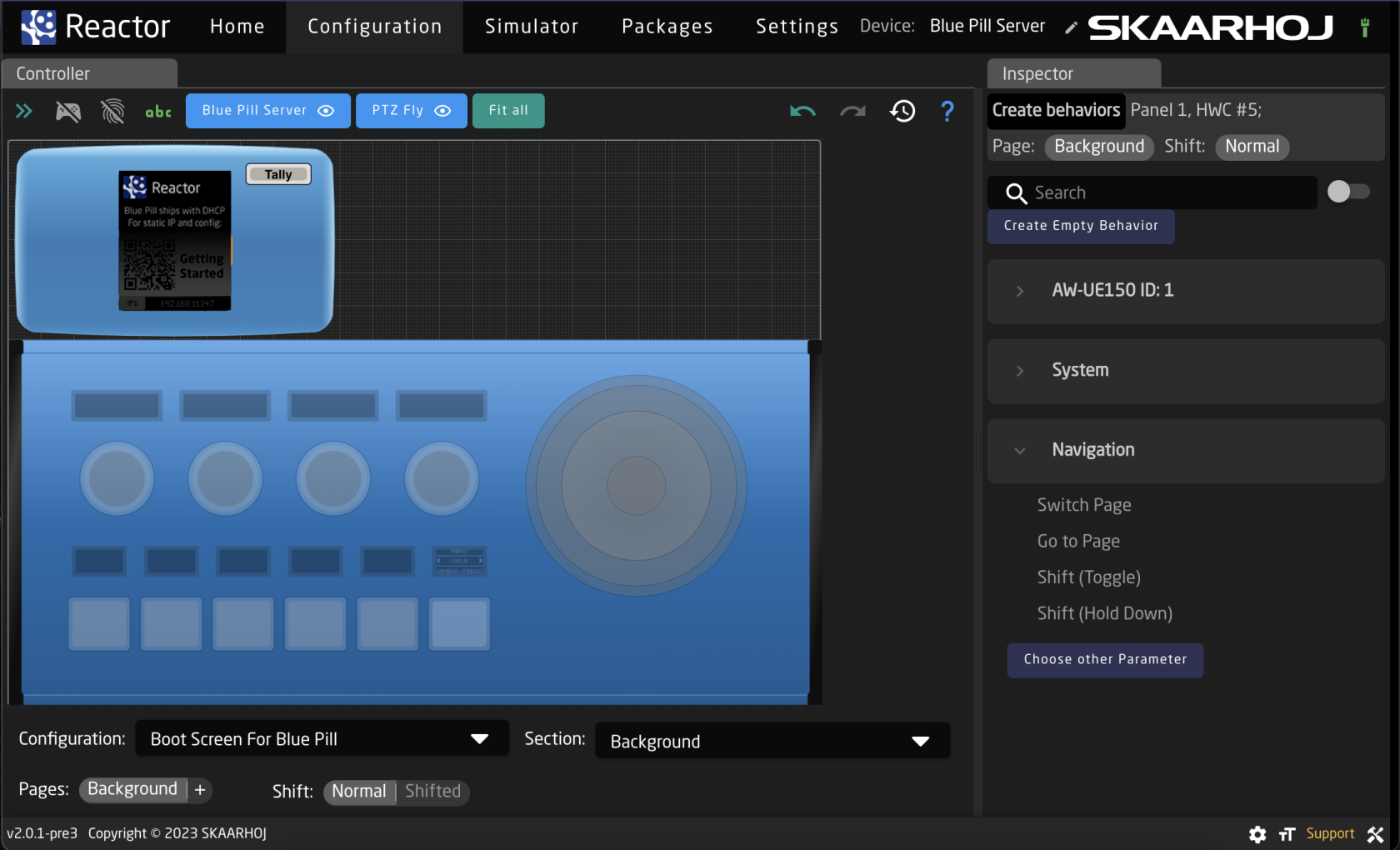
<details id="bkmrk-controller-%C2%A0"><summary>Controller</summary>

The Controller sections is full of many tools to allow for navigating through the configuration and even using a fully functional simulated version of the panels.

<p class="callout info">Please note, this section may act or look different when the Tree section is open. </p>
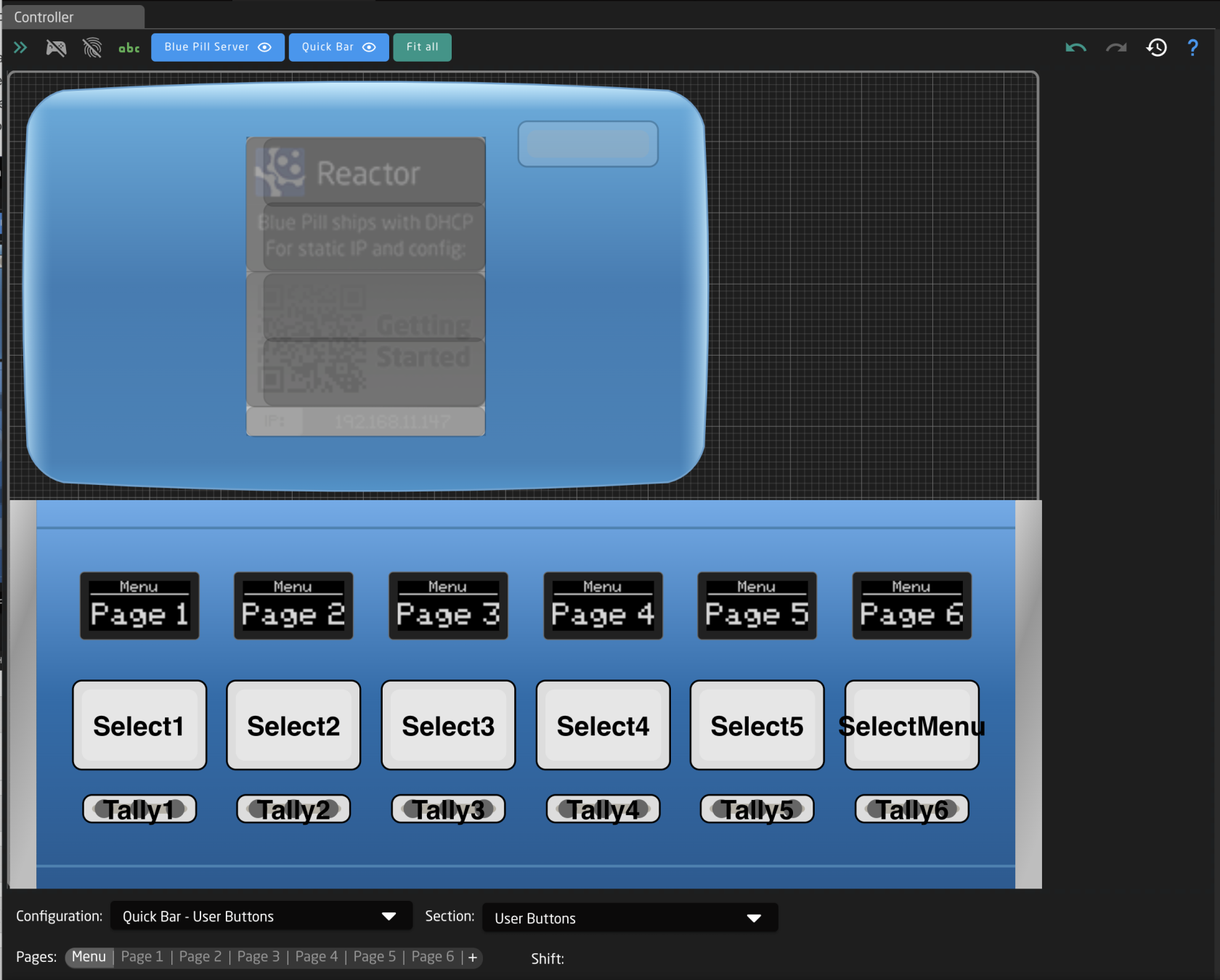
![Screenshot 2023-11-10 at 12.13.32 PM.png](https://wiki.skaarhoj.com/uploads/images/gallery/2023-11/scaled-1680-/screenshot-2023-11-10-at-12-13-32-pm.png)

Starting at the top of the page, there are a few different ways to interact with the interface.

[![Screenshot 2023-11-10 at 12.13.45 PM.png](https://wiki.skaarhoj.com/uploads/images/gallery/2023-11/scaled-1680-/screenshot-2023-11-10-at-12-13-45-pm.png)](https://wiki.skaarhoj.com/uploads/images/gallery/2023-11/screenshot-2023-11-10-at-12-13-45-pm.png)

<table border="1" style="border-collapse: collapse; width: 100%;"><colgroup><col style="width: 16.9873%;"></col><col style="width: 83.1411%;"></col></colgroup><tbody><tr><td>Arrows Icon</td><td>Toggles open/close the Tree View. (see Tree section for more information)</td></tr><tr><td>Controller Icon</td><td>Toggles on/off simulation mode. When on, the graphical view of the panels acts as a real panel. When simulation mode is not on, it is in configuration mode.</td></tr><tr><td>Fingerprint Icon</td><td>Toggles on/off listening mode. When on, interacting with a physical hardware component on the Skaarhoj panel will open that component in the Inspector. </td></tr><tr><td>ABC Icon</td><td>Toggles on/off the text labels in the graphical view of the panels. </td></tr><tr><td>Panel Names</td><td>Centers graphical view on selected panel. </td></tr><tr><td>Eye Icon</td><td>Toggles on/off the view of the specific panel in the graphical view. Button turns grey when panel is not visible. </td></tr><tr><td>Fit All</td><td>Positions graphical view to show all visible panels. </td></tr></tbody></table>

![Screenshot 2023-11-10 at 12.13.53 PM.png](https://wiki.skaarhoj.com/uploads/images/gallery/2023-11/scaled-1680-/screenshot-2023-11-10-at-12-13-53-pm.png)

<table border="1" style="border-collapse: collapse; width: 100%;"><colgroup><col style="width: 20.3206%;"></col><col style="width: 79.8078%;"></col></colgroup><tbody><tr><td>Back Arrow Icon</td><td>Undoes the last change made in the Inspector</td></tr><tr><td>Forward Arrow Icon</td><td>Redoes the last change made in Inspector</td></tr><tr><td>History Icon</td><td>Opens the History View. See [History View](https://wiki.skaarhoj.com/books/blue-pill-reactor/page/history-view) page for more information. </td></tr><tr><td>Question Mark</td><td>Opens the graphical view movement and color guide. See image below.</td></tr></tbody></table>

Graphical View Image and Color Guide:

[![Screenshot 2023-11-10 at 12.14.12 PM.png](https://wiki.skaarhoj.com/uploads/images/gallery/2023-11/scaled-1680-/screenshot-2023-11-10-at-12-14-12-pm.png)](https://wiki.skaarhoj.com/uploads/images/gallery/2023-11/screenshot-2023-11-10-at-12-14-12-pm.png)

The interactive graphical view displays the panels in the current project in their current state on a grid. The layout of the panels on the grid can be adjusted from the [Panel Groups](https://wiki.skaarhoj.com/books/blue-pill-reactor/page/panels) interface accessible on the Home page.

Each hardware component of each panel is selectable from the graphical view to interact with, how that behaves is dependent on which mode you have enabled at the top of the Controller section.

**Configuration Mode**

In configuration mode clicking on one of the hardware components will open that up in the Inspector to the exact place if that hardware component has been created in the associated section of the selected configuration. If it has not been defined in the section for the configuration it will be greyed out.

[![Screenshot 2023-11-10 at 2.49.10 PM.png](https://wiki.skaarhoj.com/uploads/images/gallery/2023-11/scaled-1680-/screenshot-2023-11-10-at-2-49-10-pm.png)](https://wiki.skaarhoj.com/uploads/images/gallery/2023-11/screenshot-2023-11-10-at-2-49-10-pm.png)

Right clicking on a hardware component will open an options menu, even if the component has not been created on the section.

![Screenshot 2023-11-10 at 1.03.34 PM.png](https://wiki.skaarhoj.com/uploads/images/gallery/2023-11/scaled-1680-/screenshot-2023-11-10-at-1-03-34-pm.png)

<table border="1" style="border-collapse: collapse; width: 100%; height: 208.578px;"><colgroup><col style="width: 21.0498%;"></col><col style="width: 78.9502%;"></col></colgroup><tbody><tr style="height: 29.7969px;"><td style="height: 29.7969px;">Create section</td><td style="height: 29.7969px;">Creates a new section in the configuration.</td></tr><tr style="height: 29.7969px;"><td style="height: 29.7969px;">Add to section</td><td style="height: 29.7969px;">Adds the hardware component to to the current section. See expanded details below.</td></tr><tr><td>Remove from section</td><td>Removes the hardware component from the current section. </td></tr><tr style="height: 29.7969px;"><td style="height: 29.7969px;">Copy</td><td style="height: 29.7969px;">Copies the current configuration of the hardware component to be able to be pasted.</td></tr><tr style="height: 29.7969px;"><td style="height: 29.7969px;">Cut</td><td style="height: 29.7969px;">Cuts out the current configuration of the hardware component to be able to be pasted.</td></tr><tr style="height: 29.7969px;"><td style="height: 29.7969px;">Paste</td><td style="height: 29.7969px;">Pastes the last copied or cut configuration of a hardware component to the select component.</td></tr><tr style="height: 29.7969px;"><td style="height: 29.7969px;">Delete Behavior(s)</td><td style="height: 29.7969px;">Deletes the current behavior or behaviors configured on the component, plus makes it transparent if it is not currently. </td></tr><tr style="height: 29.7969px;"><td style="height: 29.7969px;">Clear Contents</td><td style="height: 29.7969px;">Deletes the current behavior or behaviors configured on the component.</td></tr></tbody></table>

When adding a section a pop up window will be presented where it is possible to define certain details of the section.

![Screenshot 2023-11-10 at 3.53.05 PM.png](https://wiki.skaarhoj.com/uploads/images/gallery/2023-11/scaled-1680-/screenshot-2023-11-10-at-3-53-05-pm.png)

<table border="1" style="border-collapse: collapse; width: 100%;"><colgroup><col style="width: 20.8334%;"></col><col style="width: 79.295%;"></col></colgroup><tbody><tr><td>Name</td><td>User defined name for the created section.</td></tr><tr><td>Transparent section</td><td>Selecting Transparent section will allow for behaviors configured on a lower layer of the tree for that hardware component to show through.   
If not transparent, the hardware component will remain blank unless configured. </td></tr><tr><td>Advanced</td><td>Toggles on/off Advanced for the section creation tool. </td></tr><tr><td>Layer Selection</td><td>Allows for the selection of which layer in the tree the section is created on. Available only with Advanced toggled on. See image below.</td></tr><tr><td>Cancel</td><td>Cancels the creation of a new section. </td></tr><tr><td>Submit</td><td>Submits and saves the new section. </td></tr></tbody></table>

Layer selection filter for the section creation tool, allows for the selection of any layer in the tree for the current project.   
![Screenshot 2023-11-10 at 3.53.24 PM.png](https://wiki.skaarhoj.com/uploads/images/gallery/2023-11/scaled-1680-/screenshot-2023-11-10-at-3-53-24-pm.png)

**Simulation Mode**

In simulation mode, the graphical view works actually controls the panel and all connected devices. In this mode the entire graphical view will have a yellow dotted line around it.

![Screenshot 2023-11-10 at 3.14.14 PM.png](https://wiki.skaarhoj.com/uploads/images/gallery/2023-11/scaled-1680-/screenshot-2023-11-10-at-3-14-14-pm.png)

The individual components will also have indicators on them of their use. Below is a selection of hardware components in simulation mode.

<table border="1" style="border-collapse: collapse; width: 100%;"><colgroup><col style="width: 28.5257%;"></col><col style="width: 46.5706%;"></col><col style="width: 25.0321%;"></col></colgroup><tbody><tr><td>Button</td><td>Small triangles represent left, right, top edge presses</td><td>[![Screenshot 2023-11-10 at 3.16.10 PM.png](https://wiki.skaarhoj.com/uploads/images/gallery/2023-11/scaled-1680-/screenshot-2023-11-10-at-3-16-10-pm.png)](https://wiki.skaarhoj.com/uploads/images/gallery/2023-11/screenshot-2023-11-10-at-3-16-10-pm.png)

</td></tr><tr><td>Encoder and Knobs</td><td>Triangles represent direction of turn</td><td>[![Screenshot 2023-11-10 at 3.16.52 PM.png](https://wiki.skaarhoj.com/uploads/images/gallery/2023-11/scaled-1680-/screenshot-2023-11-10-at-3-16-52-pm.png)](https://wiki.skaarhoj.com/uploads/images/gallery/2023-11/screenshot-2023-11-10-at-3-16-52-pm.png)

</td></tr><tr><td>PTZ Joystick Twist, Zoom Rocker, XC8 Shuttle Wheel</td><td>Arrows represent direction of twist and number is the speed component value</td><td>[![Screenshot 2023-11-10 at 3.18.15 PM.png](https://wiki.skaarhoj.com/uploads/images/gallery/2023-11/scaled-1680-/screenshot-2023-11-10-at-3-18-15-pm.png)](https://wiki.skaarhoj.com/uploads/images/gallery/2023-11/screenshot-2023-11-10-at-3-18-15-pm.png)

</td></tr><tr><td>PTZ Joystick Up/Down</td><td>Arrows represent direction of movement and numbers the component value of X,Y axis</td><td>[![Screenshot 2023-11-10 at 3.18.23 PM.png](https://wiki.skaarhoj.com/uploads/images/gallery/2023-11/scaled-1680-/screenshot-2023-11-10-at-3-18-23-pm.png)](https://wiki.skaarhoj.com/uploads/images/gallery/2023-11/screenshot-2023-11-10-at-3-18-23-pm.png)

</td></tr><tr><td>RCP Joystick Up/Down</td><td>Line represents the position of the virtual position of the joystick as it is not a motorized hardware component </td><td>[![Screenshot 2023-11-10 at 3.31.24 PM.png](https://wiki.skaarhoj.com/uploads/images/gallery/2023-11/scaled-1680-/screenshot-2023-11-10-at-3-31-24-pm.png)](https://wiki.skaarhoj.com/uploads/images/gallery/2023-11/screenshot-2023-11-10-at-3-31-24-pm.png)

</td></tr></tbody></table>

 Right clicking on a hardware component brings up different options then it does when in configuration mode.

[![Screenshot 2023-11-10 at 3.29.32 PM.png](https://wiki.skaarhoj.com/uploads/images/gallery/2023-11/scaled-1680-/screenshot-2023-11-10-at-3-29-32-pm.png)](https://wiki.skaarhoj.com/uploads/images/gallery/2023-11/screenshot-2023-11-10-at-3-29-32-pm.png)

<table border="1" style="border-collapse: collapse; width: 100%;"><colgroup><col style="width: 16.0898%;"></col><col style="width: 84.0385%;"></col></colgroup><tbody><tr><td>Hold down</td><td>Corresponds to pressing down the button or encoder without releasing it. </td></tr><tr><td>Release button</td><td>Corresponds to releasing the hold down of the button or encoder. </td></tr><tr><td>Long press</td><td>Corresponds to a 1 second long press. </td></tr></tbody></table>

 The bottom section of the Controller section is a navigation tool to move around the configuration of each panel.

[![Screenshot 2023-11-13 at 10.23.19.png](https://wiki.skaarhoj.com/uploads/images/gallery/2023-11/scaled-1680-/screenshot-2023-11-13-at-10-23-19.png)](https://wiki.skaarhoj.com/uploads/images/gallery/2023-11/screenshot-2023-11-13-at-10-23-19.png)

<table border="1" style="border-collapse: collapse; width: 100%;"><colgroup><col style="width: 16.0462%;"></col><col style="width: 41.9769%;"></col><col style="width: 41.9769%;"></col></colgroup><tbody><tr><td>Configuration</td><td>Select between the configuration in the project. The graphical view of the panel associated with the selected configuration will no longer be grayed out. </td><td>![Screenshot 2023-11-13 at 10.23.29.png](https://wiki.skaarhoj.com/uploads/images/gallery/2023-11/scaled-1680-/screenshot-2023-11-13-at-10-23-29.png)

</td></tr><tr><td>Section</td><td>Select between the different hardware component sections in the selected configuration. These sections are tied to the configuration, the pages, and the shift levels they were created on.</td><td>![Screenshot 2023-11-13 at 10.23.41.png](https://wiki.skaarhoj.com/uploads/images/gallery/2023-11/scaled-1680-/screenshot-2023-11-13-at-10-23-41.png)

</td></tr><tr><td>Pages</td><td>Select between the different page layers of the configuration. Using the + symbol will add more pages. See below for more detail. </td><td>![Screenshot 2023-11-13 at 10.23.59.png](https://wiki.skaarhoj.com/uploads/images/gallery/2023-11/scaled-1680-/screenshot-2023-11-13-at-10-23-59.png)

</td></tr><tr><td>Shift</td><td>Select between the different shift layers of the currently selected page. </td><td>![Screenshot 2023-11-13 at 10.24.21.png](https://wiki.skaarhoj.com/uploads/images/gallery/2023-11/scaled-1680-/screenshot-2023-11-13-at-10-24-21.png)

</td></tr></tbody></table>

When creating a new page a pop up prompt will low for the setting of the page name and whether or not the page will be transparent or not. A Transparent page will allow for lower pages or layers in the tree to have their hardware component settings visible or available when on the new page, unless the hardware component is configured on the current layer.

![Screenshot 2023-11-13 at 11.38.04.png](https://wiki.skaarhoj.com/uploads/images/gallery/2023-11/scaled-1680-/screenshot-2023-11-13-at-11-38-04.png)

Right clicking on one of the page will also preset a number of options.

![Screenshot 2023-11-13 at 11.38.59.png](https://wiki.skaarhoj.com/uploads/images/gallery/2023-11/scaled-1680-/screenshot-2023-11-13-at-11-38-59.png)

<table border="1" style="border-collapse: collapse; width: 100%; height: 119.188px;"><colgroup><col style="width: 21.6026%;"></col><col style="width: 78.5257%;"></col></colgroup><tbody><tr style="height: 29.7969px;"><td style="height: 29.7969px;">Copy</td><td style="height: 29.7969px;">Create a duplicate copy of the clicked upon layer.</td></tr><tr style="height: 29.7969px;"><td style="height: 29.7969px;">Rename</td><td style="height: 29.7969px;">Rename the clicked upon layer. </td></tr><tr style="height: 29.7969px;"><td style="height: 29.7969px;">Disable transparency</td><td style="height: 29.7969px;">Disable the transparency for the clicked upon layer. </td></tr><tr style="height: 29.7969px;"><td style="height: 29.7969px;">Delete</td><td style="height: 29.7969px;">Delete the clicked upon layer. </td></tr></tbody></table>

</details><details id="bkmrk-inspector-%C2%A0"><summary>Inspector</summary>

The Inspector is where all the hardware components have their configurations assigned and adjusted. The Inspector section can give a very simple start to getting the configuration going or can be made more complex to create more complex workflows.

**Create Behavior**

When first configuring a hardware component the Inspector interface the interface will appear as below. This is the Create Behavior Interface.   
![Screenshot 2023-11-13 at 13.03.44.png](https://wiki.skaarhoj.com/uploads/images/gallery/2023-11/scaled-1680-/screenshot-2023-11-13-at-13-03-44.png)

Looking at the top of the section:

![Screenshot 2023-11-13 at 14.47.31.png](https://wiki.skaarhoj.com/uploads/images/gallery/2023-11/scaled-1680-/screenshot-2023-11-13-at-14-47-31.png)

<table border="1" style="border-collapse: collapse; width: 100%;"><colgroup><col style="width: 22.6283%;"></col><col style="width: 77.5001%;"></col></colgroup><tbody><tr><td>Create behaviors</td><td>The lighter grey section indicates which specific hardware component is going to be configured, and on which configuration page and shift level it will be on. </td></tr><tr><td>Search</td><td>Search for the specific parameter to configure on the button</td></tr><tr><td>Device Grouping Toggle</td><td>Toggle between seeing Create Behaviors per device or per device core. </td></tr><tr><td>Create Empty Behavior</td><td>Skip Create Behaviors to create an empty behavior to fully configure.</td></tr></tbody></table>

Below the upper section, the Create Behaviors will be available either per individual device or grouped per device core depending on how the toggle is set. Below the devices have been grouped by their device cores.

![Screenshot 2023-11-13 at 15.01.45.png](https://wiki.skaarhoj.com/uploads/images/gallery/2023-11/scaled-1680-/screenshot-2023-11-13-at-15-01-45.png)

Expanding one of the cores, system, or navigation menus the individual parameters become become selectable.

![Screenshot 2023-11-13 at 15.06.21.png](https://wiki.skaarhoj.com/uploads/images/gallery/2023-11/scaled-1680-/screenshot-2023-11-13-at-15-06-21.png)

Not every parameter, system setting, or navigation tool is available as a Create Behavior. For those that are not they will need to be self configured. To select an different parameter, select Choose other Parameter.

![Screenshot 2023-11-13 at 15.14.04.png](https://wiki.skaarhoj.com/uploads/images/gallery/2023-11/scaled-1680-/screenshot-2023-11-13-at-15-14-04.png)

**Full Inspector**

Moving in past the simplified Create Behavior interface, the hardware component configurations possibilities become virtually endless in the full inspector. [![Screenshot 2024-01-11 at 12.05.40 PM.png](https://wiki.skaarhoj.com/uploads/images/gallery/2024-01/scaled-1680-/screenshot-2024-01-11-at-12-05-40-pm.png)](https://wiki.skaarhoj.com/uploads/images/gallery/2024-01/screenshot-2024-01-11-at-12-05-40-pm.png)

Starting with the top section of the Inspector

[![Screenshot 2024-01-11 at 1.07.17 PM.png](https://wiki.skaarhoj.com/uploads/images/gallery/2024-01/scaled-1680-/screenshot-2024-01-11-at-1-07-17-pm.png)](https://wiki.skaarhoj.com/uploads/images/gallery/2024-01/screenshot-2024-01-11-at-1-07-17-pm.png)

<table border="1" style="border-collapse: collapse; width: 100%;"><colgroup><col style="width: 22.1155%;"></col><col style="width: 78.0129%;"></col></colgroup><tbody><tr><td>Parameter</td><td>Select what is to be controlled by the hardware component. The parameters have various categories: Device Core, Variable, Literal Values, System, Reactor, Preset, Flag, Behavior, Panel Settings String Value, Constant Set Value; with different further options depending on what is selected. [![Screenshot 2024-01-11 at 1.12.00 PM.png](https://wiki.skaarhoj.com/uploads/images/gallery/2024-01/scaled-1680-/screenshot-2024-01-11-at-1-12-00-pm.png)](https://wiki.skaarhoj.com/uploads/images/gallery/2024-01/screenshot-2024-01-11-at-1-12-00-pm.png)
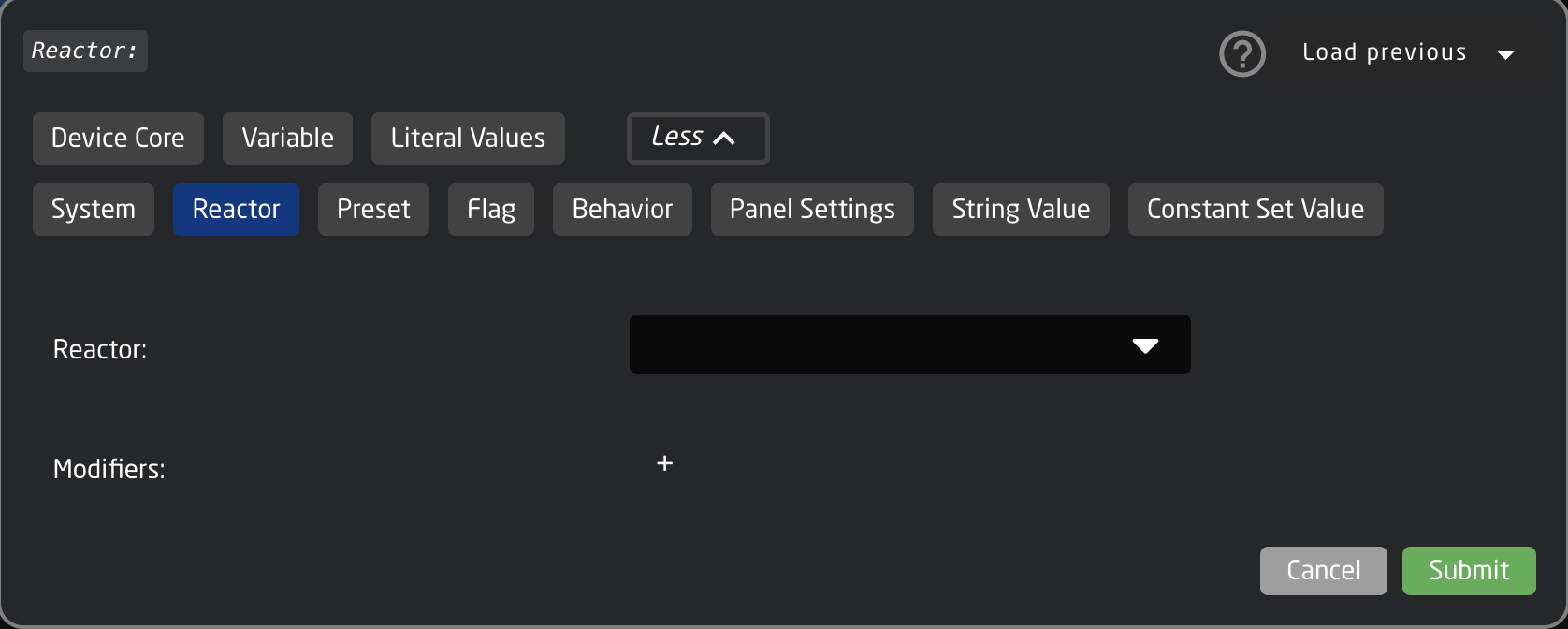
There is a standard list of available modifiers to add.

[![Screenshot 2024-01-11 at 12.05.06 PM.png](https://wiki.skaarhoj.com/uploads/images/gallery/2024-01/scaled-1680-/screenshot-2024-01-11-at-12-05-06-pm.png)](https://wiki.skaarhoj.com/uploads/images/gallery/2024-01/screenshot-2024-01-11-at-12-05-06-pm.png)
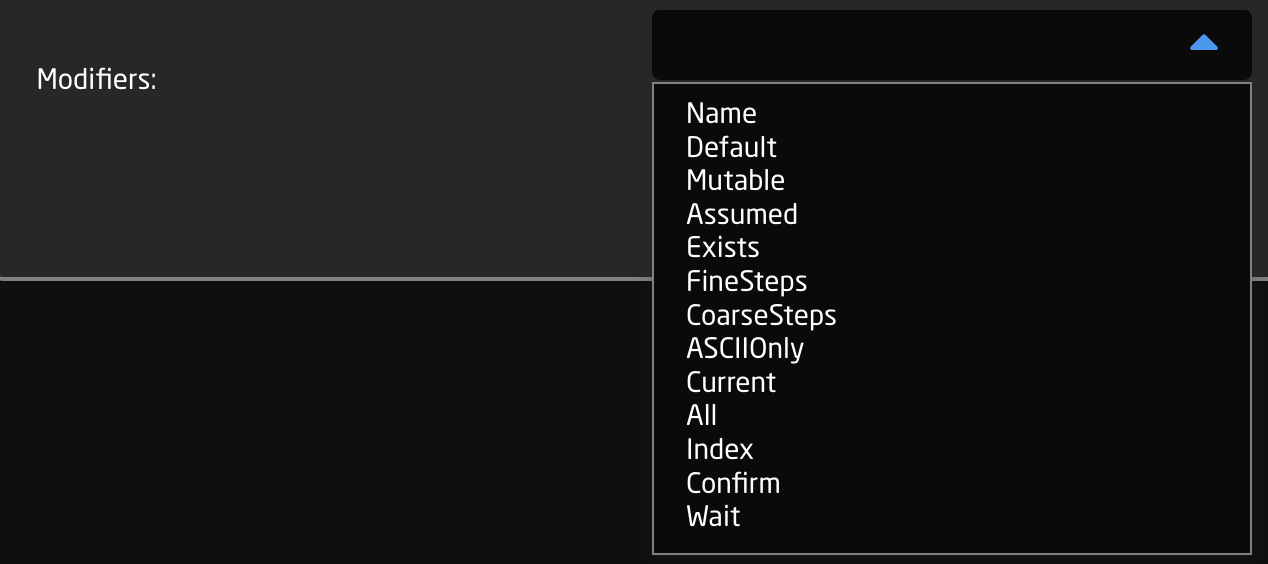
There are scenarios where it is not needed to use the Parameter field when configuring a hardware component.

</td></tr><tr><td>Settings Template</td><td>Predefined templates that can be paired with a parameter for quickly assigning functionality to a hardware component. They can be more generic to work in the same way with various parameters or tailored to specific parameters or device cores. Frequently these are auto selected or suggested when selecting a parameter.   
[![Screenshot 2024-01-11 at 1.07.30 PM.png](https://wiki.skaarhoj.com/uploads/images/gallery/2024-01/scaled-1680-/screenshot-2024-01-11-at-1-07-30-pm.png)](https://wiki.skaarhoj.com/uploads/images/gallery/2024-01/screenshot-2024-01-11-at-1-07-30-pm.png)
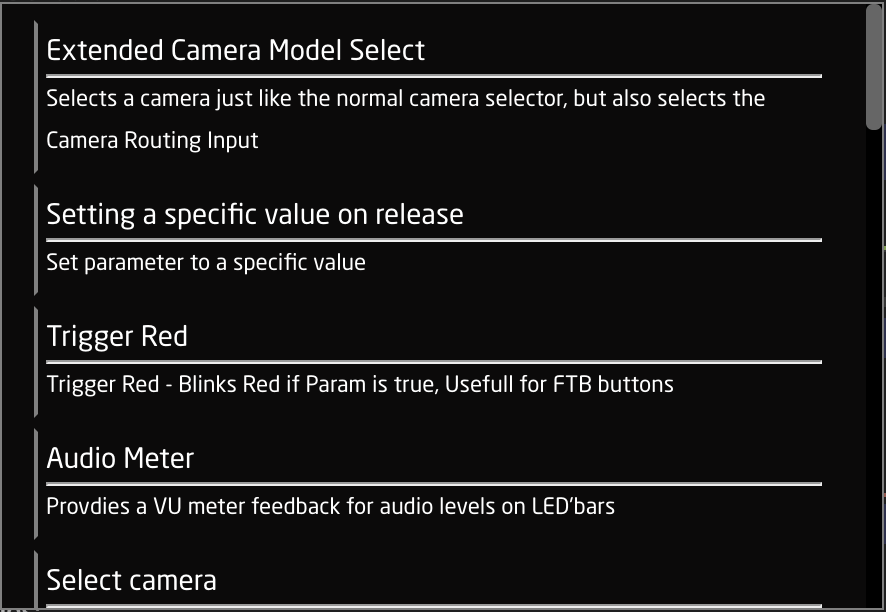
As these are prebuilt templates, they contain information needed for Event Handles and Feedback. There are scenarios where it is not needed to use the Settings Template field when configuring a hardware component.

</td></tr><tr><td>Hide More/Show More</td><td>Opens or closes more of the Inspector. </td></tr><tr><td>Clear All Settings</td><td>Clears all the current settings from the Inspector. </td></tr></tbody></table>

The Feedback section is about how the hardware component looks in terms of OLED display or LED color. There are two types of feedback, Default and Conditional. The default feedback is the main look of the OLEDs and LEDs. The conditional feedback is used when specific Active If conditions are used to change any part of the default feedback. The feedback can be as detailed as desired with no specific field mandatory except Index and Active If for the conditional feedback.

[![Screenshot 2024-01-11 at 1.30.58 PM.png](https://wiki.skaarhoj.com/uploads/images/gallery/2024-01/scaled-1680-/aeTscreenshot-2024-01-11-at-1-30-58-pm.png)](https://wiki.skaarhoj.com/uploads/images/gallery/2024-01/aeTscreenshot-2024-01-11-at-1-30-58-pm.png)[![Screenshot 2024-01-11 at 1.34.12 PM.png](https://wiki.skaarhoj.com/uploads/images/gallery/2024-01/scaled-1680-/XyOscreenshot-2024-01-11-at-1-34-12-pm.png)](https://wiki.skaarhoj.com/uploads/images/gallery/2024-01/XyOscreenshot-2024-01-11-at-1-34-12-pm.png)

<table border="1" style="border-collapse: collapse; width: 96.6667%; height: 147.984px;"><colgroup><col style="width: 23.1433%;"></col><col style="width: 76.8567%;"></col></colgroup><tbody><tr><td>Index</td><td>Value assigned on feedback creation to rank the feedback's priority with higher values having higher priority in being displayed.

</td></tr><tr style="height: 29.7969px;"><td style="height: 29.7969px;">Active If</td><td style="height: 29.7969px;">Conditions that need to be met for the feedback to be active.

[![Screenshot 2024-01-11 at 1.46.45 PM.png](https://wiki.skaarhoj.com/uploads/images/gallery/2024-01/scaled-1680-/653screenshot-2024-01-11-at-1-46-45-pm.png)](https://wiki.skaarhoj.com/uploads/images/gallery/2024-01/653screenshot-2024-01-11-at-1-46-45-pm.png)
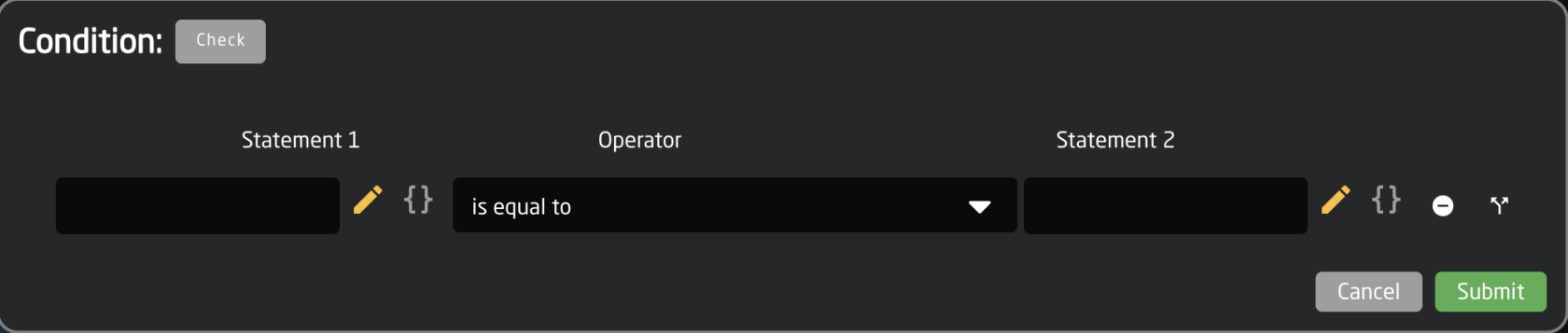
</td></tr><tr style="height: 29.7969px;"><td style="height: 29.7969px;">Description</td><td style="height: 29.7969px;">Easy to understand text string of the feedback's purpose</td></tr><tr style="height: 29.7969px;"><td style="height: 29.7969px;">Intensity</td><td style="height: 29.7969px;">Brightness of the LED feedback; On, Dimmed, or Off</td></tr><tr style="height: 29.7969px;"><td style="height: 29.7969px;">Color</td><td style="height: 29.7969px;">Hue assigned to the LED feedback. Choose from predefined color, pick on a color wheel, or set based on HEX value. [![Screenshot 2024-01-11 at 2.08.50 PM.png](https://wiki.skaarhoj.com/uploads/images/gallery/2024-01/scaled-1680-/screenshot-2024-01-11-at-2-08-50-pm.png)](https://wiki.skaarhoj.com/uploads/images/gallery/2024-01/screenshot-2024-01-11-at-2-08-50-pm.png)
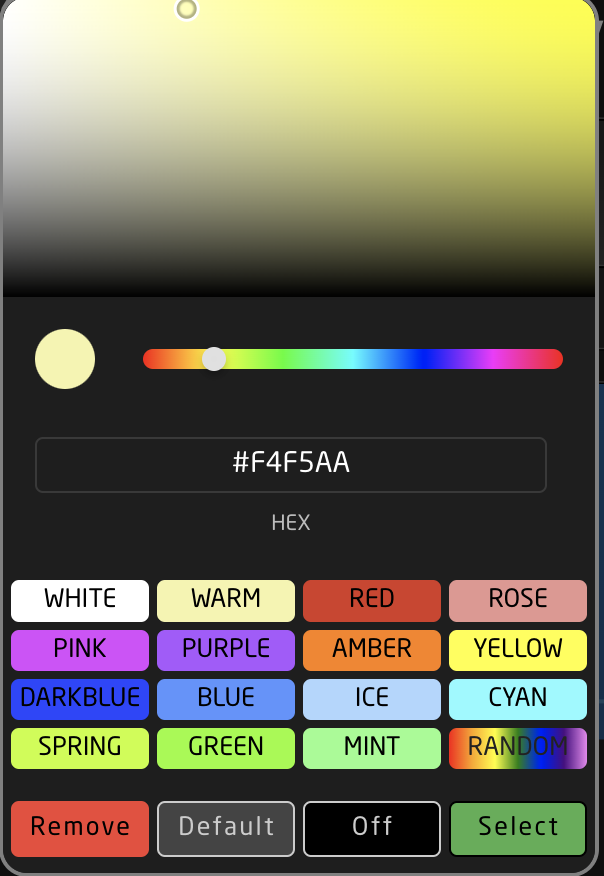
</td></tr><tr style="height: 28.7969px;"><td style="height: 28.7969px;">Blink Pattern</td><td style="height: 28.7969px;">Pattern at which the LED should blink. [![Screenshot 2024-01-11 at 2.11.06 PM.png](https://wiki.skaarhoj.com/uploads/images/gallery/2024-01/scaled-1680-/screenshot-2024-01-11-at-2-11-06-pm.png)](https://wiki.skaarhoj.com/uploads/images/gallery/2024-01/screenshot-2024-01-11-at-2-11-06-pm.png)
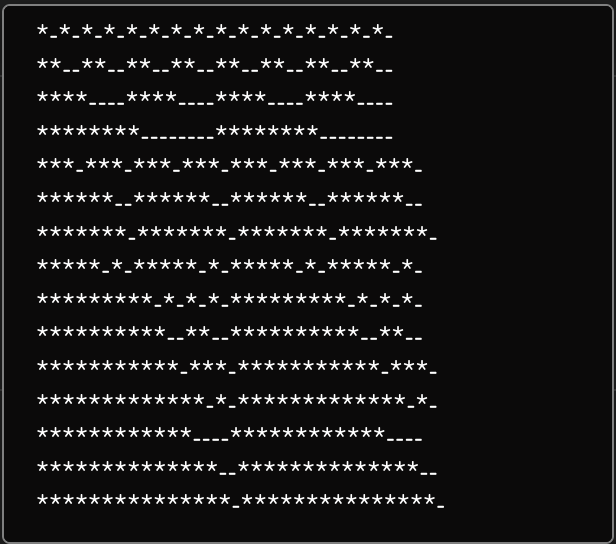
</td></tr><tr><td>Title</td><td>Text string for top 1/3 of the display, often used for a title. </td></tr><tr><td>Title Font</td><td>Font used for the title; Default, Bold, Tiny</td></tr><tr><td>Text Size</td><td>Size used for the title; Default (0,0), Small (1,1), Narrow (1,2), Medium (2,2), Large (3,3)</td></tr><tr><td>Solid Title Bar</td><td>Sets title bar's background as while and text color as black for top 1/3 of display; On, Off, No Title</td></tr><tr><td>Textline 1</td><td>Text string for bottom 2/3 of display if Textline 2 is left blank or middle 1/3 of display if Textline 2 is used. Character length is dependent on display size. </td></tr><tr><td>Textline 2</td><td>Text string for bottom 1/3 of display. Character length is dependent on display size. </td></tr><tr><td>Auto Wrap</td><td>Used with Textline 1 to split text into 2 lines if it is too long; on, off</td></tr><tr><td>Use Graphics for UniCode</td><td>Allows for text based character outside of the standard English alphanumeric characters.</td></tr><tr><td>Modifier Icon</td><td>Adds a modifier icon to the display; No icon, cycle, Down, Up, Hold, Toggle, OK, Question</td></tr><tr><td>State Icon Lock</td><td>Active If condition to show a lock icon in the display. Overrides the No Access and Fine icons.</td></tr><tr><td>State Icon No Access</td><td>Active If condition to show a no access icon in the display. Overrides the Fine icon. </td></tr><tr><td>State Icon Fine</td><td>Active If condition to show a fine icon in the display. </td></tr><tr><td>Don't Inherit</td><td>Advanced setting to stop the inheritance of the feedback from a parent behavior. </td></tr><tr><td>Graphic Source</td><td>Select graphic for display in place of text based display; Icon, IOReference, QRcode.   
Icon can be from internal library or uploaded.   
Additional options may exist within IOReference and QRcode. </td></tr></tbody></table>

 The Event Handlers are used to set exactly how the hardware component operates and performs the action for the parameter.

[![Screenshot 2024-01-11 at 2.35.35 PM.png](https://wiki.skaarhoj.com/uploads/images/gallery/2024-01/scaled-1680-/screenshot-2024-01-11-at-2-35-35-pm.png)](https://wiki.skaarhoj.com/uploads/images/gallery/2024-01/screenshot-2024-01-11-at-2-35-35-pm.png)

<table border="1" style="border-collapse: collapse; width: 100%; height: 394.211px;"><colgroup><col style="width: 23.3975%;"></col><col style="width: 76.7309%;"></col></colgroup><tbody><tr style="height: 63.3906px;"><td style="height: 63.3906px;">Handler Type</td><td style="height: 63.3906px;">Sets type of hardware component type for the component to act as; Binary (Button), Pulsed (Encoder, Roller Wheel), Analog (Fader, T-Bar, RCP Joystick), Speed (Zoom Rocker, PTZ Joystick). See below for more detail.</td></tr><tr style="height: 165.039px;"><td style="height: 165.039px;">Active If</td><td style="height: 165.039px;">Conditions that need to be met for the feedback to be active.

[![Screenshot 2024-01-11 at 1.46.45 PM.png](https://wiki.skaarhoj.com/uploads/images/gallery/2024-01/scaled-1680-/653screenshot-2024-01-11-at-1-46-45-pm.png)](https://wiki.skaarhoj.com/uploads/images/gallery/2024-01/653screenshot-2024-01-11-at-1-46-45-pm.png)

</td></tr><tr style="height: 46.5938px;"><td style="height: 46.5938px;">Parameter</td><td style="height: 46.5938px;">Parameter to be affected by the event handler. If left blank it will affect the main parameter. </td></tr><tr style="height: 29.7969px;"><td style="height: 29.7969px;">Description</td><td style="height: 29.7969px;">Easy to understand text string of the event handler purpose.</td></tr><tr style="height: 29.7969px;"><td style="height: 29.7969px;">Event Preprocessor</td><td style="height: 29.7969px;">Transforms incoming trigger type. *Advanced*</td></tr><tr style="height: 29.7969px;"><td style="height: 29.7969px;">Don't inherit</td><td style="height: 29.7969px;">Advanced setting to stop the inheritance of the event handler from a parent behavior. </td></tr><tr style="height: 29.7969px;"><td style="height: 29.7969px;">Create New</td><td style="height: 29.7969px;">Create new event handler and set name for it. </td></tr></tbody></table>

 Handler Types

[![Screenshot 2024-01-11 at 2.48.14 PM.png](https://wiki.skaarhoj.com/uploads/images/gallery/2024-01/scaled-1680-/screenshot-2024-01-11-at-2-48-14-pm.png)](https://wiki.skaarhoj.com/uploads/images/gallery/2024-01/screenshot-2024-01-11-at-2-48-14-pm.png)

<table border="1" style="border-collapse: collapse; width: 100%; height: 165.781px;"><colgroup><col style="width: 22.9716%;"></col><col style="width: 77.0284%;"></col></colgroup><tbody><tr style="height: 29.7969px;"><td style="height: 29.7969px;">Binary Type</td><td style="height: 29.7969px;">Which binary the handler responds to: button press, Act Down, or release, Act Up</td></tr><tr style="height: 46.5938px;"><td style="height: 46.5938px;">Edge Filter</td><td style="height: 46.5938px;">Which edge of a 4-way button the handler responds to: Any edge, No edge, Top, Left, Bottom, Right, Left &amp; Right, Top &amp; Bottom, Encoder Click</td></tr><tr style="height: 29.7969px;"><td style="height: 29.7969px;">Set Mode</td><td style="height: 29.7969px;">Set, Toggle, Add, Remove, Toggle Add/Remove, Cycle Up, Cycle Down, Cycle Up and Roll Over, Cycle Down and Roll Over, Clear, Random, Sequence</td></tr><tr style="height: 29.7969px;"><td style="height: 29.7969px;">Set Values</td><td style="height: 29.7969px;">To set a specific value or to copy a value from another parameter</td></tr><tr style="height: 29.7969px;"><td style="height: 29.7969px;">Invert Conditions</td><td style="height: 29.7969px;">To set the conditions on which the action will be the invert or opposite </td></tr></tbody></table>

[![Screenshot 2024-01-11 at 2.48.24 PM.png](https://wiki.skaarhoj.com/uploads/images/gallery/2024-01/scaled-1680-/screenshot-2024-01-11-at-2-48-24-pm.png)](https://wiki.skaarhoj.com/uploads/images/gallery/2024-01/screenshot-2024-01-11-at-2-48-24-pm.png)

<table border="1" style="border-collapse: collapse; width: 100%; height: 195.578px;"><colgroup><col style="width: 20.9616%;"></col><col style="width: 79.1667%;"></col></colgroup><tbody><tr style="height: 29.7969px;"><td style="height: 29.7969px;">Rollover Conditions</td><td style="height: 29.7969px;">Conditions for the end value to rollover to the start value when cycling through</td></tr><tr style="height: 29.7969px;"><td style="height: 29.7969px;">Fine Step IO reference</td><td style="height: 29.7969px;">Can be a set value for size of a fine step or can be set via na IO reference</td></tr><tr style="height: 46.5938px;"><td style="height: 46.5938px;">Coarse Step IO reference</td><td style="height: 46.5938px;">Can be a set value for size of a coarse step or can be set via na IO reference</td></tr><tr style="height: 29.7969px;"><td style="height: 29.7969px;">Coarse Condition</td><td style="height: 29.7969px;">Set conditions for switching between coarse and fine mode</td></tr><tr style="height: 29.7969px;"><td style="height: 29.7969px;">Ganged Control Mode</td><td style="height: 29.7969px;">Way ganged control works; Set All to First, Change All Relatively</td></tr><tr style="height: 29.7969px;"><td style="height: 29.7969px;">Invert Condition</td><td style="height: 29.7969px;">To set the conditions on which the action will be the invert or opposite </td></tr></tbody></table>

[![Screenshot 2024-01-11 at 2.48.35 PM.png](https://wiki.skaarhoj.com/uploads/images/gallery/2024-01/scaled-1680-/screenshot-2024-01-11-at-2-48-35-pm.png)](https://wiki.skaarhoj.com/uploads/images/gallery/2024-01/screenshot-2024-01-11-at-2-48-35-pm.png)

<table border="1" style="border-collapse: collapse; width: 100%;"><colgroup><col style="width: 21.218%;"></col><col style="width: 78.9103%;"></col></colgroup><tbody><tr><td>Discontinuity</td><td>Strategy for detecting movement of a hardware component to adjust a parameters via an analog component; Double Linear, Offset, Non</td></tr><tr><td>Invert Condition</td><td>To set the conditions on which the action will be the invert or opposite </td></tr></tbody></table>

[![Screenshot 2024-01-11 at 2.48.48 PM.png](https://wiki.skaarhoj.com/uploads/images/gallery/2024-01/scaled-1680-/screenshot-2024-01-11-at-2-48-48-pm.png)](https://wiki.skaarhoj.com/uploads/images/gallery/2024-01/screenshot-2024-01-11-at-2-48-48-pm.png)

<table border="1" style="border-collapse: collapse; width: 100%;"><colgroup><col style="width: 20.7052%;"></col><col style="width: 79.4232%;"></col></colgroup><tbody><tr><td>Invert Condition</td><td>To set the conditions on which the action will be the invert or opposite </td></tr></tbody></table>

Within each type of event handler, there is the Event Preprocessor section for a more advanced configuration of how a hardware component should act by transforming its hardware component type.

[![Screenshot 2024-01-16 at 11.09.50 AM.png](https://wiki.skaarhoj.com/uploads/images/gallery/2024-01/scaled-1680-/screenshot-2024-01-16-at-11-09-50-am.png)](https://wiki.skaarhoj.com/uploads/images/gallery/2024-01/screenshot-2024-01-16-at-11-09-50-am.png)

The options available with each preprocessor is dependent on the overall event handler type.

<p class="callout info">More information on Event Preprocessors coming soon.</p>

Variables are used in many different ways and in many places within a configuration. The basic idea of a variable is it is an adjustable

![Screenshot 2024-01-16 at 11.42.49 AM.png](https://wiki.skaarhoj.com/uploads/images/gallery/2024-01/scaled-1680-/screenshot-2024-01-16-at-11-42-49-am.png)There are two types of variable: Range and Options.

A range variable is to be used with any number value from X to Y defined by the user.
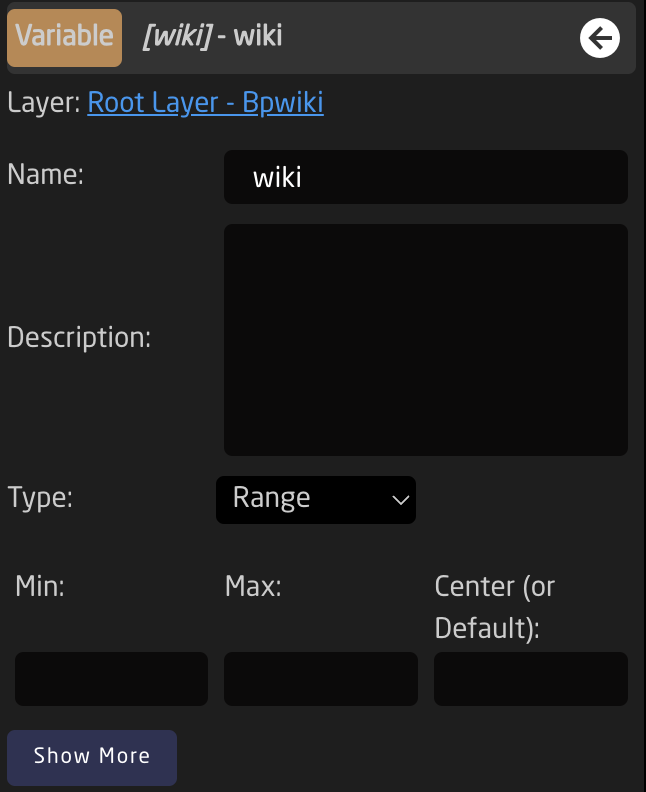
![Screenshot 2024-01-16 at 11.55.45 AM.png](https://wiki.skaarhoj.com/uploads/images/gallery/2024-01/scaled-1680-/screenshot-2024-01-16-at-11-55-45-am.png)

 An options variable is to be used with any defined text string with independently set labels.
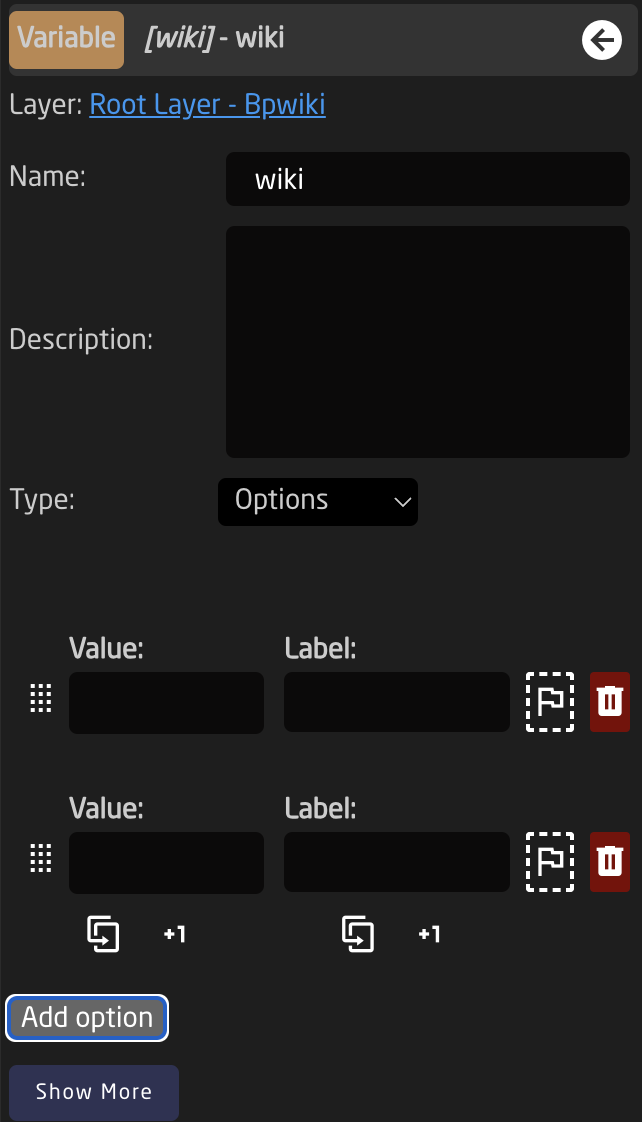
![Screenshot 2024-01-16 at 11.56.00 AM.png](https://wiki.skaarhoj.com/uploads/images/gallery/2024-01/scaled-1680-/screenshot-2024-01-16-at-11-56-00-am.png)

Event Scripts

<p class="callout info"> More details coming soon</p>

</details><details id="bkmrk-tree-%28advanced%29-%C2%A0"><summary>Tree (Advanced)</summary>

coming soon

</details><details id="bkmrk-raw-json-editor-%28mos"><summary>Raw JSON Editor (Most Advanced)</summary>

The most advanced way to build or edit configurations would be via the full JSON editor. This is technically a different page from the Configuration page, however it is only accessible via the configuration page.

<p class="callout warning">For users with a background in JSON, this could be the easiest and fastest way to work with our configurations. For most users, it is best to leave this section untouched as every character can effect the functionality of a configuration. </p>

The JSON editor can be found by clicking on the **Edit Raw** links in the Tree on the layers with Include Files. The JSON available via these links is the Include File layers.
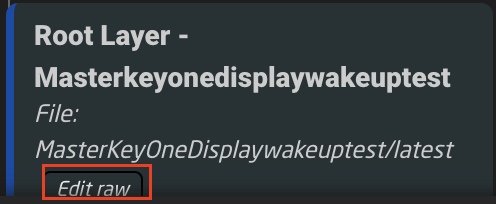
![Screenshot 2023-11-06 at 14.28.47.png](https://wiki.skaarhoj.com/uploads/images/gallery/2023-11/scaled-1680-/screenshot-2023-11-06-at-14-28-47.png)

The JSON editor opens on its own web browser page. From here it is possible to do a few different things.

[![Screenshot 2023-11-06 at 14.56.31.png](https://wiki.skaarhoj.com/uploads/images/gallery/2023-11/scaled-1680-/screenshot-2023-11-06-at-14-56-31.png)](https://wiki.skaarhoj.com/uploads/images/gallery/2023-11/screenshot-2023-11-06-at-14-56-31.png)
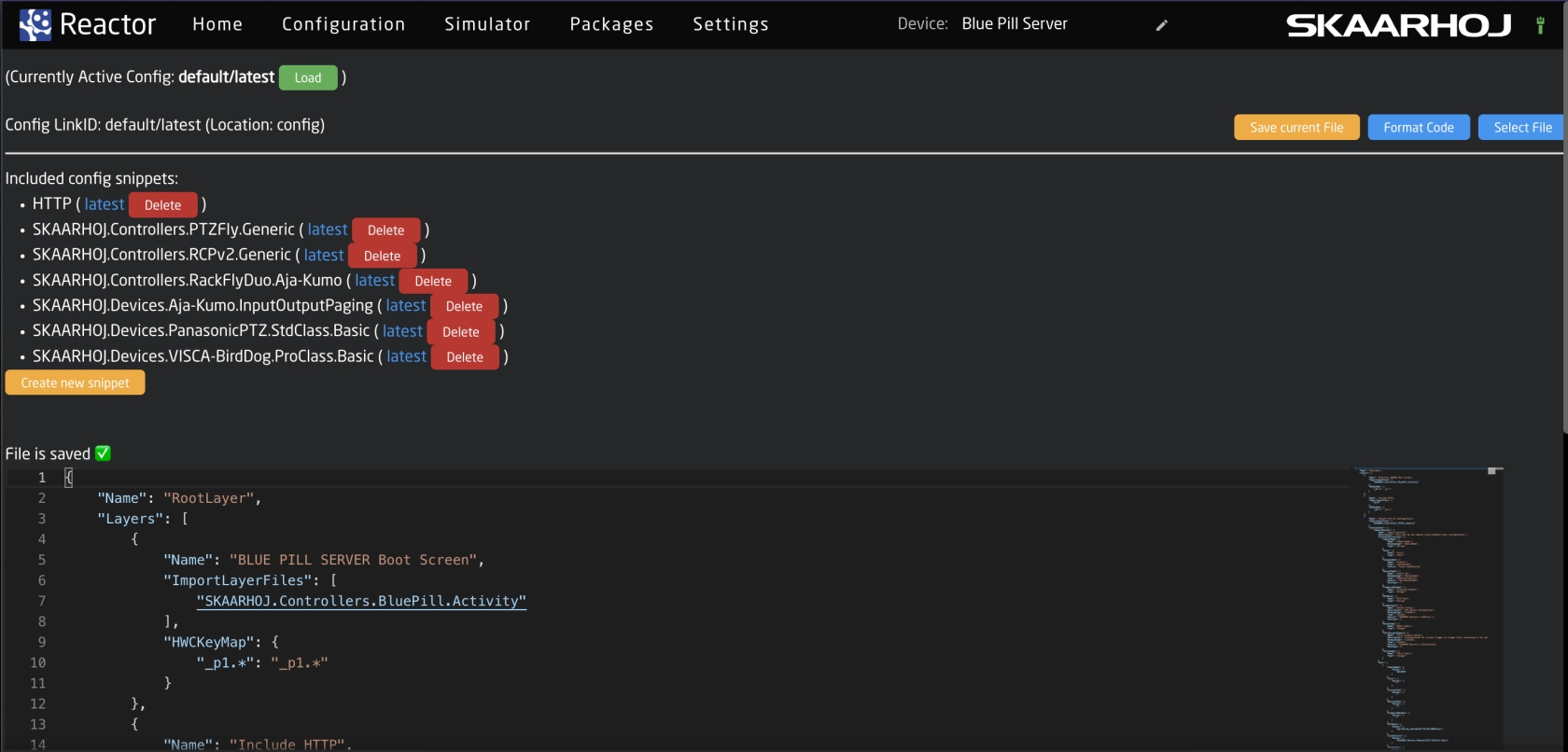
Taking a look at the top section of the page.

[![Screenshot 2023-11-06 at 15.07.21.png](https://wiki.skaarhoj.com/uploads/images/gallery/2023-11/scaled-1680-/screenshot-2023-11-06-at-15-07-21.png)](https://wiki.skaarhoj.com/uploads/images/gallery/2023-11/screenshot-2023-11-06-at-15-07-21.png)

<table border="1" style="border-collapse: collapse; width: 100%; height: 148.984px;"><colgroup><col style="width: 22.9802%;"></col><col style="width: 77.0198%;"></col></colgroup><tbody><tr style="height: 29.7969px;"><td style="height: 29.7969px;">Currently Active Config:</td><td style="height: 29.7969px;">The name of the currently configuration file selected in the package. This can be shared on multiple different projects. </td></tr><tr style="height: 29.7969px;"><td style="height: 29.7969px;">Config Link ID:</td><td style="height: 29.7969px;">The selected link ID selected to edit. There can be multiple available per Currently Active Configuration on different layers in the tree. </td></tr><tr style="height: 29.7969px;"><td style="height: 29.7969px;">Save Current File:</td><td style="height: 29.7969px;">Save the current text in the JSON editor. </td></tr><tr style="height: 29.7969px;"><td style="height: 29.7969px;">Format Code:</td><td style="height: 29.7969px;">Format code for better layout on the page. </td></tr><tr style="height: 29.7969px;"><td style="height: 29.7969px;">Select File:</td><td style="height: 29.7969px;">Allows for the selection of a different configuration file to load into the currently selected layer that has an include layer. See image below. </td></tr></tbody></table>

[![Screenshot 2023-11-06 at 15.00.36.png](https://wiki.skaarhoj.com/uploads/images/gallery/2023-11/scaled-1680-/screenshot-2023-11-06-at-15-00-36.png)](https://wiki.skaarhoj.com/uploads/images/gallery/2023-11/screenshot-2023-11-06-at-15-00-36.png)

<table border="1" class="align-center" style="border-collapse: collapse; width: 74.1026%;"><colgroup><col style="width: 32.0543%;"></col><col style="width: 67.9457%;"></col></colgroup><tbody><tr><td>Layer Configurations</td><td>Configuration files available on the Blue Pill device</td></tr><tr><td>Library Configurations</td><td class="align-left">Configuration files available from Skaarhoj</td></tr></tbody></table>

The middle section of the page contains the available different Snippets or include files within the selected configuration.

[![Screenshot 2023-11-06 at 15.14.25.png](https://wiki.skaarhoj.com/uploads/images/gallery/2023-11/scaled-1680-/screenshot-2023-11-06-at-15-14-25.png)](https://wiki.skaarhoj.com/uploads/images/gallery/2023-11/screenshot-2023-11-06-at-15-14-25.png)

<table border="1" class="align-center" style="border-collapse: collapse; width: 81.1538%; height: 123.984px;"><colgroup><col style="width: 23.5705%;"></col><col style="width: 76.4295%;"></col></colgroup><tbody><tr style="height: 29.7969px;"><td style="height: 29.7969px;">Snippet Name</td><td style="height: 29.7969px;">The include file name for that specific snippet. </td></tr><tr style="height: 34.5938px;"><td style="height: 34.5938px;">Latest</td><td style="height: 34.5938px;">Loads the latest version of the snippet into the JSON editor</td></tr><tr style="height: 29.7969px;"><td style="height: 29.7969px;">Delete</td><td style="height: 29.7969px;">Deletes the snippet</td></tr><tr style="height: 29.7969px;"><td style="height: 29.7969px;">Create new snippet</td><td style="height: 29.7969px;">Allow for the creation of a new snippet file. See image below.</td></tr></tbody></table>

[![Screenshot 2023-11-06 at 15.18.57.png](https://wiki.skaarhoj.com/uploads/images/gallery/2023-11/scaled-1680-/screenshot-2023-11-06-at-15-18-57.png)](https://wiki.skaarhoj.com/uploads/images/gallery/2023-11/screenshot-2023-11-06-at-15-18-57.png)

The bottom section is the JSON editor tool. Each line is numbered for easy reference and differentiation. The right hand side of the editor is a miniature version of the editor to quickly jump down to different sections for navigation.

[![Screenshot 2023-11-06 at 15.21.03.png](https://wiki.skaarhoj.com/uploads/images/gallery/2023-11/scaled-1680-/screenshot-2023-11-06-at-15-21-03.png)](https://wiki.skaarhoj.com/uploads/images/gallery/2023-11/screenshot-2023-11-06-at-15-21-03.png)

</details><details id="bkmrk-settings-tools-locat"><summary>Settings Tools</summary>

Located in the Settings on the Configuration page are some tools for use when working on the configuration page.

These tools can be opened by click on the cog wheel in the lower right corner of the page.

[![Screenshot 2023-11-06 at 13.57.14.png](https://wiki.skaarhoj.com/uploads/images/gallery/2023-11/scaled-1680-/screenshot-2023-11-06-at-13-57-14.png)](https://wiki.skaarhoj.com/uploads/images/gallery/2023-11/screenshot-2023-11-06-at-13-57-14.png)

 The available tools are as follows:

[![Screenshot 2023-11-06 at 13.56.04.png](https://wiki.skaarhoj.com/uploads/images/gallery/2023-11/scaled-1680-/screenshot-2023-11-06-at-13-56-04.png)](https://wiki.skaarhoj.com/uploads/images/gallery/2023-11/screenshot-2023-11-06-at-13-56-04.png)

</details>

# Simulator

Reactor has a built in simulator too. There are two ways to do simulations in Blue Pill, through the Simulator page and in the Configuration page.

There are some limitations to simulations and it is not meant to be a replacement for a hardware panel but as a helpful tool.

<details id="bkmrk-simulator-on-the-sim"><summary>Simulator</summary>

On the Simulator page, an interactive graphical display of each panel is present. The current mapping of each controller is visible. What is seen in the simulator will be reflected on any attached panels and will control any attached devices. Devices will be effected even if the panel is being fully simulated and is not physically present.

<p class="callout info">It is possible to simulate both the panel and the device from a stand alone Blue Pill to get an idea of what that mapping is like and what actions are available. Some data is not able to be simulated as it relies on the connected device for details.</p>

[![Screenshot 2023-08-08 at 3.35.19 PM.png](https://wiki.skaarhoj.com/uploads/images/gallery/2023-08/scaled-1680-/screenshot-2023-08-08-at-3-35-19-pm.png)](https://wiki.skaarhoj.com/uploads/images/gallery/2023-08/screenshot-2023-08-08-at-3-35-19-pm.png)

</details><details id="bkmrk-simulation-via-confi"><summary>Simulation via Configuration Page</summary>

In the Configuration page, it is possible to toggle between simulation and configuration modes to test the work in progress. While in simulation mode, it is not possible to add to the configuration on the Configuration page.

[![Screenshot 2023-08-08 at 3.47.08 PM.png](https://wiki.skaarhoj.com/uploads/images/gallery/2023-08/scaled-1680-/screenshot-2023-08-08-at-3-47-08-pm.png)](https://wiki.skaarhoj.com/uploads/images/gallery/2023-08/screenshot-2023-08-08-at-3-47-08-pm.png)

</details>**Simulation Navigation**

The simulators display the panels as they are arranged in the Graphical View of each panel group (see Panels sections for more information) and per group.

It is possible to limit which panels are seen in the simulation by selecting or deselecting the name on the panel at the top of the page via the eye icon. Clicking on the name will put that specific controller in center focus on the page.

[![Screenshot 2023-08-08 at 3.44.52 PM.png](https://wiki.skaarhoj.com/uploads/images/gallery/2023-08/scaled-1680-/screenshot-2023-08-08-at-3-44-52-pm.png)](https://wiki.skaarhoj.com/uploads/images/gallery/2023-08/screenshot-2023-08-08-at-3-44-52-pm.png)

**Resizing:**

- Option + mouse drag to navigate up, down, left and right
- Mouse scroll -&gt; adjust zoom level

**Right Click Options on HWC:**

- Hold Down
- Release Button
- Long Press

# Apps

Apps allow you to extend the capabilities of your Blue Pill with additional packages. These packages not designed to control specific devices like other packages available on the packages page.

[![Screenshot 2024-04-30 at 10.08.44 AM.png](https://wiki.skaarhoj.com/uploads/images/gallery/2024-04/scaled-1680-/screenshot-2024-04-30-at-10-08-44-am.png)](https://wiki.skaarhoj.com/uploads/images/gallery/2024-04/screenshot-2024-04-30-at-10-08-44-am.png)

# Packages

Blue Pill being a Linux system has a number of system settings and a package management interface. From this interface it is possible to add new, remove unneeded, update, and monitor the packages needed to control the panels and the devices.

<details id="bkmrk-required-packages-th"><summary>Required Packages</summary>

The following Packages are needed for Blue Pill operation.

[![Screenshot 2023-08-15 at 11.36.15 AM.png](https://wiki.skaarhoj.com/uploads/images/gallery/2023-08/scaled-1680-/screenshot-2023-08-15-at-11-36-15-am.png)](https://wiki.skaarhoj.com/uploads/images/gallery/2023-08/screenshot-2023-08-15-at-11-36-15-am.png)

**hardware-manager**  is the application that facilitates access to the hardware features of the Blue Pill. On an RCP Pro with Blue Pill Inside the hardware-manager application creates the Raw Panel based access to the hardware components of the RCP Pro (so even when Blue Pill runs natively on a controller like RCP Pro, it is still using a network socket to talk to the hardware on the panel, so in that way it is no different from connecting to external panels!).

**system-manager** is the system management UI for skaarOS.

**Reactor** is what most will generally think of as the Blue Pill. This is the platform where panels, devices, and configurations are added.

</details><details id="bkmrk-installed-packages-t"><summary>Installed Packages</summary>

The overview page shows which packages are currently installed and in which version; whether they are running or not. In this screenshot the Blue Pill has device cores for BMD Atem, Canon XC Protocol, BMD Camera Control, BMD Smartview, NetIO Power Socket, and Panasonic PTZ cameras. They are all stopped except the BMD Atem and Canon XC packages. An installed core will generally stop running when there are no devices that use it currently in the devices section for project. This is designed to save processing power while allowing for packages to be loaded onto the Blue Pill for later use.

[![Screenshot 2023-08-15 at 11.41.54 AM.png](https://wiki.skaarhoj.com/uploads/images/gallery/2023-08/scaled-1680-/screenshot-2023-08-15-at-11-41-54-am.png)](https://wiki.skaarhoj.com/uploads/images/gallery/2023-08/screenshot-2023-08-15-at-11-41-54-am.png)

</details><details id="bkmrk-available-packages-n"><summary>Available Packages</summary>

Not much different from the list of installed packages, are the available packages. This list is growing all of the time as we add new integrations.

[![Screenshot 2023-08-15 at 12.54.24 PM.png](https://wiki.skaarhoj.com/uploads/images/gallery/2023-08/scaled-1680-/screenshot-2023-08-15-at-12-54-24-pm.png)](https://wiki.skaarhoj.com/uploads/images/gallery/2023-08/screenshot-2023-08-15-at-12-54-24-pm.png)

When connected to the internet the needed package for a device core will generally auto install when a device associated with it is selected via the devices section of the Home screen.Installing new packages requires internet access as they are pulled from an online storage with applications we have published.

<p class="callout info">Please note, prerelease updates are only available when using the Show Pre-Release toggle at the top of the page.  
[![Screenshot 2023-08-15 at 12.34.27 PM.png](https://wiki.skaarhoj.com/uploads/images/gallery/2023-08/scaled-1680-/screenshot-2023-08-15-at-12-34-27-pm.png)](https://wiki.skaarhoj.com/uploads/images/gallery/2023-08/screenshot-2023-08-15-at-12-34-27-pm.png)</p>
If working in a offline environment, it is possible to manually upload a device core package from a file on your computer. This is done from the Upload and install package button at the bottom of the Packages page.

[![Screenshot 2023-08-15 at 12.51.36 PM.png](https://wiki.skaarhoj.com/uploads/images/gallery/2023-08/scaled-1680-/screenshot-2023-08-15-at-12-51-36-pm.png)](https://wiki.skaarhoj.com/uploads/images/gallery/2023-08/screenshot-2023-08-15-at-12-51-36-pm.png)

<p class="callout info">All of our current stable release and prerelease of our cores are available on our website devices.skaarhoj.com.</p>

</details><details id="bkmrk-package-details-clic"><summary>Package Details</summary>

Clicking an installed package brings opens the settings page of the package.

[![Screenshot 2023-08-15 at 11.59.24 AM.png](https://wiki.skaarhoj.com/uploads/images/gallery/2023-08/scaled-1680-/screenshot-2023-08-15-at-11-59-24-am.png)](https://wiki.skaarhoj.com/uploads/images/gallery/2023-08/screenshot-2023-08-15-at-11-59-24-am.png)

From the Package/Core Settings page it is possible to see the current status, stop or restart, and set Auto start. This can be a helpful tool if the core is not acting properly.[![Screenshot 2023-08-15 at 11.50.44 AM.png](https://wiki.skaarhoj.com/uploads/images/gallery/2023-08/scaled-1680-/screenshot-2023-08-15-at-11-50-44-am.png)](https://wiki.skaarhoj.com/uploads/images/gallery/2023-08/screenshot-2023-08-15-at-11-50-44-am.png)![Screenshot 2023-08-15 at 11.47.48 AM.png](https://wiki.skaarhoj.com/uploads/images/gallery/2023-08/scaled-1680-/screenshot-2023-08-15-at-11-47-48-am.png)

 All connected devices to the package are not visible by default, they can be seen, along with their current settings, by clicking on Show Config anyways in the Warning box. While it is possible to update them from this page, **it is advised to add and adjust them from the Home page, as the data is synced from there.**

[![Screenshot 2023-08-15 at 11.58.02 AM.png](https://wiki.skaarhoj.com/uploads/images/gallery/2023-08/scaled-1680-/screenshot-2023-08-15-at-11-58-02-am.png)](https://wiki.skaarhoj.com/uploads/images/gallery/2023-08/screenshot-2023-08-15-at-11-58-02-am.png)

[![Screenshot 2023-08-15 at 11.58.16 AM.png](https://wiki.skaarhoj.com/uploads/images/gallery/2023-08/scaled-1680-/screenshot-2023-08-15-at-11-58-16-am.png)](https://wiki.skaarhoj.com/uploads/images/gallery/2023-08/screenshot-2023-08-15-at-11-58-16-am.png)

 On the the left the package logs can be seen and downloaded. This can be used for troubleshooting and may be requested by the support or development team for diagnostics.

[![Screenshot 2023-08-15 at 12.04.19 PM.png](https://wiki.skaarhoj.com/uploads/images/gallery/2023-08/scaled-1680-/screenshot-2023-08-15-at-12-04-19-pm.png)](https://wiki.skaarhoj.com/uploads/images/gallery/2023-08/screenshot-2023-08-15-at-12-04-19-pm.png)

Clear Config Directory will delete everything that was saved onto the Blue Pill by that specific package and return it to its default settings. This can sometimes be useful if the device core packages is not running properly.

<p class="callout warning">Clearing the Config Directory for the Reactor package will erase all projects on the device. It is suggested to export any needed project before clearing the config directory of that package. </p>

It is also possible to completely Uninstall a package from this page. Doing so will not remove previously connected devices, but will cause them to be disconnected.

When setting the Blue Pill into advanced mode, filtering options become available for the core logs.

[![Screenshot 2023-08-15 at 12.07.47 PM.png](https://wiki.skaarhoj.com/uploads/images/gallery/2023-08/scaled-1680-/screenshot-2023-08-15-at-12-07-47-pm.png)](https://wiki.skaarhoj.com/uploads/images/gallery/2023-08/screenshot-2023-08-15-at-12-07-47-pm.png)
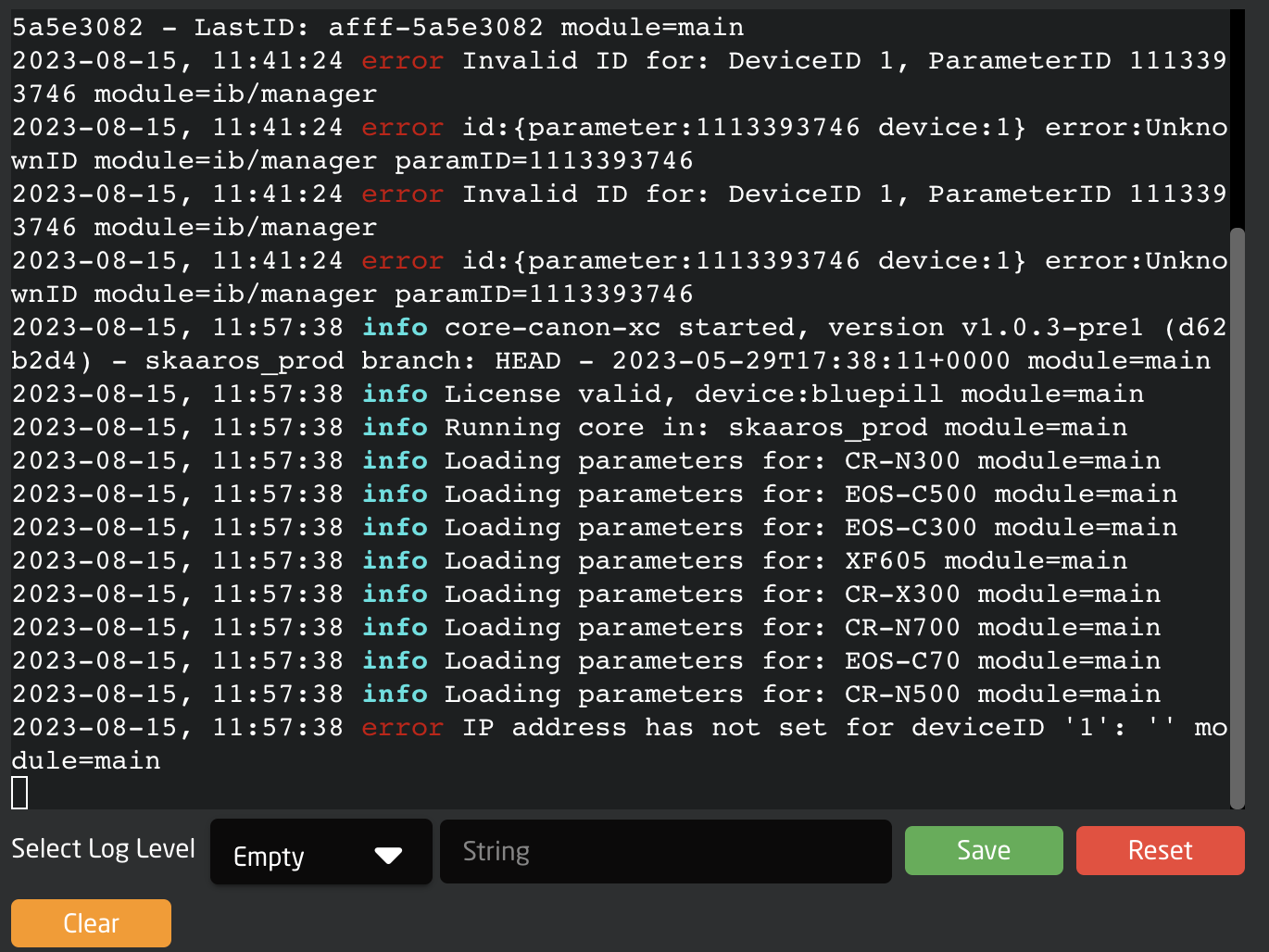
</details><details id="bkmrk-updating-packages-up"><summary>Updating Packages</summary>

Updating packages or reverting to older versions of packages is simple.

<p class="callout info">Generally Updating or Downgrading a device core package requires internet connectivity to our servers, however we do offer an offline update method. </p>

Packages with updates available with updates available with have a green UPDATE TO X.X.X button next to the current version. Pressing the update button will update that individual package. Pressing the Update All button on the top will run all available package updates.

[![Screenshot 2023-08-15 at 12.35.59 PM.png](https://wiki.skaarhoj.com/uploads/images/gallery/2023-08/scaled-1680-/screenshot-2023-08-15-at-12-35-59-pm.png)](https://wiki.skaarhoj.com/uploads/images/gallery/2023-08/screenshot-2023-08-15-at-12-35-59-pm.png)
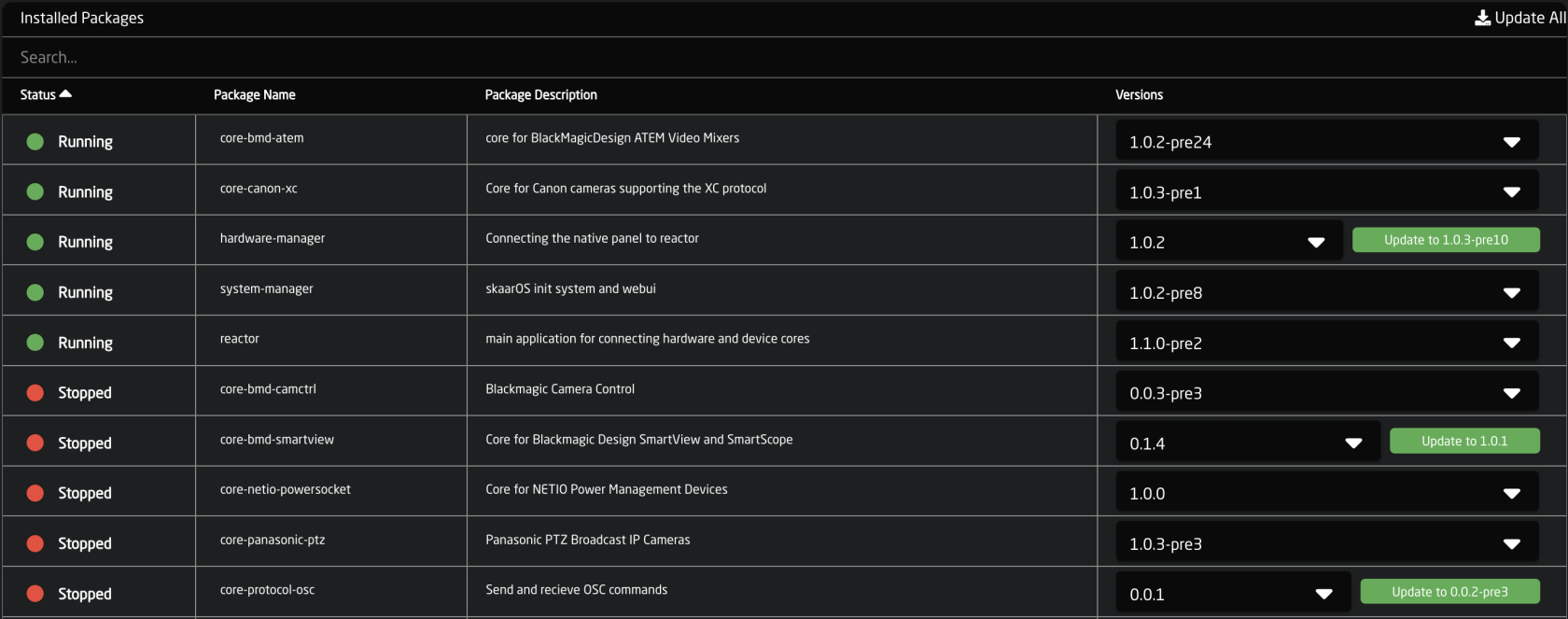
<p class="callout info">Please note, prerelease updates are only available when using the Show Pre-Release toggle at the top of the page.  
[![Screenshot 2023-08-15 at 12.34.27 PM.png](https://wiki.skaarhoj.com/uploads/images/gallery/2023-08/scaled-1680-/screenshot-2023-08-15-at-12-34-27-pm.png)](https://wiki.skaarhoj.com/uploads/images/gallery/2023-08/screenshot-2023-08-15-at-12-34-27-pm.png)</p>

To revert back to a previous version of a package click on the drop down in the Versions column and select the desired version.

[![Screenshot 2023-08-15 at 12.38.28 PM.png](https://wiki.skaarhoj.com/uploads/images/gallery/2023-08/scaled-1680-/screenshot-2023-08-15-at-12-38-28-pm.png)](https://wiki.skaarhoj.com/uploads/images/gallery/2023-08/screenshot-2023-08-15-at-12-38-28-pm.png)

It can be necessary to manually upload a package file from your computer, this could be because the panel is used in an offline workflow or because support has sent a package file for the customer to test. This is done from the Upload and install package button at the bottom of the Packages page.

[![Screenshot 2023-08-15 at 12.51.36 PM.png](https://wiki.skaarhoj.com/uploads/images/gallery/2023-08/scaled-1680-/screenshot-2023-08-15-at-12-51-36-pm.png)](https://wiki.skaarhoj.com/uploads/images/gallery/2023-08/screenshot-2023-08-15-at-12-51-36-pm.png)

<p class="callout info">All of our current stable release and prerelease of our cores are available on our website devices.skaarhoj.com.</p>

</details><details id="bkmrk-special-packages-dev"><summary>Special Packages</summary>

**devicecore-connector** is a bridge used on this particular Blue Pill that will make the device cores on it available to the outer world. This is used when for an architecture where separate Blue Pills run the device cores locally to load balance or manage network latency - or in the simple case of Blue Pills with SKAARHOJs series of extension cables which bridges connectivity to legacy serial systems (RS-422, RS-485, RS-232 and analog voltages for lens control etc.). In those cases, having a device core run locally on that Blue Pill is not only necessary because it needs to talk directly to UARTs, but it also means that single-master serial devices (and, this is what most of them are…) are available for multi-master access via the device core TCP interface.

More Special Packages and details coming soon...

</details><details id="bkmrk-licensed-packages-mo"><summary>Licensed Packages</summary>

Most of our devices cores do not require any special permissions or licenses to use. They can be installed when needed as your needs change. However there are some packages that do require a Skaarhoj assigned license. These generally involve using a 3rd Party Panel in your Blue Pill workflow.

If you are unsure if the package you need requires a license or license fee please reach out to <support@skaarhoj.com>.

Some examples of licensed packages are:

Device Core Link

TCP Link for Atem

HID Devices

StreamDeck

X-Keys

<p class="callout info">The licensed packages can all be downloaded and installed but have a run time of 10 mins. This allows for our customers to test the packages to see if they will meet their needs before needing to purchase the license. To continue the testing, restart the device core package, wait 1 minute, then you can use it again for another 10 minutes. </p>

</details>

# Settings

On the System screen is additional system related information and tools.

[![Screenshot 2023-10-24 at 11.21.08.png](https://wiki.skaarhoj.com/uploads/images/gallery/2023-10/scaled-1680-/screenshot-2023-10-24-at-11-21-08.png)](https://wiki.skaarhoj.com/uploads/images/gallery/2023-10/screenshot-2023-10-24-at-11-21-08.png)

<details id="bkmrk-system-information-t"><summary>System Information</summary>

The overall System Information is displayed in this section including the Installed OS Version number for the main components, the serial number, the current IP information, the MAC address, and all assigned licenses to the device. There is the option to Identify the unit, by having the small led next to the ethernet port light red for 30 seconds, reboot the unit, or update operating system.<span class="Apple-converted-space"> </span>[![Screenshot 2023-10-24 at 13.02.11.png](https://wiki.skaarhoj.com/uploads/images/gallery/2023-10/scaled-1680-/screenshot-2023-10-24-at-13-02-11.png)](https://wiki.skaarhoj.com/uploads/images/gallery/2023-10/screenshot-2023-10-24-at-13-02-11.png)

In Advanced Mode there is the option to perform a hard reset of the Blue Pill.

[![Screenshot 2023-10-24 at 13.17.43.png](https://wiki.skaarhoj.com/uploads/images/gallery/2023-10/scaled-1680-/screenshot-2023-10-24-at-13-17-43.png)](https://wiki.skaarhoj.com/uploads/images/gallery/2023-10/screenshot-2023-10-24-at-13-17-43.png)

<p class="callout danger">Please note, doing a Reset will erase all installed packages, IP configuration, and any projects. This will return the Blue Pill to factory settings. It is not possible to recover any lost information after a Reset which is why it is<span class="Apple-converted-space"> </span>hidden in Advanced Mode.</p>

**Licenses**

See next sections for detailed information.

</details><details id="bkmrk-licenses-some-specia"><summary>Licenses</summary>

Some specialized device cores or applications require a license (and possible license fee) to use outside of a short test period (usually 10 mins). All licenses assigned to a Blue Pill can be seen under the system information section. Each Blue Pill device will come with at least one assigned license for its general operation. For standard Skaarhoj panels that will be the "base" license. This may be different for more specialized panels.

![Screenshot 2023-10-24 at 13.24.38.png](https://wiki.skaarhoj.com/uploads/images/gallery/2023-10/scaled-1680-/screenshot-2023-10-24-at-13-24-38.png)

Licenses can be assigned by the Skaarhoj support team. Please reach out to <support@skaarhoj.com> for information on any specific license and if there is an applied license fee.

After a license is assigned by the support team, it may be necessary to refresh the Settings page a few times to see the assigned license.

<p class="callout info">Internet access is needed for the Blue Pill device to touch the Skaarhoj server to register an assigned license. If that is not an option, please let the support team know. </p>

</details><details id="bkmrk-ip-configuration-the"><summary>IP Configuration</summary>

There are two options for setting the IP configuration of the Blue Pill, DHCP or Manual.<span class="Apple-converted-space"> </span>To switch to Manual IP Configuration, toggle off DHCP, enter the desired IP network information, and press save.

<p class="callout info">By default the IP is set to DHCP, if DHCP is not available on the network a fallback IP address of 192.168.10.99 will be used. </p>

[![Screenshot 2023-10-24 at 11.28.25.png](https://wiki.skaarhoj.com/uploads/images/gallery/2023-10/scaled-1680-/Dzescreenshot-2023-10-24-at-11-28-25.png)](https://wiki.skaarhoj.com/uploads/images/gallery/2023-10/Dzescreenshot-2023-10-24-at-11-28-25.png)![Screenshot 2023-10-24 at 11.28.14.png](https://wiki.skaarhoj.com/uploads/images/gallery/2023-10/scaled-1680-/screenshot-2023-10-24-at-11-28-14.png)
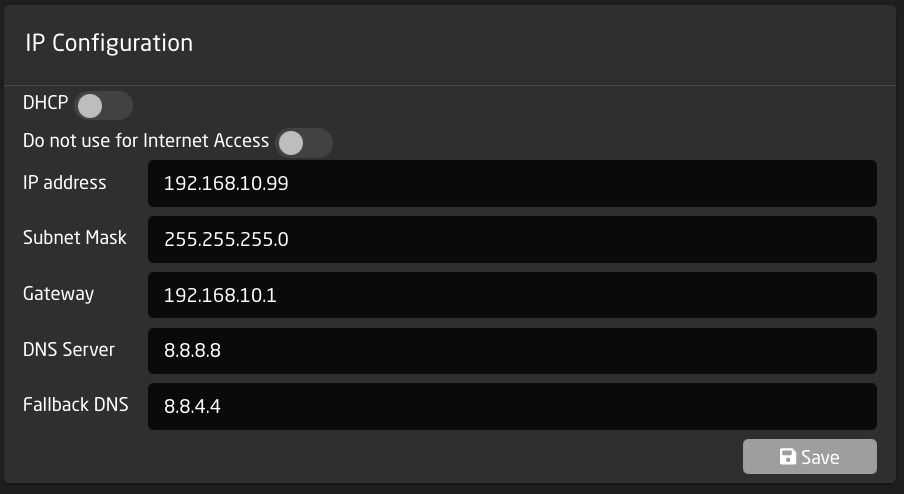
<p class="callout info">Please note, changing the IP information will cause the web interface to lose connection as the IP address has been re-assigned.</p>

By enabling the "Do not use for internet Access" toggle, you can turn off general internet connection to the Blue Pill device on networks that have general internet access.

[![Screenshot 2023-10-24 at 11.28.25.png](https://wiki.skaarhoj.com/uploads/images/gallery/2023-10/scaled-1680-/Nvdscreenshot-2023-10-24-at-11-28-25.png)](https://wiki.skaarhoj.com/uploads/images/gallery/2023-10/Nvdscreenshot-2023-10-24-at-11-28-25.png)
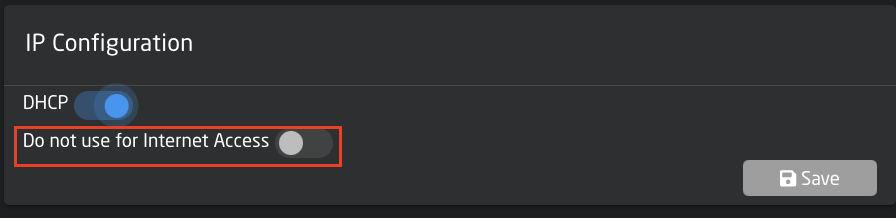
When Internet access has been restricted the ethernet cable icon in the top right corner of the screen will<span class="Apple-converted-space"> </span>have changed from green to red.

[![Screenshot 2023-10-24 at 11.38.04.png](https://wiki.skaarhoj.com/uploads/images/gallery/2023-10/scaled-1680-/screenshot-2023-10-24-at-11-38-04.png)](https://wiki.skaarhoj.com/uploads/images/gallery/2023-10/screenshot-2023-10-24-at-11-38-04.png)

<p class="callout info">Please note, internet access is needed to install, update, or revert packages. For offline updating please check out the [Updating Software](https://wiki.skaarhoj.com/books/blue-pill-reactor/page/uploading-device-corespackagesos-from-offline-RId) section of our Wiki. </p>

</details><details id="bkmrk-wifi-configuration-t"><summary>WiFi Configuration</summary>

There are multiple ways the Blue Pill can interact with WiFi. There is the IP Settings for when the Blue Pill is connected to a WiFi network, the Access Point to enable a local access point to connect to the Blue Pill, and Connection Settings to connecting the Blue Pill to a local WiFi network.

WiFi is not intended as the main way to use the Blue Pill. Blue Pill is encapsulated in metal and the reach of the WiFi antenna will be very short, so consider it for very localized access, but sufficiently useful to connect to the WiFi of a camera just next to the Blue Pill device. Or to enable the WiFi access point for mobile device management.

[![Screenshot 2023-10-24 at 12.34.40.png](https://wiki.skaarhoj.com/uploads/images/gallery/2023-10/scaled-1680-/screenshot-2023-10-24-at-12-34-40.png)](https://wiki.skaarhoj.com/uploads/images/gallery/2023-10/screenshot-2023-10-24-at-12-34-40.png)

**IP Settings**

There are two options for setting the IP configuration of the Blue Pill, DHCP or Manual.<span class="Apple-converted-space"> </span>To switch to Manual IP Configuration, toggle off DHCP, enter the desired IP network information, and press save.

<p class="callout info">By default the IP is set to DHCP, there is no fallback static IP address for WiFi.</p>

[![Screenshot 2023-10-24 at 11.28.25.png](https://wiki.skaarhoj.com/uploads/images/gallery/2023-10/scaled-1680-/Dzescreenshot-2023-10-24-at-11-28-25.png)](https://wiki.skaarhoj.com/uploads/images/gallery/2023-10/Dzescreenshot-2023-10-24-at-11-28-25.png)![Screenshot 2023-10-24 at 11.28.14.png](https://wiki.skaarhoj.com/uploads/images/gallery/2023-10/scaled-1680-/screenshot-2023-10-24-at-11-28-14.png)

<p class="callout info">Please note, changing the IP information will cause the web interface to lose connection as the IP address has been re-assigned.</p>

By enabling the "Do not use for internet Access" toggle, you can turn off general internet connection to the Blue Pill device on networks that have general internet access.

[![Screenshot 2023-10-24 at 11.28.25.png](https://wiki.skaarhoj.com/uploads/images/gallery/2023-10/scaled-1680-/Nvdscreenshot-2023-10-24-at-11-28-25.png)](https://wiki.skaarhoj.com/uploads/images/gallery/2023-10/Nvdscreenshot-2023-10-24-at-11-28-25.png)

**Disable WiFi**

Enabling the Disable WiFi feature will disable all wireless features from the Blue Pill device.

[![Screenshot 2023-10-24 at 12.50.11.png](https://wiki.skaarhoj.com/uploads/images/gallery/2023-10/scaled-1680-/screenshot-2023-10-24-at-12-50-11.png)](https://wiki.skaarhoj.com/uploads/images/gallery/2023-10/screenshot-2023-10-24-at-12-50-11.png)
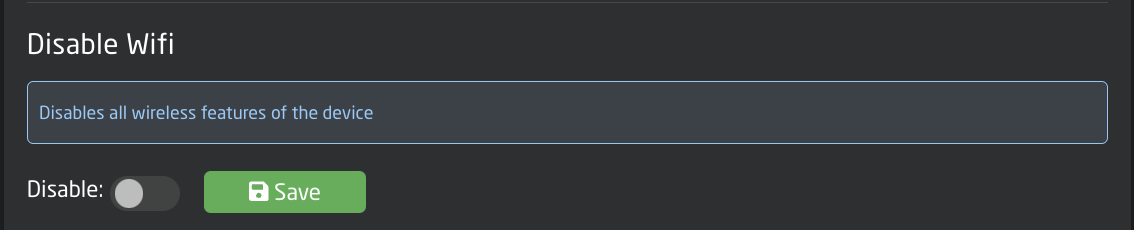
**Access Point Settings**

Used to access the Blue Pill via an internal WiFi to establish a connection and set the needed network information for regular connection. In this section the Access Point can be enabled/disabled and the password set. The web interface is then accessed at the IP address: **192.168.4.1**<span class="Apple-converted-space"> </span> By default the password is **skaarhoj**.<span class="Apple-converted-space"> </span>See the [Getting Started ](https://wiki.skaarhoj.com/books/blue-pill-reactor/chapter/blue-pill-inside-bpi-getting-started)section for more information.

[![Screenshot 2023-10-24 at 12.58.06.png](https://wiki.skaarhoj.com/uploads/images/gallery/2023-10/scaled-1680-/screenshot-2023-10-24-at-12-58-06.png)](https://wiki.skaarhoj.com/uploads/images/gallery/2023-10/screenshot-2023-10-24-at-12-58-06.png)
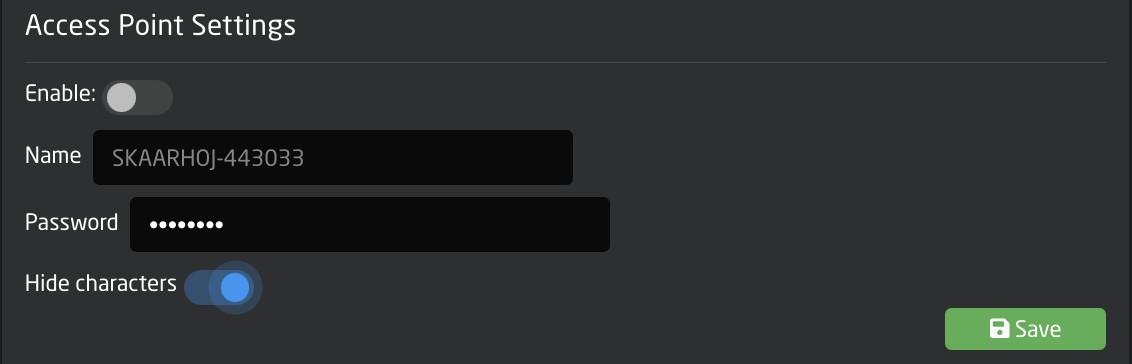
**Connection Setting**

Used to connect the Blue Pill to the local WiFi network. Pressing Scan will search for available networks. Clicking a network that appears after a scan will allow for the entering of the needed password to establish the connection.

[![Screenshot 2023-10-24 at 12.59.25.png](https://wiki.skaarhoj.com/uploads/images/gallery/2023-10/scaled-1680-/screenshot-2023-10-24-at-12-59-25.png)](https://wiki.skaarhoj.com/uploads/images/gallery/2023-10/screenshot-2023-10-24-at-12-59-25.png)
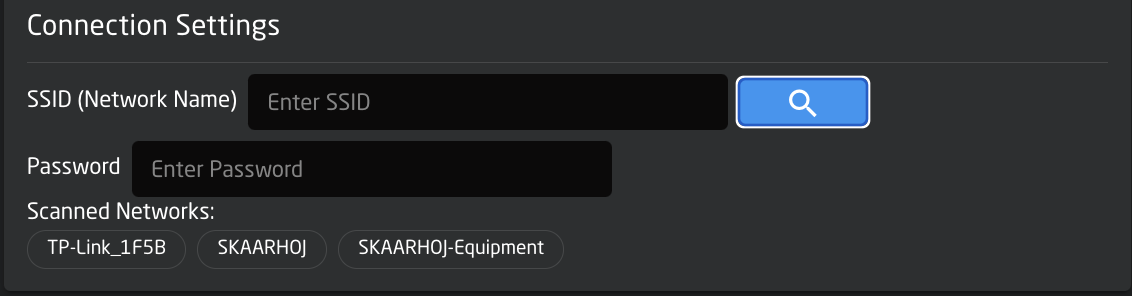
<p class="callout info">Please note connecting the Blue Pill to both the wired and wireless networks for internet access can cause instability in the connection. </p>

</details><details id="bkmrk-logs-the-logs-are-us"><summary>Logs</summary>

The logs are used mainly by the development team to help debug any problems. Each device core has its owns logs section but it is can all be seen in the systems logs section. Clicking the drop down will allow for the filtering of specific device cores/packages.

Frequently when writing to support, they will request the logs to be sent along with other information. The full panel logs can be dowloaded from the Logs section of the Settings page.

![logs.png](https://wiki.skaarhoj.com/uploads/images/gallery/2023-10/scaled-1680-/logs.png)

</details><details id="bkmrk-remote-support-enabl"><summary>Remote Support</summary>

Enabling Remote Support mode will allow the SKAARHOJ support team to remotely access the Blue Pill. By default this is disabled for security reasons as it gives SKAARHOJ access to your network.[![remote.png](https://wiki.skaarhoj.com/uploads/images/gallery/2023-10/scaled-1680-/remote.png)](https://wiki.skaarhoj.com/uploads/images/gallery/2023-10/remote.png)

<p class="callout info">Please note, wired internet access needs to be enabled for support to access the Blue Pill.</p>

</details><details id="bkmrk-usb-a-usb-a-switches"><summary>USB-A</summary>

USB-A switches between the Micro USB port (on by default for service such as connection to the SKAARHOJ firmware application or re-flashing the entire unit in severe cases) and the USB-A port which is used, for example, by our FrameLink application to grab and utilize frames for thumbnail display in panels. See the [Thumbnail Presets](https://wiki.skaarhoj.com/books/blue-pill-reactor/page/devices-without-native-thumbnail-support) section for more information about the FrameLink application.

[![USB-A.png](https://wiki.skaarhoj.com/uploads/images/gallery/2023-10/scaled-1680-/usb-a.png)](https://wiki.skaarhoj.com/uploads/images/gallery/2023-10/usb-a.png)

<p class="callout warning">Please note, when USB-A is enabled, the USB-Micro port is disabled.</p>

</details><details id="bkmrk-date-and-time-date-a"><summary>Date and Time</summary>

Date and Time allows for setting the current date and time on the Blue Pill. This can sometimes be needed<span class="Apple-converted-space"> </span>for the device to check NTP when connecting to our servers for updates.

[![date.png](https://wiki.skaarhoj.com/uploads/images/gallery/2023-10/scaled-1680-/date.png)](https://wiki.skaarhoj.com/uploads/images/gallery/2023-10/date.png)

</details><details id="bkmrk-cloud-cloud-has-not-"><summary>Cloud</summary>

Cloud has not yet been implemented and is coming soon.

[![cloud.png](https://wiki.skaarhoj.com/uploads/images/gallery/2023-10/scaled-1680-/cloud.png)](https://wiki.skaarhoj.com/uploads/images/gallery/2023-10/cloud.png)

</details><details id="bkmrk-authentication-authe"><summary>Authentication</summary>

Authentication allows for the setting of a username and password to restrict access to the Blue Pill web interface. By default the Username is **admin** and the password is **skaarhoj** This feature can also be disabled.

[![auth.png](https://wiki.skaarhoj.com/uploads/images/gallery/2023-10/scaled-1680-/auth.png)](https://wiki.skaarhoj.com/uploads/images/gallery/2023-10/auth.png)

</details>

# Policies

Policies related SKAARHOJ products, support, repair, and integrations. 

# End User License Agreement

## End-User License and Product Support Agreement for Blue Pill Server™, Reactor™ and the Blue Pill Platform™

### I. End-User License

**1.Acceptance of Terms**

By using Blue Pill Server™, Reactor™ and any of the software packages you can install via the Packages tab (collectively referred to as the "SKAARHOJ Device"), you agree to be bound by the terms of this End-User License Agreement ("EULA"). If you do not agree to the terms of this EULA, do not use or access the SKAARHOJ Device.

**2. License Grant**

SKAARHOJ® ApS grants you a non-exclusive, non-transferable, limited license to use the Software solely for your personal or business purposes.

**3. Restrictions**

You shall not:

- Modify, adapt, translate, or create derivative works of the SKAARHOJ Device.
- Reverse engineer, decompile, disassemble, or otherwise attempt to derive the source code of the SKAARHOJ Device.

**4. Intellectual Property Rights**

The SKAARHOJ Device is the property of SKAARHOJ® ApS and is protected by intellectual property laws. The structure, organization, and code of the SKAARHOJ Device are valuable trade secrets of SKAARHOJ® ApS.

**5. Warranty Disclaimer**

The SKAARHOJ Device is by default provided "AS IS" without warranty of any kind. SKAARHOJ® ApS disclaims all warranties, either express or implied, including but not limited to implied warranties of merchantability and fitness for a particular purpose.

**6. Limitation of Liability**

In no event shall SKAARHOJ® ApS be liable for any special, incidental, indirect, or consequential damages whatsoever arising out of or related to your use of or inability to use the SKAARHOJ Device.

**7. Termination**

This EULA is effective until terminated. Your rights under this EULA will terminate automatically without notice from SKAARHOJ® ApS if you fail to comply with any term(s) of this EULA.

**8. General**

This EULA constitutes the entire agreement between you and SKAARHOJ® ApS concerning the Software and supersedes all prior agreements and understandings.

**9. Governing Law**

This EULA shall be governed by the laws of Denmark without regard to its conflict of laws principles.

### II. Product Support Agreement for SKAARHOJ Products

For assistance with SKAARHOJ products, please email <support@skaarhoj.com>. Note that audio and video calls require prior arrangement. Our regular support hours are 9-15 CET and PT on business days, subject to availability.

**1. Support Services**

- We provide help with initial setup and default configurations per SKAARHOJ's Official Configurations.
- Custom configurations or modifications may incur additional fees. For prioritized support or professional services, please contact us.
- Before reaching out, consult the Installation and Operation Manual and Device Core manuals. Network-related queries should be directed to your network administrator as they fall outside our support scope.

**2. Escalation Protocol**

- Complex issues may require escalation to our R&amp;D team, potentially extending resolution times.

**3. Third-Party Devices**

- For issues related to third-party systems connected to SKAARHOJ products, contact the respective manufacturers or distributors. We are not liable for problems arising from firmware updates or other changes in third-party systems.

**4. Resolving Hardware Issues**

- Contact our support team for evaluation. If necessary, we may authorize a Return Merchandise Authorization (RMA) for product return.
- Advance replacements are not part of our standard procedure. We require products to be returned for repair. For critical projects, we recommend keeping spare units on hand. Please note that if an inspection reveals no fault with the returned unit, an investigation fee may be applied.
- Please note that our hardware is eligible for a 1-year warranty covering hardware failures, provided it is registered with us. Repairs required beyond this period may incur fees.

**5. Resolving Software Issues**

- Our products, like any complex system, may have software bugs due to various factors. Conduct thorough testing before deployment.
- If a bug is traced back to our software and can be replicated, we commit to addressing it. However, the timeline for fixing such issues is determined by various factors and remains at our discretion.

**6. System Integrators Expectations**

- We expect comprehensive testing of our products in your installations.
- Please be aware that addressing issues in high-risk deployments may not receive priority. Expedited support is subject to our discretion, unless a different agreement is in place.

**7. Reactor™ and Software Maturity Levels**

- Reactor™ offers advanced capabilities, but users should understand their limits and seek professional support when necessary.
- Our software is classified into four categories: Concept, Beta, Release, and Mature, indicating their development phase and stability level.
- Concept packages are experimental; Beta packages are fairly stable; Release packages are production-safe; Mature packages are time-tested. Note that 'Concept' software receives limited support and may not necessarily advance to a full release state.
- "Pre-release" versions are under development and might be less stable.

**8. Licenses**

- Certain features of SKAARHOJ software may require a paid license.
- Reach out to <sales@skaarhoj.com> or <support@skaarhoj.com> for information on licenses.

# Support and Repair

<section class="Oqnisf comp-m2lfmq2p wixui-section" data-block-level-container="ClassicSection" id="bkmrk-support-and-repair" tabindex="-1"><div class="MW5IWV" data-hook="bgLayers" data-motion-part="BG_LAYER comp-m2lfmq2p" id="bkmrk-"><div class="VgO9Yg" data-motion-part="BG_MEDIA comp-m2lfmq2p" id="bkmrk--1"></div></div>#### Support and Repair

<div class="" data-mesh-id="comp-m2lfmq2pinlineContent" data-testid="inline-content"><div data-mesh-id="comp-m2lfmq2pinlineContent-gridContainer" data-testid="mesh-container-content"><div class="HcOXKn c9GqVL QxJLC3 lq2cno YQcXTT comp-m2lfmq2q1 wixui-rich-text" data-testid="richTextElement" id="bkmrk--2"></div></div></div></section><section class="Oqnisf comp-m2lfmq2r2 wixui-section" data-block-level-container="ClassicSection" id="bkmrk-thank-you-for-choosi" tabindex="-1">Thank you for choosing SKAARHOJ for your professional needs. We are committed to providing exceptional support and service for our products. Please find below our updated repair and support guidelines designed to ensure your satisfaction and peace of mind.  
Further down below, you will find instructions on how to ship items for repair at the SKAARHOJ HQ, to ensure that everything runs smoothly through customs etc.

<div class="" data-mesh-id="comp-m2lfmq2r2inlineContent" data-testid="inline-content"><div data-mesh-id="comp-m2lfmq2r2inlineContent-gridContainer" data-testid="mesh-container-content"><div class="HcOXKn c9GqVL QxJLC3 lq2cno YQcXTT comp-m2lfmq2r10 wixui-rich-text" data-testid="richTextElement" id="bkmrk--3"></div><div class="HcOXKn c9GqVL QxJLC3 lq2cno YQcXTT comp-m2lfqxu4 wixui-rich-text" data-testid="richTextElement">  
</div></div></div><span class="wixui-rich-text__text">Process for warranty repairs:</span>

<div class="" data-mesh-id="comp-m2lfmq2r2inlineContent" data-testid="inline-content"><div data-mesh-id="comp-m2lfmq2r2inlineContent-gridContainer" data-testid="mesh-container-content"><div class="HcOXKn c9GqVL QxJLC3 lq2cno YQcXTT comp-m2lfqxu4 wixui-rich-text" data-testid="richTextElement" id="bkmrk--4"></div><div class="HcOXKn c9GqVL QxJLC3 lq2cno YQcXTT comp-m2lfr8al wixui-rich-text" data-testid="richTextElement" id="bkmrk-contact%C2%A0support%40skaa">- Contact <Support@skaarhoj.com>
- Skaarhoj Support team will review your fault description. First option is if the issue can be resolved remotely through troubleshooting.
- If the unit needs a repair, we will issue an RMA number as reference for the repair case
- Ship the unit to us using the shipping details below.
- We will repair the unit, double check based on your fault description and ship back to you.

</div><div class="HcOXKn c9GqVL QxJLC3 lq2cno YQcXTT comp-m2lfs3lk wixui-rich-text" data-testid="richTextElement">  
</div></div></div><span class="wixui-rich-text__text">Process for non-warranty repairs – quote up front:</span>

<div class="" data-mesh-id="comp-m2lfmq2r2inlineContent" data-testid="inline-content"><div data-mesh-id="comp-m2lfmq2r2inlineContent-gridContainer" data-testid="mesh-container-content"><div class="HcOXKn c9GqVL QxJLC3 lq2cno YQcXTT comp-m2lfs3lk wixui-rich-text" data-testid="richTextElement" id="bkmrk--5"></div><div class="HcOXKn c9GqVL QxJLC3 lq2cno YQcXTT comp-m2lfslct wixui-rich-text" data-testid="richTextElement" id="bkmrk-contact%C2%A0support%40skaa-1">- Contact <Support@skaarhoj.com>
- Skaarhoj Support team will review your fault description.
- If it is possible to identify the issue and repair requirement immediately, we will provide a quotation for the repair. The quotation will include return shipment after repair, unless if you instruct us to ship on your account.
- Once the quotation has been accepted, we will issue an RMA number as reference for the repair case.
- We will send you a proforma invoice to pay for the repair work. You usually have to pay this before we start, unless you have credit with us.
- Ship the unit to us using the shipping details below.
- We will repair the unit, double check based on your fault description and ship back to you.

</div><div class="HcOXKn c9GqVL QxJLC3 lq2cno YQcXTT comp-m2lft8dv wixui-rich-text" data-testid="richTextElement">  
</div></div></div><span class="wixui-rich-text__text">Process for non-warranty repairs – initial investigation required:</span>

<div class="" data-mesh-id="comp-m2lfmq2r2inlineContent" data-testid="inline-content"><div data-mesh-id="comp-m2lfmq2r2inlineContent-gridContainer" data-testid="mesh-container-content"><div class="HcOXKn c9GqVL QxJLC3 lq2cno YQcXTT comp-m2lft8dv wixui-rich-text" data-testid="richTextElement" id="bkmrk--6"></div><div class="HcOXKn c9GqVL QxJLC3 lq2cno YQcXTT comp-m2lfu0kt wixui-rich-text" data-testid="richTextElement" id="bkmrk-contact%C2%A0support%40skaa-2">- Contact <Support@skaarhoj.com>
- Skaarhoj Support team will review your fault description.
- If it is not possible to identify the issue and repair requirement immediately, we will need for the equipment to be shipped to our factory for investigation. There will be an investigation charge of 1 hour + shipment for this, but this will be deducted from the final repair price, if you choose to accept the quote.
- If you accept return and investigation charge, we will provide a proforma invoice for payment. This is required up front for most customers, except for those with an approved credit.
- Once paid, we will issue an RMA number as reference for the repair case.
- Ship the unit to us using the shipping details below.
- When we receive the unit, we will investigate it and provide you with an updated quote for completing the repair, as well as a proforma invoice to pay the additional costs on top of the investigation charge.
    
    
    - In some cases, the repair turns out to be simple, and we will proceed within the already paid investigation fee.
- If you accept the quote and pay the additional proforma invoice, we will repair the unit, double check based on your fault description and ship back to you.
- If you do not accept the quote, we will pack up the unit and ship back to you, as you have already paid the investigation charge including shipping costs.

</div><div class="HcOXKn c9GqVL QxJLC3 lq2cno YQcXTT comp-m2lfykgl wixui-rich-text" data-testid="richTextElement">  
</div></div></div><span class="wixui-rich-text__text">Shipping Instructions</span>

<div class="" data-mesh-id="comp-m2lfmq2r2inlineContent" data-testid="inline-content"><div data-mesh-id="comp-m2lfmq2r2inlineContent-gridContainer" data-testid="mesh-container-content"><div class="HcOXKn c9GqVL QxJLC3 lq2cno YQcXTT comp-m2lfykgl wixui-rich-text" data-testid="richTextElement" id="bkmrk--7"></div><div class="HcOXKn c9GqVL QxJLC3 lq2cno YQcXTT comp-m2lfmq2s13 wixui-rich-text" data-testid="richTextElement">  
</div></div></div><span class="wixui-rich-text__text">Packaging</span>

We recommend using the original packaging to ensure the safety of your product during transit. If the original packaging is unavailable, please secure the product with suitable protective materials.

If we are unable to re-use the packaging, which you sent to us, we’ll replace with a box suitable for shipment. It may not be looking nicely, though.

<span class="wixGuard wixui-rich-text__text">​</span>

<span class="wixui-rich-text__text">Shipping address</span>

Please ship to the following address:

SKAARHOJ ApS  
Attn: RMA#  
Rosenkaeret 11c,  
Ground Floor  
2860 Soeborg  
Denmark

RMA # corresponds to the RMA number issued by SKAARHOJ Support. If email, phone number or VAT number is required please use the following:

Email: <support@skaarhoj.com>  
Phone: +45 31125252  
VAT ID: DK39699583

<span class="wixGuard wixui-rich-text__text">​</span>

<span class="wixui-rich-text__text">Special instructions when shipping from outside of the EU.</span>

For international shipments, please include the necessary customs invoice information. Be aware that tariffs and fees may apply for shipments originating outside the EU. Please use the following information:

<div class="" data-mesh-id="comp-m2lfmq2r2inlineContent" data-testid="inline-content"><div data-mesh-id="comp-m2lfmq2r2inlineContent-gridContainer" data-testid="mesh-container-content"><div class="HcOXKn c9GqVL QxJLC3 lq2cno YQcXTT comp-m2lfmq2s13 wixui-rich-text" data-testid="richTextElement" id="bkmrk-purpose-of-shipment%3A">- Purpose of shipment: Return for Warranty Repair / Return for Non-Warranty Repair.
- Product name: Name of the product.
- Product value: The amount you paid for the product.
- Incoterms: DAP (Delivered at Place) Soeborg, Denmark
- Country of origin: Denmark.
- Taric Code: 8471.80.00
- Description of goods: Other units of automatic data processing machines: Control or adapter units.

</div><div class="HcOXKn c9GqVL QxJLC3 lq2cno YQcXTT comp-m2lfzjcg wixui-rich-text" data-testid="richTextElement">  
</div></div></div><span class="color_41 wixui-rich-text__text"><span class="wixui-rich-text__text">Packaging:</span></span>

We recommend using the original packaging to ensure the safety of your product during transit. If the original packaging is unavailable, please secure the product with suitable protective materials.

If we are unable to re-use the packaging, which you sent to us, we’ll replace with a box suitable for shipment. It may not be looking nicely, though.

<span class="wixui-rich-text__text">​</span>

<span class="color_41 wixui-rich-text__text"><span class="wixui-rich-text__text">Shipping address</span></span>

<span class="wixui-rich-text__text">Please ship to the following address:</span>

SKAARHOJ ApS  
Attn: RMA#  
Rosenkaeret 11c,  
Ground Floor  
2860 Soeborg  
Denmark

<span class="wixui-rich-text__text">RMA # corresponds to the RMA number issued by SKAARHOJ Support. If email, phone number or VAT number is required please use the following:</span>

Email: <support@skaarhoj.com>  
Phone: +45 31125252  
VAT ID: DK39699583

<span class="wixui-rich-text__text">​</span>

<span class="color_41 wixui-rich-text__text"><span class="wixui-rich-text__text">Special instructions when shipping from outside of the EU</span></span>

For international shipments, please include the necessary customs invoice information. Be aware that tariffs and fees may apply for shipments originating outside the EU. Please use the following information:

<div class="" data-mesh-id="comp-m2lfmq2r2inlineContent" data-testid="inline-content"><div data-mesh-id="comp-m2lfmq2r2inlineContent-gridContainer" data-testid="mesh-container-content"><div class="HcOXKn c9GqVL QxJLC3 lq2cno YQcXTT comp-m2lfzjcg wixui-rich-text" data-testid="richTextElement" id="bkmrk-purpose-of-shipment%3A-1">- Purpose of shipment: Return for Warranty Repair / Return for Non-Warranty Repair.
- Product name: Name of the product.
- Product value: The amount you paid for the product.
- Incoterms: DAP (Delivered at Place) Soeborg, Denmark
- Country of origin: Denmark.
- Taric Code: 8471.80.00
- Description of goods: Other units of automatic data processing machines: Control or adapter units.

</div><div class="HcOXKn c9GqVL QxJLC3 lq2cno YQcXTT comp-m2lfxchi wixui-rich-text" data-testid="richTextElement">  
</div></div></div><span class="wixui-rich-text__text">Frequently Asked Questions about Repair and Support</span>

<div class="" data-mesh-id="comp-m2lfmq2r2inlineContent" data-testid="inline-content"><div data-mesh-id="comp-m2lfmq2r2inlineContent-gridContainer" data-testid="mesh-container-content"><div class="HcOXKn c9GqVL QxJLC3 lq2cno YQcXTT comp-m2lfxchi wixui-rich-text" data-testid="richTextElement" id="bkmrk--8"></div><div class="HcOXKn c9GqVL QxJLC3 lq2cno YQcXTT comp-m2lfz2ig wixui-rich-text" data-testid="richTextElement" id="bkmrk-what-is-important-in">- <span class="color_41 wixui-rich-text__text">What is important information to provide, to ensure the process goes smoothly?</span>
    
    
    - Exact fault description
    - Connected equipment
    - Software version
    - Contact details
    - Exact return address
- <span class="color_41 wixui-rich-text__text">Can I borrow a unit to keep me operational while repair is going on?</span>
    
    
    - We might have a rental device that you can use, but we don't always have everything in stock. Please ask our Support staff. If your operation is vital and cannot afford to stop, we suggest planning for redundancy.
- <span class="color_41 wixui-rich-text__text">Can I get a replacement up front?</span>
    
    
    - Our policy is to repair your product. However, in the rare event that you receive a unit that is dead on arrival (DOA), we will review if a replacement if possible.
- <span class="color_41 wixui-rich-text__text">Can I call you for direct phone support?</span>
    
    
    - Unfortunately, we’re not able to provide phone support for your setup. Here’s a few good ways to help you:
        
        
        - As most of our sales is done through skilled resellers and system integrators, they most likely will be able assist you and already know your setup.
        - Consult our online manual and Wiki
        - Our support staff is ready to help you through email on <Support@skaarhoj.com>.
- <span class="color_41 wixui-rich-text__text">Can I repair the unit myself?</span>
    
    
    - Generally no, but there are a few exceptions. We will guide you if it is possible.
- <span class="color_41 wixui-rich-text__text">Can I get the unit repaired in a location closer than Denmark?</span>
    
    
    - No, unfortunately we do not have service centers in any other location.
- <span class="color_41 wixui-rich-text__text">What is the turn-around-time for the repair?</span>
    
    
    - Typically 1-2 weeks after receipt.

</div></div></div></section>

# WEEE Information

<section class="Oqnisf comp-m2lgf7u21 wixui-section" data-block-level-container="ClassicSection" id="bkmrk-weee-information" tabindex="-1">#### WEEE Information

<div class="" data-mesh-id="comp-m2lgf7u21inlineContent" data-testid="inline-content"><div data-mesh-id="comp-m2lgf7u21inlineContent-gridContainer" data-testid="mesh-container-content"><div class="HcOXKn c9GqVL QxJLC3 lq2cno YQcXTT comp-m2lgf7u33 wixui-rich-text" data-testid="richTextElement" id="bkmrk-"></div></div></div></section><section class="Oqnisf comp-m2lgf7u44 wixui-section" data-block-level-container="ClassicSection" id="bkmrk-for-professional-use" tabindex="-1"><div class="MW5IWV" data-hook="bgLayers" data-motion-part="BG_LAYER comp-m2lgf7u44" id="bkmrk--1"><div class="LWbAav Kv1aVt" data-testid="colorUnderlay">  
</div><div class="VgO9Yg" data-motion-part="BG_MEDIA comp-m2lgf7u44" id="bkmrk--2"></div></div>**<span class="wixui-rich-text__text">For professional users in the European Union</span>**

If you wish to discard electrical and electronic equipment (EEE), please contact your dealer or supplier for further information.

**<span class="wixui-rich-text__text">For disposal in countries outside of the European Union</span>**

This symbol is only valid in the European Union (EU). If you wish to discard this product please contact your local authorities or dealer and ask for the correct method of disposal

**<span class="wixui-rich-text__text">For private households: Information on Disposal for Users of WEEE</span>**

Please note that our products are designed and intended for professional use only. However, as we cannot prevent private individuals from purchasing our products through resellers etc, below information is pertaining to this scenario with the aim of completeness.

<div class="" data-mesh-id="comp-m2lgf7u44inlineContent" data-testid="inline-content"><div data-mesh-id="comp-m2lgf7u44inlineContent-gridContainer" data-testid="mesh-container-content"><div class="HcOXKn c9GqVL QxJLC3 lq2cno YQcXTT comp-m2lh0n6v wixui-rich-text" data-testid="richTextElement" id="bkmrk--3"></div><div class="MazNVa comp-m2lgz1tm wixui-image" id="bkmrk--4"><div class="j7pOnl" data-testid="linkElement">![what-is-weee.png](https://static.wixstatic.com/media/9c7364_cdfdc27862f74df0ac2240f3bd58c5ef~mv2.png/v1/fill/w_207,h_295,al_c,q_85,usm_0.66_1.00_0.01,enc_avif,quality_auto/what-is-weee.png)</div></div><div class="HcOXKn c9GqVL QxJLC3 lq2cno YQcXTT comp-m2lh15lp wixui-rich-text" data-testid="richTextElement">  
</div></div></div><span class="wixui-rich-text__text"><span class="color_41 wixui-rich-text__text">Figure 1</span></span>

<div class="" data-mesh-id="comp-m2lgf7u44inlineContent" data-testid="inline-content"><div data-mesh-id="comp-m2lgf7u44inlineContent-gridContainer" data-testid="mesh-container-content"><div class="HcOXKn c9GqVL QxJLC3 lq2cno YQcXTT comp-m2lh15lp wixui-rich-text" data-testid="richTextElement" id="bkmrk--5"></div><div class="HcOXKn c9GqVL QxJLC3 lq2cno YQcXTT comp-m2lgf7u7 wixui-rich-text" data-testid="richTextElement">  
</div></div></div><span class="wixui-rich-text__text">​</span>This symbol (figure 1) on the product(s) and / or accompanying documents means that used electrical and electronic equipment (WEEE) should not be mixed with general household waste. For proper treatment, recovery and recycling, please take this product(s) to designated collection points where it will be accepted free of charge.  
Alternatively, in some countries, you may be able to return your products to your local retailer upon purchase of an equivalent new product.

  
Disposing of this product correctly will help save valuable resources and prevent any potential negative effects on human health and the environment, which could otherwise arise from inappropriate waste handling.  
Please contact your local authority for further details of your nearest designated collection point.  
Penalties may be applicable for incorrect disposal of this waste, in accordance with you national legislation.

<div class="" data-mesh-id="comp-m2lgf7u44inlineContent" data-testid="inline-content"><div data-mesh-id="comp-m2lgf7u44inlineContent-gridContainer" data-testid="mesh-container-content"><div class="HcOXKn c9GqVL QxJLC3 lq2cno YQcXTT comp-m2lgf7u7 wixui-rich-text" data-testid="richTextElement" id="bkmrk--6"></div></div></div></section>

# Settings Tables

Examples and descriptions of settings tables

# Audio Channel Config

An example of an audio channel config can be seen below. These can be different depending on the selected configuration and device. From here the order on the audio channel order will be set as well as the desired name on the displays and button color.

[![Screenshot 2023-01-18 at 13.22.44.png](https://wiki.skaarhoj.com/uploads/images/gallery/2023-01/scaled-1680-/screenshot-2023-01-18-at-13-22-44.png)](https://wiki.skaarhoj.com/uploads/images/gallery/2023-01/screenshot-2023-01-18-at-13-22-44.png)

[![Screenshot 2025-06-25 at 10.40.48.png](https://wiki.skaarhoj.com/uploads/images/gallery/2025-06/scaled-1680-/screenshot-2025-06-25-at-10-40-48.png)](https://wiki.skaarhoj.com/uploads/images/gallery/2025-06/screenshot-2025-06-25-at-10-40-48.png)

<table border="2" cellpadding="0" cellspacing="0" id="bkmrk-column-description-d-0" style="width: 100%; height: 614.062px;"><tbody><tr style="height: 35.0195px;"><td style="width: 16.0906%; height: 35.0195px;" valign="top">**Column**

</td><td style="width: 83.9094%; height: 35.0195px;" valign="top">**Description**

</td></tr><tr style="height: 35.0195px;"><td style="width: 16.0906%; height: 35.0195px;" valign="top">Order

</td><td style="width: 83.9094%; height: 35.0195px;" valign="top">Allows for quick rearranging of channel order. Right clicking on order will allow for deleting the row.

</td></tr><tr style="height: 35.0195px;"><td style="width: 16.0906%; height: 35.0195px;" valign="top">Mute

</td><td style="width: 83.9094%; height: 35.0195px;" valign="top">Allows for removing access to a specific channel or to leave a blank spot on the panel

</td></tr><tr style="height: 57.4219px;"><td style="width: 16.0906%; height: 57.4219px;" valign="top">Device Config

</td><td style="width: 83.9094%; height: 57.4219px;" valign="top">Ties the fader to a specific device config.

</td></tr><tr style="height: 57.4219px;"><td style="width: 16.0906%; height: 57.4219px;" valign="top">Device Index

</td><td style="width: 83.9094%; height: 57.4219px;" valign="top">Ties the fader to a specific device associated with the config. See Device Details for the device index number.

</td></tr><tr style="height: 57.4219px;"><td style="width: 16.0906%; height: 57.4219px;" valign="top">Channel

</td><td style="width: 83.9094%; height: 57.4219px;" valign="top">Ties the fader to a specific channel in the selected device. See device parameter list for available channel number for the specific device.

</td></tr><tr style="height: 57.4219px;"><td style="width: 16.0906%; height: 57.4219px;">Alternate Label

</td><td style="width: 83.9094%; height: 57.4219px;">Customizable name to appear on the displays. Character limit is determined by size of display and can vary.

</td></tr><tr style="height: 79.8242px;"><td style="width: 16.0906%; height: 79.8242px;">Color

</td><td style="width: 83.9094%; height: 79.8242px;">Sets the button feedback color. Color options are: OFF, WHITE, WARM, RED, ROSE, PINK, PURPLE, AMBER, YELLOW, DARKBLUE, BLUE, ICE, CYAN, SPRING, GREEN, MINT.  
The format for color selection is all large letters with no spaces between words.<span class="Apple-converted-space"> </span>

</td></tr><tr style="height: 35.0195px;"><td style="width: 16.0906%; height: 35.0195px;">Config

</td><td style="width: 83.9094%; height: 35.0195px;">Setup some extra configurable attributes on some specific device configs.

</td></tr><tr><td style="width: 16.0906%;">![Screenshot 2025-06-25 at 14.13.03.png](https://wiki.skaarhoj.com/uploads/images/gallery/2025-06/scaled-1680-/screenshot-2025-06-25-at-14-13-03.png)

</td><td style="width: 83.9094%;">Delete the row.

</td></tr><tr style="height: 41.377px;"><td style="width: 16.0906%; height: 41.377px;">![Screenshot 2025-06-25 at 11.13.05.png](https://wiki.skaarhoj.com/uploads/images/gallery/2025-06/scaled-1680-/screenshot-2025-06-25-at-11-13-05.png)

</td><td style="width: 83.9094%; height: 41.377px;">Duplicates the details of the column.

</td></tr><tr style="height: 39.6094px;"><td style="width: 16.0906%; height: 39.6094px;">![Screenshot 2025-06-25 at 11.13.16.png](https://wiki.skaarhoj.com/uploads/images/gallery/2025-06/scaled-1680-/screenshot-2025-06-25-at-11-13-16.png)

</td><td style="width: 83.9094%; height: 39.6094px;"> Increments the number in the column by +1. </td></tr><tr style="height: 48.4668px;"><td style="width: 16.0906%; height: 48.4668px;">![Screenshot 2025-06-25 at 11.16.30.png](https://wiki.skaarhoj.com/uploads/images/gallery/2025-06/scaled-1680-/screenshot-2025-06-25-at-11-16-30.png)

</td><td style="width: 83.9094%; height: 48.4668px;">Adds a new line to create additional fader channels. </td></tr><tr style="height: 35.0195px;"><td style="width: 16.0906%; height: 35.0195px;">![Screenshot 2025-06-25 at 11.16.40.png](https://wiki.skaarhoj.com/uploads/images/gallery/2025-06/scaled-1680-/screenshot-2025-06-25-at-11-16-40.png)

</td><td style="width: 83.9094%; height: 35.0195px;">Opens a table to create multiple new fader channels. **See Batch Create section.**</td></tr></tbody></table>

**Batch Create**

![Screenshot 2025-06-25 at 11.28.59.png](https://wiki.skaarhoj.com/uploads/images/gallery/2025-06/scaled-1680-/screenshot-2025-06-25-at-11-28-59.png)

<table border="1" id="bkmrk-amount-of-rows-to-cr" style="border-collapse: collapse; width: 100%; height: 117.656px;"><colgroup><col style="width: 23.0134%;"></col><col style="width: 77.061%;"></col></colgroup><tbody><tr style="height: 29.4141px;"><td style="height: 29.4141px;">Amount of Rows to Create</td><td style="height: 29.4141px;">The number of additional rows to be created.</td></tr><tr style="height: 29.4141px;"><td style="height: 29.4141px;">Column Name</td><td style="height: 29.4141px;">Which settings table row's info being referenced.</td></tr><tr style="height: 29.4141px;"><td style="height: 29.4141px;">Populate Behavior</td><td style="height: 29.4141px;">Select if the settings table row is to be empty, copied, or incremented by 1. [![Screenshot 2025-06-25 at 11.24.21.png](https://wiki.skaarhoj.com/uploads/images/gallery/2025-06/scaled-1680-/screenshot-2025-06-25-at-11-24-21.png)](https://wiki.skaarhoj.com/uploads/images/gallery/2025-06/screenshot-2025-06-25-at-11-24-21.png)
</td></tr><tr style="height: 29.4141px;"><td style="height: 29.4141px;">Focus Row Value</td><td style="height: 29.4141px;">Current value of the settings table row to be left empty, copied, or incremented in the new rows. </td></tr></tbody></table>

# Camera Select

An example of a setup table would be a camera selector and can be seen below. These can be different depending on the selected configuration. From here the order on the camera selector row of the panel will be set as well as the desired name on the displays.<span class="Apple-converted-space"> </span>

![Screenshot 2025-06-25 at 12.15.03.png](https://wiki.skaarhoj.com/uploads/images/gallery/2025-06/scaled-1680-/screenshot-2025-06-25-at-12-15-03.png)

<table border="1" cellpadding="0" cellspacing="0" id="bkmrk-column-description-d" style="border-collapse: collapse; border-color: rgb(0, 0, 0); border-style: solid; width: 100%; height: 790.182px;"><tbody><tr style="height: 35.3875px;"><td style="width: 9.0584%; height: 35.3875px;" valign="top"><span style="color: #000000; font-family: Avenir Next; font-size: xx-small;">**Column**</span>

</td><td style="width: 90.9416%; height: 35.3875px;" valign="top"><span style="color: #000000; font-family: Avenir Next; font-size: xx-small;">**Description**</span>

</td></tr><tr style="height: 35.3875px;"><td style="width: 9.0584%; height: 35.3875px;" valign="top"><span style="color: #000000; font-family: Avenir Next; font-size: xx-small;">Order</span>

</td><td style="width: 90.9416%; height: 35.3875px;" valign="top"><span style="color: #000000; font-family: Avenir Next; font-size: xx-small;">Allows for quick rearranging of camera order. Right clicking on drag will allow for deleting the row.</span>

</td></tr><tr style="height: 35.3875px;"><td style="width: 9.0584%; height: 35.3875px;" valign="top"><span style="color: #000000; font-family: Avenir Next; font-size: xx-small;">Mute</span>

</td><td style="width: 90.9416%; height: 35.3875px;" valign="top"><span style="color: #000000; font-family: Avenir Next; font-size: xx-small;">Allows for removing access to a specific camera or to leave a blank spot on the panel</span>

</td></tr><tr style="height: 35.3875px;"><td style="width: 9.0584%; height: 35.3875px;" valign="top"><span style="color: #000000; font-family: Avenir Next; font-size: xx-small;">Bound Device</span>

</td><td style="width: 90.9416%; height: 35.3875px;" valign="top"><span style="color: #000000; font-family: Avenir Next; font-size: xx-small;">Allows for the selecting of a specific connected camera</span>

</td></tr><tr style="height: 57.7938px;"><td style="width: 9.0584%; height: 57.7938px;"><span style="color: #000000; font-family: Avenir Next; font-size: xx-small;">Device ID</span>

</td><td style="width: 90.9416%; height: 57.7938px;"><span style="color: #000000; font-family: Avenir Next; font-size: xx-small;">Ties the camera selector to the specific device. This is found in the Devices section. Each device will have a unique device number per device core. This box should auto-populate when a camera is selected in binding</span>

</td></tr><tr><td style="width: 9.0584%;"><span style="color: #000000; font-family: Avenir Next; font-size: xx-small;">Combo Device ID</span>

</td><td style="width: 90.9416%;"><span style="color: #000000; font-family: Avenir Next; font-size: xx-small;">The Device ID associated with the combo device (usually a pan/tilt head) when creating a combo device to present as a single device on the panel.</span>

</td></tr><tr style="height: 57.7938px;"><td style="width: 9.0584%; height: 57.7938px;" valign="top"><span style="color: #000000; font-family: Avenir Next; font-size: xx-small;">Camera Name</span>

</td><td style="width: 90.9416%; height: 57.7938px;" valign="top"><span style="color: #000000; font-family: Avenir Next; font-size: xx-small;">Customizable name to appear on the displays. Character limit is determined by size of display and can vary.<span class="Apple-converted-space"> </span></span>

</td></tr><tr style="height: 57.7938px;"><td style="width: 9.0584%; height: 57.7938px;" valign="top"><span style="color: #000000; font-family: Avenir Next; font-size: xx-small;">Camera Config</span>

</td><td style="width: 90.9416%; height: 57.7938px;" valign="top"><span style="color: #000000; font-family: Avenir Next; font-size: xx-small;">Selects the protocol based configuration associated with camera. Needed protocol can be seen in the Devices section, each device is grouped into their native protocols. **Double check the correct configuration is selected. Improper selection will effect camera control.**</span>

</td></tr><tr style="height: 57.7938px;"><td style="width: 9.0584%; height: 57.7938px;" valign="top"><span style="color: #000000; font-family: Avenir Next; font-size: xx-small;">Iris Channel Config</span>

</td><td style="width: 90.9416%; height: 57.7938px;" valign="top"><span style="color: #000000; font-family: Avenir Next; font-size: xx-small;">Selects the needed protocol for Iris/Master Black control. For cameras without a variable lens this will follow the same protocol as the device. For cameras with a variable lens, select the protocol for the attached lens.<span class="Apple-converted-space"> </span>**Not available on all configuration classes.**</span>

</td></tr><tr style="height: 57.7938px;"><td style="width: 9.0584%; height: 57.7938px;" valign="top"><span style="color: #000000; font-family: Avenir Next; font-size: xx-small;">Tally Forward Config</span>

</td><td style="width: 90.9416%; height: 57.7938px;" valign="top"><span style="color: #000000; font-family: Avenir Next; font-size: xx-small;">Selects the needed protocol for Tally to the cameras. .<span class="Apple-converted-space"> </span>**Not available on all configuration classes.**</span>

</td></tr><tr style="height: 57.7938px;"><td style="width: 9.0584%; height: 57.7938px;" valign="top"><span style="color: #000000; font-family: Avenir Next; font-size: xx-small;">Tally Index</span>

</td><td style="width: 90.9416%; height: 57.7938px;" valign="top"><span style="color: #000000; font-family: Avenir Next; font-size: xx-small;">Sets the Tally Index number to connect with associated tally source device. See Blue Pill/Reactor Manual for more information. **This column does not need to be filled out for standard operation.**</span>

</td></tr><tr style="height: 57.7938px;"><td style="width: 9.0584%; height: 57.7938px;" valign="top"><span style="color: #000000; font-family: Avenir Next; font-size: xx-small;">Route Index</span>

</td><td style="width: 90.9416%; height: 57.7938px;" valign="top"><span style="color: #000000; font-family: Avenir Next; font-size: xx-small;">Sets the Route Index number to connect with associated routing device. See Blue Pill/Reactor Manual for more information. **This column does not need to be filled out for standard operation. Additionally, if needing to route to multiple destinations, additional cells need to be added. See instructions below.** </span>

</td></tr><tr style="height: 53.7938px;"><td style="width: 9.0584%; height: 53.7938px;" valign="top"><span style="color: #000000; font-family: Avenir Next; font-size: xx-small;">FrameLink Window</span>

</td><td style="width: 90.9416%; height: 53.7938px;" valign="top"><span style="color: #000000; font-family: Avenir Next; font-size: xx-small;">Sets the FrameLink Window value associated with the FrameLink device core for use with FrameLink compatible devices. See Blue Pill/Reactor Manual for more information. **This column does not need to be filled out for standard operation.**</span>

</td></tr><tr><td style="width: 9.0584%;"><span style="color: #000000; font-family: Avenir Next; font-size: xx-small;">Ext. Cam Number</span>

</td><td style="width: 90.9416%;"><span style="color: #000000; font-family: Avenir Next; font-size: xx-small;">Sets an External Camera Select number that is used in a virtual trigger to allow for syncing the camera select between multiple panels. </span>

</td></tr><tr style="height: 35.3875px;"><td style="width: 9.0584%; height: 35.3875px;"><span style="color: #000000; font-family: Avenir Next; font-size: xx-small;">Color</span>

</td><td style="width: 90.9416%; height: 35.3875px;"><span style="color: #000000; font-family: Avenir Next; font-size: xx-small;">Allows for the selecting of a custom color for the camera select buttons. **This would be overridden as needed if Tally Forwarding from a switcher is set up.** </span>

</td></tr><tr><td style="width: 9.0584%;"><span style="color: #000000; font-family: Avenir Next; font-size: xx-small;">Presets</span>

</td><td style="width: 90.9416%;"><span style="color: #000000; font-family: Avenir Next; font-size: xx-small;">Customize name and color for presets associated with specific camera configurations. </span>

</td></tr><tr><td style="width: 9.0584%;">![Screenshot 2025-06-25 at 14.13.03.png](https://wiki.skaarhoj.com/uploads/images/gallery/2025-06/scaled-1680-/screenshot-2025-06-25-at-14-13-03.png)

</td><td style="width: 90.9416%;">Delete the row.

</td></tr><tr style="height: 41.5687px;"><td style="width: 9.0584%; height: 41.5687px;">![Screenshot 2025-06-25 at 11.13.05.png](https://wiki.skaarhoj.com/uploads/images/gallery/2025-06/scaled-1680-/screenshot-2025-06-25-at-11-13-05.png)

</td><td style="width: 90.9416%; height: 41.5687px;">Duplicates the details of the column.

</td></tr><tr style="height: 39.8px;"><td style="width: 9.0584%; height: 39.8px;">![Screenshot 2025-06-25 at 11.13.16.png](https://wiki.skaarhoj.com/uploads/images/gallery/2025-06/scaled-1680-/screenshot-2025-06-25-at-11-13-16.png)

</td><td style="width: 90.9416%; height: 39.8px;"> Increments the number in the column by +1.

</td></tr><tr style="height: 38.1375px;"><td style="width: 9.0584%; height: 38.1375px;">![Screenshot 2025-06-25 at 11.16.30.png](https://wiki.skaarhoj.com/uploads/images/gallery/2025-06/scaled-1680-/screenshot-2025-06-25-at-11-16-30.png)

</td><td style="width: 90.9416%; height: 38.1375px;">Adds a new line to create additional camera selects.

</td></tr><tr style="height: 35.3875px;"><td style="width: 9.0584%; height: 35.3875px;">![Screenshot 2025-06-25 at 11.16.40.png](https://wiki.skaarhoj.com/uploads/images/gallery/2025-06/scaled-1680-/screenshot-2025-06-25-at-11-16-40.png)

</td><td style="width: 90.9416%; height: 35.3875px;">Opens a table to create multiple new camera selects. **See Batch Create section below.**

</td></tr></tbody></table>

<details id="bkmrk-adding-a-new-cell-to"><summary>Adding a New Cell to a Column</summary>

Some of the settings table columns allow for multiple multiple cells to be added per row. To add or delete a cell, right click on it to select Add cell or Delete cell.

![Screenshot 2025-10-23 at 9.36.34 AM.png](https://wiki.skaarhoj.com/uploads/images/gallery/2025-10/scaled-1680-/screenshot-2025-10-23-at-9-36-34-am.png)

</details><details id="bkmrk-batch-create-amount-"><summary>Batch Create</summary>

![Screenshot 2025-06-25 at 12.23.42.png](https://wiki.skaarhoj.com/uploads/images/gallery/2025-06/scaled-1680-/screenshot-2025-06-25-at-12-23-42.png)

<table border="1" id="bkmrk-amount-of-rows-to-cr"><colgroup><col></col><col></col></colgroup><tbody><tr><td>Amount of Rows to Create</td><td>The number of additional rows to be created.</td></tr><tr><td>Column Name</td><td>Which settings table row's info being referenced.</td></tr><tr><td>Populate Behavior</td><td>Select if the settings table row is to be empty, copied, or incremented by 1. [![Screenshot 2025-06-25 at 11.24.21.png](https://wiki.skaarhoj.com/uploads/images/gallery/2025-06/scaled-1680-/screenshot-2025-06-25-at-11-24-21.png)](https://wiki.skaarhoj.com/uploads/images/gallery/2025-06/screenshot-2025-06-25-at-11-24-21.png)

</td></tr><tr><td>Focus Row Value</td><td>Current value of the settings table row to be left empty, copied, or incremented in the new rows. </td></tr></tbody></table>

</details><details id="bkmrk-combo-device-set-up-"><summary>Combo Device Set Up</summary>

For camera control we have made a large number of default configuration to control combo devices. These are most frequently a camera plus a pan/tilt head or pedestal.

Combo devices using our default configurations are set up from the camera select.

1. Enable Show Advanced <p class="callout info">This can be done after adding the camera or start with a blank line in the camera selector. Holding Shift while pressing New will allow for you to add a blank line in the table without first selecting a device. </p>
2. In the Camera Config drop down, select the desired combo device configuration.   
    [![Screenshot 2025-09-29 at 10.59.19 AM.png](https://wiki.skaarhoj.com/uploads/images/gallery/2025-09/scaled-1680-/screenshot-2025-09-29-at-10-59-19-am.png)](https://wiki.skaarhoj.com/uploads/images/gallery/2025-09/screenshot-2025-09-29-at-10-59-19-am.png)
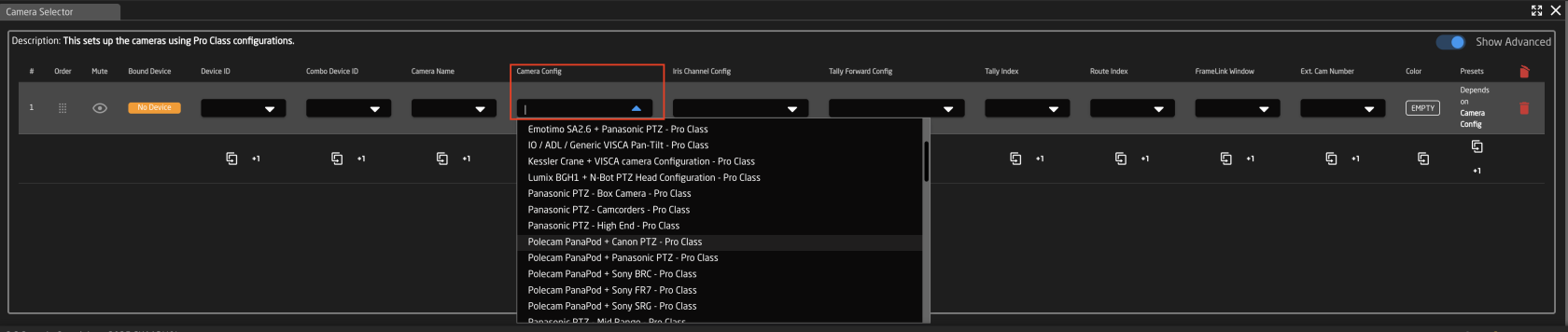
3. To tie the configuration to the specific devices, enter the Device ID numbers associated with them in the Device ID and Combo Device ID column. The Device ID will be for the camera and the Combo Device ID will be for the other non camera device. You can find the specific Device ID number for each device in device details.   
    [![Screenshot 2025-09-29 at 11.21.18 AM.png](https://wiki.skaarhoj.com/uploads/images/gallery/2025-09/scaled-1680-/screenshot-2025-09-29-at-11-21-18-am.png)](https://wiki.skaarhoj.com/uploads/images/gallery/2025-09/screenshot-2025-09-29-at-11-21-18-am.png)
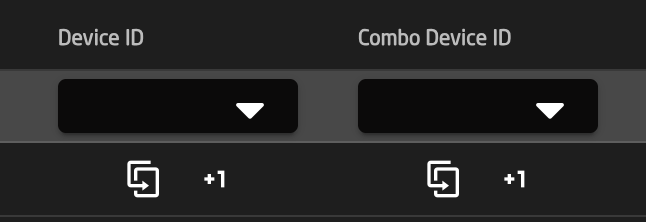
4. Make sure the Iris Channel config is set to match the camera that is being control.  
    [![Screenshot 2025-09-29 at 11.29.33 AM.png](https://wiki.skaarhoj.com/uploads/images/gallery/2025-09/scaled-1680-/screenshot-2025-09-29-at-11-29-33-am.png)](https://wiki.skaarhoj.com/uploads/images/gallery/2025-09/screenshot-2025-09-29-at-11-29-33-am.png)

5. Set the Camera Name to whatever fits the operator's workflow.   
    [![Screenshot 2025-09-29 at 11.31.12 AM.png](https://wiki.skaarhoj.com/uploads/images/gallery/2025-09/scaled-1680-/screenshot-2025-09-29-at-11-31-12-am.png)](https://wiki.skaarhoj.com/uploads/images/gallery/2025-09/screenshot-2025-09-29-at-11-31-12-am.png)
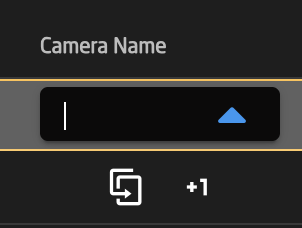
6. Other fields are to be filled out based on need according the table at the top of the page.
7. The combo device should not be set up and ready to test.

</details><details id="bkmrk-framelink-window-the"><summary>FrameLink Window</summary>

[![frameshot.png](https://wiki.skaarhoj.com/uploads/images/gallery/2022-03/scaled-1680-/frameshot.png)](https://wiki.skaarhoj.com/uploads/images/gallery/2022-03/frameshot.png)The Skaarhoj Frame Link package combined with an HDMI Video Capture card allows for thumbnail presets images on compatible SKAARHOJ panels like the Frame Shot from any HDMI source.<span class="Apple-converted-space"> </span>

[![framelink core.png](https://wiki.skaarhoj.com/uploads/images/gallery/2022-03/scaled-1680-/framelink-core.png)](https://wiki.skaarhoj.com/uploads/images/gallery/2022-03/framelink-core.png)

At time of writing we have only tested the HDMI Video Capture stick below so would not be able to say how other models perform.<span class="Apple-converted-space"> </span>

[![image-1648126691730.png](https://wiki.skaarhoj.com/uploads/images/gallery/2022-03/scaled-1680-/image-1648126691730.png)](https://wiki.skaarhoj.com/uploads/images/gallery/2022-03/image-1648126691730.png)

Please note, some PTZ camera models natively support thumbnail presets like the Canon CR-N500. The FrameLink package, Framelink Window, and the HDMI Video Capture stick are not needed for those models of cameras. This is only for cameras or other devices that do not natively support this feature.<span class="Apple-converted-space"> </span>

The breakdown of the 21 FrameLink Window options is seen below. The incoming HDMI feed can be broken up into either full picture, a 2x2 grid, or a 4x4 grid. <span class="Apple-converted-space"> </span>

[![image-1648126671307.png](https://wiki.skaarhoj.com/uploads/images/gallery/2022-03/scaled-1680-/image-1648126671307.png)](https://wiki.skaarhoj.com/uploads/images/gallery/2022-03/image-1648126671307.png)

Entering the corresponding squares number into the FrameLink Window section of the Camera Selector’s settings table will use that portion of the image as the thumbnail for the preset. In general the grids are for use with a multiviewer.<span class="Apple-converted-space"> </span>

[![image-1648126651286.png](https://wiki.skaarhoj.com/uploads/images/gallery/2022-03/scaled-1680-/image-1648126651286.png)](https://wiki.skaarhoj.com/uploads/images/gallery/2022-03/image-1648126651286.png)

</details>

# Playlist

Details coming soon.

# Routing Panels

An example of a router panel set up can be seen below. These can be different depending on the selected configuration and device.

![Screenshot 2025-06-25 at 13.12.02.png](https://wiki.skaarhoj.com/uploads/images/gallery/2025-06/scaled-1680-/screenshot-2025-06-25-at-13-12-02.png)

  
**Device Selector**

![Screenshot 2025-06-25 at 12.52.13.png](https://wiki.skaarhoj.com/uploads/images/gallery/2025-06/scaled-1680-/screenshot-2025-06-25-at-12-52-13.png)

<table border="2" cellpadding="0" cellspacing="0" id="bkmrk-column-description-d-0" style="width: 100%; height: 589.398px;"><tbody><tr style="height: 35.3984px;"><td class="align-left" valign="top">**Column**

</td><td style="width: 86.534%; height: 35.3984px;" valign="top">**Description**

</td></tr><tr style="height: 35.3984px;"><td class="align-left" valign="top">Order

</td><td style="width: 86.534%; height: 35.3984px;" valign="top">Allows for quick rearranging of router order. Right clicking on order will allow for deleting the row.

</td></tr><tr style="height: 35.3984px;"><td class="align-left" valign="top">Mute

</td><td style="width: 86.534%; height: 35.3984px;" valign="top">Allows for removing access to a specific router or to leave a blank spot on the panel

</td></tr><tr style="height: 35.3984px;"><td class="align-left" valign="top">Bound Device

</td><td style="width: 86.534%; height: 35.3984px;" valign="top">Allows for the selecting of a specific connected routing device.

</td></tr><tr style="height: 57.7969px;"><td class="align-left" valign="top">Device Index

</td><td style="width: 86.534%; height: 57.7969px;" valign="top">Ties the selector to a specific device associated with the config. See Device Details for the device index number.

</td></tr><tr style="height: 35.3984px;"><td class="align-left" valign="top">Device Name

</td><td style="width: 86.534%; height: 35.3984px;" valign="top">Customizable name to appear on the displays. Character limit is determined by size of display and can vary.

</td></tr><tr style="height: 35.3984px;"><td class="align-left">Description

</td><td style="width: 86.534%; height: 35.3984px;">Customizable description. Character limit is determined by size of display and can vary.

</td></tr><tr style="height: 57.7969px;"><td class="align-left">Device Configuration

</td><td style="width: 86.534%; height: 57.7969px;">Selects the protocol based configuration associated with the router. Needed protocol can be seen in the Devices section, each device is grouped into their native protocols.

</td></tr><tr style="height: 57.7969px;"><td class="align-left">Setting

</td><td style="width: 86.534%; height: 57.7969px;">Setup some extra configurable attributes on some specific device configs. For routers this is usual Input and Output mapping. **See Settings section below.**

</td></tr><tr style="height: 41.7812px;"><td class="align-left">![Screenshot 2025-06-25 at 14.13.03.png](https://wiki.skaarhoj.com/uploads/images/gallery/2025-06/scaled-1680-/screenshot-2025-06-25-at-14-13-03.png)

</td><td style="width: 86.534%; height: 41.7812px;">Delete the row.

</td></tr><tr style="height: 41.7656px;"><td class="align-left">![Screenshot 2025-06-25 at 11.13.05.png](https://wiki.skaarhoj.com/uploads/images/gallery/2025-06/scaled-1680-/screenshot-2025-06-25-at-11-13-05.png)

</td><td style="width: 86.534%; height: 41.7656px;">Duplicates the details of the column.

</td></tr><tr style="height: 40px;"><td class="align-left">![Screenshot 2025-06-25 at 11.13.16.png](https://wiki.skaarhoj.com/uploads/images/gallery/2025-06/scaled-1680-/screenshot-2025-06-25-at-11-13-16.png)

</td><td style="width: 86.534%; height: 40px;"> Increments the number in the column by +1. </td></tr><tr style="height: 47.7109px;"><td class="align-left">![Screenshot 2025-06-25 at 11.16.30.png](https://wiki.skaarhoj.com/uploads/images/gallery/2025-06/scaled-1680-/screenshot-2025-06-25-at-11-16-30.png)

</td><td style="width: 86.534%; height: 47.7109px;">Adds a new line to create additional routing select. </td></tr><tr style="height: 32.3594px;"><td class="align-left">![Screenshot 2025-06-25 at 11.16.40.png](https://wiki.skaarhoj.com/uploads/images/gallery/2025-06/scaled-1680-/screenshot-2025-06-25-at-11-16-40.png)

</td><td style="width: 86.534%; height: 32.3594px;">Opens a table to create multiple new routing selects. **See Batch Create section below.**</td></tr></tbody></table>

**Batch Create**

![Screenshot 2025-06-25 at 14.33.47.png](https://wiki.skaarhoj.com/uploads/images/gallery/2025-06/scaled-1680-/screenshot-2025-06-25-at-14-33-47.png)

<table border="1" id="bkmrk-amount-of-rows-to-cr"><colgroup><col></col><col></col></colgroup><tbody><tr><td>Amount of Rows to Create</td><td>The number of additional rows to be created.</td></tr><tr><td>Column Name</td><td>Which settings table row's info being referenced.</td></tr><tr><td>Populate Behavior</td><td>Select if the settings table row is to be empty, copied, or incremented by 1. [![Screenshot 2025-06-25 at 11.24.21.png](https://wiki.skaarhoj.com/uploads/images/gallery/2025-06/scaled-1680-/screenshot-2025-06-25-at-11-24-21.png)](https://wiki.skaarhoj.com/uploads/images/gallery/2025-06/screenshot-2025-06-25-at-11-24-21.png)

</td></tr></tbody></table>

  
**Settings**

![Screenshot 2025-06-25 at 14.48.32.png](https://wiki.skaarhoj.com/uploads/images/gallery/2025-06/scaled-1680-/screenshot-2025-06-25-at-14-48-32.png)

<table border="2" cellpadding="0" cellspacing="0" id="bkmrk-column-description-d"><tbody><tr><td valign="top"><span style="color: #000000; font-family: Avenir Next; font-size: xx-small;">**Column**</span>

</td><td valign="top"><span style="color: #000000; font-family: Avenir Next; font-size: xx-small;">**Description**</span>

</td></tr><tr><td class="align-center" valign="top"><span style="color: #000000; font-family: Avenir Next; font-size: xx-small;">Order</span></td><td valign="top"><span style="color: #000000; font-family: Avenir Next; font-size: xx-small;">Allows for quick rearranging of input/output order. Right clicking on drag will allow for deleting the row.</span></td></tr><tr><td class="align-center" valign="top"><span style="color: #000000; font-family: Avenir Next; font-size: xx-small;">Mute</span></td><td valign="top"><span style="color: #000000; font-family: Avenir Next; font-size: xx-small;">Allows for removing access to a specific input/output or to leave a blank spot on the panel</span></td></tr><tr><td class="align-center" valign="top"><span style="color: #000000; font-family: Avenir Next; font-size: xx-small;">Output Number/Input Number</span></td><td valign="top"><span style="color: #000000; font-family: Avenir Next; font-size: xx-small;">Ties the selector to the specific input/output. This is found is determined by the individual router.</span></td></tr><tr><td class="align-center" valign="top"><span style="color: #000000; font-family: Avenir Next; font-size: xx-small;">Alternative Label</span></td><td valign="top"><span style="color: #000000; font-family: Avenir Next; font-size: xx-small;">Customizable name to appear on the displays. Character limit is determined by size of display and can vary.<span class="Apple-converted-space"> </span></span></td></tr><tr><td class="align-center" valign="top"><span style="color: #000000; font-family: Avenir Next; font-size: xx-small;">Color</span></td><td valign="top"><span style="color: #000000; font-family: Avenir Next; font-size: xx-small;">Sets the button feedback color. Color options are: OFF, WHITE, WARM, RED, ROSE, PINK, PURPLE, AMBER, YELLOW, DARKBLUE, BLUE, ICE, CYAN, SPRING, GREEN, MINT.   
The format for color selection is all large letters with no spaces between words.<span class="Apple-converted-space"> </span></span></td></tr><tr><td>![Screenshot 2025-06-25 at 14.13.03.png](https://wiki.skaarhoj.com/uploads/images/gallery/2025-06/scaled-1680-/screenshot-2025-06-25-at-14-13-03.png)</td><td>Delete the row. </td></tr></tbody></table>

**Advanced Layout Configurations**

The layout of the routing configurations are able to be change within the configuration. Within the Advanced Layout Configurations settings table, it is possible to set up page sizes and offsets for each of the configurations as well as set up a prefered order of the layouts. Not all columns are used for each device configuration.

![Screenshot 2025-06-26 at 10.06.22 AM.png](https://wiki.skaarhoj.com/uploads/images/gallery/2025-06/scaled-1680-/screenshot-2025-06-26-at-10-06-22-am.png)

<table border="1" class="align-left" id="bkmrk-order-allows-for-qui" style="border-collapse: collapse; width: 97.9762%; height: 757.117px;"><colgroup><col style="width: 22.3863%;"></col><col style="width: 77.6137%;"></col></colgroup><tbody><tr style="height: 35.3984px;"><td style="height: 35.3984px;" valign="top"><span style="color: #000000; font-family: Avenir Next; font-size: xx-small;">Order</span>

</td><td style="height: 35.3984px;" valign="top"><span style="color: #000000; font-family: Avenir Next; font-size: xx-small;">Allows for quick rearranging of layout order. Right clicking on drag will allow for deleting the row.</span>

</td></tr><tr style="height: 35.3984px;"><td style="height: 35.3984px;" valign="top"><span style="color: #000000; font-family: Avenir Next; font-size: xx-small;">Mute</span>

</td><td style="height: 35.3984px;" valign="top"><span style="color: #000000; font-family: Avenir Next; font-size: xx-small;">Allows for removing access to a specific layout or to leave a blank spot on the panel</span>

</td></tr><tr style="height: 35.3984px;"><td class="align-center" style="height: 35.3984px;">Layout Number

</td><td style="height: 35.3984px;">Out internal reference number for the layout

</td></tr><tr style="height: 35.3984px;"><td class="align-center" style="height: 35.3984px;">Label

</td><td style="height: 35.3984px;">Text in displays of panel

</td></tr><tr style="height: 35.3984px;"><td class="align-center" style="height: 35.3984px;">Input Page Size

</td><td>Input Page Size

</td></tr><tr style="height: 35.3984px;"><td class="align-center" style="height: 35.3984px;">Input Page Offset

</td><td>Input Page Offset

</td></tr><tr style="height: 35.3984px;"><td class="align-center" style="height: 35.3984px;">Output Page Size

</td><td>Output Page Size

</td></tr><tr style="height: 35.3984px;"><td class="align-center" style="height: 35.3984px;">Output Page Offset

</td><td>Output Page Offset

</td></tr><tr style="height: 35.3984px;"><td class="align-center" style="height: 35.3984px;">Level Page Size

</td><td>Level Page Size

</td></tr><tr style="height: 35.3984px;"><td class="align-center" style="height: 35.3984px;">Level Page Offset

</td><td>Level Page Offset

</td></tr><tr style="height: 57.7969px;"><td class="align-center" style="height: 57.7969px;">Preset Recall Page Size

</td><td>Preset Recall Page Size

</td></tr><tr style="height: 57.7969px;"><td class="align-center" style="height: 57.7969px;">Preset Recall Page Offset

</td><td>Preset Recall Page Offset

</td></tr><tr style="height: 57.7969px;"><td class="align-center" style="height: 57.7969px;">Preset Store Page Size

</td><td>Preset Store Page Size

</td></tr><tr style="height: 35.3984px;"><td class="align-center" style="height: 35.3984px;">Preset Store Offset

</td><td>Preset Store Offset

</td></tr><tr style="height: 35.3984px;"><td class="align-center" style="height: 35.3984px;">Salvos Page Size

</td><td>Salvos Page Size

</td></tr><tr style="height: 35.3984px;"><td class="align-center" style="height: 35.3984px;">Salvos Page Offset

</td><td>Salvos Page Offset

</td></tr><tr style="height: 41.7812px;"><td style="height: 41.7812px;">![Screenshot 2025-06-25 at 14.13.03.png](https://wiki.skaarhoj.com/uploads/images/gallery/2025-06/scaled-1680-/screenshot-2025-06-25-at-14-13-03.png)

</td><td style="height: 41.7812px;">Delete the row.

</td></tr><tr style="height: 41.7656px;"><td style="height: 41.7656px;">![Screenshot 2025-06-25 at 11.13.05.png](https://wiki.skaarhoj.com/uploads/images/gallery/2025-06/scaled-1680-/screenshot-2025-06-25-at-11-13-05.png)

</td><td style="height: 41.7656px;">Duplicates the details of the column.

</td></tr><tr style="height: 40px;"><td style="height: 40px;">![Screenshot 2025-06-25 at 11.13.16.png](https://wiki.skaarhoj.com/uploads/images/gallery/2025-06/scaled-1680-/screenshot-2025-06-25-at-11-13-16.png)

</td><td style="height: 40px;"> Increments the number in the column by +1.

</td></tr></tbody></table>

# Routing Triggers

An example of a Routing Triggers settings table can be seen below. From here the camera select will trigger a specific route on either a designated routing panel or an aux source of a router.

**Routing Trigger Settings Table**

[![Screenshot 2025-06-26 at 11.55.21 AM.png](https://wiki.skaarhoj.com/uploads/images/gallery/2025-06/scaled-1680-/screenshot-2025-06-26-at-11-55-21-am.png)](https://wiki.skaarhoj.com/uploads/images/gallery/2025-06/screenshot-2025-06-26-at-11-55-21-am.png)

<table border="1" id="bkmrk-column-description-d" style="height: x; width: 100%; border-collapse: collapse;"><tbody><tr style="height: 29px;"><td style="width: 21.4541%; height: 29px;">**Column**</td><td style="width: 78.5459%; height: 29px;">**Description**</td></tr><tr style="height: 29px;"><td style="width: 21.4541%; height: 29px;">Order</td><td style="width: 78.5459%; height: 29px;">Allows for quick rearranging of camera order. Right clicking on drag will allow for deleting the row.</td></tr><tr style="height: 29px;"><td style="width: 21.4541%; height: 29px;">Mute</td><td style="width: 78.5459%; height: 29px;">Allows for removing access to a specific camera or to leave a blank spot on the panel</td></tr><tr><td style="width: 21.4541%;">Bound Device</td><td style="width: 78.5459%;">Opens a pop up window to select the specific device to insert into the slot. Helps bind the core to the device. </td></tr><tr style="height: 29px;"><td style="width: 21.4541%; height: 29px;">Device ID</td><td style="width: 78.5459%; height: 29px;">The device number for the router or switcher to be used. See Devices section of this page for location information. </td></tr><tr style="height: 29px;"><td style="width: 21.4541%; height: 29px;">Routing Device Name</td><td style="width: 78.5459%; height: 29px;">The device name for the router or switcher to be used. See Devices section of this page for location information. </td></tr><tr style="height: 29px;"><td style="width: 21.4541%; height: 29px;">Use Switcher or Hub</td><td style="width: 78.5459%; height: 29px;">Drop down to select the configuration snippet to be used. The snippet name usually contains the device's name for ease of identification. </td></tr><tr style="height: 29px;"><td style="width: 21.4541%; height: 29px;">ME/Bus Select</td><td style="width: 78.5459%; height: 29px;">The ME/Bus/Aux number to route onto.</td></tr><tr><td style="width: 21.4541%;">Fallback Input</td><td style="width: 78.5459%;">If Joystick Override is used, this will be the fallback input **RCP only**</td></tr><tr><td class="align-left" style="width: 21.4541%;">![Screenshot 2025-06-25 at 14.13.03.png](https://wiki.skaarhoj.com/uploads/images/gallery/2025-06/scaled-1680-/screenshot-2025-06-25-at-14-13-03.png)

</td><td style="width: 78.5459%;">Delete the row.

</td></tr><tr><td class="align-left" style="width: 21.4541%;">![Screenshot 2025-06-25 at 11.13.05.png](https://wiki.skaarhoj.com/uploads/images/gallery/2025-06/scaled-1680-/screenshot-2025-06-25-at-11-13-05.png)

</td><td style="width: 78.5459%;">Duplicates the details of the column.

</td></tr><tr><td class="align-left" style="width: 21.4541%;">![Screenshot 2025-06-25 at 11.13.16.png](https://wiki.skaarhoj.com/uploads/images/gallery/2025-06/scaled-1680-/screenshot-2025-06-25-at-11-13-16.png)

</td><td style="width: 78.5459%;"> Increments the number in the column by +1. </td></tr><tr><td class="align-left" style="width: 21.4541%;">![Screenshot 2025-06-25 at 11.16.30.png](https://wiki.skaarhoj.com/uploads/images/gallery/2025-06/scaled-1680-/screenshot-2025-06-25-at-11-16-30.png)

</td><td style="width: 78.5459%;">Adds a new line to create additional routing trigger. **Please Note, a Route Index cell needs to be added in the Camera Select Routing Index column for every new destination added.** </td></tr><tr><td class="align-left" style="width: 21.4541%;">![Screenshot 2025-06-25 at 11.16.40.png](https://wiki.skaarhoj.com/uploads/images/gallery/2025-06/scaled-1680-/screenshot-2025-06-25-at-11-16-40.png)

</td><td style="width: 78.5459%;">Opens a table to create multiple new routing trigger. **See Batch Create section below.**</td></tr></tbody></table>

**Batch Create**

![Screenshot 2025-06-26 at 12.52.09 PM.png](https://wiki.skaarhoj.com/uploads/images/gallery/2025-06/scaled-1680-/screenshot-2025-06-26-at-12-52-09-pm.png)

<table border="1" id="bkmrk-amount-of-rows-to-cr"><colgroup><col></col><col></col></colgroup><tbody><tr><td>Amount of Rows to Create</td><td>The number of additional rows to be created.</td></tr><tr><td>Column Name</td><td>Which settings table row's info being referenced.</td></tr><tr><td>Populate Behavior</td><td>Select if the settings table row is to be empty, copied, or incremented by 1. [![Screenshot 2025-06-25 at 11.24.21.png](https://wiki.skaarhoj.com/uploads/images/gallery/2025-06/scaled-1680-/screenshot-2025-06-25-at-11-24-21.png)](https://wiki.skaarhoj.com/uploads/images/gallery/2025-06/screenshot-2025-06-25-at-11-24-21.png)

</td></tr></tbody></table>

**Devices**

In the connected Devices the Device number and name are found in the device information. Input this information in the Routing Trigger's settings table in the column of the same names.

![Screenshot 2025-06-26 at 1.14.56 PM.png](https://wiki.skaarhoj.com/uploads/images/gallery/2025-06/scaled-1680-/screenshot-2025-06-26-at-1-14-56-pm.png)

**Camera Select Settings Table**

To complete the process, the Routing Index number needs to be set in the Camera Select settings table. This number is the one associated with input number on the router or switching panel.

<p class="callout info">Please note that sometimes the first input might have an internal number of 0 (example: Atem Aux has Black as the first in the drop down, this is input 0 for aux routing)</p>

<p class="callout warning">If setting up multiple Routing Trigger destinations in the Routing Trigger Settings table, additional Route Index cells need to be add in the Routing Index column in the Camera Select Settings Table for the additional destinations to function. </p>

![Screenshot 2025-06-26 at 1.18.16 PM.png](https://wiki.skaarhoj.com/uploads/images/gallery/2025-06/scaled-1680-/screenshot-2025-06-26-at-1-18-16-pm.png)

# Switcher Inputs

An example of a switcher inputs selector can be seen below. These can be different depending on the selected configuration and device. From here the order of inputs for video and audio will be set as well as the desired name on the displays and button color.
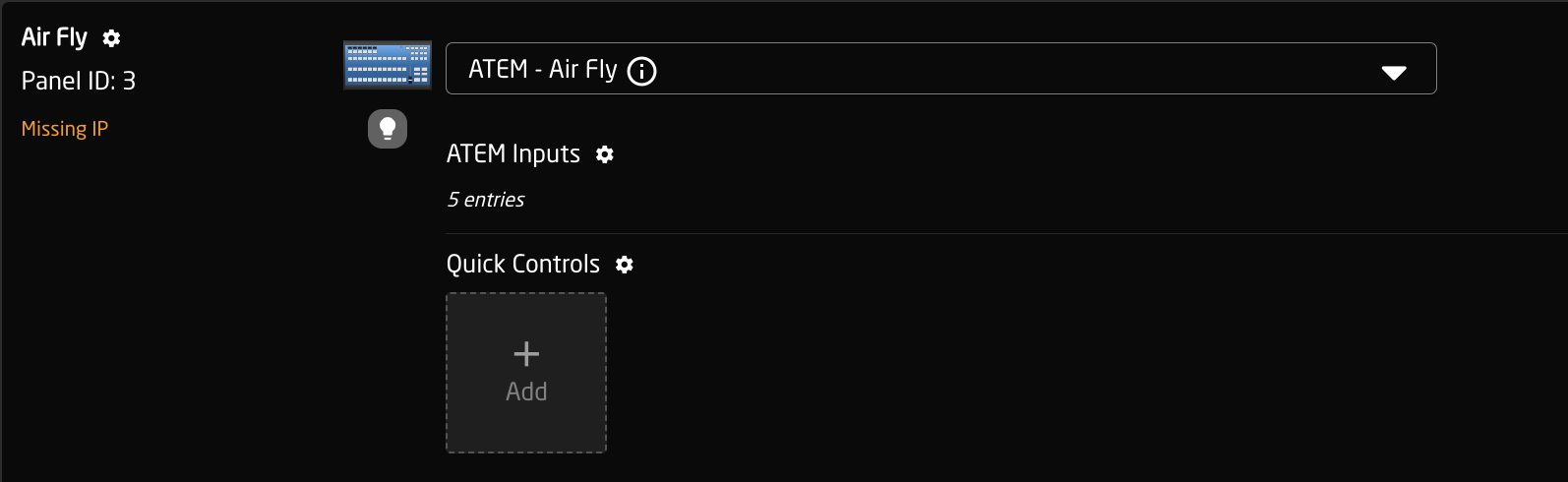
![Screenshot 2025-06-26 at 1.26.01 PM.png](https://wiki.skaarhoj.com/uploads/images/gallery/2025-06/scaled-1680-/screenshot-2025-06-26-at-1-26-01-pm.png)

![Screenshot 2025-06-26 at 1.25.40 PM.png](https://wiki.skaarhoj.com/uploads/images/gallery/2025-06/scaled-1680-/screenshot-2025-06-26-at-1-25-40-pm.png)

<table border="2" cellpadding="0" cellspacing="0" id="bkmrk-column-description-d-0" style="width: 98.2143%; height: 212.39px;"><tbody><tr style="height: 35.3984px;"><td style="width: 13.9563%; height: 35.3984px;" valign="top">**Column**

</td><td style="width: 86.0437%; height: 35.3984px;" valign="top">**Description**

</td></tr><tr style="height: 35.3984px;"><td style="width: 13.9563%; height: 35.3984px;" valign="top">Order

</td><td style="width: 86.0437%; height: 35.3984px;" valign="top">Allows for quick rearranging of channel order. Right clicking on order will allow for deleting the row.

</td></tr><tr style="height: 35.3984px;"><td style="width: 13.9563%; height: 35.3984px;" valign="top">Mute

</td><td style="width: 86.0437%; height: 35.3984px;" valign="top">Allows for removing access to a specific channel or to leave a blank spot on the panel

</td></tr><tr style="height: 35.3984px;"><td style="width: 13.9563%; height: 35.3984px;" valign="top">Video Input

</td><td style="width: 86.0437%; height: 35.3984px;" valign="top">Sets video input order on the panel.

</td></tr><tr style="height: 35.3984px;"><td style="width: 13.9563%; height: 35.3984px;" valign="top">Audio Input

</td><td style="width: 86.0437%; height: 35.3984px;" valign="top">Sets audio input order on the panel.

</td></tr><tr style="height: 35.3984px;"><td style="width: 13.9563%; height: 35.3984px;">Alternate Label

</td><td style="width: 86.0437%; height: 35.3984px;">Customizable name to appear on the displays. Character limit is determined by size of display and can vary.

</td></tr><tr><td class="align-left" style="width: 13.9563%;">![Screenshot 2025-06-25 at 14.13.03.png](https://wiki.skaarhoj.com/uploads/images/gallery/2025-06/scaled-1680-/screenshot-2025-06-25-at-14-13-03.png)

</td><td style="width: 86.0437%;">Delete the row.

</td></tr><tr><td class="align-left" style="width: 13.9563%;">![Screenshot 2025-06-25 at 11.13.05.png](https://wiki.skaarhoj.com/uploads/images/gallery/2025-06/scaled-1680-/screenshot-2025-06-25-at-11-13-05.png)

</td><td style="width: 86.0437%;">Duplicates the details of the column.

</td></tr><tr><td class="align-left" style="width: 13.9563%;">![Screenshot 2025-06-25 at 11.13.16.png](https://wiki.skaarhoj.com/uploads/images/gallery/2025-06/scaled-1680-/screenshot-2025-06-25-at-11-13-16.png)

</td><td style="width: 86.0437%;"> Increments the number in the column by +1. </td></tr><tr><td class="align-left" style="width: 13.9563%;">![Screenshot 2025-06-25 at 11.16.30.png](https://wiki.skaarhoj.com/uploads/images/gallery/2025-06/scaled-1680-/screenshot-2025-06-25-at-11-16-30.png)

</td><td style="width: 86.0437%;">Adds a new line to create additional switching select. </td></tr><tr><td class="align-left" style="width: 13.9563%;">![Screenshot 2025-06-25 at 11.16.40.png](https://wiki.skaarhoj.com/uploads/images/gallery/2025-06/scaled-1680-/screenshot-2025-06-25-at-11-16-40.png)

</td><td style="width: 86.0437%;">Opens a table to create multiple new switching selects. **See Batch Create section below.**</td></tr></tbody></table>

**Batch Create**

![Screenshot 2025-06-26 at 1.28.04 PM.png](https://wiki.skaarhoj.com/uploads/images/gallery/2025-06/scaled-1680-/screenshot-2025-06-26-at-1-28-04-pm.png)

<table border="1" id="bkmrk-amount-of-rows-to-cr"><colgroup><col></col><col></col></colgroup><tbody><tr><td>Amount of Rows to Create</td><td>The number of additional rows to be created.</td></tr><tr><td>Column Name</td><td>Which settings table row's info being referenced.</td></tr><tr><td>Populate Behavior</td><td>Select if the settings table row is to be empty, copied, or incremented by 1. [![Screenshot 2025-06-25 at 11.24.21.png](https://wiki.skaarhoj.com/uploads/images/gallery/2025-06/scaled-1680-/screenshot-2025-06-25-at-11-24-21.png)](https://wiki.skaarhoj.com/uploads/images/gallery/2025-06/screenshot-2025-06-25-at-11-24-21.png)

</td></tr></tbody></table>

# Tally Forwarding

An example of a Tally Forwarding settings table can be seen below. From here the camera select buttons will reflect the preview program status of the connected switcher. At the time of writing, it was not yet implemented to forward tally to cameras but it is a feature we are working on.

**Tally Forwarding Settings Table**

![Screenshot 2025-06-26 at 2.01.03 PM.png](https://wiki.skaarhoj.com/uploads/images/gallery/2025-06/scaled-1680-/screenshot-2025-06-26-at-2-01-03-pm.png)

<table border="1" id="bkmrk-column-description-d" style="width: 100%; border-collapse: collapse;"><tbody><tr><td style="width: 20.5006%;">**Column**</td><td style="width: 79.4994%;">**Description**</td></tr><tr><td style="width: 20.5006%;">Order</td><td style="width: 79.4994%;">Allows for quick rearranging of camera order. Right clicking on drag will allow for deleting the row.</td></tr><tr><td style="width: 20.5006%;">Mute</td><td style="width: 79.4994%;">Allows for removing access to a specific camera or to leave a blank spot on the panel</td></tr><tr><td style="width: 20.5006%;">Bound Device</td><td style="width: 79.4994%;">Opens a pop up window to select the specific device to insert into the slot. Helps bind the core to the device. </td></tr><tr><td style="width: 20.5006%;">Device Number</td><td style="width: 79.4994%;">The device number for the router or switcher to be used. See Devices section of this page for location information. </td></tr><tr><td style="width: 20.5006%;">Tally Device Name</td><td style="width: 79.4994%;">The device name for the router or switcher to be used. See Devices section of this page for location information. </td></tr><tr><td style="width: 20.5006%;">Use Switcher or Hub</td><td style="width: 79.4994%;">Drop down to select the configuration snippet to be used. The snippet name usually contains the device's name for ease of identification. </td></tr><tr><td style="width: 20.5006%;">ME/Bus Select</td><td style="width: 79.4994%;">The ME/Bus pull the preview/program status from.</td></tr><tr><td class="align-left" style="width: 20.5006%;">![Screenshot 2025-06-25 at 14.13.03.png](https://wiki.skaarhoj.com/uploads/images/gallery/2025-06/scaled-1680-/screenshot-2025-06-25-at-14-13-03.png)

</td><td style="width: 79.4994%;">Delete the row.

</td></tr><tr><td class="align-left" style="width: 20.5006%;">![Screenshot 2025-06-25 at 11.13.05.png](https://wiki.skaarhoj.com/uploads/images/gallery/2025-06/scaled-1680-/screenshot-2025-06-25-at-11-13-05.png)

</td><td style="width: 79.4994%;">Duplicates the details of the column.

</td></tr><tr><td class="align-left" style="width: 20.5006%;">![Screenshot 2025-06-25 at 11.13.16.png](https://wiki.skaarhoj.com/uploads/images/gallery/2025-06/scaled-1680-/screenshot-2025-06-25-at-11-13-16.png)

</td><td style="width: 79.4994%;"> Increments the number in the column by +1. </td></tr></tbody></table>

**Devices**

In the connected Devices the Device number and name are found in the device information. Input this information in the Routing Trigger's settings table in the column of the same names.

![Screenshot 2025-06-26 at 1.14.56 PM.png](https://wiki.skaarhoj.com/uploads/images/gallery/2025-06/scaled-1680-/GiSscreenshot-2025-06-26-at-1-14-56-pm.png)

**Camera Selector Settings Table**

To complete the process, the Tally Index number needs to be set in the Camera Select settings table. This number is the one associated with input number on the switching panel. Please note that sometimes the first input might have an internal number of 0, if you find the preview/program to be offset, try setting input 1 as 0.

![Screenshot 2025-06-26 at 2.21.52 PM.png](https://wiki.skaarhoj.com/uploads/images/gallery/2025-06/scaled-1680-/screenshot-2025-06-26-at-2-21-52-pm.png)

# Transition Types

The Transition Types constant set is used with the Panasonic Kairos curated configuration to set the 4 available transitions type buttons.

[![MK1  Kayros.png](https://wiki.skaarhoj.com/uploads/images/gallery/2022-08/scaled-1680-/mk1-kayros.png)](https://wiki.skaarhoj.com/uploads/images/gallery/2022-08/mk1-kayros.png)

![Screenshot 2025-06-26 at 2.25.59 PM.png](https://wiki.skaarhoj.com/uploads/images/gallery/2025-06/scaled-1680-/screenshot-2025-06-26-at-2-25-59-pm.png)

<table border="2" cellpadding="0" cellspacing="0" id="bkmrk-column-description-d-0" style="width: 100%;"><tbody><tr><td style="width: 16.8057%;" valign="top">**Column**

</td><td style="width: 83.1943%;" valign="top">**Description**

</td></tr><tr><td style="width: 16.8057%;" valign="top">Order

</td><td style="width: 83.1943%;" valign="top">Allows for quick rearranging of channel order. Right clicking on order will allow for deleting the row.

</td></tr><tr><td style="width: 16.8057%;" valign="top">Mute

</td><td style="width: 83.1943%;" valign="top">Allows for removing access to a specific channel or to leave a blank spot on the panel

</td></tr><tr><td style="width: 16.8057%;" valign="top">Transition Index

</td><td style="width: 83.1943%;" valign="top">Sets the transition type based on order available in the Kairos Creator, see chart below.

</td></tr><tr><td style="width: 16.8057%;">Alternate Label

</td><td style="width: 83.1943%;">Customizable name to appear on the displays. Character limit is determined by size of display and can vary.

</td></tr><tr><td class="align-left" style="width: 16.8057%;">![Screenshot 2025-06-25 at 14.13.03.png](https://wiki.skaarhoj.com/uploads/images/gallery/2025-06/scaled-1680-/screenshot-2025-06-25-at-14-13-03.png)

</td><td style="width: 83.1943%;">Delete the row.

</td></tr><tr><td class="align-left" style="width: 16.8057%;">![Screenshot 2025-06-25 at 11.13.05.png](https://wiki.skaarhoj.com/uploads/images/gallery/2025-06/scaled-1680-/screenshot-2025-06-25-at-11-13-05.png)

</td><td style="width: 83.1943%;">Duplicates the details of the column.

</td></tr><tr><td class="align-left" style="width: 16.8057%;">![Screenshot 2025-06-25 at 11.13.16.png](https://wiki.skaarhoj.com/uploads/images/gallery/2025-06/scaled-1680-/screenshot-2025-06-25-at-11-13-16.png)

</td><td style="width: 83.1943%;"> Increments the number in the column by +1. </td></tr></tbody></table>

There are 82 total defined transitions available

<table border="1" id="bkmrk-0---blank-10--wipe-b" style="border-collapse: collapse; width: 100%; border-style: solid; height: 704px;"><tbody><tr style="height: 29.7969px;"><td style="width: 11.1248%; height: 29.7969px;">0 - Blank</td><td style="width: 11.1248%; height: 29.7969px;">10- Wipe Box Bottom Right</td><td style="width: 11.1248%; height: 29.7969px;">20- Barn Door Vertical</td><td style="width: 11.1248%; height: 29.7969px;">30- PW 2 Blade Horizontal</td><td style="width: 11.1248%; height: 29.7969px;">40- Wipe Fan Center Top</td><td style="width: 11.1248%; height: 29.7969px;">50-W Swp Par Vertical</td><td style="width: 11.1248%; height: 29.7969px;">60- windshield</td><td style="width: 11.1248%; height: 29.7969px;">70- Rotate Top Right</td><td style="width: 11.1248%; height: 29.7969px;">80- Squeeze Vertical Center</td></tr><tr style="height: 29.7969px;"><td style="width: 11.1248%; height: 29.7969px;">1 - Mix</td><td style="width: 11.1248%; height: 29.7969px;">11- Wipe Box Bottom Left</td><td style="width: 11.1248%; height: 29.7969px;">21- Barn Door Horizontal</td><td style="width: 11.1248%; height: 29.7969px;">31- PW 4 Blade</td><td style="width: 11.1248%; height: 29.7969px;">41- WipeFan Center Right</td><td style="width: 11.1248%; height: 29.7969px;">51- W Swp Par Diagonal</td><td style="width: 11.1248%; height: 29.7969px;">61- Wipe Snake</td><td style="width: 11.1248%; height: 29.7969px;">71- Rotate Bottom Right</td><td style="width: 11.1248%; height: 29.7969px;">81- Squeeze Horizontal Center</td></tr><tr style="height: 29.7969px;"><td style="width: 11.1248%; height: 29.7969px;">2 - Mix via Black</td><td style="width: 11.1248%; height: 29.7969px;">12- WipeBox Top Center</td><td style="width: 11.1248%; height: 29.7969px;">22- Barn Door Diagonal Bottom</td><td style="width: 11.1248%; height: 29.7969px;">32- Swipe Clockwise Top</td><td style="width: 11.1248%; height: 29.7969px;">42- Wipe Fan Top</td><td style="width: 11.1248%; height: 29.7969px;">52- W Swp Opp Vertical </td><td style="width: 11.1248%; height: 29.7969px;">62- Wipe Spiral</td><td style="width: 11.1248%; height: 29.7969px;">72- Rotate Top Left Reverse</td><td style="width: 11.1248%; height: 29.7969px;">82- Zoom</td></tr><tr style="height: 29.7969px;"><td style="width: 11.1248%; height: 29.7969px;">3 - Mix Via White</td><td style="width: 11.1248%; height: 29.7969px;">13- Wipe Box Right Center</td><td style="width: 11.1248%; height: 29.7969px;">23- Barn Door Diagonal Top</td><td style="width: 11.1248%; height: 29.7969px;">33- Swipe Clockwise Right</td><td style="width: 11.1248%; height: 29.7969px;">43- Wipe Fan Right</td><td style="width: 11.1248%; height: 29.7969px;">53- W Swp Opp Horizontal</td><td style="width: 11.1248%; height: 29.7969px;">63- Scale</td><td style="width: 11.1248%; height: 29.7969px;">73- Rotate Bottom Left Reverse</td><td style="width: 11.1248%; height: 29.7969px;">  
</td></tr><tr style="height: 29.7969px;"><td style="width: 11.1248%; height: 29.7969px;">4 -Wipe Left</td><td style="width: 11.1248%; height: 29.7969px;">14- Wipe Box Bottom Center</td><td style="width: 11.1248%; height: 29.7969px;">24- Wipe Circle </td><td style="width: 11.1248%; height: 29.7969px;">34- Swipe Clockwise Bottom</td><td style="width: 11.1248%; height: 29.7969px;">44- Wipe Fan Bottom</td><td style="width: 11.1248%; height: 29.7969px;">54- W Swp Diag Top Left</td><td style="width: 11.1248%; height: 29.7969px;">64- Push Left</td><td style="width: 11.1248%; height: 29.7969px;">74- Rotate Top Right Reverse</td><td style="width: 11.1248%; height: 29.7969px;">  
</td></tr><tr style="height: 29.7969px;"><td style="width: 11.1248%; height: 29.7969px;">5 - Wipe Right</td><td style="width: 11.1248%; height: 29.7969px;">15 - Wipe Box Left Center</td><td style="width: 11.1248%; height: 29.7969px;">25- Wipe Star 4</td><td style="width: 11.1248%; height: 29.7969px;">35- Swipe Clockwise Left</td><td style="width: 11.1248%; height: 29.7969px;">45- Wipe Fan Left</td><td style="width: 11.1248%; height: 29.7969px;">55- W Swp Diag Bottom Left</td><td style="width: 11.1248%; height: 29.7969px;">65- Push Right</td><td style="width: 11.1248%; height: 29.7969px;">75- Rotate Bottom Right Reverse</td><td style="width: 11.1248%; height: 29.7969px;">  
</td></tr><tr style="height: 29.7969px;"><td style="width: 11.1248%; height: 29.7969px;">6 - Wipe Top</td><td style="width: 11.1248%; height: 29.7969px;">16- Wipe 4 Box In</td><td style="width: 11.1248%; height: 29.7969px;">26- Wipe Star 5</td><td style="width: 11.1248%; height: 29.7969px;">36- Swipe clockwise Top Left</td><td style="width: 11.1248%; height: 29.7969px;">46- Wipe Fan Out Vertical</td><td style="width: 11.1248%; height: 29.7969px;">56- Saloon Door Top</td><td style="width: 11.1248%; height: 29.7969px;">66- Push Up</td><td style="width: 11.1248%; height: 29.7969px;">76- Squeeze Left</td><td style="width: 11.1248%; height: 29.7969px;">  
</td></tr><tr style="height: 29.7969px;"><td style="width: 11.1248%; height: 29.7969px;">7- Wipe Bottom</td><td style="width: 11.1248%; height: 29.7969px;">17- Wipe 4 Box Out</td><td style="width: 11.1248%; height: 29.7969px;">27- Wipe Star 6</td><td style="width: 11.1248%; height: 29.7969px;">37- Swipe Counter clockwise Bottom Left</td><td style="width: 11.1248%; height: 29.7969px;">47- Wipe Fan Out Horizontal</td><td style="width: 11.1248%; height: 29.7969px;">57- Saloon Door Left</td><td style="width: 11.1248%; height: 29.7969px;">67- Push Down

</td><td style="width: 11.1248%; height: 29.7969px;">77- Squeeze Right</td><td style="width: 11.1248%; height: 29.7969px;">  
</td></tr><tr style="height: 29.7969px;"><td style="width: 11.1248%; height: 29.7969px;">8 - Wipe Box Top Left</td><td style="width: 11.1248%; height: 29.7969px;">18- Wipe Diagonal Top Left</td><td style="width: 11.1248%; height: 29.7969px;">28- Wipe Clock

</td><td style="width: 11.1248%; height: 29.7969px;">38- Swipe Clockwise Bottom Right</td><td style="width: 11.1248%; height: 29.7969px;">48- Wipe Fan In Vertical</td><td style="width: 11.1248%; height: 29.7969px;">58- Saloon Door Bottom</td><td style="width: 11.1248%; height: 29.7969px;">68- Rotate Top Left</td><td style="width: 11.1248%; height: 29.7969px;">78- Squeeze Top</td><td style="width: 11.1248%; height: 29.7969px;">  
</td></tr><tr style="height: 29.7969px;"><td style="width: 11.1248%; height: 29.7969px;">9 - Wipe Box Top Right</td><td style="width: 11.1248%; height: 29.7969px;">19- Wipe Diagonal Top Right</td><td style="width: 11.1248%; height: 29.7969px;">29- PW 2 Blade Vertical</td><td style="width: 11.1248%; height: 29.7969px;">39- Swipe Counter Clockwise Top Right</td><td style="width: 11.1248%; height: 29.7969px;">49- Wipe Fan In Horizontal</td><td style="width: 11.1248%; height: 29.7969px;">59- Saloon Door Right</td><td style="width: 11.1248%; height: 29.7969px;">69- Rotate Bottom Left</td><td style="width: 11.1248%; height: 29.7969px;">79- Squeeze Bottom</td><td style="width: 11.1248%; height: 29.7969px;">  
</td></tr></tbody></table>

# Quick Controls

Available on [some controllers,](https://wiki.skaarhoj.com/books/blue-pill-reactor/page/quick-class-configurations) Quick Control configs are not actually settings tables, however some of them do open up settings table options.

![Screenshot 2025-06-26 at 2.38.59 PM.png](https://wiki.skaarhoj.com/uploads/images/gallery/2025-06/scaled-1680-/screenshot-2025-06-26-at-2-38-59-pm.png)

**Quick Class Configuration Table**

![Screenshot 2025-06-26 at 2.38.38 PM.png](https://wiki.skaarhoj.com/uploads/images/gallery/2025-06/scaled-1680-/screenshot-2025-06-26-at-2-38-38-pm.png)

<table border="2" cellpadding="0" cellspacing="0" id="bkmrk-column-description-o" style="border-collapse: collapse; border-color: #000000; border-style: solid; width: 100%; height: 350.883px;"><tbody><tr style="height: 35.3984px;"><td style="width: 8.93921%; height: 35.3984px;" valign="top"><span style="color: #000000; font-family: Avenir Next; font-size: xx-small;">**Column**</span>

</td><td style="width: 91.0608%; height: 35.3984px;" valign="top"><span style="color: #000000; font-family: Avenir Next; font-size: xx-small;">**Description**</span>

</td></tr><tr style="height: 35.3984px;"><td style="width: 8.93921%; height: 35.3984px;" valign="top"><span style="color: #000000; font-family: Avenir Next; font-size: xx-small;">Order</span>

</td><td style="width: 91.0608%; height: 35.3984px;" valign="top"><span style="color: #000000; font-family: Avenir Next; font-size: xx-small;">Allows for quick rearranging of camera order. Right clicking on drag will allow for deleting the row.</span>

</td></tr><tr style="height: 35.3984px;"><td style="width: 8.93921%; height: 35.3984px;" valign="top"><span style="color: #000000; font-family: Avenir Next; font-size: xx-small;">Mute</span>

</td><td style="width: 91.0608%; height: 35.3984px;" valign="top"><span style="color: #000000; font-family: Avenir Next; font-size: xx-small;">Allows for removing access to a specific camera or to leave a blank spot on the panel</span>

</td></tr><tr style="height: 35.3984px;"><td style="width: 8.93921%; height: 35.3984px;" valign="top"><span style="color: #000000; font-family: Avenir Next; font-size: xx-small;">Bound Device</span>

</td><td style="width: 91.0608%; height: 35.3984px;" valign="top"><span style="color: #000000; font-family: Avenir Next; font-size: xx-small;">Allows for the selecting of a specific connected configuration</span>

</td></tr><tr style="height: 57.7969px;"><td style="width: 8.93921%; height: 57.7969px;" valign="top"><span style="color: #000000; font-family: Avenir Next; font-size: xx-small;">Device ID</span>

</td><td style="width: 91.0608%; height: 57.7969px;" valign="top"><span style="color: #000000; font-family: Avenir Next; font-size: xx-small;">Ties the camera selector to the specific device. This is found in the Devices section. Each device will have a unique device number per device core. This box should auto-populate when a device is selected in binding</span>

</td></tr><tr style="height: 35.8984px;"><td style="width: 8.93921%; height: 35.8984px;" valign="top"><span style="color: #000000; font-family: Avenir Next; font-size: xx-small;">Device Name</span>

</td><td style="width: 91.0608%; height: 35.8984px;" valign="top"><span style="color: #000000; font-family: Avenir Next;"><span style="font-size: xx-small;">Enter the name to be used in the displays for the device selection button. </span></span>

</td></tr><tr><td style="width: 8.93921%;"><span style="color: #000000; font-family: Avenir Next; font-size: xx-small;">Description</span>

</td><td style="width: 91.0608%;"><span style="color: #000000; font-family: Avenir Next; font-size: xx-small;">Custom description for the configuration</span>

</td></tr><tr style="height: 57.7969px;"><td style="width: 8.93921%; height: 57.7969px;" valign="top"><span style="color: #000000; font-family: Avenir Next; font-size: xx-small;">Link Selector</span>

</td><td style="width: 91.0608%; height: 57.7969px;" valign="top"><span style="color: #000000; font-family: Avenir Next; font-size: xx-small;">Selects the needed configuration based on the device being connected.</span>

</td></tr><tr style="height: 57.7969px;"><td style="width: 8.93921%; height: 57.7969px;"><span style="color: #000000; font-family: Avenir Next; font-size: xx-small;">Constant Sets</span>

</td><td style="width: 91.0608%; height: 57.7969px;"><span style="color: #000000; font-family: Avenir Next; font-size: xx-small;">Opens up settings tables depending on the selected Quick Controls Config</span>

</td></tr><tr><td class="align-left" style="width: 8.93921%;">![Screenshot 2025-06-25 at 14.13.03.png](https://wiki.skaarhoj.com/uploads/images/gallery/2025-06/scaled-1680-/screenshot-2025-06-25-at-14-13-03.png)

</td><td style="width: 91.0608%;">Delete the row.

</td></tr><tr><td class="align-left" style="width: 8.93921%;">![Screenshot 2025-06-25 at 11.13.05.png](https://wiki.skaarhoj.com/uploads/images/gallery/2025-06/scaled-1680-/screenshot-2025-06-25-at-11-13-05.png)

</td><td style="width: 91.0608%;">Duplicates the details of the column.

</td></tr><tr><td class="align-left" style="width: 8.93921%;">![Screenshot 2025-06-25 at 11.13.16.png](https://wiki.skaarhoj.com/uploads/images/gallery/2025-06/scaled-1680-/screenshot-2025-06-25-at-11-13-16.png)

</td><td style="width: 91.0608%;"> Increments the number in the column by +1. </td></tr></tbody></table>

**Example of Quick Control Configurations**

Quick Class configurations are available for select sections of 6 buttons. These are generally associated with specific devices.

**![Current Options.png](https://wiki.skaarhoj.com/uploads/images/gallery/2022-06/scaled-1680-/current-options.png)**

**Constant Set Examples**

Constant sets tied to quick control can include, but are not limited to, Switcher Inputs, Routing Panels, and Playlists. Please see the settings table example for the option presented with the selected Quick Control Config.

**[![example 1.png](https://wiki.skaarhoj.com/uploads/images/gallery/2022-06/scaled-1680-/example-1.png)](https://wiki.skaarhoj.com/uploads/images/gallery/2022-06/example-1.png)[![example 2.png](https://wiki.skaarhoj.com/uploads/images/gallery/2022-06/scaled-1680-/example-2.png)](https://wiki.skaarhoj.com/uploads/images/gallery/2022-06/example-2.png)[![example 3.png](https://wiki.skaarhoj.com/uploads/images/gallery/2022-06/scaled-1680-/example-3.png)](https://wiki.skaarhoj.com/uploads/images/gallery/2022-06/example-3.png)**

# Skaarhoj Manuals GitHub Repository

Links to our GitHub Repository of manuals and guides in downloadable PDF format.

# Canon PTZ + Cinema Cameras- User Guides

Links to the User Guides for select Skaarhoj Controllers for use with Canon PTZ + Cinema Cameras.

**PTZ Pro v2 + PTZ Extreme v2 with Blue Pill for Canon PTZ**

[https://github.com/SKAARHOJ/Support/blob/master/Manuals/Blue%20Pill/Canon%20/SKAARHOJ\_User\_Guide\_PTZPro\_V2\_PTZExtremeV2\_Canon\_PTZ.pdf](https://github.com/SKAARHOJ/Support/blob/master/Manuals/Blue%20Pill/Canon/SKAARHOJ_User_Guide_PTZPro_V2_PTZExtremeV2_Canon_PTZ.pdf)

**PTZ Pro v2B for Canon PTZ**

[https://github.com/SKAARHOJ/Support/blob/master/Manuals/Blue%20Pill/Canon/SKAARHOJ\_User\_Guide\_PTZ\_Pro\_V2B\_Canon\_PTZ.pdf](https://github.com/SKAARHOJ/Support/blob/master/Manuals/Blue%20Pill/Canon/SKAARHOJ_User_Guide_PTZ_Pro_V2B_Canon_PTZ.pdf)

**RCP Pro for Canon EOS C300/C500**

[https://github.com/SKAARHOJ/Support/blob/master/Manuals/Blue%20Pill/Canon/SKAARHOJ\_User\_Guide\_RCP\_Pro\_Canon\_Cinema.pdf](https://github.com/SKAARHOJ/Support/blob/master/Manuals/Blue%20Pill/Canon/SKAARHOJ_User_Guide_RCP_Pro_Canon_Cinema.pdf)

**RCP Pro for Canon PTZ**

[https://github.com/SKAARHOJ/Support/blob/master/Manuals/Blue%20Pill/Canon/SKAARHOJ\_User\_Guide\_RCP\_Pro\_Canon\_PTZ.pdf](https://github.com/SKAARHOJ/Support/blob/master/Manuals/Blue%20Pill/Canon/SKAARHOJ_User_Guide_RCP_Pro_Canon_PTZ.pdf)

# General Blue Pill/Reactor Manuals

Links to the full length Blue Pill Reactor Manual and the Getting Started Manuals. The getting started manuals are the same as are available in the wiki, but are also available as easily downloadable PDF files.

**Blue Pill/ Reactor Manual**

Download Link:

[https://github.com/SKAARHOJ/Support/raw/master/Manuals/Blue%20Pill/BluePillReactorManual.pdf](https://github.com/SKAARHOJ/Support/raw/master/Manuals/Blue%20Pill/BluePillReactorManual.pdf)

Website Link:

[https://github.com/SKAARHOJ/Support/blob/master/Manuals/Blue%20Pill/BluePillReactorManual.pdf](https://github.com/SKAARHOJ/Support/blob/master/Manuals/Blue%20Pill/BluePillReactorManual.pdf)

**Blue Pill Inside - Getting Started**

Download Link:

[https://github.com/SKAARHOJ/Support/raw/master/Manuals/Blue%20Pill/BluePill\_Inside\_Getting\_Started\_Manual.pdf](https://github.com/SKAARHOJ/Support/raw/master/Manuals/Blue%20Pill/BluePill_Inside_Getting_Started_Manual.pdf)

Website Link:

[https://github.com/SKAARHOJ/Support/blob/master/Manuals/Blue%20Pill/BluePill\_Inside\_Getting\_Started\_Manual.pdf](https://github.com/SKAARHOJ/Support/blob/master/Manuals/Blue%20Pill/BluePill_Inside_Getting_Started_Manual.pdf)

**Blue Pill - Getting Started**

Download Link:

[https://github.com/SKAARHOJ/Support/raw/master/Manuals/Blue%20Pill/BluePill\_Getting\_Started\_Manual.pdf](https://github.com/SKAARHOJ/Support/raw/master/Manuals/Blue%20Pill/BluePill_Getting_Started_Manual.pdf)

Website Link:

[https://github.com/SKAARHOJ/Support/blob/master/Manuals/Blue%20Pill/BluePill\_Getting\_Started\_Manual.pdf](https://github.com/SKAARHOJ/Support/blob/master/Manuals/Blue%20Pill/BluePill_Getting_Started_Manual.pdf)

# Raw Panel Manuals

Links for manuals for working with Blue Pill devices as 'dump panels' in Raw Panel mode.

**Raw Panel v2**

Download Link:

[https://github.com/SKAARHOJ/Support/raw/master/Manuals/SKAARHOJ/SKAARHOJ\_RawPanel\_V2.pdf](https://github.com/SKAARHOJ/Support/raw/master/Manuals/SKAARHOJ/SKAARHOJ_RawPanel_V2.pdf "https://github.com/SKAARHOJ/Support/raw/master/Manuals/SKAARHOJ/SKAARHOJ_RawPanel_V2.pdf")

Website Link:

[https://github.com/SKAARHOJ/Support/blob/master/Manuals/SKAARHOJ/SKAARHOJ\_RawPanel\_V2.pdf](https://github.com/SKAARHOJ/Support/blob/master/Manuals/SKAARHOJ/SKAARHOJ_RawPanel_V2.pdf)

Brochure:

[https://darkroom.skaarhoj.com/Downloads/SKAARHOJ%20Raw%20Panel%2023H2%20US\_compressed.pdf](https://darkroom.skaarhoj.com/Downloads/SKAARHOJ%20Raw%20Panel%2023H2%20US_compressed.pdf)

**Graphics Manual**

Download Link:

[https://github.com/SKAARHOJ/Support/raw/master/Manuals/SKAARHOJ/Graphics%20Manual.pdf](https://github.com/SKAARHOJ/Support/raw/master/Manuals/SKAARHOJ/Graphics%20Manual.pdf "https://github.com/SKAARHOJ/Support/raw/master/Manuals/SKAARHOJ/Graphics%20Manual.pdf")

Website Link:

[https://github.com/SKAARHOJ/Support/blob/master/Manuals/SKAARHOJ/Graphics%20Manual.pdf](https://github.com/SKAARHOJ/Support/blob/master/Manuals/SKAARHOJ/Graphics%20Manual.pdf)

# RED Cameras- User Guides

Links to the User Guides for select Skaarhoj Controllers for use with RED Cinema Cameras.

**RCP Pro with RED Cameras**

Download Link:

[https://github.com/SKAARHOJ/Support/raw/master/Manuals/Blue%20Pill/RED/SKAARHOJ\_User%20Guide\_RCP\_Pro\_RED.pdf](https://github.com/SKAARHOJ/Support/raw/master/Manuals/Blue%20Pill/RED/SKAARHOJ_User%20Guide_RCP_Pro_RED.pdf)

Website Link:

[https://github.com/SKAARHOJ/Support/blob/master/Manuals/Blue%20Pill/RED/SKAARHOJ\_User%20Guide\_RCP\_Pro\_RED.pdf](https://github.com/SKAARHOJ/Support/blob/master/Manuals/Blue%20Pill/RED/SKAARHOJ_User%20Guide_RCP_Pro_RED.pdf)

**Color Fly v2 and Blue Pill with RED Cameras**

Download Link:

[https://github.com/SKAARHOJ/Support/raw/master/Manuals/Blue%20Pill/RED/SKAARHOJ\_User\_Guide\_Color\_Fly\_V2\_RED.pdf](https://github.com/SKAARHOJ/Support/raw/master/Manuals/Blue%20Pill/RED/SKAARHOJ_User_Guide_Color_Fly_V2_RED.pdf)

Website Link:

[https://github.com/SKAARHOJ/Support/blob/master/Manuals/Blue%20Pill/RED/SKAARHOJ\_User\_Guide\_Color\_Fly\_V2\_RED.pdf](https://github.com/SKAARHOJ/Support/blob/master/Manuals/Blue%20Pill/RED/SKAARHOJ_User_Guide_Color_Fly_V2_RED.pdf)

# Thumbnail Presets

How to get Thumbnail Presets on select SKAARHOJ panels

# Cameras with Native Thumbnail Support

For cameras that have a native thumbnail preset capture, like the Canon CR-N500 and the Panasonic UE150, thumbnail capture is as easy as saving a preset on a Skaarhoj controller with color displays. This could be the MKA1, MKA2, Frame Shot, or any future color display model.

[![frameshot.png](https://wiki.skaarhoj.com/uploads/images/gallery/2022-03/scaled-1680-/frameshot.png)](https://wiki.skaarhoj.com/uploads/images/gallery/2022-03/frameshot.png)

There is no special setup for using the thumbnail preset with the Canon CR-N500 or the Panasonic UE 150 as the controllers are able to get the information from the cameras.

The controllers by default will not retain the thumbnails between power cycles. To have the thumbnails be retained after a power cycle, click into the device core details. This is done by clicking on the core name in the devices section of the home screen above the group of cameras of the same type. [![devices core.png](https://wiki.skaarhoj.com/uploads/images/gallery/2022-04/scaled-1680-/devices-core.png)](https://wiki.skaarhoj.com/uploads/images/gallery/2022-04/devices-core.png)

In the device core details, select Core specific settings: Persistent Thumbnails.

[![persist correct.png](https://wiki.skaarhoj.com/uploads/images/gallery/2022-04/scaled-1680-/persist-correct.png)](https://wiki.skaarhoj.com/uploads/images/gallery/2022-04/persist-correct.png)

There is no need to set the Framelink Window in the camera select constant set, as the thumbnail is pulled from the camera and not using our Framlink integration.

# Devices Without Native Thumbnail Support

With the help of Blue Pill and Reactor, it is now possible to get thumbnail presets for almost any device with a video output.

[![Screen Shot 2022-12-12 at 3.48.43 PM.png](https://wiki.skaarhoj.com/uploads/images/gallery/2022-12/scaled-1680-/screen-shot-2022-12-12-at-3-48-43-pm.png)](https://wiki.skaarhoj.com/uploads/images/gallery/2022-12/screen-shot-2022-12-12-at-3-48-43-pm.png)

The Skaarhoj Frame Link package combined with an Video Capture card allows for thumbnail presets images on compatible SKAARHOJ panels like the MKA1, MKA2, and future color display controllers.<span class="Apple-converted-space"> </span>

**Blue Pill Set Up**

There are a few steps in setting up the Blue Pill to allow for the thumbnail capture.

1\. On the settings page, Enable the USB-A port on the back of the controller.

![Screen Shot 2022-12-12 at 3.50.53 PM.png](https://wiki.skaarhoj.com/uploads/images/gallery/2022-12/scaled-1680-/screen-shot-2022-12-12-at-3-50-53-pm.png)After doing this, you might need to restart your panel.

2\. On the home screen add the SKAARHOJ Framelink as a device. Though Skaarhoj does not produce a separate physical device, this is important for the controller to know that is is using the USB-A port. There are no special settings or IP address needed for the SKAARHOJ Framelink device.

[![Framelink device.png](https://wiki.skaarhoj.com/uploads/images/gallery/2022-04/scaled-1680-/framelink-device.png)](https://wiki.skaarhoj.com/uploads/images/gallery/2022-04/framelink-device.png)

3\. The device core for the Framelink should load automatically onto the Blue Pill when you select the device. If it does not, you can manually install the Core-SKAARHOJ-Framelink. Internet connection is necessary for downloading new device cores and packages.

[![framelink core.png](https://wiki.skaarhoj.com/uploads/images/gallery/2022-03/scaled-1680-/framelink-core.png)](https://wiki.skaarhoj.com/uploads/images/gallery/2022-03/framelink-core.png)

4\. Fill in the FrameLink Window index number in the Camera Select settings table.

![Screenshot 2025-06-26 at 2.58.20 PM.png](https://wiki.skaarhoj.com/uploads/images/gallery/2025-06/scaled-1680-/screenshot-2025-06-26-at-2-58-20-pm.png)

The breakdown of the 21 FrameLink Window options is seen below. The incoming video feed can be broken up into either full picture, a 2x2 grid, or a 4x4 grid. <span class="Apple-converted-space"> This is useful if you would like to use a multiviewer to feed the video capture card to have thumbnail preset for multiple cameras. </span>

[![image-1648126671307.png](https://wiki.skaarhoj.com/uploads/images/gallery/2022-03/scaled-1680-/image-1648126671307.png)](https://wiki.skaarhoj.com/uploads/images/gallery/2022-03/image-1648126671307.png)

5\. The controllers by default will not retain the thumbnails between power cycles. To have the thumbnails be retained after a power cycle, click into the device core details for the Framelink. This is done by clicking on the core name in the devices section of the home screen above the Framelink device of the same type.

[![framelink core.png](https://wiki.skaarhoj.com/uploads/images/gallery/2022-04/scaled-1680-/framelink-core.png)](https://wiki.skaarhoj.com/uploads/images/gallery/2022-04/framelink-core.png)

In the device core details, select Core specific settings: Persistent Thumbnails.

[![framelink persist.png](https://wiki.skaarhoj.com/uploads/images/gallery/2022-04/scaled-1680-/framelink-persist.png)](https://wiki.skaarhoj.com/uploads/images/gallery/2022-04/framelink-persist.png)

**Hardware Setup**

Simply connect a video output into the input of a video capture card that uses USB-A to plug directly into the USB-A port of the Blue Pill or Blue Pill Inside panels.

[![image-1648126691730.png](https://wiki.skaarhoj.com/uploads/images/gallery/2022-03/scaled-1680-/image-1648126691730.png)](https://wiki.skaarhoj.com/uploads/images/gallery/2022-03/image-1648126691730.png)

Please note, some PTZ camera models natively support thumbnail presets like the Canon CR-N500. The FrameLink package, Framelink Window, and the HDMI Video Capture stick are not needed for those models of cameras. This is only for cameras or other devices that do not natively support this feature.<span class="Apple-converted-space"> </span>

<span class="Apple-converted-space">**Tested USB Input Devices**</span>

<span class="Apple-converted-space">We have tested a number of devices for video capture into Blue Pill devices and found them to work. </span>

<table border="1" class="align-center" id="bkmrk-supported-not-suppor" style="border-collapse: collapse; width: 100%; border: 1px solid #000000;"><colgroup><col style="width: 50%;"></col><col style="width: 50%;"></col></colgroup><tbody><tr><td class="align-center" style="border-width: 1px; border-color: rgb(0, 0, 0);">**Supported**  
</td><td style="border-width: 1px; border-color: rgb(0, 0, 0);">**Not Supported**</td></tr><tr><td class="align-left" style="border-width: 1px; border-color: rgb(0, 0, 0);">Unmarked "HDMI Video Capture" as seen in picture above</td><td class="align-left" style="border-width: 1px; border-color: rgb(0, 0, 0);">Elgato Camlink 4K (Missing MJPEG support)</td></tr><tr><td class="align-left" style="border-width: 1px; border-color: rgb(0, 0, 0);">BMD Web Presenter (Old non HD version)</td><td class="align-left" style="border-width: 1px; border-color: rgb(0, 0, 0);">  
</td></tr><tr><td class="align-left" style="border-width: 1px; border-color: rgb(0, 0, 0);">BMD Web Presenter HD (New version)</td><td class="align-left" style="border-width: 1px; border-color: rgb(0, 0, 0);">  
</td></tr><tr><td class="align-left" style="border-width: 1px; border-color: rgb(0, 0, 0);">BMD Atem Mini Webcam</td><td class="align-left" style="border-width: 1px; border-color: rgb(0, 0, 0);"> </td></tr></tbody></table>

# Tools Inside Blue Pill

Various tools and how to access them inside the Blue Pill

# API Endpoints

The Blue Pill system manager provides multiple API endpoints, that can be triggered by simple http requests. This can be useful in advanced scenarios, where external systems should trigger changes on a panel.

This is an advanced topic and basic knowledge of HTTP commands and control API's is expected.

<details id="bkmrk-monitoring-package-s"><summary>Monitoring Package Status</summary>

The status of a package can be enquired by the following call.

This requires a POST request to the endpoint: /api/controlpackage/\[package\_name\]

Curl example:  
*curl '*http://192.168.0.20/api/controlpackage/core-bmd-atem*' \\ -H 'Content-Type: application/json' \\ --data-raw '*{"Action": "status"}*' \\ --insecure*

*(if authentication is enabled it needs HTTP BasicAuth as well with username and password)*

This will return a json response, like this:

{"Status":"ok","Data":{"runState":true,"startOnBoot":false,"packageHasControl":true,"ingressPath":"","inMenu":false}}

</details><details id="bkmrk-switching-reactor-pr"><summary>Switching Reactor Projects</summary>

Reactor allows to switch the current project via an external HTTP POST request.

The endpoint used is: /reactorapi/selectproject

This request allows to use the skaarOS authentication via HTTP Basic Authentication (Use the latest version of system-manager to allow this (v1.0.1-pre1 and higher))

Curl example:  
curl --location --request POST '192.168.0.20/reactorapi/selectproject' \\  
\--header 'Authorization: Basic YWRtaW46c2thYXJob2o=' \\   
\--header 'Content-Type: application/json' \\   
\--data-raw '{"Filename":"MyProject"}'

</details><details id="bkmrk-toggle-raw-panel-mod"><summary>Toggle Raw Panel Mode</summary>

Raw Panel Mode can be enabled/disabled on a Blue Pill inside panel.

This requires a POST request to the endpoint: /api/setrwpconfig

Curl example:  
*curl 'http://192.168.0.20/api/setrwpconfig' \\ -H 'Content-Type: application/json' \\ --data-raw '{"Activate":true}' \\ --insecure*

<div class="ql-block" data-block-id="block-40484295-e65b-4bad-9964-09c9ae0e86c4">*(if authentication is enabled it needs HTTP BasicAuth as well with username and password)*</div></details><details id="bkmrk-toggle-package-statu"><summary>Toggle Package Status</summary>

A package running on a Blue Pill device, can be started or stopped by a API call.

This requires a POST request to the endpoint: /api/controlpackage/\[package\_name\]

Curl example:  
*curl '*http://192.168.0.20/api/controlpackage/reactor*' \\ -H 'Content-Type: application/json' \\ --data-raw '*{"Action": "start"}*' \\ --insecure*

*(if authentication is enabled it needs HTTP BasicAuth as well with username and password)*

</details>

# Check Device Core for Unused Parameters

If you have a Config, and would like to know what parameters aren't mapped to a config, is that easy to check in Reactor after version 2.0.2.

Open Home Screen of Reactor

Click the Device Core settings:[![image.png](https://wiki.skaarhoj.com/uploads/images/gallery/2024-01/scaled-1680-/gtlimage.png)](https://wiki.skaarhoj.com/uploads/images/gallery/2024-01/gtlimage.png)

Open Parameter List:[![image.png](https://wiki.skaarhoj.com/uploads/images/gallery/2024-01/scaled-1680-/JOuimage.png)](https://wiki.skaarhoj.com/uploads/images/gallery/2024-01/JOuimage.png)

Add "?configcheck=true" after the address:[![image.png](https://wiki.skaarhoj.com/uploads/images/gallery/2024-01/scaled-1680-/BO5image.png)](https://wiki.skaarhoj.com/uploads/images/gallery/2024-01/BO5image.png)

Now the parameter list shows what Parameters are added to the config, and who isn't:

[![image.png](https://wiki.skaarhoj.com/uploads/images/gallery/2024-01/scaled-1680-/c5eimage.png)](https://wiki.skaarhoj.com/uploads/images/gallery/2024-01/c5eimage.png)

# Engineering Menu

<p class="callout warning">This documentation might be outdated. Please consult the Reactor manual at [https://docs.skaarhoj.com/3\_configuration/default-configurations.html#engineering-menu](https://docs.skaarhoj.com/3_configuration/default-configurations.html#engineering-menu)</p>

The engineering menu contains panel settings like, Brightness control and dim/sleep time. You can also find other settings like, expert mode and global Invert pan/tilt.

It can be accessed in different ways based on the panel, and chosen configuration.

##### **How do I know which method my configuration is using?**

 Here we have listed the different 'panel configurations' that have the engineering menu.   
  
Remember this is a list of configurations. So the specific panels named here, only have access to the engineering menu, when the loaded configuration contains such menu. This also means that you will find panels not named here, that can also access an engineering menu. To find the exact method used in your panel config, you can navigate the list here, and try methods that is in correspondence with your panel type.

<details id="bkmrk-camera-selector-ever"><summary>Method 1 - Camera selector</summary>

This technique is used for panel configurations that has a camera page button or a combo menu button, that both cycle camera pages and the menus.

> ##### How to activate
> 
> Press and hold the top edge of the 'Page' button <span style="background-color: #ffffff;"> </span>*<span style="background-color: #ffffff; color: #000000;">A </span>* for a few seconds

##### Examples of models using this method:  


Listed here is 4 panels that have support for a configuration, that have an engineering menu accessible the same way. Remember this is just examples, and that this method is not exclusive to these 4 panels.

PTZ Wiz  
[![image-1655379303605.png](https://wiki.skaarhoj.com/uploads/images/gallery/2022-06/scaled-1680-/image-1655379303605.png)](https://wiki.skaarhoj.com/uploads/images/gallery/2022-06/image-1655379303605.png)

PTZ Fly  
[![image-1655379131060.png](https://wiki.skaarhoj.com/uploads/images/gallery/2022-06/scaled-1680-/image-1655379131060.png)](https://wiki.skaarhoj.com/uploads/images/gallery/2022-06/image-1655379131060.png)

Rack Control Uno  
[![image-1655379063433.png](https://wiki.skaarhoj.com/uploads/images/gallery/2022-06/scaled-1680-/image-1655379063433.png)](https://wiki.skaarhoj.com/uploads/images/gallery/2022-06/image-1655379063433.png)

Inline 22  
[![image-1655378954026.png](https://wiki.skaarhoj.com/uploads/images/gallery/2022-06/scaled-1680-/image-1655378954026.png)](https://wiki.skaarhoj.com/uploads/images/gallery/2022-06/image-1655378954026.png)

</details><details id="bkmrk-ptz-pro-to-enter-the"><summary>Method 2 - PTZ Pro</summary>

This technique is used for PTZ Pro only.

> ##### How to activate
> 
> Press and hold U4 <span style="background-color: #ffffff;"> </span>*<span style="background-color: #ffffff; color: #000000;">A </span>* for a few seconds

##### Examples of models using this method:  


This method is exclusive to the panel showed below

PTZ Pro  
[![image-1655377701387.png](https://wiki.skaarhoj.com/uploads/images/gallery/2022-06/scaled-1680-/image-1655377701387.png)](https://wiki.skaarhoj.com/uploads/images/gallery/2022-06/image-1655377701387.png)

</details><details id="bkmrk-method-3---ptz-extre"><summary>Method 3 - PTZ Extreme</summary>

This technique is used for PTZ Extreme only.

> ##### How to activate
> 
> Press and hold U4 <span style="background-color: #ffffff;"> </span>*<span style="background-color: #ffffff; color: #000000;">A </span>* for a few seconds

##### Examples of models using this method:  


This method is exclusive to the panel showed below

PTZ Extreme  
[![image-1655455406685.png](https://wiki.skaarhoj.com/uploads/images/gallery/2022-06/scaled-1680-/image-1655455406685.png)](https://wiki.skaarhoj.com/uploads/images/gallery/2022-06/image-1655455406685.png)

</details><details id="bkmrk-method-2---x-%C2%A0"><summary>Method 4 - RCP</summary>

This technique is used for every RCP panel (with config: "RCP - Generic PTZ Control").

> ##### How to activate
> 
> Step 1) Press and hold the 'Shift' button <span style="background-color: #ffffff;"> </span>*<span style="background-color: #ffffff; color: #000000;">A </span>*  
> Step 2) Now press the 'Panel lock' button *<span style="color: #000000;"><span style="background-color: #ffffff;"> B</span><span style="background-color: #ffffff;"> </span></span>* to enter the engineering menu

##### Examples of models using this method:  


Remember this is just examples, and that this method is not exclusive to this RCP panel only, but all RCP models, with the config "RCP - Generic PTZ Control".

RCPv2  
[![image-1655377892960.png](https://wiki.skaarhoj.com/uploads/images/gallery/2022-06/scaled-1680-/image-1655377892960.png)](https://wiki.skaarhoj.com/uploads/images/gallery/2022-06/image-1655377892960.png)

</details><details id="bkmrk-method-3---x-%C2%A0"><summary>Method 5 - MEGA Panel</summary>

This technique is used on panel MKT1B and MKT1A

> ##### How to activate
> 
> Step 1) Press 'Menu' <span style="background-color: #ffffff;"> </span>*<span style="background-color: #ffffff; color: #000000;">A </span>* to make the settings button appear   
> Step 2) Press 'settings' *<span style="color: #000000;"><span style="background-color: #ffffff;"> B</span><span style="background-color: #ffffff;"> </span></span>* to enter the engineering menu

##### Examples of models using this method:  


This method is not exclusive to the panel showed below, but also MKT1A.

MKT1B  
[![image-1655378154744.png](https://wiki.skaarhoj.com/uploads/images/gallery/2022-06/scaled-1680-/image-1655378154744.png)](https://wiki.skaarhoj.com/uploads/images/gallery/2022-06/image-1655378154744.png)

</details><details id="bkmrk-method-2---switcher-"><summary>Method 6 - Switcher Selector</summary>

This technique is used for panel configurations in the switcher class.

> ##### How to activate
> 
> Step 1) Press 'Shift' <span style="background-color: #ffffff;"> </span>*<span style="background-color: #ffffff; color: #000000;">A </span>* to make the FTB button light green  
> Step 2) Press 'FTB' *<span style="color: #000000;"><span style="background-color: #ffffff;"> B</span><span style="background-color: #ffffff;"> </span></span>* to enter the engineering menu

##### Examples of models using this method:  


Listed here is 3 panels that have support for a configuration, that have an engineering menu accessible the same way. Remember this is just examples, and that this method is not exclusive to these 3 panels.

Airfly  
[![image-1655378773661.png](https://wiki.skaarhoj.com/uploads/images/gallery/2022-06/scaled-1680-/image-1655378773661.png)](https://wiki.skaarhoj.com/uploads/images/gallery/2022-06/image-1655378773661.png)

Airfly Pro  
[![image-1655378535087.png](https://wiki.skaarhoj.com/uploads/images/gallery/2022-06/scaled-1680-/image-1655378535087.png)](https://wiki.skaarhoj.com/uploads/images/gallery/2022-06/image-1655378535087.png)

Master Key One  
[![image-1655378424611.png](https://wiki.skaarhoj.com/uploads/images/gallery/2022-06/scaled-1680-/image-1655378424611.png)](https://wiki.skaarhoj.com/uploads/images/gallery/2022-06/image-1655378424611.png)

</details><details id="bkmrk-method-6---kairos-th"><summary>Method 7 - Kairos</summary>

This technique is specific for our Kairos configuration for the Master Key One V2 (Blue pill inside)

> ##### How to activate
> 
> Step 1) Press and hold the button marked <span style="background-color: #ffffff;"> </span>*<span style="background-color: #ffffff; color: #000000;">A </span>*   
> Step 2) Now press the button marked *<span style="color: #000000;"><span style="background-color: #ffffff;"> B</span><span style="background-color: #ffffff;"> </span></span>* to enter the engineering menu

##### Examples of models using this method:  


This method is exclusive to the Kairos configuration on the panel showed below

Master Key One V2  
[![image-1655377595619.png](https://wiki.skaarhoj.com/uploads/images/gallery/2022-06/scaled-1680-/image-1655377595619.png)](https://wiki.skaarhoj.com/uploads/images/gallery/2022-06/image-1655377595619.png)

</details><details id="bkmrk-method-8---audio-%26-l"><summary>Method 8 - Audio &amp; Light Control</summary>

This technique can be used for most panels with an 'Audio &amp; Light Control' config.

> ##### How to activate
> 
> Step 1) Press and hold the first pager button.

##### Example of model using this method:

Waveboard V2  
[![WAVEBOARDV2-Top-TriCaster-Audio-s72.png](https://wiki.skaarhoj.com/uploads/images/gallery/2025-05/waveboardv2-top-tricaster-audio-s72.png)](https://wiki.skaarhoj.com/uploads/images/gallery/2022-06/image-1655377701387.png)

</details>

# Experiments

Here you are able to disable the auto-deactivation of device cores on the Blue Pill. This is sometimes necessary when working with device cores across multiple Blue Pills.

There is also the possibility to use a different algorithm for Reactor that may improve performance in some instances. As it is not fully tested, we do not recommend using it in a production capacity.

### Guide:

- **Use any browser to access the Blue Pill via its IP address**
- **To access the Experimental page write /experiments after the IP**

Example: XX.XX.XX.XX/experiments

[![Screenshot 2024-05-02 at 10.19.58.png](https://wiki.skaarhoj.com/uploads/images/gallery/2024-05/scaled-1680-/screenshot-2024-05-02-at-10-19-58.png)](https://wiki.skaarhoj.com/uploads/images/gallery/2024-05/screenshot-2024-05-02-at-10-19-58.png)

# Hardware Calibrator

Located on the Tools Page ([https://wiki.skaarhoj.com/books/blue-pill-reactor/page/tools-page](https://wiki.skaarhoj.com/books/blue-pill-reactor/page/tools-page)), the Hardware Calibrator allows for the calibration of analog hardware components on the local Blue Pill panel.

<p class="callout info">For analog calibration of Blue Pill panels on the same network see the Calibration App: [https://wiki.skaarhoj.com/books/blue-pill-reactor/page/analog-component-calibration-bp-inside-](https://wiki.skaarhoj.com/books/blue-pill-reactor/page/analog-component-calibration-bp-inside-devices)  
</p>

Scroll down to the bottom of the Tools Page to enable hardware calibration on panels that have an analog hardware component.

<p class="callout info">Examples of analog hardware components are: T-Bar, PTZ Joystick, Fader</p>

![Screenshot 2026-05-20 at 11.50.11.png](https://wiki.skaarhoj.com/uploads/images/gallery/2026-05/scaled-1680-/screenshot-2026-05-20-at-11-50-11.png)

Once it is enabled, the individual components will be exposed based on hardware component number. The below example is a PTZ Joystick on a PTZ Pro. Note that different hardware components may have different calibration options.
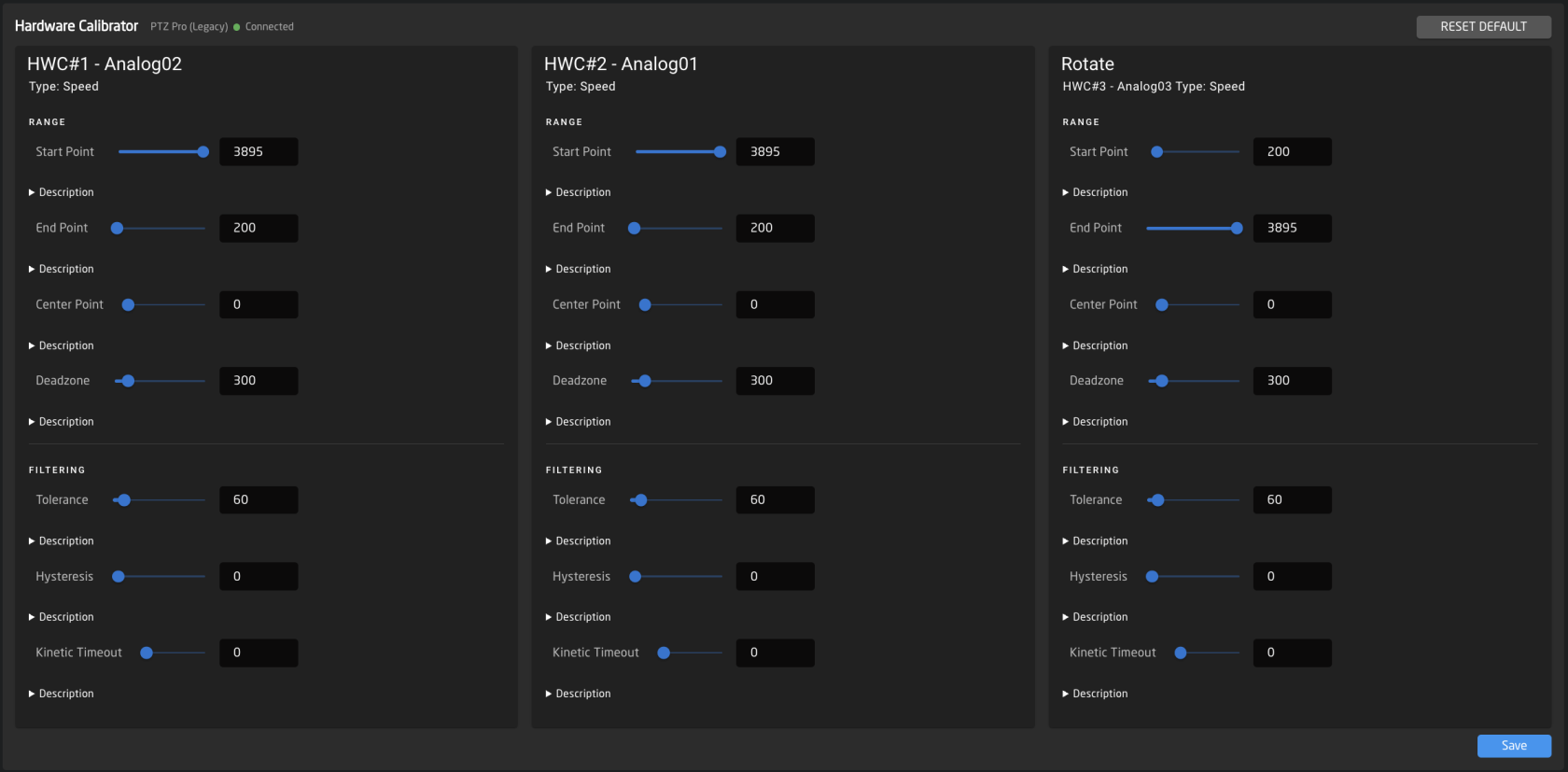
![Screenshot 2026-05-20 at 11.26.26.png](https://wiki.skaarhoj.com/uploads/images/gallery/2026-05/scaled-1680-/screenshot-2026-05-20-at-11-26-26.png)

**Range**

Start Point: control the ends of the component, think all the way up/down of a fader or T-bar, but all so the max movement range on a joystick or zoom rocker. If you find that you are not able to move a T-bar from 0-1000 in its raw value but instead you might only get something like 100-950 then you would move these values closer to the middle in order for the component to hit "Max/Min" before hitting the physical limit of its movement range. In the same manner, if you find that you have a lot of dead space at the ends, you can move these sliders further out to gain more resolution.

End Point: control the ends of the component, think all the way up/down of a fader or T-bar, but all so the max movement range on a joystick or zoom rocker. If you find that you are not able to move a T-bar from 0-1000 in its raw value but instead you might only get something like 100-950 then you would move these values closer to the middle in order for the component to hit "Max/Min" before hitting the physical limit of its movement range. In the same manner, if you find that you have a lot of dead space at the ends, you can move these sliders further out to gain more resolution.

Center Point: Allows you to move the centre of your value range, mainly found on components like the rotating component on the PTZ joysticks on a PTZ extreme. This can compensate for a slight drift in one or the other direction when you let go of the rotation. This also defines where the centre of the halfway point is on motorized faders.

Deadzone: adjusts the "padding" around the centre value and how far you need to move it before it starts "moving." You would adjust this on a PTZ joystick or zoom rocker to change how sensitive it is in the middle.

**Filtering**

Tolerance: Is used to define how big or small a change is needed before the component sends a "change." In 99% of cases, this is not worth messing with, but if you have a stutter or maybe more than normal EMC (electromagnetic noise) in your environment, it might be worth raising this to prevent unintended movement. But again, this is only in very extreme cases.

Hysteresis: The reduced change threshold used while the component is actively being moved. During movement, a change only needs to exceed this value (instead of the full Tolerance) to register, giving smoother tracking. Once movement stops (after Kinetic Timeout expires), the system reverts to requiring the full Tolerance threshold for noise rejection. A lower value means more responsive tracking during movement; a higher value filters out more jitter.

Kinetic Timeout: Time in milliseconds after the last detected movement before the component switches from the lower hysteresis threshold back to the full tolerance threshold. While the component is being actively moved, smaller changes (governed by Hysteresis) are enough to register. Once movement stops for longer than this timeout, the system requires the full Tolerance value again to register a change, providing better noise rejection when the component is stationary.

To disable the Hardware Calibrator again, in the Hardware Manager package toggle off Calibration Enable and press Save and Restart.
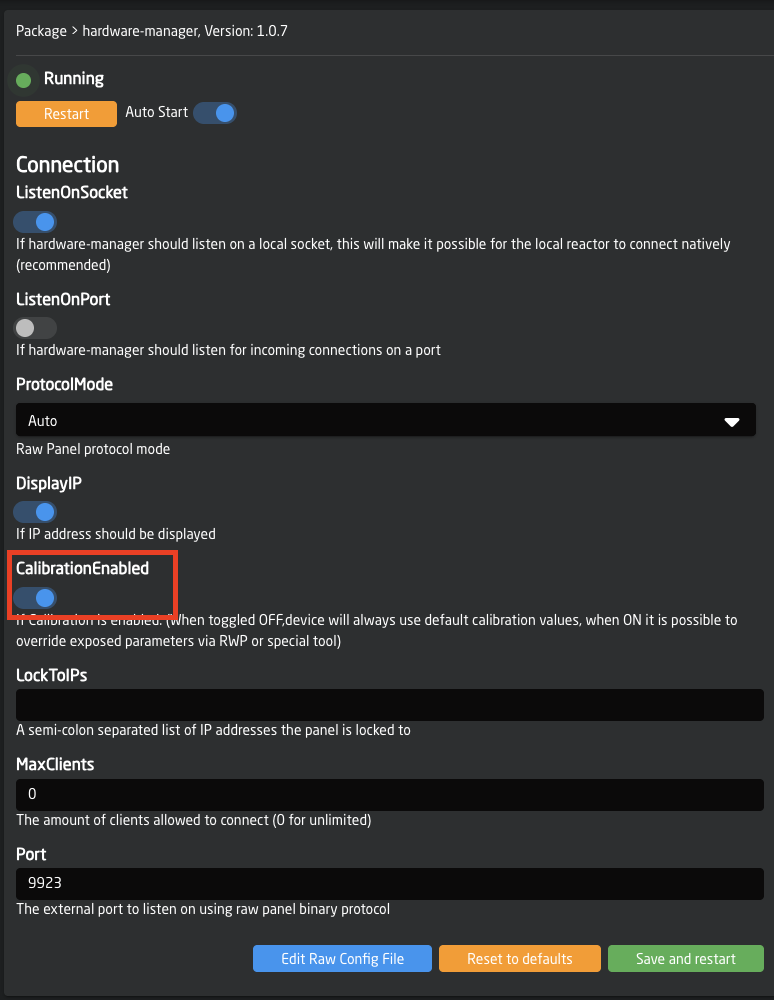
![Screenshot 2026-05-20 at 12.35.24.png](https://wiki.skaarhoj.com/uploads/images/gallery/2026-05/scaled-1680-/screenshot-2026-05-20-at-12-35-24.png)

# History View

<div class="ql-block" data-block-id="block-92f79e3d-5a87-43bf-9e6e-7ffcd1e5c4cc" id="bkmrk-you-can-access-autos">You can access autosaved versions of the configurations. This is useful when a lot of changes have been made and it is necessary to roll things back a little. </div><div class="ql-block" data-block-id="block-92f79e3d-5a87-43bf-9e6e-7ffcd1e5c4cc" id="bkmrk-%C2%A0"> </div><div class="ql-block" data-block-id="block-92f79e3d-5a87-43bf-9e6e-7ffcd1e5c4cc" id="bkmrk-"></div><div class="ql-block" data-block-id="block-3c553c1d-c5f5-4a42-a1b0-d948d4e60ba5" id="bkmrk--0"></div><div class="ql-block" data-block-id="block-3c553c1d-c5f5-4a42-a1b0-d948d4e60ba5" id="bkmrk-reactor-will-autosav">Reactor will autosave the configurations every time a change is detected. These are accessible from the History View page. To find it you can write **/history-view** after the IP of the Blue Pill device. Another way of entering the History View is through the 'going back in time' icon placed in various parts of reactor.   
![](https://t2421264.p.clickup-attachments.com/t2421264/7e05d66f-5838-46aa-9ef1-0f3c6cf2fab3/image.png)</div><div class="ql-block" data-block-id="block-3c553c1d-c5f5-4a42-a1b0-d948d4e60ba5" id="bkmrk-how-to-find-the-hist"></div><div class="ql-block" data-block-id="block-92fa93fa-c93b-4968-ba17-e98aafe23c84" id="bkmrk--1"></div><div class="ql-block" data-block-id="block-abd9a87f-9e35-4ebe-92f2-8e1a43a2924b" id="bkmrk--3"></div><p class="callout info">**How long back can I go?**  
Every change from the last 24 hours is saved. After that it will be combined to 1 file per day, and saved for 10 days.  
It is also possible to add tags to individual versions. When a tag is added to the version, it will no longer be deleted based on the default time scale and will persist.</p>

<p class="callout info">**What is being saved?**  
It's important to remember that these autosaved versions are only saving information from the Configuration tab. Although if you change things related to configurations, from the Home tab, it may also be saved, and therefore revertible from the History View.  
  
Example: Adding a Panel on the Home tab will not be part of an autosave, but choosing a configuration for it will. </p>

<details id="bkmrk-how-to-find-the-hist-0"><summary>How to find the History View</summary>

<div class="ql-block" data-block-id="block-3c553c1d-c5f5-4a42-a1b0-d948d4e60ba5"><div class="ql-block" data-block-id="block-3c553c1d-c5f5-4a42-a1b0-d948d4e60ba5">You can always type **/history-view** after the IP.  
  
Here is the ways to navigate through the UI:</div></div>#### **First way**

Being in the Configuration tab, the icon can be found right beside the Undo/Redo buttons

[![Screen_Recording_2022-08-05_at_16_38_48_AdobeExpress_AdobeExpress.gif](https://wiki.skaarhoj.com/uploads/images/gallery/2022-08/screen-recording-2022-08-05-at-16-38-48-adobeexpress-adobeexpress.gif)](https://wiki.skaarhoj.com/uploads/images/gallery/2022-08/screen-recording-2022-08-05-at-16-38-48-adobeexpress-adobeexpress.gif)

#### **Second way**

**Step 1:** Being on the Home tab. Press the button "Change Project"

[![Screen_Recording_2022-08-05_at_16_45_48_AdobeExpress__1__AdobeExpress.gif](https://wiki.skaarhoj.com/uploads/images/gallery/2022-08/screen-recording-2022-08-05-at-16-45-48-adobeexpress-1-adobeexpress.gif)](https://wiki.skaarhoj.com/uploads/images/gallery/2022-08/screen-recording-2022-08-05-at-16-45-48-adobeexpress-1-adobeexpress.gif)

**Step 2.1:** Here you can press the icon for configuration on a specific project

  
[![Screen_Recording_2022-08-05_at_16_59_14_AdobeExpress.gif](https://wiki.skaarhoj.com/uploads/images/gallery/2022-08/screen-recording-2022-08-05-at-16-59-14-adobeexpress.gif)](https://wiki.skaarhoj.com/uploads/images/gallery/2022-08/screen-recording-2022-08-05-at-16-59-14-adobeexpress.gif)

**Step 2.2:** Or choosing a project, and from the dropdown menu, click the icon on a specific config

[![Screen_Recording_2022-08-05_at_17_05_00_AdobeExpress.gif](https://wiki.skaarhoj.com/uploads/images/gallery/2022-08/screen-recording-2022-08-05-at-17-05-00-adobeexpress.gif)](https://wiki.skaarhoj.com/uploads/images/gallery/2022-08/screen-recording-2022-08-05-at-17-05-00-adobeexpress.gif)

<div class="ql-block" data-block-id="block-3c553c1d-c5f5-4a42-a1b0-d948d4e60ba5" id="bkmrk-here-is-the-main-way"></div><div class="ql-block" data-block-id="block-92fa93fa-c93b-4968-ba17-e98aafe23c84" id="bkmrk--4"></div></details><details id="bkmrk-navigating-history-v"><summary>Understanding the page: History View</summary>

1. You need to choose the project you want to work with. It will automatically choose the active project unless you access the page by writing **/history-view**.  
    [![image-1657783759319.png](https://wiki.skaarhoj.com/uploads/images/gallery/2022-07/scaled-1680-/image-1657783759319.png)](https://wiki.skaarhoj.com/uploads/images/gallery/2022-07/image-1657783759319.png)
2. Now you see the versions that have been autosaved.   
    \- You can delete a version by pressing the red trashcan [![image-1657783983291.png](https://wiki.skaarhoj.com/uploads/images/gallery/2022-07/scaled-1680-/image-1657783983291.png)](https://wiki.skaarhoj.com/uploads/images/gallery/2022-07/image-1657783983291.png).   
    \- You can add a tag to a version (which will make sure it will not be deleted or merged automatically) [![image-1657784298669.png](https://wiki.skaarhoj.com/uploads/images/gallery/2022-07/scaled-1680-/image-1657784298669.png).](https://wiki.skaarhoj.com/uploads/images/gallery/2022-07/image-1657784298669.png)  
    \- The version with the green square saying "latest" is the version you are on right now. By clicking the yellow "Set as latest" you will change what version of the configuration is chosen.   
    \- If you want to preview the code for the versions before choosing, you can click anywhere on a version and a new section will open.  
    [![image-1657783898170.png](https://wiki.skaarhoj.com/uploads/images/gallery/2022-07/scaled-1680-/image-1657783898170.png)](https://wiki.skaarhoj.com/uploads/images/gallery/2022-07/image-1657783898170.png)
3. Here you have the opportunity to navigate the code, an make out what configuration is included in the given version. Press the blue "Format" button if the code is not already visually set up for easy reading.  
    [![image-1657784819118.png](https://wiki.skaarhoj.com/uploads/images/gallery/2022-07/scaled-1680-/image-1657784819118.png)](https://wiki.skaarhoj.com/uploads/images/gallery/2022-07/image-1657784819118.png)
4. When you preview code it will inform you what version you are actively looking at, by writing "Preview" in green.   
    [![test_image.png](https://wiki.skaarhoj.com/uploads/images/gallery/2022-09/scaled-1680-/image.png)](https://wiki.skaarhoj.com/uploads/images/gallery/2022-09/image.png)
    
    But be aware a version is not chosen before it says "latest"   
    [![image.png](https://wiki.skaarhoj.com/uploads/images/gallery/2022-09/scaled-1680-/iHyimage.png)](https://wiki.skaarhoj.com/uploads/images/gallery/2022-09/iHyimage.png)
5. Add one or more tags to remember what a version contained. Adding a tag also lets Reactor know that you want to keep this version on your list permanently, so it is not getting merged after 24 hours, or removed after 10 days.   
    [![image-1657798552722.png](https://wiki.skaarhoj.com/uploads/images/gallery/2022-07/scaled-1680-/image-1657798552722.png)](https://wiki.skaarhoj.com/uploads/images/gallery/2022-07/image-1657798552722.png)

</details>

# HW Event Log

Located on the Tools Page ([https://wiki.skaarhoj.com/books/blue-pill-reactor/page/tools-page](https://wiki.skaarhoj.com/books/blue-pill-reactor/page/tools-page)), the HW Event Log can show you all Hardware Component interactions for all panels connected to your Blue Pill Device in real time.

<p class="callout info">If nothing shows when using a HWC, try refreshing the web browser's page. </p>

<p class="callout info">No data will show if using the Simulator Page or simulating a panel in the Configuration Page. This is only for physical interactions with a panel.</p>

[![Screenshot 2023-06-02 at 13.50.32.png](https://wiki.skaarhoj.com/uploads/images/gallery/2023-06/scaled-1680-/screenshot-2023-06-02-at-13-50-32.png)](https://wiki.skaarhoj.com/uploads/images/gallery/2023-06/screenshot-2023-06-02-at-13-50-32.png)

Here is a breakdown of the data:

<span style="color: rgb(29, 219, 235);">Panel</span> 2, <span style="color: rgb(29, 219, 235);">Component</span> 8, <span style="color: rgb(29, 219, 235);">Data</span>: {"HWCID":10,"Pulsed":{"Value":-1}}

<span style="color: rgb(0, 0, 0);">The Panel # corresponds to the Panel ID number assigned on the Home Page</span>

[![Screenshot 2023-06-02 at 13.52.56.png](https://wiki.skaarhoj.com/uploads/images/gallery/2023-06/scaled-1680-/screenshot-2023-06-02-at-13-52-56.png)](https://wiki.skaarhoj.com/uploads/images/gallery/2023-06/screenshot-2023-06-02-at-13-52-56.png)

-Component # is the specific Hardware Component number for that specific component. The HWC number is the same on all panels of the same model for components that can be freely assigned.   
 Is is possible to see the HWC number for each device here: https://devices.skaarhoj.com/panels

-Data show exactly what happened.   
 Example 1: {"HWCID":10,"Pulsed":{"Value":-1}}   
 Hardware Component ID 10 had a pulsed input (encoder) with a value of -1 (turned counter clockwise 1 click).

 Example 2: {"HWCID":11,"Speed":{"Value":53}}  
 Hardware Component ID 11 had a speed input (joystick) with a value of 53

 Example 3: {"HWCID":2,"Binary":{"Pressed": true, "Edge":4}}  
 Hardware Component ID 2 had a binary input (button) pressed true (press down) on edge 4 (down)

<p class="callout info">The HW Event Log data can also be used to expose the JSON text format used by our devices. Read more about it in our Raw Panel integration manual: https://github.com/SKAARHOJ/Support/blob/master/Manuals/SKAARHOJ/SKAARHOJ\_RawPanel\_V2.pdf</p>

# Internal Processes Stats

Here you can see what is using the CPU on the device, the internal operating temperature, and more.

It can sometimes be necessary to send this information to support.

### Guide:

- **Use any browser to access the Blue Pill via its IP address**
- **To access the statistics page write /api/getstats after the IP**

*Example: XX.XX.XX.XX/api/getstats[![Stats.png](https://wiki.skaarhoj.com/uploads/images/gallery/2022-06/scaled-1680-/stats.png)](https://wiki.skaarhoj.com/uploads/images/gallery/2022-06/stats.png)*
# mDNS Services

Skaarhoj panel use mDNS to announce themselves on the network to make panel discovery easy for users. There are some network structures that can make it desired for this to be disabled.

To disable this service add **disablemdns** into the log string in the System Manager package on the packages page.
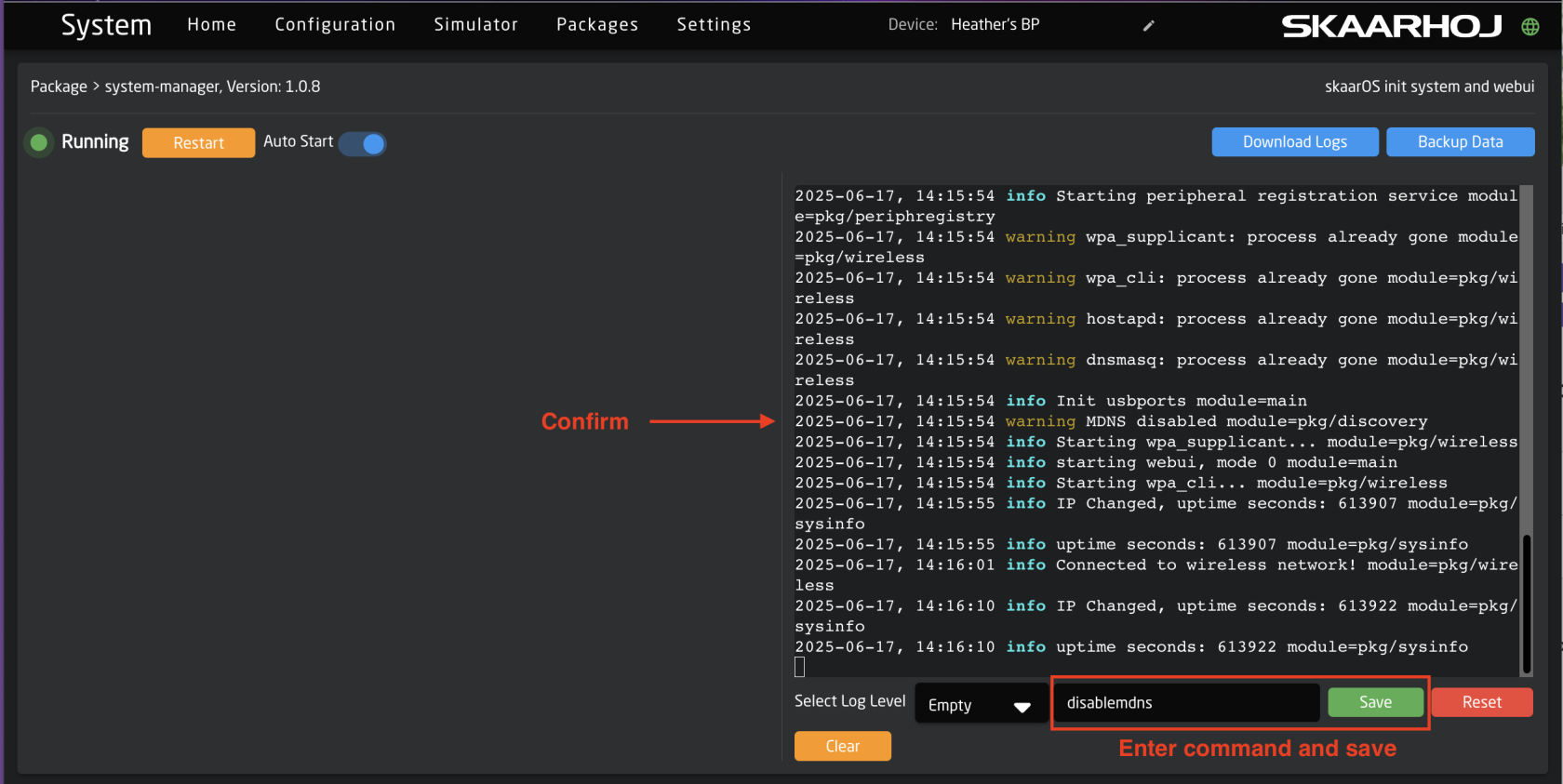
![Screenshot 2025-06-17 at 2.16.35 PM.png](https://wiki.skaarhoj.com/uploads/images/gallery/2025-06/scaled-1680-/screenshot-2025-06-17-at-2-16-35-pm.png)

# Ping Tool

Within Blue Pill it is possible to ping devices on the network allowing you to check that they are reachable from the Blue Pill or to check the stability and latency. [![Ping Tool.png](https://wiki.skaarhoj.com/uploads/images/gallery/2022-06/scaled-1680-/ping-tool.png)](https://wiki.skaarhoj.com/uploads/images/gallery/2022-06/ping-tool.png)

### <span style="font-weight: 400;">Guide:</span>

- <span style="font-weight: 400;">**Use any browser to access the Blue Pill via its IP address**   
    </span>
- **To access the toolpage write /tools after the IP**

*<span style="font-weight: 400;">Example: </span><span style="font-weight: 400;">XX.XX.XX.XX</span><span style="font-weight: 400;">/tools</span>*

- **To start using the tool, write the IP of the device that should be pinged, and press the ‘Ping’ button or 'Enter' on the keyboard**

*<span style="font-weight: 400;">If it is able to ping the device successfully, it will write the Round Trip Time for each package</span>*

[![image-1651668603109.png](https://wiki.skaarhoj.com/uploads/images/gallery/2022-05/scaled-1680-/image-1651668603109.png)](https://wiki.skaarhoj.com/uploads/images/gallery/2022-05/image-1651668603109.png)

- **To stop the pinging press, the now Orange button, ‘stop ping’ or 'Escape' on the keyboard**

*<span style="font-weight: 400;">A final report will be displayed. It contains information about how many packages were successfully transmitted and the minimum, maximum and average RTT</span>*

[![image-1651668693479.png](https://wiki.skaarhoj.com/uploads/images/gallery/2022-05/scaled-1680-/image-1651668693479.png)](https://wiki.skaarhoj.com/uploads/images/gallery/2022-05/image-1651668693479.png)

# skaarOS Stats Page

View processes, temperature and cpu load of your skaarOS device.

### How to access:

There is two ways getting to the Stats Page

##### **Option 1**

**Access the toolpage write /tools after the IP**

*Example: XX.XX.XX.XX/tools*

And then from there click Open, under skaarOS Stats Page

[![Screen_Recording_2022-08-04_at_09_55_33_AdobeExpress.gif](https://wiki.skaarhoj.com/uploads/images/gallery/2022-08/screen-recording-2022-08-04-at-09-55-33-adobeexpress.gif)](https://wiki.skaarhoj.com/uploads/images/gallery/2022-08/screen-recording-2022-08-04-at-09-55-33-adobeexpress.gif)

##### **Option 2**

**Go directly to Stats Page by writing /api/getstats after the IP**

*Example: XX.XX.XX.XX/api/getstats*

# Tools Page

In Reactor there is a dedicated Tools Page to bring a few specific options into a single place.

To access the Tools Page, use the Tools symbol in the lower right corner
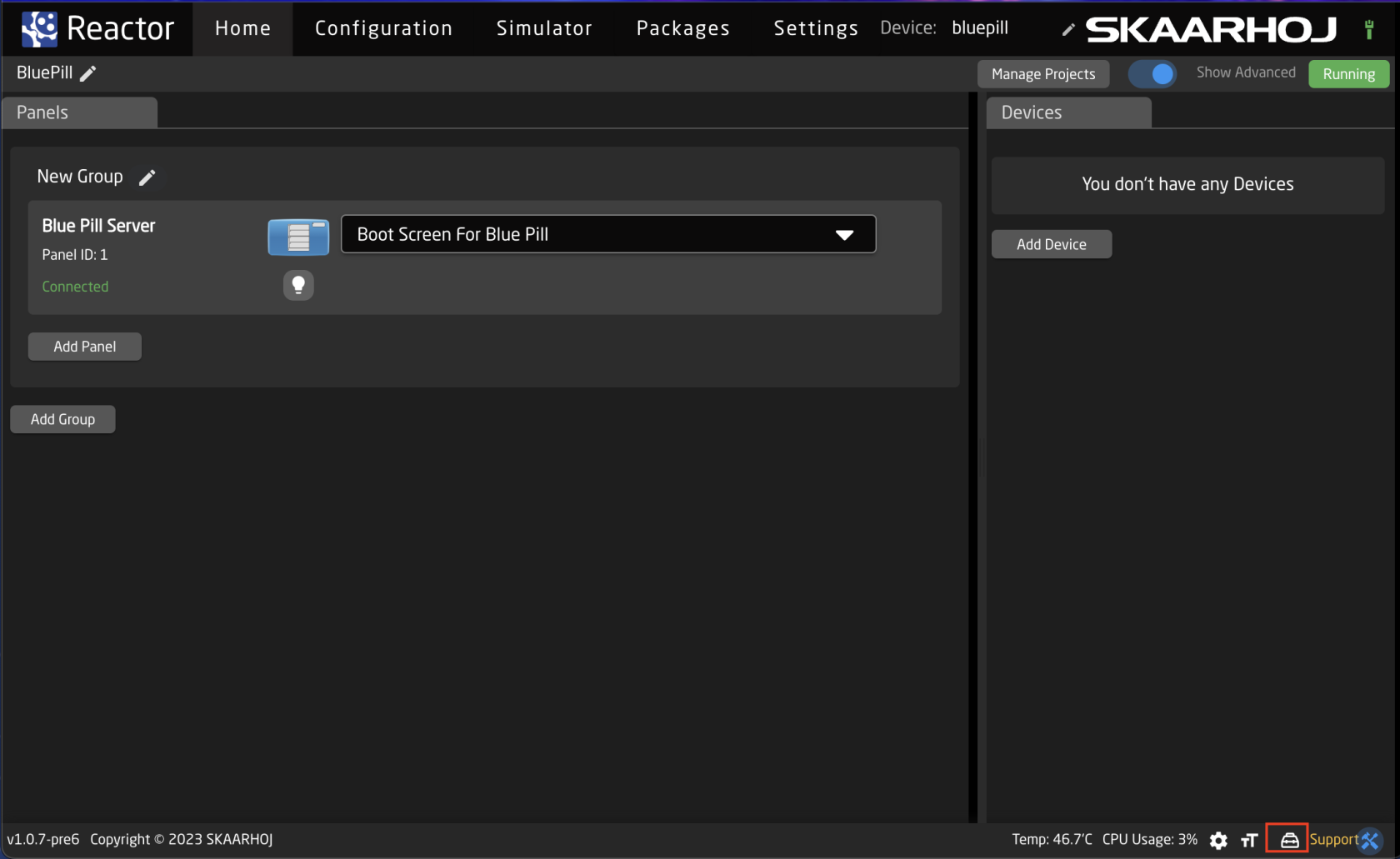
![Screenshot 2023-06-02 at 12.45.20.png](https://wiki.skaarhoj.com/uploads/images/gallery/2023-06/scaled-1680-/screenshot-2023-06-02-at-12-45-20.png)

This will bring you to the full Tools page. On this page you can:

[![Screenshot 2024-05-02 at 10.15.19.png](https://wiki.skaarhoj.com/uploads/images/gallery/2024-05/scaled-1680-/screenshot-2024-05-02-at-10-15-19.png)](https://wiki.skaarhoj.com/uploads/images/gallery/2024-05/screenshot-2024-05-02-at-10-15-19.png)
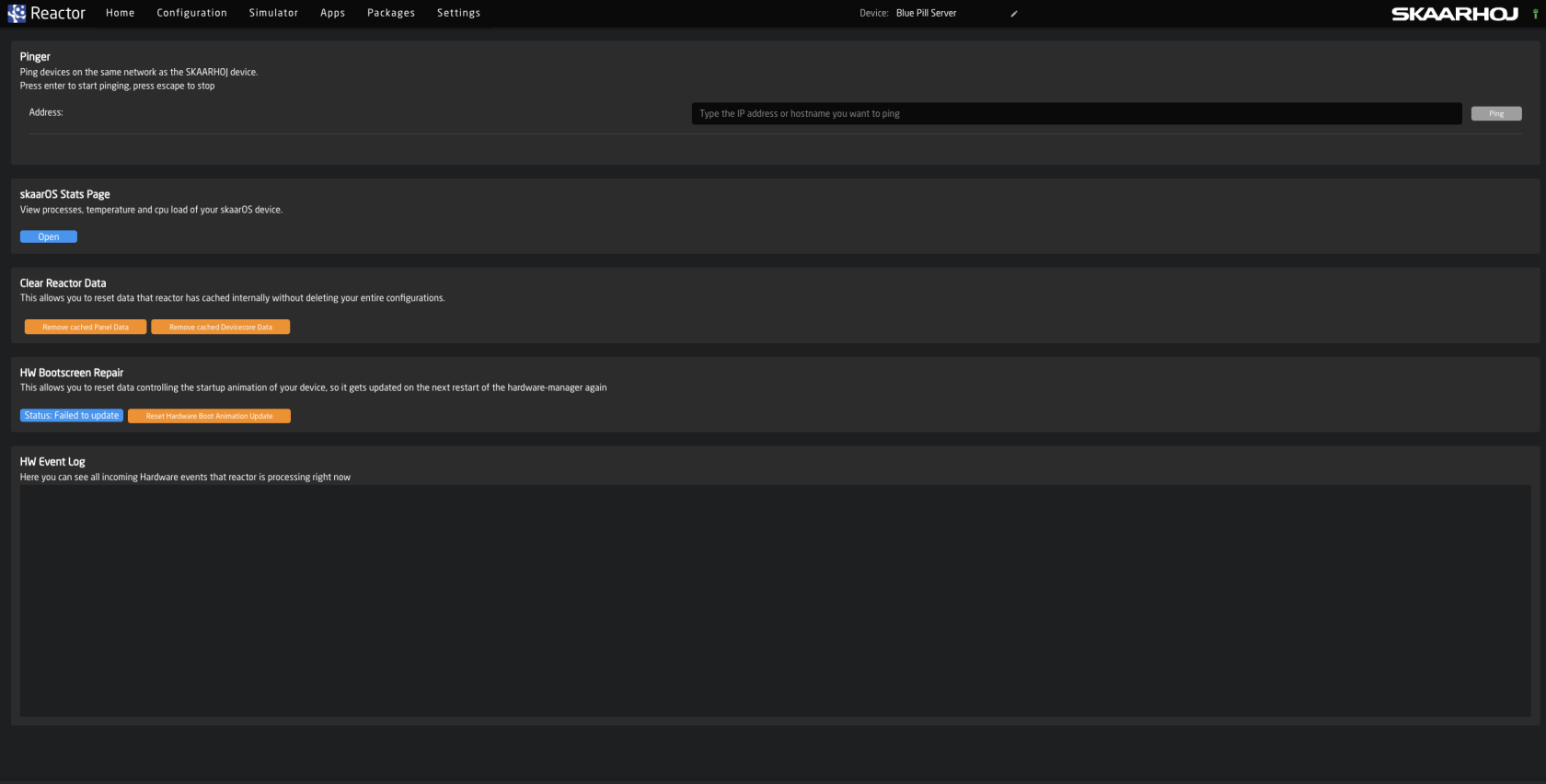
1. Pinger Tool, to check availability of other devices on your network.   
    [https://wiki.skaarhoj.com/books/blue-pill-reactor/page/ping-tool](https://wiki.skaarhoj.com/books/blue-pill-reactor/page/ping-tool)
2. IP Scanner, to scan for devices on other devices on your network.
3. SkaarOS Stats Page, to check the internal processes of the Blue Pill device  
    [https://wiki.skaarhoj.com/books/blue-pill-reactor/page/skaaros-stats-page](https://wiki.skaarhoj.com/books/blue-pill-reactor/page/skaaros-stats-page)
4. Clear Reactor Data, to clear the Reactor Cached data for the Panels and/or Devices
5. Hardware Bootscreen Repair allows you to reset data controlling the startup animation of your device, so it gets updated on the next restart of the hardware-manager again
6. HW Event Log, to help troubleshoot a potential hardware component issue.   
    [ ](https://wiki.skaarhoj.com/books/blue-pill-reactor/page/hw-event-log)[https://wiki.skaarhoj.com/books/blue-pill-reactor/page/hw-event-log](https://wiki.skaarhoj.com/books/blue-pill-reactor/page/hw-event-log)
7. Debuglog, If enabled it logs all hardware events and stats to a downloadable file for diagnostic purposes.
8. Prometheus Metrics
9. Hardware Calibrator, allows for the calibrations of analog hardware on the local Blue Pill panel.   
    [https://wiki.skaarhoj.com/books/blue-pill-reactor/page/hardware-calibrator](https://wiki.skaarhoj.com/books/blue-pill-reactor/page/hardware-calibrator)

# Using a USB Network Adapters or LTE modems

In some circumstances it might be useful to use a secondary network cable on your BluePill or BluePill-Inside Product  
  
To do that you can use the USBA Port of the device to connect an external network adapters.  
  
Requirements: Make sure you are running **system-manager** **v1.0.3-pre7** or higher. **skaarOS** should be **1.2-pre5** or higher.  
  
1\. Make sure USBA is enabled on your device. Go to the "Settings" tab and change the USBA switch to ON. You might need to reboot your device after toggeling.

[![Screenshot 2024-01-29 at 16.46.51.png](https://wiki.skaarhoj.com/uploads/images/gallery/2024-01/scaled-1680-/screenshot-2024-01-29-at-16-46-51.png)](https://wiki.skaarhoj.com/uploads/images/gallery/2024-01/screenshot-2024-01-29-at-16-46-51.png)
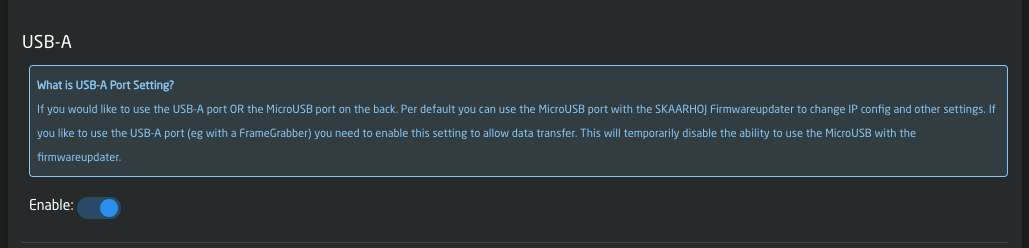
2\. Plug in a USB to Ethernet Adapter into the devices USBA port and wait about 5 seconds, then refrehs the settings page in your browser. You should now see an "Other" tab in your network settings, that will let you configure the IP settings for the external connection.

[![Screenshot 2024-01-29 at 16.51.13.png](https://wiki.skaarhoj.com/uploads/images/gallery/2024-01/scaled-1680-/hUHscreenshot-2024-01-29-at-16-51-13.png)](https://wiki.skaarhoj.com/uploads/images/gallery/2024-01/hUHscreenshot-2024-01-29-at-16-51-13.png)
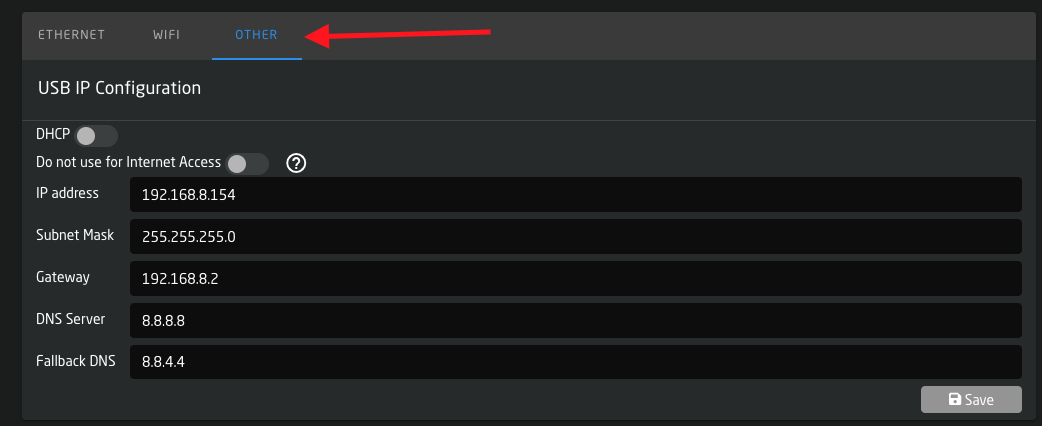
Done ! ✅

#####   
Note on Compatible Devices:

  
**Tested Working 👍**  
We have tested this feature with many different ethernet adapters. Most Adapters powered by Realtek will work fine  
  
rtl8153b-2  
rtl8153a-4  
  
  
**Tested NOT Working 👎**

Some rare cases do not work, notably Apple-branded USB-Ethernet Adapters and adapters with the **ASIX AX88179** chipset. (eg pluggable USB3-E1000)

####   
Using LTE Modems

  
In the same way you are also able to use your device over LTE. The modems you can use should not need too much power and support the native cdc\_ether linux drivers.

[![huawaimodem.jpeg](https://wiki.skaarhoj.com/uploads/images/gallery/2024-01/scaled-1680-/huawaimodem.jpeg)](https://wiki.skaarhoj.com/uploads/images/gallery/2024-01/huawaimodem.jpeg)
  
We have tested this with the **Huawai E3372 Modems**. Other modems are not supported at this time.  
  
  
Simply connect this modem on the USB A port as well. Select DHCP as network config. The device will usually get a 192.168.8.X IP address from the modem.  
  
Make sure your modem connects to the internet automatically (no sim pin lock or others)  
  
Done! ✅

# Troubleshooting

Troubleshooting scenarios and things to try.

# Blue Pill Controller Showing Unknown

If the Blue Pill or Blue Pill Inside controller is showing in the panels sections of the Home screen as Unknown it could be a few issues.

[![Unknown.png](https://wiki.skaarhoj.com/uploads/images/gallery/2022-08/scaled-1680-/unknown.png)](https://wiki.skaarhoj.com/uploads/images/gallery/2022-08/unknown.png)

1\. Check that the panel's IP address in the device details section is set to HOST. This indicates that the device has the Blue Pill native inside and is not controlled by another device.

[![host.png](https://wiki.skaarhoj.com/uploads/images/gallery/2022-08/scaled-1680-/host.png)](https://wiki.skaarhoj.com/uploads/images/gallery/2022-08/host.png)
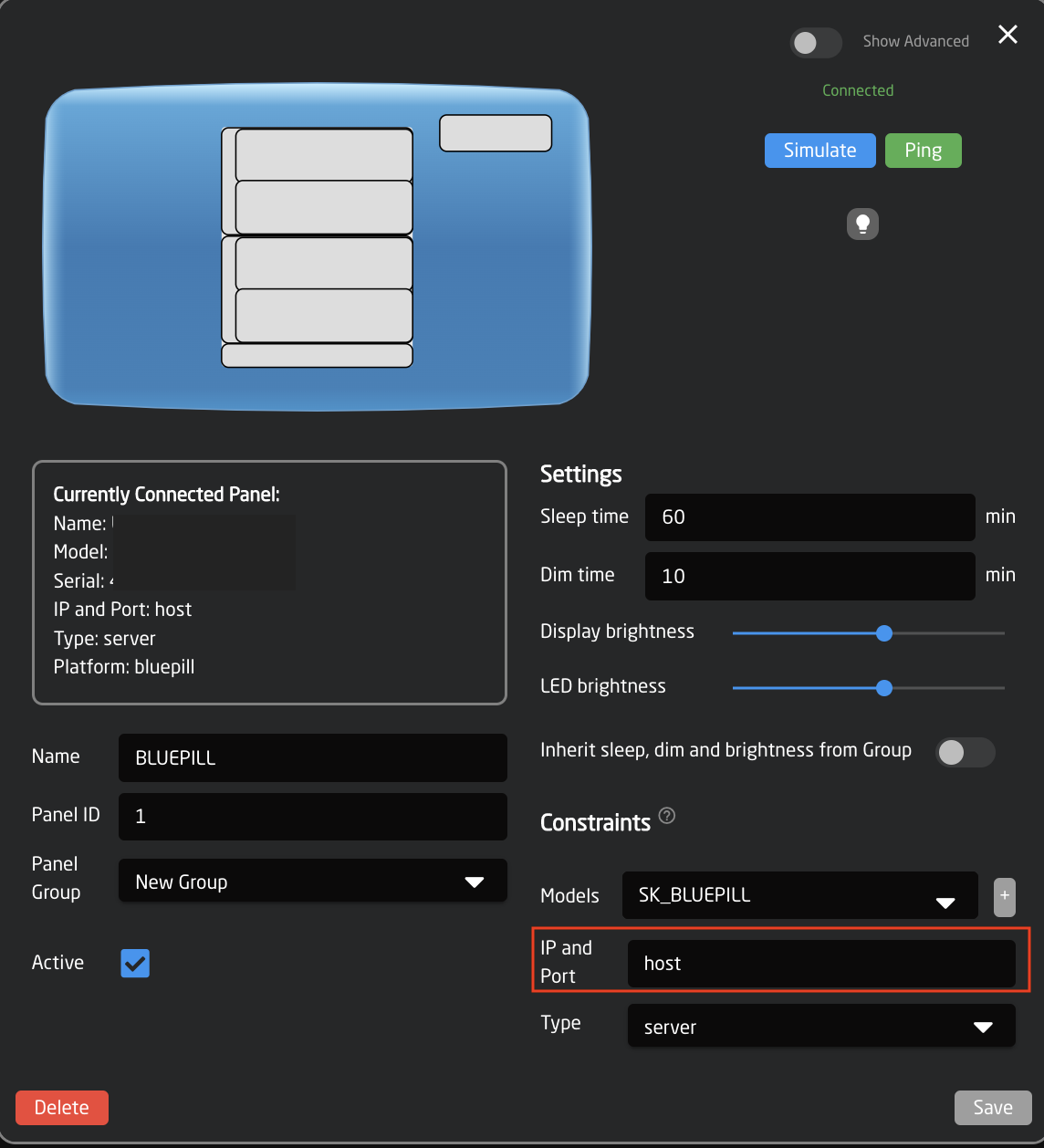
2\. If it is set correctly but still not registering, delete the panel from the home page and re-add it. It can be deleted[![Reboot.png](https://wiki.skaarhoj.com/uploads/images/gallery/2022-08/scaled-1680-/bDhreboot.png)](https://wiki.skaarhoj.com/uploads/images/gallery/2022-08/bDhreboot.png) by right clicking on the panel name and selecting either Remove panel from configuration or Remove panel and configuration.
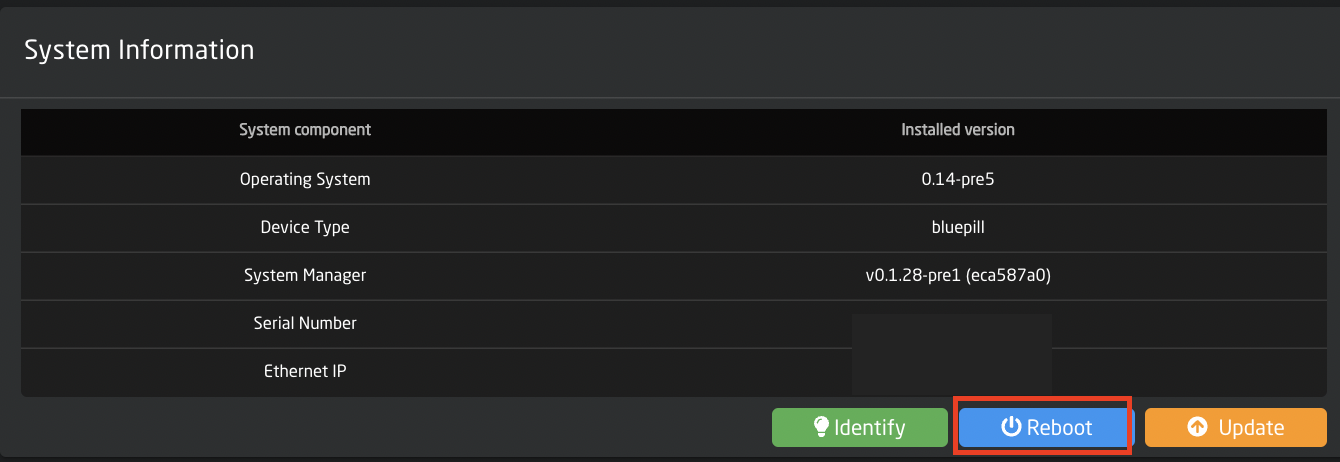
[![Remove Panel.png](https://wiki.skaarhoj.com/uploads/images/gallery/2022-08/scaled-1680-/remove-panel.png)](https://wiki.skaarhoj.com/uploads/images/gallery/2022-08/remove-panel.png)

It is easily added again by clicking Add Panel and selecting Connect next to the notification about the native panel not being connected.

[![Add Panel.png](https://wiki.skaarhoj.com/uploads/images/gallery/2022-08/scaled-1680-/add-panel.png)](https://wiki.skaarhoj.com/uploads/images/gallery/2022-08/add-panel.png)
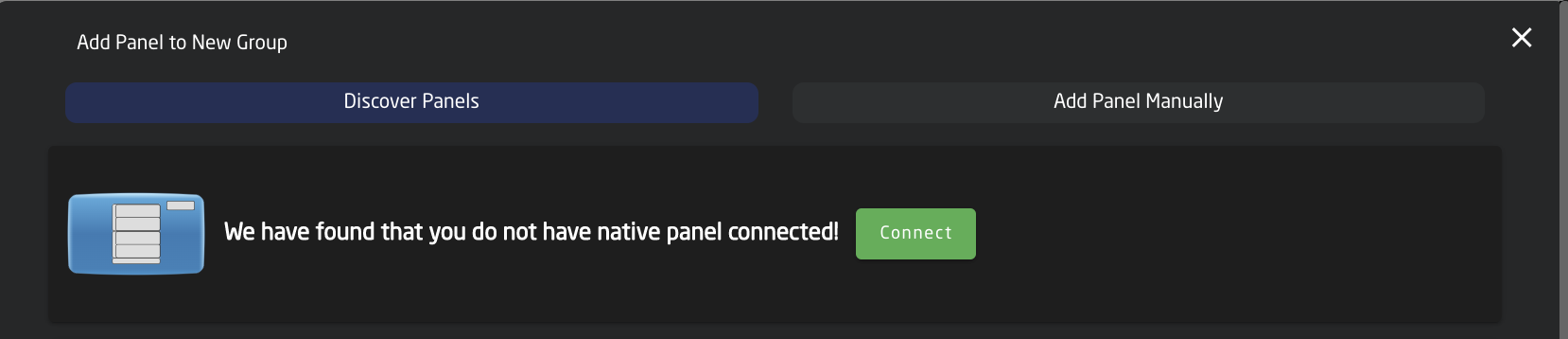
3\. If the panel is still not properly connecting to itself, try rebooting the panel. This can be done by pressing Reboot on the Setting page under System Information.

[![Reboot.png](https://wiki.skaarhoj.com/uploads/images/gallery/2022-08/scaled-1680-/bDhreboot.png)](https://wiki.skaarhoj.com/uploads/images/gallery/2022-08/bDhreboot.png)

4\. If the panel still does not connect, reset the Hardware Manager settings to default. On the Packages page, click on the Hardware-Manager. At the bottom, click on Reset to Default.

[![Default Hardware.png](https://wiki.skaarhoj.com/uploads/images/gallery/2022-08/scaled-1680-/default-hardware.png)](https://wiki.skaarhoj.com/uploads/images/gallery/2022-08/default-hardware.png)
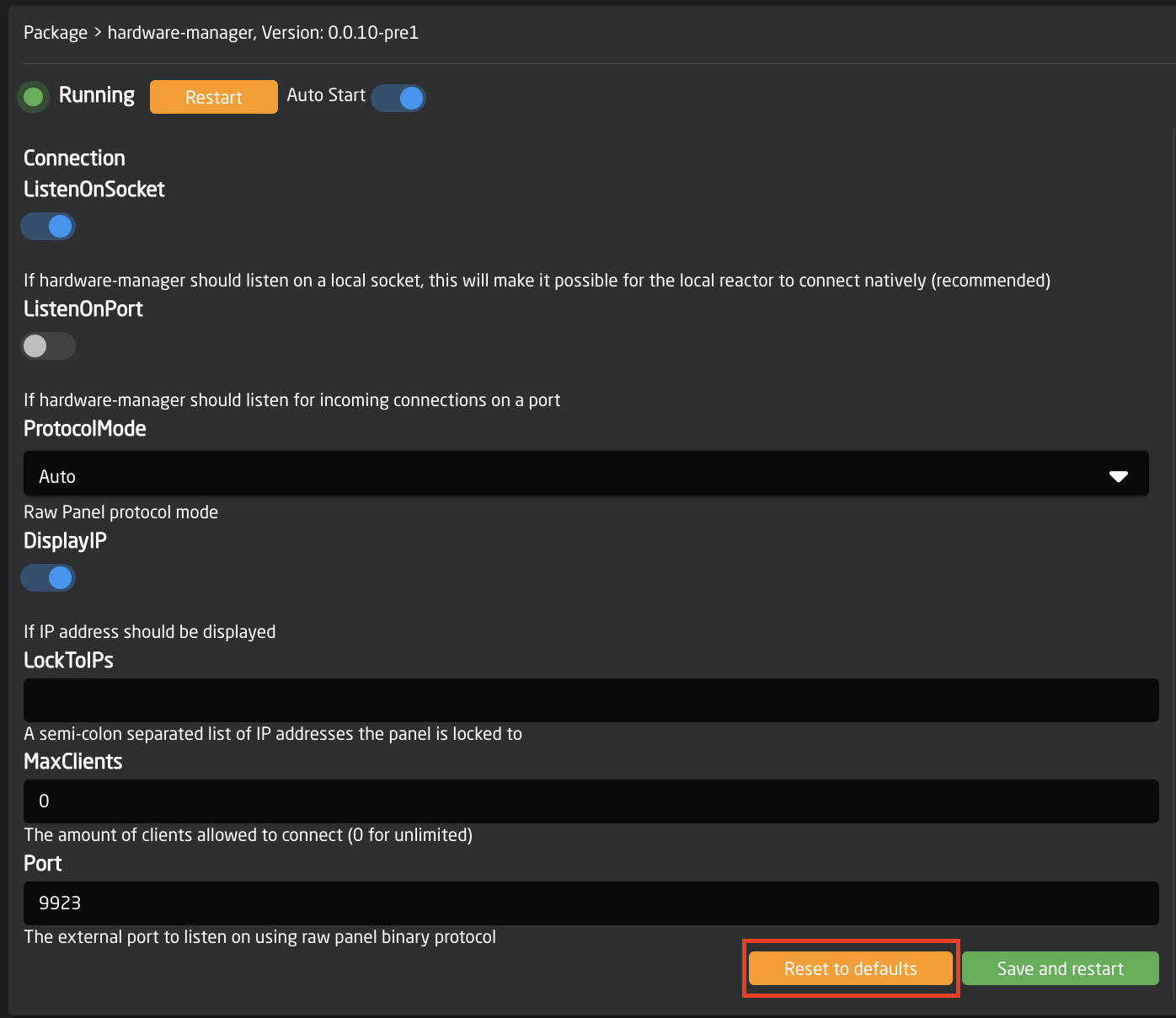
5\. The next option, if the others have not worked, is to clear the config directory for the Hardware Manager. On the Packages page in the Hardware Manager package, press Clear Config Directory.

[![Clear config.png](https://wiki.skaarhoj.com/uploads/images/gallery/2022-08/scaled-1680-/clear-config.png)](https://wiki.skaarhoj.com/uploads/images/gallery/2022-08/clear-config.png)
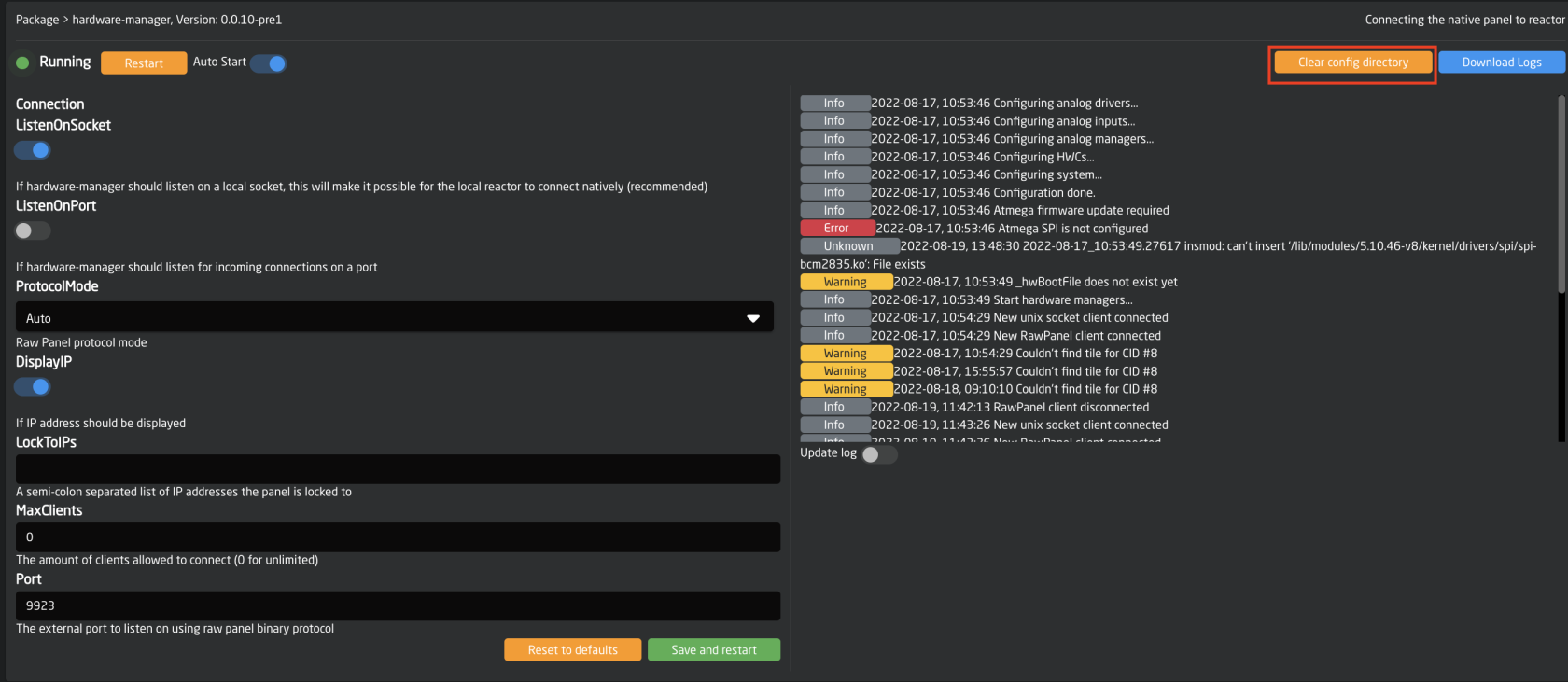
After clearing the config directory, go back to the main Packages page and click on the status next to the Reactor package. This will trigger a pop up with some quick actions. Press Restart. ![REstart reactor.png](https://wiki.skaarhoj.com/uploads/images/gallery/2022-08/scaled-1680-/restart-reactor.png)
6\. The last option is more of a nuclear option since it will completely wipe clean all configurations, added devices, added panels, and projects. Please contact Skaarhoj support before attempting to see if they can find another solution.

The last resort is to clear the config directory for Reactor. On the Packages page go into the Reactor package and press Clear Config Directory. Then reboot the Blue Pill panel.

[![Reactor config directory.png](https://wiki.skaarhoj.com/uploads/images/gallery/2022-08/scaled-1680-/reactor-config-directory.png)](https://wiki.skaarhoj.com/uploads/images/gallery/2022-08/reactor-config-directory.png)
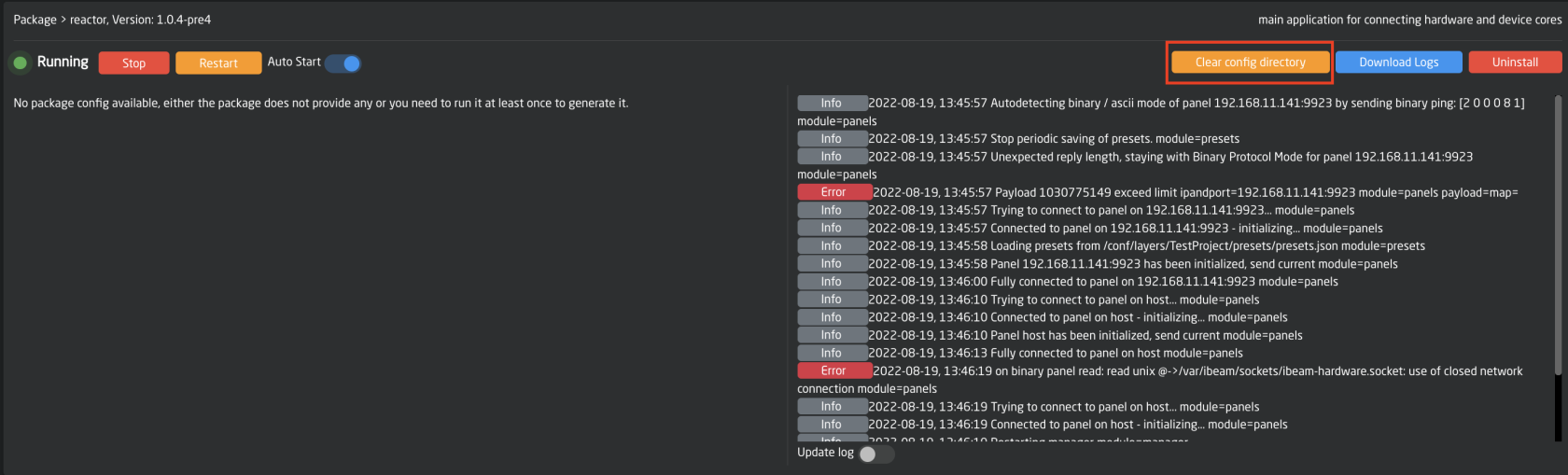
# Blue Pill panels boot animation during startup.

**Should my BPI product have an animation during startup ?**

Below is a table summarising the status of implementing the boot animations to various products:

<table cellpadding="0" cellspacing="0" class="t1" id="bkmrk-controller-status-co" style="width: 100%; height: 1565.12px;"><tbody><tr style="height: 35.3984px;"><td class="td1" style="width: 20.1483%; height: 35.3984px;" valign="top"><span class="s1">**Controller**</span>

</td><td class="td1" style="width: 21.7553%; height: 35.3984px;" valign="top">**Status**

</td><td class="td1" style="width: 58.0964%; height: 35.3984px;" valign="top">**Comments**

</td></tr><tr style="height: 35.3984px;"><td class="td1" style="width: 20.1483%; height: 35.3984px;" valign="top"><span class="s1">AIRFLY</span>

</td><td class="td1" style="width: 21.7553%; height: 35.3984px;" valign="top">RELEASED<span class="Apple-converted-space"> </span>

</td><td class="td1" style="width: 58.0964%; height: 35.3984px;" valign="top"></td></tr><tr style="height: 35.3984px;"><td class="td1" style="width: 20.1483%; height: 35.3984px;" valign="top">QUICKBAR<span class="Apple-converted-space"> </span>

</td><td class="td1" style="width: 21.7553%; height: 35.3984px;" valign="top">RELEASED<span class="Apple-converted-space"> </span>

</td><td class="td1" style="width: 58.0964%; height: 35.3984px;" valign="top"></td></tr><tr style="height: 35.3984px;"><td class="td1" style="width: 20.1483%; height: 35.3984px;" valign="top"><span class="s1">AIRFLYPROV2</span>

</td><td class="td1" style="width: 21.7553%; height: 35.3984px;" valign="top">On hold

</td><td class="td1" style="width: 58.0964%; height: 35.3984px;" valign="top"></td></tr><tr style="height: 35.3984px;"><td class="td1" style="width: 20.1483%; height: 35.3984px;" valign="top"><span class="s1">AIRFLYPROV3</span>

</td><td class="td1" style="width: 21.7553%; height: 35.3984px;" valign="top">RELEASED

</td><td class="td1" style="width: 58.0964%; height: 35.3984px;" valign="top"></td></tr><tr style="height: 35.3984px;"><td class="td1" style="width: 20.1483%; height: 35.3984px;" valign="top">BLUE PILL SERVER

</td><td class="td1" style="width: 21.7553%; height: 35.3984px;" valign="top">RELEASED

</td><td class="td1" style="width: 58.0964%; height: 35.3984px;" valign="top"></td></tr><tr style="height: 35.3984px;"><td class="td1" style="width: 20.1483%; height: 35.3984px;" valign="top"><span class="s1">COLORFLYV3</span>

</td><td class="td1" style="width: 21.7553%; height: 35.3984px;" valign="top">RELEASED

</td><td class="td1" style="width: 58.0964%; height: 35.3984px;" valign="top"></td></tr><tr style="height: 35.3984px;"><td class="td1" style="width: 20.1483%; height: 35.3984px;" valign="top"><span class="s1">FRAMESHOTUNO</span>

</td><td class="td1" style="width: 21.7553%; height: 35.3984px;" valign="top">RELEASED

</td><td class="td1" style="width: 58.0964%; height: 35.3984px;" valign="top"></td></tr><tr style="height: 35.3984px;"><td class="td1" style="width: 20.1483%; height: 35.3984px;" valign="top"><span class="s1">HEIREPLAYV2</span>

</td><td class="td1" style="width: 21.7553%; height: 35.3984px;" valign="top">RELEASED

</td><td class="td1" style="width: 58.0964%; height: 35.3984px;" valign="top"></td></tr><tr style="height: 35.3984px;"><td class="td1" style="width: 20.1483%; height: 35.3984px;" valign="top">HEISIDECAR

</td><td class="td1" style="width: 21.7553%; height: 35.3984px;" valign="top">RELEASED

</td><td class="td1" style="width: 58.0964%; height: 35.3984px;" valign="top"></td></tr><tr style="height: 35.3984px;"><td class="td1" style="width: 20.1483%; height: 35.3984px;" valign="top"><span class="s1">INLINE10</span>

</td><td class="td1" style="width: 21.7553%; height: 35.3984px;" valign="top">RELEASED

</td><td class="td1" style="width: 58.0964%; height: 35.3984px;" valign="top"></td></tr><tr style="height: 35.3984px;"><td class="td1" style="width: 20.1483%; height: 35.3984px;" valign="top"><span class="s1">INLINE22V2</span>

</td><td class="td1" style="width: 21.7553%; height: 35.3984px;" valign="top">RELEASED

</td><td class="td1" style="width: 58.0964%; height: 35.3984px;" valign="top"></td></tr><tr style="height: 35.3984px;"><td class="td1" style="width: 20.1483%; height: 35.3984px;" valign="top"><span class="s1">LIVEFLY</span>

</td><td class="td1" style="width: 21.7553%; height: 35.3984px;" valign="top">RELEASED

</td><td class="td1" style="width: 58.0964%; height: 35.3984px;" valign="top">Nkk version was added in v 0.1.7

</td></tr><tr style="height: 46.5938px;"><td class="td1" style="width: 20.1483%; height: 46.5938px;" valign="top"><span class="s1">MASTERKEYONEV2</span>

</td><td class="td1" style="width: 21.7553%; height: 46.5938px;" valign="top">RELEASED</td><td class="td1" style="width: 58.0964%; height: 46.5938px;" valign="top">2 Versions:  
single and double bus</td></tr><tr style="height: 35.3984px;"><td class="td1" style="width: 20.1483%; height: 35.3984px;" valign="top"><span class="s1">MINIFLY</span>

</td><td class="td1" style="width: 21.7553%; height: 35.3984px;" valign="top">RELEASED

</td><td class="td1" style="width: 58.0964%; height: 35.3984px;" valign="top"></td></tr><tr style="height: 35.3984px;"><td class="td1" style="width: 20.1483%; height: 35.3984px;" valign="top"><span class="s1">MK48</span>

</td><td class="td1" style="width: 21.7553%; height: 35.3984px;" valign="top">RELEASED

</td><td class="td1" style="width: 58.0964%; height: 35.3984px;" valign="top"></td></tr><tr style="height: 50.3906px;"><td class="td1" style="width: 20.1483%; height: 50.3906px;" valign="top"><span class="s1">MKA1</span>

</td><td class="td1" style="width: 21.7553%; height: 50.3906px;" valign="top"><span style="background-color: rgb(251, 238, 184);">TO BE DONE</span>

</td><td class="td1" style="width: 58.0964%; height: 50.3906px;" valign="top"></td></tr><tr style="height: 35.3984px;"><td class="td1" style="width: 20.1483%; height: 35.3984px;" valign="top"><span class="s1">MKA2/PTZ VIEW</span>

</td><td class="td1" style="width: 21.7553%; height: 35.3984px;" valign="top">RELEASED

</td><td class="td1" style="width: 58.0964%; height: 35.3984px;" valign="top"></td></tr><tr style="height: 35.3984px;"><td class="td1" style="width: 20.1483%; height: 35.3984px;" valign="top">MKA3

</td><td class="td1" style="width: 21.7553%; height: 35.3984px;" valign="top"><span style="background-color: rgb(251, 238, 184);">TO BE DONE</span>

</td><td class="td1" style="width: 58.0964%; height: 35.3984px;" valign="top"></td></tr><tr style="height: 35.3984px;"><td class="td1" style="width: 20.1483%; height: 35.3984px;" valign="top"><span class="s1">MKA4 | Quickshot</span>

</td><td class="td1" style="width: 21.7553%; height: 35.3984px;" valign="top">RELEASED

</td><td class="td1" style="width: 58.0964%; height: 35.3984px;" valign="top"></td></tr><tr style="height: 52.1953px;"><td class="td1" style="width: 20.1483%; height: 52.1953px;" valign="top">MKT1A/B |

<div><div>T-Block R/L</div></div></td><td class="td1" style="width: 21.7553%; height: 52.1953px;" valign="top">RELEASED

</td><td class="td1" style="width: 58.0964%; height: 52.1953px;" valign="top"></td></tr><tr style="height: 35.3984px;"><td class="td1" style="width: 20.1483%; height: 35.3984px;" valign="top"><span class="s1">PTZEXTREMEV2</span>

</td><td class="td1" style="width: 21.7553%; height: 35.3984px;" valign="top">RELEASED

</td><td class="td1" style="width: 58.0964%; height: 35.3984px;" valign="top"></td></tr><tr style="height: 35.3984px;"><td class="td1" style="width: 20.1483%; height: 35.3984px;" valign="top"><span class="s1">PTZFLY</span>

</td><td class="td1" style="width: 21.7553%; height: 35.3984px;" valign="top">RELEASED

</td><td class="td1" style="width: 58.0964%; height: 35.3984px;" valign="top"></td></tr><tr style="height: 35.3984px;"><td class="td1" style="width: 20.1483%; height: 35.3984px;" valign="top"><span class="s1">PTZPROV2</span>

</td><td class="td1" style="width: 21.7553%; height: 35.3984px;" valign="top">RELEASED

</td><td class="td1" style="width: 58.0964%; height: 35.3984px;" valign="top"></td></tr><tr style="height: 35.3984px;"><td style="width: 20.1483%; height: 35.3984px;"><span class="s1">PTZWIZV2</span>

</td><td style="width: 21.7553%; height: 35.3984px;">RELEASED

</td><td style="width: 58.0964%; height: 35.3984px;"></td></tr><tr style="height: 35.3984px;"><td class="td1" style="width: 20.1483%; height: 35.3984px;" valign="top"><span class="s1">RACKCONTROLDUO</span>

</td><td class="td1" style="width: 21.7553%; height: 35.3984px;" valign="top">RELEASED

</td><td class="td1" style="width: 58.0964%; height: 35.3984px;" valign="top"></td></tr><tr style="height: 35.3984px;"><td class="td1" style="width: 20.1483%; height: 35.3984px;" valign="top"><span class="s1">RACKCONTROLUNO</span>

</td><td class="td1" style="width: 21.7553%; height: 35.3984px;" valign="top">RELEASED

</td><td class="td1" style="width: 58.0964%; height: 35.3984px;" valign="top"></td></tr><tr style="height: 35.3984px;"><td class="td1" style="width: 20.1483%; height: 35.3984px;" valign="top"><span class="s1">RACKCTRLXK1</span>

</td><td class="td1" style="width: 21.7553%; height: 35.3984px;" valign="top">RELEASED

</td><td class="td1" style="width: 58.0964%; height: 35.3984px;" valign="top"></td></tr><tr style="height: 35.3984px;"><td class="td1" style="width: 20.1483%; height: 35.3984px;" valign="top"><span class="s1">RACKCTRLXK2</span>

</td><td class="td1" style="width: 21.7553%; height: 35.3984px;" valign="top">RELEASED

</td><td class="td1" style="width: 58.0964%; height: 35.3984px;" valign="top"></td></tr><tr style="height: 35.3984px;"><td class="td1" style="width: 20.1483%; height: 35.3984px;" valign="top"><span class="s1">RACKCTRLXK3</span>

</td><td class="td1" style="width: 21.7553%; height: 35.3984px;" valign="top">RELEASED

</td><td class="td1" style="width: 58.0964%; height: 35.3984px;" valign="top"></td></tr><tr style="height: 35.3984px;"><td class="td1" style="width: 20.1483%; height: 35.3984px;" valign="top"><span class="s1">RACKFLYDUO</span>

</td><td class="td1" style="width: 21.7553%; height: 35.3984px;" valign="top">RELEASED

</td><td class="td1" style="width: 58.0964%; height: 35.3984px;" valign="top"></td></tr><tr style="height: 35.3984px;"><td class="td1" style="width: 20.1483%; height: 35.3984px;" valign="top"><span class="s1">RACKFLYTRIO</span>

</td><td class="td1" style="width: 21.7553%; height: 35.3984px;" valign="top">RELEASED

</td><td class="td1" style="width: 58.0964%; height: 35.3984px;" valign="top"></td></tr><tr style="height: 35.3984px;"><td class="td1" style="width: 20.1483%; height: 35.3984px;" valign="top"><span class="s1">RACKFLYUNO</span>

</td><td class="td1" style="width: 21.7553%; height: 35.3984px;" valign="top">RELEASED

</td><td class="td1" style="width: 58.0964%; height: 35.3984px;" valign="top"></td></tr><tr style="height: 35.3984px;"><td class="td1" style="width: 20.1483%; height: 35.3984px;" valign="top"><span class="s1">RACKFUSIONLIVE</span>

</td><td class="td1" style="width: 21.7553%; height: 35.3984px;" valign="top">RELEASED

</td><td class="td1" style="width: 58.0964%; height: 35.3984px;" valign="top">Nkk added in v0.2.9.

</td></tr><tr style="height: 35.3984px;"><td class="td1" style="width: 20.1483%; height: 35.3984px;" valign="top"><span class="s1">RACKPRO1</span>

</td><td class="td1" style="width: 21.7553%; height: 35.3984px;" valign="top">RELEASED

</td><td class="td1" style="width: 58.0964%; height: 35.3984px;" valign="top"></td></tr><tr style="height: 35.3984px;"><td class="td1" style="width: 20.1483%; height: 35.3984px;" valign="top"><span class="s1">RACKPRO2</span>

</td><td class="td1" style="width: 21.7553%; height: 35.3984px;" valign="top">RELEASED

</td><td class="td1" style="width: 58.0964%; height: 35.3984px;" valign="top"></td></tr><tr style="height: 35.3984px;"><td class="td1" style="width: 20.1483%; height: 35.3984px;" valign="top"><span class="s1">RACKPRO3</span>

</td><td class="td1" style="width: 21.7553%; height: 35.3984px;" valign="top">RELEASED

</td><td class="td1" style="width: 58.0964%; height: 35.3984px;" valign="top"></td></tr><tr style="height: 35.3984px;"><td class="td1" style="width: 20.1483%; height: 35.3984px;" valign="top"><span class="s1">RCPPRO</span>

</td><td class="td1" style="width: 21.7553%; height: 35.3984px;" valign="top">RELEASED

</td><td class="td1" style="width: 58.0964%; height: 35.3984px;" valign="top"></td></tr><tr><td style="width: 20.1483%;"><span class="s1">RCPV2</span>

</td><td style="width: 21.7553%;">RELEASED

</td><td style="width: 58.0964%;"></td></tr><tr style="height: 35.3984px;"><td class="td1" style="width: 20.1483%; height: 35.3984px;" valign="top"><span class="s1">WAVEBOARDV2</span>

</td><td class="td1" style="width: 21.7553%; height: 35.3984px;" valign="top">RELEASED

</td><td class="td1" style="width: 58.0964%; height: 35.3984px;" valign="top"></td></tr><tr style="height: 35.3984px;"><td class="td1" style="width: 20.1483%; height: 35.3984px;" valign="top">WAVEBOARD MINI

</td><td class="td1" style="width: 21.7553%; height: 35.3984px;" valign="top">RELEASED

</td><td class="td1" style="width: 58.0964%; height: 35.3984px;" valign="top"></td></tr><tr style="height: 35.3984px;"><td class="td1" style="width: 20.1483%; height: 35.3984px;" valign="top"><span class="s1">XC8S</span>

</td><td class="td1" style="width: 21.7553%; height: 35.3984px;" valign="top">RELEASED

</td><td class="td1" style="width: 58.0964%; height: 35.3984px;" valign="top"></td></tr><tr style="height: 35.3984px;"><td class="td1" style="width: 20.1483%; height: 35.3984px;" valign="top"><span class="s1">XPOINT24</span>

</td><td class="td1" style="width: 21.7553%; height: 35.3984px;" valign="top">RELEASED

</td><td class="td1" style="width: 58.0964%; height: 35.3984px;" valign="top">Had wrong file, fixed in v0.1.9

</td></tr><tr style="height: 35.3984px;"><td class="td1" style="width: 20.1483%; height: 35.3984px;" valign="top"><span class="s1">XPOINT48V2</span>

</td><td class="td1" style="width: 21.7553%; height: 35.3984px;" valign="top">RELEASED

</td><td class="td1" style="width: 58.0964%; height: 35.3984px;" valign="top"></td></tr><tr><td class="td1" style="width: 20.1483%; height: 35.3984px;" valign="top"><span class="s1">FRAMESHOTPRO</span>

</td><td class="td1" style="width: 21.7553%; height: 35.3984px;" valign="top">RELEASED

</td><td style="width: 58.0964%;"></td></tr><tr><td class="td1" style="width: 20.1483%; height: 35.3984px;" valign="top"><span class="s1">REDIRON/</span>

<div><div>RC-SK5</div></div></td><td class="td1" style="width: 21.7553%; height: 35.3984px;" valign="top">RELEASED

</td><td style="width: 58.0964%;"></td></tr></tbody></table>

**My product is in the list, but I do not see any animation during startup?**

There are various reasons for this to happen, eventually your controller tried to flash the special firmware to the chip and failed for some reason and as a result it saved a "failed attempt" flag and does not try to do it again as it would happen every time hardware-manager is restarted.   
  
There are 2 ways to try to recover the boot animations.  
We will start with a simple one:

1. Power the panel.
2. Make sure your panel has "RELEASED" status in table above, update Reactor package to the latest version.
3. Also please make sure panel has latest operating system version as well as hardware-manager package.
4. Find out panels IP address and in your browser go to x.x.x.x/tools. (Substitute x with IP of your Panel)
5. Make sure you see "HW Bootscreen Repair" section. Check the status field.[![image.png](https://wiki.skaarhoj.com/uploads/images/gallery/2023-12/scaled-1680-/3tlimage.png)](https://wiki.skaarhoj.com/uploads/images/gallery/2023-12/3tlimage.png)

<table border="1" id="bkmrk-status-boot-animatio" style="border-collapse: collapse; width: 100%; height: 199.375px;"><colgroup><col style="width: 33.3745%;"></col><col style="width: 33.3745%;"></col><col style="width: 33.3745%;"></col></colgroup><tbody><tr style="height: 29.7969px;"><td class="align-center" style="height: 29.7969px;">Status</td><td class="align-center" style="height: 29.7969px;">Boot Animation at Startup </td><td class="align-center" style="height: 29.7969px;">Comments</td></tr><tr style="height: 46.5938px;"><td class="align-center" style="height: 46.5938px;">OK</td><td class="align-center" style="height: 46.5938px;">YES</td><td class="align-center" style="height: 46.5938px;">Everything is good, no need to do anything</td></tr><tr style="height: 63.3906px;"><td class="align-center" style="height: 63.3906px;">OK</td><td class="align-center" style="height: 63.3906px;">NO</td><td class="align-center" style="height: 63.3906px;">Click on "Reset Hardware Boot Animation Update" and restart hardware-manager when asked</td></tr><tr style="height: 29.7969px;"><td class="align-center" style="height: 29.7969px;">Failed to update</td><td class="align-center" style="height: 29.7969px;">NO</td><td class="align-center" style="height: 29.7969px;">Click on "Reset Hardware Boot Animation Update" and restart hardware-manager when asked</td></tr><tr style="height: 29.7969px;"><td class="align-center" style="height: 29.7969px;">Unknown</td><td class="align-center" style="height: 29.7969px;">YES/NO</td><td class="align-center" style="height: 29.7969px;">This means your panel or specific version of your panel does not have a Bootscreen animation firmware available.</td></tr></tbody></table>

1. If one has clicked "Reset Hardware Boot Animation Update" after restarting hardware manager one should see "Wait Please!" message on all of the screens of the panel! **It is crucial not to interfere or power cycle the panel at this stage**, as it can "brick" the chip being flashed without the possibility to recover. Once flashing the chip is done one will see a "short"(5 sec) animation and controller will switch to its normal operation.
2. Try to power cycle your panel - the boot animation should be running the first ~30 seconds while main operating system is booting.

Another "walk-around" solution would be the following (might be the way to if your panel does not have Reactor due to Licensing constrains):

1. Make sure your panel has internet access.
2. Goto 'Settings' page.
3. Panel should have the latest Operating system version or at least v1.1 . So please check the version you have and update if needed. (Also **backup your Reactor projects**, as we will perform full file system erase further.)
4. Press and hold \[Shift\] button on your keyboard and click "Reset" button with the mouse.
5. You should see the "HARD System Reset" dialog and click 'Confirm' if you wish to proceed.
6. In approximately 30-40 seconds panel should restart and one should see "Wait Please!" message on all of the screens of the panel! **It is crucial not to interfere or power cycle the panel at this stage**, as it can "brick" the chip being flashed without the possibility to recover. Once flashing the chip is done you will see a "short"(5 sec) animation and controller will switch to its normal operation.
7. Try to power cycle your panel - the boot animation should be running the first ~30 seconds while main operating system is booting.

[![reset.jpg](https://wiki.skaarhoj.com/uploads/images/gallery/2024-04/scaled-1680-/0jereset.jpg)](https://wiki.skaarhoj.com/uploads/images/gallery/2024-04/0jereset.jpg)

[![image.png](https://wiki.skaarhoj.com/uploads/images/gallery/2023-11/scaled-1680-/Zf7image.png)](https://wiki.skaarhoj.com/uploads/images/gallery/2023-11/Zf7image.png)

# Fixing System Manager Fallback mode

System manager might enter a fallback mode if the current skaarOS version is not compatible with the current version of system manager. This can be identified by the message on top.

[![fallback-message.png](https://wiki.skaarhoj.com/uploads/images/gallery/2025-01/scaled-1680-/fallback-message.png)](https://wiki.skaarhoj.com/uploads/images/gallery/2025-01/fallback-message.png)  
  
  
If this is the case you have likely updated skaarOS to a version **NEWER than 1.3-pre1** and are running a system manager version **older than 1.0.7**

You can easily fix this by going to installed packages, search for system-manager, then update it to the a version like 1.0.8-pre2.  
Please also update hardware-manager to version 1.0.4-pre1 or newer.  
  
After this please go to **Settings** and click **Reboot.** The controller should start up again normal without the red error message. Make sure you upgrade all packages, especially hardware-manager to ensure normal operation.  
  
If you have power cycled the unit at some point during above mentioned steps and your panel LEDs or Display look "stuck", power cycle the unit again after everything is updated.

# No Lights on Panel

If your panel is not lighting up as it should, but everything else seems like it is working as expected, it may be the panel brightness is set too low.

By default a panel is set to inherit the brightness from the panel group it is in.

In the Panel Details, you can deselect Inherit Sleep, dim and brightness from Group.

[![Panel Inherit.png](https://wiki.skaarhoj.com/uploads/images/gallery/2022-09/scaled-1680-/panel-inherit.png)](https://wiki.skaarhoj.com/uploads/images/gallery/2022-09/panel-inherit.png)

It is then possible to set the LED and Display brightness per panel

[![Panel Adjust.png](https://wiki.skaarhoj.com/uploads/images/gallery/2022-09/scaled-1680-/panel-adjust.png)](https://wiki.skaarhoj.com/uploads/images/gallery/2022-09/panel-adjust.png)

If you would all your panels to maintain the same level of brightness without setting them individually, this can be adjusted in the group settings.

To access the group settings, set the Home page to Show Advanced.

[![Show Advanced.png](https://wiki.skaarhoj.com/uploads/images/gallery/2022-09/scaled-1680-/show-advanced.png)](https://wiki.skaarhoj.com/uploads/images/gallery/2022-09/show-advanced.png)

Then click into the group details.

[![Edit Group.png](https://wiki.skaarhoj.com/uploads/images/gallery/2022-09/scaled-1680-/edit-group.png)](https://wiki.skaarhoj.com/uploads/images/gallery/2022-09/edit-group.png)

From there you can set the default settings for the group.

[![Group Adjust.png](https://wiki.skaarhoj.com/uploads/images/gallery/2022-09/scaled-1680-/group-adjust.png)](https://wiki.skaarhoj.com/uploads/images/gallery/2022-09/group-adjust.png)

# No Selectable Devices for an Added Device Core

On occasion a supported device is not showing up as an option to add to the Blue Pill panel.   
In this example I am trying to add a Waterbird Slider but it is not showing as a selectable device.

1\. Confirm that we support the device by checking at [devices.skaarhoj.com](https://wiki.skaarhoj.com/devices.skaarhoj.com)

[![Screenshot 2023-10-25 at 14.01.34.png](https://wiki.skaarhoj.com/uploads/images/gallery/2023-10/scaled-1680-/screenshot-2023-10-25-at-14-01-34.png)](https://wiki.skaarhoj.com/uploads/images/gallery/2023-10/screenshot-2023-10-25-at-14-01-34.png)

2\. After confirming the device is supported. Try adding the device manually via Add Devices on the Home Page.

[![Screenshot 2023-10-25 at 13.52.18.png](https://wiki.skaarhoj.com/uploads/images/gallery/2023-10/scaled-1680-/screenshot-2023-10-25-at-13-52-18.png)](https://wiki.skaarhoj.com/uploads/images/gallery/2023-10/screenshot-2023-10-25-at-13-52-18.png)

3\. If it doesn't show up in the devices. Add the device core manually from the packages page. The device core name can be found on [devices.skaarhoj.com](https://wiki.skaarhoj.com/devices.skaarhoj.com)

[![Screenshot 2023-10-25 at 14.03.29.png](https://wiki.skaarhoj.com/uploads/images/gallery/2023-10/scaled-1680-/screenshot-2023-10-25-at-14-03-29.png)](https://wiki.skaarhoj.com/uploads/images/gallery/2023-10/screenshot-2023-10-25-at-14-03-29.png)

<p class="callout info">If you do not have internet access on your Blue Pill device see: [https://wiki.skaarhoj.com/books/blue-pill-reactor/page/uploading-device-corespackagesos-from-offline-RId](https://wiki.skaarhoj.com/books/blue-pill-reactor/page/uploading-device-corespackagesos-from-offline-RId)</p>

4\. Sometimes after manually adding the package the device still does not show up in the devices section of the home page. In that case, click into the device core package on the packages page and press Clear Config Directory.

[![Screenshot 2023-10-25 at 14.09.07.png](https://wiki.skaarhoj.com/uploads/images/gallery/2023-10/scaled-1680-/screenshot-2023-10-25-at-14-09-07.png)](https://wiki.skaarhoj.com/uploads/images/gallery/2023-10/screenshot-2023-10-25-at-14-09-07.png)
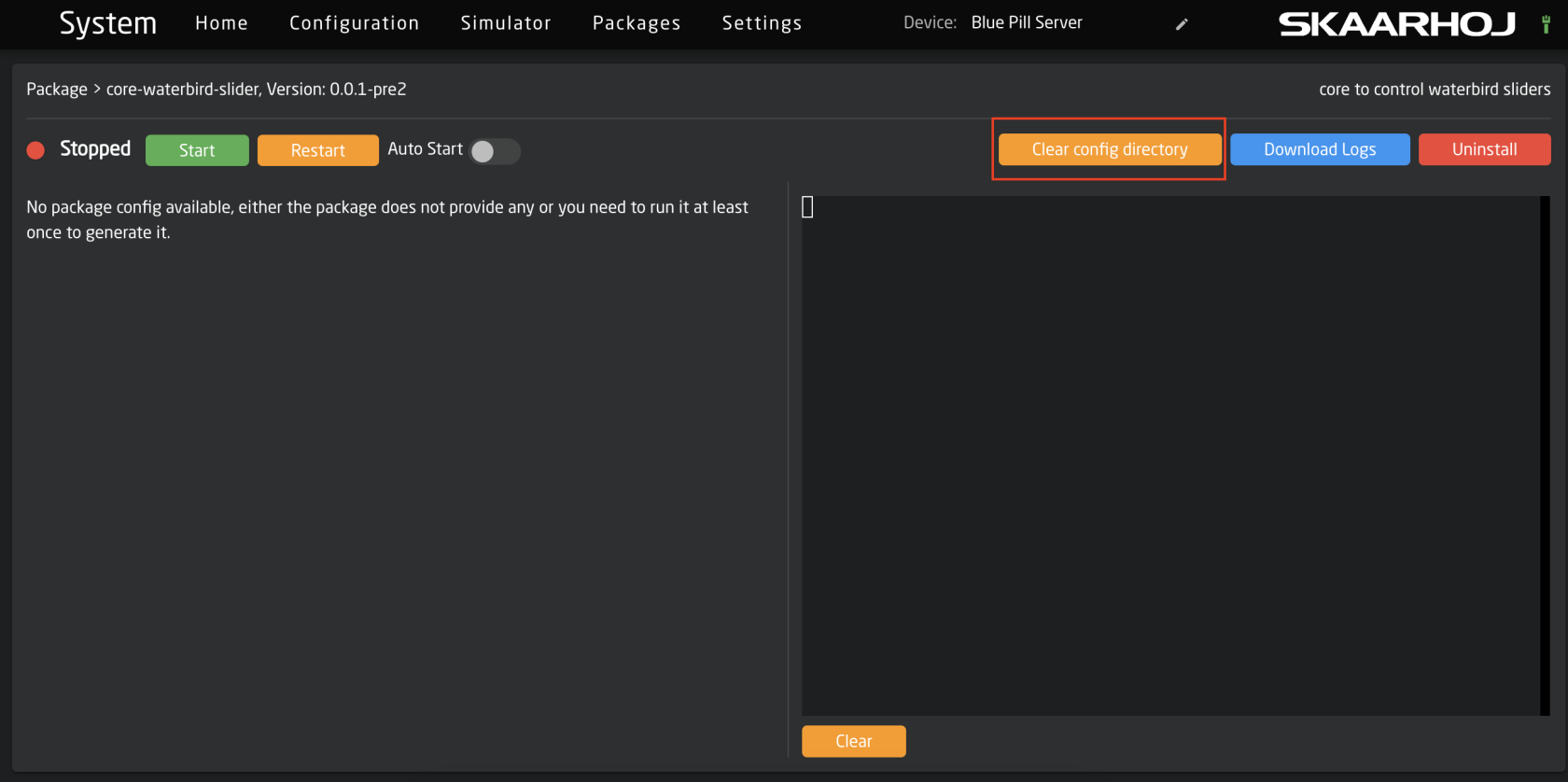
5\. After clearing the config directory, go back to the main packages page. Click on the status of the Reactor package, then press Restart.

[![Screenshot 2023-10-25 at 14.11.17.png](https://wiki.skaarhoj.com/uploads/images/gallery/2023-10/scaled-1680-/screenshot-2023-10-25-at-14-11-17.png)](https://wiki.skaarhoj.com/uploads/images/gallery/2023-10/screenshot-2023-10-25-at-14-11-17.png)
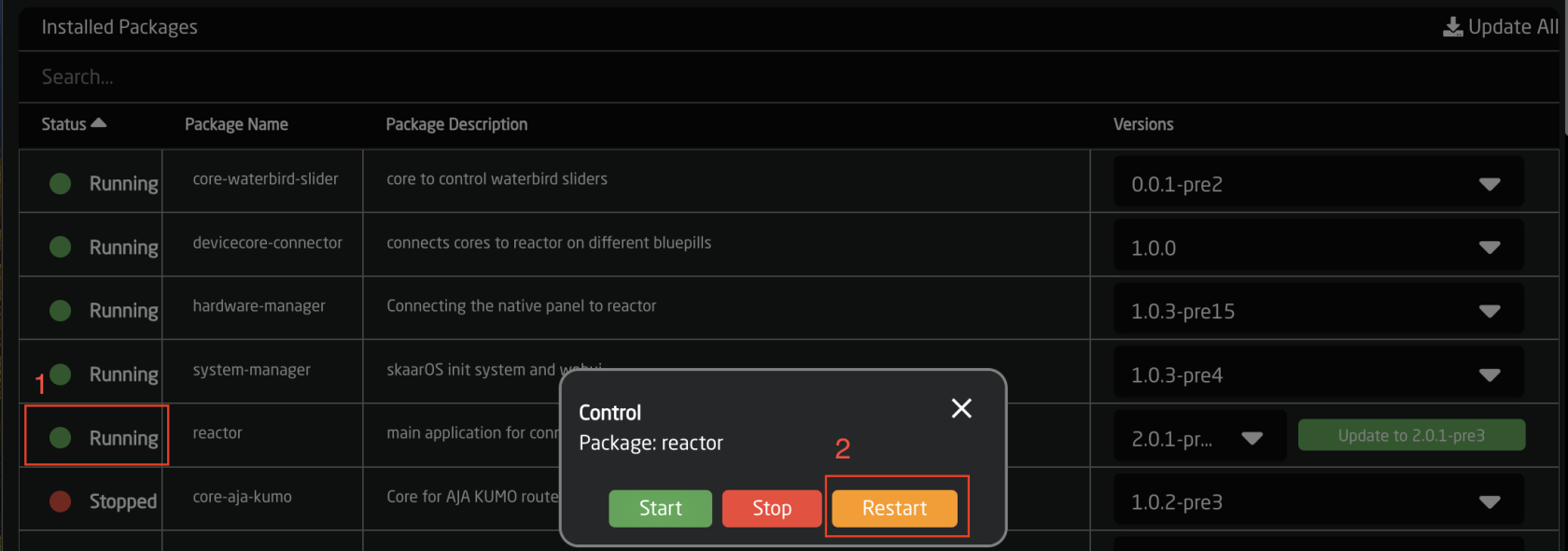
6\. The device should now be available to add in devices on the home page.

[![Screenshot 2023-10-25 at 14.15.08.png](https://wiki.skaarhoj.com/uploads/images/gallery/2023-10/scaled-1680-/screenshot-2023-10-25-at-14-15-08.png)](https://wiki.skaarhoj.com/uploads/images/gallery/2023-10/screenshot-2023-10-25-at-14-15-08.png)
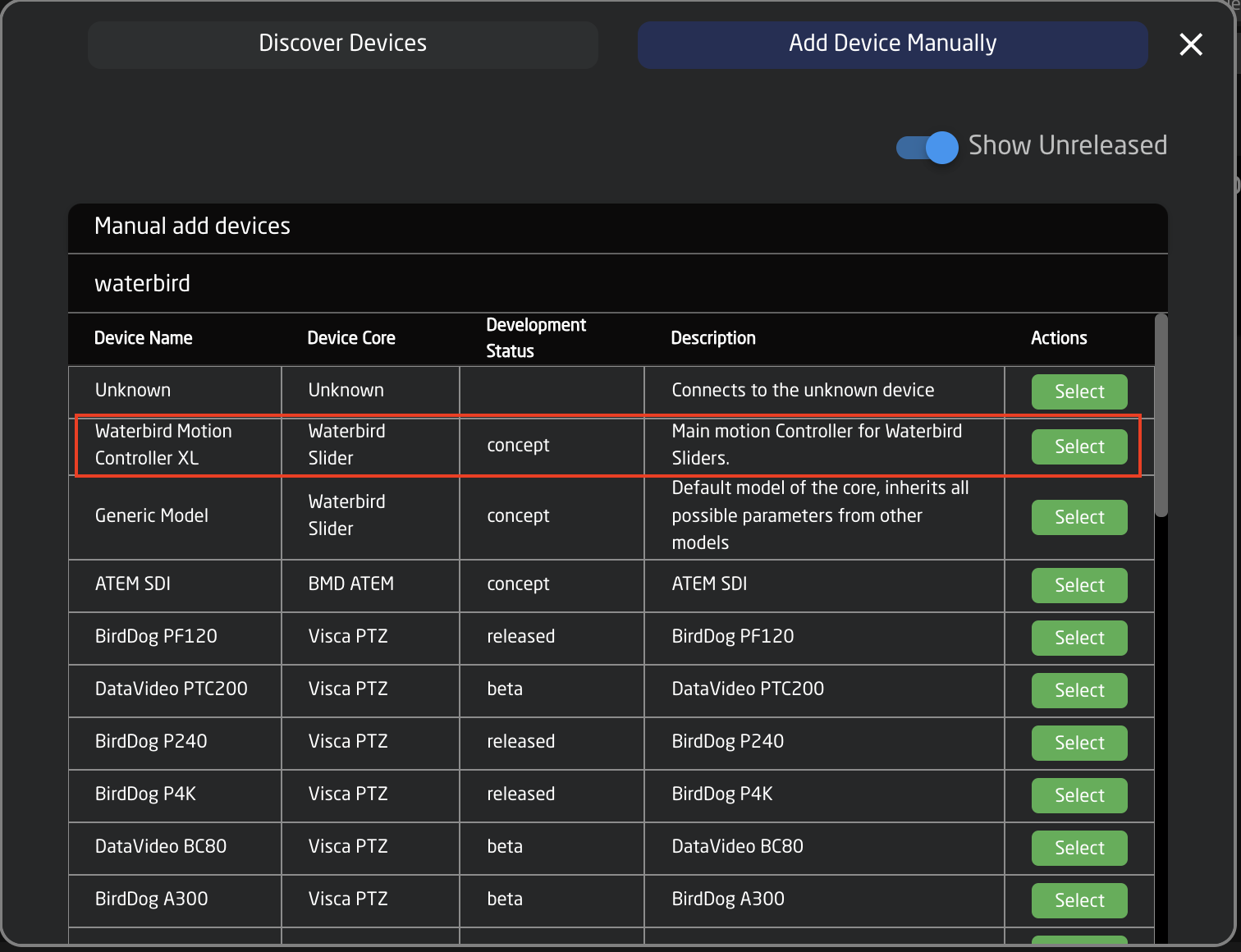
# Panel Not Displaying Connected Switcher

If after setting up your controller and connecting it to a switching device, your Skaarhoj panel is not properly showing the connection then it could be that the Device ID does not match the one the panel is looking for.

[![No switching.png](https://wiki.skaarhoj.com/uploads/images/gallery/2022-08/scaled-1680-/no-switching.png)](https://wiki.skaarhoj.com/uploads/images/gallery/2022-08/no-switching.png)
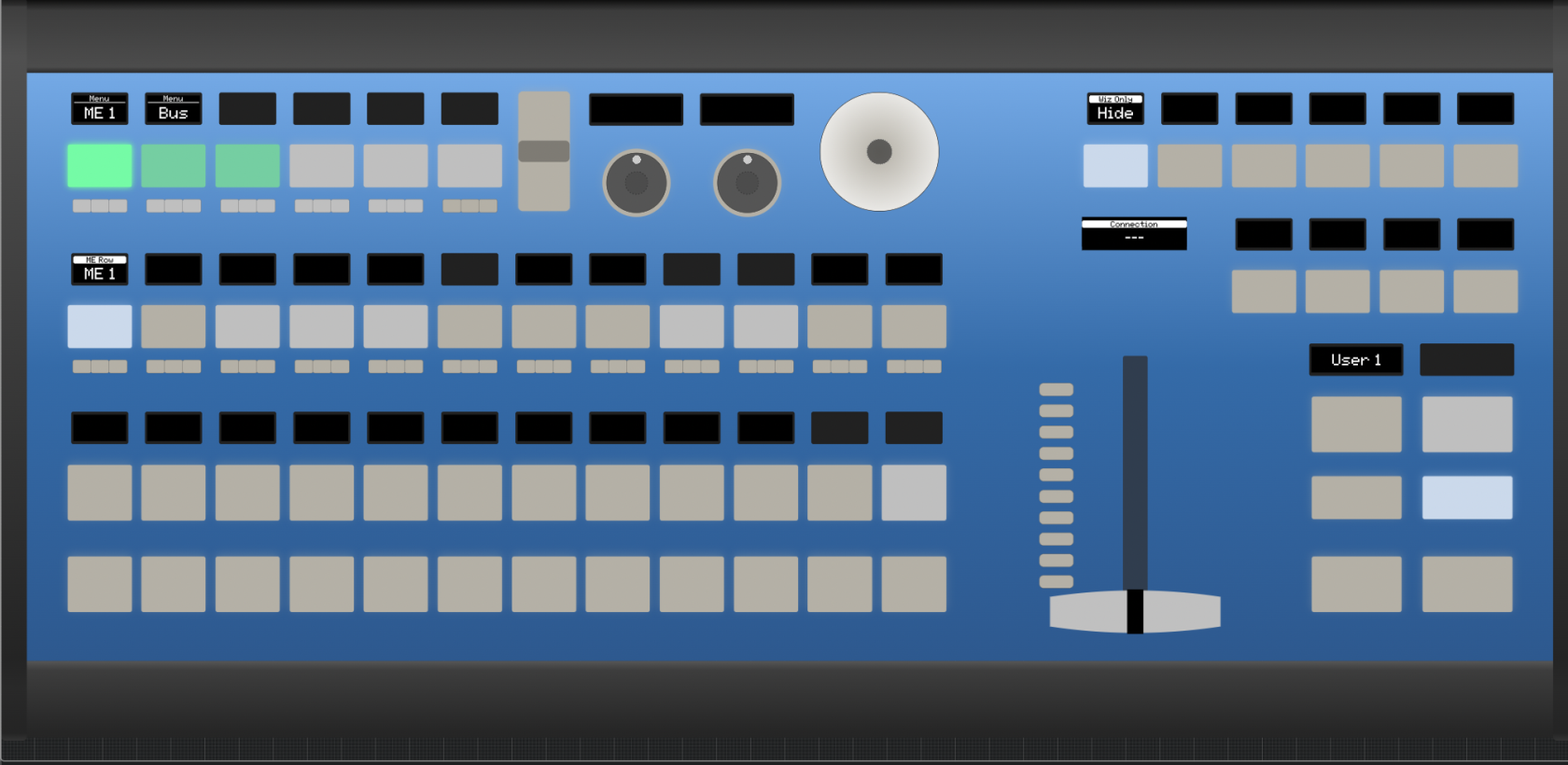
By default, the Skaarhoj Panel is going to try to connect to Device ID #1 for the specific device core that it is looking for. The device IDs are auto generated and unique per device cores (if you have two different devices cores, each can have a device ID #1).

[![Devices Connected.png](https://wiki.skaarhoj.com/uploads/images/gallery/2022-08/scaled-1680-/devices-connected.png)](https://wiki.skaarhoj.com/uploads/images/gallery/2022-08/devices-connected.png)
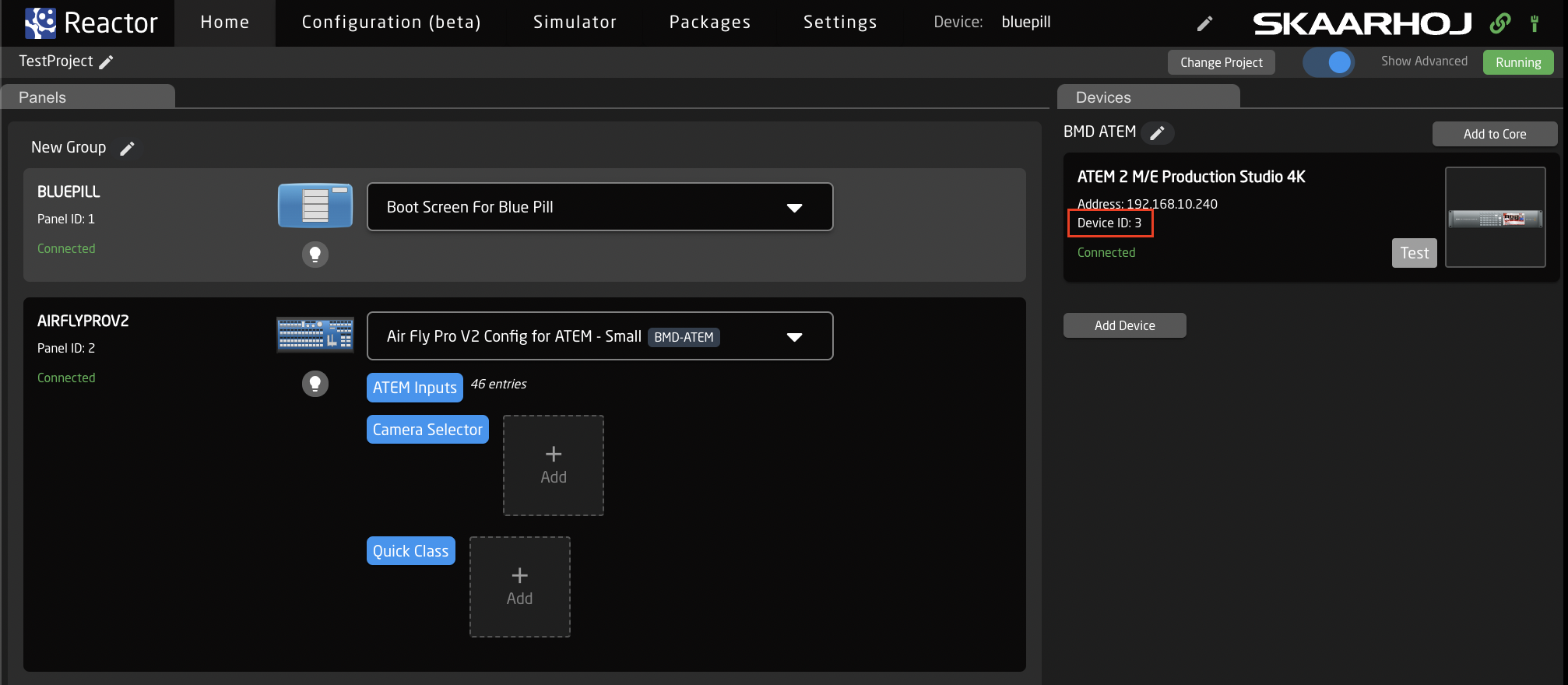
If you only have a single switching panel, set the device ID to 1 in the Device Details. This will bring the switcher up on the Skaarhoj panel.

[![device id.png](https://wiki.skaarhoj.com/uploads/images/gallery/2022-08/scaled-1680-/device-id.png)](https://wiki.skaarhoj.com/uploads/images/gallery/2022-08/device-id.png)
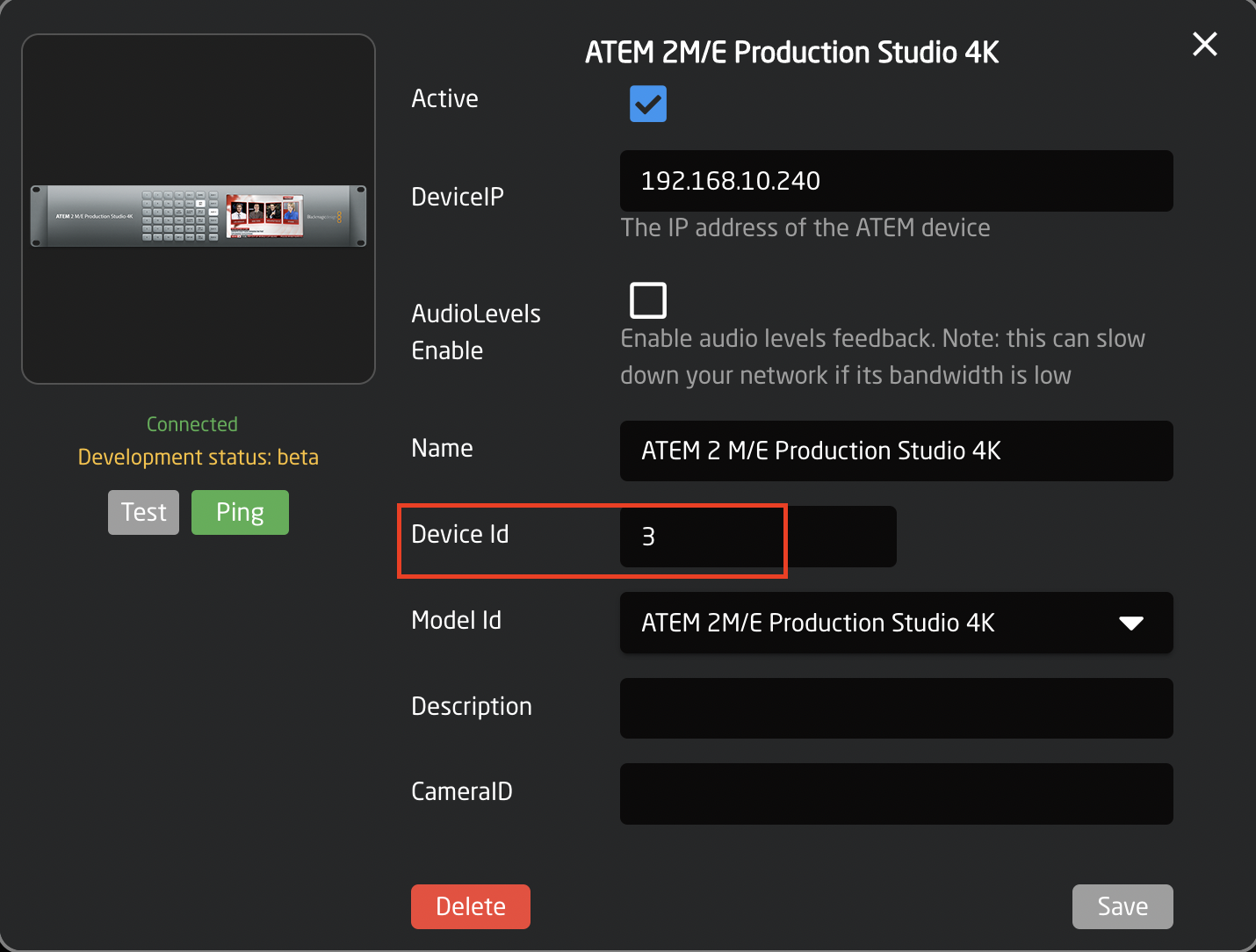
If you have multiple of the same device you want to be able to switch between, this can be done by accessing the ENG menu for your device. To find the ENG menu for you panel, please check out the instructions at:

[https://wiki.skaarhoj.com/books/blue-pill-reactor/page/engineering-menu](https://wiki.skaarhoj.com/books/blue-pill-reactor/page/engineering-menu)

For most switching panels, the ENG menu is accessed by holding down the SHIFT button on the panel then pressing the FTB button when it turns green.

Once the ENG menu is open you can switch between connected switcher using the Device ID selector button. [![Eng Menu.png](https://wiki.skaarhoj.com/uploads/images/gallery/2022-08/scaled-1680-/F8Seng-menu.png)](https://wiki.skaarhoj.com/uploads/images/gallery/2022-08/F8Seng-menu.png)
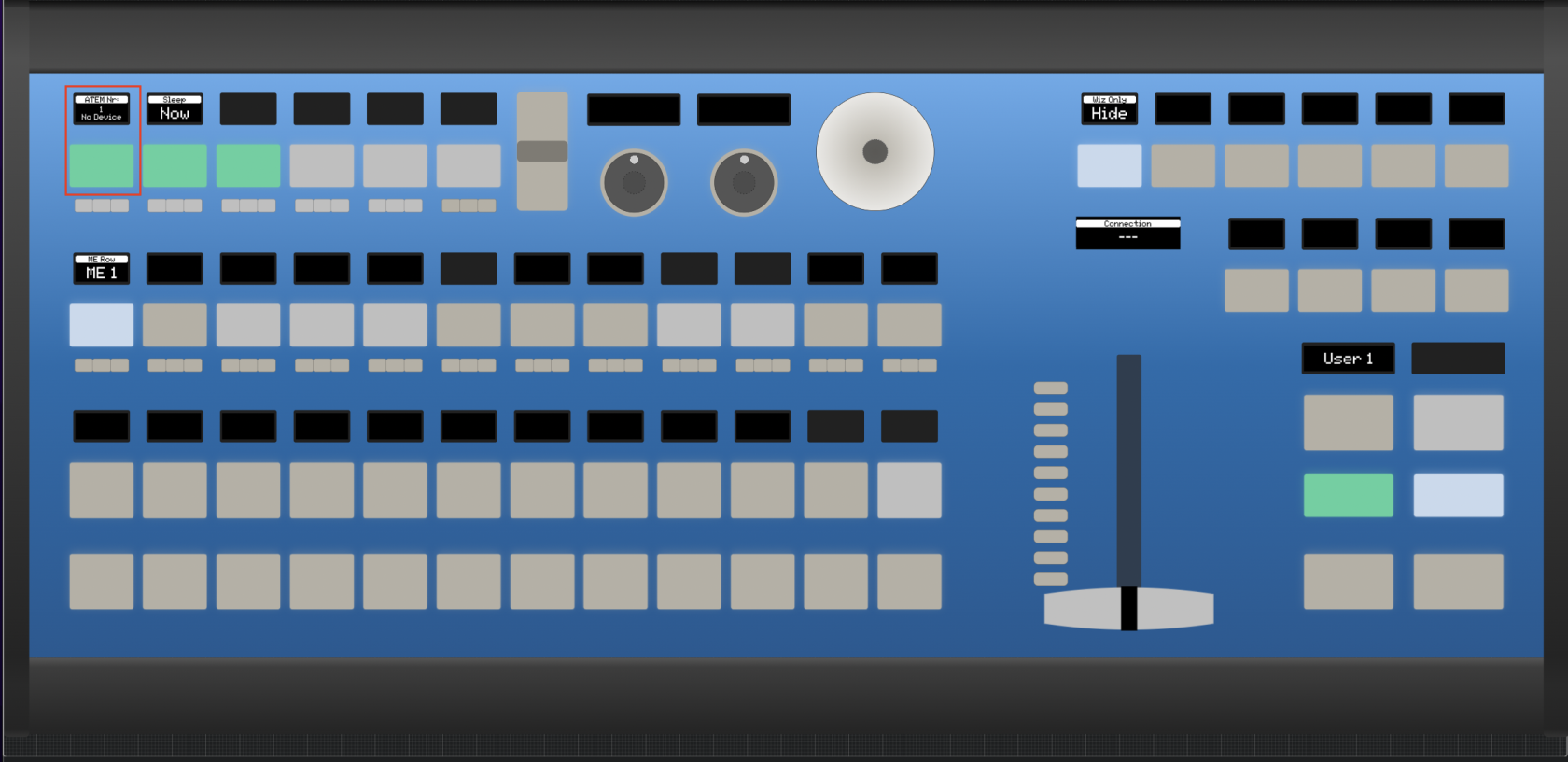
When the proper device number is selected, the panel should display everything correctly.

[![Connection.png](https://wiki.skaarhoj.com/uploads/images/gallery/2022-08/scaled-1680-/connection.png)](https://wiki.skaarhoj.com/uploads/images/gallery/2022-08/connection.png)
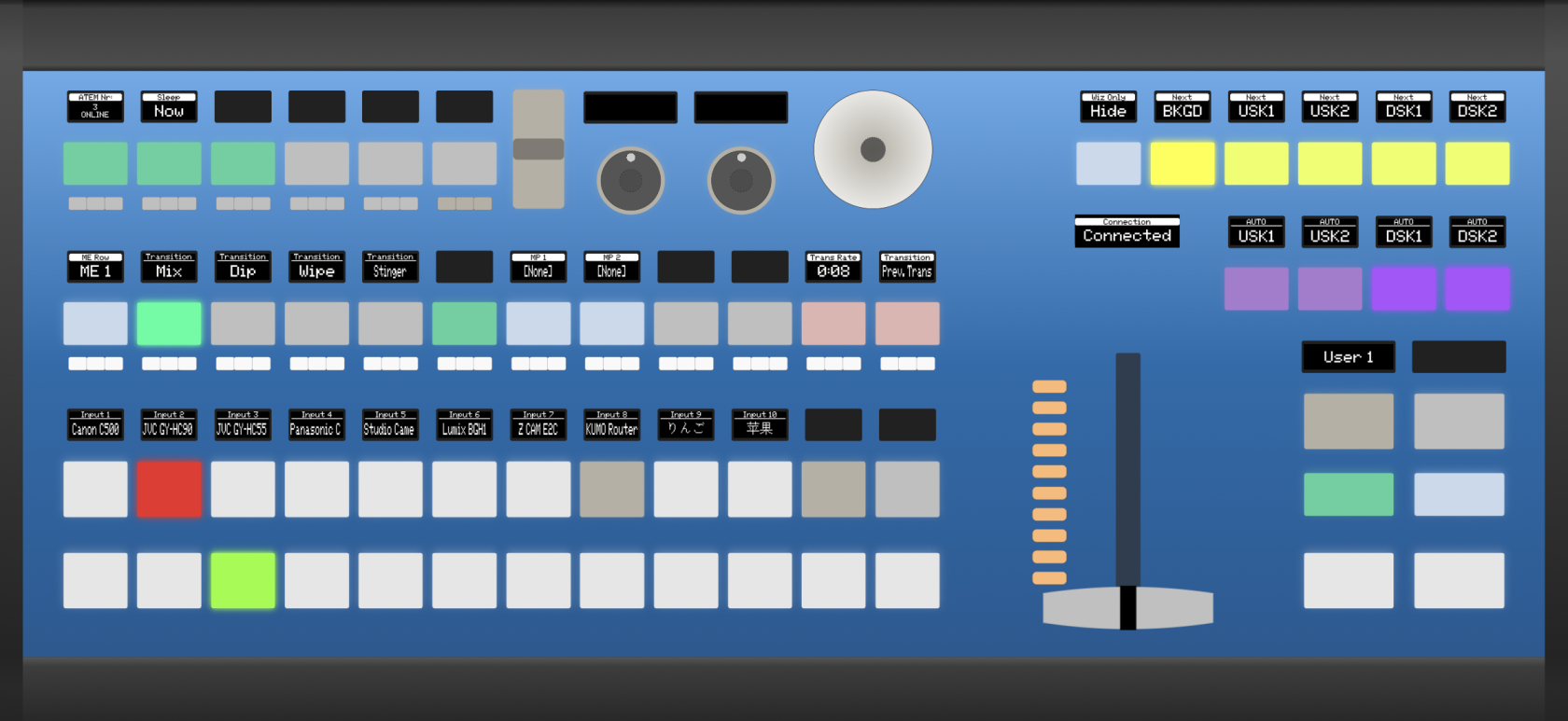
# PTZ Extreme - Joystick rotated 90°

A small batch of PTZ Extreme \[BPI\] have left factory with joystick rotated 90°.  
The fix for this is two steps:  
• add the serial number to our database of 'rotated joysticks'  
• connect device to internet and update it (it will automatically get a new profile)

#### Known serial numbers

<div id="bkmrk-in-our-database%2C-the">In our database, these serial numbers are currently registered for compensation of a rotated joystick:</div><div id="bkmrk-%E2%80%A2-449196-%E2%80%A2-449195-%E2%80%A2-"><div>• 449196</div><div>• 449195</div><div>• 449198</div><div>• 449194</div><div>• 449192</div><div>• 449167</div><div>• 449165</div><div>**• 449139 (didn't have it - &gt; fixed)**</div><div>**• 449137 (didn't have it - &gt; fixed)**</div><div>**• 449136 (didn't have it - &gt; fixed)**</div><div>• 449134</div><div>• 448975</div><div>• 448979</div><div>• 448978</div><div>• 448977</div><div>• 448974</div><div>• 448929</div><div>• 448926</div></div><div id="bkmrk-">  
</div><div id="bkmrk-notes%3A-the-three-hig">Notes: The three highlighted ones were changed in a customer remote session today from not having rotation to having rotation, so they are confirmed fixes.</div><div id="bkmrk-at-least-one-other-s">At least one other serial, 448976, was discovered to have the serial marked as 'rotated' but was a perfectly fine controller until the update screwed it up. This has been fixed.  
  
</div>#### Procedure to handle devices:

<div id="bkmrk---find-the-serial-nu">- Find the serial number</div>#####   
Joystick function correct -&gt; Is the serial number on the list?

<div id="bkmrk-yes--%3E-danger%2C-do-no"><span style="color: #ff2600;">Yes -&gt; DANGER, do NOT update the hardware profile, that will install a hardware profile with a rotated joystick for a controller that doesn't need it. Ask SKAARHOJ to remove that serial number from the list first before you can safely update.</span></div><div id="bkmrk-no--%3E-no-problem%2C-yo"><span style="color: #77bb41;">  
No -&gt; No problem, you can update the hardware profile without risk. The controller is "normal"</span></div>#####   
Joystick is rotated -&gt; Is the serial number on the list?

<div id="bkmrk-yes--%3E-great%2C-just-u"><span style="color: #77bb41;">Yes -&gt; Great, just update the hardware profile, enter the Settings tab and refresh a few times while the controller is online (green tower in top corner), go and restart the hardware manager and you should find that the joystick works right again</span></div><div id="bkmrk-no--%3E-contact-skaarh"><span style="color: #ff2600;">  
No -&gt; Contact SKAARHOJ and tell them that </span><span style="color: rgb(224, 62, 45);">this serial needs to be on the list because it has a rotated joystick. After the serial has been confirmed added to the list, you can proceed as with the "Yes" above</span>.</div><div id="bkmrk--2"></div>#### Offline devices:

<div id="bkmrk-the-%27rotate%27-hardwar">The 'rotate' hardware profile is sent from the server to devices with serial numbers on the list. For this reason you should follow the procedure above - and then get the device online.  
We do not use a downloadable hardware profile file as this could be spread to all devices.</div><div id="bkmrk--3"></div>

# Reflash Blue Pill devices

If your Blue Pill device has become totally unresponsive - you cannot contact it in any way - the solution may be to 'reflash' the entire system software.

The reflash is not to be done as a factory reset and can only be done after other troubleshooting steps have failed. If you are unable to access the panel's web interface, try accessing it via &lt;IP Address&gt;/system/settings. This would open up additional troubleshooting steps. Additionally it may be possible to access the panel's web interface by enabling the panel's [wifi access point ](https://wiki.skaarhoj.com/books/blue-pill-reactor/page/accessing-blue-pill-1be)

<p class="callout info">NOTE: For this procedure you need the assistance from SKAARHOJ Customer Support !</p>

<p class="callout info">Please contact: <support@skaarhoj.com></p>

<p class="callout warning">ALERT: This procedure will ERASE ALL configurations on the device.</p>

<p class="callout warning">**It is not possible to roll back SkaarOS versions, even by reflashing.** </p>

**REQUIREMENTS**

You need the following software:  
• BalenaEtcher version 1.18 or later [https://www.balena.io/etcher/](https://www.balena.io/etcher/) (free download)  
• skaarOS image file (this can only be obtained from SKAARHOJ Customer Support)  
• The device needs internet access after the procedure to sync its settings with our server

**PROCEDURE**

1. disconnect power to turn the panel off
2. make sure you have the 'skaarOS' image file ready on your Desktop (you get this file from SKAARHOJ Customer Support)
3. open BalenaEtcher app (remember, this must be version 1.18 or later)
4. click 'Flash from file' &gt; select the 'skaaros\_xxxx' image file from the Desktop (pic 1 and 2)
5. click 'Select target'
6. connect Blue Pill device to computer via micro USB &gt; hold paperclip pressed in the config button on the device &gt; connect power (PSU or PoE) to device (pic 3)
7. when you see 'Compute Module' in BalenaEtcher, remove paperclip
8. select 'Compute Module' &gt; click 'Select' (pic 4)
9. click 'Flash!' &gt; enter computer password &gt; wait approx 5 min (pic 5)
10. after flash procedure is done, quit BalenaEtcher
11. disconnect the micro USB and power from Blue Pill device &gt; connect power again to reboot (will take approx 0,5-1 min)

The Blue Pill device should start up, and display the DHCP IP address it can be found at.  
\- For initial setup we recommend a network with DHCP server -

<table border="1" id="bkmrk-important%3A-after-ref" style="border-collapse: collapse; width: 100%; border-width: 1px; background-color: rgb(194, 224, 244); border-color: rgb(53, 152, 219);"><colgroup><col style="width: 99.881%;"></col></colgroup><tbody><tr><td style="border-color: rgb(53, 152, 219);"> **Important:** After reflash the Blue Pill device must be restarted (done in step 10).  
At this time it **MUST have internet access**. This is needed to get basic settings from our server.  
  
</td></tr></tbody></table>

[![balena.png](https://wiki.skaarhoj.com/uploads/images/gallery/2022-10/scaled-1680-/RB7balena.png)](https://wiki.skaarhoj.com/uploads/images/gallery/2022-10/RB7balena.png)

[![file.jpg](https://wiki.skaarhoj.com/uploads/images/gallery/2022-10/scaled-1680-/file.jpg)](https://wiki.skaarhoj.com/uploads/images/gallery/2022-10/file.jpg)

![clip.jpg](https://wiki.skaarhoj.com/uploads/images/gallery/2022-10/scaled-1680-/clip.jpg)

[![select.jpg](https://wiki.skaarhoj.com/uploads/images/gallery/2022-10/scaled-1680-/select.jpg)](https://wiki.skaarhoj.com/uploads/images/gallery/2022-10/select.jpg)

[![flashing.jpg](https://wiki.skaarhoj.com/uploads/images/gallery/2022-10/scaled-1680-/flashing.jpg)](https://wiki.skaarhoj.com/uploads/images/gallery/2022-10/flashing.jpg)

---

### **OLD INSTRUCTIONS : IF DEVICE NOT FOUND**

\- You will most likely NOT follow these instructions anymore -  
If the 'Compute Module' is not found in step 6 please follow these steps:

1. quit BalenaEtcher app
2. open SKAARHOJ Updater app
3. press keys '\[Shift\]\[Option\]\[Cmd\] R' (Mac) or '\[Shift\]\[Ctrl\]\[Alt\] R' (Win) to enable the 'Reflash BluePill-Inside controllers' mode (pic 1)
4. connect Blue Pill device to computer via micro USB &gt; hold paperclip pressed in the configuration hole on the device &gt; connect power (PSU or PoE)
5. when you see the device is connected (device x-xx.x is ready) you release the paperclip (pic 2)
6. return to the procedure guide above. Follow all steps, except step 5 and 6, where you insert paperclip and power up device

[![updater-app.jpg](https://wiki.skaarhoj.com/uploads/images/gallery/2022-10/scaled-1680-/updater-app.jpg)](https://wiki.skaarhoj.com/uploads/images/gallery/2022-10/updater-app.jpg)

[![updater-app-ready.jpg](https://wiki.skaarhoj.com/uploads/images/gallery/2022-10/scaled-1680-/updater-app-ready.jpg)](https://wiki.skaarhoj.com/uploads/images/gallery/2022-10/updater-app-ready.jpg)

# Reset and Reboot Procedures

Have you tried turning the device off and on again?

  
Sometimes all that is needed is a reboot. This can be done for the skaarOS / the full Blue Pill / or per package.

<details id="bkmrk-no-access-to-blue-pi"><summary>No Access to Blue Pill Web Interface</summary>

If you are not able to access Reactor webpage at all, then you have two options:

1. Press paperclip into 'Config Button' hole on back of device &gt; hold it for 5 secs.  
    This will reset IP address to DHCP - and enable the Wifi module, allowing you to access it using a wireless connection. Please read the wiki 'Accessing Blue Pill &gt; Wi-Fi Access Point' for this: [https://wiki.skaarhoj.com/books/blue-pill-reactor/page/accessing-blue-pill-1be](https://wiki.skaarhoj.com/books/blue-pill-reactor/page/accessing-blue-pill-1be)
2. Do a complete Reflash of the software.  
    This will replace the entire software-image-file. A guide is provided in this article: [https://wiki.skaarhoj.com/books/blue-pill-reactor/page/reflash-blue-pill-devices](https://wiki.skaarhoj.com/books/blue-pill-reactor/page/reflash-blue-pill-devices)

</details><details id="bkmrk-blue-pill-reboot-on-"><summary>Blue Pill Reboot</summary>

On the Settings page, click the Reboot button in the System Information section. This will restart the entire unit.

![Screenshot 2024-10-11 at 11.19.52.png](https://wiki.skaarhoj.com/uploads/images/gallery/2024-10/scaled-1680-/screenshot-2024-10-11-at-11-19-52.png)

</details><details id="bkmrk-package-restart-you-"><summary>Package Restart</summary>

You can restart an individual package on the Packages page. Click on the status of the package (being Running or Stopped) to be restarted.

![packages-page.jpg](https://wiki.skaarhoj.com/uploads/images/gallery/2024-04/scaled-1680-/y2Npackages-page.jpg)

Then click 'Restart' in the pop-up.

![restart.png](https://wiki.skaarhoj.com/uploads/images/gallery/2022-08/scaled-1680-/restart.png)

</details><details id="bkmrk-reactor-reset-note%3A-"><summary>Reactor Reset</summary>

<table border="1" id="bkmrk-note%3A-this-will-eras" style="border-collapse: collapse; width: 100%; border-width: 2px; border-color: #E03E2D;"><colgroup><col style="width: 99.8765%;"></col></colgroup><tbody><tr><td style="border-width: 2px; border-color: rgb(224, 62, 45);">Note: This will ERASE ALL CONFIGURATIONS on the device. This does not change network settings.  
Please export any project files you do not want to lose. </td></tr></tbody></table>

**Regular** **Reset**

In most instances when someone wants to do a Factory Reset, they only need to do a Reactor Reset. This would erase all projects and configuration changes. It would not delete the downloaded device cores or change the network settings.

One the Home page, click the 'Settings' icon. Then in the pop up click 'Full Delete' next to Reset Reactor.

![Screenshot 2024-10-11 at 11.47.34.png](https://wiki.skaarhoj.com/uploads/images/gallery/2024-10/scaled-1680-/screenshot-2024-10-11-at-11-47-34.png)

![Screenshot 2024-10-11 at 11.48.11.png](https://wiki.skaarhoj.com/uploads/images/gallery/2024-10/scaled-1680-/screenshot-2024-10-11-at-11-48-11.png)

**Crashed Reactor Reset**

If a configuration has crashed Reactor, and you can only access the 'Packages' and 'Settings' pages, you may need to erase the content of the configuration directory.

On the Packages pages, click 'Reactor'. Then click 'Clear config directory'. Finally click 'Confirm and restart'.

[![clear-config.jpg](https://wiki.skaarhoj.com/uploads/images/gallery/2024-04/scaled-1680-/clear-config.jpg)](https://wiki.skaarhoj.com/uploads/images/gallery/2024-04/clear-config.jpg)

</details><details id="bkmrk-factory-reset-note%3A-"><summary>Factory Reset</summary>

<table border="1" id="bkmrk-note%3A-this-will-eras-0" style="border-collapse: collapse; width: 100%; border-width: 2px; border-color: #E03E2D;"><colgroup><col style="width: 99.8765%;"></col></colgroup><tbody><tr><td style="border-width: 2px; border-color: rgb(224, 62, 45);">Note: This will ERASE EVERYTHING you have done on the Blue Pill device including network settings.</td></tr></tbody></table>

If you think you really messed up the Blue Pill in some way, you can do a Factory Reset of the unit. Please reach out to Skaarhoj Support for further information. This is generally a last resort step and is not advised in most cases.

</details>

# Unable to Login In

"If you enter the correct username and password, but are left in a loop on the login screen."

Some Blue Pill devices with older software can have a bug, where the login page seems to be stuck. The solution to this is simply to use another web browser - ie. if you use Google Chrome, switch to Safari or Firefox - or vice versa.

The bug has been fixed in our later software. So, when you have successfully logged in, please goto the Settings tab and update the software.

Follow this guide to update the software:  
[https://wiki.skaarhoj.com/books/blue-pill-reactor/page/update-software](https://wiki.skaarhoj.com/books/blue-pill-reactor/page/update-software)

# Unable to Update Device Cores/Packages/OS

Scenario:

When trying to do an update or load a new Device Core, Package, or Operating System (update only) an error occurs or the update will not progress.

Fix 1: Check that the BP has proper access to our servers.

1\. Check there is internet connection available for your Blue Pill device

2\. For updates the Blue Pill needs to be able to access [pkg.skaarhoj.com](http://pkg.skaarhoj.com/) on https to do updates via port 443 (standard)

3\. The Blue Pill also uses a https call to [https://www.ntppool.org](https://www.ntppool.org/) to determine if it can reach the internet, so if that is not possible.

4\. The blue Pill also needs to have access to network time via NTP, otherwise it might fail to validate the authenticity of update.

<div class="ql-block" data-block-id="block-ded22ead-30d5-4ab2-93a2-09cae5918dc9" id="bkmrk-%C2%A0-%C2%A0-%C2%A0-%C2%A0-%C2%A0--ntp-requi"> -NTP requires full bidirectional access to the privileged UDP port 123.</div><div class="ql-block" data-block-id="block-8d816936-261a-46ab-91ff-857d59cf1ed6" id="bkmrk-%C2%A0-%C2%A0-%C2%A0-%C2%A0-%C2%A0--the-ntp-s"> -The NTP servers we are using are:</div><div class="ql-block" data-block-id="block-8d816936-261a-46ab-91ff-857d59cf1ed6" id="bkmrk-%C2%A0-%C2%A0-%C2%A0-%C2%A0-%C2%A0-%C2%A0-%C2%A0-%C2%A0-%C2%A00.p">[ 0.pool.ntp.org](http://0.pool.ntp.org/)</div><div class="ql-block" data-block-id="block-341ab591-7b84-4e28-a59a-53be3370179c" id="bkmrk-%C2%A0-%C2%A0-%C2%A0-%C2%A0-%C2%A0-%C2%A0-%C2%A0-%C2%A0-%C2%A01.p">[ 1.pool.ntp.org](http://1.pool.ntp.org/)</div><div class="ql-block" data-block-id="block-a08f5872-9e81-49af-9d7d-13bce64ad45f" id="bkmrk-%C2%A0-%C2%A0-%C2%A0-%C2%A0-%C2%A0-%C2%A0-%C2%A0-%C2%A0-%C2%A02.p">[ 2.pool.ntp.org](http://2.pool.ntp.org/)</div><div class="ql-block" data-block-id="block-edf08169-9626-4541-96d6-89d8c19d70c3" id="bkmrk-%C2%A0-%C2%A0-%C2%A0-%C2%A0-%C2%A0-%C2%A0-%C2%A0-%C2%A0-3.po">[ 3.pool.ntp.org](http://3.pool.ntp.org/)</div><div class="ql-block" data-block-id="block-edf08169-9626-4541-96d6-89d8c19d70c3" id="bkmrk-"></div><div class="ql-block" data-block-id="block-edf08169-9626-4541-96d6-89d8c19d70c3" id="bkmrk-fix-2%3A-download-the-">Fix 2: Download the cores to load manually onto the Blue Pill from [https://devices.skaarhoj.com/](https://devices.skaarhoj.com/) </div><div class="ql-block" data-block-id="block-edf08169-9626-4541-96d6-89d8c19d70c3" id="bkmrk--0"></div><div class="ql-block" data-block-id="block-edf08169-9626-4541-96d6-89d8c19d70c3" id="bkmrk--6"><div class="ql-block" data-block-id="block-edf08169-9626-4541-96d6-89d8c19d70c3" id="bkmrk-1.-for-connected-dev">1. Navigate to the device you are trying to control. Click on **STABLE** or **PRE**  will download the latest stable or prerelease version, as indicated in the version number within the parenthesis. </div></div>![Screenshot 2024-02-06 at 11.35.31 AM.png](https://wiki.skaarhoj.com/uploads/images/gallery/2024-02/scaled-1680-/screenshot-2024-02-06-at-11-35-31-am.png)

<div class="ql-block" data-block-id="block-edf08169-9626-4541-96d6-89d8c19d70c3" id="bkmrk-2.-to-download-the-c"><div class="ql-block align-left" data-block-id="block-edf08169-9626-4541-96d6-89d8c19d70c3" id="bkmrk-3.-to-download-the-c">2. To download the core packages and OS that make the Blue Pill work, select **Other Packages** at the top of the page. </div></div>![Screenshot 2024-02-06 at 11.38.43 AM.png](https://wiki.skaarhoj.com/uploads/images/gallery/2024-02/scaled-1680-/screenshot-2024-02-06-at-11-38-43-am.png)

<div class="ql-block" data-block-id="block-edf08169-9626-4541-96d6-89d8c19d70c3" id="bkmrk-both-the-latest-prer"><div class="ql-block align-left" data-block-id="block-edf08169-9626-4541-96d6-89d8c19d70c3" id="bkmrk-both-the-latest-prer-1">Both the latest prerelease and stable release are available as options. </div></div>![Screenshot 2024-02-06 at 11.39.49 AM.png](https://wiki.skaarhoj.com/uploads/images/gallery/2024-02/scaled-1680-/screenshot-2024-02-06-at-11-39-49-am.png)

<div class="ql-block" data-block-id="block-edf08169-9626-4541-96d6-89d8c19d70c3" id="bkmrk--7"></div><div class="ql-block" data-block-id="block-edf08169-9626-4541-96d6-89d8c19d70c3" id="bkmrk-the-specific-version">The specific version will be in the file name. </div><div class="ql-block" data-block-id="block-edf08169-9626-4541-96d6-89d8c19d70c3" id="bkmrk--8">[![version name.png](https://wiki.skaarhoj.com/uploads/images/gallery/2022-07/scaled-1680-/version-name.png)](https://wiki.skaarhoj.com/uploads/images/gallery/2022-07/version-name.png)</div><div class="ql-block" data-block-id="block-edf08169-9626-4541-96d6-89d8c19d70c3" id="bkmrk--9"></div><div class="ql-block" data-block-id="block-edf08169-9626-4541-96d6-89d8c19d70c3" id="bkmrk-4.-all-of-the-packag">3. All of the packages are loaded onto the Blue Pill or Blue Pill Inside device via the Packages page. </div><div class="ql-block" data-block-id="block-edf08169-9626-4541-96d6-89d8c19d70c3" id="bkmrk--10">![packages page redo.png](https://wiki.skaarhoj.com/uploads/images/gallery/2022-07/scaled-1680-/packages-page-redo.png)</div><div class="ql-block" data-block-id="block-edf08169-9626-4541-96d6-89d8c19d70c3" id="bkmrk-at-the-very-bottom-i">At the very bottom is an option to **Upload and Install Package**</div><div class="ql-block" data-block-id="block-edf08169-9626-4541-96d6-89d8c19d70c3" id="bkmrk--11">**![manually load.png](https://wiki.skaarhoj.com/uploads/images/gallery/2022-07/scaled-1680-/manually-load.png)**</div><div class="ql-block" data-block-id="block-edf08169-9626-4541-96d6-89d8c19d70c3" id="bkmrk-then-select-the-pack">Then select the package from your computer for uploading. All packages will be **.ipks** files except for SkaarOS which will be a **.raucb** file. If the file names do not have the proper file type extension please and therefor fail to load, please contact <support@skaarhoj.com> </div><div class="ql-block" data-block-id="block-edf08169-9626-4541-96d6-89d8c19d70c3" id="bkmrk--12">![select package.png](https://wiki.skaarhoj.com/uploads/images/gallery/2022-07/scaled-1680-/select-package.png)</div><div class="ql-block" data-block-id="block-edf08169-9626-4541-96d6-89d8c19d70c3" id="bkmrk--13">![confirm upload.png](https://wiki.skaarhoj.com/uploads/images/gallery/2022-07/scaled-1680-/confirm-upload.png)</div><div class="ql-block" data-block-id="block-edf08169-9626-4541-96d6-89d8c19d70c3" id="bkmrk--14">  
</div><div class="ql-block" data-block-id="block-edf08169-9626-4541-96d6-89d8c19d70c3" id="bkmrk-please-note%3A-blue-pi"></div><p class="callout info">Please note: Blue Pill devices running Skaar OS v0.11 or earlier and/or init v0.1.23 or earlier may have trouble loading packages from offline. Please contact support if you experience any difficulty. </p>

<div class="ql-block" data-block-id="block-edf08169-9626-4541-96d6-89d8c19d70c3" id="bkmrk--4"></div>

# UniSketch Panel Displaying Weird in Simulator Tab

If your UniSketch panel is displaying weird in the Simulator tab, it may be due to old firmware on the UniSketch panel.

For compatibility with Blue Pill, a UniSketch panel needs to be running UniSketch v2.5.14 or later. Starting with UniSketch v2.5.18, there were changes made to the Raw Panel implementation which is used to connect to the Blue Pill. These changes allow for better hardware mapping inside Blue Pill.

Please make sure your UniSketch panel is running the latest UniSketch release version using the Firmware Updater Application.

https://www.skaarhoj.com/support/firmware-updater

# Uploading Device Cores/Packages/OS from Offline

<div class="ql-block" data-block-id="block-edf08169-9626-4541-96d6-89d8c19d70c3" id="bkmrk-all-device-cores%2C-pa">All device cores, packages, and SkaarOS can be loaded from offline onto the Blue Pill. The individual package files are all available at [https://devices.skaarhoj.com/](https://devices.skaarhoj.com/) and are loaded via your Blue Pill device's web interface. </div><div class="ql-block" data-block-id="block-edf08169-9626-4541-96d6-89d8c19d70c3" id="bkmrk-1.-for-connected-dev"><div class="ql-block" data-block-id="block-edf08169-9626-4541-96d6-89d8c19d70c3"></div><div class="ql-block" data-block-id="block-edf08169-9626-4541-96d6-89d8c19d70c3" id="bkmrk-1.-for-connected-dev-1">1. For connected device related device cores, on [https://devices.skaarhoj.com/](https://devices.skaarhoj.com/), navigate to the device you are trying to control. Click on **STABLE** or **PRE**  will download the latest stable or prerelease version, as indicated in the version number within the parenthesis. </div></div>![Screenshot 2024-02-06 at 11.35.31 AM.png](https://wiki.skaarhoj.com/uploads/images/gallery/2024-02/scaled-1680-/screenshot-2024-02-06-at-11-35-31-am.png)

<div class="ql-block" data-block-id="block-edf08169-9626-4541-96d6-89d8c19d70c3" id="bkmrk-2.-to-download-the-c"><div class="ql-block" data-block-id="block-edf08169-9626-4541-96d6-89d8c19d70c3" id="bkmrk-2.-to-download-the-l"></div><div class="ql-block align-left" data-block-id="block-edf08169-9626-4541-96d6-89d8c19d70c3" id="bkmrk-3.-to-download-the-c">2. To download the core packages and OS that make the Blue Pill work, select **Other Packages** at the top of the page. </div></div>![Screenshot 2024-02-06 at 11.38.43 AM.png](https://wiki.skaarhoj.com/uploads/images/gallery/2024-02/scaled-1680-/screenshot-2024-02-06-at-11-38-43-am.png)

<div class="ql-block" data-block-id="block-edf08169-9626-4541-96d6-89d8c19d70c3" id="bkmrk-both-the-latest-prer"><div class="ql-block" data-block-id="block-edf08169-9626-4541-96d6-89d8c19d70c3" id="bkmrk--4">  
</div><div class="ql-block align-left" data-block-id="block-edf08169-9626-4541-96d6-89d8c19d70c3" id="bkmrk-both-the-latest-prer-1">Both the latest prerelease and stable release are available as options. </div></div>![Screenshot 2024-02-06 at 11.39.49 AM.png](https://wiki.skaarhoj.com/uploads/images/gallery/2024-02/scaled-1680-/screenshot-2024-02-06-at-11-39-49-am.png)

<div class="ql-block" data-block-id="block-edf08169-9626-4541-96d6-89d8c19d70c3" id="bkmrk--5"></div><div class="ql-block" data-block-id="block-edf08169-9626-4541-96d6-89d8c19d70c3" id="bkmrk--6">  
</div><div class="ql-block" data-block-id="block-edf08169-9626-4541-96d6-89d8c19d70c3" id="bkmrk-the-specific-version">The specific version will be in the file name. </div><div class="ql-block" data-block-id="block-edf08169-9626-4541-96d6-89d8c19d70c3" id="bkmrk--7">![version name.png](https://wiki.skaarhoj.com/uploads/images/gallery/2022-07/scaled-1680-/version-name.png)</div><div class="ql-block" data-block-id="block-edf08169-9626-4541-96d6-89d8c19d70c3" id="bkmrk--8">  
</div><div class="ql-block" data-block-id="block-edf08169-9626-4541-96d6-89d8c19d70c3" id="bkmrk-4.-all-of-the-packag">3. All of the packages are loaded onto the Blue Pill or Blue Pill Inside device via the Packages page. </div><div class="ql-block" data-block-id="block-edf08169-9626-4541-96d6-89d8c19d70c3" id="bkmrk--9">![packages page redo.png](https://wiki.skaarhoj.com/uploads/images/gallery/2022-07/scaled-1680-/packages-page-redo.png)</div><div class="ql-block" data-block-id="block-edf08169-9626-4541-96d6-89d8c19d70c3" id="bkmrk-at-the-very-bottom-i">At the very bottom is an option to **Upload and Install Package**</div><div class="ql-block" data-block-id="block-edf08169-9626-4541-96d6-89d8c19d70c3" id="bkmrk--10">**![manually load.png](https://wiki.skaarhoj.com/uploads/images/gallery/2022-07/scaled-1680-/manually-load.png)**</div><div class="ql-block" data-block-id="block-edf08169-9626-4541-96d6-89d8c19d70c3" id="bkmrk-then-select-the-pack">Then select the package from your computer for uploading. All packages will be **.ipks** files except for SkaarOS which will be a **.raucb** file. If the file names do not have the proper file type extension please and therefor fail to load, please contact <support@skaarhoj.com> </div><div class="ql-block" data-block-id="block-edf08169-9626-4541-96d6-89d8c19d70c3" id="bkmrk--11">![select package.png](https://wiki.skaarhoj.com/uploads/images/gallery/2022-07/scaled-1680-/select-package.png)</div><div class="ql-block" data-block-id="block-edf08169-9626-4541-96d6-89d8c19d70c3" id="bkmrk--12">![confirm upload.png](https://wiki.skaarhoj.com/uploads/images/gallery/2022-07/scaled-1680-/confirm-upload.png)</div><div class="ql-block" data-block-id="block-edf08169-9626-4541-96d6-89d8c19d70c3" id="bkmrk--13"></div><div class="ql-block" data-block-id="block-edf08169-9626-4541-96d6-89d8c19d70c3" id="bkmrk--14"></div><p class="callout info">Please note: Blue Pill devices running Skaar OS v0.11 or earlier and/or init v0.1.23 or earlier may have trouble loading packages from offline. Please contact support if you experience any difficulty. </p>

# Updating Software & Licenses

Follow this guide to update system software and packages

# Installing a License on your SKAARHOJ Controller

#### If the controller is online

If your controller is online and has internet access through its network, it will automatically detect and apply any assigned licenses. You can confirm that your controller is connected to the internet by looking for a green icon in the upper right corner next to the SKAARHOJ logo.

![Screenshot 2025-06-23 at 2.29.39 PM.png](https://wiki.skaarhoj.com/uploads/images/gallery/2025-06/scaled-1680-/screenshot-2025-06-23-at-2-29-39-pm.png)

Please navigate to the Settings tab and refresh the page once or twice. After doing so, you should see the license displayed in the license drop-down menu.

[![image.png](https://wiki.skaarhoj.com/uploads/images/gallery/2023-11/scaled-1680-/xlsimage.png)](https://wiki.skaarhoj.com/uploads/images/gallery/2023-11/xlsimage.png)
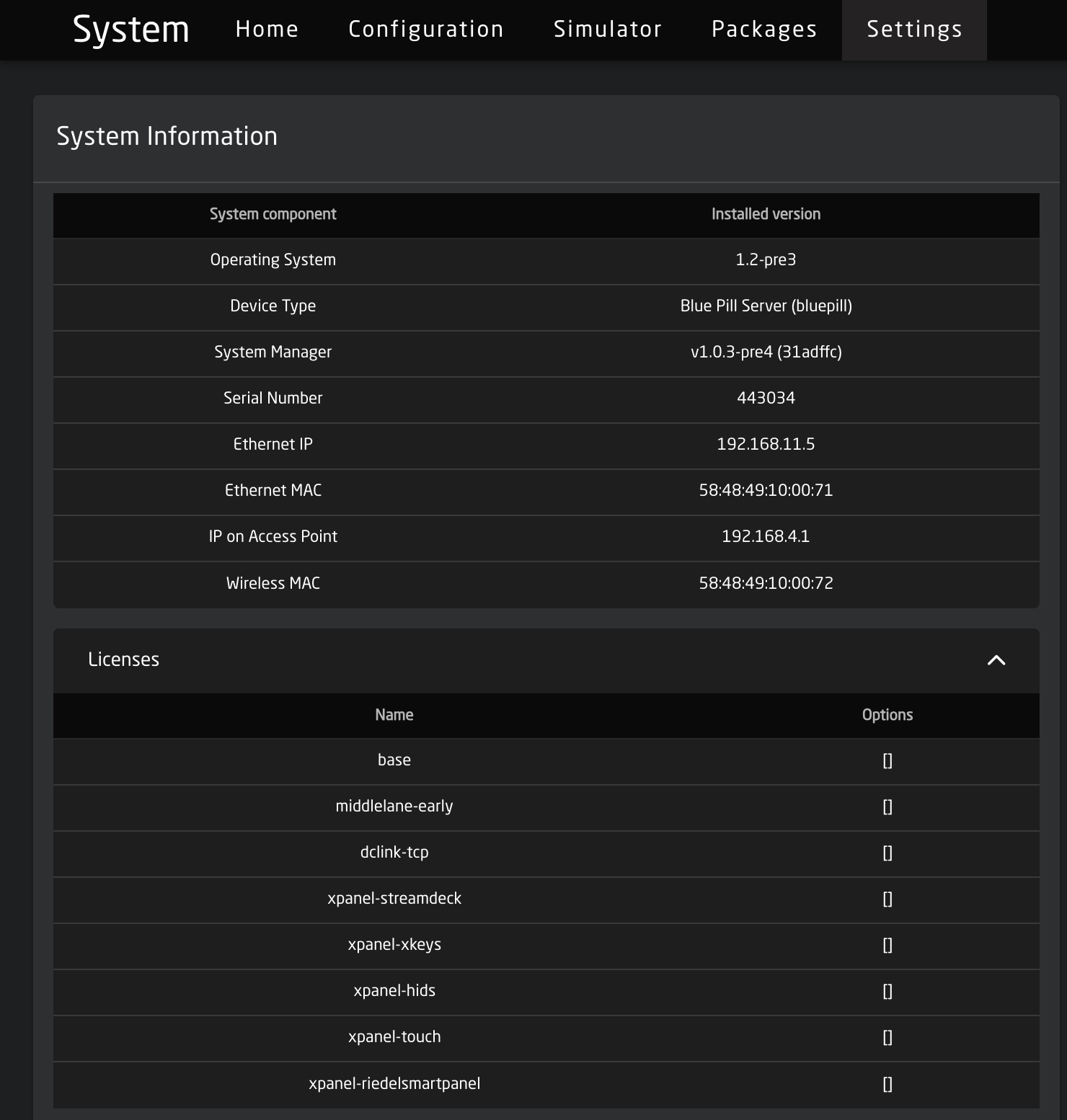
#### If the controller is offline

You can obtain a license in the form of a file, which you can upload via the Packages tab. If you haven't received your license file and need it for installation, contact <support@skaarhoj.com> with the panel's serial number for assistance.

To upload a license file, use the Upload button located at the bottom of the Packages tab, similar to how you would upload a software update on offline controllers.

[![image.png](https://wiki.skaarhoj.com/uploads/images/gallery/2023-11/scaled-1680-/flmimage.png)](https://wiki.skaarhoj.com/uploads/images/gallery/2023-11/flmimage.png)

# Rolling Back Updates

**Online Method**

Rolling back firmware package updates can be down via the Packages page if your device has connection to the internet.

<p class="callout info">It is not possible to roll back SkaarOS. </p>

In the drop down next to the device core package you can select from previously released versions.

[![Screenshot 2023-07-13 at 1.10.01 PM.png](https://wiki.skaarhoj.com/uploads/images/gallery/2023-07/scaled-1680-/screenshot-2023-07-13-at-1-10-01-pm.png)](https://wiki.skaarhoj.com/uploads/images/gallery/2023-07/screenshot-2023-07-13-at-1-10-01-pm.png)
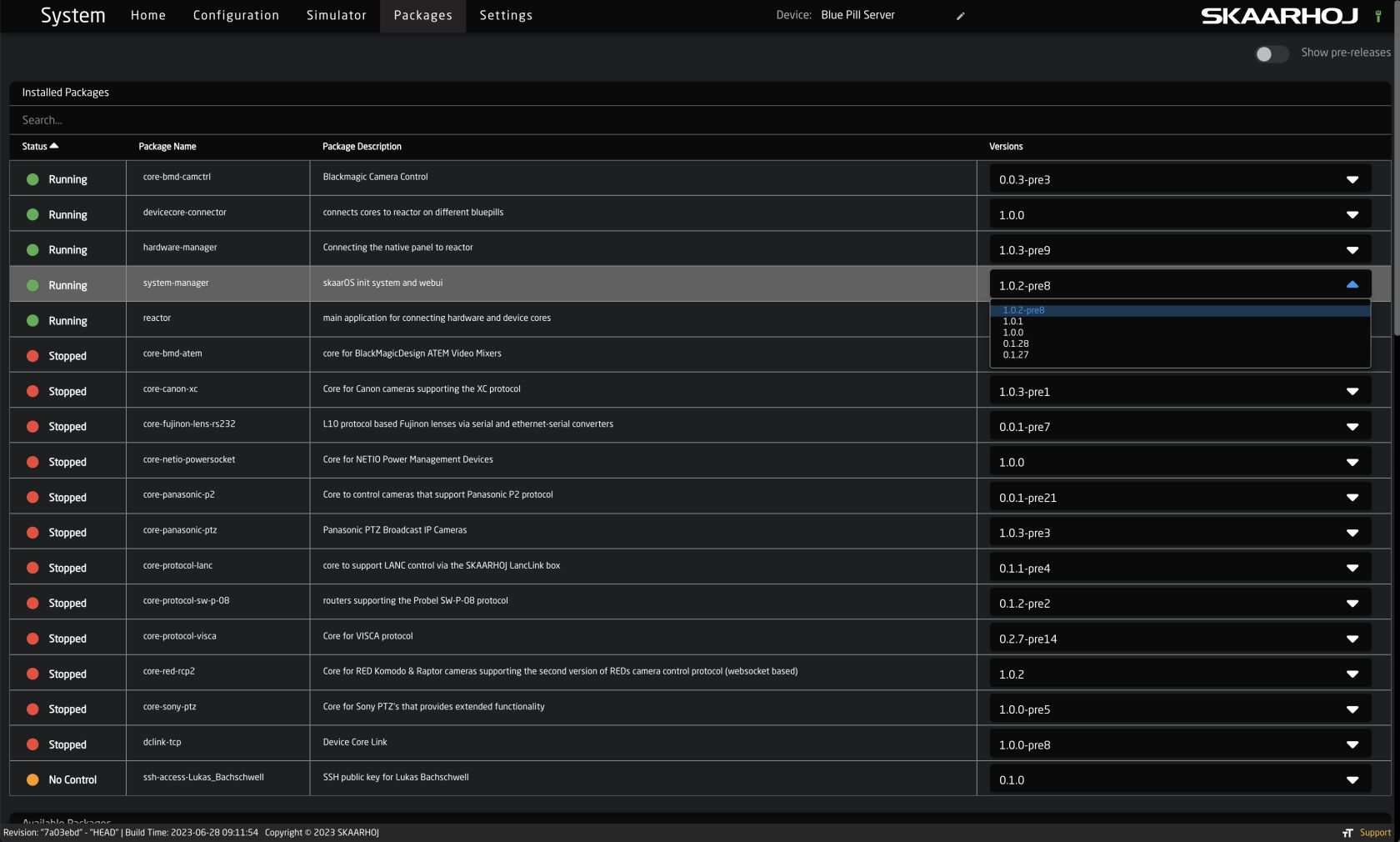
Once selected, click Install

[![Screenshot 2023-07-13 at 1.14.24 PM.png](https://wiki.skaarhoj.com/uploads/images/gallery/2023-07/scaled-1680-/screenshot-2023-07-13-at-1-14-24-pm.png)](https://wiki.skaarhoj.com/uploads/images/gallery/2023-07/screenshot-2023-07-13-at-1-14-24-pm.png)

To select from a previous pre-released version of the package, in the upper right corner, enable the Show pre-release toggle.

[![Screenshot 2023-07-13 at 1.10.31 PM.png](https://wiki.skaarhoj.com/uploads/images/gallery/2023-07/scaled-1680-/screenshot-2023-07-13-at-1-10-31-pm.png)](https://wiki.skaarhoj.com/uploads/images/gallery/2023-07/screenshot-2023-07-13-at-1-10-31-pm.png)
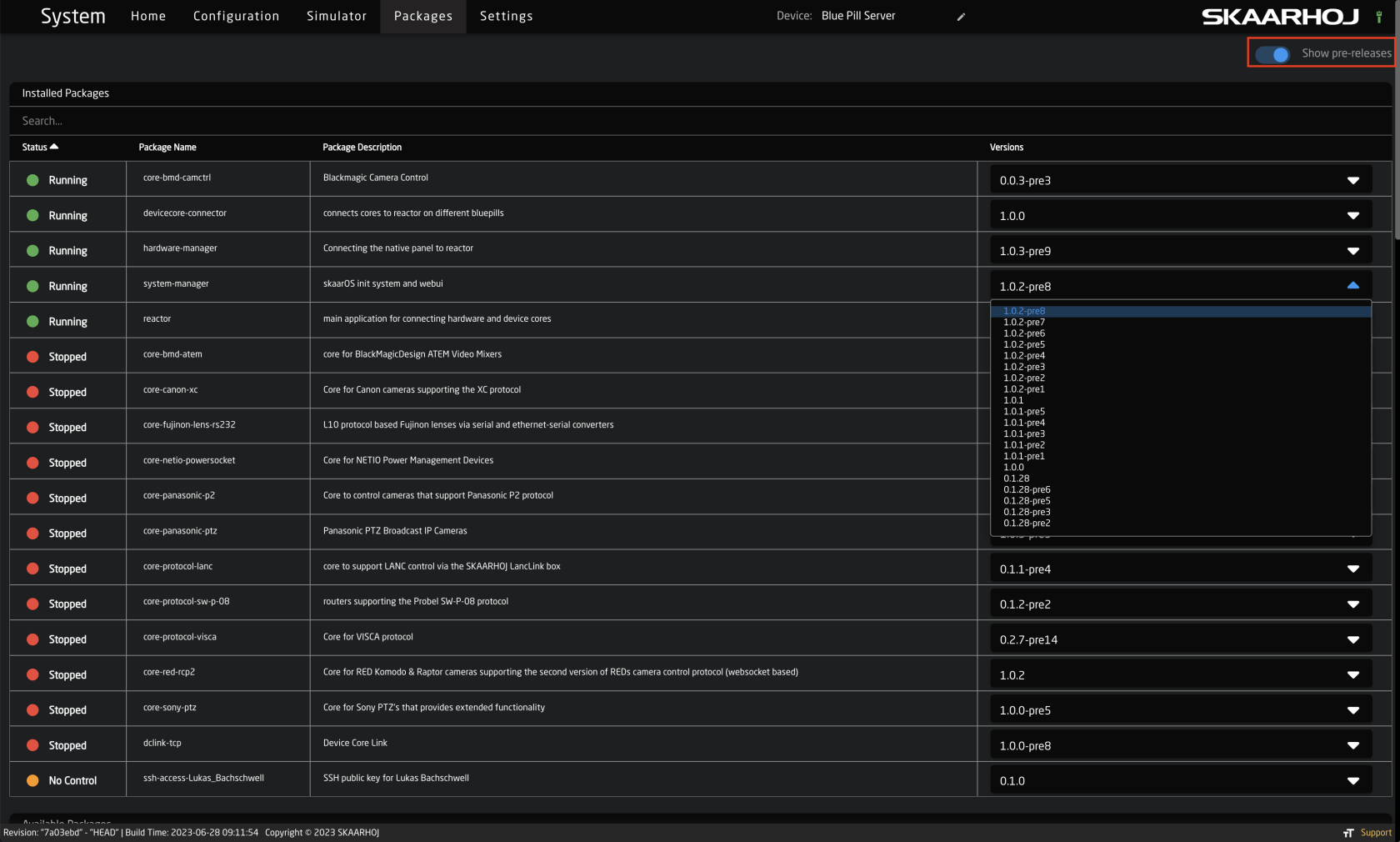
**Offline Method**

If internet connection is not an option, it is possible to download the latest stable release and prerelease version from our site [devices.skaarhoj.com](https://wiki.skaarhoj.com/devices.skaarhoj.com)

Navigate to the device core package you need based on the device you are trying to control. Then select either the Pre or Stable version.

<p class="callout info">Main Blue Pill firmware packages and the operating system can be found under Other Packages:  
[https://devices.skaarhoj.com/otherpackages](https://devices.skaarhoj.com/otherpackages)  
</p>

[![Screenshot 2023-07-13 at 1.21.13 PM.png](https://wiki.skaarhoj.com/uploads/images/gallery/2023-07/scaled-1680-/screenshot-2023-07-13-at-1-21-13-pm.png)](https://wiki.skaarhoj.com/uploads/images/gallery/2023-07/screenshot-2023-07-13-at-1-21-13-pm.png)

For some select packages it is possible to download more versions offline. Packages with that option will have an All Versions option.

[![Screenshot 2023-07-13 at 1.10.53 PM.png](https://wiki.skaarhoj.com/uploads/images/gallery/2023-07/scaled-1680-/screenshot-2023-07-13-at-1-10-53-pm.png)](https://wiki.skaarhoj.com/uploads/images/gallery/2023-07/screenshot-2023-07-13-at-1-10-53-pm.png)
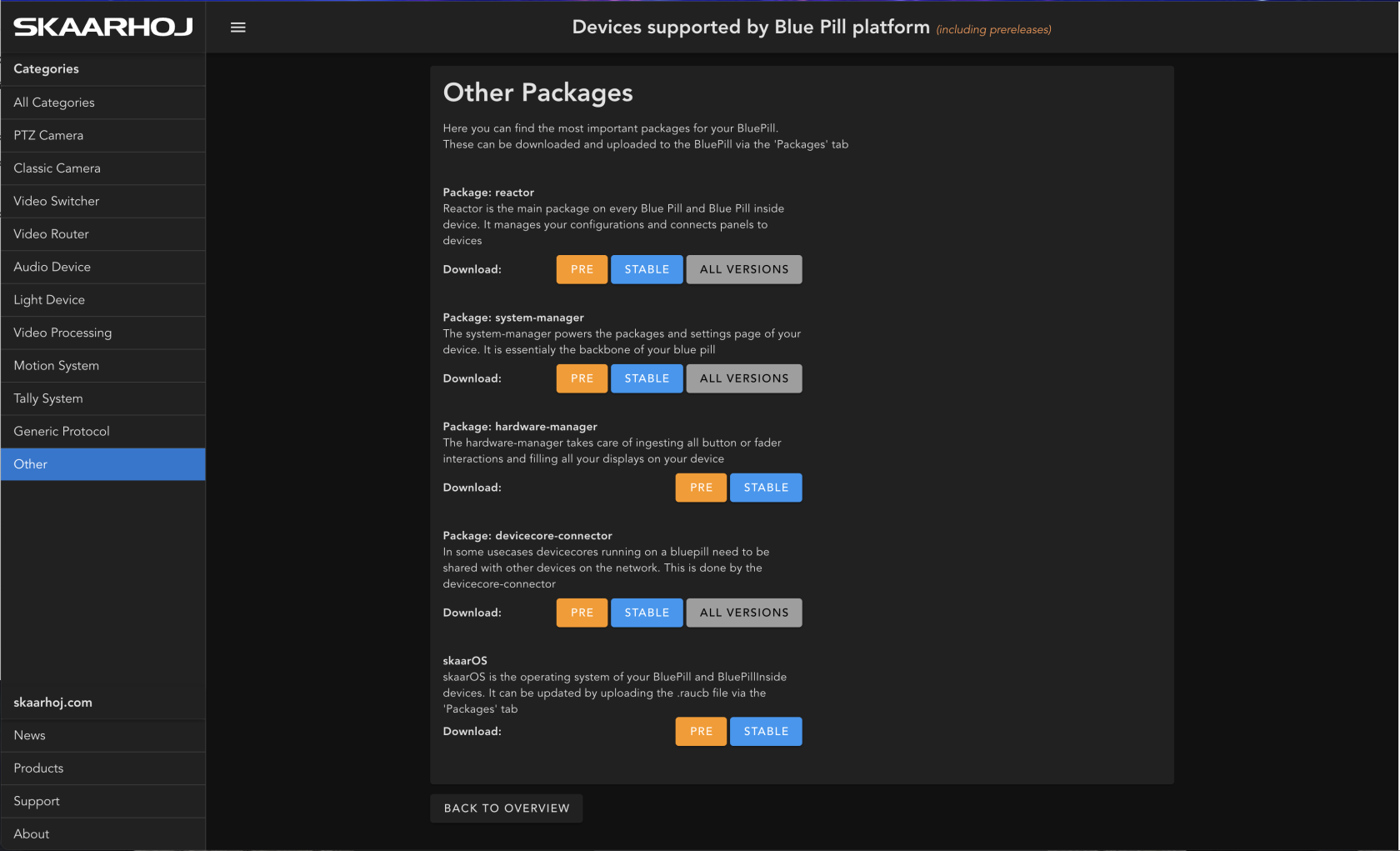
Select the desired version then download.

[![Screenshot 2023-07-13 at 1.11.39 PM.png](https://wiki.skaarhoj.com/uploads/images/gallery/2023-07/scaled-1680-/screenshot-2023-07-13-at-1-11-39-pm.png)](https://wiki.skaarhoj.com/uploads/images/gallery/2023-07/screenshot-2023-07-13-at-1-11-39-pm.png)
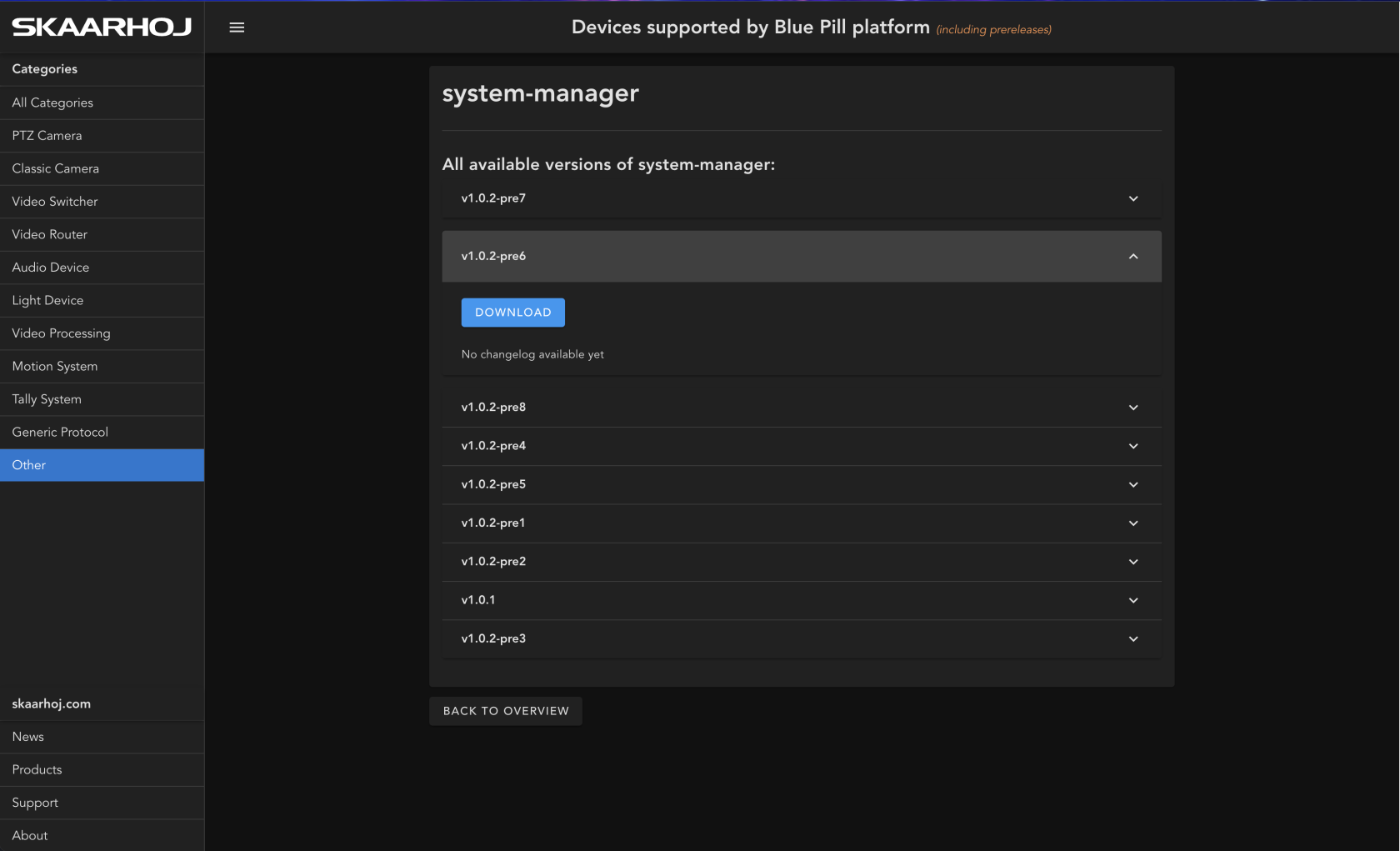
The .ipks package can then be uploaded to the Blue Pill device from the bottom of the Packages page.

[![Screenshot 2023-07-13 at 1.25.27 PM.png](https://wiki.skaarhoj.com/uploads/images/gallery/2023-07/scaled-1680-/screenshot-2023-07-13-at-1-25-27-pm.png)](https://wiki.skaarhoj.com/uploads/images/gallery/2023-07/screenshot-2023-07-13-at-1-25-27-pm.png)

# Update Software

Follow this guide to update the Blue Pill software.

<p class="callout info">If the Blue Pill device does not have access to the internet, the option to download the core via the web browser should be available. </p>

If Blue Pill is unable to communicate with our server, please read the troubleshooting chapter:  
[https://wiki.skaarhoj.com/books/blue-pill-reactor/page/unable-to-update-device-corespackagesos](https://wiki.skaarhoj.com/books/blue-pill-reactor/page/unable-to-update-device-corespackagesos)

#### **Update Operating Packages**

Open the 'Packages' page.  
Locate the 4 lines: 'hardware-manager' / 'system-manager' / 'reactor' / 'SkaarOS\*  
If a green 'Update' button is displayed to the right of any of them, this means there is an update available.  
If so, please click the 'Update' button for each of them or the Update All button   
( After the update, if they do not display 'Running' you must click the 'Stopped' text and select 'Restart'. )

<p class="callout info">System Manager and SkaarOS do not update via the Update All option. These need to be updated individually. </p>

<p class="callout info">It is recommended to update SkaarOS last as it requires a reboot. </p>
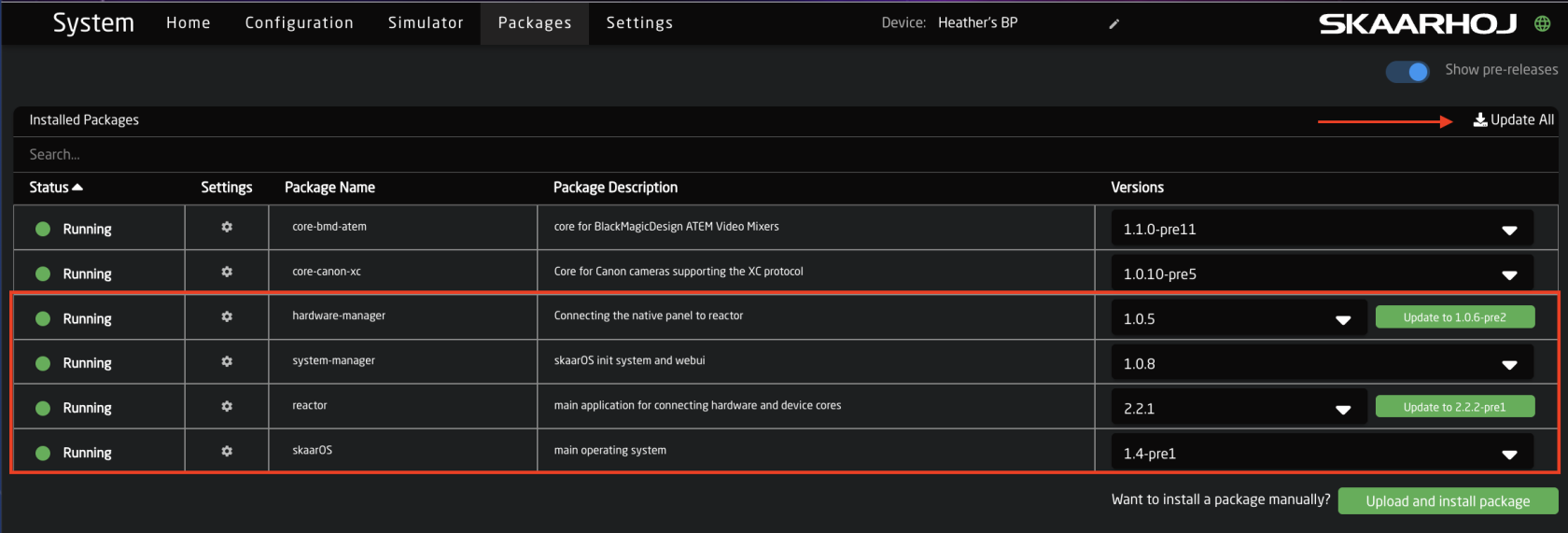
![Screenshot 2025-06-24 at 14.58.31.png](https://wiki.skaarhoj.com/uploads/images/gallery/2025-06/scaled-1680-/screenshot-2025-06-24-at-14-58-31.png)

#### **Update Pre-Release Versions**

Show Pre-Release must be enabled to see pre-release versions on the Packages page.  
This is done by clicking on the toggle at the top of the Packages page.  
( This only affect the current web browser in the current session. It will be off next time you log in. )

[![Show PreRelease.png](https://wiki.skaarhoj.com/uploads/images/gallery/2022-08/scaled-1680-/show-prerelease.png)](https://wiki.skaarhoj.com/uploads/images/gallery/2022-08/show-prerelease.png)
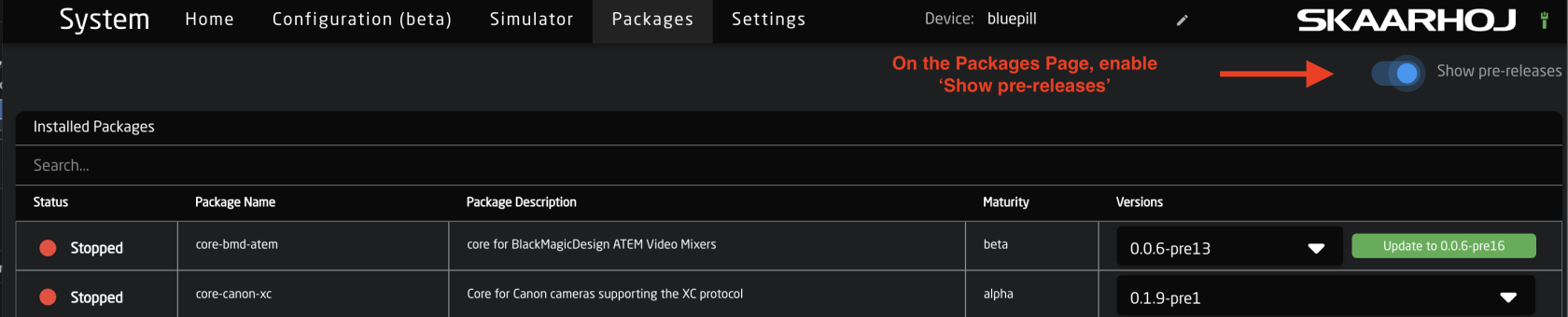
#### **White list our server URL's**

In order to download software, Blue Pill must have network access to these 3 domains:

• [https://pkg.skaarhoj.com](https://pkg.skaarhoj.com)  
• [https://init.skaarhoj.com](https://init.skaarhoj.com)  
• [https://lb1.skaarhoj.com](https://lb1.skaarhoj.com)

# Uploading Device Cores/Packages/OS from Offline

<div class="ql-block" data-block-id="block-edf08169-9626-4541-96d6-89d8c19d70c3" id="bkmrk-all-device-cores%2C-pa">All device cores, packages, and SkaarOS can be loaded from offline onto the Blue Pill. The individual package files are all available at [https://devices.skaarhoj.com/](https://devices.skaarhoj.com/) and are loaded via your Blue Pill device's web interface. </div><div class="ql-block" data-block-id="block-edf08169-9626-4541-96d6-89d8c19d70c3" id="bkmrk-">  
</div><div class="ql-block" data-block-id="block-edf08169-9626-4541-96d6-89d8c19d70c3" id="bkmrk-1.-for-connected-dev">1. For connected device related device cores, on [https://devices.skaarhoj.com/](https://devices.skaarhoj.com/), navigate to the device you are trying to control. Click on **STABLE** or **PRE**  will download the latest stable or prerelease version, as indicated in the version number within the parenthesis. </div>![Screenshot 2024-02-06 at 11.35.31 AM.png](https://wiki.skaarhoj.com/uploads/images/gallery/2024-02/scaled-1680-/screenshot-2024-02-06-at-11-35-31-am.png)

<div class="ql-block" data-block-id="block-edf08169-9626-4541-96d6-89d8c19d70c3" id="bkmrk-2.-to-download-the-l"></div><div class="ql-block align-left" data-block-id="block-edf08169-9626-4541-96d6-89d8c19d70c3" id="bkmrk-3.-to-download-the-c">2. To download the core packages and OS that make the Blue Pill work, select **Other Packages** at the top of the page. </div>![Screenshot 2024-02-06 at 11.38.43 AM.png](https://wiki.skaarhoj.com/uploads/images/gallery/2024-02/scaled-1680-/screenshot-2024-02-06-at-11-38-43-am.png)

<div class="ql-block" data-block-id="block-edf08169-9626-4541-96d6-89d8c19d70c3" id="bkmrk--4">  
</div><div class="ql-block align-left" data-block-id="block-edf08169-9626-4541-96d6-89d8c19d70c3" id="bkmrk-both-the-latest-prer">Both the latest prerelease and stable release are available as options. </div>![Screenshot 2024-02-06 at 11.39.49 AM.png](https://wiki.skaarhoj.com/uploads/images/gallery/2024-02/scaled-1680-/screenshot-2024-02-06-at-11-39-49-am.png)

<div class="ql-block" data-block-id="block-edf08169-9626-4541-96d6-89d8c19d70c3" id="bkmrk--6">  
</div><div class="ql-block" data-block-id="block-edf08169-9626-4541-96d6-89d8c19d70c3" id="bkmrk-the-specific-version">The specific version will be in the file name. </div><div class="ql-block" data-block-id="block-edf08169-9626-4541-96d6-89d8c19d70c3" id="bkmrk--7">[![version name.png](https://wiki.skaarhoj.com/uploads/images/gallery/2022-07/scaled-1680-/version-name.png)](https://wiki.skaarhoj.com/uploads/images/gallery/2022-07/version-name.png)</div><div class="ql-block" data-block-id="block-edf08169-9626-4541-96d6-89d8c19d70c3" id="bkmrk--8">  
</div><div class="ql-block" data-block-id="block-edf08169-9626-4541-96d6-89d8c19d70c3" id="bkmrk-4.-all-of-the-packag">3. All of the packages are loaded onto the Blue Pill or Blue Pill Inside device via the Packages page. </div><div class="ql-block" data-block-id="block-edf08169-9626-4541-96d6-89d8c19d70c3" id="bkmrk--9">[![packages page redo.png](https://wiki.skaarhoj.com/uploads/images/gallery/2022-07/scaled-1680-/packages-page-redo.png)](https://wiki.skaarhoj.com/uploads/images/gallery/2022-07/packages-page-redo.png)</div><div class="ql-block" data-block-id="block-edf08169-9626-4541-96d6-89d8c19d70c3" id="bkmrk-at-the-very-bottom-i">At the very bottom is an option to **Upload and Install Package**</div><div class="ql-block" data-block-id="block-edf08169-9626-4541-96d6-89d8c19d70c3" id="bkmrk--10">**[![manually load.png](https://wiki.skaarhoj.com/uploads/images/gallery/2022-07/scaled-1680-/manually-load.png)](https://wiki.skaarhoj.com/uploads/images/gallery/2022-07/manually-load.png)**</div><div class="ql-block" data-block-id="block-edf08169-9626-4541-96d6-89d8c19d70c3" id="bkmrk-then-select-the-pack">Then select the package from your computer for uploading. All packages will be **.ipks** files except for SkaarOS which will be a **.raucb** file. If the file names do not have the proper file type extension please and therefor fail to load, please contact <support@skaarhoj.com> </div><div class="ql-block" data-block-id="block-edf08169-9626-4541-96d6-89d8c19d70c3" id="bkmrk--11">[![select package.png](https://wiki.skaarhoj.com/uploads/images/gallery/2022-07/scaled-1680-/select-package.png)](https://wiki.skaarhoj.com/uploads/images/gallery/2022-07/select-package.png)</div><div class="ql-block" data-block-id="block-edf08169-9626-4541-96d6-89d8c19d70c3" id="bkmrk--12">[![confirm upload.png](https://wiki.skaarhoj.com/uploads/images/gallery/2022-07/scaled-1680-/confirm-upload.png)](https://wiki.skaarhoj.com/uploads/images/gallery/2022-07/confirm-upload.png)</div><div class="ql-block" data-block-id="block-edf08169-9626-4541-96d6-89d8c19d70c3" id="bkmrk--13"></div><div class="ql-block" data-block-id="block-edf08169-9626-4541-96d6-89d8c19d70c3" id="bkmrk--14"></div><p class="callout info">Please note: Blue Pill devices running Skaar OS v0.11 or earlier and/or init v0.1.23 or earlier may have trouble loading packages from offline. Please contact support if you experience any difficulty. </p>

# Username and Password

Default Username - Disabling Authentication - Resetting Password

# Default Username and Password

When you access Reactor (the configuration web page) you are met by a login screen, asking for username and password.

The default factory username and password is:

Username: admin  
Password: skaarhoj

[![image-1655883985066.jpg](https://wiki.skaarhoj.com/uploads/images/gallery/2022-06/scaled-1680-/image-1655883985066.jpg)](https://wiki.skaarhoj.com/uploads/images/gallery/2022-06/image-1655883985066.jpg)
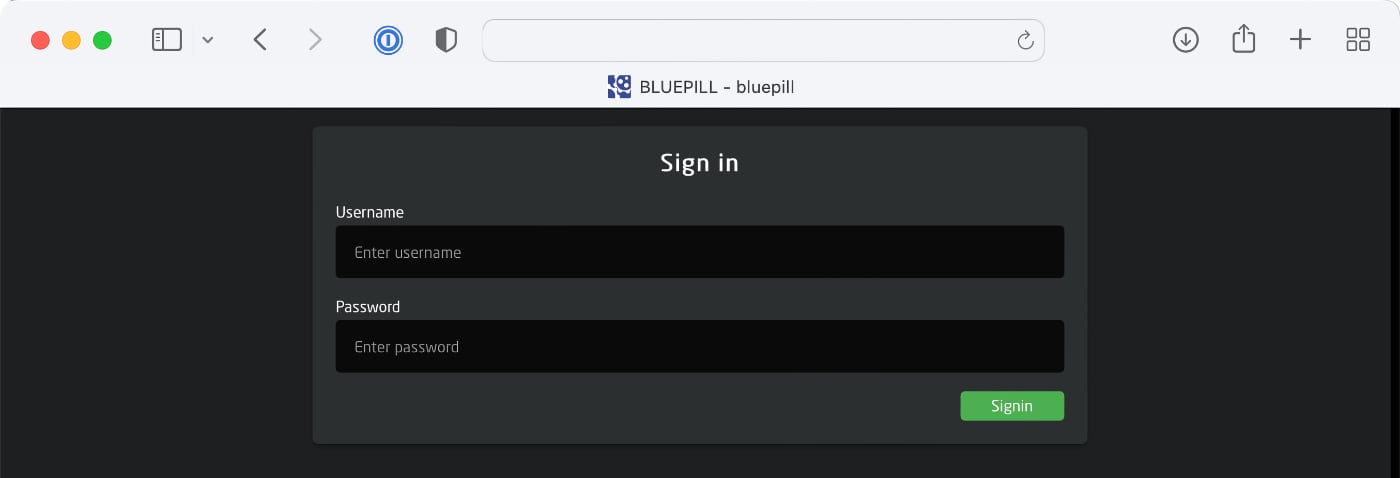
# Disable Authentication

The login screen, where you enter username and password, can be disabled. This removes the need to enter username and password at all.

1. First log in as normal
2. Click 'Settings' in main menu  
    [![image-1655884654722.jpg](https://wiki.skaarhoj.com/uploads/images/gallery/2022-06/scaled-1680-/image-1655884654722.jpg)](https://wiki.skaarhoj.com/uploads/images/gallery/2022-06/image-1655884654722.jpg)

3. Click to disable 'Authentication'  
    [![Screenshot 2026-02-10 at 9.09.23 AM.png](https://wiki.skaarhoj.com/uploads/images/gallery/2026-02/scaled-1680-/screenshot-2026-02-10-at-9-09-23-am.png)](https://wiki.skaarhoj.com/uploads/images/gallery/2026-02/screenshot-2026-02-10-at-9-09-23-am.png)
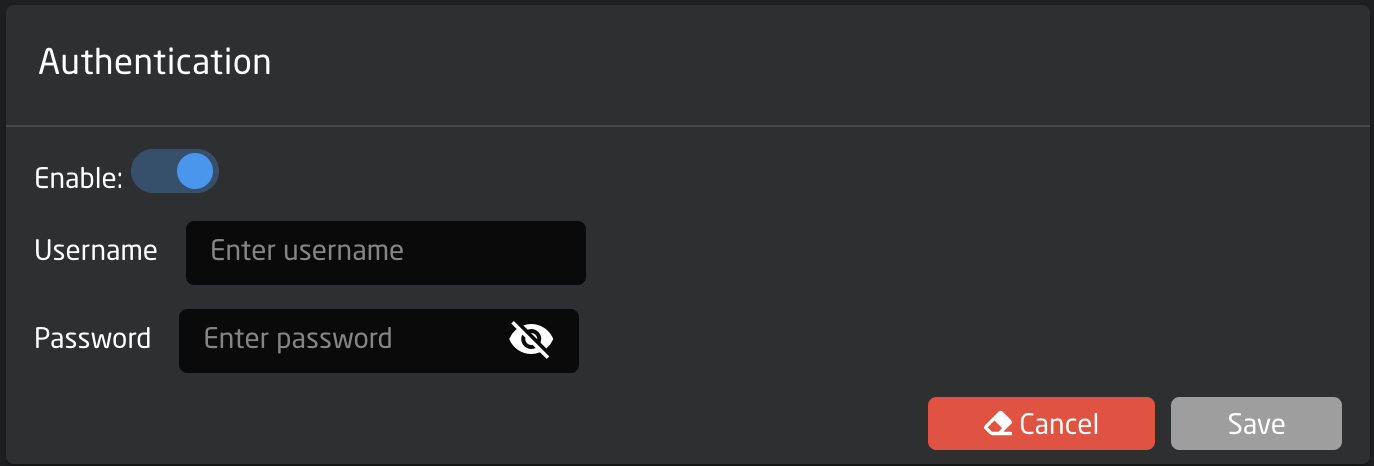
# Reset Password

If you have forgotten the username or password for your Blue Pill product you can use one of these procedures to reset them.

<table border="1" id="bkmrk-note%3A-we-introduced-" style="border-collapse: collapse; width: 100%; height: 46.5938px; border-width: 1px; background-color: rgb(191, 237, 210); border-color: rgb(45, 194, 107);"><colgroup><col style="width: 99.881%;"></col></colgroup><tbody><tr style="height: 46.5938px;"><td style="height: 46.5938px; border-color: rgb(45, 194, 107);">**Note:** We introduced a new and much easier way to reset the password in System Manager v.1.0.8 software update. Please try the new method first - and if it does not work (your panel is running older software), use the old method below instead.</td></tr></tbody></table>

---

##### **NEW METHOD** -&gt; used with System Manager v.1.0.8-pre8 or later  


---

1. Power on device - you know it's ready if you can access the login webpage
2. Insert a pin and press the config button on Blue Pill - keep holding it pressed for 5 seconds until you see a purple light  
    [![image-1655886340870.jpg](https://wiki.skaarhoj.com/uploads/images/gallery/2022-06/scaled-1680-/image-1655886340870.jpg)](https://wiki.skaarhoj.com/uploads/images/gallery/2022-06/image-1655886340870.jpg)
3. Username and password are now reset, and you can login with the factory default: **admin** / **skaarhoj**  
      
    The reset is temporary until one of the following things happens:
    
    
    - Username/password are changed on the Settings page
    - Wife AccessPoint is disabled on the Settings page
    - Device is rebooted

---

##### **OLD METHOD** -&gt; used with System Manager v.1.0.8-pre7 or earlier

---

1. Open SKAARHOJ Updater app  
    Can be downloaded here: [https://www.skaarhoj.com/support/firmware-updater](https://www.skaarhoj.com/support/firmware-updater)
2. Type the shortcut to enable auto-mount Blue Pill devices:  
    • On Mac: \[Shift\]\[Option\]\[Cmd\] R  
    • On Window: \[Shift\]\[Ctrl\]\[Alt\] R  
    This will display the following dialogue (just leave it open for now)  
    [![image-1655885519319.jpg](https://wiki.skaarhoj.com/uploads/images/gallery/2022-06/scaled-1680-/image-1655885519319.jpg)](https://wiki.skaarhoj.com/uploads/images/gallery/2022-06/image-1655885519319.jpg)
3. Insert a pin and press the config button on Blue Pill - keep holding it pressed  
    [![image-1655886340870.jpg](https://wiki.skaarhoj.com/uploads/images/gallery/2022-06/scaled-1680-/image-1655886340870.jpg)](https://wiki.skaarhoj.com/uploads/images/gallery/2022-06/image-1655886340870.jpg)
4. While holding the pin, connect USB cable from computer to Blue Pill product. (This will provide 5V, which is usually enough to power it up. If not, you must also provide power with Ethernet PoE after inserting the USB plug)  
    [![image-1655886718279.jpg](https://wiki.skaarhoj.com/uploads/images/gallery/2022-06/scaled-1680-/image-1655886718279.jpg)](https://wiki.skaarhoj.com/uploads/images/gallery/2022-06/image-1655886718279.jpg)
5. Almost instantly the SKAARHOJ Updater app will display "progress xx%", and after a few seconds you should see the disk volume '**skaarosboot**' appear on your Desktop (Mac) / My Computer (Win).  
      
    Please remove the pin now.  
    [![image-1655886921845.jpg](https://wiki.skaarhoj.com/uploads/images/gallery/2022-06/scaled-1680-/image-1655886921845.jpg)](https://wiki.skaarhoj.com/uploads/images/gallery/2022-06/image-1655886921845.jpg)
    
    <table border="1" style="border-collapse: collapse; width: 100%; border-width: 1px; border-color: rgb(53, 152, 219);"><colgroup><col style="width: 99.866%;"></col></colgroup><tbody><tr><td style="border-color: rgb(53, 152, 219);"><span style="color: rgb(53, 152, 219);">If you are not able to mount the disk (progress stays at 0% or 10%), then please contact SKAARHOJ support. They will assist you in mounting the disk using the BalenaEtcher app instead.  
    Send email to <support@skaarhoj.com></span>
    
    </td></tr></tbody></table>
6. Open the disk volume '**skaarosboot**' and open the text file '**skaarhoj\_device.txt**'  
    [![image-1655887412464.jpg](https://wiki.skaarhoj.com/uploads/images/gallery/2022-06/scaled-1680-/image-1655887412464.jpg)](https://wiki.skaarhoj.com/uploads/images/gallery/2022-06/image-1655887412464.jpg)
7. Find the \[Web\] section, and type in new user and password. REMEMBER to save and close the file - and eject the skaarosboot volume.  
    [![image-1655888344015.jpg](https://wiki.skaarhoj.com/uploads/images/gallery/2022-06/scaled-1680-/image-1655888344015.jpg)](https://wiki.skaarhoj.com/uploads/images/gallery/2022-06/image-1655888344015.jpg)
8. Reboot the Blue Pill device, and log in with your new username and password.

# Unable to Login In

"If you enter the correct username and password, but are left in a loop on the login screen."

Some Blue Pill devices with older software can have a bug, where the login page seems to be stuck. The solution to this is simply to use another web browser - ie. if you use Google Chrome, switch to Safari or Firefox - or vice versa.

The bug has been fixed in our later software. So, when you have successfully logged in, please goto the Settings tab and update the software.

Follow this guide to update the software:  
[https://wiki.skaarhoj.com/books/blue-pill-reactor/page/update-software](https://wiki.skaarhoj.com/books/blue-pill-reactor/page/update-software)