For analog calibration of Blue Pill panels on the same network see the Calibration App: [https://wiki.skaarhoj.com/books/blue-pill-reactor/page/analog-component-calibration-bp-inside-](https://wiki.skaarhoj.com/books/blue-pill-reactor/page/analog-component-calibration-bp-inside-devices)
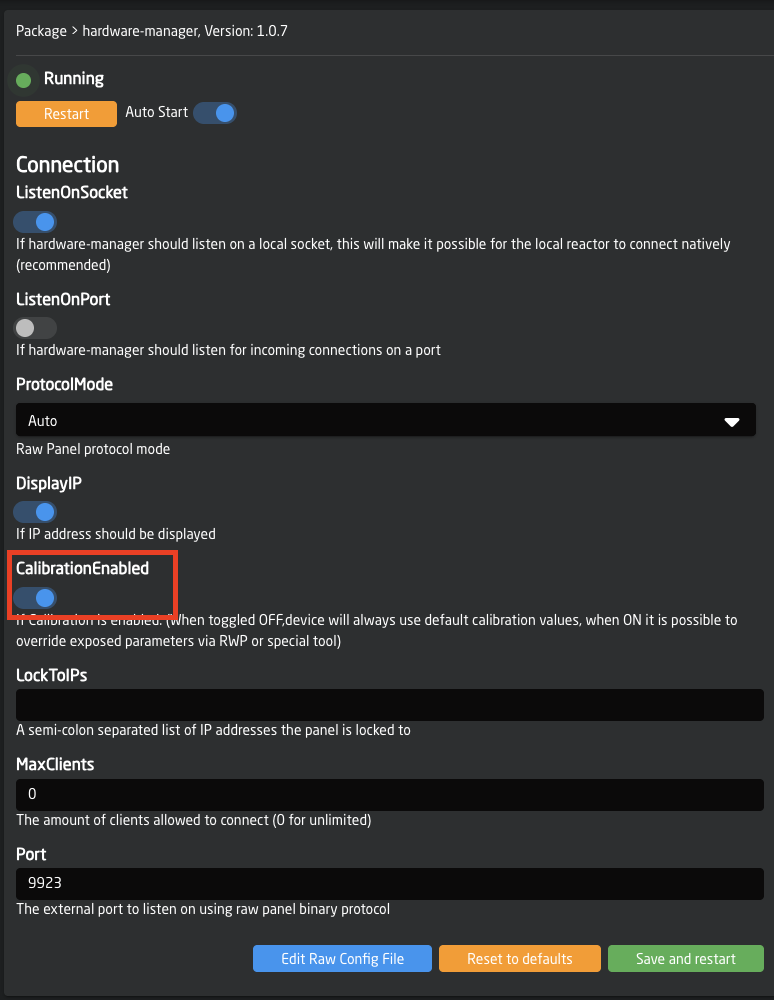
Scroll down to the bottom of the Tools Page to enable hardware calibration on panels that have an analog hardware component.Examples of analog hardware components are: T-Bar, PTZ Joystick, Fader
 Once it is enabled, the individual components will be exposed based on hardware component number. The below example is a PTZ Joystick on a PTZ Pro. Note that different hardware components may have different calibration options. 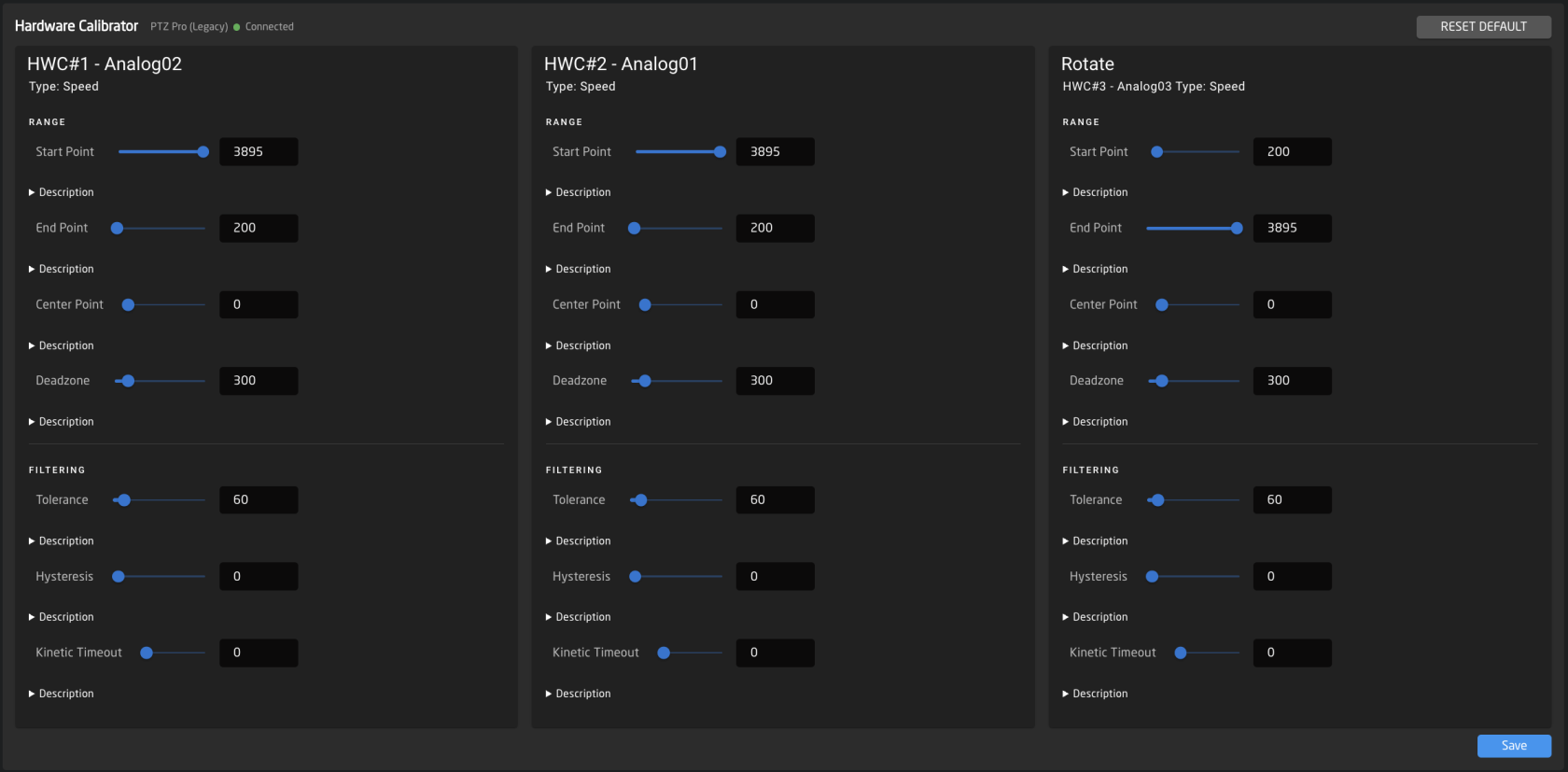 **Range** Start Point: control the ends of the component, think all the way up/down of a fader or T-bar, but all so the max movement range on a joystick or zoom rocker. If you find that you are not able to move a T-bar from 0-1000 in its raw value but instead you might only get something like 100-950 then you would move these values closer to the middle in order for the component to hit "Max/Min" before hitting the physical limit of its movement range. In the same manner, if you find that you have a lot of dead space at the ends, you can move these sliders further out to gain more resolution. End Point: control the ends of the component, think all the way up/down of a fader or T-bar, but all so the max movement range on a joystick or zoom rocker. If you find that you are not able to move a T-bar from 0-1000 in its raw value but instead you might only get something like 100-950 then you would move these values closer to the middle in order for the component to hit "Max/Min" before hitting the physical limit of its movement range. In the same manner, if you find that you have a lot of dead space at the ends, you can move these sliders further out to gain more resolution. Center Point: Allows you to move the centre of your value range, mainly found on components like the rotating component on the PTZ joysticks on a PTZ extreme. This can compensate for a slight drift in one or the other direction when you let go of the rotation. This also defines where the centre of the halfway point is on motorized faders. Deadzone: adjusts the "padding" around the centre value and how far you need to move it before it starts "moving." You would adjust this on a PTZ joystick or zoom rocker to change how sensitive it is in the middle. **Filtering** Tolerance: Is used to define how big or small a change is needed before the component sends a "change." In 99% of cases, this is not worth messing with, but if you have a stutter or maybe more than normal EMC (electromagnetic noise) in your environment, it might be worth raising this to prevent unintended movement. But again, this is only in very extreme cases. Hysteresis: The reduced change threshold used while the component is actively being moved. During movement, a change only needs to exceed this value (instead of the full Tolerance) to register, giving smoother tracking. Once movement stops (after Kinetic Timeout expires), the system reverts to requiring the full Tolerance threshold for noise rejection. A lower value means more responsive tracking during movement; a higher value filters out more jitter. Kinetic Timeout: Time in milliseconds after the last detected movement before the component switches from the lower hysteresis threshold back to the full tolerance threshold. While the component is being actively moved, smaller changes (governed by Hysteresis) are enough to register. Once movement stops for longer than this timeout, the system requires the full Tolerance value again to register a change, providing better noise rejection when the component is stationary. To disable the Hardware Calibrator again, in the Hardware Manager package toggle off Calibration Enable and press Save and Restart.