WireGuard is free and open source — there is no account to create and no subscription. You only need a WireGuard configuration from the network you want to join.
## Installing the WireGuard app on your Controller WireGuard is delivered as an installable package in SkaarOS. Open the **Packages** page from the top menu (or browse to `/system/`), find **WireGuard** in the list and install it. [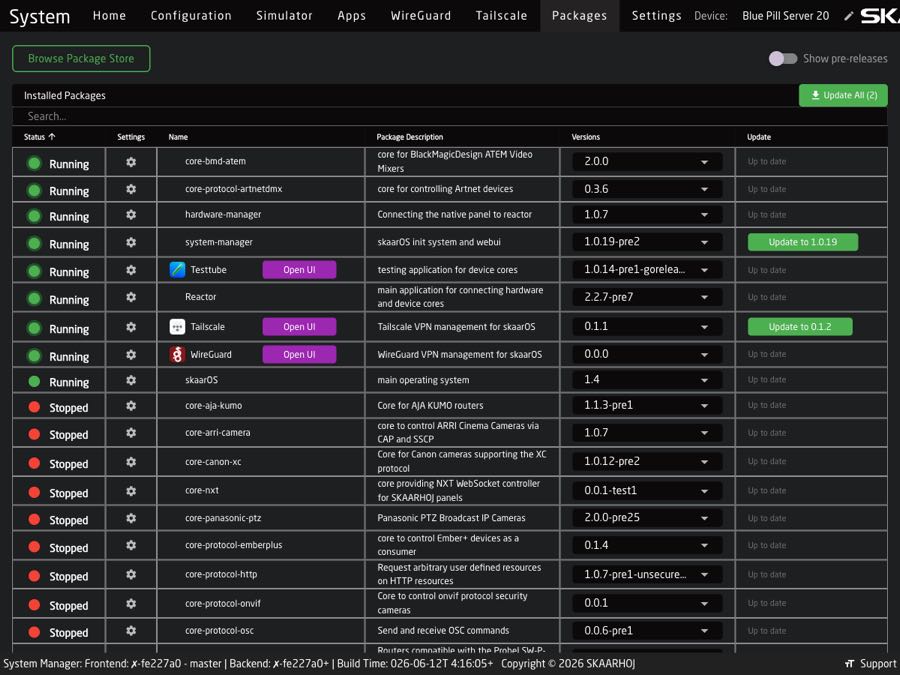](https://wiki.skaarhoj.com/uploads/images/gallery/2026-06/wg-packages.jpg) Click into the package and press **Start** so its status shows **Running**, then refresh the page. The **Open WebUI** button becomes available — click it to open the WireGuard app.Enable the **Show in Menu** toggle to add a **WireGuard** tab to the top menu bar for quick access.
## Creating a tunnel Open the WireGuard app and, on the **Tunnels** tab, click **New Tunnel**. [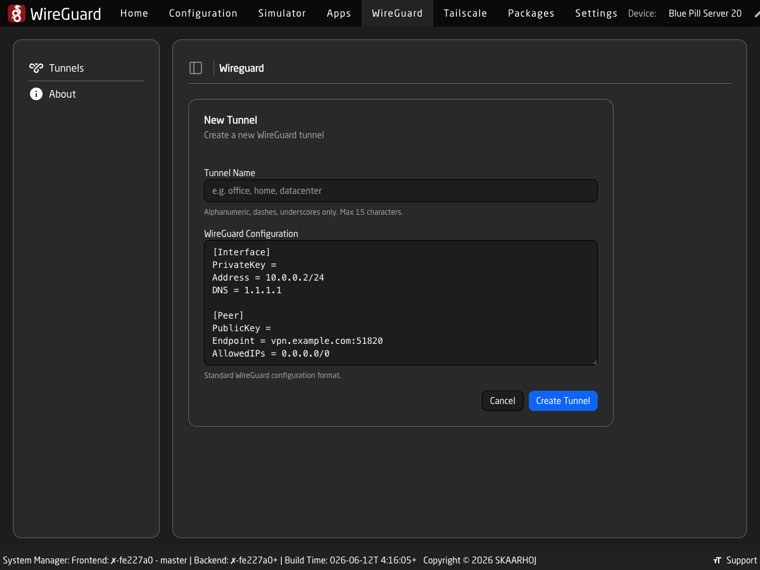](https://wiki.skaarhoj.com/uploads/images/gallery/2026-06/wg-new.jpg) 1. **Tunnel Name** — a short label such as `office`, `home` or `datacenter`. Alphanumeric, dashes and underscores only, maximum 15 characters. 2. **WireGuard Configuration** — paste your standard WireGuard config in the usual `.conf` (wg-quick) format. A template is shown so you can see the expected structure (`[Interface]` and `[Peer]` sections). 3. Click **Create Tunnel**.Where do configs come from? Generate one on your own WireGuard server or router, or download it from your VPN provider’s portal. The same config you would use on a laptop or phone works here — simply paste the text.
## Managing your tunnels The Tunnels tab lists every tunnel with live status that refreshes automatically. [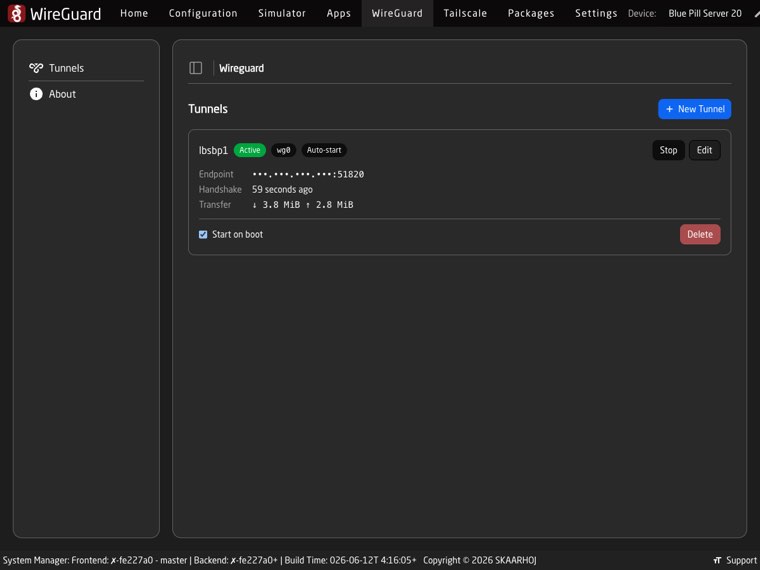](https://wiki.skaarhoj.com/uploads/images/gallery/2026-06/wg-tunnels.jpg) - An **Active** / **Inactive** badge and the interface name (`wg0`, `wg1`, …). - **Start** / **Stop** to bring the tunnel up or down. - When active: the peer **Endpoint**, the latest **Handshake** time and **Transfer** totals (↓ received / ↑ sent). - **Start on boot** — automatically bring the tunnel up when the controller powers on (shown as an *Auto-start* badge). - **Edit** — change the configuration. Private keys are hidden by default; click **Show Secrets** to reveal them. - **Delete** — remove the tunnel (it is brought down first if it is active). ## WireGuard everywhere Because WireGuard is built into so many devices, you can create the other end of the tunnel almost anywhere — a router at your office, a cloud server, or a commercial VPN service — and connect your other computers and phones to the same network. Official clients and installation guides for every platform are available at [wireguard.com/install](https://www.wireguard.com/install/). Many routers and firewalls can also act as a WireGuard server out of the box — check your device’s documentation.