Engineering Menu
Intro
It can be accessed in different ways based on the panel, and chosen configuration.
How do I know which method my configuration is using?
Different panel configurations will have the engineering menu. Here is the main ways of accessing the menu.
Method 1 - Camera selector
This technique is used for panel configurations that has a camera page cycle button.
How to activate
Press and hold the top edge of the 'Page' button for a few seconds
Examples of models using this method:
Listed here is 4 panels that have support for a configuration, that have an engineering menu accessible the same way. Remember this is just examples, and that this method is not exclusive to these 4 panels.
PTZ Wiz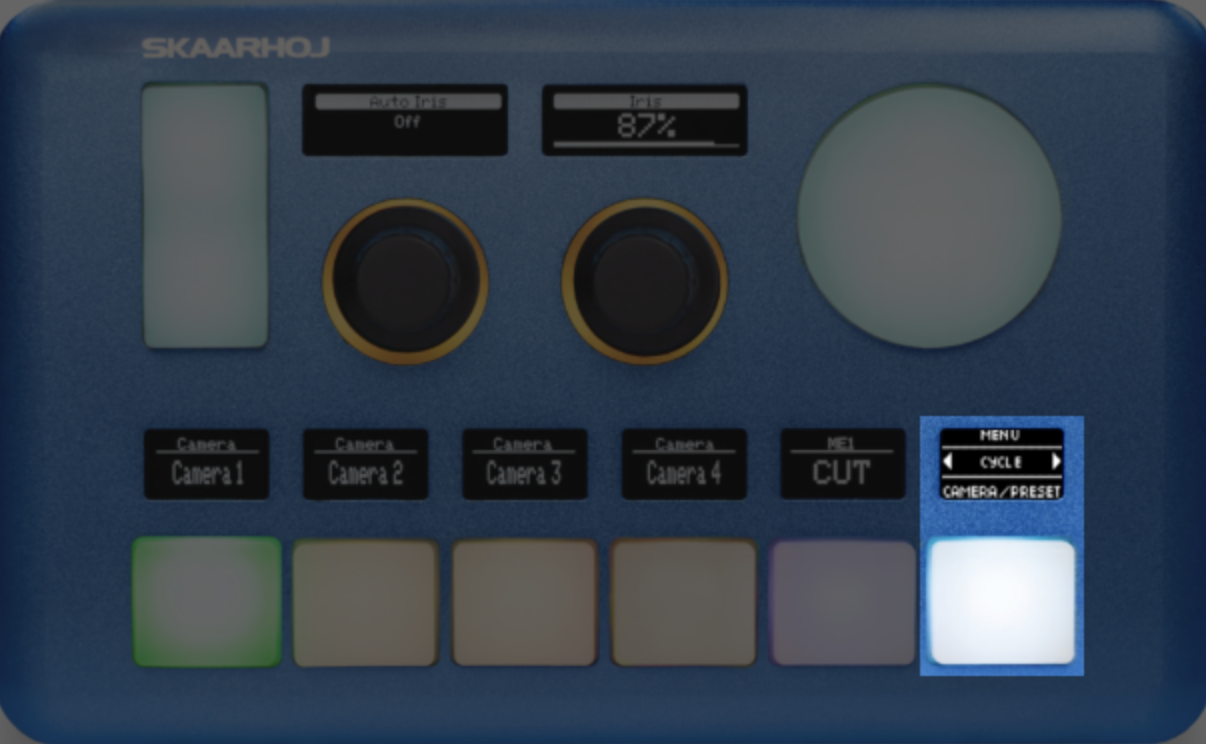
PTZ Fly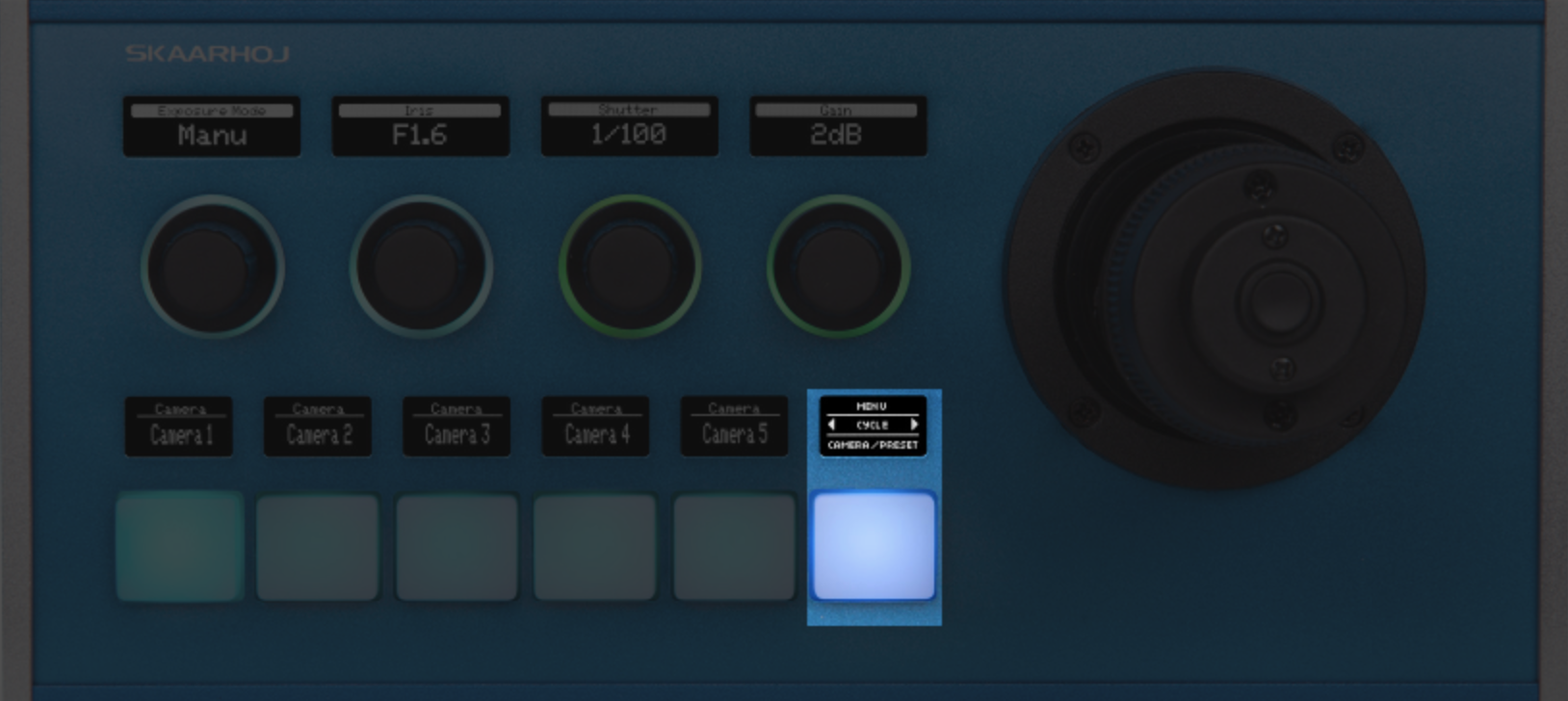
Rack Control Uno
Inline 22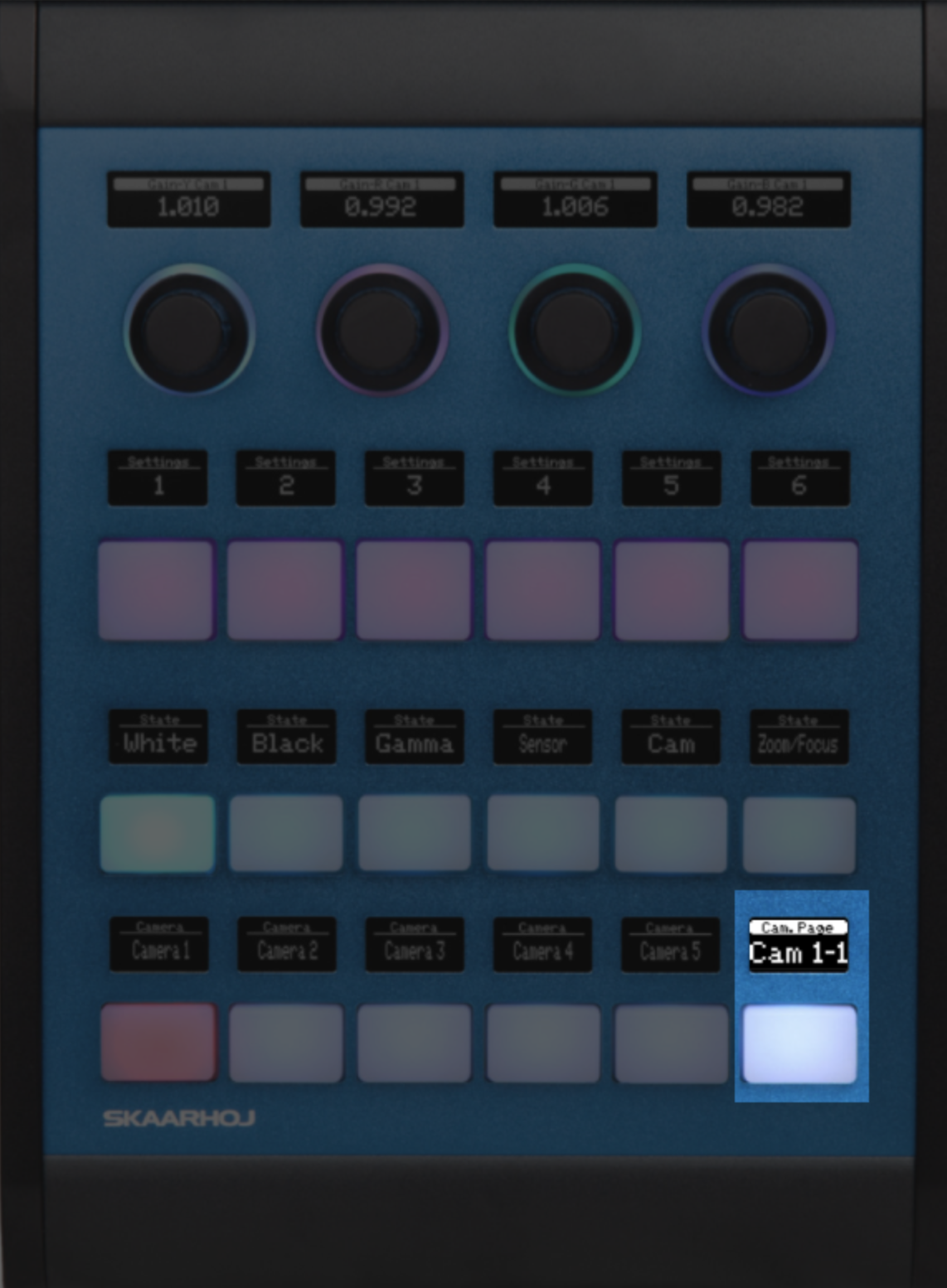
Method 2 - Switcher Selector
This technique is used for panel configurations in the switcher class.
How to activate
Step 1) Press 'Shift' A to make the Fate To Black button light green
Step 2) Press 'FTB' B to enter the engineering menu
Examples of models using this method:
Listed here is 3 panels that have support for a configuration, that have an engineering menu accessible the same way. Remember this is just examples, and that this method is not exclusive to these 3 panels.
Airfly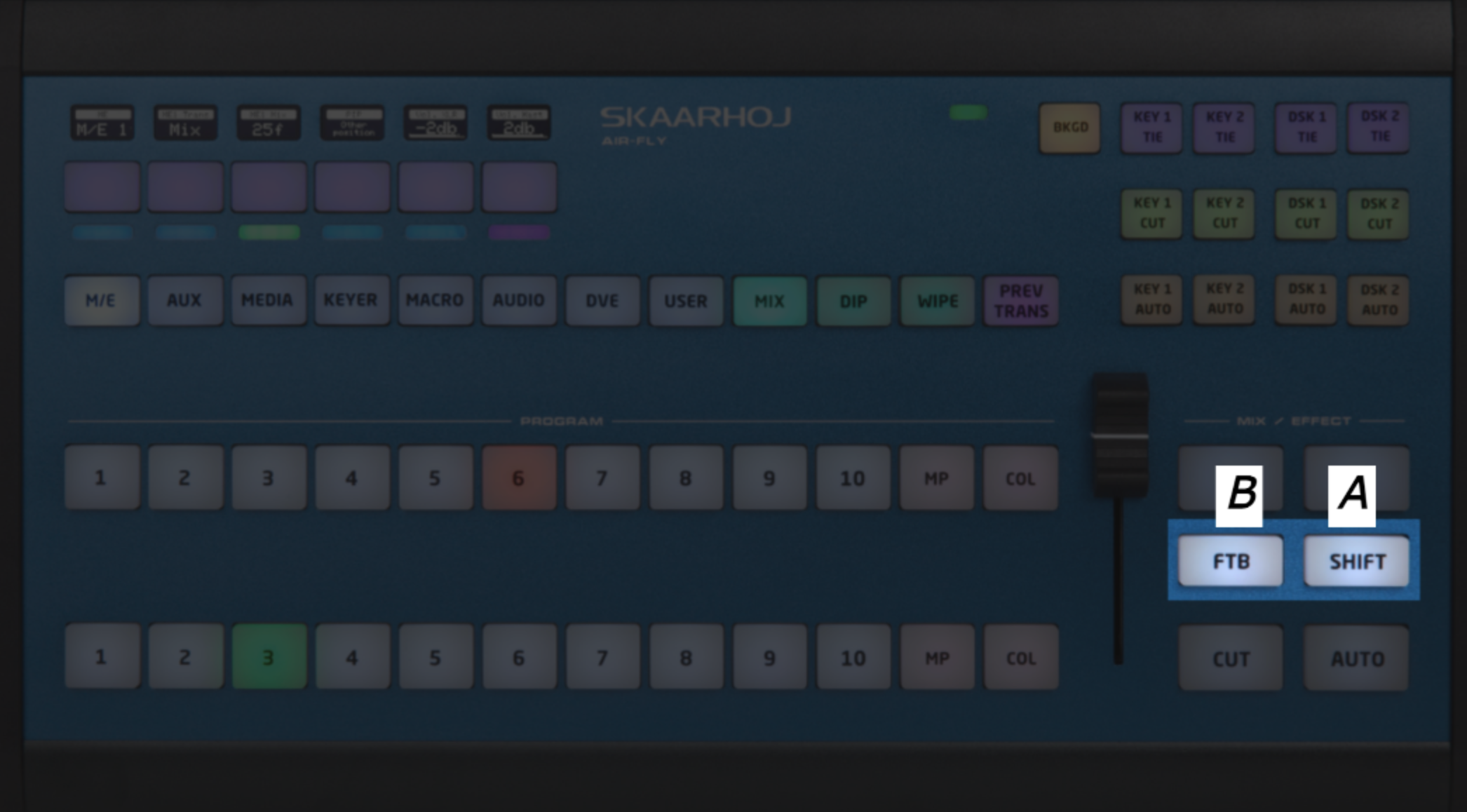
Airfly Pro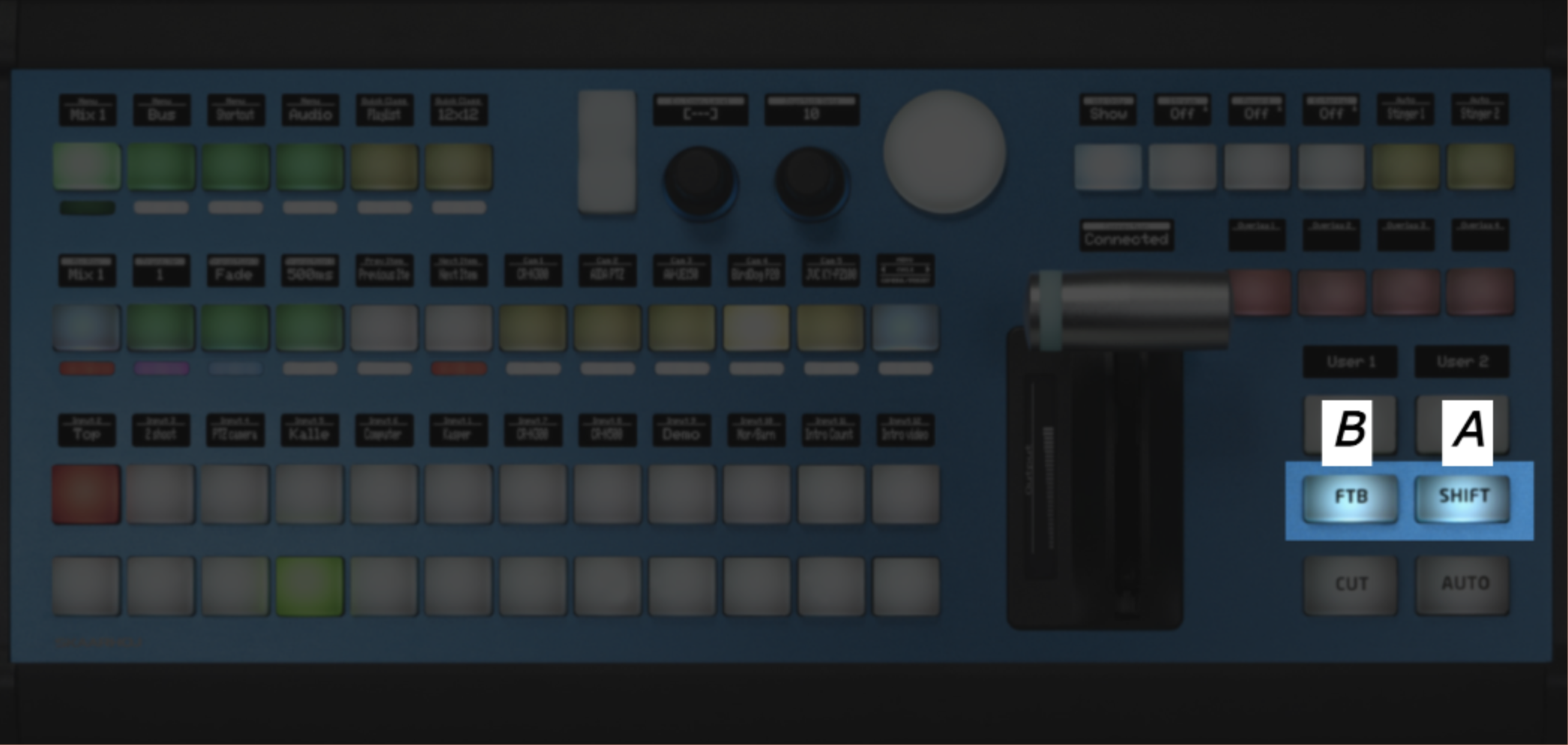
Master Key One
Method 3 - MEGA Panel
This technique is used on panel MKT1B and MKT1A
How to activate
Step 1) Press 'Menu' A to make the settings button appear
Step 2) Press 'settings' B to enter the engineering menu
Examples of models using this method:
This method is not exclusive to the panel showed below, but also MKT1A.
MKT1B
Method 4 - RCP
This technique is used for every RCP panel (with config: "RCP - Generic PTZ Control").
How to activate
Press and hold 'Shift', while you do that, press 'Panel lock'
Step 1) Press and hold the 'Shift' button A
Step 2) Now press the 'Panel lock' button B to enter the engineering menu
Examples of models using this method:
Remember this is just examples, and that this method is not exclusive to this RCP panel only, but all RCP models, with the config "RCP - Generic PTZ Control".
RCPv2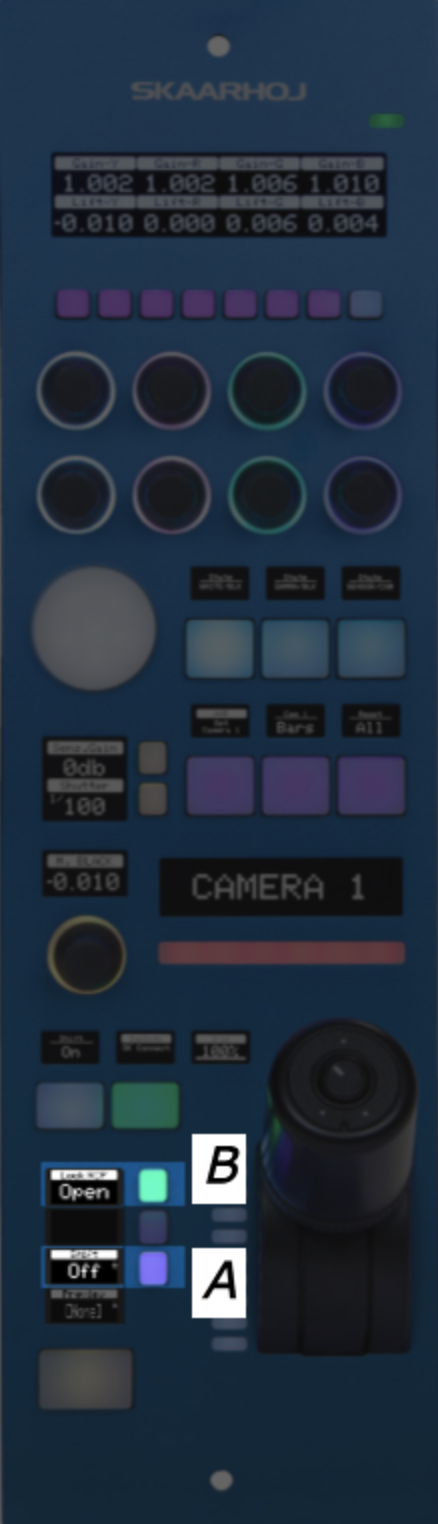
Method 5 - PTZ Pro
This technique is used for PTZ Pro only.
How to activate
Press and hold U4 A for a few seconds
Examples of models using this method:
This method is exclusive to the panel showed below
PTZ Pro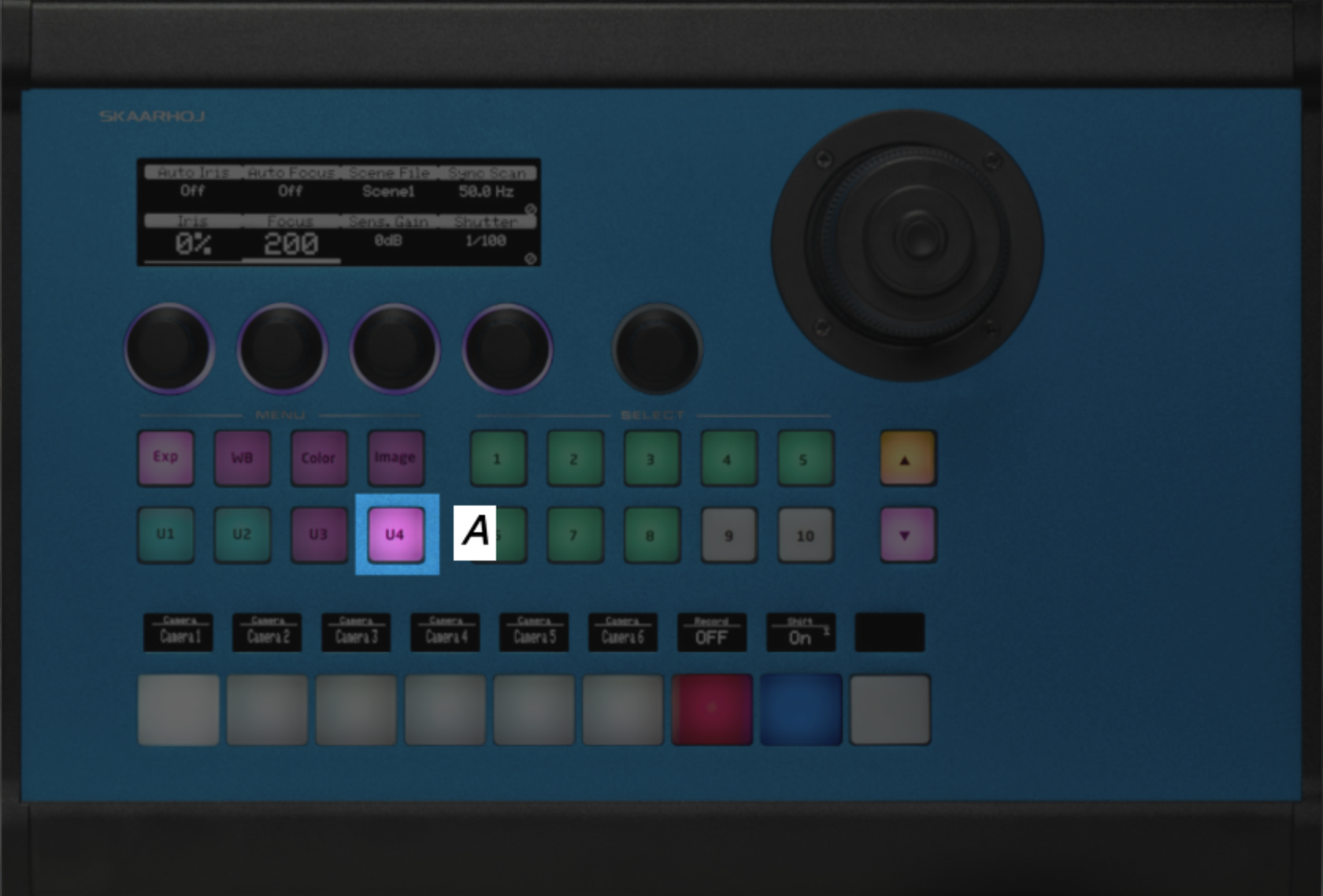
Method 6 - Kairos
This technique is specific for our Kairos configuration for the Master Key One V2 (Blue pill inside)
How to activate
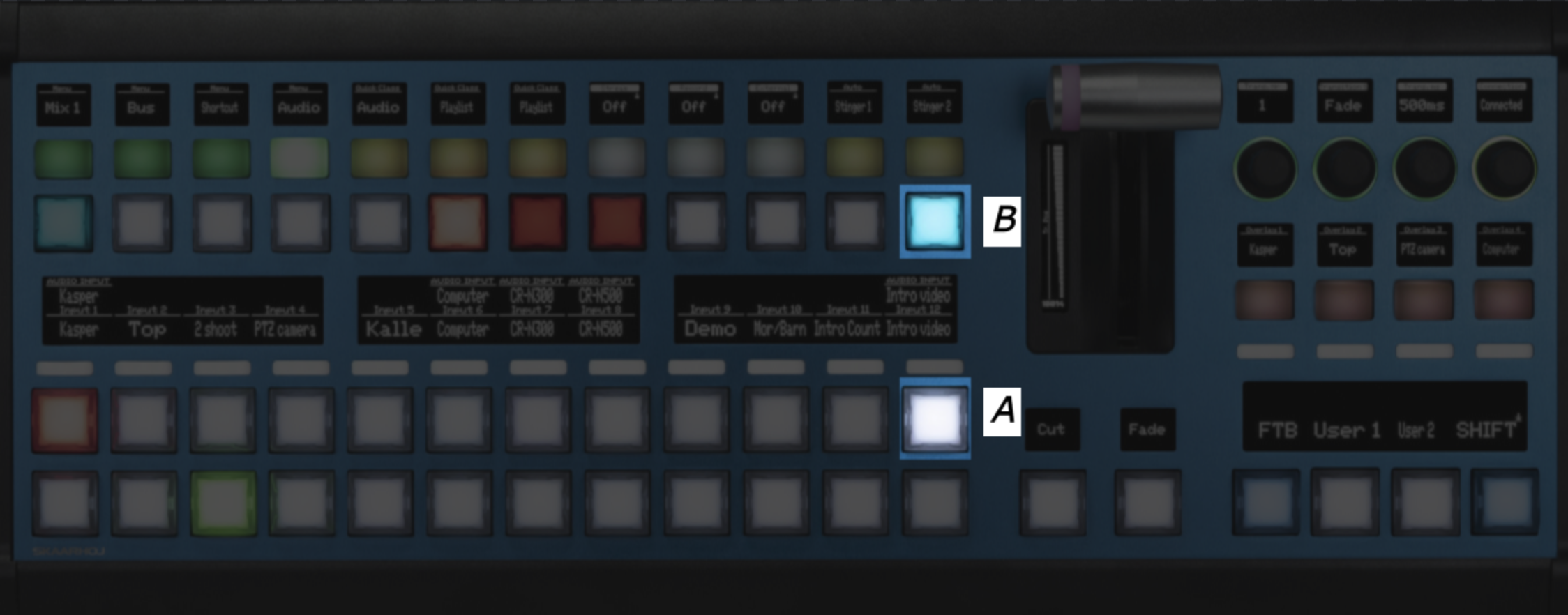
Step 1) Press and hold the button marked A
Step 2) Now press the button marked B to enter the engineering menu
Examples of models using this method:
This method is exclusive to the Kairos configuration on the panel showed below
Master Key One V2