Reflash Blue Pill devices
If your Blue Pill device has become totally unresponsive - you cannot contact it in any way - the solution may be to 'reflash' the entire system software.
The reflash is not to be done as a factory reset and can only be done after other troubleshooting steps have failed. If you are unable to access the panel's web interface, try accessing it via <IP Address>/system/settings. This would open up additional troubleshooting steps. Additionally it may be possible to access the panel's web interface by enabling the panel's wifi access point
NOTE: For this procedure you need the assistance from SKAARHOJ Customer Support !
Please contact: support@skaarhoj.com
ALERT: This procedure will ERASE ALL configurations on the device.
It is not possible to roll back SkaarOS versions, even by reflashing.
REQUIREMENTS
You need the following software:
• BalenaEtcher version 1.18 or later https://www.balena.io/etcher/ (free download)
• skaarOS image file (this can only be obtained from SKAARHOJ Customer Support)
• The device needs internet access after the procedure to sync its settings with our server
PROCEDURE
- disconnect power to turn the panel off
- make sure you have the 'skaarOS' image file ready on your Desktop (you get this file from SKAARHOJ Customer Support)
- open BalenaEtcher app (remember, this must be version 1.18 or later)
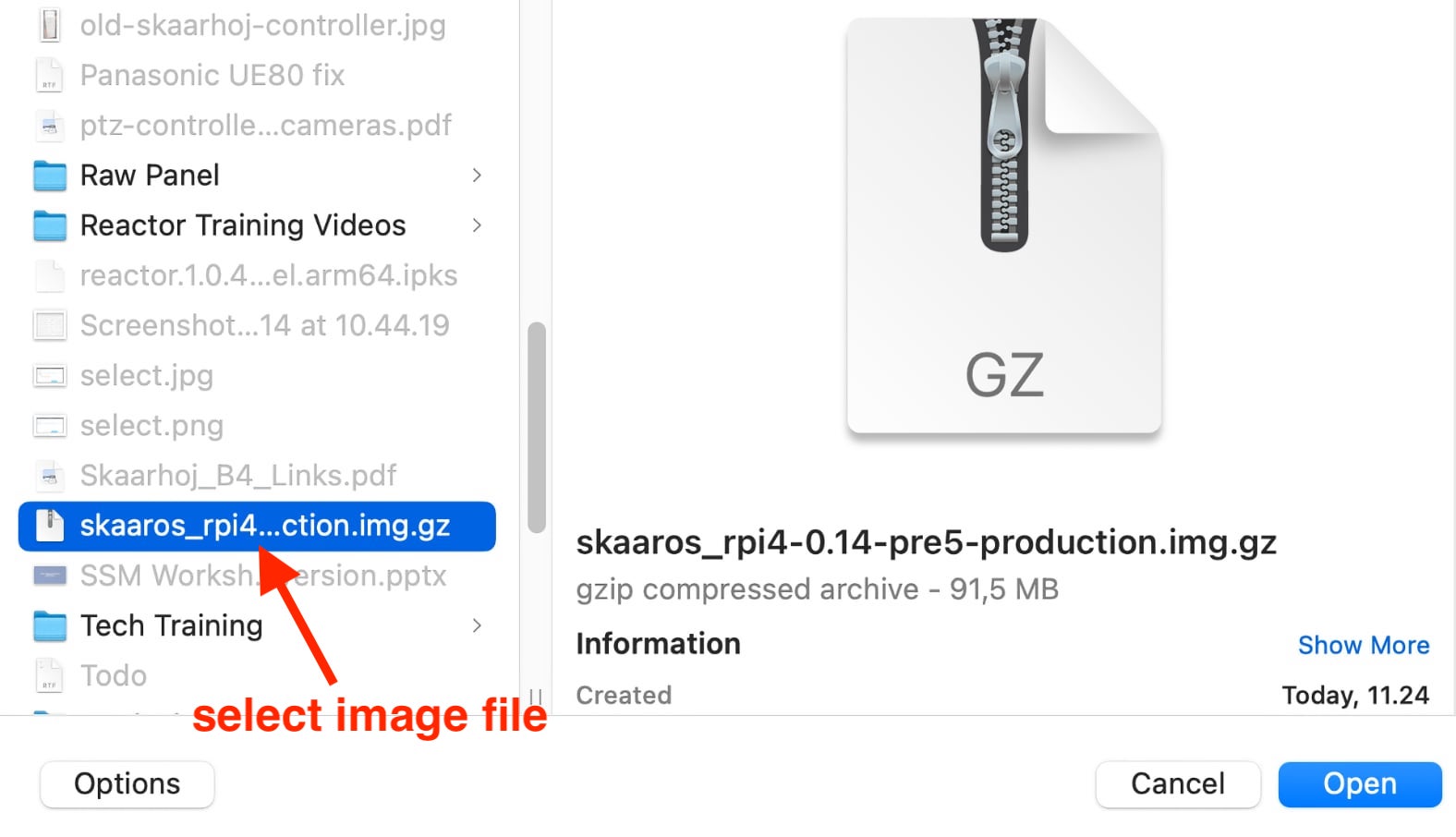
- click 'Flash from file' > select the 'skaaros_xxxx' image file from the Desktop (pic 1 and 2)
- click 'Select target'
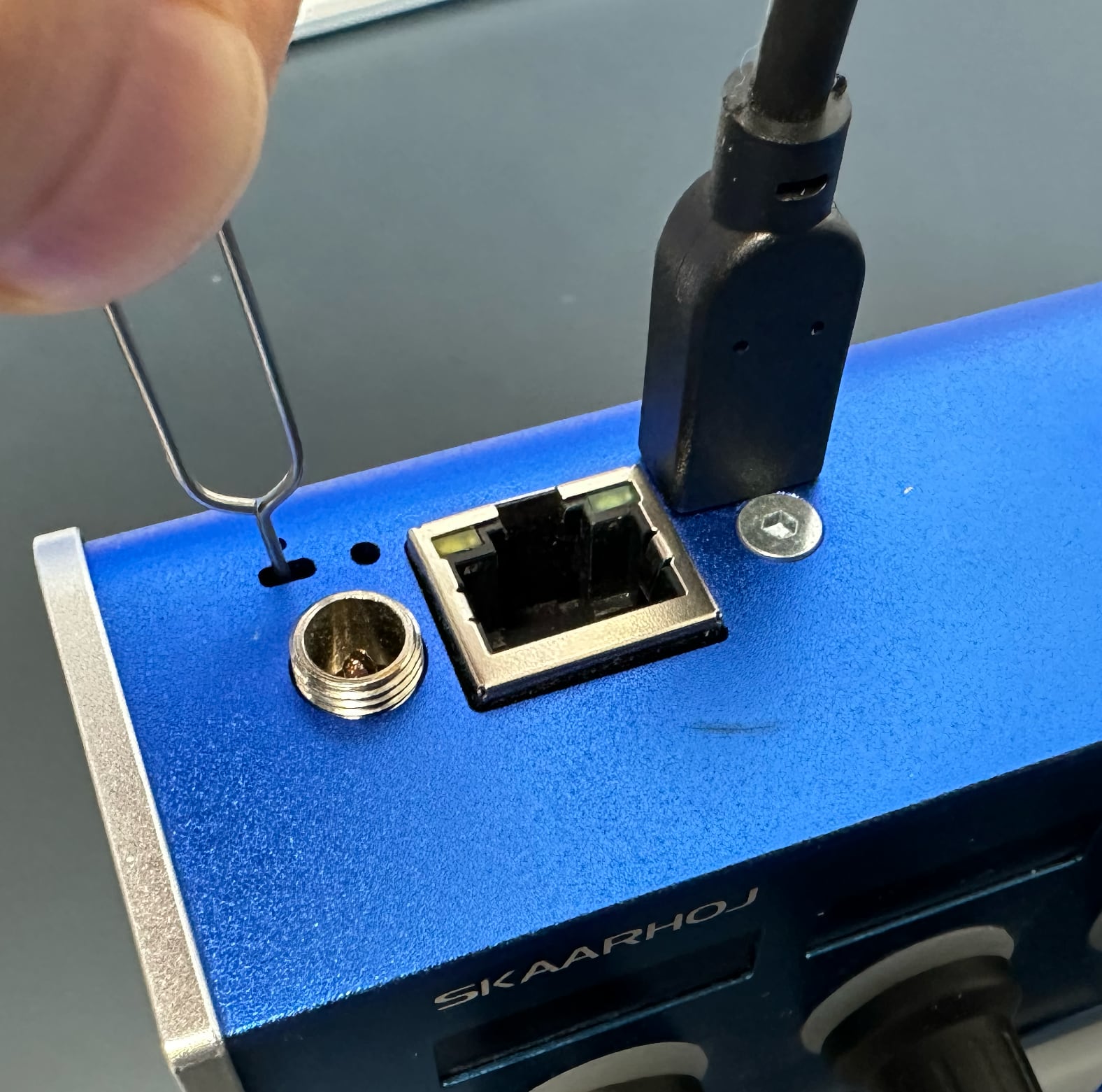
- connect Blue Pill device to computer via micro USB > hold paperclip pressed in the config button on the device > connect power (PSU or PoE) to device (pic 3)
- when you see 'Compute Module' in BalenaEtcher, remove paperclip
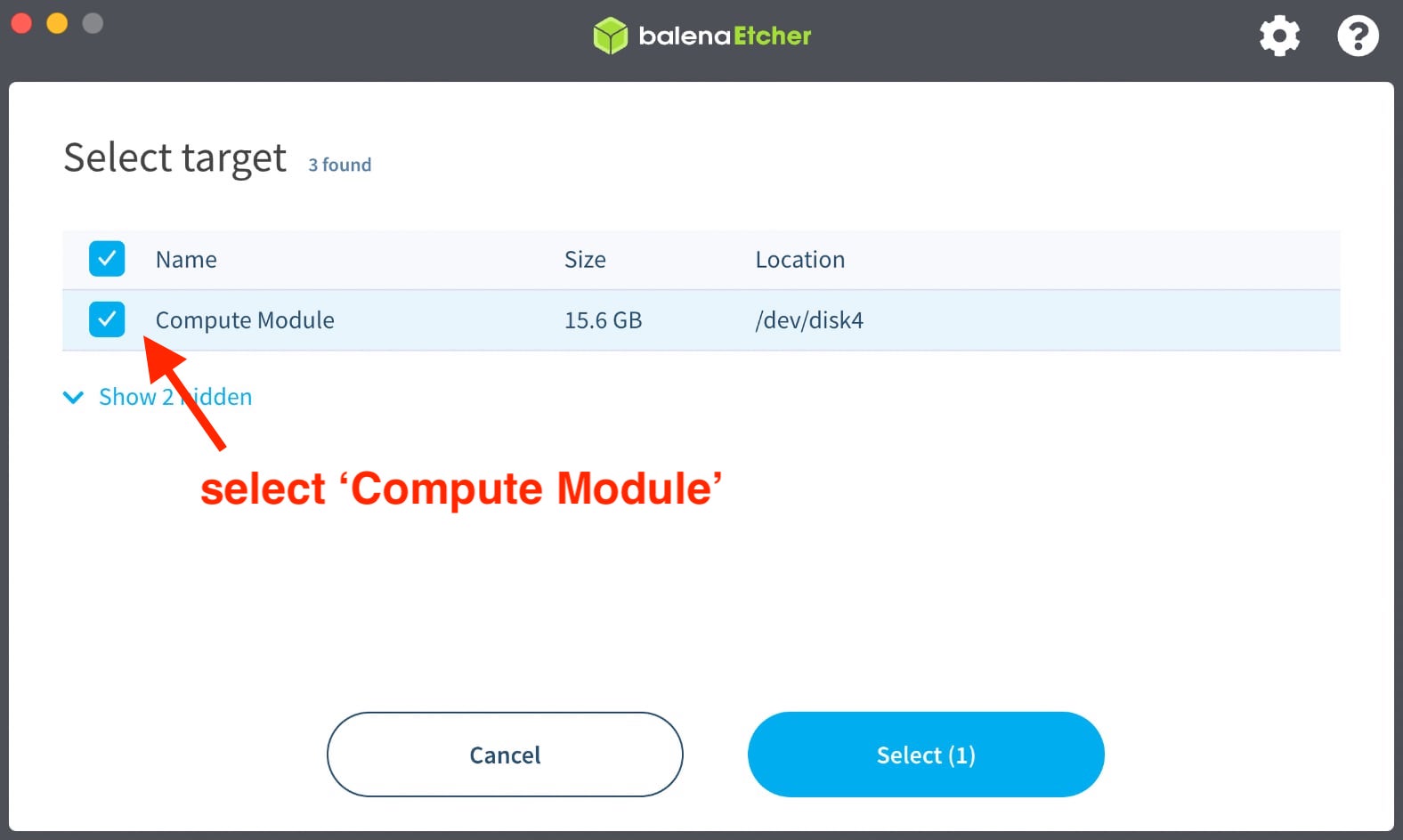
- select 'Compute Module' > click 'Select' (pic 4)
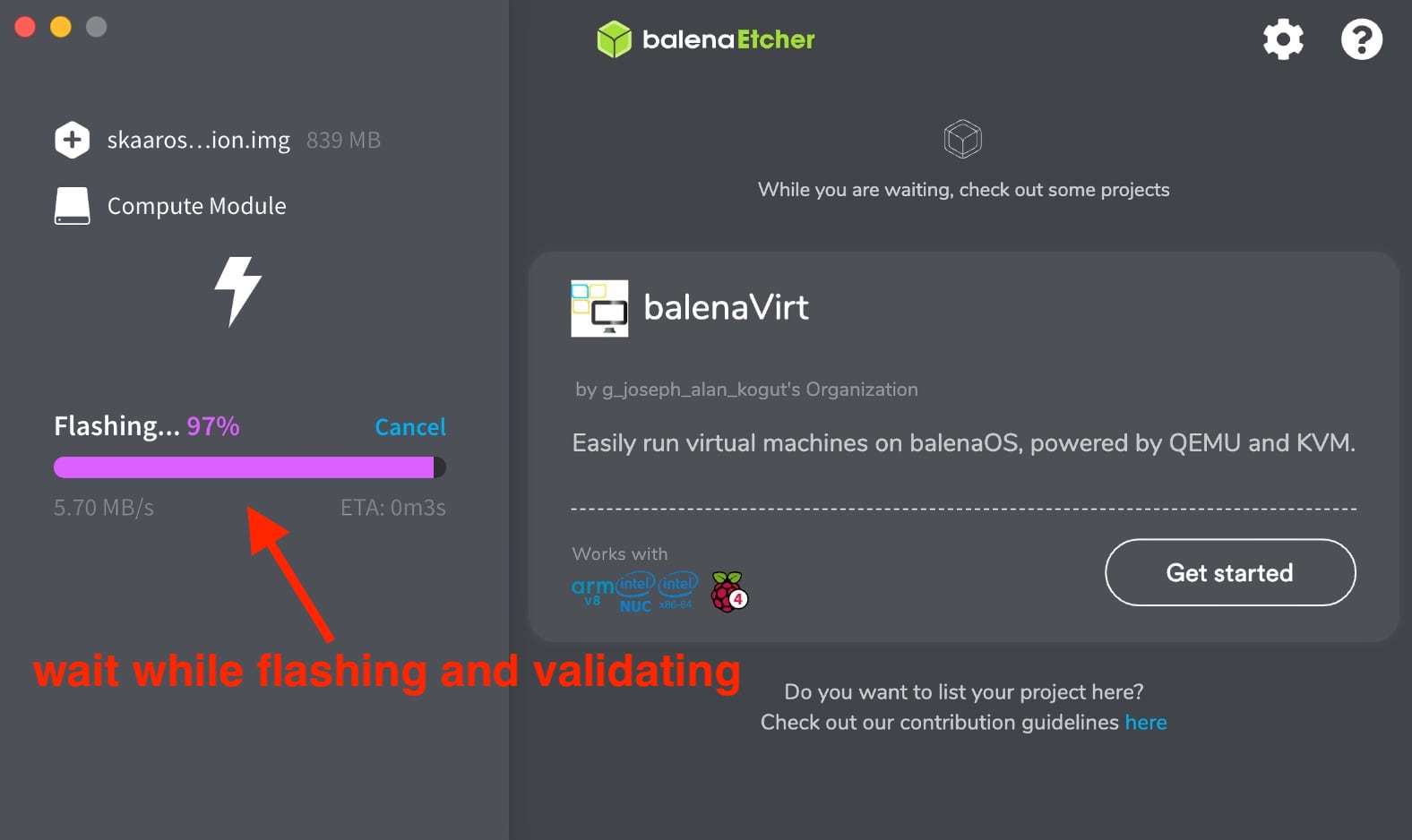
- click 'Flash!' > enter computer password > wait approx 5 min (pic 5)
- after flash procedure is done, quit BalenaEtcher
- disconnect the micro USB and power from Blue Pill device > connect power again to reboot (will take approx 0,5-1 min)
The Blue Pill device should start up, and display the DHCP IP address it can be found at.
- For initial setup we recommend a network with DHCP server -
Important: After reflash the Blue Pill device must be restarted (done in step 10). At this time it MUST have internet access. This is needed to get basic settings from our server. |

OLD INSTRUCTIONS : IF DEVICE NOT FOUND
- You will most likely NOT follow these instructions anymore -
If the 'Compute Module' is not found in step 6 please follow these steps:
- quit BalenaEtcher app
- open SKAARHOJ Updater app
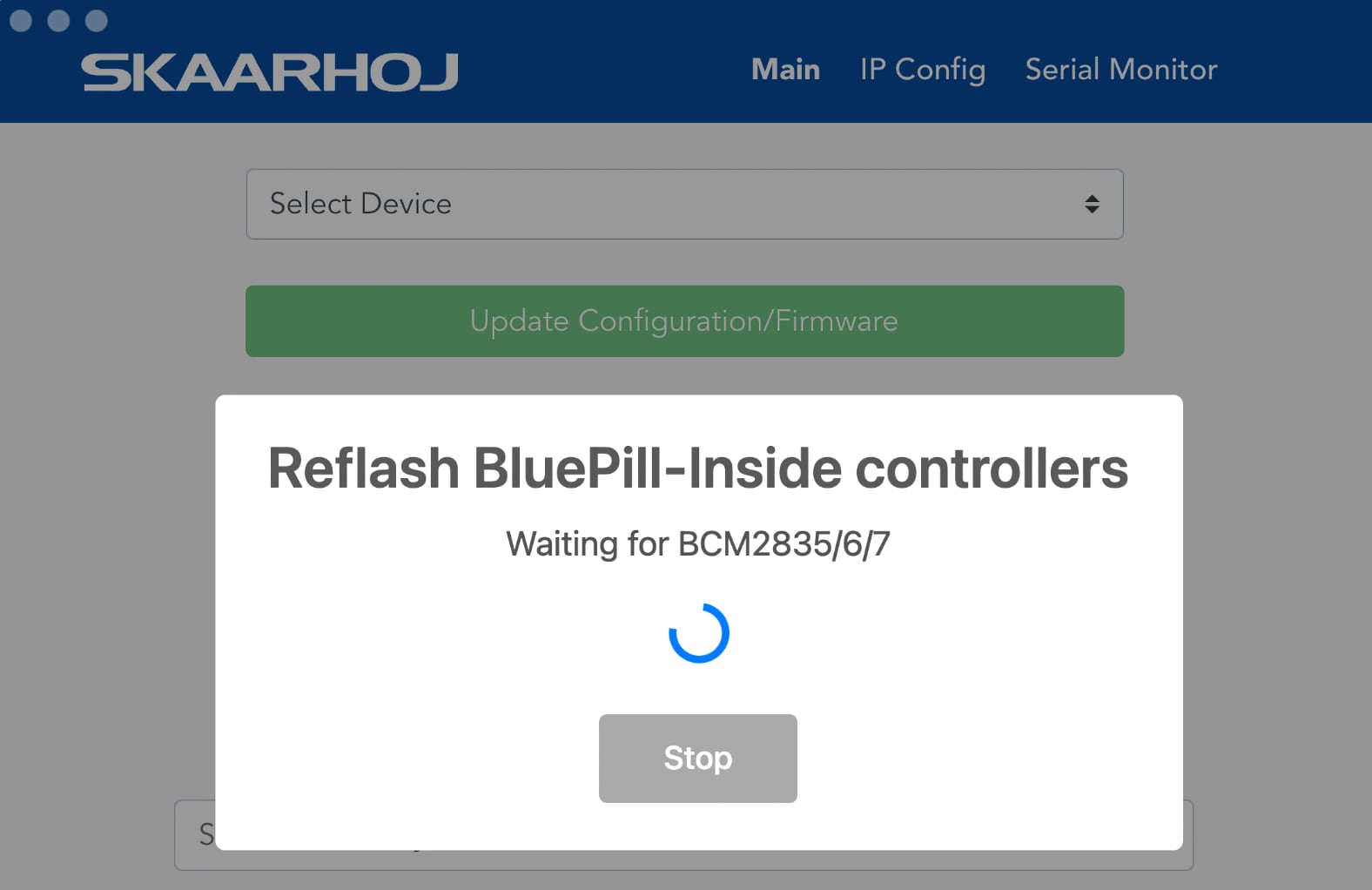
- press keys '[Shift][Option][Cmd] R' (Mac) or '[Shift][Ctrl][Alt] R' (Win) to enable the 'Reflash BluePill-Inside controllers' mode (pic 1)
- connect Blue Pill device to computer via micro USB > hold paperclip pressed in the configuration hole on the device > connect power (PSU or PoE)
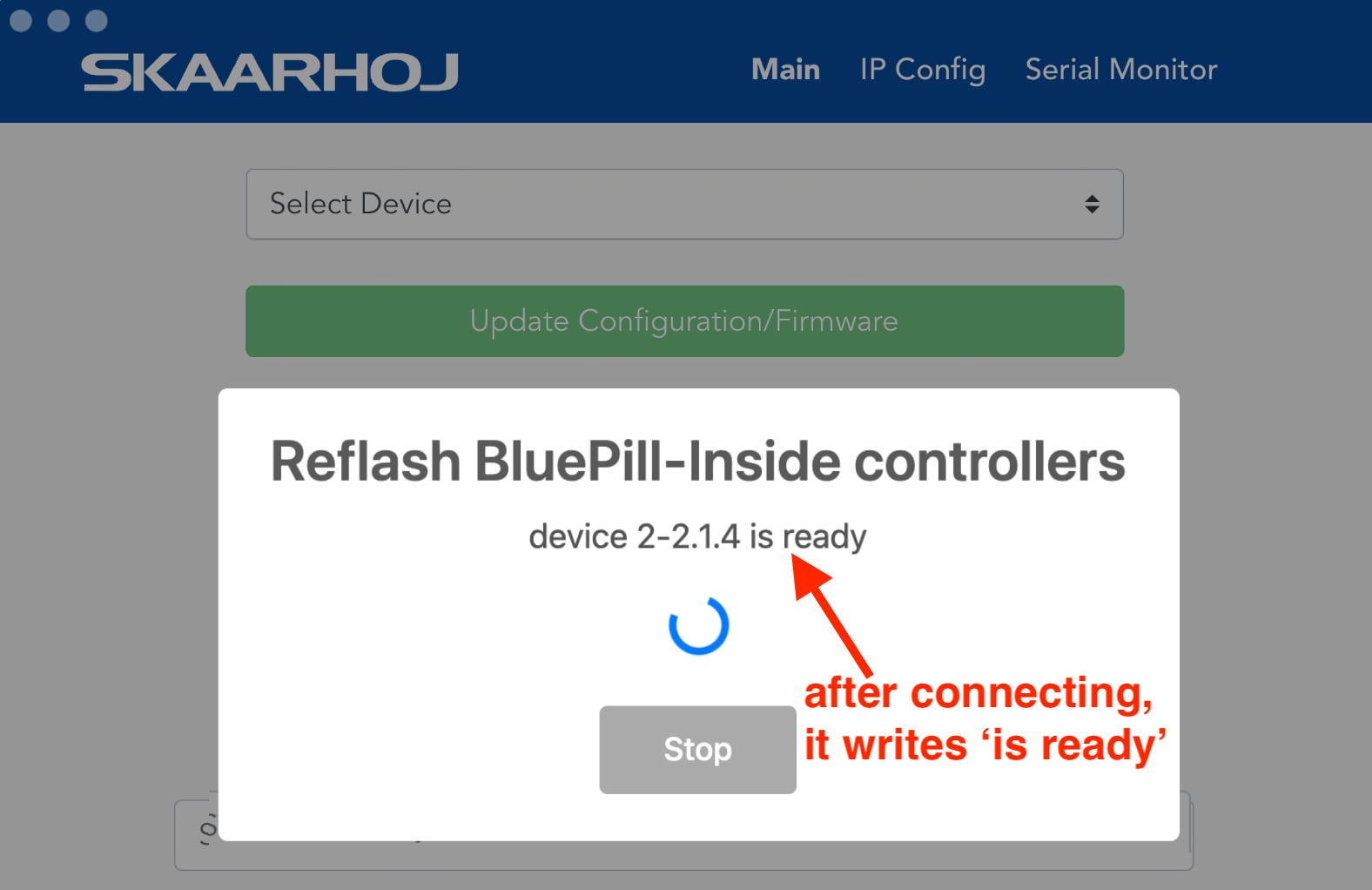
- when you see the device is connected (device x-xx.x is ready) you release the paperclip (pic 2)
- return to the procedure guide above. Follow all steps, except step 5 and 6, where you insert paperclip and power up device