
Stream Deck on Raw Panel 🔑
The SKAARHOJ Stream Deck app (package xpanel-streamdeck) lets you use Stream Decks with SKAARHOJ products that have the Blue Pill platform inside, alongside your SKAARHOJ panels. Stream Decks connect by USB, or over the network: the Stream Deck Studio directly, and new in version 3, any other Stream Deck through Elgato's PoE-powered Stream Deck Network Dock.

Each Stream Deck becomes a Raw Panel on its own TCP port. Reactor, or any other Raw Panel client, uses it like a SKAARHOJ panel: it sends text, colors and images to the keys and gets presses, dial turns and touches back. Even for the networked Stream Deck Studio, this gives one simple, standard protocol.
Here a Stream Deck + is connected directly to a Blue Pill Server on a PoE switch, and reached with Raw Panel on the server's IP address:

With a powered USB hub, one Blue Pill runs several Stream Decks:

The app's web interface shows a live copy of every Stream Deck, which you can operate on screen. Here the keys are driven by Raw Panel Explorer (see the end of this page):
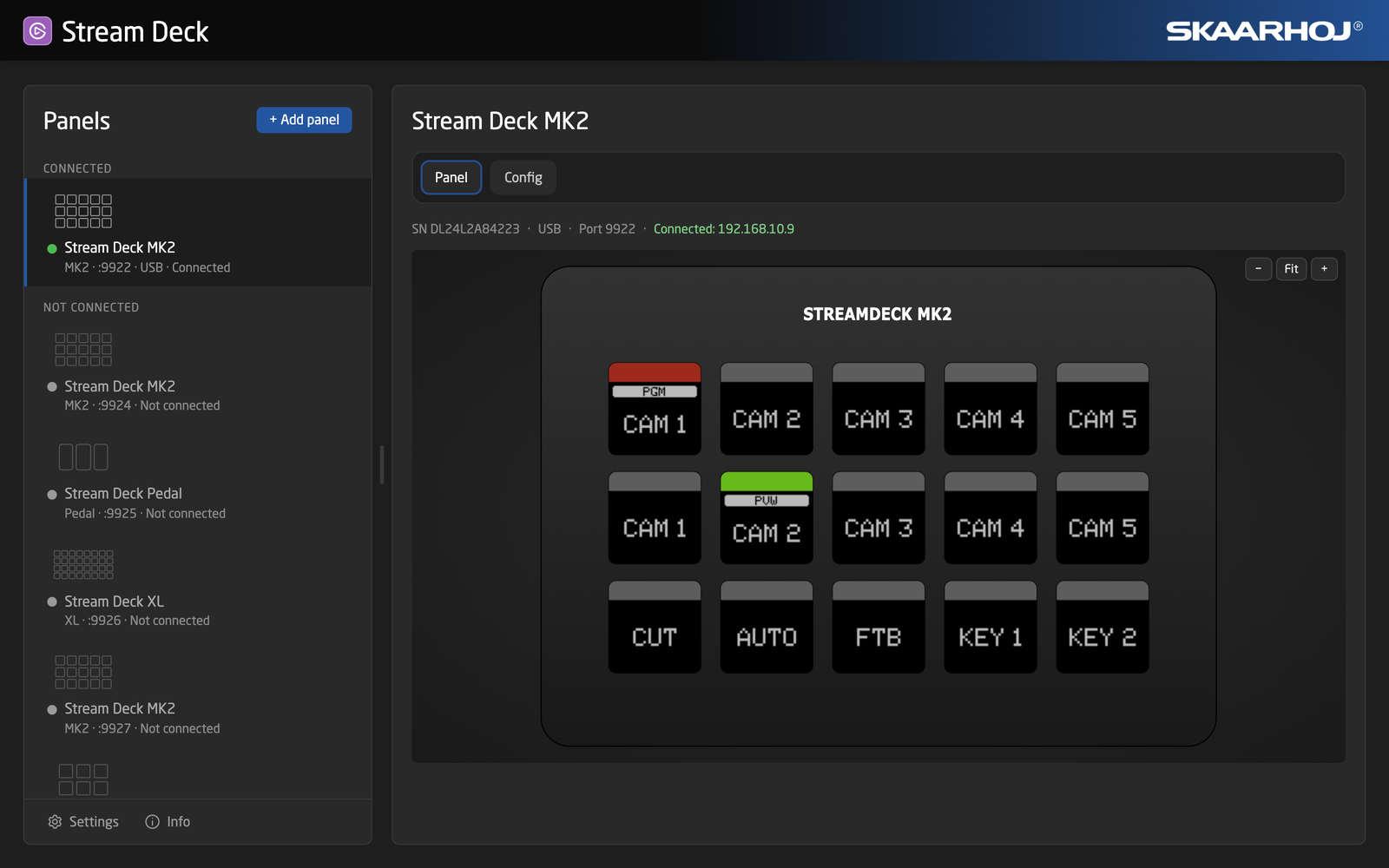
The full manual is linked from the app's Info page and attached to this page.
Watch it
Stream Decks appear in many of our videos; here is one.
Getting Started
- Connect the Stream Deck to a USB-A port on your SKAARHOJ device; some models need a powered hub (see Device Support). For a Stream Deck Studio or Network Dock, see Stream Decks on the Network.
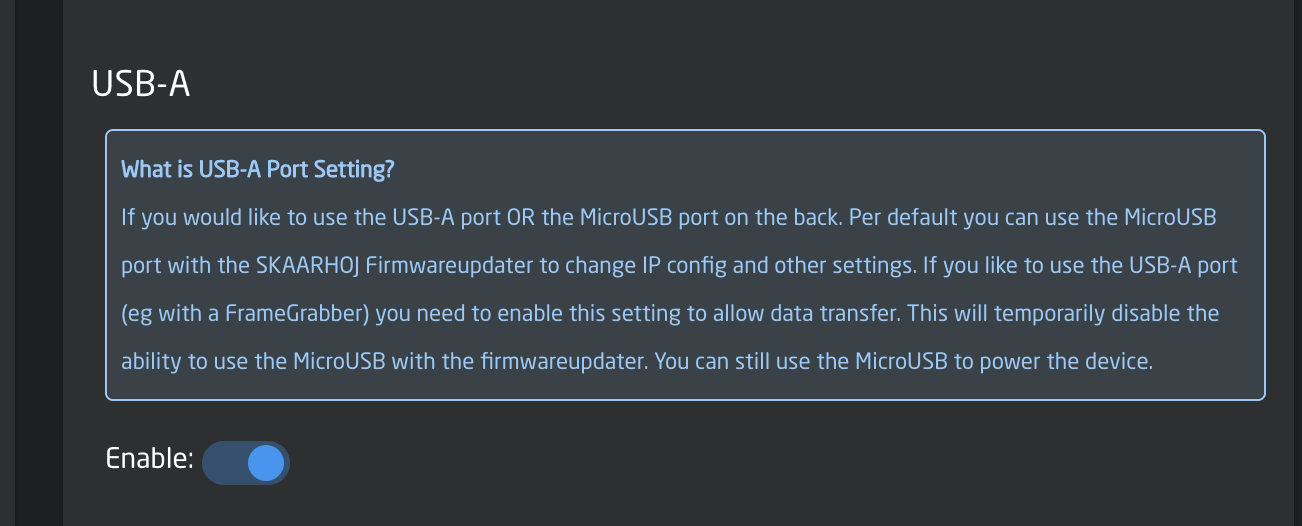
- In the device's web interface, go to Settings, turn on USB-A, power cycle the device once or twice, and check that USB-A is still on. (Not needed for Stream Decks on the network.)
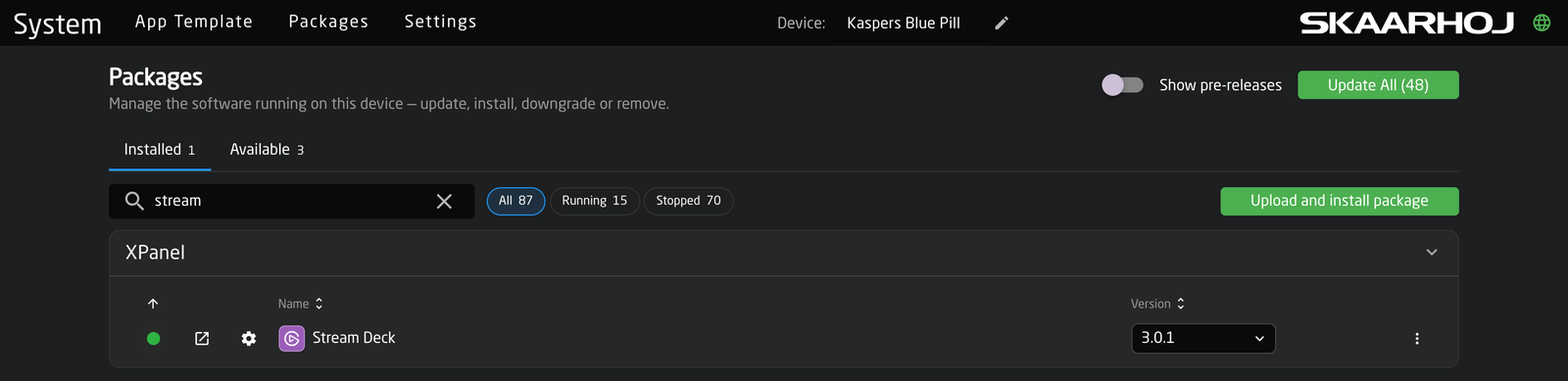
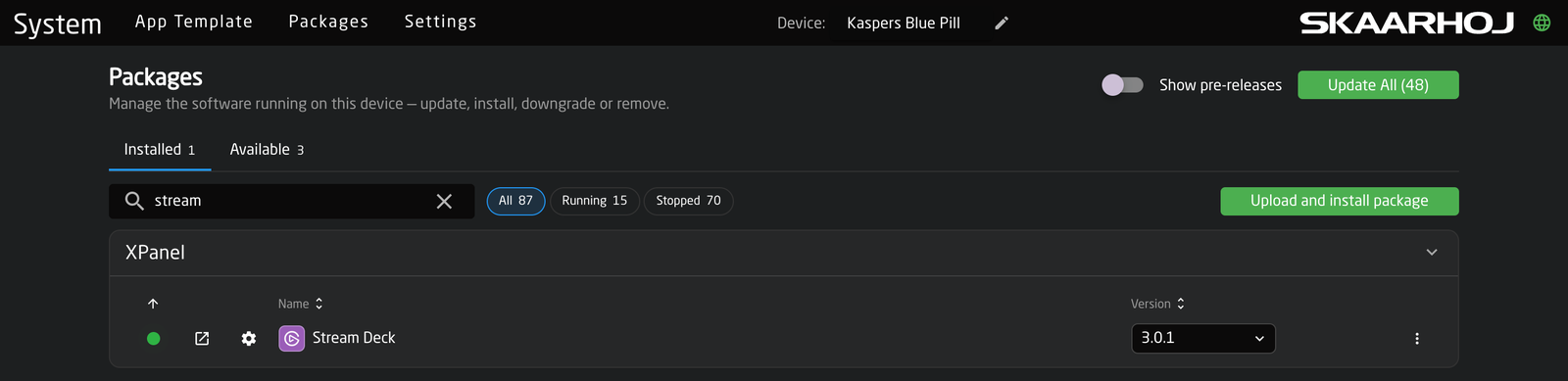
- Go to Packages, find Stream Deck under Available (XPanel group) and click Install. Once running, it has a green dot under Installed:
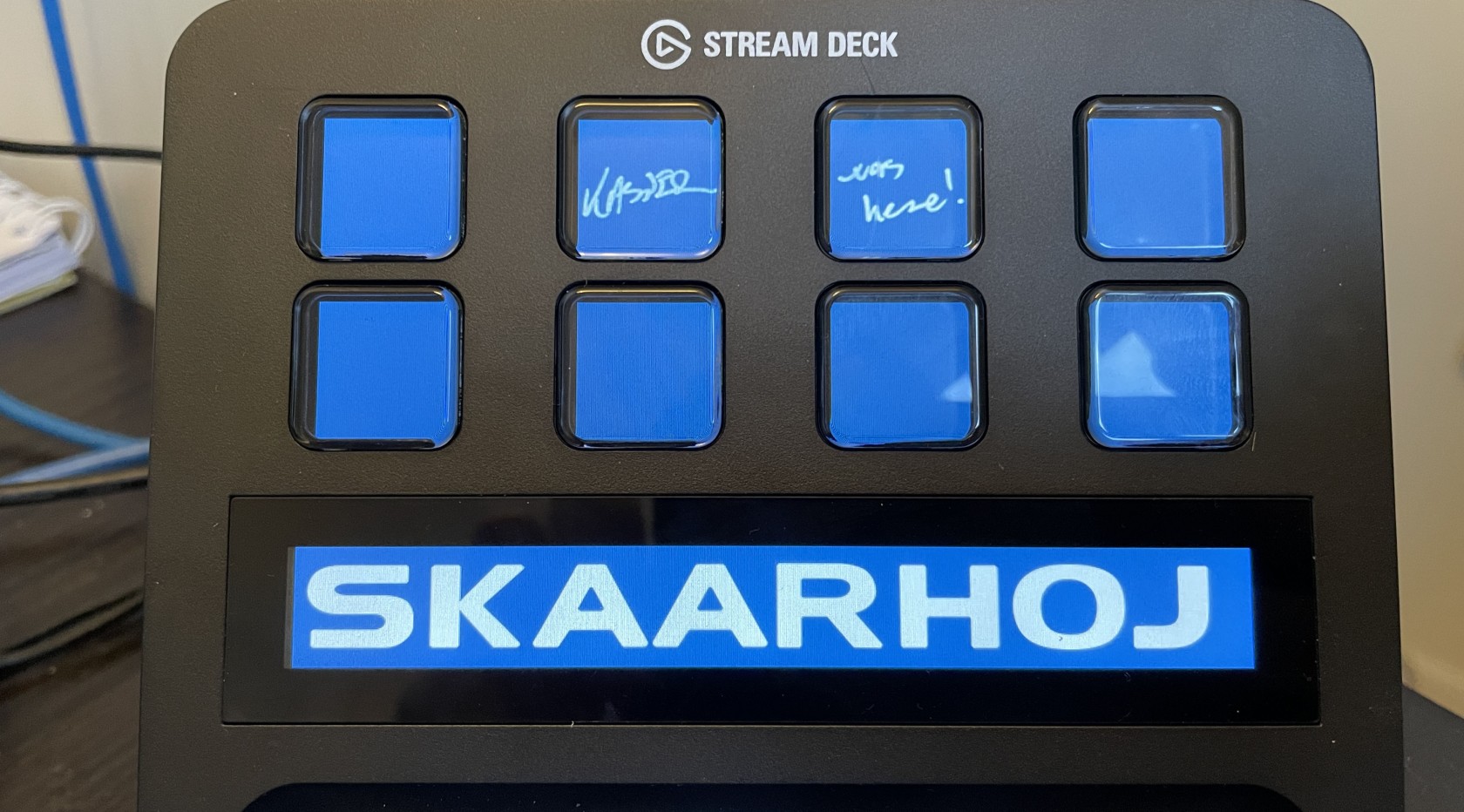
- The Stream Deck plays a short intro:
- Then it shows Waiting for Blue Pill, with the IP address and port on one key (9923 for the first Stream Deck, then 9924 and up):
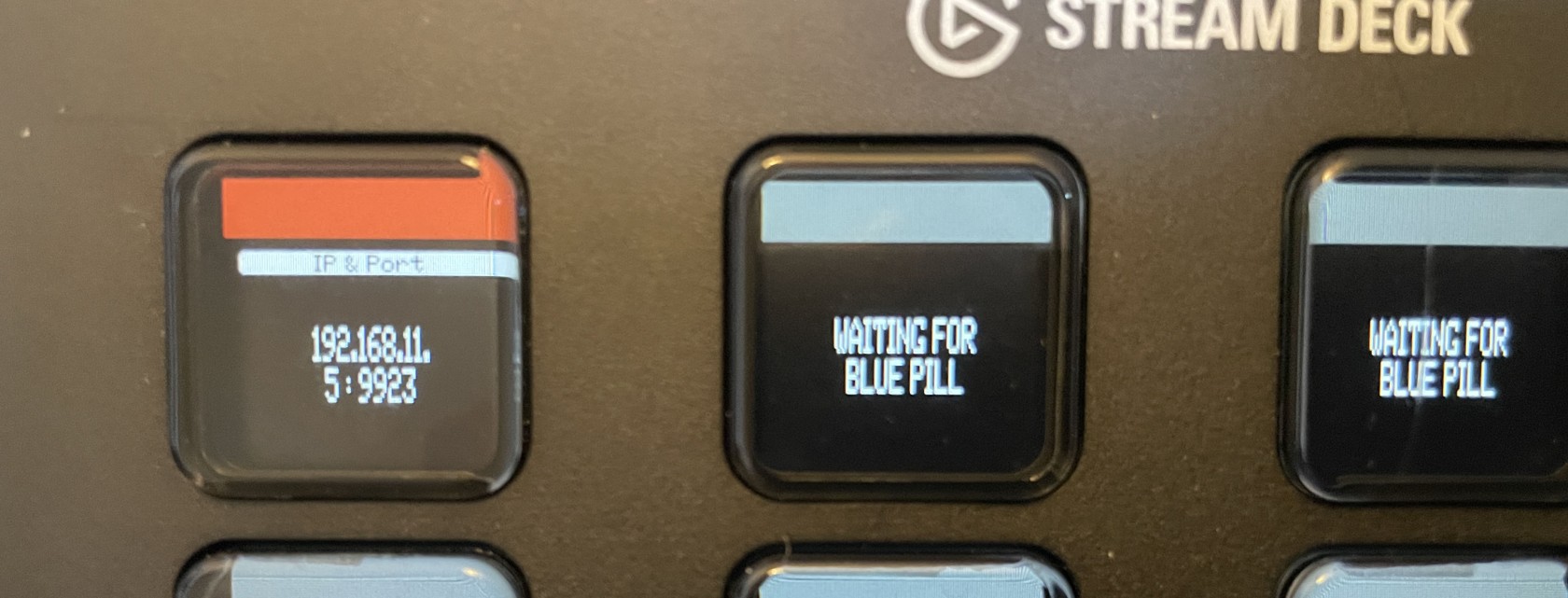
- Open the app with the open icon on the Packages page, from the device's app portal, or at
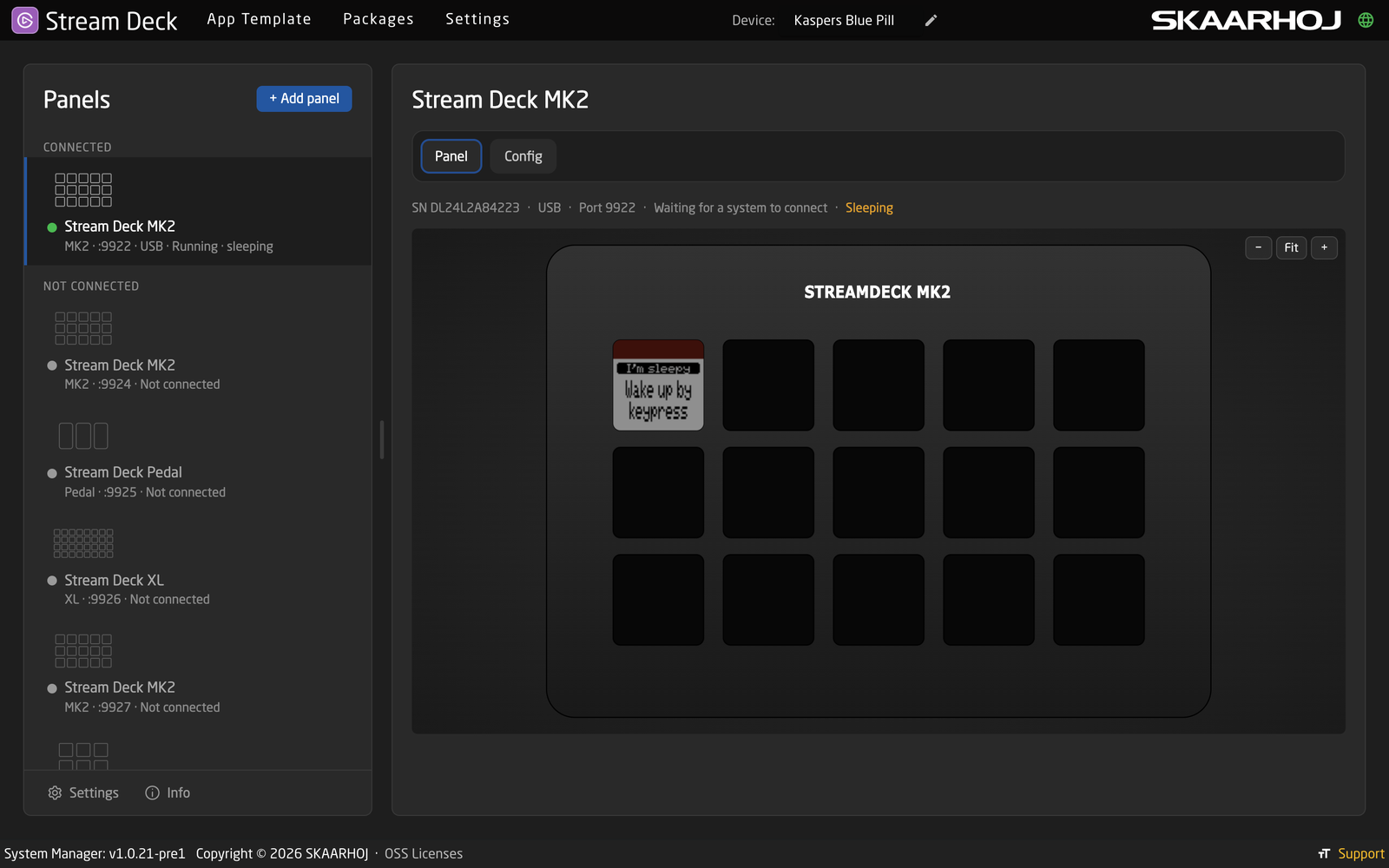
http://<device IP>/ingress/xpanel-streamdeck. Your Stream Deck is listed under Panels: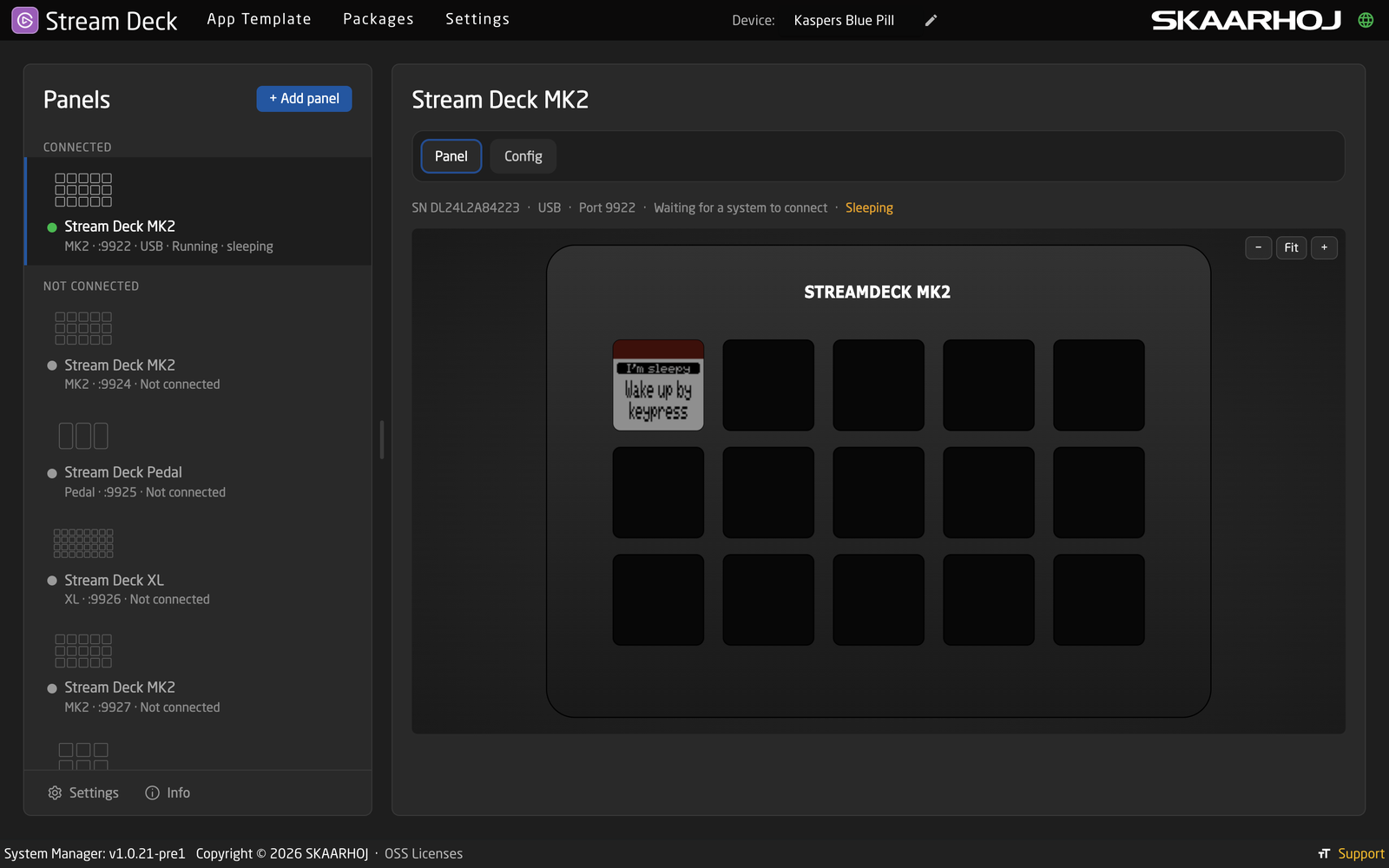
- In Reactor, add a Raw Panel with the device's IP address and that port, or let Reactor find it on the network.



All settings live in the app; the package's skaarOS configuration page is no longer used.
To test by hand, use the TCP Client under Tools in SKAARHOJ Discovery, or run nc <device IP> 9923 (or Telnet, or PuTTY with "Implicit CR in every LF"), type list and press some keys to see ASCII Raw Panel triggers. Raw Panel Explorer (end of this page) is nicer.
Issues? Write to innovationlab@skaarhoj.com and we'll help. :-)
Device Support
| Stream Deck model | Controls | Power at 5V (full brightness white) | Direct to Blue Pill (USB-A) | License points |
|---|---|---|---|---|
| Original (several revisions) | 15 keys | 370 mA | Yes | 100 |
| MK2 | 15 keys | 250 mA | Yes | 100 |
| Mini (several revisions) | 6 keys | 130 mA | No, use a powered hub | 70 |
| XL (several revisions) | 32 keys | 490 mA | No, use a powered hub | 139 |
| Neo | 8 keys, 2 touch keys, info display | 180 mA | Yes | 100 |
| + (Plus) | 8 keys, 4 dials, touch strip | 360 mA | Yes | 199 |
| + XL (experimental, not yet verified on hardware) | 36 keys, 6 dials, touch strip | - | - | 299 |
| Studio | 32 keys, 2 dials with LED rings, NFC | 8.7 W observed on PoE (white displays, LEDs at max) | Yes, with extra USB-C power; or over the network | 501 |
| Pedal | 3 pedals | 80 mA | Yes | 0 |
| Network Dock (PoE) | Puts a Stream Deck on Ethernet, powered by PoE. The Stream Deck on the dock uses its model's points. | |||
Notice: each Stream Deck keeps the port it got the first time, so it isn't always 9923. The app shows every panel's port, which matters for the Pedal since it has no display.
The HWC numbers Reactor uses for each model are in the manual and in Raw Panel Explorer.
Stream Deck Studio
The Stream Deck Studio is a rack-mounted, Ethernet-connected model aimed at professional AV and broadcast.

Technical observations:
- Keys need a fairly firm press.
- Display tiles are 144x112 pixels; the dial LED rings have 24 RGB LEDs.
- Ethernet is TCP port 5343, with a keep-alive about every 4 seconds; several clients can connect. It uses the same binary protocol as USB (see our Go library: github.com/SKAARHOJ/go-streamdeck).
- The front USB port is not a hub: a Stream Deck plugged in there appears as extra keys (button 33, 34 ...). Over Ethernet it's reported as present, but we saw no events from it.
- The NFC reader returns the card number as ASCII (usually 8 hex characters, sometimes longer).
- It announces itself with mDNS on Ethernet.
In the app, the LED rings show colors, steps, strength or VU values from Reactor:
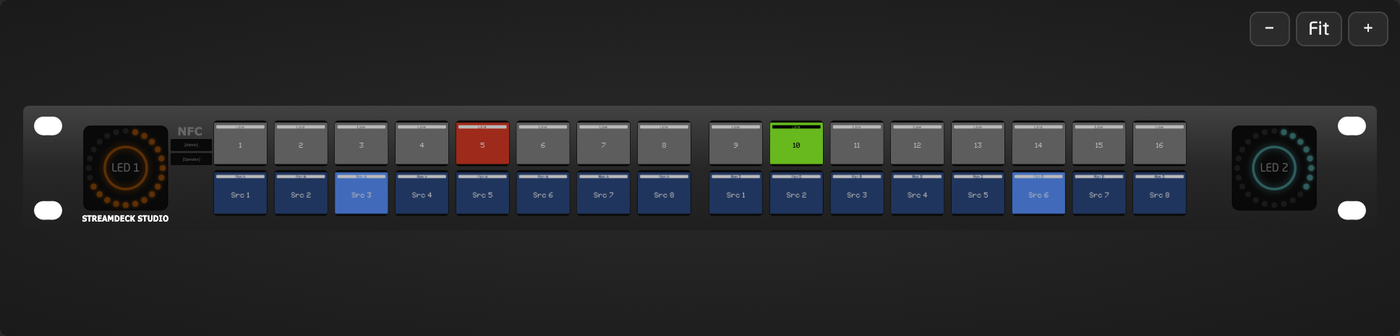
A Studio panel's settings have LED Ring Segments (LEDs used, of 24) and LED Ring Offset (first LED, clockwise from the top). For example, 13 segments at offset 17 gives a half circle from 9 to 3 o'clock.
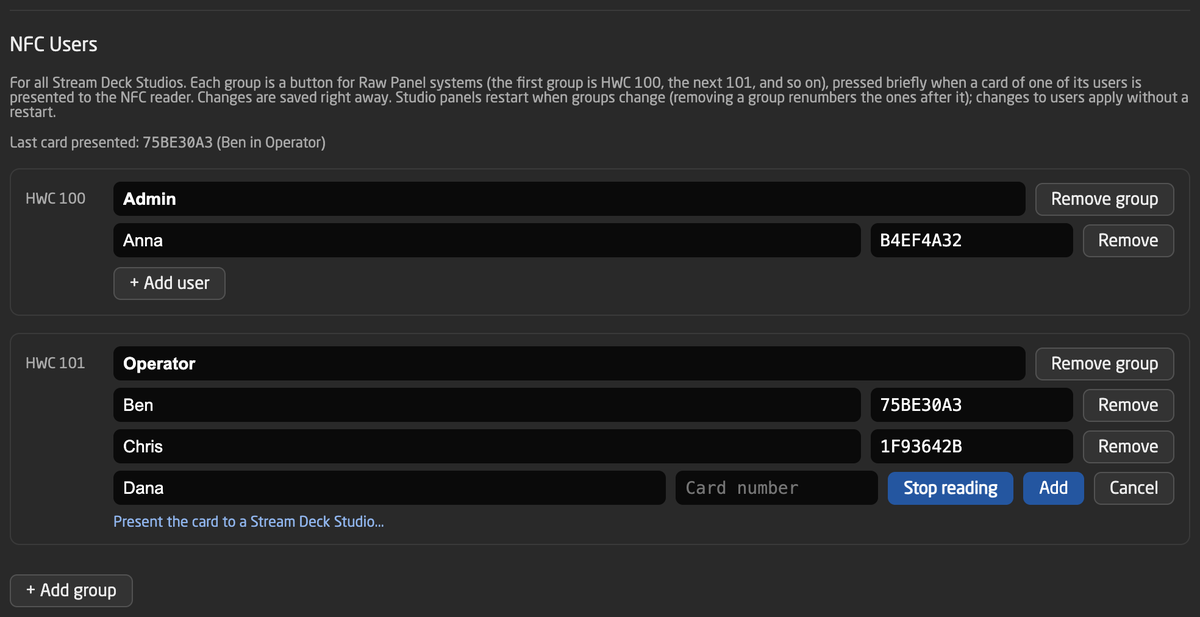
NFC users: users with NFC cards are put in groups, and each group is a virtual button (HWC 100, 101 ...) that is pressed when one of its cards is presented. Reactor decides what that does, for example toggle a variable that shows or hides layers. Manage groups under NFC Users in a Studio panel's settings: click + Add user and present the card to fill in its number. All Studios share the groups. (This replaces editing the Deep Config JSON by hand, which still works in Expert mode.)
The App
Panels are listed on the left; the selected panel is on the right, with Panel (live view) and Config (settings). Settings and Info are under the list.
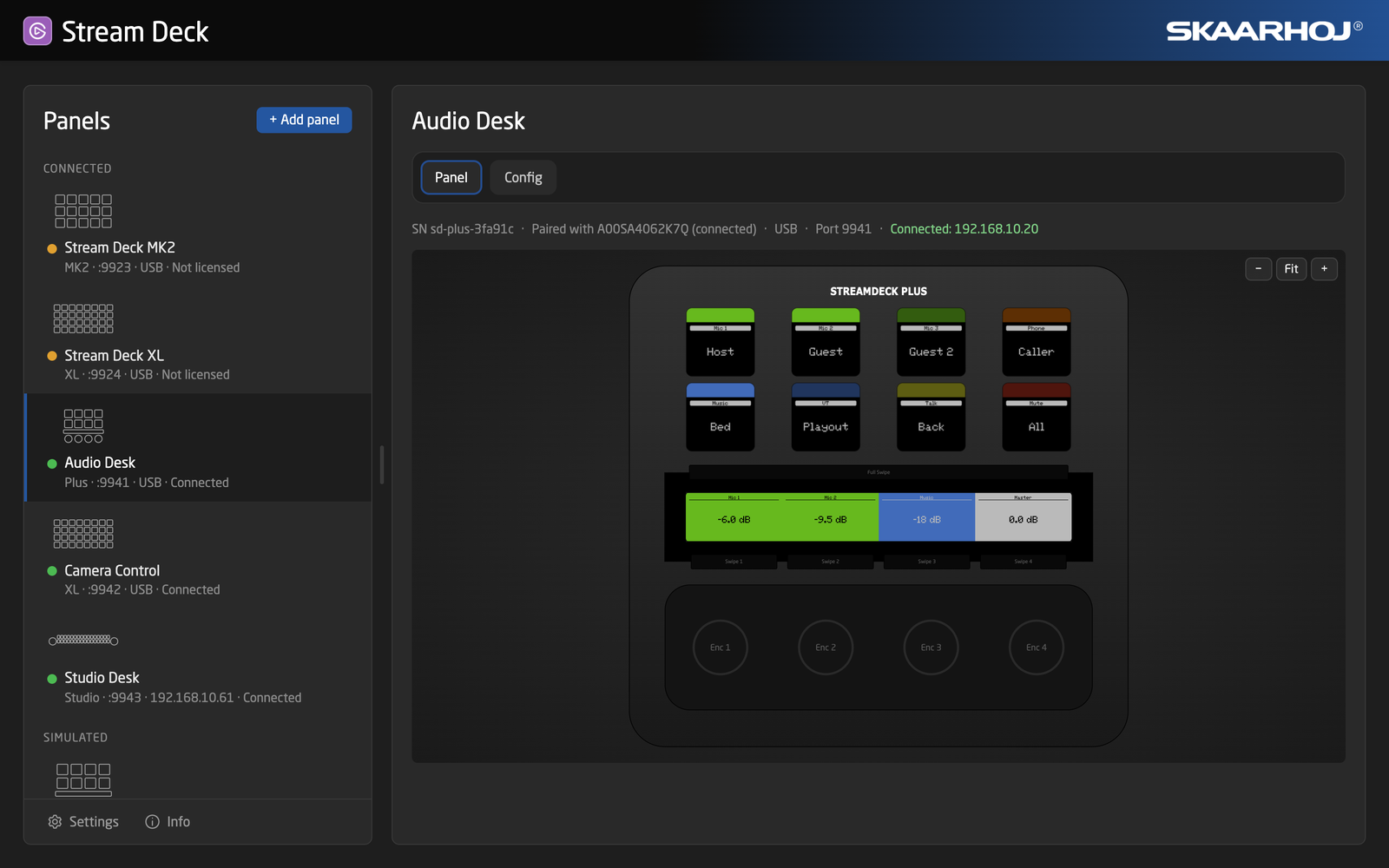
The list is grouped into Connected, Simulated, Not connected and Found on the network. Each row shows the model, port, connection (USB, IP address or Simulated) and state, e.g. Connected (a system such as Reactor is connected) or Running (waiting for one). The dot blinks on each trigger, so you can see which panel is in use. Right-click a row to remove it.
The on-screen panel works like the real one: click keys, drag or scroll dials, tap and swipe the touch strip. Reactor gets the same events either way.
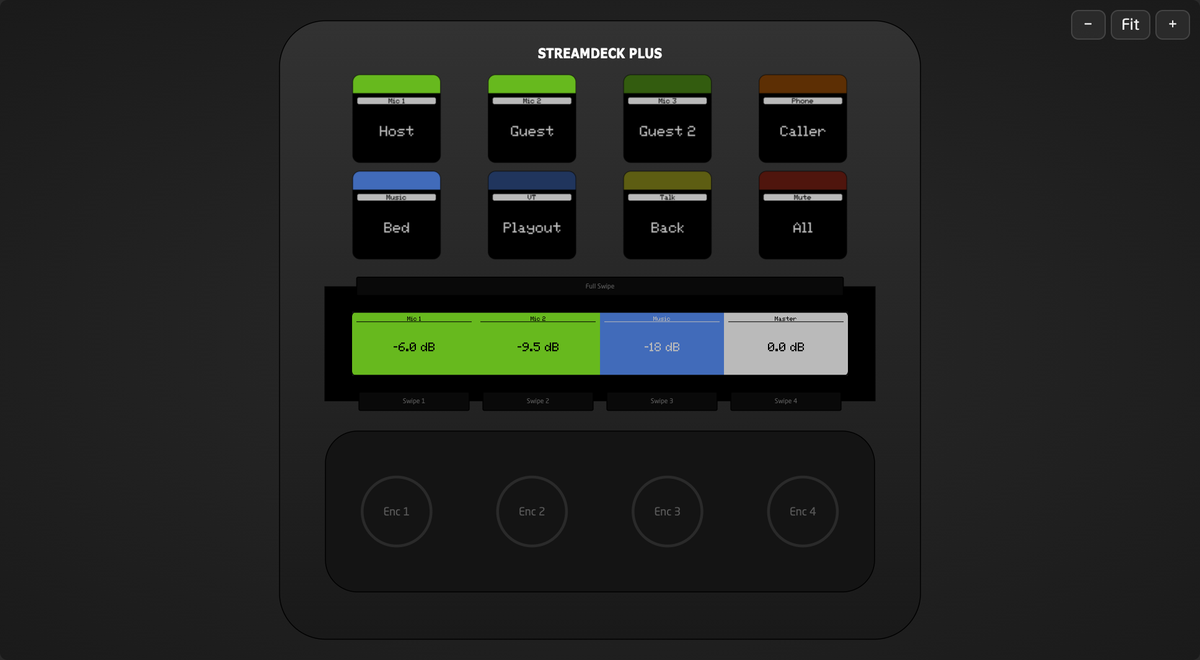
LED Mode sets how a key's color from Reactor is shown: a Bar on top (default, like the keys on a SKAARHOJ panel), the Background behind white text, or None to use the whole key for graphics.
Set up before the hardware arrives
A panel is only on the network while its Stream Deck is connected. To set up Reactor in advance, press Simulate on a panel, or create one with + Add panel:
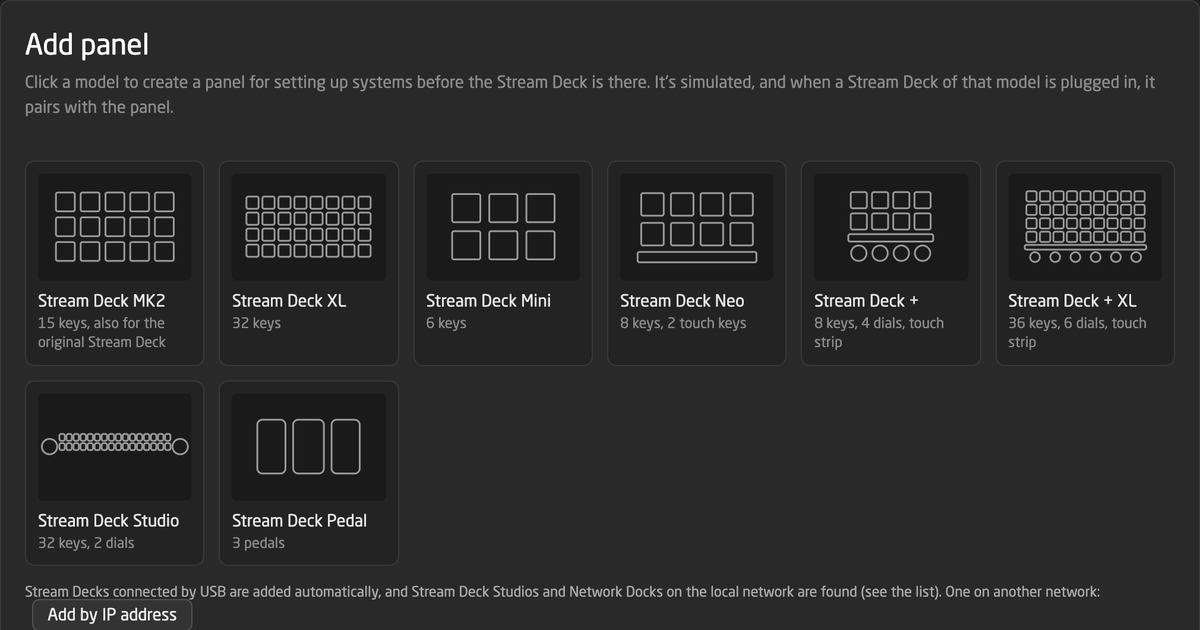
A simulated panel is on the network, accepts connections and is operated on screen, without using license points. The first Stream Deck of that model to be plugged in is paired with it and takes over without disconnecting anyone. You can also pair by hand in the panel's Config.
Stream Decks on the Network
With Elgato's Stream Deck Network Dock, a Stream Deck no longer has to sit next to the Blue Pill: the dock is powered by PoE and connects it over Ethernet, so no USB cable or hub is needed. A Stream Deck that moves from USB to a dock keeps its panel, port and settings.
Stream Deck Studios and Network Docks on the local network appear under Found on the network. They may belong to another computer, so they're only used once you select one and click Add:

After that it's used automatically, even if its IP changes. For one on another network, use + Add panel → Add by IP address. Only one program can use a Stream Deck at a time, so close the Elgato software on other computers.
Configuration
Each panel's Config has a description, Active, port, Max Clients and Lock to IPs (basic protection on a friendly network), Large Text and LED Mode. Changes save as you make them.
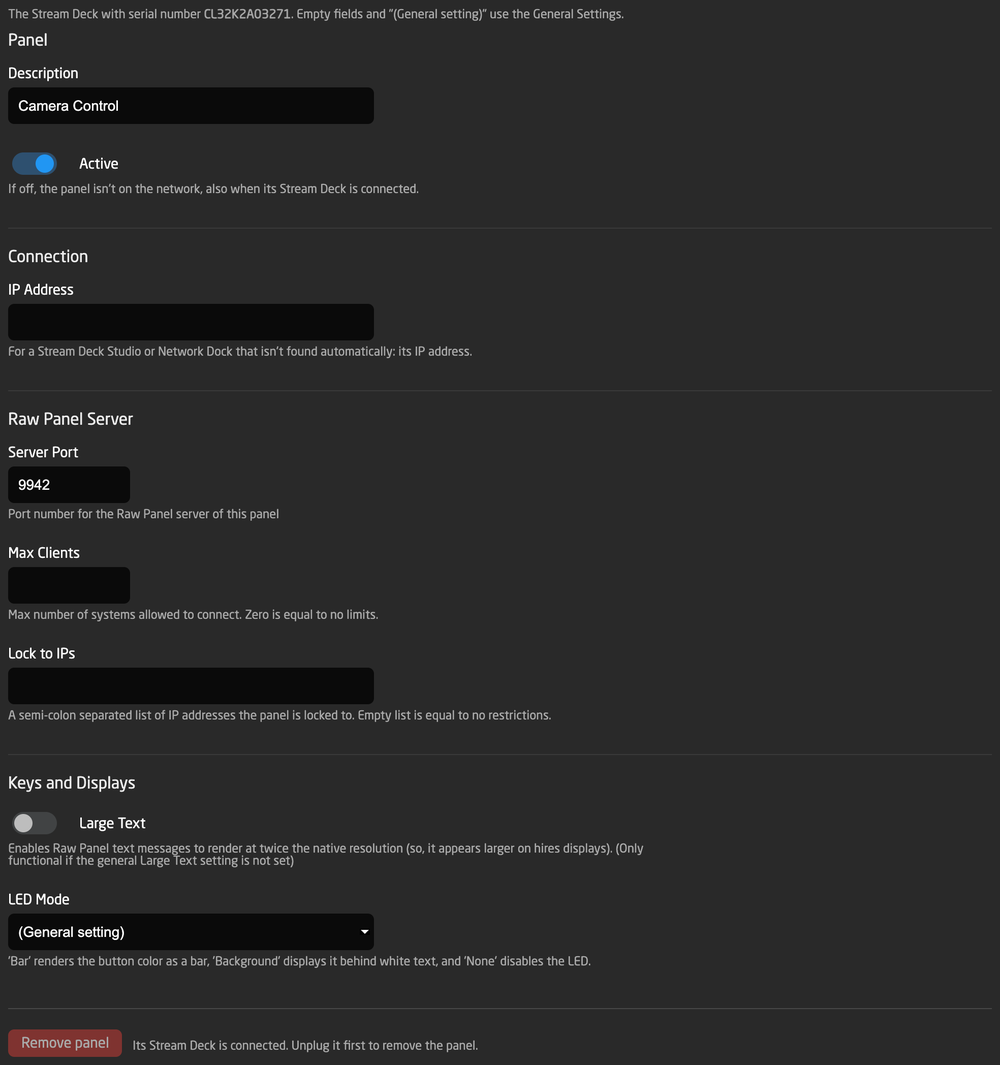
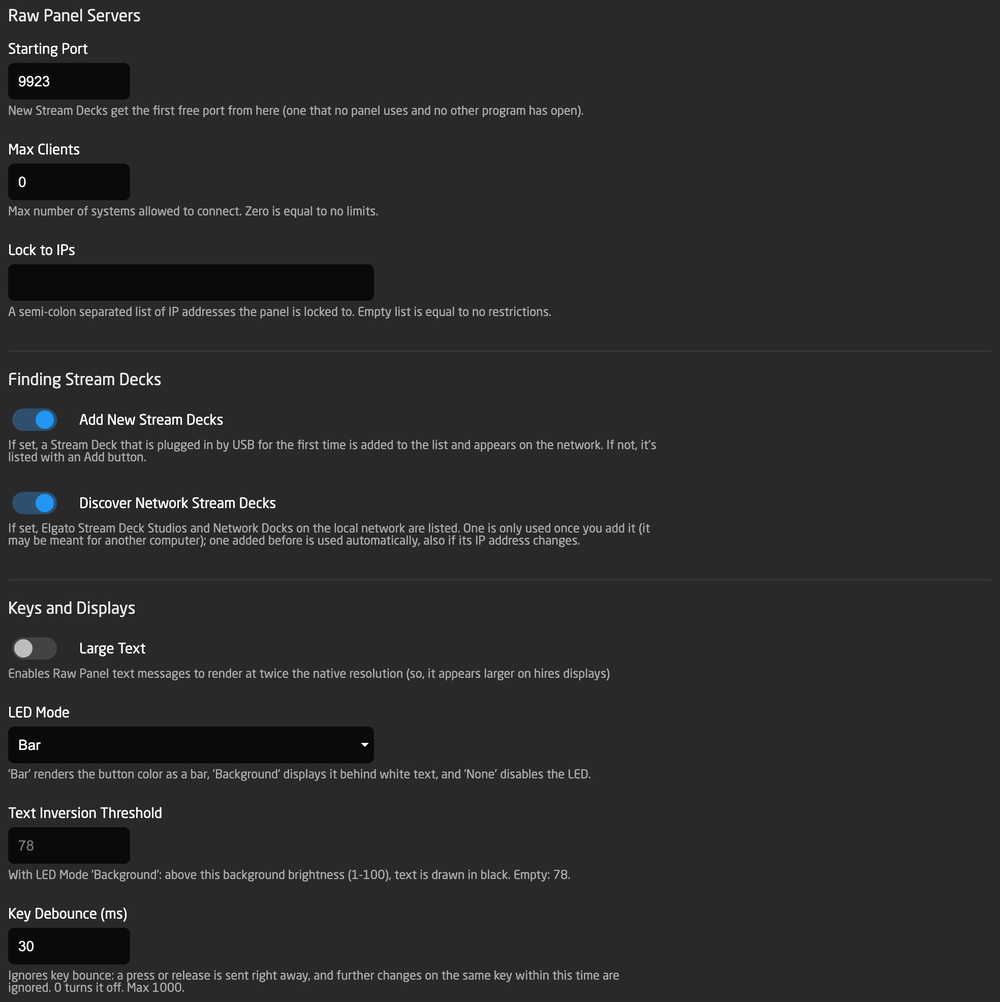
Settings holds the defaults for all panels: Starting Port (9923), Max Clients, Lock to IPs, adding new Stream Decks automatically, finding Stream Decks on the network, Large Text, LED Mode, Text Inversion Threshold and Key Debounce. The Expert switch adds Protocol Mode and Deep Config.
Under Configuration you can export, import, and restore the configuration from before the last import or reset.
Upgrading from version 2: old settings are converted on first start. The Adhoc, Fixed and Virtual panel types and "Lock Serials to Port" are gone: every Stream Deck now has its own panel and keeps its port.
USB Hubs
Even when a Stream Deck can be powered by the Blue Pill directly, we strongly recommend a powered hub to spare the Blue Pill's power circuit. For several Stream Decks you need a powered (charging) hub anyway; we have run at least 4 different Stream Decks on one Blue Pill this way.
Hubs we have found working:
| USB Hub | Specs | Comment |
|---|---|---|
| i-tec, U3CHARGEHUB10 | 10 ports, USB-3, DC12V | Our favourite: feels solid and has a power button per port. |
| StarTech ST53004U1C | 4+1 ports | Works |
| LC-Power, LC-HUB-ALU-2B-7 | 7 ports | Works |
| D-Link, DUB-H4 | 4 ports | Works, but less convincingly. Without external power it draws from the Blue Pill, which causes issues. |
This is our own limited experience, without guarantee. Most other powered "charging" hubs probably work too.
Limitations observed
- Four or fewer Stream Decks per hub may be a practical limit, depending on USB load. No number is guaranteed; test critical setups under real conditions.
- On macOS, four Stream Decks have run on one USB-C to USB-A dongle for development, and seven when spread over several dongles and hubs, even at fairly high update rates.
- A Blue Pill generally runs up to three Stream Decks reliably. It may enumerate more, but when several update their displays at once, bandwidth limits can cause missed updates. Test before relying on it.
Licensing
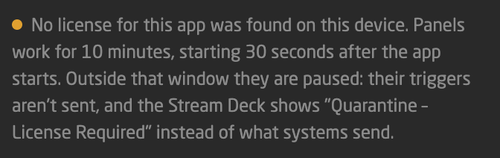
Without a license, panels work for 10 minutes, starting 30 seconds after the app (re)starts. Then they pause: systems stay connected, but presses aren't sent and the Stream Deck shows "Quarantine - License Required". Restarting the package gives another 10 minutes.
A license costs 99 EUR / 129 USD (January 2026). Order from support@skaarhoj.com, sales@skaarhoj.com or the webshop, and include your Blue Pill's serial number.
Each license gives 1000 points, and each connected Stream Deck uses its model's points (see Device Support): enough for 1 Studio, 7 XL or 14 Mini. Licenses add up, and simulated panels use none. The Blue Pill's resources may set a lower practical limit.
Don'ts
Hot-plugging is generally robust, but excessive plugging and unplugging can lock up the USB bus until the Blue Pill is rebooted. Play nice and it will be reliable.
Exploring with Raw Panel
Read the Raw Panel protocol, and try Raw Panel Explorer, now built into SKAARHOJ Discovery for Windows and Mac (download).
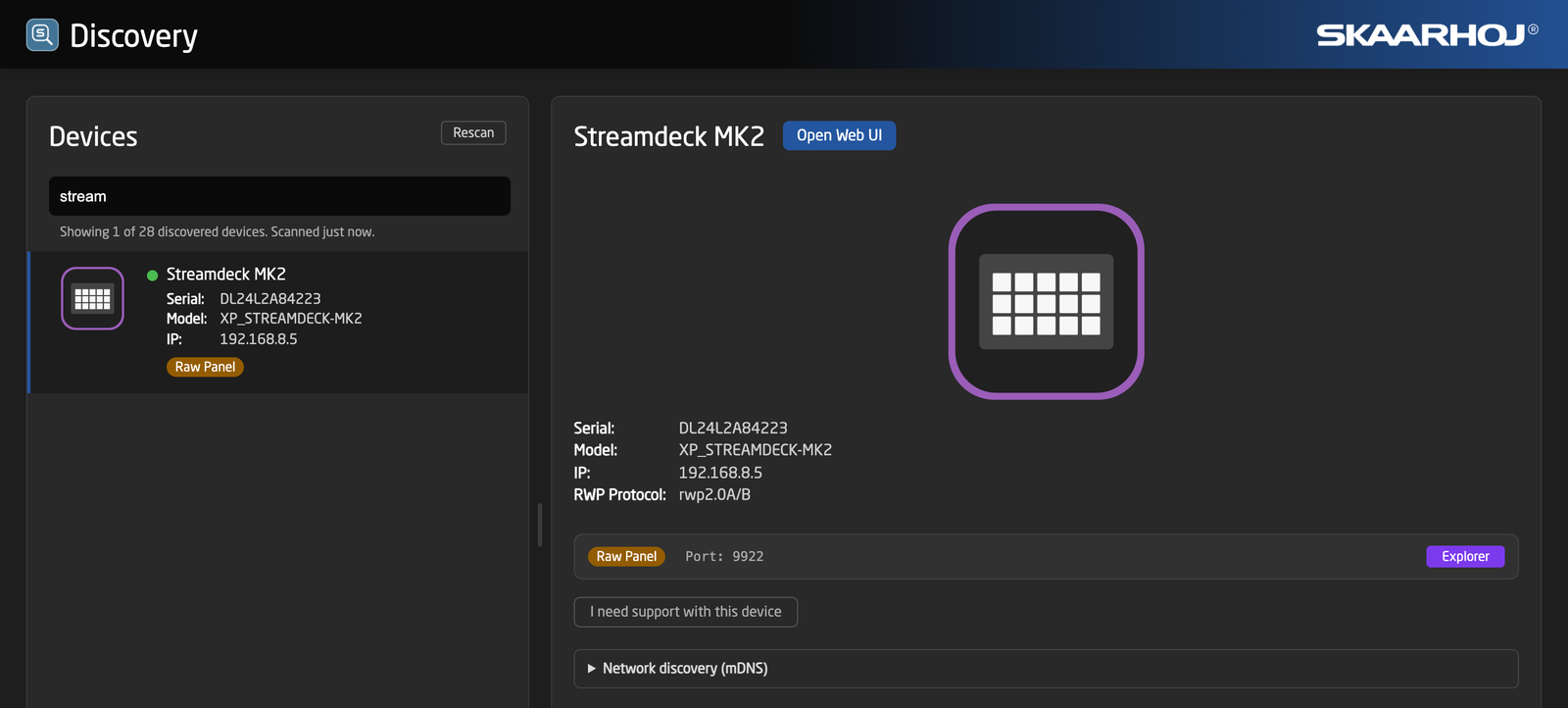
Discovery lists the SKAARHOJ devices on your network, including every Stream Deck panel. Turn on Expert in Discovery's Settings, select the Stream Deck, and click Explorer:
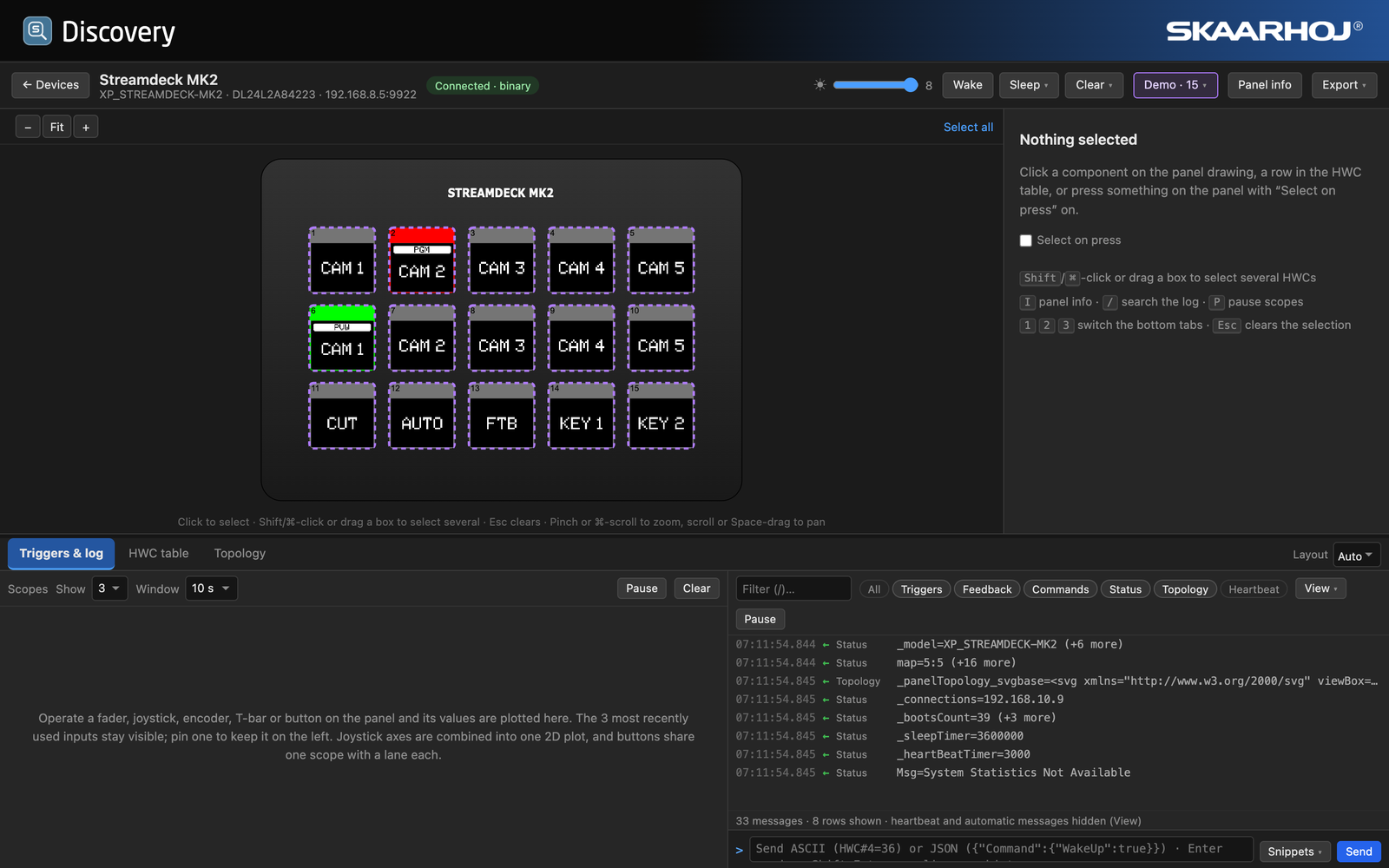
Explorer draws the panel, logs and plots triggers as you press keys, lets you send text, colors and images to selected keys, and has Demo shows. Here the Broadcast studio demo runs on the same MK2 as in the app screenshot at the top:
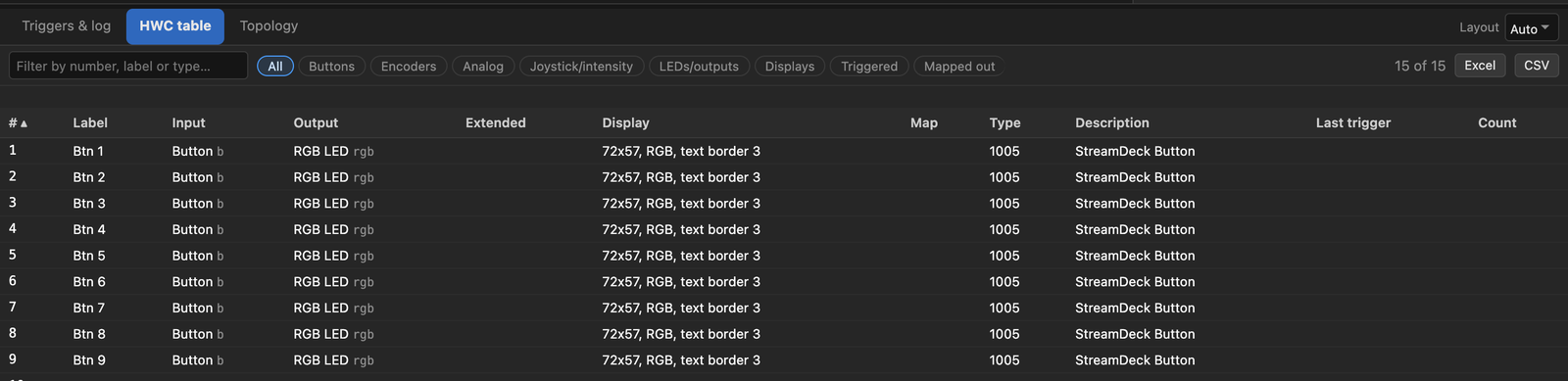
The drawing comes from the panel itself: any Raw Panel client can ask for the topology (JSON and SVG), which describes every component and how to draw it. The HWC table tab lists them:
Have fun! :-) Comments and questions are welcome at innovationlab@skaarhoj.com.
- kasper