Video Follow Audio - Producer Assistant
The Video Follow Audio model of the Skaarhoj Producer Assistant core provides functionalities for automated switcher control, based on logic inputs, such as an audio meter.
This can be used in simple scenarios, such as a debate or radio program, to automatically cut to a camera on the person speaking.
How it works
The Video Follow Audio system works by monitoring an audio level for each person (called participants) in the system. It checks periodically if a new participant is talking more than others, and then cuts to that participant. If the same person has been talking for a long time, it will periodically cut to a wide shot (a safe source, if set up) or to the participant previously on, as a listening shot.
Each participant has one or more actions — the camera shots that can be used when that participant is talking. An action is either a fixed switcher input or a PTZ camera preset, and when a participant has several actions, the system picks between them so the framing stays varied.
Requirements
For the system to work, it requires an audio level parameter for each participant. This will usually be a channel meter from an audio mixer or from the switcher's audio mixer.
Not all devices provide the same quality of audio meters. Some have a slow update rate, some have a high latency and some are not too precise. This means that though it might work in theory, some parameters are less than ideal for reliable switcher control. If possible, please try it out before you buy the license.
Configuration
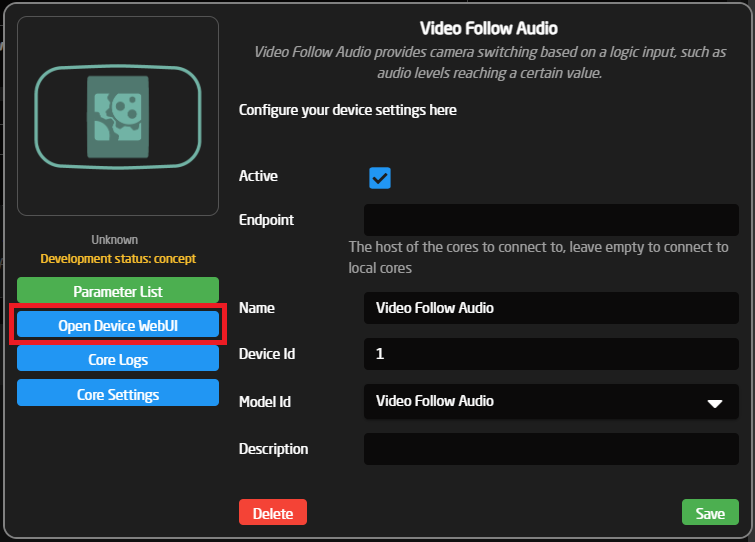
All configuration happens in the Device WebUI. To open it, open the device configuration on the home page of Reactor, and press 'Open Device WebUI'. It can also be found in the packages menu.
Switcher & Cameras
The 'Switcher & Cameras' page holds the hardware bindings shared by all configurations: the switcher, the audio source and the PTZ cameras.
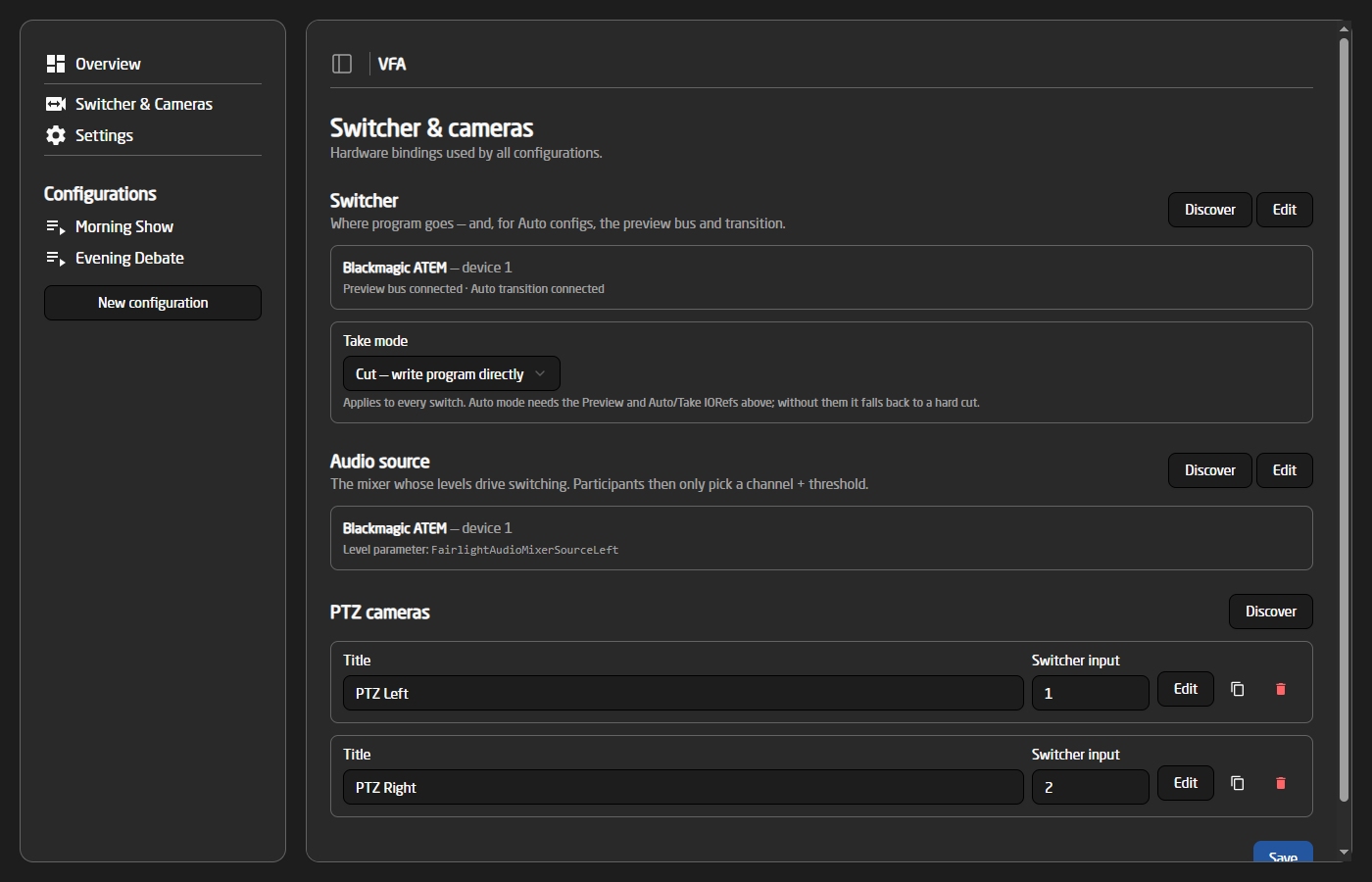
When you are finished editing this page, remember to press Save at the bottom of the page!
Switcher
This is the switcher the system controls. The easiest way to set it up is the 'Discover' button, which lists the switchers found on the connected cores and fills in the parameters for you:
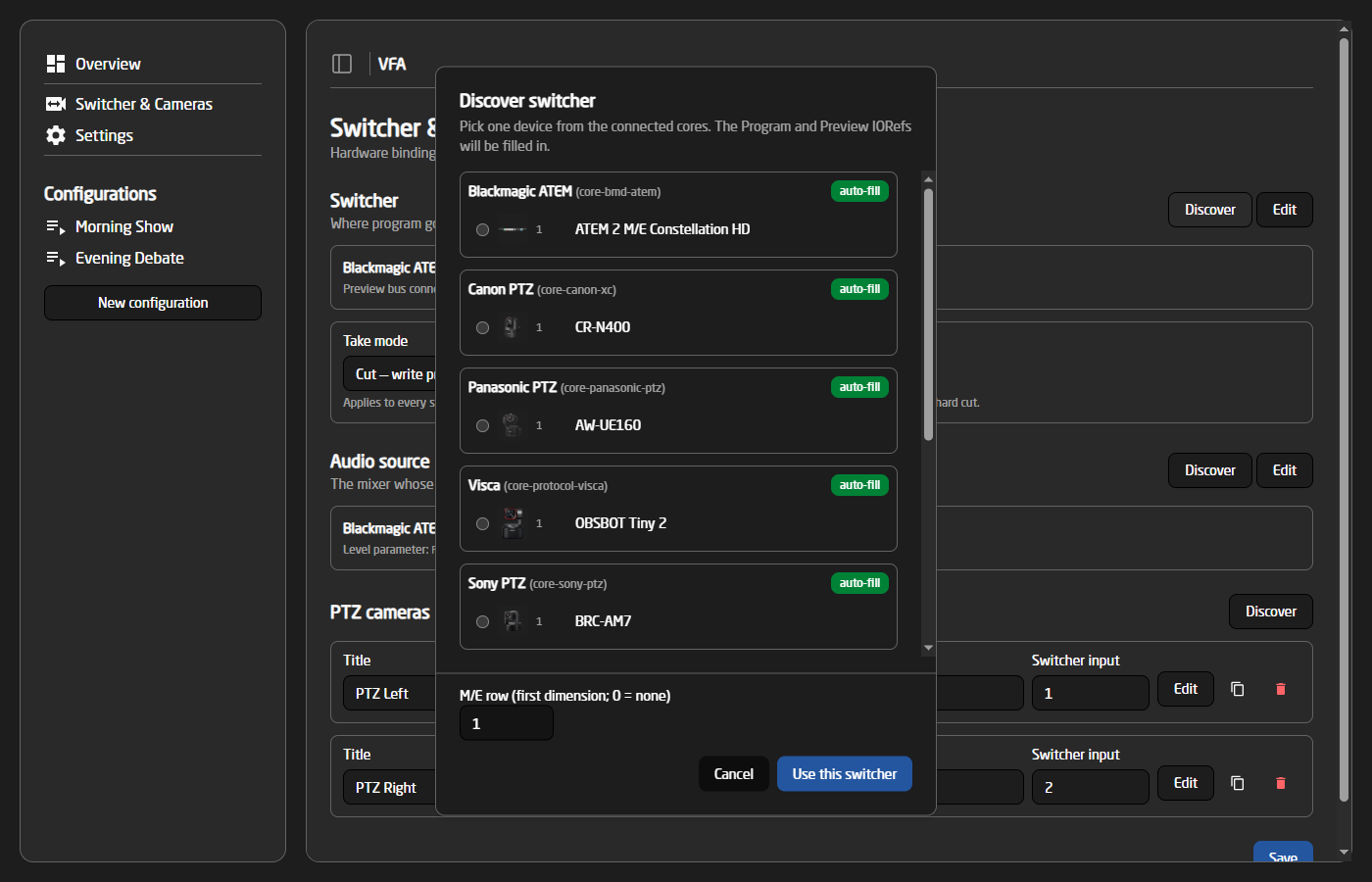
The 'Take mode' setting decides how a source is landed on program:
- Cut — the program input is written directly (hard cut).
- Auto — the source is staged on the preview bus and the transition is fired. This requires the Preview and Auto/Take parameters to be set, which the Discover dialog fills in automatically.
Audio source
The audio source is the mixer whose levels drive the switching. It is picked once here — participants then only choose a channel number and a threshold, and never have to deal with parameters directly.
Use 'Discover' to pick the mixer, or 'Edit' to choose the core, device ID and level parameter manually. For known mixers the recommended level parameters are highlighted in the dropdown:
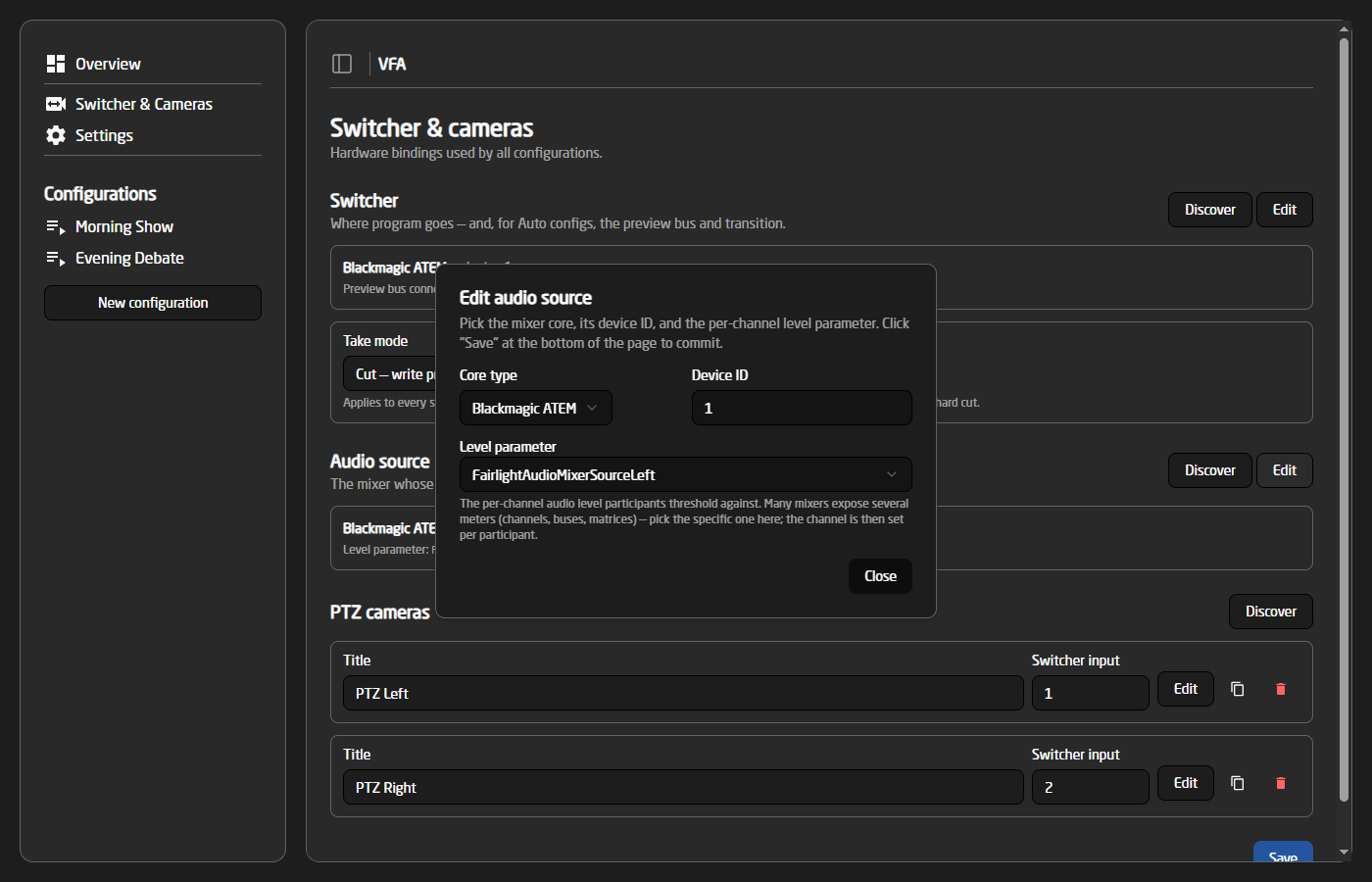
Many mixers expose several meters (channels, buses, matrices…) — pick the specific parameter here; the channel is then set per participant.
PTZ cameras
PTZ cameras can be used to film specific participants, so you don't need a fixed shot on each person. Multiple cameras can be configured, and the 'Discover' button can add them automatically from the connected cores.
Each camera has a title, its switcher input number, and (behind the 'Edit' button) the device ID, core type and preset recall parameter. Picking a core type auto-fills the standard recall parameter for that manufacturer.
Configurations
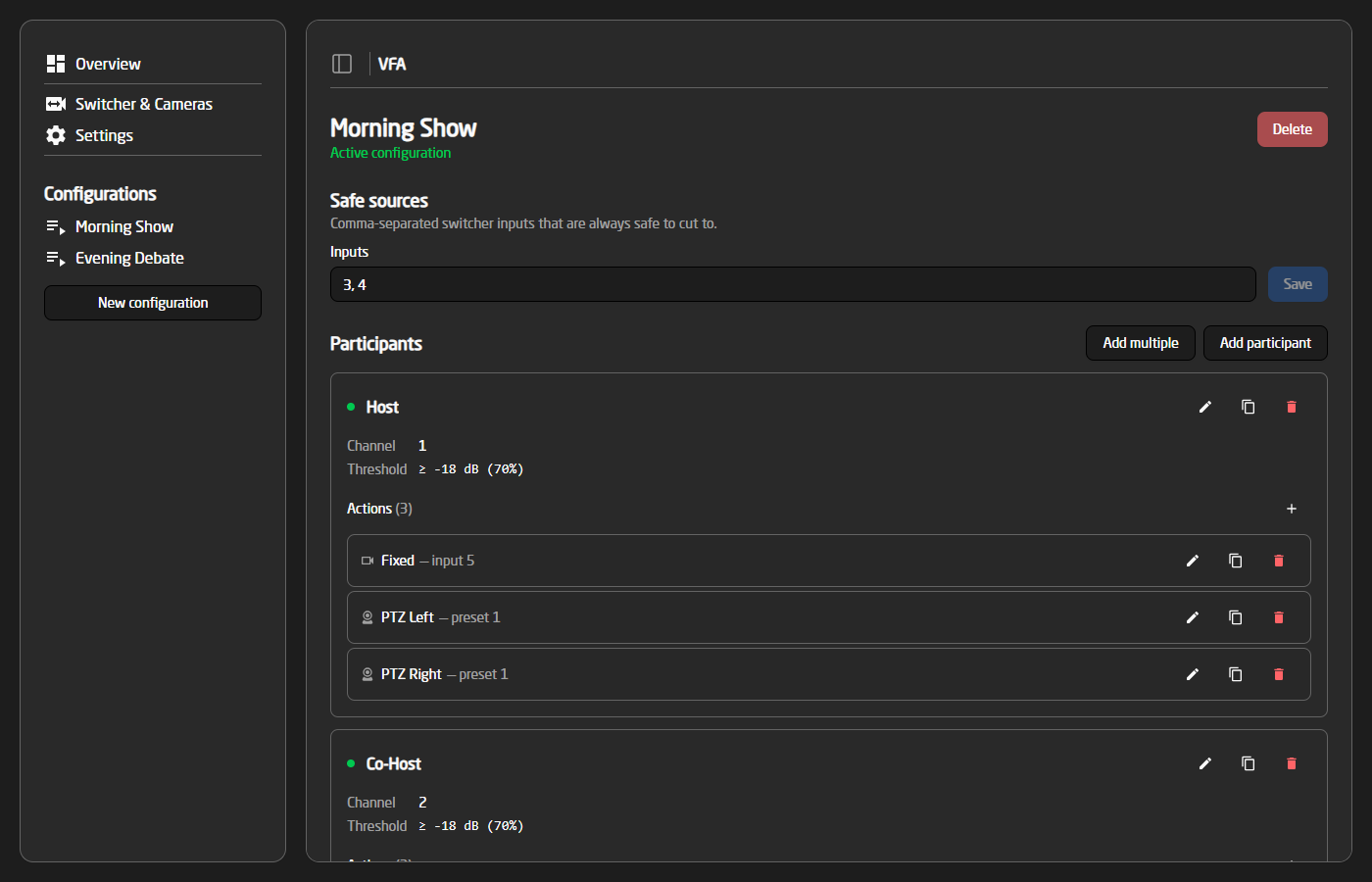
Safe sources
Safe sources are switcher inputs that are always safe to cut to, for example a wide or audience shot. They are used as listening shots when one participant has been on for a long time, and as a fallback when a PTZ camera needs to be repositioned while it is live.
Participants
This is where you set up each person in the system. A participant has a name, a channel and threshold for when they count as talking, and one or more actions. A participant can also be enabled or disabled, shown by the small indicator on the card.
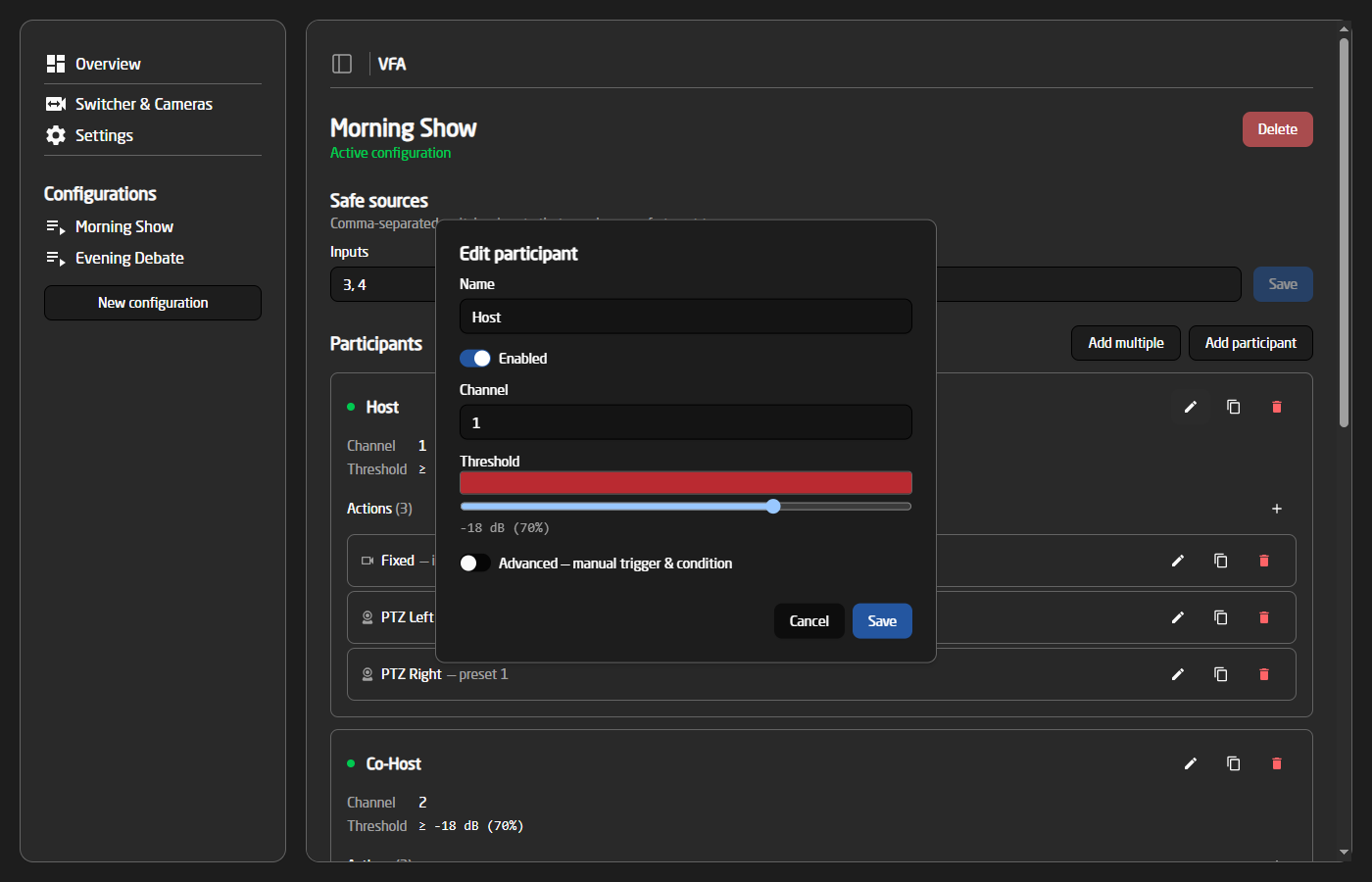
The channel is the participant's channel on the audio source, and the threshold is set with a slider. While the dialog is open, a live meter shows the incoming audio level behind the slider, so the threshold can be set by simply watching the person talk. In this example, the participant counts as speaking whenever channel 1 is above -18 dB.
For special cases, the 'Advanced' switch reveals the raw trigger and condition, where any IO Reference and logic expression (e.g. >= -18) can be entered manually.
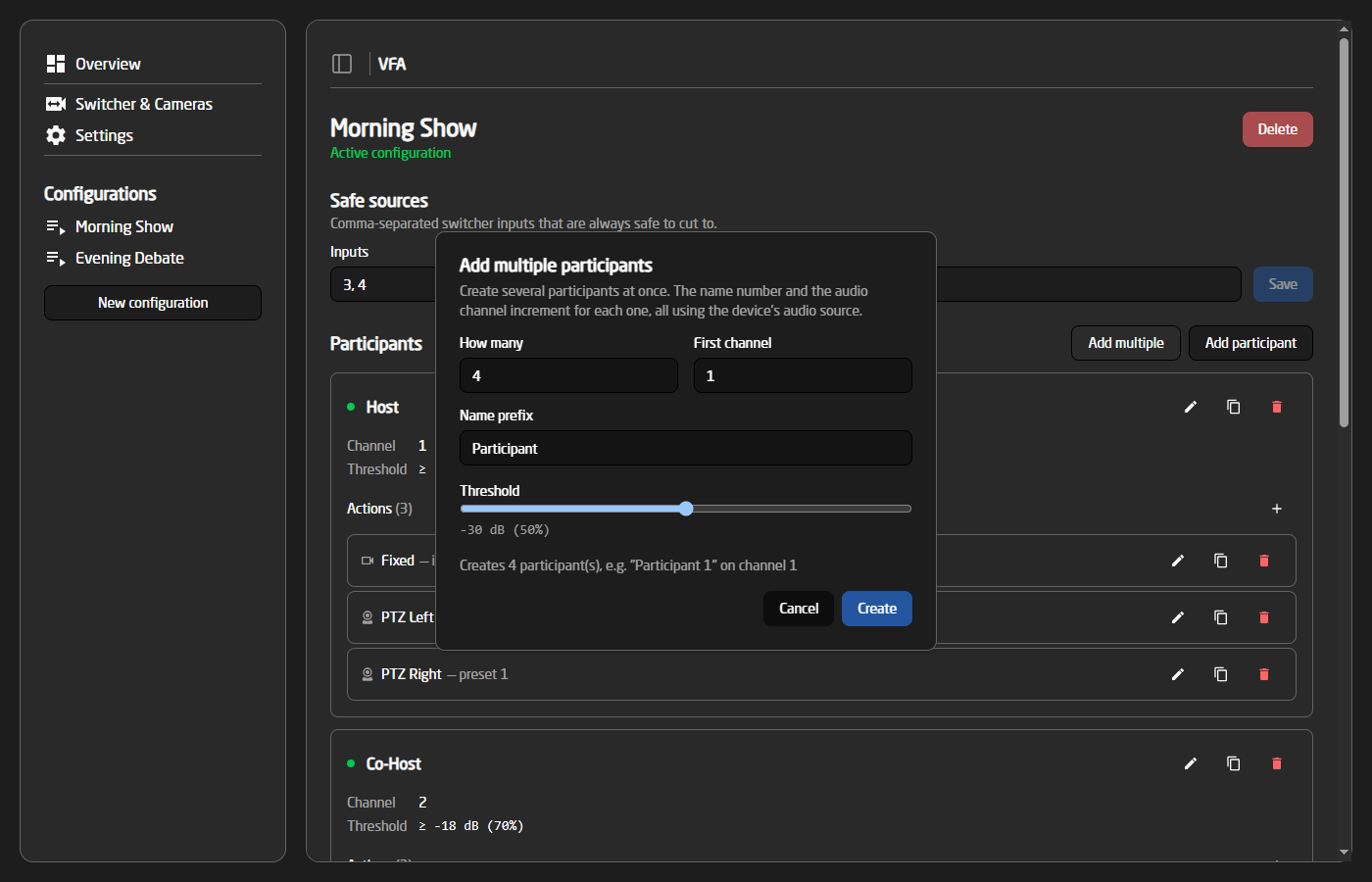
The 'Add multiple' button bulk-creates participants for the common "one audio channel per guest" layout — each new participant gets the next channel number and a shared threshold:
Actions
Each participant will need one or more actions. An action is either a fixed camera (a switcher input) or a PTZ camera preset:
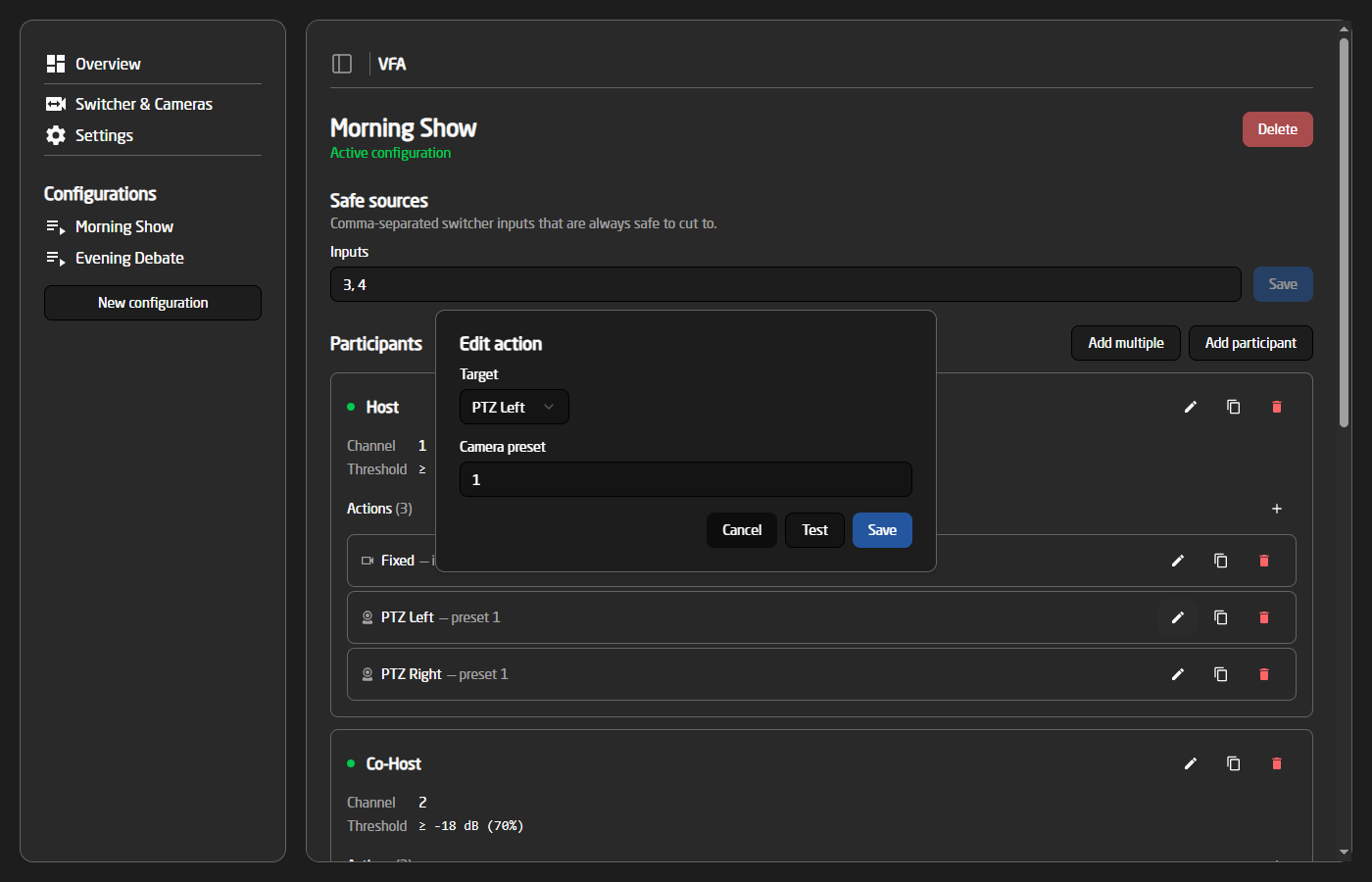
- Fixed — the switcher simply cuts to the given input.
- PTZ camera — the camera (picked from the cameras on the Setup page) recalls the given preset before the switcher cuts to it. The 'Test' button fires the preset so the shot can be checked while editing.
When a participant has several actions, the system picks between them, so the same person isn't always shown from the same angle. If a participant only has PTZ actions, the system prefers a camera that is not currently live. If only the live camera can be used, the system cuts to a safe source first, then repositions the camera and cuts back.
Settings
The Settings page holds the tuning knobs for the engine:
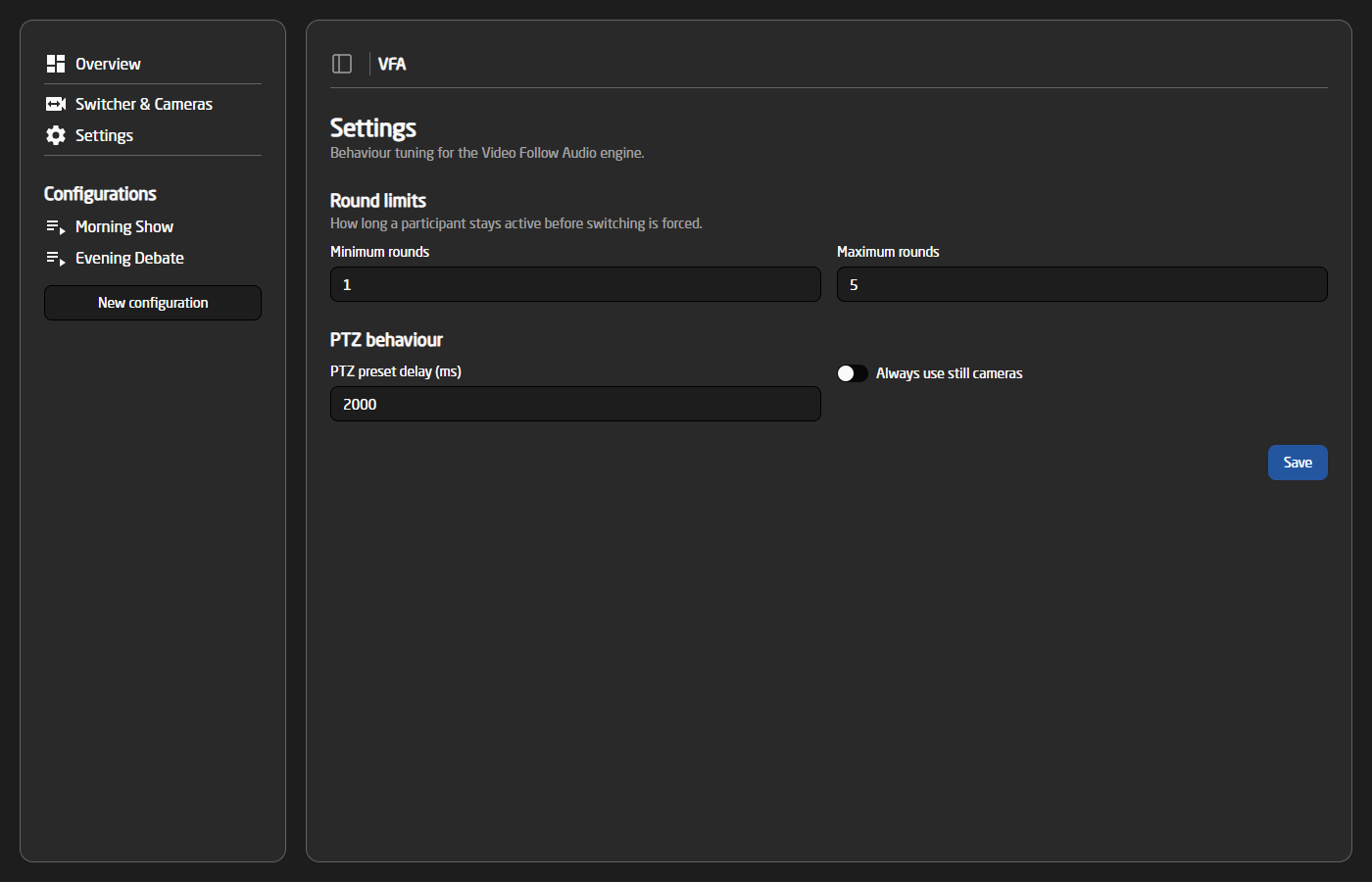
- Minimum rounds — how long a participant must stay on before the system is allowed to switch away.
- Maximum rounds — how long a participant can stay on before a listening shot is forced (the participant previously on, or a safe source).
- PTZ preset delay — how long the system waits after recalling a preset before cutting to that camera, giving it time to reach its position.
- Always use still cameras — when set, fixed actions are always preferred over PTZ actions.
Overview
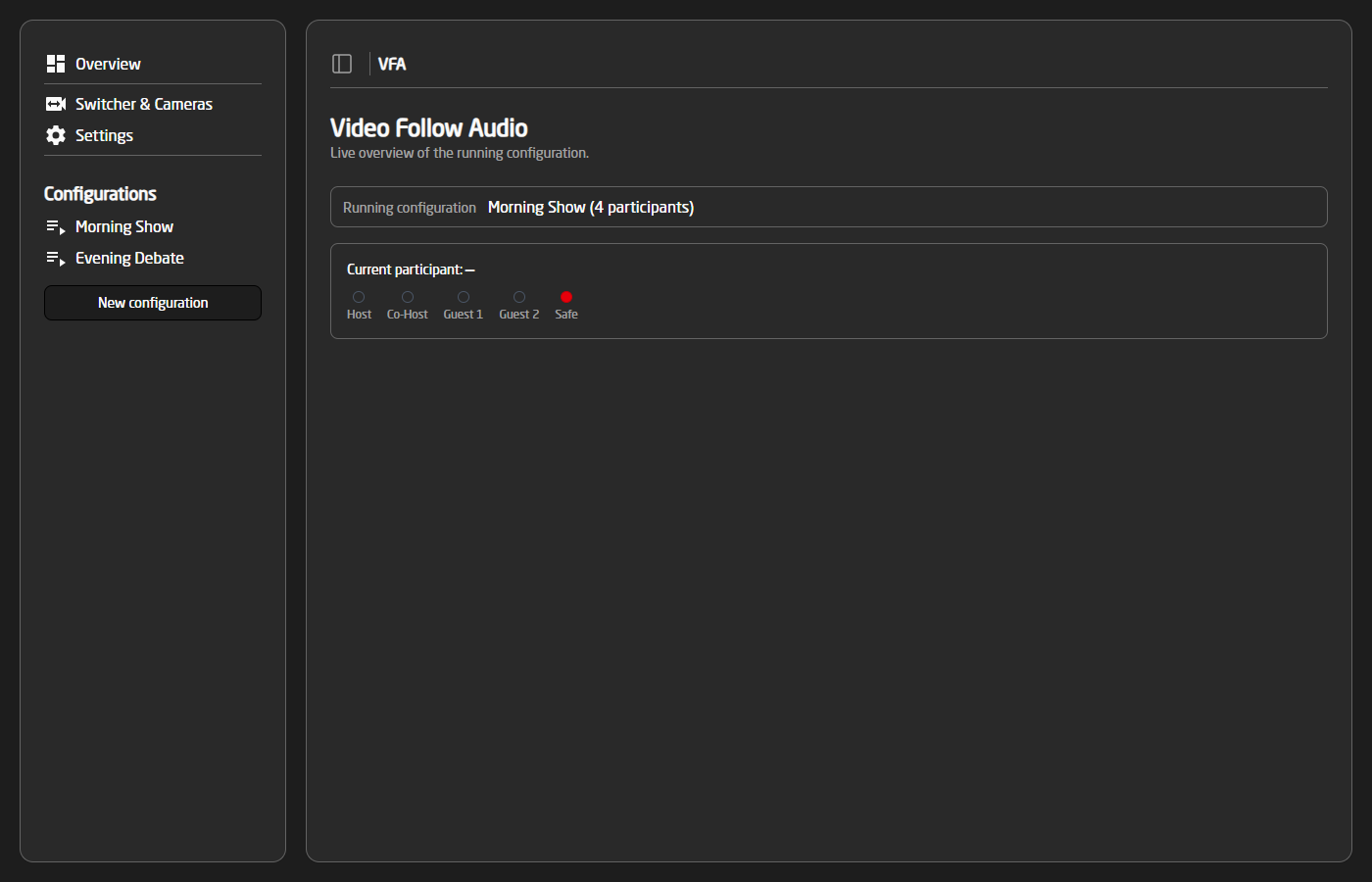
The Overview page shows a live view of the running configuration: the current participant on air, and a tally indicator for each participant (plus the safe shot), updating in real time: