
Salvos
A salvo is a named snapshot of routes. Fire it and every destination in it jumps to its stored source in one action — a show-open state, a rehearsal layout, an emergency fallback.
There are two ways to build one, and the first is much faster.
Capturing a salvo from the Routing page
Set the router up the way you want it, then store it. You never type a route twice.
- On the Routing page, route everything the way it should be and press Take, so the routes are live.
- Tick the checkbox in the Select column for each destination you want in the salvo. A bar appears at the bottom of the page listing the ones you picked.
- Choose the target salvo in the Update salvo: dropdown.
- Press Merge or Overwrite and confirm.
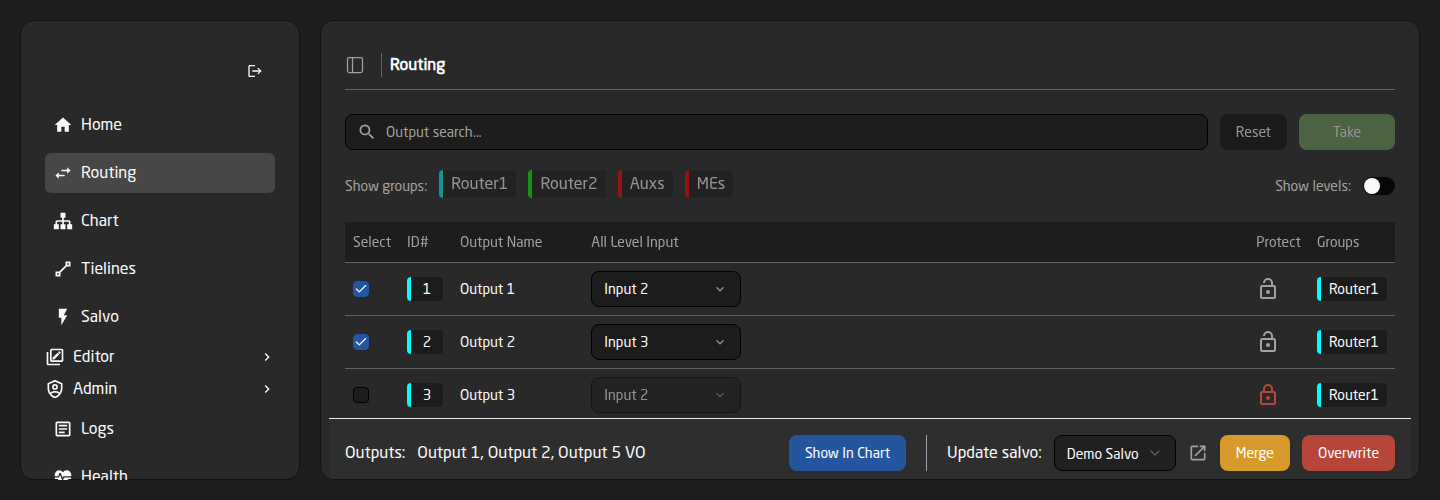
The two buttons differ only in what happens to the steps already in that salvo:
- Merge (orange) — updates the destinations you selected and leaves the rest of the salvo alone. Destinations you selected that were not in the salvo yet are added. Use this to extend or correct a salvo.
- Overwrite (red) — throws away every existing step and replaces them with exactly the destinations you selected. Use this to re-record a salvo from scratch.
Capturing gives you no on-screen confirmation. After a Merge or an Overwrite, open the Salvo page and check the salvo actually says what you expect. The open-in-new-tab icon next to the dropdown takes you straight there.
What gets stored is the destination’s current live route. If every level of a destination carries the same source, the step is stored as a single all-levels entry; if the destination is in a breakaway, each level is stored separately, so the breakaway comes back exactly as it was.
The same bottom bar also has a Show In Chart button, which opens the Chart page filtered to just the destinations you ticked.
Building a salvo by hand
The Salvo page is the full editor. Pick a slot in the Salvo dropdown at the top and everything below it applies to that slot.
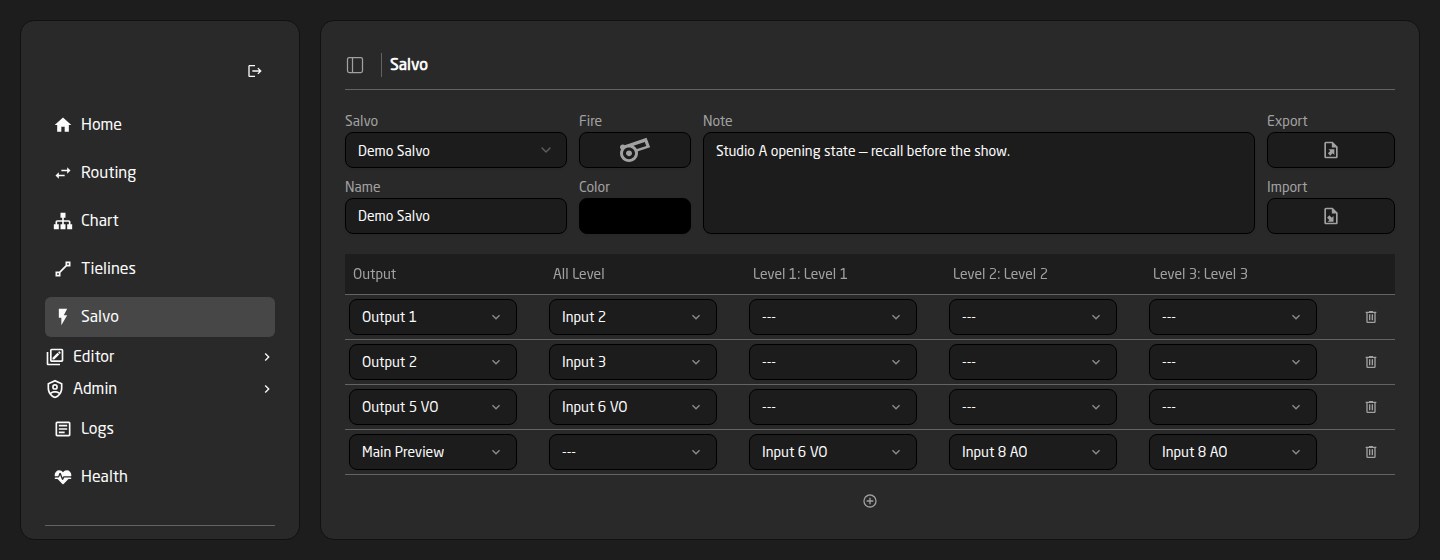
- Name — what appears on recall buttons and on panels. Make it something an operator will recognise under pressure.
- Color — the salvo’s display colour.
- Note — a free-form reminder, visible only here.
Below that is the step table, one row per destination:
- Press the + at the bottom to add a row, then pick its Output.
- Set All Level to send every level of that destination to one source.
- On a multi-level system, override an individual level in its own column to store a breakaway. Setting a level to --- leaves that level untouched when the salvo fires.
- The trash icon deletes a step.
There is no Save button — every edit is stored as you make it.
The “cannot recall fully” warning
FlowGrid continuously checks whether the salvo could actually run, and shows a red panel headed This salvo cannot recall fully when it could not.
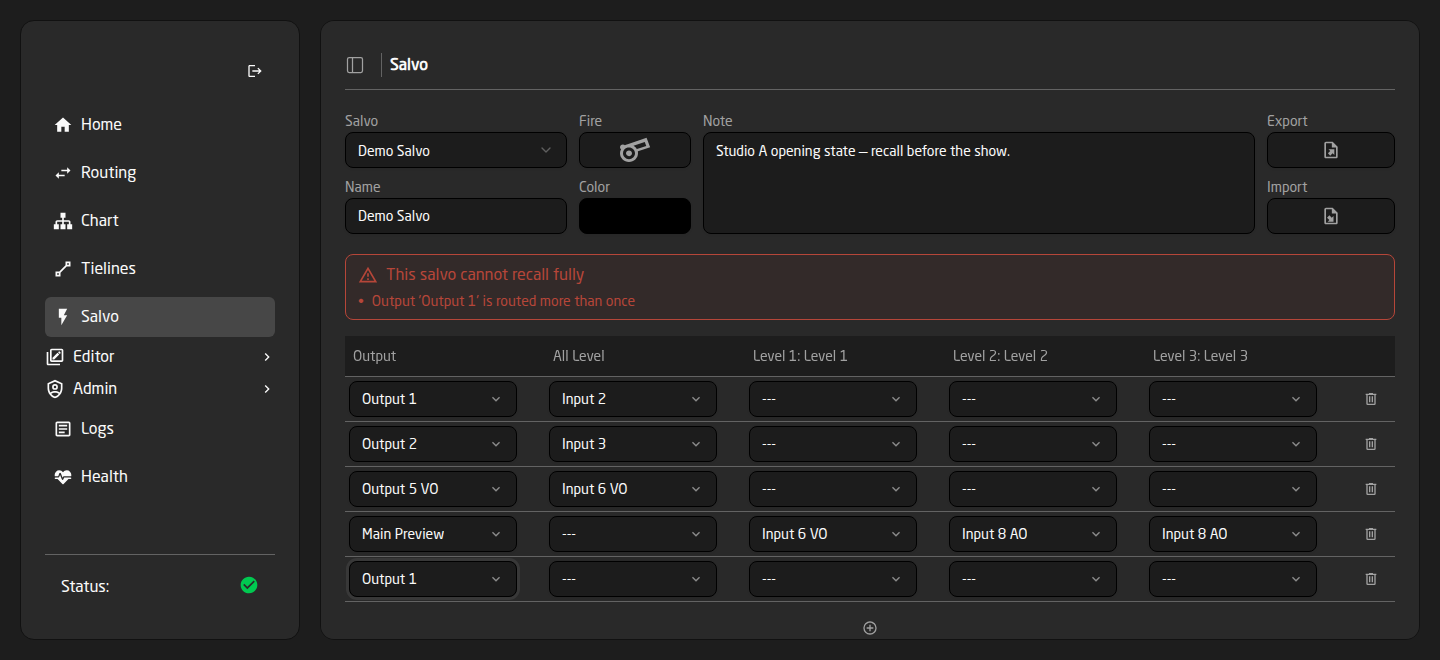
- “… is routed more than once” — two steps drive the same destination. The salvo will still fire, but the last matching step wins, so one of them is pointless. Usually a mistake worth cleaning up.
- “No route exists from … to …” — there is no path at all between that source and that destination in your configuration. Either the step is wrong, or the wiring is.
- “Not enough tielines…” — the salvo asks for more simultaneous cross-device paths than you have cables for. Some routes would be dropped.
The check looks at your configuration only. It does not know which devices happen to be offline right now, so a salvo that passes this check can still report problems when you actually fire it.
Firing a salvo
Press Fire next to the salvo selector. A message confirms success or tells you what failed.
Salvos are also recalled from a control panel or a Reactor flow. An empty salvo slot leaves its panel button disabled, so a button bound to a salvo you have not filled in yet simply will not do anything until you do.
Moving salvos between systems
- Export downloads the open salvo as a
.jsonfile named after it. Shift-click the button to export all salvos asAll_Salvos.json. - Import reads such a file back. A file holding one salvo overwrites the salvo you currently have open; a file holding several overwrites each one by its own slot number.
Import overwrites without asking twice. If the file holds several salvos, several slots change at once — export the current ones first if you might want them back.
Slots and limits
A fixed number of salvo slots exists from startup — 25 by default, set by the Salvo Count setting on the FlowGrid device core. Empty slots are named ‘Salvo 2’, ‘Salvo 3’ and so on until you rename them.
Your licence can cap the number of usable salvos below the configured count. Slots beyond the cap still appear in the selector, but firing one fails with ‘Salvo ID out of range’. Check the License card on the Health page — see License Tiers.
Salvos are part of the project, so they are exported, imported and restored along with the rest of the configuration — see Projects.