
Tielines and Inserts
A tieline is a real cable from one device’s output into another device’s input. It is what lets FlowGrid present several separate boxes as one router.
When an operator asks for a source that lives on device A on a destination that lives on device B, FlowGrid finds a free cable between them, routes the source onto it, routes the cable into the destination, and marks the cable as in use. When the route goes away, the cable is freed. Operators never see any of it.
You describe your tielines once, when you build the configuration. After that they look after themselves.
Inserts
An insert is the same idea aimed at a processor rather than another router: a pair of ports that sends the signal out to a colour corrector, frame synchroniser or audio processor and takes it back in again. An insert can be applied to a source or a destination so the signal passes through that box on its way through the router.
Seeing what is in use
The Tielines page in the sidebar lists every cable and what is using it right now. It updates live.
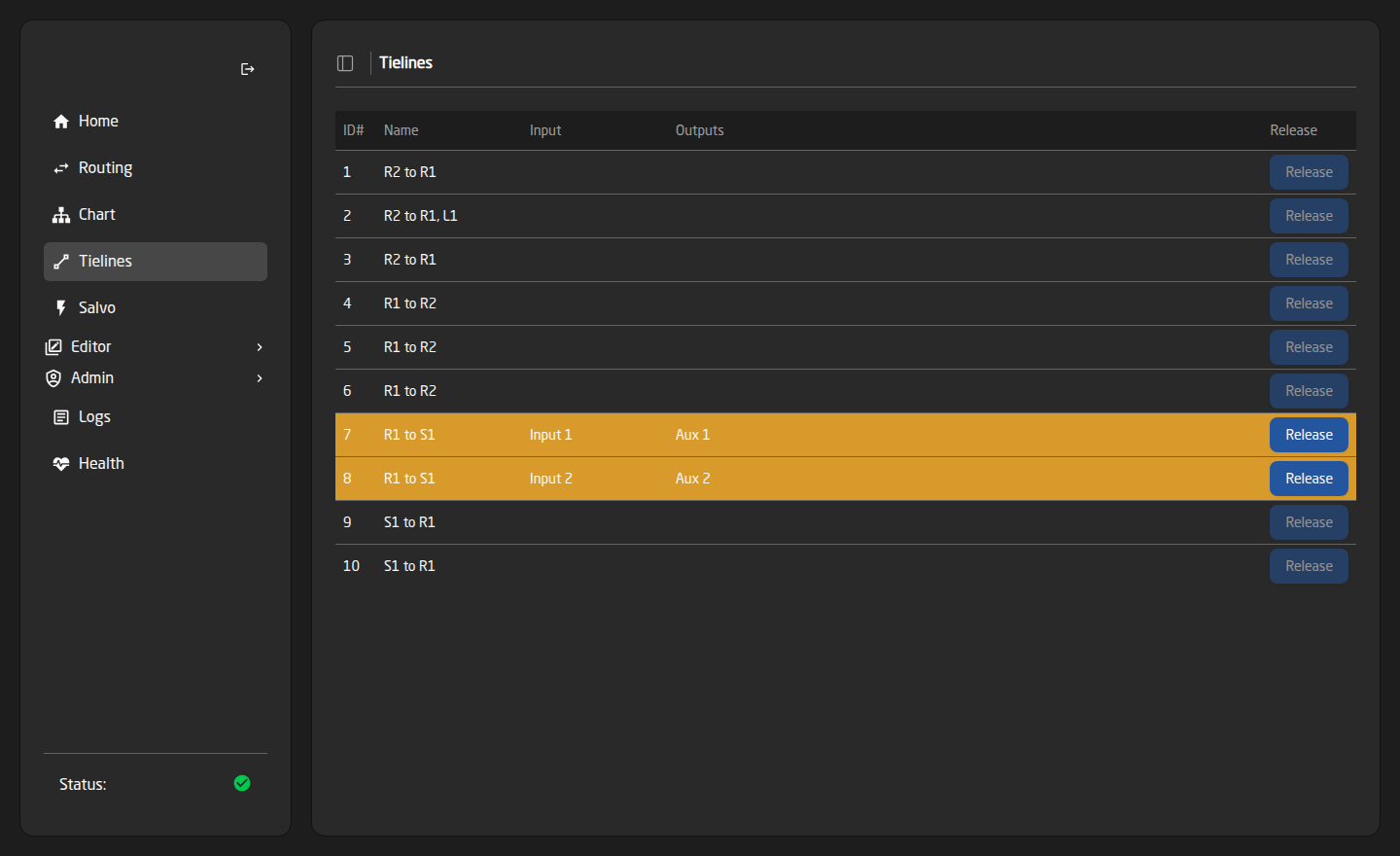
- ID# and Name — the cable.
- Input and Outputs — what is currently going through it. Blank means the cable is free.
- Release — hands the cable back. Only active on cables that are in use.
Rows in use are highlighted orange, so a glance tells you how much headroom you have left.
Release tears down the hop that is using the cable, so whatever was going through it stops. Only do it when you know the route it is carrying is no longer wanted.
“No Rt free” — running out of cables
If every cable between two devices is busy, a route across them is refused rather than stealing someone else’s signal. On a panel this reads as ‘No Rt free’. Three ways out:
- Free one up — look at the Tielines page and release a cable carrying something nobody needs any more.
- Add more — if the physical cables exist but are not described in FlowGrid, add them in the Wiring editor.
- Force it — panels and Reactor can send a route with a Force option, which takes over the most suitable cable in use. Powerful and rude: something else loses its path.
Not to be confused with ‘No Rt exists’. That one means there is no possible path at all between that source and destination — a configuration problem, not a busy plant.
Describing your cables
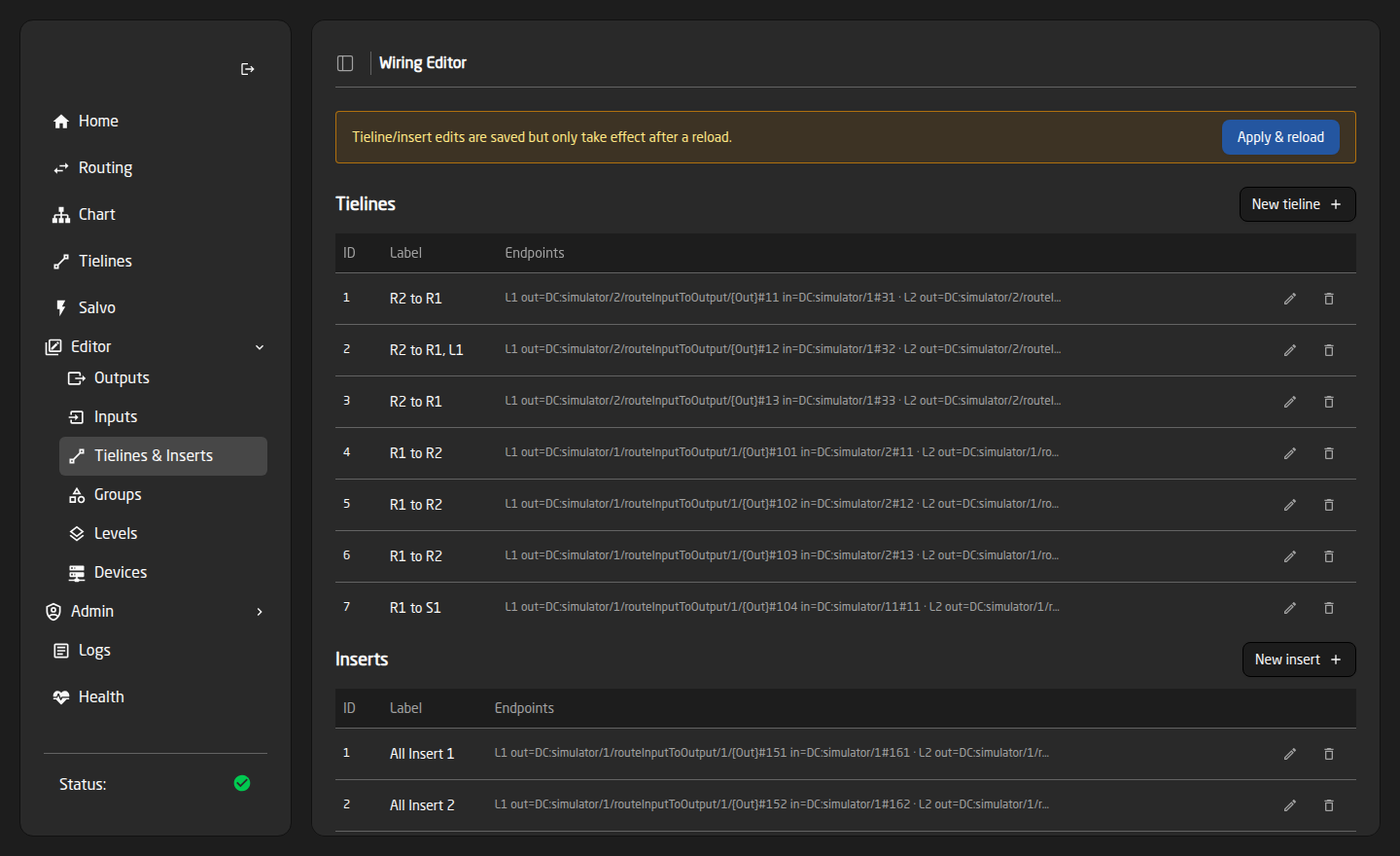
Open Tielines & Inserts under Editor in the sidebar. The page has a Tielines section and an Inserts section, each listing what is defined and where each end goes.
- Press New tieline (or New insert).
- Give it a Label — something like ‘Router 1 → Switcher’ is worth more than the default.
- Set the Out side: the device output the cable leaves from, and its port number. Use Browse rather than typing.
- Set the In side: the device input it arrives at, and its port number.
- Press Save, then Apply & reload.
Wiring changes are always saved but never take effect until you press Apply & reload. The amber banner at the top of the page is there permanently to remind you.
Adding a whole bundle at once
Cables between two devices usually come in blocks. In the edit dialog, Bulk create takes a total count and creates that many, stepping the port number on each end and the number at the end of the label by one each time.
So describe the first cable of the bundle correctly, ask for sixteen, and you get all sixteen in one action.
How many do I need?
One cable carries one signal at a time. The number you need between two devices is the maximum number of signals that will ever have to cross between them at the same moment — not the number of sources.
- Count destinations, not sources. Two destinations showing the same remote source still use two cables.
- Remember salvos. A salvo that moves twelve destinations across at once needs twelve free cables at that instant.
- Remember IFB returns — they are ordinary routes and use cables like anything else.
- Your licence caps how many tielines and inserts can be active. Check the License card on the Health page — see License Tiers.
If a salvo shows “Not enough tielines…” in its legality panel, that is this calculation telling you the answer before it bites you on air.