
HID devices on Raw Panel 🔑
The SKAARHOJ HIDs app (package xpanel-hids) lets you use specific USB HID devices (jog/shuttle controllers, game pads, joysticks, foot switches, presenter remotes, a color grading panel, keyboards, mice and a trackpad) with SKAARHOJ products that have the Blue Pill platform inside, alongside your SKAARHOJ panels.
Each device becomes a Raw Panel on its own TCP port. Reactor, or any other Raw Panel client, uses it like a SKAARHOJ panel: every button, joystick, jog wheel and trackball is a hardware component (HWC) that can be assigned a function. HID devices have no displays or LEDs the app drives, so these panels only send triggers.
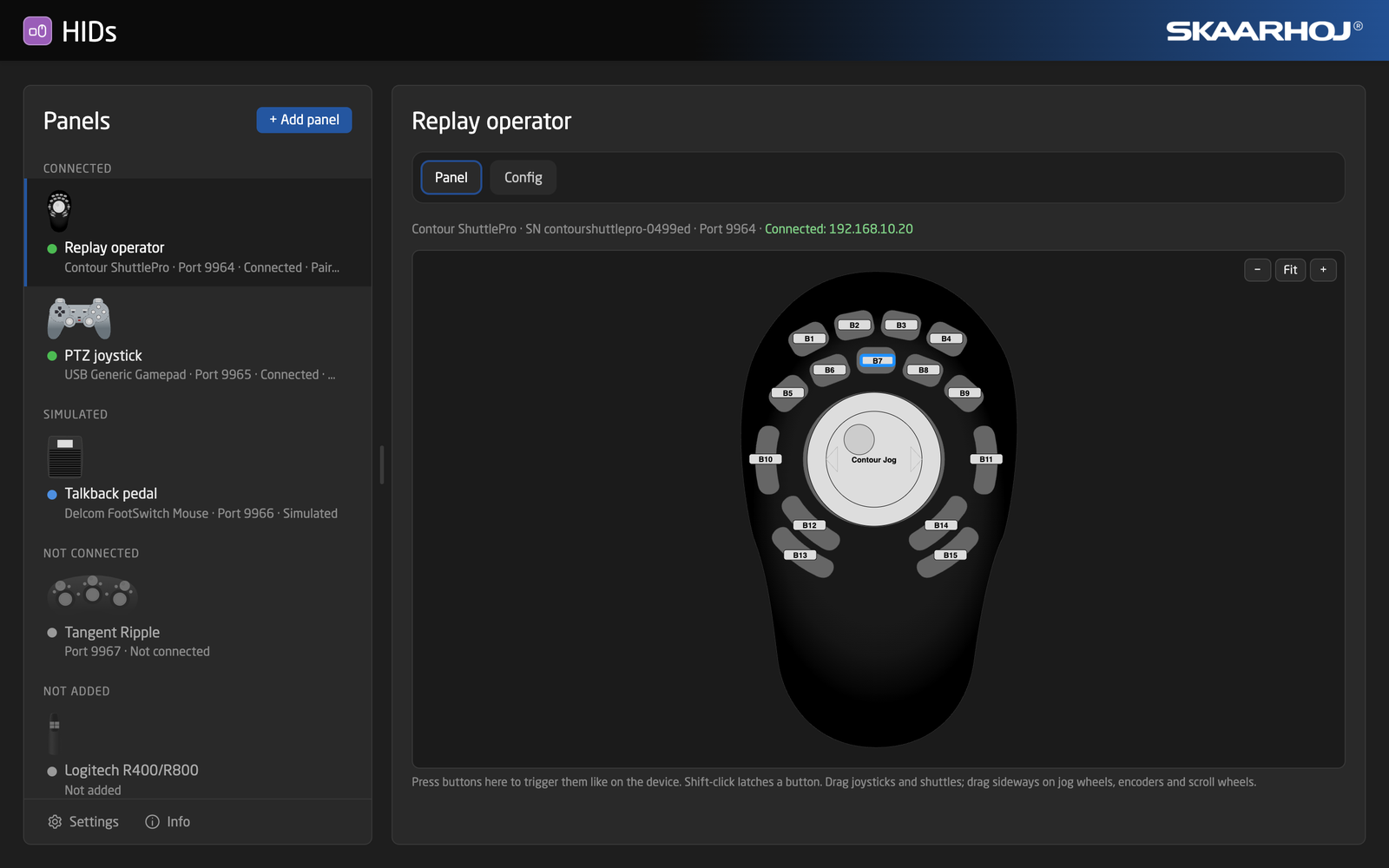
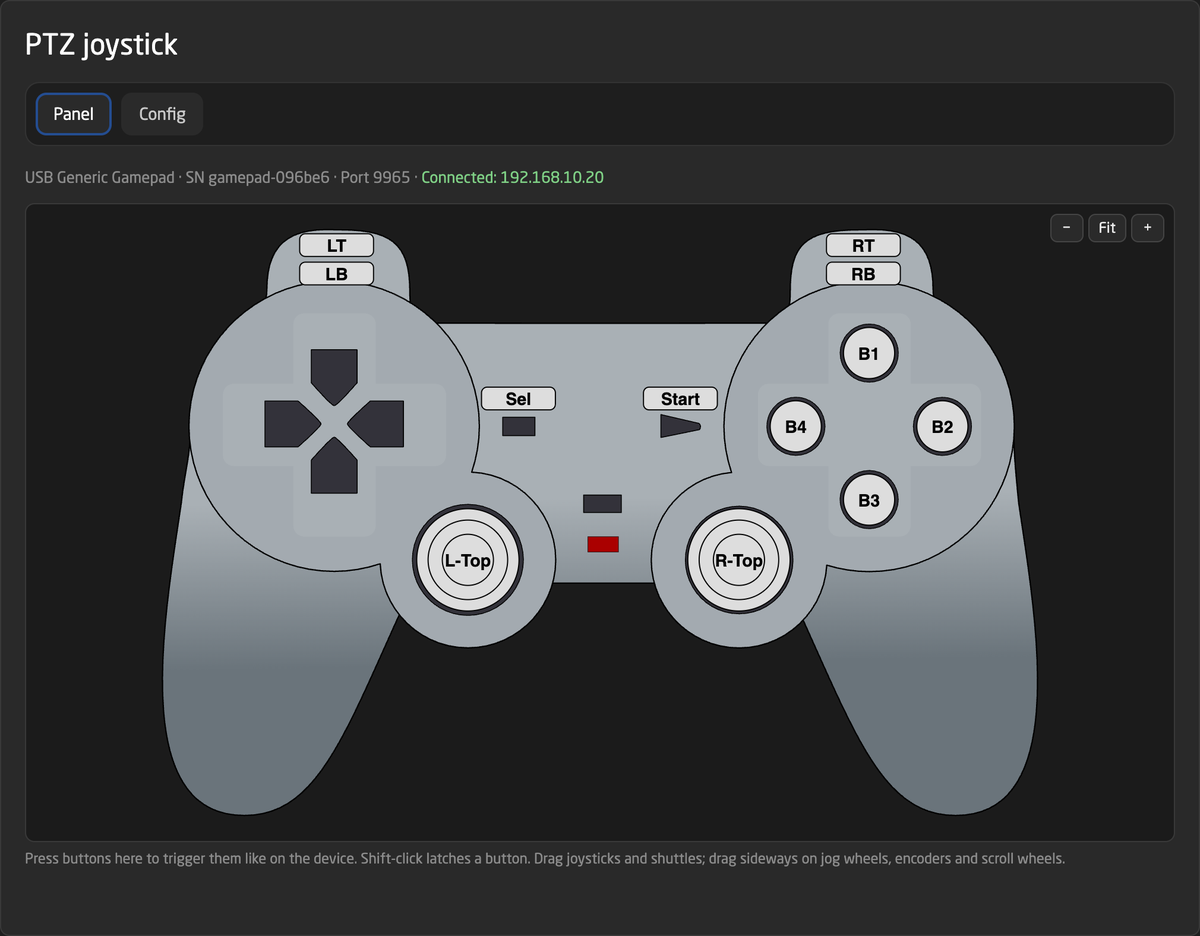
The app's web interface shows each panel as a live drawing of the device, which you can operate on screen:
The full manual, with the HWC numbers of every device, is linked from the app's Info page and attached to this page.
Supported Devices
The list is short, and we'd like to extend it with your help: write to innovationlab@skaarhoj.com if you have a device you think should be supported.
| Device (product key) | USB ID | Controls | Photo |
|---|---|---|---|
| Tangent Ripple ( TangentRipple) | 04D8:FA0F | 8 buttons, 3 jog rings, 3 trackballs. Rings and trackballs are divided by 20 (Deep Config EncoderScaler, TrackballScaler). A mount (rippleMount.stp) was contributed by Jaron Berman. Thanks! |  |
| USB Generic Gamepad ( GamePad) | 0810:0001 | 12 buttons, 2 two-axis joysticks (low precision) |  |
| Delcom FootSwitch Mouse ( FootSwitchDelcom) | 0FC5:3661 | 1 foot switch |  |
| Contour ShuttlePro ( ContourShuttlePro) | 0B33:0030 | 15 buttons, shuttle, jog |  |
| Logitech R400/R800 ( LogitechR400) | 046D:C52D, 046D:C538 | Up to 4 buttons |  |
| Logitech R500 ( LogitechR500) | 046D:C540, 046D:C53E | 2 buttons |  |
| APEM HF-45S10-U Joystick ( APEM-HF45S10U) | 068E:019F | 3 joystick axes, 2 buttons |  |
| Apple Magic Trackpad 2 ( AppleMagicTrackpad2) | 05AC:0265 | Used as a joystick: one finger gives X/Y from where it touched down, a second finger pinching is zoom, pressing is click. Connect it by its USB cable. | 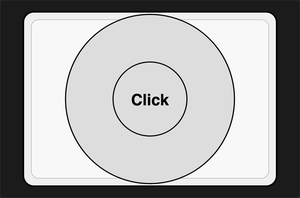 |
| Generic Keyboard ( GenericKeyboard) | 046D:C336 | Every key, incl. modifiers. The HWC is the key's USB usage number, so it's the same on any layout. | 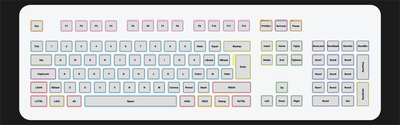 |
| Generic Mouse ( GenericMouse) | 046D:C077 | 2 buttons, X/Y movement (divided by 20, XYScaler), scroll wheel with push | 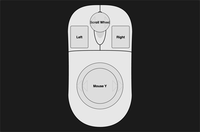 |
The USB ID is the vendor and product ID (hex) the app recognizes. Other versions of a product may have another ID.
Other keyboards and mice aren't picked up by default, so your normal keyboard and mouse are left alone. To use another one (or another compatible device), add its IDs to a model with InjectVIDsAndPIDs in the Deep Config, e.g. {"InjectVIDsAndPIDs":{"GenericKeyboard":[[1267,259]]}} (decimal IDs). If it works, tell us the IDs so we can add them permanently.
One per model: a device's serial number is made from its model, so all devices of one model look the same, and only one device of each model can be used at a time.
How It Works
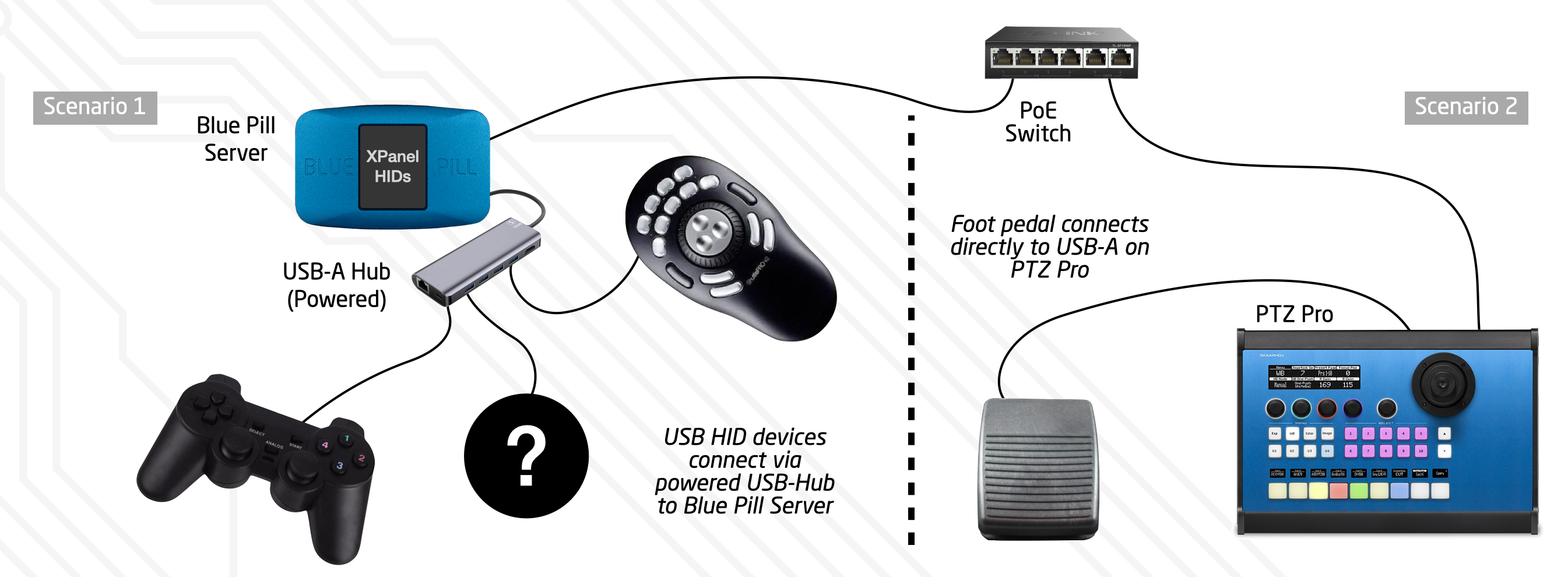
Here a Delcom FootSwitch Mouse is connected directly to a Blue Pill Server on a PoE switch, and reached with Raw Panel on the server's IP address:

With a powered USB hub, one Blue Pill runs several devices:

Getting Started
- Connect the device to a USB-A port on your SKAARHOJ device.
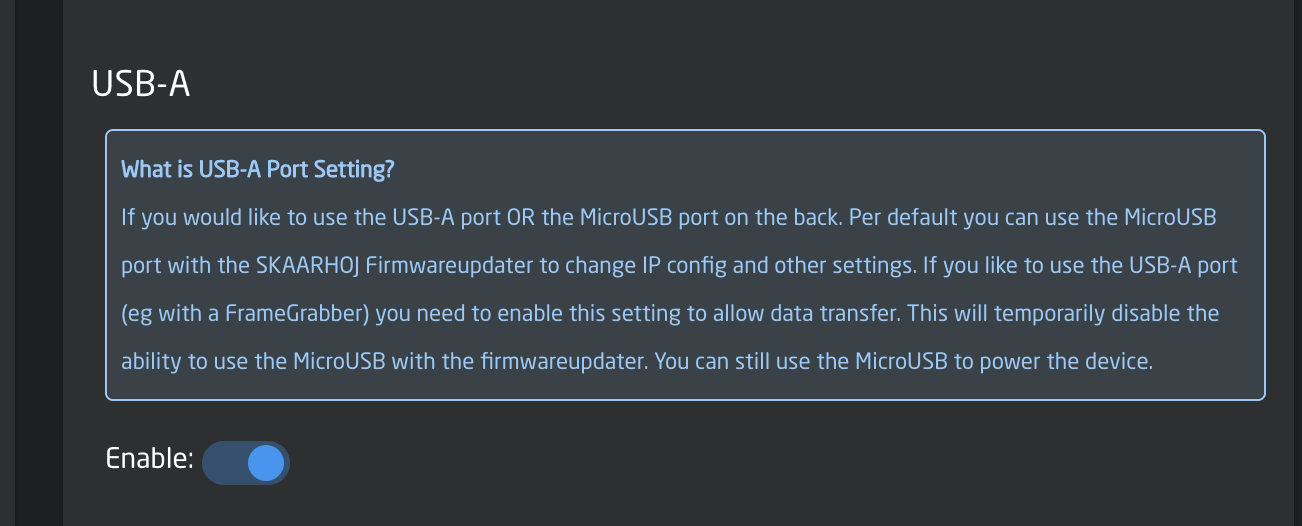
- In the device's web interface, go to Settings, turn on USB-A, power cycle the device once or twice, and check that USB-A is still on.
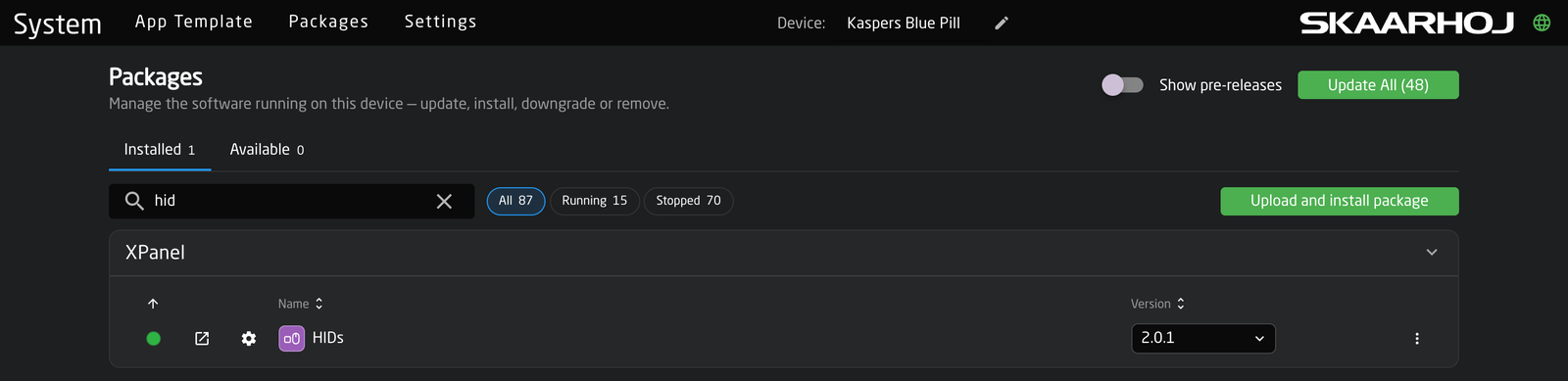
- Go to Packages, find HIDs under Available (XPanel group) and click Install. Once running, it has a green dot under Installed:
- Open the app with the open icon on the Packages page, from the device's app portal, or at
http://<device IP>/ingress/xpanel-hids. Your device is listed under Panels with its port (9963 for the first, then 9964 and up). Press a button: it lights up on screen. - In Reactor, add a Raw Panel with the device's IP address and that port, or let Reactor find it on the network (as e.g.
XP_HIDS-CONTOURSHUTTLEPRO).

All settings live in the app; the package's skaarOS configuration page is no longer used.
To test by hand, use the TCP Client under Tools in SKAARHOJ Discovery, or nc <device IP> 9963 (or Telnet, or PuTTY with "Implicit CR in every LF"). Type list and press some buttons to see ASCII Raw Panel triggers. Raw Panel Explorer (end of this page) is nicer.
The App
The list is grouped into Connected, Simulated, Not connected and Not added. Each row shows the model, port and state; the dot blinks on each trigger. Right-click a row to remove it. The on-screen drawing works like the device: click buttons (shift-click latches), drag joysticks and shuttles, and drag sideways on jog wheels, trackballs and scroll wheels.
Set up before the hardware arrives
A panel is only on the network while its device is connected. To set up Reactor in advance, press Simulate on a panel, or create one with + Add panel:
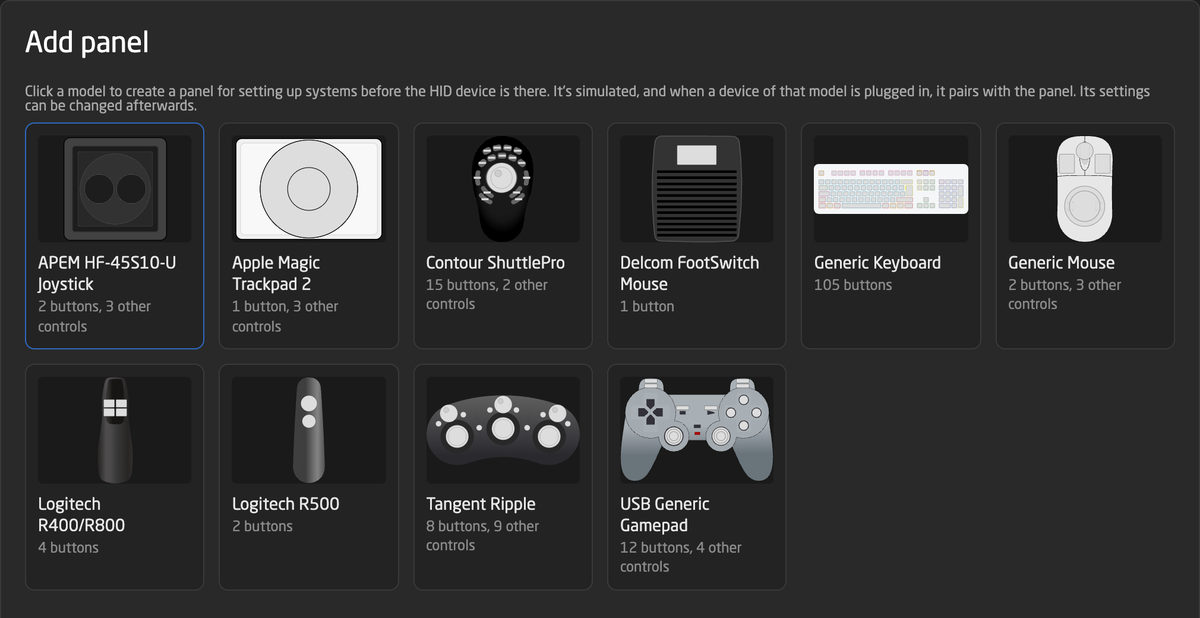
A simulated panel is on the network, accepts connections and is operated on screen, without counting toward the license. The first device of that model to be plugged in is paired with it and takes over, keeping the panel's serial number and port, so Reactor doesn't notice. You can also pair by hand under Physical device in the panel's Config.
Configuration
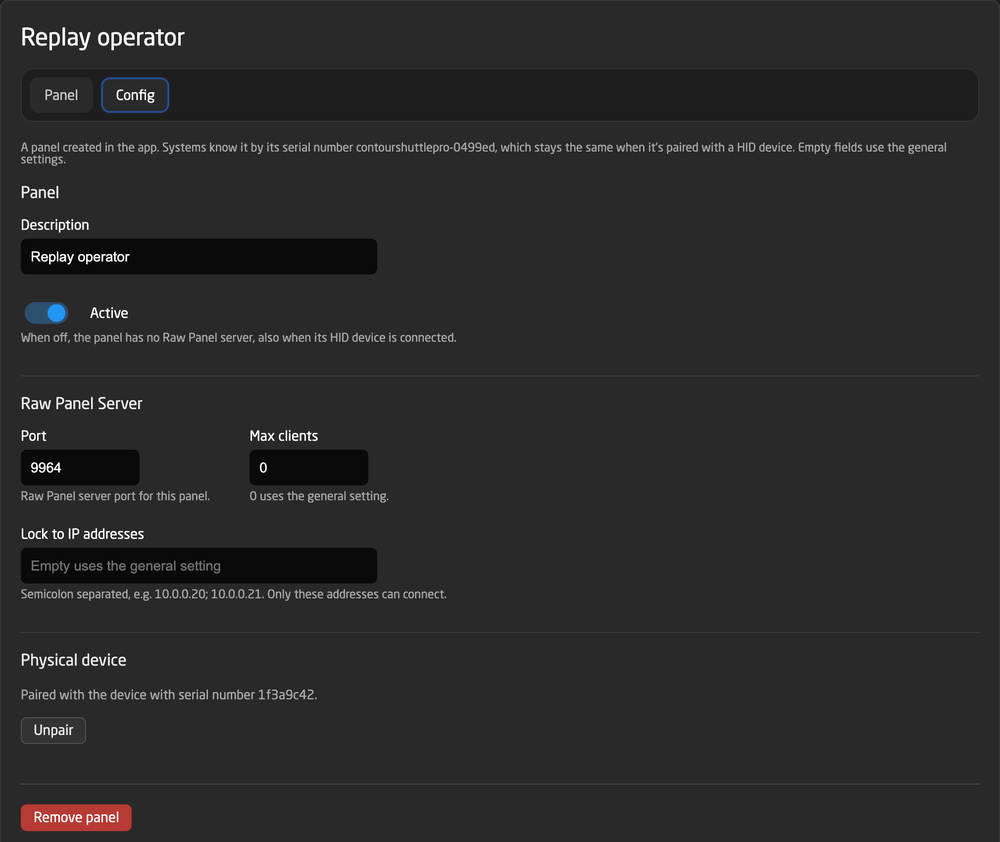
Each panel's Config has a description, Active, port, Max clients and Lock to IP addresses (basic protection on a friendly network). Changes save as you make them.
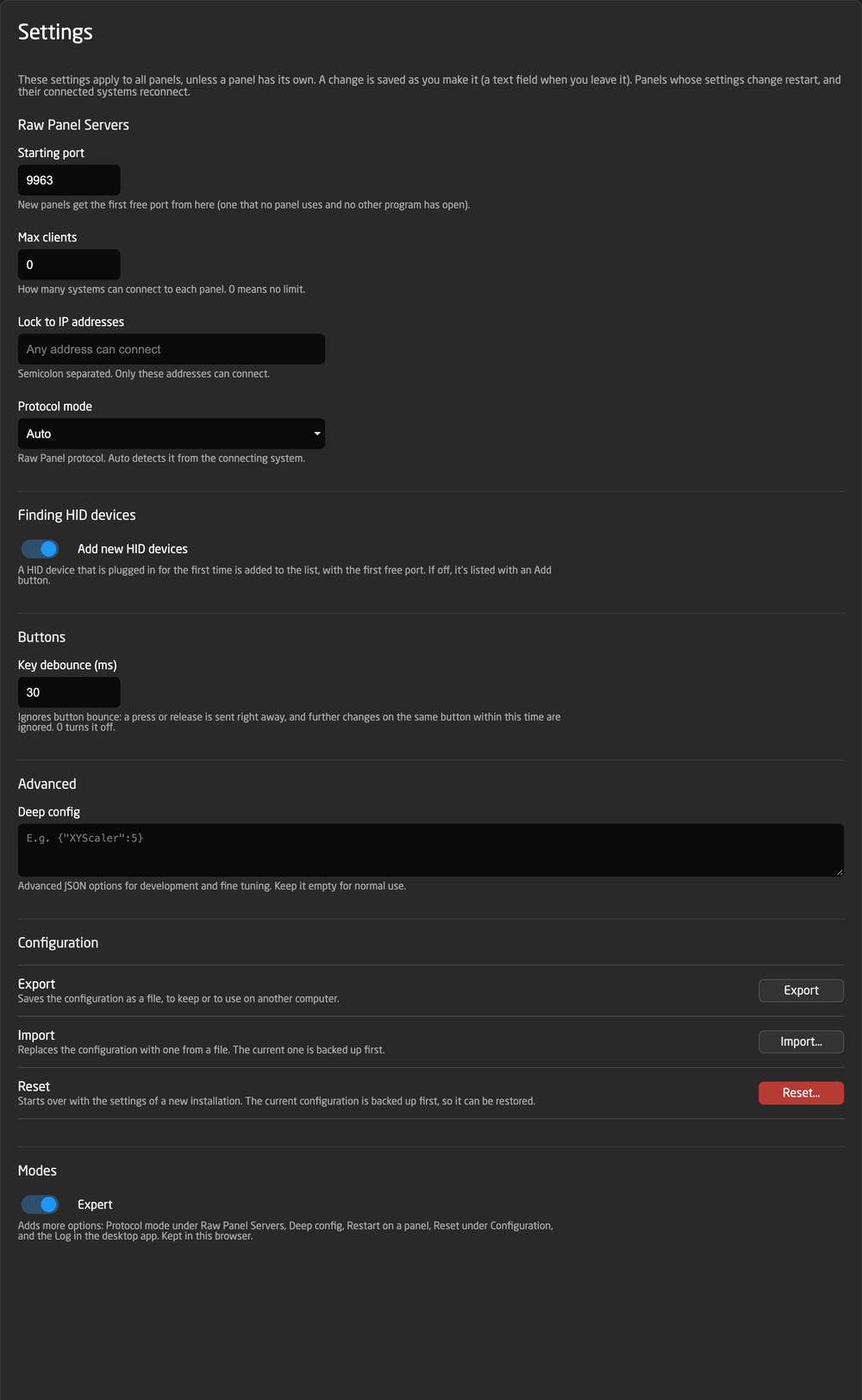
Settings holds the defaults for all panels: Starting port (9963), Max clients, Lock to IP addresses, Add new HID devices, and Key debounce (for buttons that bounce, like foot switches; default 30 ms). The Expert switch adds Protocol mode and the Deep Config. Under Configuration you can export, import and restore the configuration.
Upgrading from version 1: old settings are converted on first start. Fixed Panels and "Lock Serials to Port" are gone: every device now has its own panel and keeps its port.
Deep Config
JSON options in the general settings (Expert mode), for tuning and for identifying new devices. Keep it empty for normal use.
| Option | Description |
|---|---|
InjectVIDsAndPIDs | More USB IDs to handle as a model, e.g. {"InjectVIDsAndPIDs":{"GenericKeyboard":[[1267,259]]}}. Decimal IDs; read at start. |
XYScaler, WheelScaler | Divisors for Generic Mouse movement (default 20) and wheel (default 1). |
EncoderScaler, TrackballScaler | Divisors for the Tangent Ripple rings and trackballs (default 20). {"EncoderScaler":1,"TrackballScaler":1} gives 1:1. |
AppleMagicTrackpad2 | Trackpad tuning: JoystickThrow, PinchThrow, DeadZone, TickerHz, ChangeTolerance. |
Development | {"Mode":"Scan"} logs every HID device found; {"Mode":"Log","SleepMS":100,"VendorID":1240} logs the raw reports of the first matching device (filters: VendorID, ProductID, UsagePage, Usage, InterfaceNum). In these modes the app only logs: panels and the web interface don't start, so remove it from config.json afterwards. |
USB Hubs
You can run several devices on one Blue Pill with a USB hub. A powered hub is recommended.
Licensing
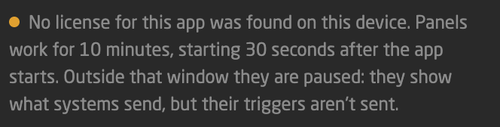
Without a license, panels work for 10 minutes, starting 30 seconds after the app (re)starts. Then they pause: they're still on the network and show what you press, but triggers aren't sent. The app shows a note under the list. Restarting the package gives another 10 minutes.
A license costs 83 EUR / 101 USD (January 2026) and covers up to ten connected devices; simulated panels don't count. Order from support@skaarhoj.com, sales@skaarhoj.com or the webshop, and include your Blue Pill's serial number.
Exploring with Raw Panel
Read the Raw Panel protocol, and try Raw Panel Explorer, now built into SKAARHOJ Discovery for Windows and Mac (download).
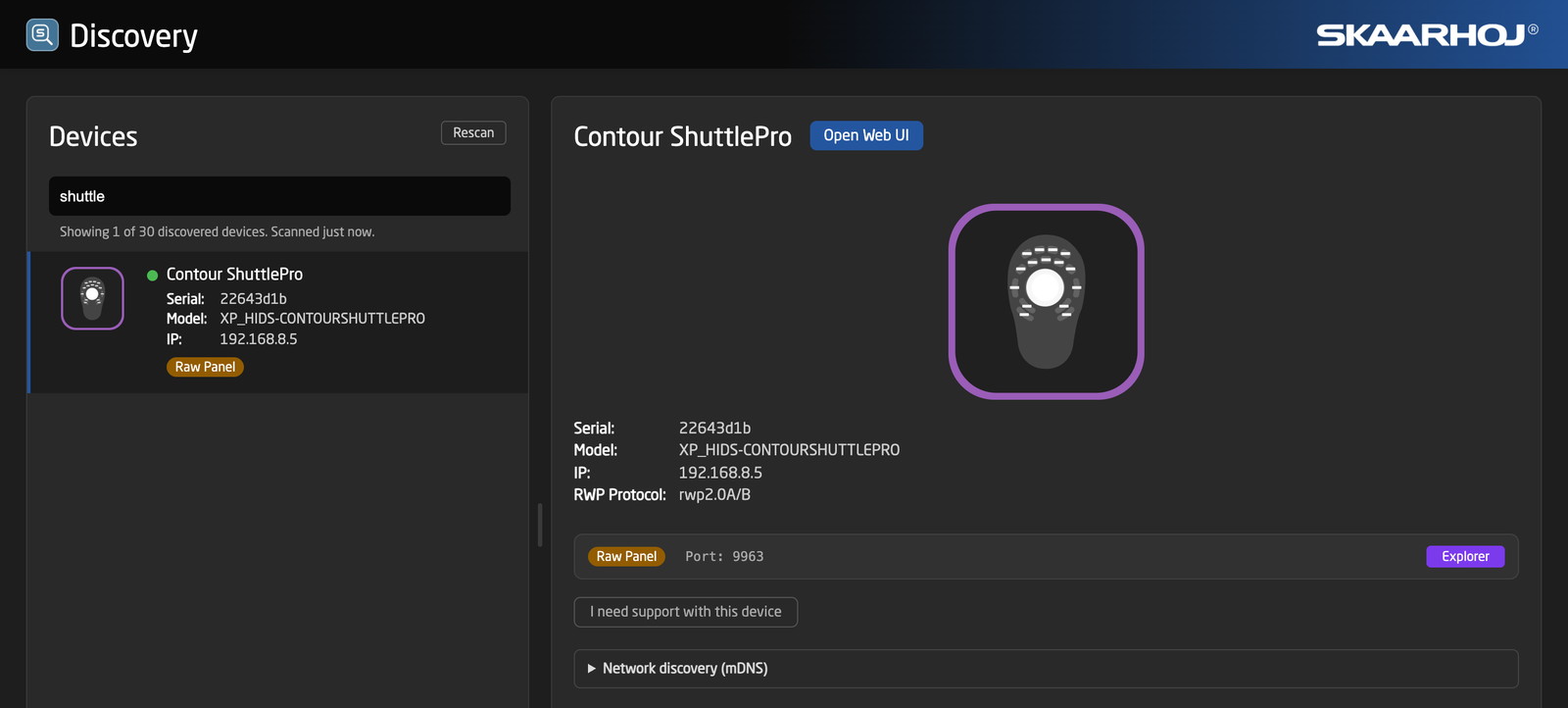
Discovery lists the SKAARHOJ devices on your network, including every HID panel. Turn on Expert in Discovery's Settings, select the panel, and click Explorer:
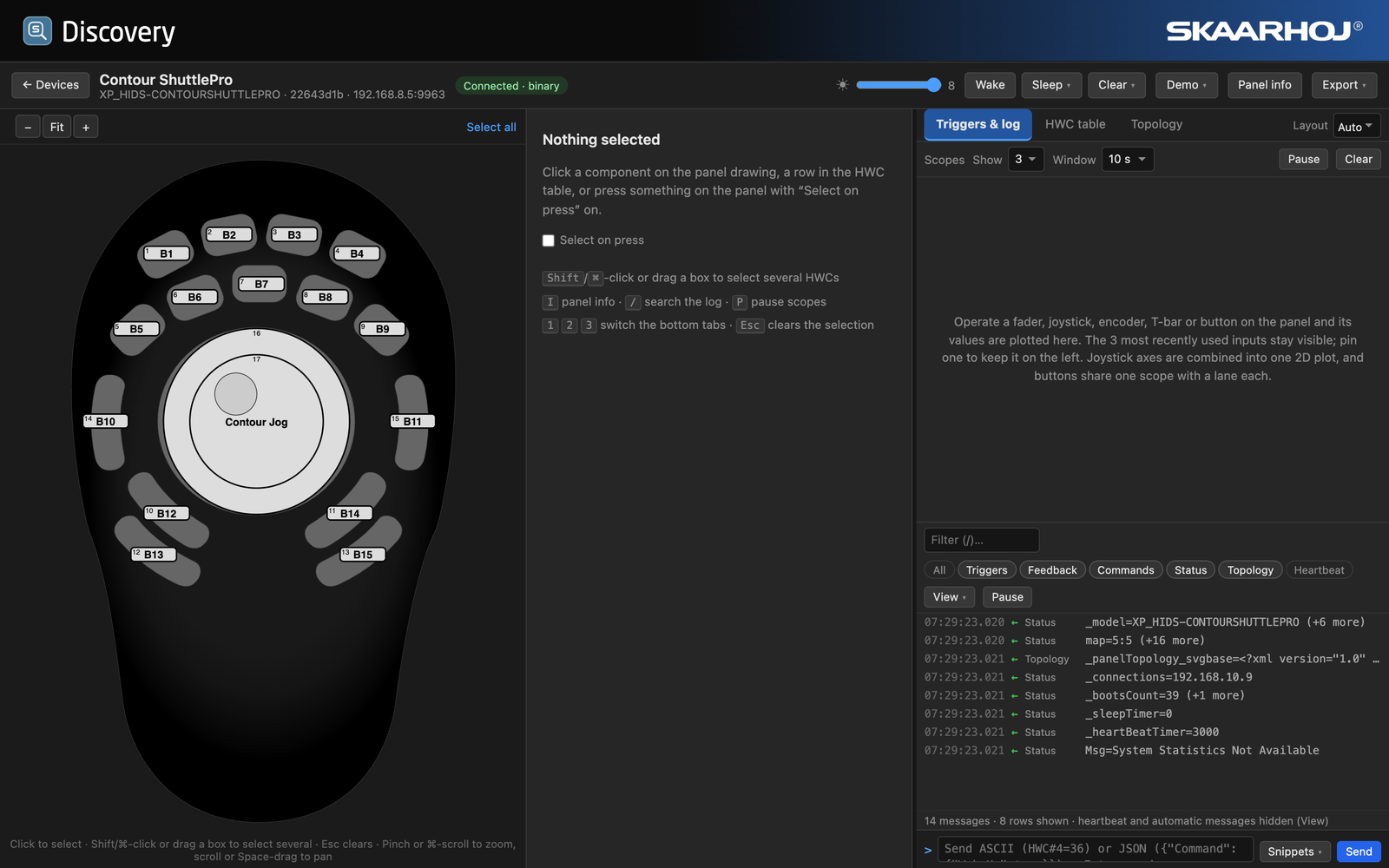
Explorer draws the panel and logs and plots the triggers as you press buttons and turn the jog and shuttle:
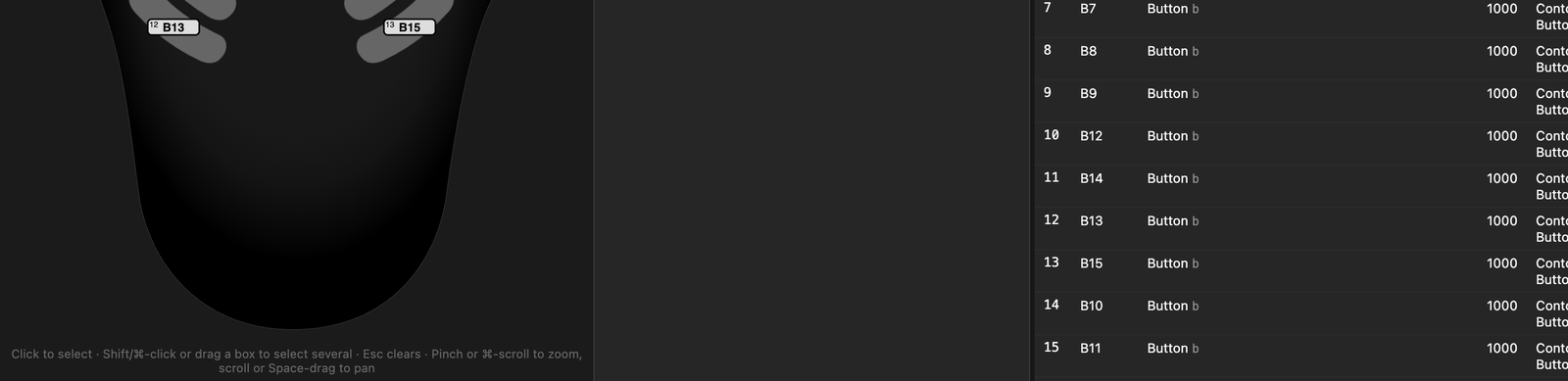
The drawing comes from the panel itself: any Raw Panel client can ask for the topology (JSON and SVG), which describes every component and how to draw it. The HWC table tab lists them:
Have fun! :-) Comments and questions are welcome at innovationlab@skaarhoj.com.
- kasper