
Core Simulator - Editor
The Studio Simulator ships with four facilities built in. This page is about building your own: pick the devices, say what is cabled to what, and lay out how it is drawn — all in the browser, with no code and no rebuild. A facility you build this way is a single file on the machine, so it can be copied to another simulator.
Opening the editor
Press Shift + E on the booth screen. There is no button for it — the booth screen is meant to stay clean — and the editor has a Booth screen link to get back.
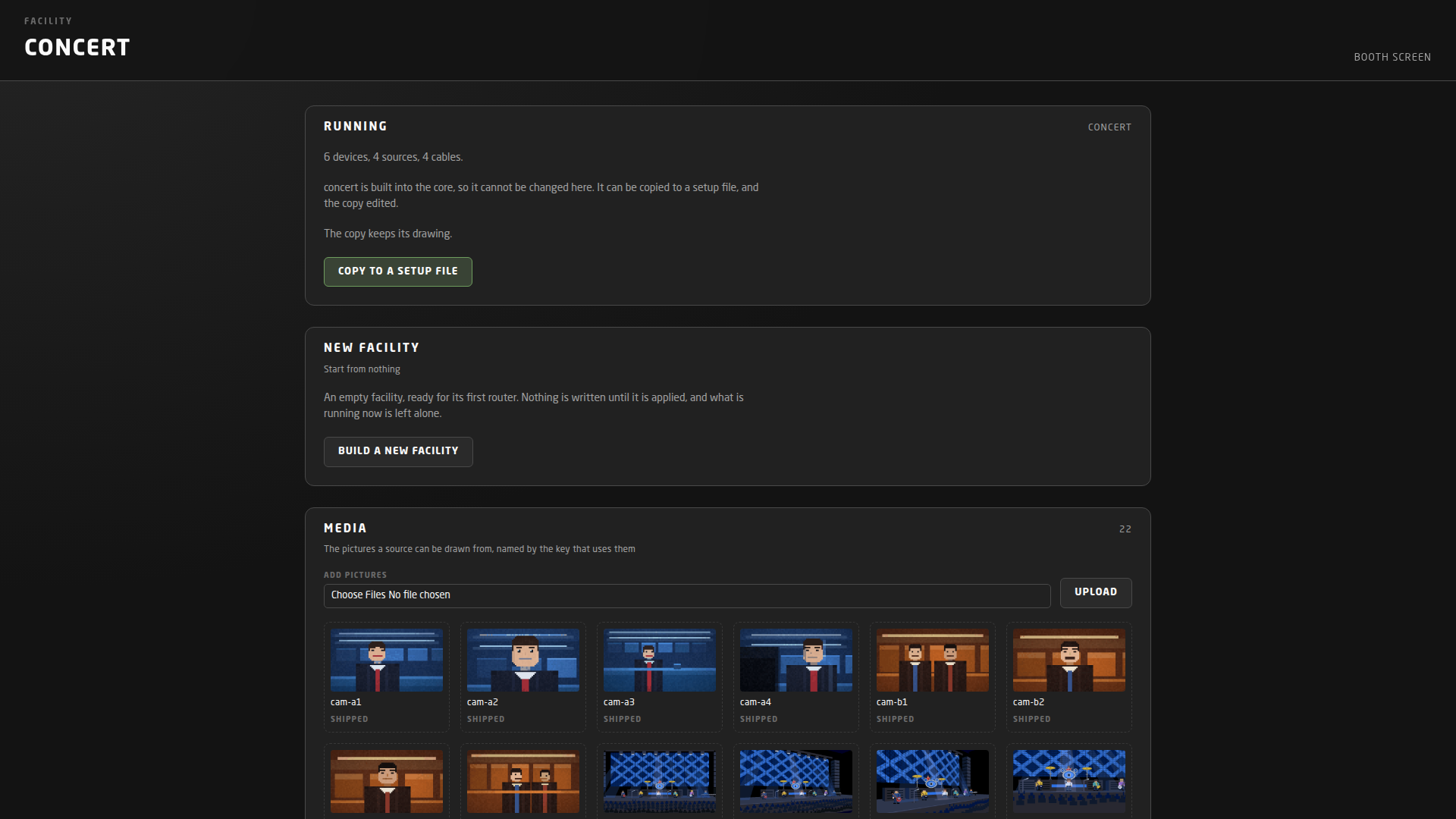
There are two ways in, and which one you get depends on what is running:
- Copy to a setup file — the four built-in facilities cannot be changed in place, so the editor offers you a copy of one to work on. The page tells you before you press whether the copy keeps the original’s drawing or gets a fresh one generated from the cabling.
- Build a new facility — an empty one, ready for its first device.
- Edit this facility — shown instead of “copy” when the running facility is already one of yours. That one is edited in place.
The trade-show and radio facilities are drawn by hand, with one-off pieces — the playout status rows, the audio console, the talking-head plates — that a copy cannot bring along. Copying one of those gives you its devices and cabling with a drawing generated from the wiring instead. The other two copy across as they are.
There is one draft at a time for the whole core, and nothing is written to disk until you press Apply and restart. Two people editing at once will overwrite each other — and will see it happening.
The checklist at the top
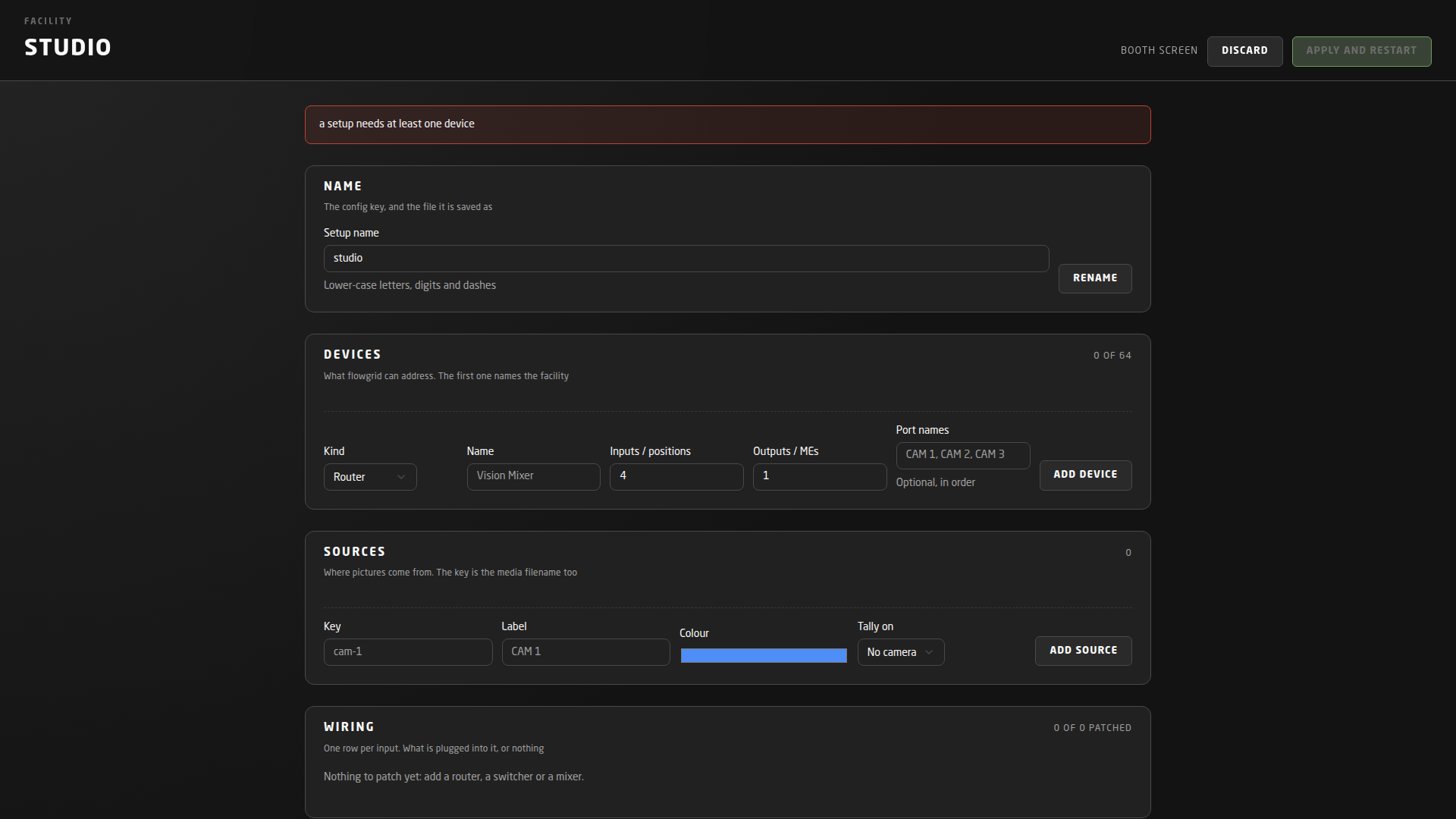
A new facility starts empty, so it starts invalid, and the editor says so in a red panel at the top of the sheet. It is a checklist of what is still missing rather than an error — half-built is the normal state of something you are building. Apply and restart stays greyed out until the list is empty.
The setup sheet, section by section
Name
What the facility is called everywhere: in the Setup drop-down, in the settings form, and as the file it is saved as. Two to thirty-two characters, lower-case letters, digits and dashes. It cannot take the name of one of the four built-in facilities.
Devices
What a controller can address. Pick a kind, give it a name, and add it; the fields on the add row change to suit the kind, and the row remembers your last choice, so adding four cameras is four presses.
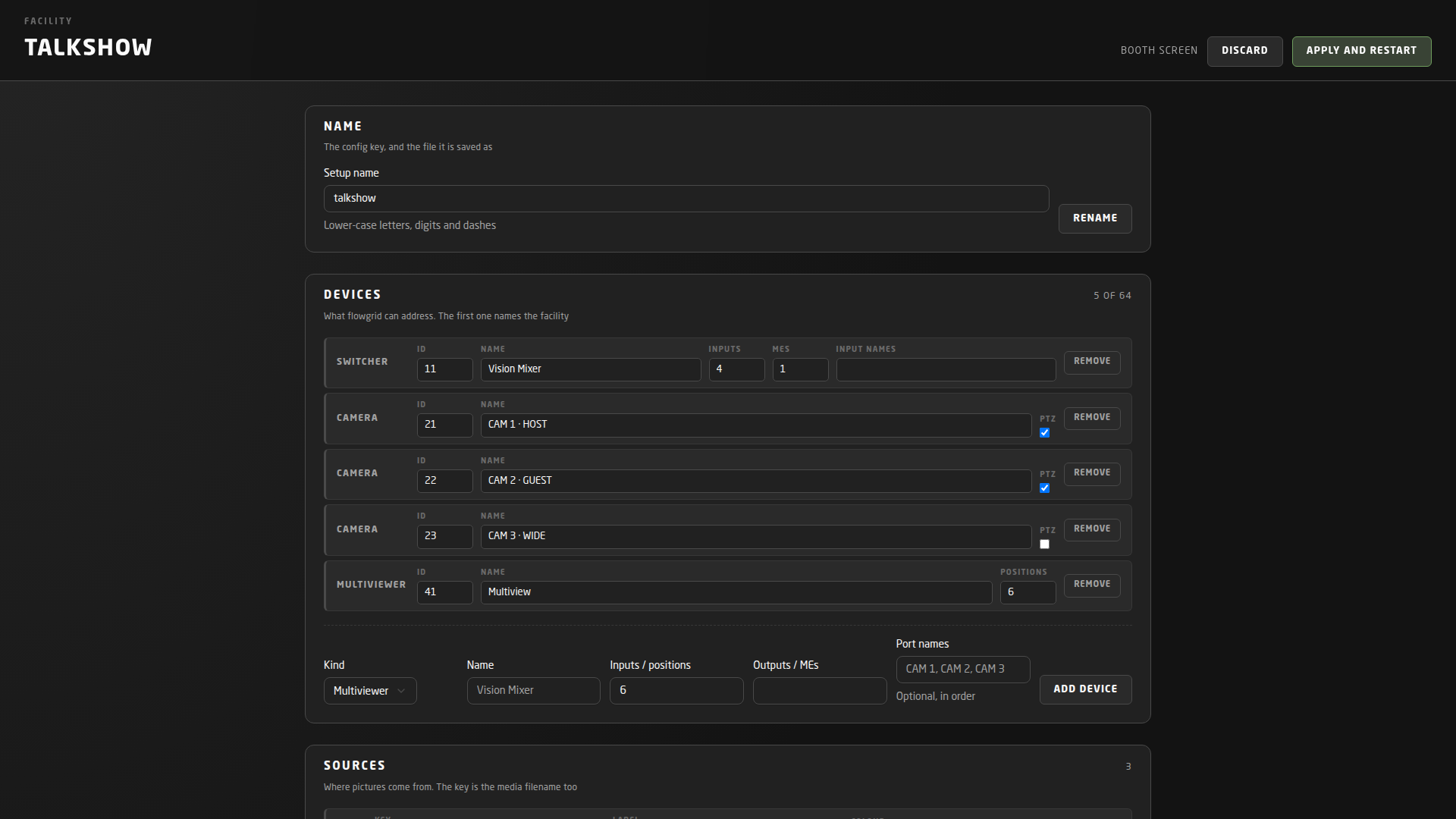
- Router — inputs and outputs, one crosspoint per output.
- Switcher — inputs and how many mix/effects buses; this is a vision mixer.
- Camera — tally, plus a pan-tilt-zoom head if you tick PTZ.
- Multiviewer — how many tile positions it has.
- Processor — a box a signal can be looped through. A new one gets a pass-through and one working look.
- Mixer — an audio console; its input count is its channel count.
- Mic — a talent position, for its on-air lamp.
- The first device in the list names the facility — it is the title across the top of the booth screen and the browser tab.
- Ids must be unique and below 1000, which is where the core’s own Setup device lives. At most 64 devices.
- Port names are optional and in order — ‘CAM 1, CAM 2, CAM 3’. Leave them out and ports are called ‘In 3’ and ‘Out 7’.
- Everything can be changed later, including a device’s id — most of building a facility is correcting one. Removing a device takes its cabling, its show-state lines and its boxes on the drawing with it. Renumbering one keeps all of that and follows the new id.
Sources
Where pictures come from. A source has a key, a label, a colour and, optionally, the camera whose tally lamp it belongs to.
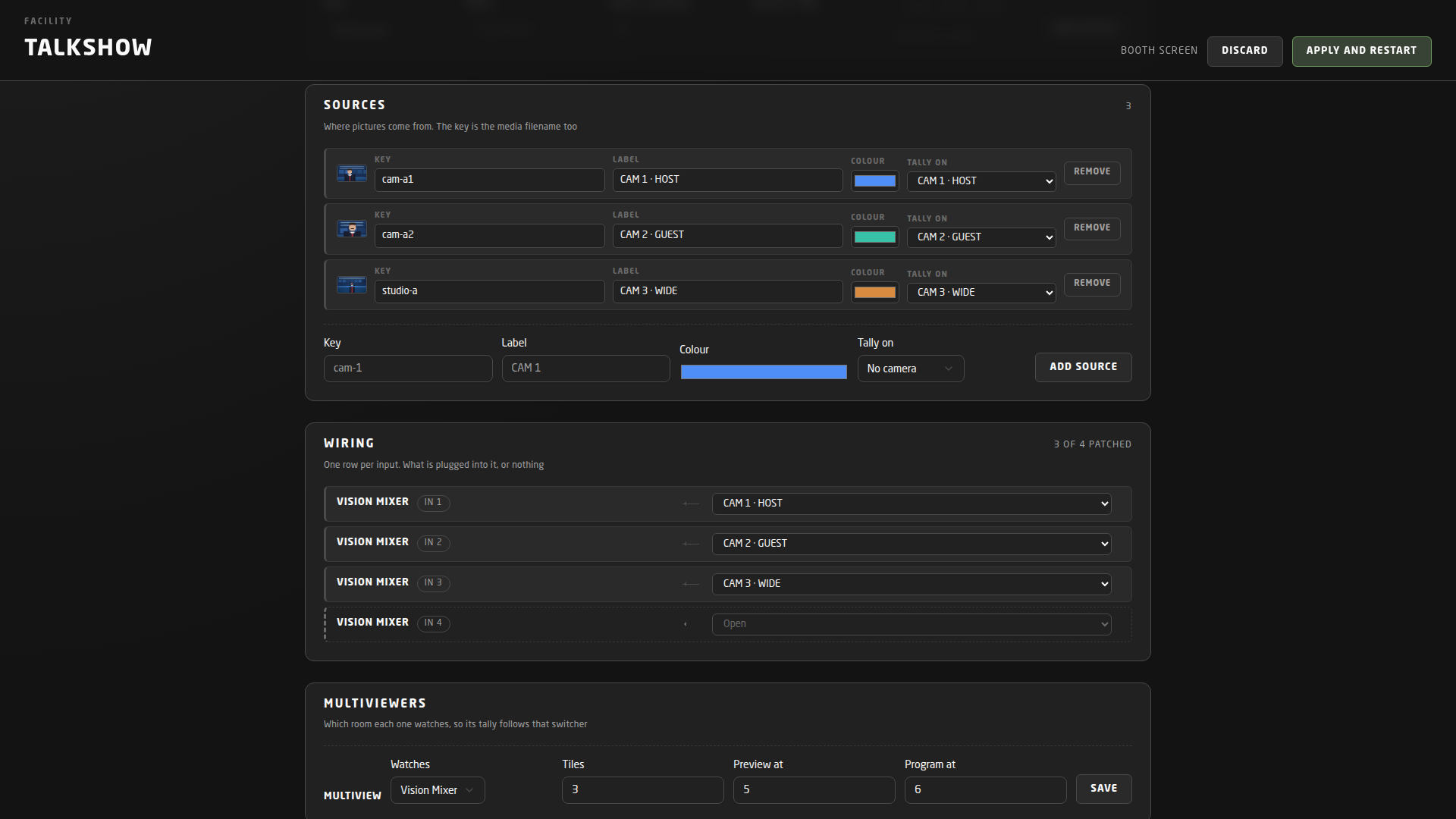
The key is the picture’s filename too. A source keyed cam-a1 is drawn with cam-a1.gif if that file is in the media library, and with a coloured stand-in if it is not — so a facility is watchable before you have shot a single loop.
Wiring
One row per input in the whole facility, and a drop-down of what is plugged into it: a source, or an output somewhere else. Leaving a row Open is a real answer, not an omission — the header counts how many are patched, and an open input draws as ‘NO SIGNAL’ on the booth screen.
An input takes one cable. Choosing a new source for a row replaces what was there.
Multiviewers
Each multiviewer is tied to the vision mixer it watches, which is what lets it light its own tiles. Say how many tiles mirror that mixer’s inputs, and which positions carry the preview and program monitors.
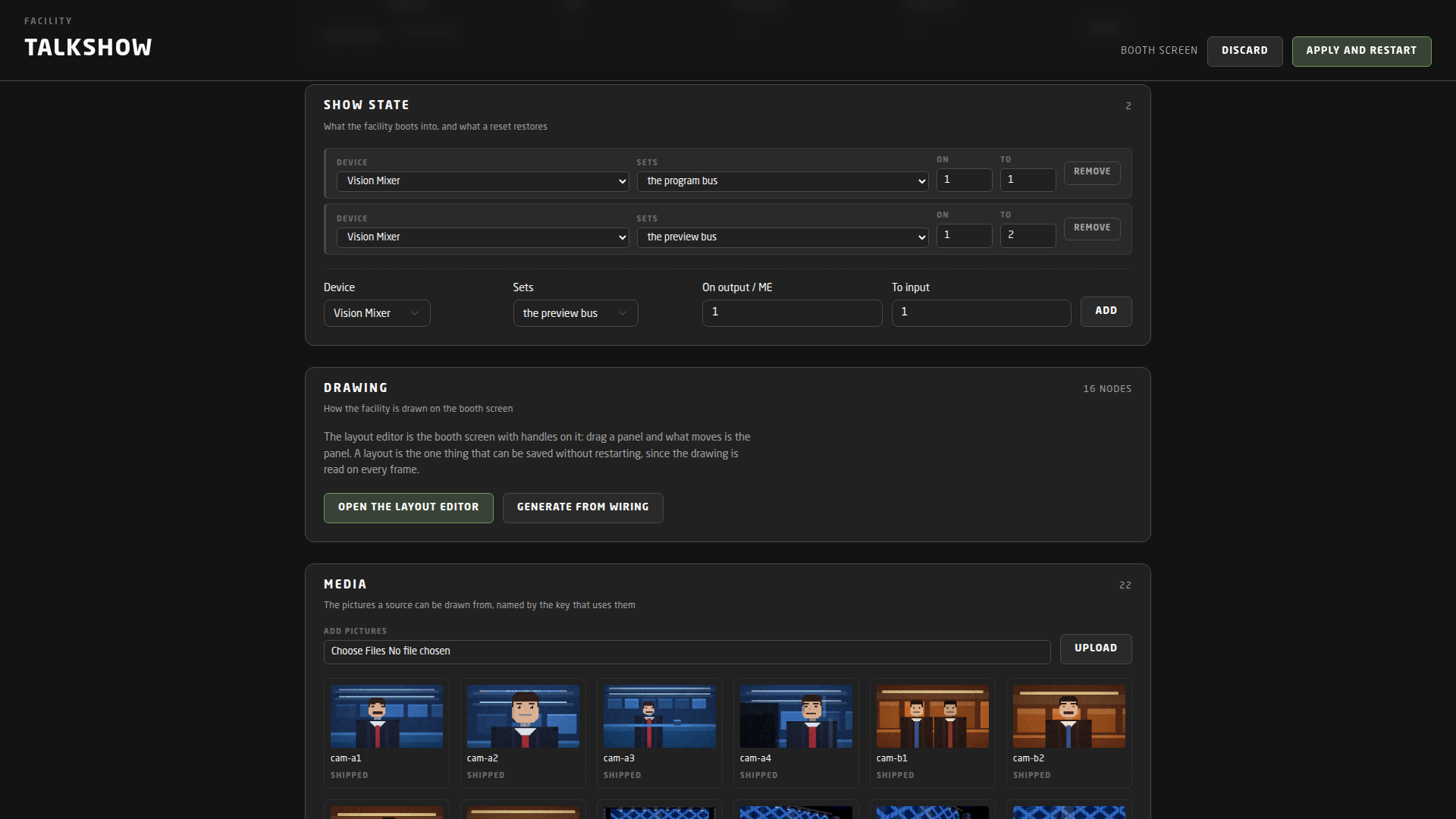
Show state
What the facility boots into, and what Shift + R puts it back to. Each line is one instruction: a device, what it sets (a router crosspoint, the program bus, the preview bus, or a processing box), which output or bus, and to what.
Worth spending a minute on. A facility with no show state boots with nothing on air, and every demo then starts with somebody clicking buttons to make it look like a facility.
Drawing
How the facility is drawn on the booth screen, counted in nodes — the panels, tiles, monitors and cables that make up the picture. Two buttons:
- Generate from wiring — throw away the drawing and lay one out from the cabling: sources across the top, routers in the middle, control rooms below, cables between them. This is what a new facility gets, and it is a reasonable picture on its own.
- Open the layout editor — move things by hand.
Media
The pictures the facility can draw from, listed by key. Upload takes GIF, WebP, PNG, JPEG, MP4 or WebM files; name the file after the source key it fills. Pictures marked ‘SHIPPED’ came with the core and stay; ones you upload can be removed again.
The media library belongs to the machine, not to the facility. A setup file names its sources by key — what fills them is whatever picture is sitting under that name, which is what makes the file portable and the pictures not. Copy both if you move a facility to another simulator.
The layout editor
The layout editor is the booth screen, with handles on it. Drag a panel and what moves is the panel.
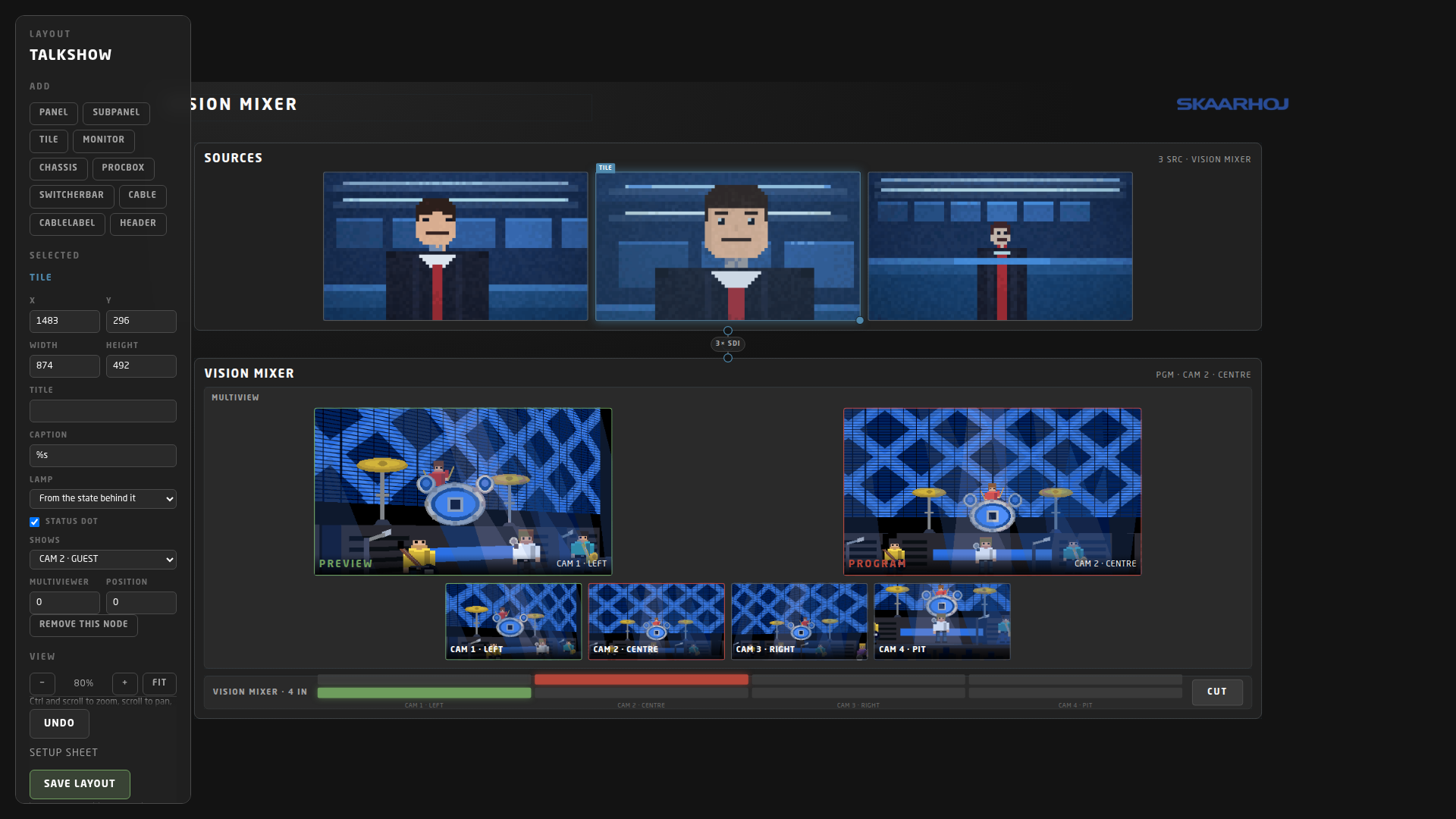
- Click a box to select it. Its properties appear on the left: position and size, what it says, and what it shows.
- Drag to move, the corner to resize, arrow keys to nudge, Alt with either to ignore the grid, Backspace to remove.
- Add drops a new node on the canvas: panels and sub-panels for the frames, tiles and monitors for the pictures, chassis, processing boxes and mixer bars for the kit, cables and cable labels for the runs, and a header for the title.
- View — Fit shows the whole 4K canvas. Ctrl and scroll to zoom, scroll to pan, middle-drag to move around.
- Order decides what sits in front of what, and Undo steps back through your changes.
Save layout is the one change that does not need a restart. The drawing is read fresh on every frame, so a saved layout appears on the booth screen immediately.
The canvas draws your draft’s nodes over the facility that is running. A tile bound to a device you have added but not applied yet has nothing to show and draws as ‘NO SIGNAL’. That is honest rather than broken — it fills in after you apply.
Apply and restart
Press Apply and restart and the facility is written to disk, selected as the one to run, and the core restarts into it. It then appears in the Setup drop-down alongside the built-in four, and you can switch to it like any of them.
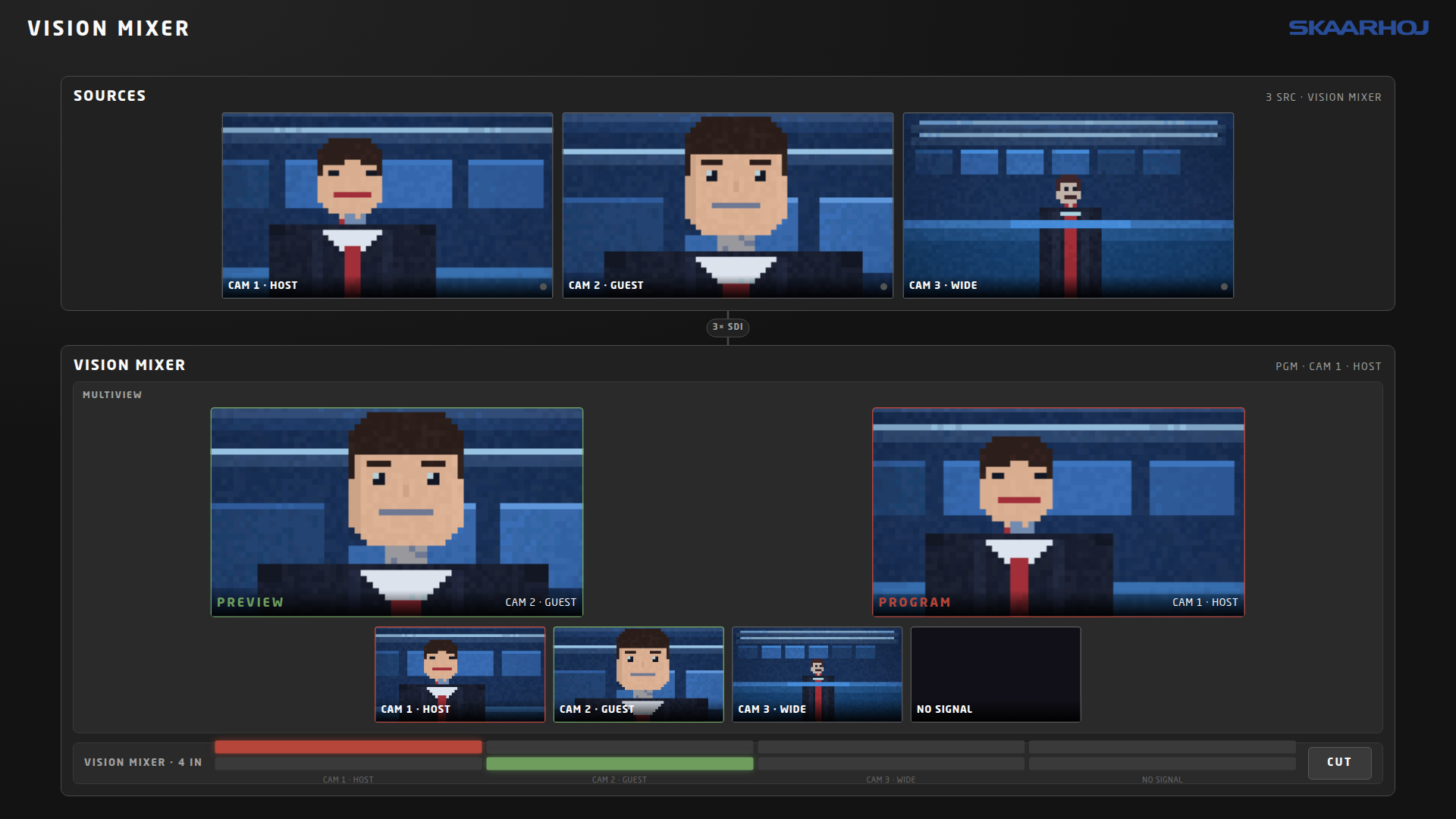
Most edits need that restart, because a facility’s size is fixed when the core starts. One does not:
| What you changed | Restart? |
|---|---|
| The drawing — moving, resizing, adding or removing nodes | No. Save layout and it is live. |
| Devices, cabling, sources, multiviewers | Yes |
| Show state | Yes, to boot into it — but a reset picks it up straight away |
| The name | Yes |
If you changed which devices exist, the facility’s saved routing is dropped and it boots into its show state instead. Saved routing is filed by device id, so an id that has moved to a different device would restore another device’s crosspoints onto it. Renaming devices or moving boxes around does not cost you the routing.
Troubleshooting
- Apply is greyed out — the checklist at the top of the sheet is not empty. It lists everything that is wrong, not just the first thing.
- “source … carries its tally on device N, which is not declared” — the source points at a camera you have since removed or renumbered. Pick the camera again in Tally on.
- A tile shows a striped stand-in — no picture in the media library matches that source key. Upload one named after the key, or change the key to match a picture that is there.
- A tile says NO SIGNAL after applying — that input is not patched. Check the wiring counter on the sheet.
- The facility disappeared from the drop-down — its file was removed from the machine. The core says so in its log on the next start and falls back to a facility that does exist rather than refusing to boot.
- Your draft vanished — there is one draft for the whole core, and pressing Discard, applying, or starting a second draft replaces it. Nothing was written to disk, so what is running is untouched.
Reference
- Getting in — Shift + E from the booth screen.
- Limits — at most 64 devices; ids 1–999; names of 2–32 characters, lower-case letters, digits and dashes.
- Where it lives — one file per facility in the core’s storage folder, and one media folder beside it. Copy both to move a facility to another simulator.
- Flowgrid topologies are not generated for facilities built here — that stays a built-in-only feature for now.