
FlowGrid Overview
FlowGrid turns a rack full of separate routers, switchers and processors into one router. You work with numbered sources and destinations and a single set of names; FlowGrid works out which physical device has to do what, and does it.
It is signal-agnostic — video, audio, data, anything the underlying devices can route — and it is what your SKAARHOJ panels, Reactor and third-party controllers talk to instead of talking to each device individually.
How it works
You describe your plant once: which devices exist, and which logical inputs (sources) and outputs (destinations) map onto which physical ports on them. From then on an operator asks for “Camera 3 on Monitor 5” and FlowGrid finds the path — including borrowing a cable between two devices if the source and destination don’t live on the same box.
FlowGrid never fights your devices. If someone changes a crosspoint on a device’s own front panel, FlowGrid updates its picture to match rather than forcing it back. It only drives a device when someone asks it to: a route from a panel or the web page, a salvo recall, an IFB return, or releasing an output.
Levels — the one decision to get right
A level is one independent signal plane of the router. The number of levels is the most important choice in a FlowGrid configuration, because it decides how operators work day to day.
- Single level — each destination takes its signal from exactly one source, and routing is a single choice. This is how a classic video router behaves. Choose it when a destination never needs its video and its audio to come from different places.
- Multi-level — several planes (for example ‘Video’, ‘Audio 1’, ‘Audio 2’) that route independently. One destination then holds one source choice per level, so you can take a destination’s video from one source and its audio from another. That split is called a breakaway; moving every level together is a follow.
If in doubt, start with a single level. It is the simpler operating model, the Routing page hides all the per-level controls automatically, and you can always rebuild with more levels later.
The words you’ll meet
These come up throughout the rest of the FlowGrid articles.
- Input / Output — a logical source and a logical destination. They carry the names and numbers your operators see, and each one is mapped onto a real port on a real device.
- Device — one of the pieces of equipment FlowGrid controls, reached through its own SKAARHOJ device core.
- Tieline — a physical cable from one device’s output into another device’s input. FlowGrid reserves and releases these automatically when a route has to cross between devices, so operators never think about them.
- Insert — a pair of ports that loops the signal out through an external processor (a colour corrector, a frame synchroniser, an audio processor) and back in again on its way through the router.
- Group — a named, coloured set of inputs or outputs, used to filter the grid and to page through sources on a panel.
- Salvo — a named snapshot of routes that can be recalled in one action.
- Tally — the on-air (red) and preview (green) indication. FlowGrid reads it from one device and pushes it to others along the live signal path.
- UMD label — the text under a monitor. FlowGrid can rewrite these automatically as routes change.
- IFB — interruptible foldback, the talkback return a source hears while it is on air.
- Link group — a set of outputs that always route together, typically the two legs of a stereo pair.
- Output protection — a per-output lock that refuses every routing change until it is unlocked.
- Project — the complete, portable snapshot of a configuration: the layout, the current routing, the salvos and the users.
Opening the web interface
FlowGrid has its own web page. Open it from the SKAARHOJ app launcher on the device, or go straight to http://<device-ip>/<deviceId>/home — where deviceId is the FlowGrid device number, usually 2.
Unless the login system has been switched off, you are asked to sign in first. The factory account is admin with the password skaarhoj.
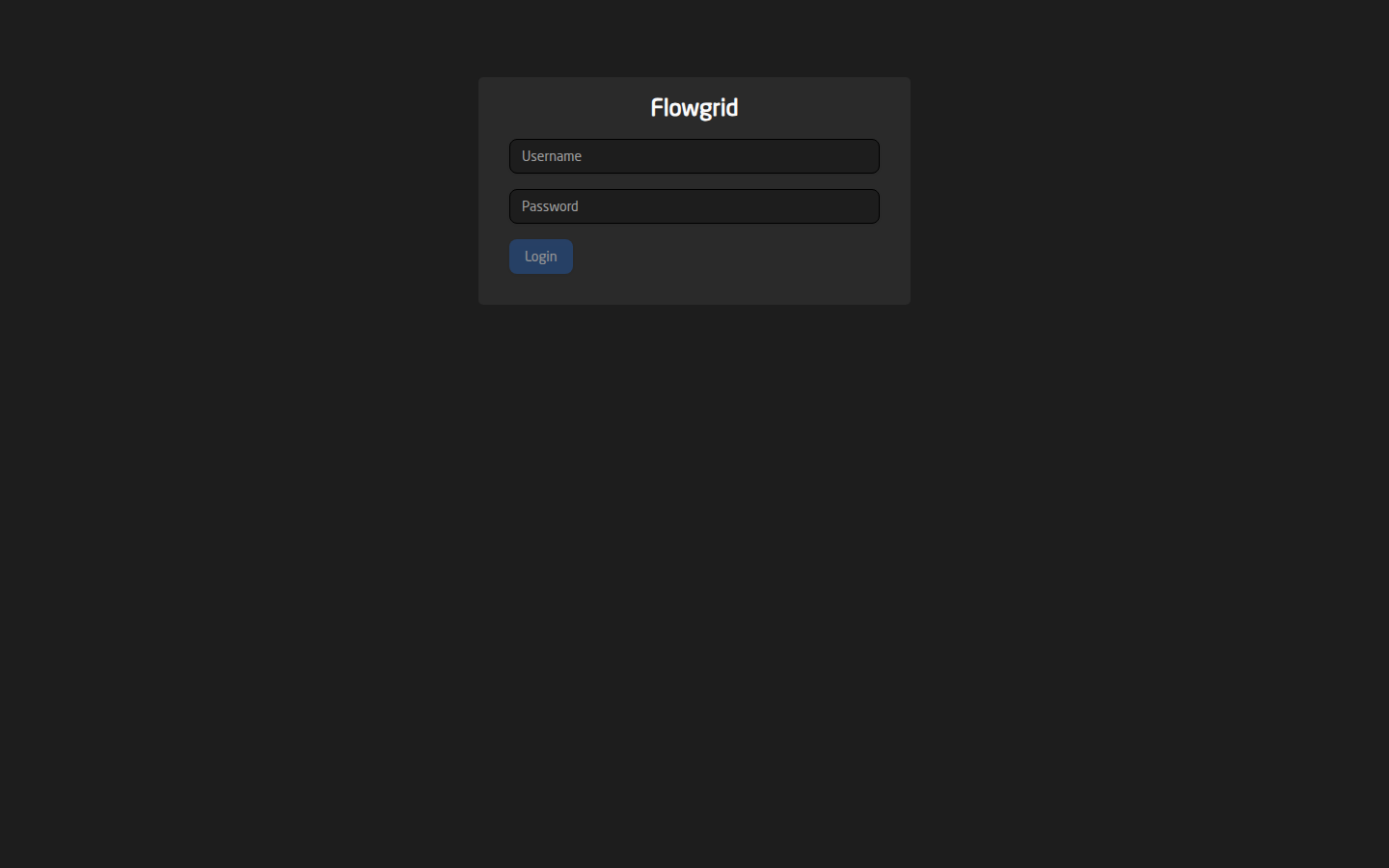
Change the admin password before the system goes anywhere near a production network. See Users and Roles.
Finding your way around
Everything is reached from the sidebar. The page is fully live: a change made on a panel, in Reactor or by a colleague in another browser appears here immediately, without refreshing.
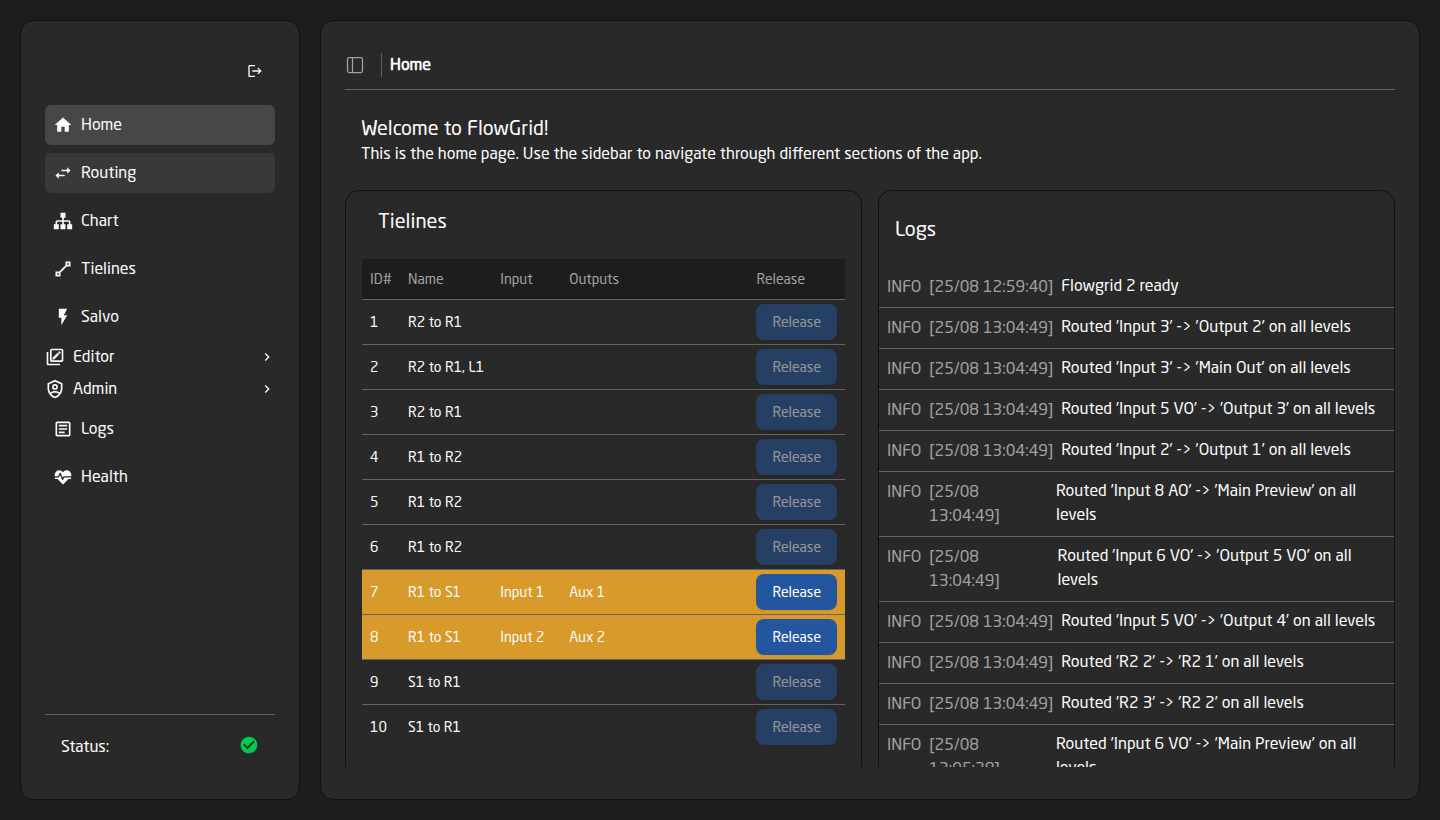
At the bottom of the sidebar a small Status row shows whether the devices in your configuration are reachable. Hover it for a device-by-device breakdown, and click it to open the Health page — that row is how you get there, as Health has no entry of its own in the list.
You may not see every item in that list. The sidebar only shows what your role is allowed to reach, so a missing page usually means a permission, not a fault.
Where to go next
- Building a configuration from scratch — the Setup Wizard.
- Adjusting one that exists — the Editors.
- Day-to-day routing — Routing and Salvos.
- Putting a panel on a touchscreen — The Softpanel.
- What your licence unlocks — License Tiers.
- When something looks wrong — Logs, Health and Troubleshooting.