
The Softpanel — Operator Panel and Kiosk Links
The Softpanel is FlowGrid’s operator surface: a full-screen routing panel with no sidebar, no editors and nothing to configure. It is what you put on a touchscreen on a wall, in a gallery, or beside a desk — and with a kiosk link you can give each of those screens a different slice of the system.
The Softpanel is a view of the same router everything else drives. A route made here is the same route made on the Routing page or from a SKAARHOJ panel, and it goes out through the same path.
Opening it
Click Softpanel at the bottom of the sidebar. The panel fills the window; a small Back to app link in the top-left corner is the way out.
If an operator’s role gives them the Softpanel and nothing else, they land here when they log in, and the Back to app link is not shown — there is nowhere else for them to go. See Users and Roles.
Two views
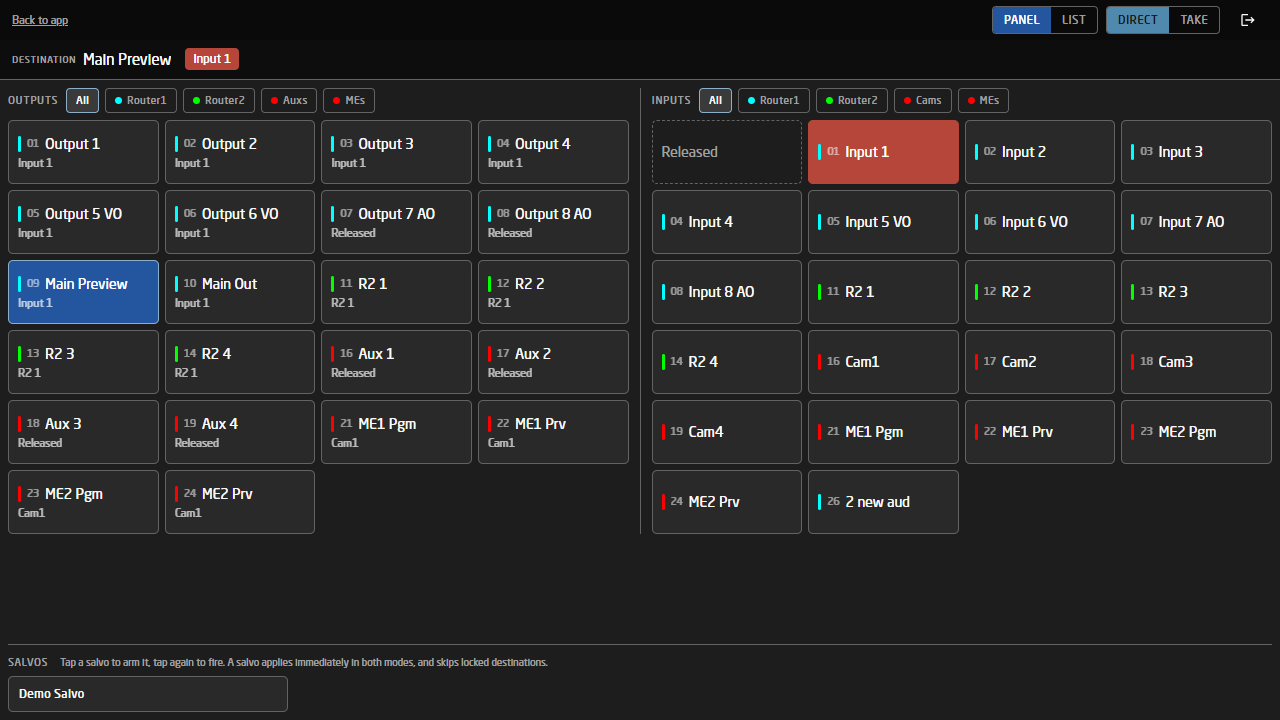
The PANEL / LIST buttons in the top-right switch between two layouts of the same panel. Both work the same way; pick whichever suits the screen.
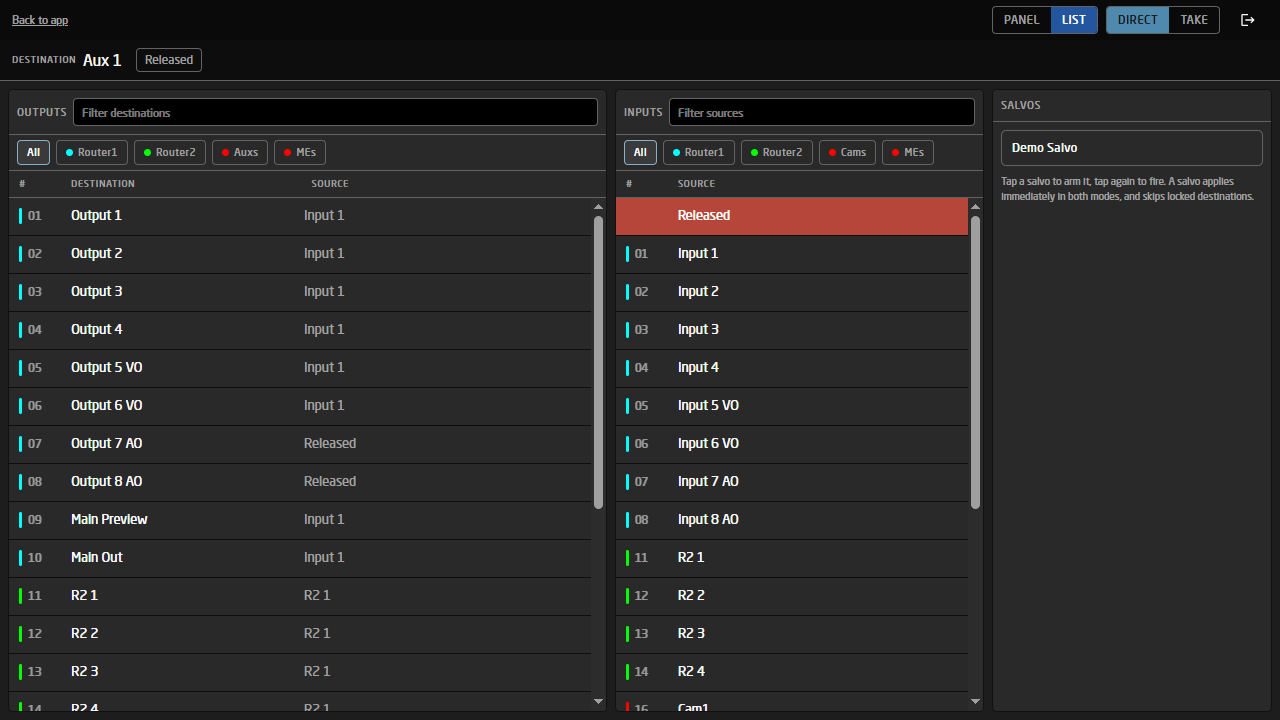
- List — dense rows with a #, a name and the source each destination is currently fed by. Each card has a filter box that matches on name or number. Best on a desktop or a large screen with a mouse.
- X-Y Panel — large touch tiles, destinations above and sources below. Best on a small touchscreen.
Making a route
- Tap a destination. It turns blue and its name appears in the status strip. The destination stays selected afterwards, so you can walk several sources onto it without re-picking.
- Tap a source. That is the route.
Tapping the selected destination again deselects it. The first tile in the source list is Released — tap it to release the destination rather than route anything to it.
Colour means one thing each, everywhere on this panel: red is on air, orange is staged but not live yet, and blue is the destination you have selected. A LOCK badge means the destination is protected and cannot be routed until it is unlocked on the Routing page.
Direct and Take
The DIRECT / TAKE buttons decide what happens when you tap a source.
- Direct — the route happens immediately. Fast, and right for a monitoring panel.
- Take — the route is staged instead. Staged destinations get an orange border and show the source they are about to take. Nothing reaches the devices until you press TAKE, which fires all of them at once. CLEAR throws the staged set away.
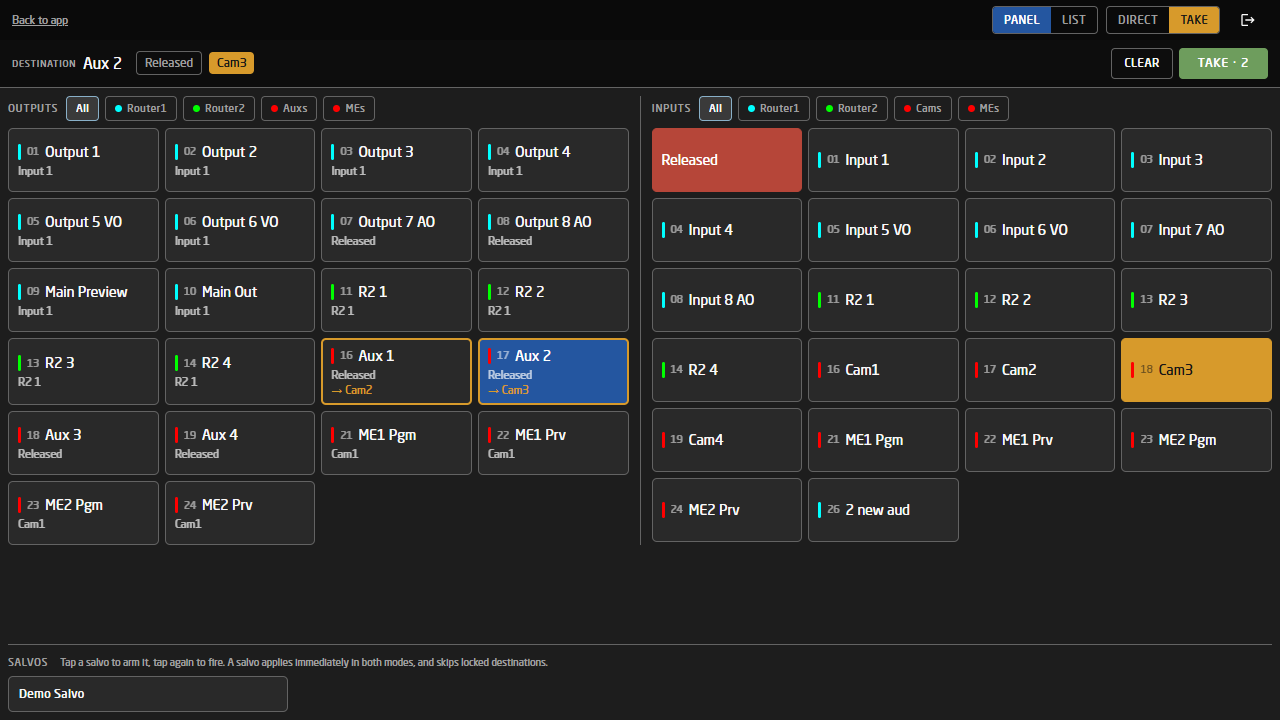
Take mode is how you cut several destinations at the same instant — a whole studio changing over on one press, instead of four routes arriving a second apart.
Group chips and salvos
If a project has more than one input or output group, a row of chips appears above each list. Tap one to show only that group; tap All to go back. Shift-click — or press and hold on a touchscreen — adds a second group to the selection instead of replacing it.
Any salvos the operator is allowed to fire appear along the bottom. A salvo reroutes a great deal at once, so it takes two taps: the first arms the button and it asks Confirm?, the second fires it. The ✕ on an armed button cancels, and any other action on the panel disarms it.
Kiosk links — giving each screen its own panel
A site often has several touchscreens that should not all show the same thing: the one in Studio 1 has no business offering Studio 2’s destinations. You do that by adding parameters to the Softpanel’s address, and pointing each screen’s browser at its own link.
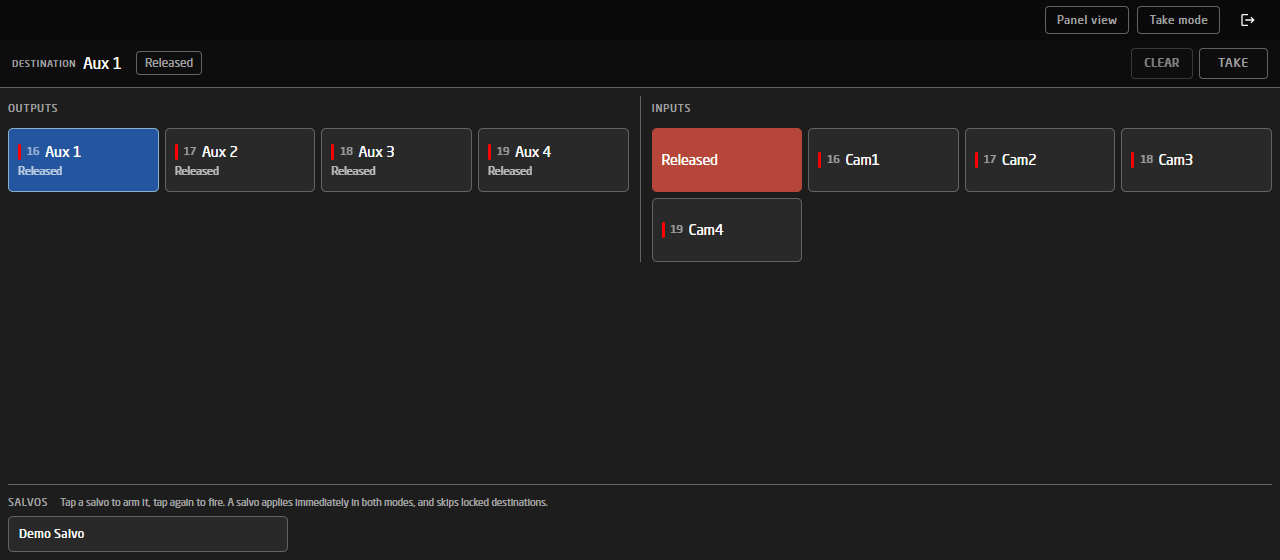
A kiosk link only hides things. It is not a security control. What an operator can actually route is decided entirely by their role, and a link can narrow a panel but can never widen it — naming a group the role was not granted shows nothing extra. Use roles to control access; use links to shape a screen.
The parameters, added to …/softpanel after a ? and separated by &:
| Parameter | Does | Example |
|---|---|---|
out |
Shows only these output groups. | out=AUXS |
in |
Shows only these input groups. | in=CAMS,GFX |
salvo |
Shows only these salvos, by number. salvo=- hides the salvo row entirely. |
salvo=0,3 |
view |
Opens in list or panel view and removes the toggle, so the panel cannot be switched. |
view=panel |
mode |
Opens in direct or take mode and removes that toggle too. |
mode=take |
back |
back=0 removes the Back to app link, so the panel is all the screen can reach. |
back=0 |
Groups are named by their group ID — the short code, not the display label — which is the same thing a role grant uses. A group ID only ever contains letters, digits and underscores: FlowGrid strips anything else as you type it, so an ID can always be dropped into a link as-is. You can see it beside each group on the Panel Views page below, and set it in the Groups editor. A complete link looks like this:
http://192.168.1.50/1/softpanel?in=CAMS&out=AUXS&salvo=0&view=panel&mode=take&back=0
Anything a link asks for that does not exist — a group that was renamed, a salvo that was deleted, a misspelling — is quietly ignored, and the panel opens showing more rather than less. A wall-mounted screen that shows everything is a nuisance; one that shows nothing, or an error, is a fault call.
The Panel Views page
You do not have to write those links by hand. Open Panel Views under Admin in the sidebar, tick what the screen should show, and copy the finished link.
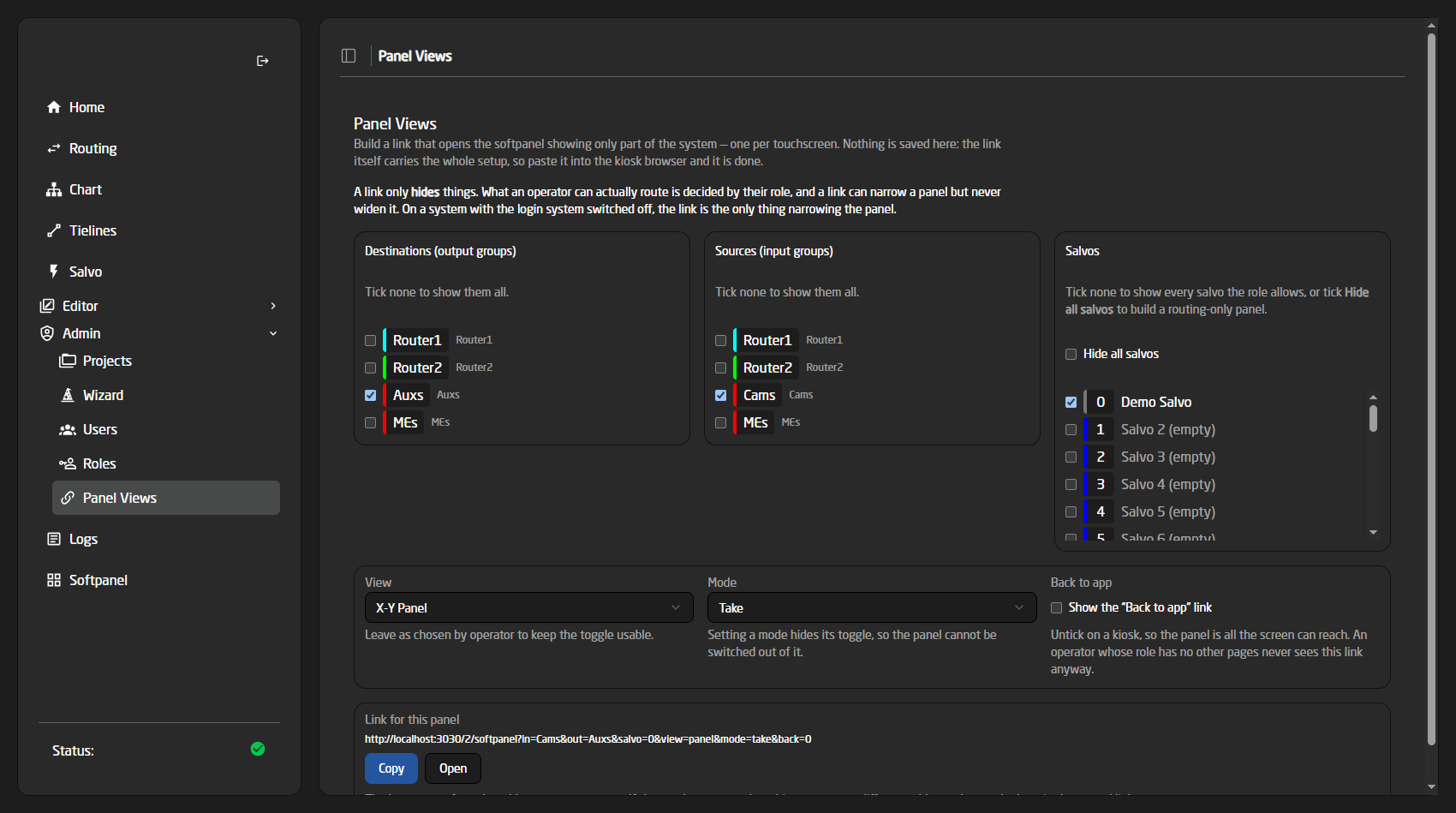
- Destinations and Sources — tick the groups this screen should show. Tick none to show them all.
- Salvos — tick the ones to offer, or Hide all salvos for a routing-only panel.
- View and Mode — leave on Chosen by operator to keep the toggle usable, or pick one to fix it and take the toggle away.
- Show the “Back to app” link — untick on a kiosk.
- Copy puts the link on the clipboard; Open tries it in a new tab.
Nothing on this page is saved. The link is the configuration, which is why this works on systems with the login system switched off — there are no user accounts to attach a setting to. Keep the links you build somewhere: a note on the rack, or the kiosk browser’s own bookmark.
The link is built from the address you are currently using. If a touchscreen reaches this system on a different address — a hostname instead of an IP, or a different interface — change the host part of the link after pasting it.
Setting up a kiosk screen
- Build the link on Panel Views and copy it.
- Open it on the touchscreen and check it shows what you intended.
- Put the browser into kiosk or full-screen mode and set that link as the start page.
- If the system has the login system on, give that screen an account whose role has the Softpanel and nothing else — then it lands on the panel at login and has no way out of it.
Restrict by role and by link when you can. The role decides what that screen is allowed to do even if someone edits the address bar; the link decides what it shows.
What a role can narrow
Independently of any link, a role can be granted only certain input groups, output groups and salvos, and those grants apply to the Softpanel specifically — not to the Routing page. Where a role and a link both narrow, the operator sees what both allow. See Users and Roles.
A role can also carry a default panel view. Unlike view= in a link, that is only a starting point — the operator can still switch. Use the role default for “this person prefers tiles”, and the link parameter for “this screen must stay on tiles”.
Troubleshooting
- A link shows more than I asked for — a group ID in it does not match anything in the project. Check the spelling against the Panel Views page; it lists the real IDs. Remember it is the group ID, not the label.
- A link shows less than I asked for — the operator’s role does not grant those groups. A link cannot widen what a role allows.
- A destination will not route — it is protected, and shows a LOCK badge. Unlock it on the Routing page.
- There is no TAKE button — the panel is in Direct mode, or the role has read-only access to the Softpanel.
- A destination shows a source I cannot select — that is deliberate. The panel always tells you what a destination is really fed by, even when the source is outside what this screen offers, so the picture is never misleading.
- The group chips are missing — there is only one group to show, either because the project has one or because the link narrowed it to one. With nothing to switch between, the chips are not drawn.
- The panel went back to showing everything — it was opened without the parameters. They live only in the address; a plain
…/softpanelis always the full panel.