
Users and Roles
FlowGrid can require people to sign in, and can give each of them a different view of the system: an operator who can route but cannot rebuild the configuration, a supervisor who can do both, a wall display that can only look.
User accounts and roles are a licensed feature. On the Free tier the login system is switched off entirely and everyone who reaches the web page has full access. Your accounts are not deleted — they come back on Medium or Full. See License Tiers.
Signing in
When the login system is on — the factory default — the web page asks for a username and password. The starting account is admin with the password skaarhoj. A Logout button sits at the top of the sidebar.
Change the admin password before the system goes on a shared network. It is the same on every FlowGrid, and it is an administrator account.
Managing users
Open Users under Admin in the sidebar.
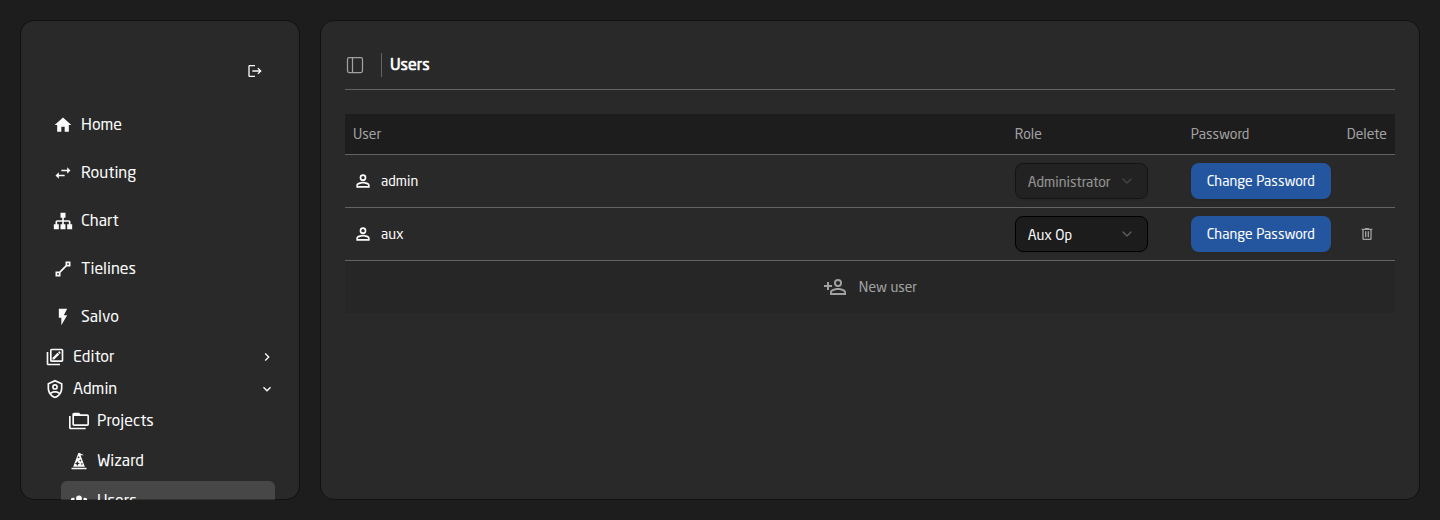
- New user at the bottom creates an account: username, role, and a password typed twice.
- The Role dropdown on a row changes what that person can do; confirm with the tick that appears.
- Change Password sets a new password for that account.
- The trash icon deletes an account.
The built-in admin account cannot be deleted and its role cannot be changed, so you can never lock yourself out of your own system.
Roles — deciding who sees what
A role is a named set of permissions, and every user has one. Open Roles under Admin, then New role or Edit.
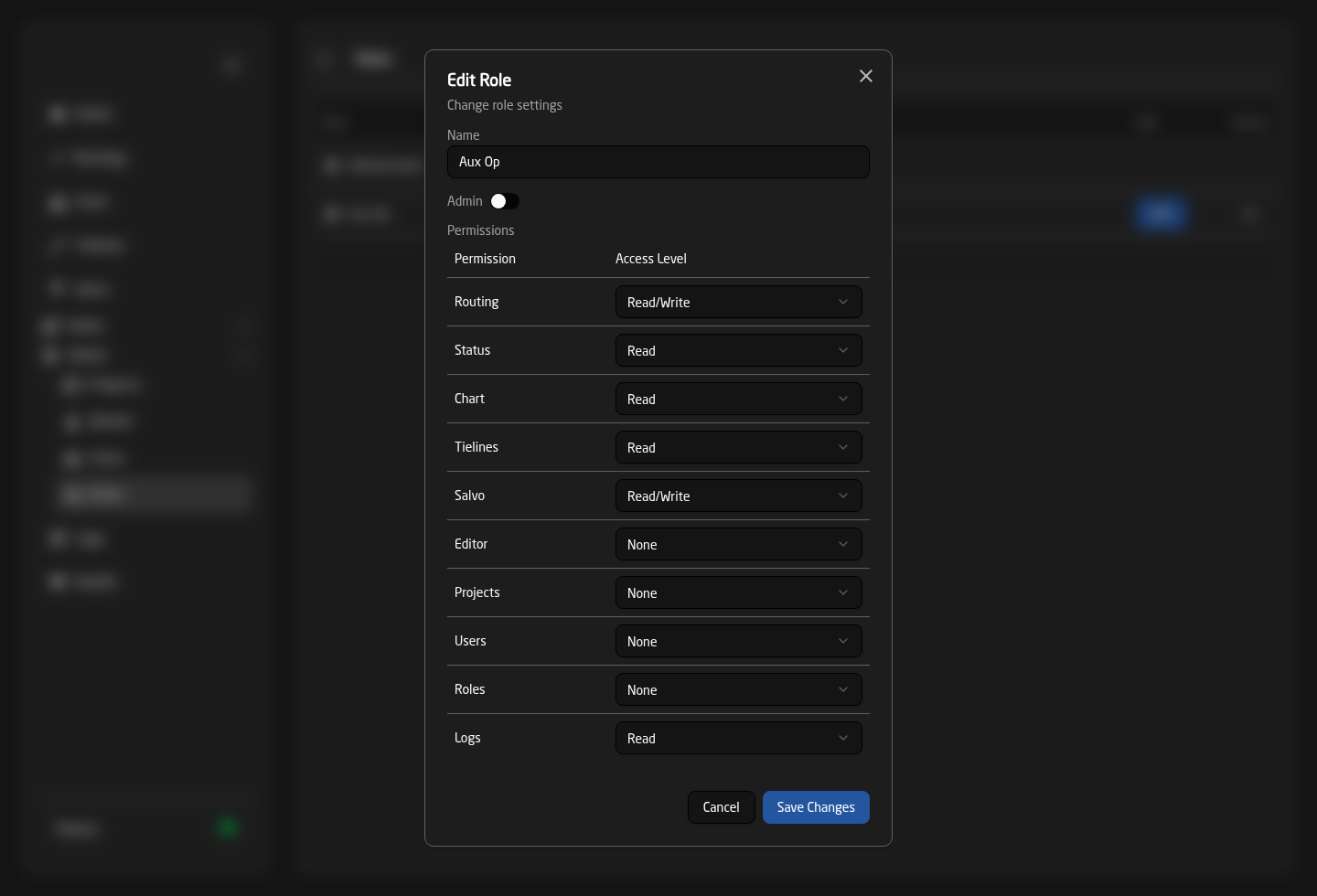
Each feature is set to None, Read or Read/Write. A feature set to None disappears from that person’s sidebar completely, rather than showing them a door they cannot open.
| Permission | Levels available | Covers |
|---|---|---|
| Routing | None / Read / Read-Write | The Routing page. Read lets someone watch without changing anything. |
| Softpanel | None / Read / Read-Write | The full-screen operator panel. Read shows it without letting anyone route. See The Softpanel. |
| Status | None / Read | The sidebar Status row and the Health page it opens. |
| Chart | None / Read | The routing diagram. |
| Tielines | None / Read / Read-Write | Read-Write additionally allows releasing a tieline. |
| Salvo | None / Read-Write | Editing and firing salvos. |
| Editor | None / Read-Write | All six editors, as one. |
| Projects | None / Read-Write | Uploading, activating, downloading and deleting projects. |
| Users | None / Read-Write | The Users page. |
| Roles | None / Read-Write | The Roles page. |
| Panelviews | None / Read-Write | The Panel Views page, which builds kiosk links for the Softpanel. |
| Logs | None / Read | The live log stream. |
Two of these catch people out. Health has no permission of its own — it follows Status, because the Status row at the bottom of the sidebar is what opens it. And Editor is all or nothing: there is no way to grant the Groups editor without granting the Devices editor.
A role can also narrow things further: which input groups and output groups its users see, which salvos they may fire, whether they may route individual levels at all, and which view the Softpanel opens in. Turn level routing off for an operator and the Show levels: switch simply is not there for them.
The input group, output group and salvo grants apply to the Softpanel only — they do not narrow the Routing page. That is deliberate: an empty list means “sees nothing”, and every role created before these grants existed has empty lists, so applying them to Routing would blank that page for every existing operator.
A role’s default panel view is only a starting point — the operator can still switch between the List and X-Y Panel layouts. To pin a screen to one layout so it cannot be switched, use a kiosk link instead.
Administrator roles
The Admin switch in the role dialog makes a role an administrator. Administrators bypass the permission table entirely and always have full access — and it is what makes the Admin group, with Projects, Wizard, Users and Roles, appear in the sidebar at all.
Give administrator rights sparingly. It is not “all the boxes ticked”, it is “every box, permanently, including future ones”.
A sensible starting set
- Operator — Routing Read-Write, Salvo Read-Write, Tielines Read, Status Read, Chart Read; everything else None. Can run the show, cannot rebuild it.
- Supervisor — the above plus Editor and Logs. Can fix the configuration.
- Display — Chart Read and Status Read only. For a wall monitor, with nothing to click.
- Administrator — the built-in role. Keep it for the people who look after the system.
Users travel with the project
Accounts and roles are stored in the project, so they are downloaded, uploaded and restored with it. When you activate a project, Recall Users decides whether its accounts replace yours — and it is off by default for exactly that reason. See Projects.
Troubleshooting
- Pages are missing from someone’s sidebar — their role has that permission set to None. Remember Health follows Status.
- An operator sees fewer sources or destinations on the Softpanel than on Routing — their role grants only some input or output groups, and those grants apply to the Softpanel alone. If they are also on a kiosk link, they see only what the role and the link allow.
- An operator cannot route individual levels — their role does not allow level routing, so the Show levels switch is hidden.
- There is no login page at all and everyone has full access — either the login system is switched off in the device-core settings, or the licence does not cover user management. Check the License card on the Health page.
- Nobody can log in after activating a project — Recall Users was ticked and the project carried different accounts. Activate your backup with only Recall Users ticked to get them back.