
Tally and Dynamic Labels
Two things should follow the signal rather than the cable: the tally lamp that tells a camera operator they are live, and the label under a monitor that says what is on it. FlowGrid moves both along the route automatically.
Both are set up per input and per output, in the Outputs and Inputs editors under Editor in the sidebar.
How tally travels
FlowGrid learns that a destination is on air, then lights up whatever is feeding it — and everything else showing the same source.
- A tally source is a place FlowGrid reads on-air state from — typically the program bus of a switcher. Tally sources live on outputs.
- A tally destination is a lamp FlowGrid writes to — a camera’s tally light, a multiviewer box, a tally interface. Tally destinations live on both inputs and outputs.
When a destination goes on air, whatever source is currently routed to it lights up. If that same source is also showing on other destinations, they light up too. Change the route and the lamps follow within the same action — nobody re-patches tally.
Red and green are handled completely separately, so program and preview behave independently.
Setting tally up
On a row in the Outputs or Inputs editor, click the target icon — Edit tally.
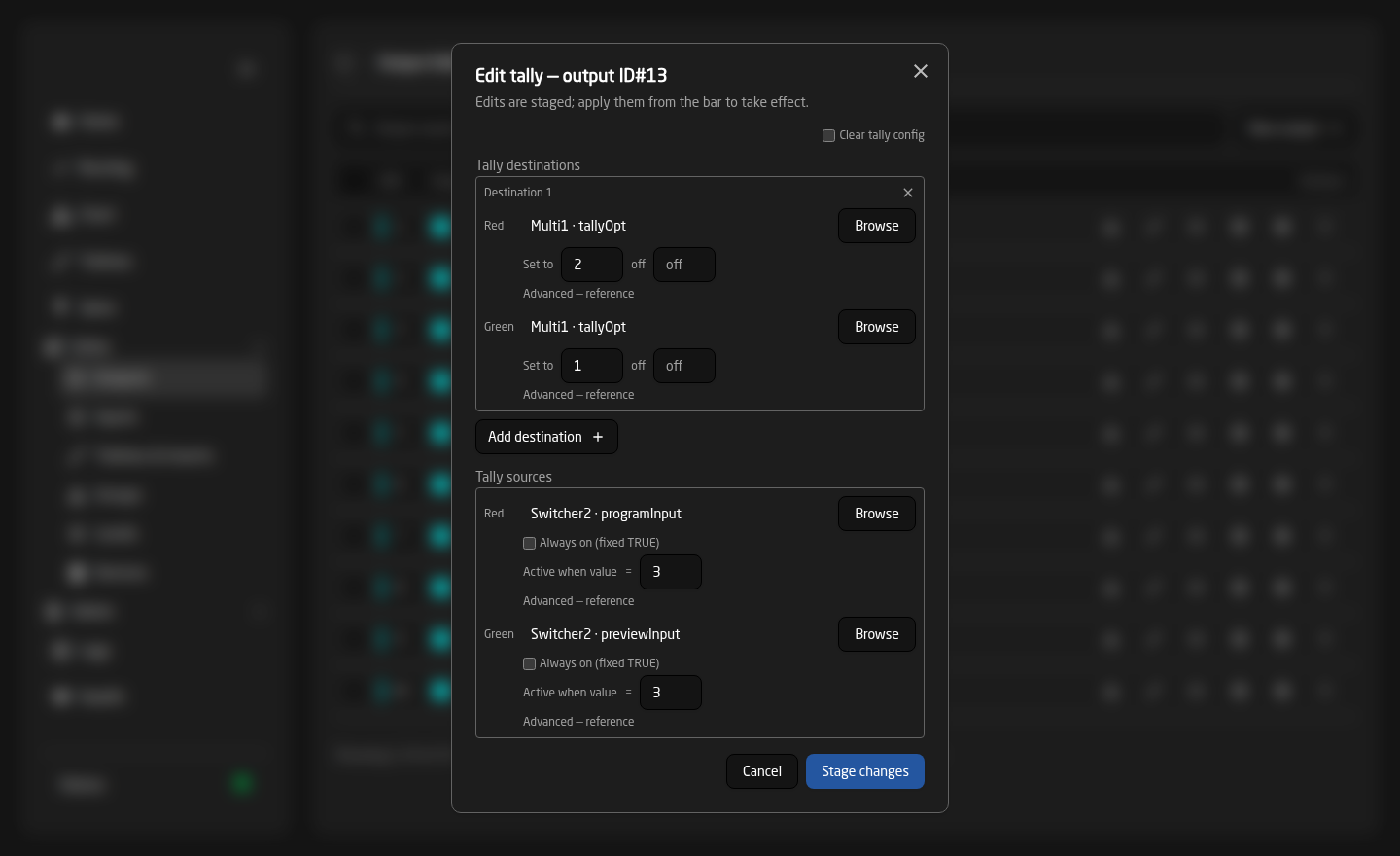
- Tally destinations are managed as Red / Green pairs. Press Browse to pick the lamp from a list of your devices rather than typing anything. Add as many pairs as you need with Add destination.
- Set to tells FlowGrid what value means “on” and what means “off” for that lamp. Leave it alone for a simple on/off lamp; fill it in when a device expects a particular number, such as ‘2’ for red and ‘1’ for green.
- Tally sources (outputs only) is where the on-air state is read from. Active when value = turns a reading that is not naturally on/off into one — for example “this destination is on air when the switcher’s program bus reads 3”.
- Always on (fixed TRUE) marks a destination as permanently live. Use it for a hard program output that is on air by definition.
Tally edits are staged. They collect in the bar at the top of the editor and only reach the devices when you press Apply & reload. See The Editors.
How dynamic labels work
The same idea, applied to text. Two halves work together:
- A Label source on an input — where that source’s name comes from. Set one when the name is not fixed, for example a playout server that reports the name of the clip it is playing. Leave it empty and the input just uses the name you gave it.
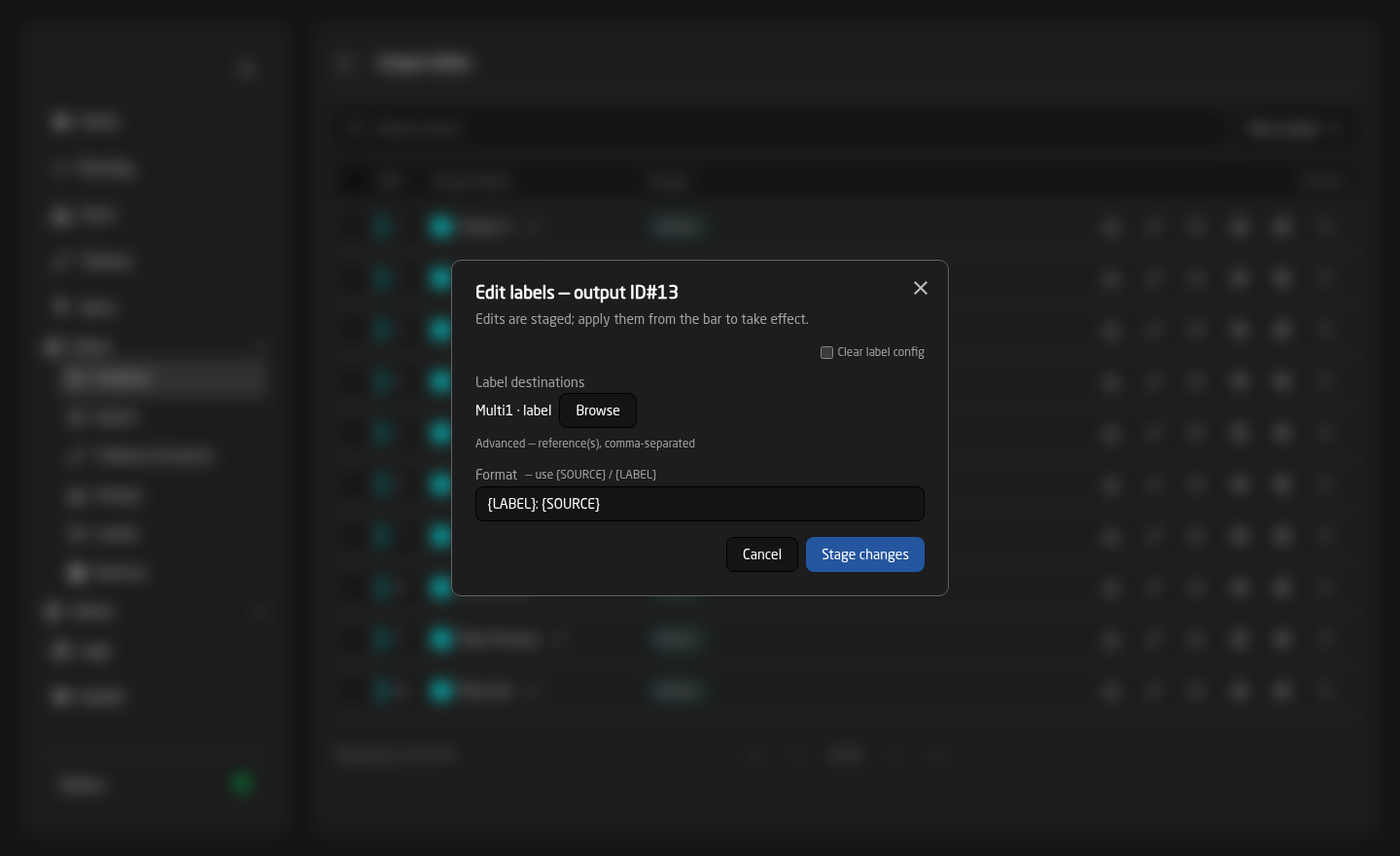
- A Label destination on an output — the display that should show the name. Whenever the route changes, the currently routed source’s name is written there.
The Format field
The Format box decides what text is actually written. Two placeholders are filled in for you:
{SOURCE}— the live incoming value. On an output that is the name of whatever is routed to it right now; on an input it is the live reading from its Label source.{LABEL}— the element’s own fixed name, the one you typed in the editor. It never changes.
So on a monitor destination called ‘Mon 4’:
{SOURCE}— the display just reads ‘Cam 3’. This is the default.{LABEL}: {SOURCE}— it reads ‘Mon 4: Cam 3’, so the operator sees both which monitor it is and what is on it.- Anything else you type is copied through as-is, so
PGM — {SOURCE}works too.
When a destination is released, {SOURCE} becomes empty. A format of just {SOURCE} therefore blanks the display, rather than leaving the last source’s name sitting there looking live.
Older configurations used {IO} where {SOURCE} is used now. It is still accepted and is converted for you.
Troubleshooting
- Nothing happens at all — the edits are probably still staged. Press Apply & reload in the bar at the top of the editor.
- Lamps or labels never update — check the sidebar Status block. FlowGrid can only write to a device it can reach.
- Tally lights on the wrong source — the Active when value = comparator does not match what the device really reports. Watch the value on the device and set the comparator to that.
- The lamp is on but the wrong colour — the Set to values for red and green are swapped, or the device expects different numbers than the defaults.
- A display shows a stale name — the destination is still routed to that source. Release it, or check that the Label destination points at the display you think it does.
Reference — for installers
Behind the Browse buttons, every lamp and display is stored as a reference to one parameter on one device core, written DC:<core>/<id>/<parameter>. You can type one directly under ‘Advanced — reference’ if you already know it, and outputs accept several label destinations separated by commas.
DC:core-tally/1/tallySet— treated as a simple on/off lamp.DC:core-tally/1/tallySet = 2— write2when on, clear it when off.DC:core-tally/1/tallySet = 2 | 0— write2when on and0when off.- A tally source can carry a comparison directly, for example
DC:core-switcher/1/programInput == 3. The comparators are==,!=,>=,<=,>and<.
Tally and dynamic labels are the only things FlowGrid keeps actively pushing at your devices. It writes the value, checks what the device reports back, and re-sends if they disagree. Routing crosspoints are never forced this way.