
Editors
The Editors are where you change a configuration that already exists — add a destination, retarget a port, rename a group, set up tally. They sit under Editor in the sidebar: Outputs, Inputs, Tielines & Inserts, Groups, Levels and Devices.
Everything here can also be done conversationally by an AI assistant, if that is switched on — see Editing the Topology with an AI Assistant.
Three kinds of change — read this first
FlowGrid treats edits differently depending on how disruptive they are, and it is much easier to use the editors once you know which is which.
- Live — names, colours, group membership, IFB and link groups. These take effect the moment you save. Nothing to apply.
- Staged — routing parameters, labels and tally. These pile up in a bar at the top of the page and reach the devices only when you press Apply & reload.
- Structural — adding or deleting sources, destinations or devices, and any tieline or insert wiring. These are saved, but an amber banner appears telling you they only reach the devices after a reload.
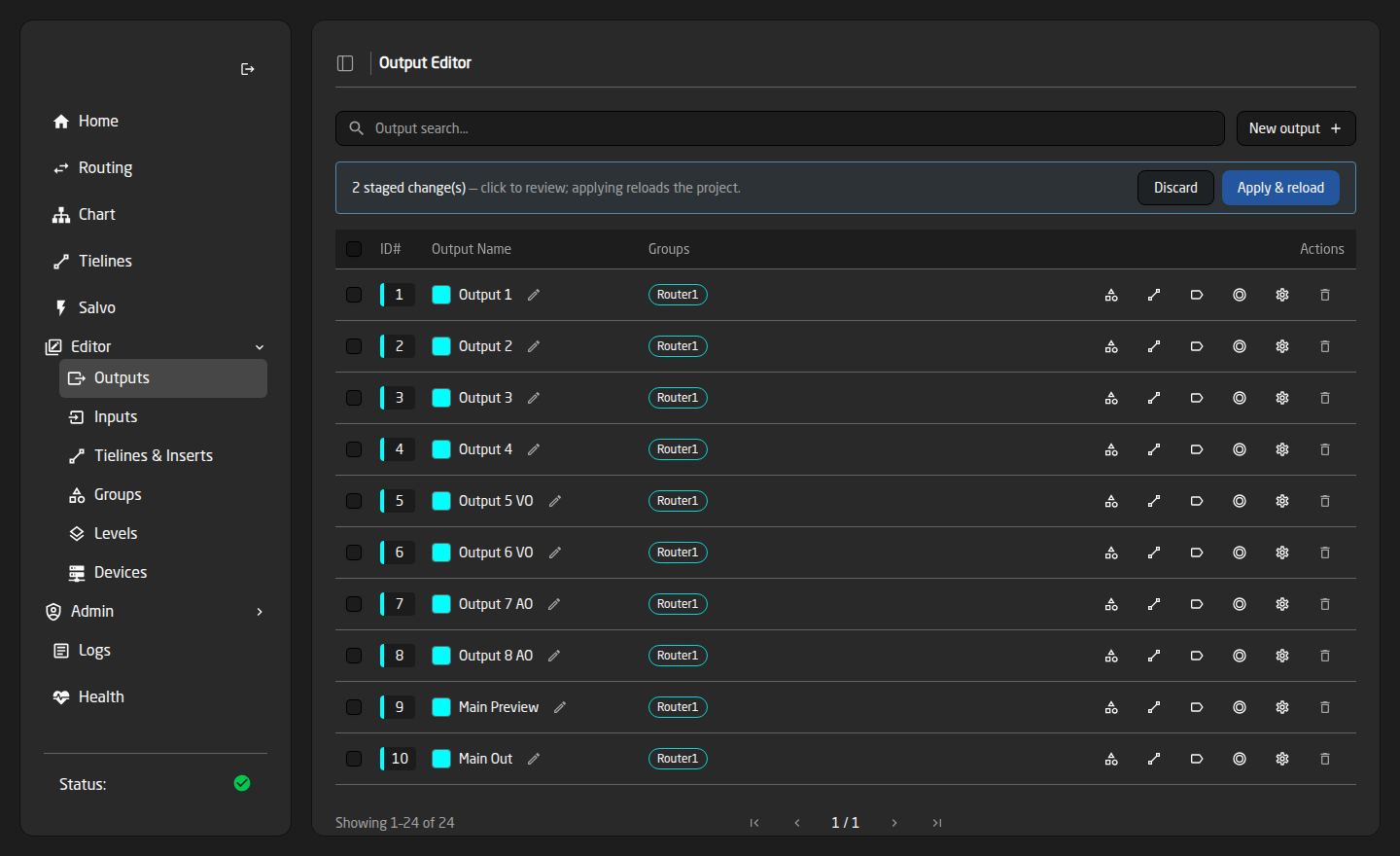
Click the bar to review the individual items and drop any you have changed your mind about; Discard throws the whole set away.
Apply & reload reloads the project, which briefly interrupts live routing. Do it between shows, not during one — and do it once at the end rather than after every edit.
The Outputs and Inputs editors
These two are the same page pointed at opposite sides of the router. Each row is one logical destination or source.
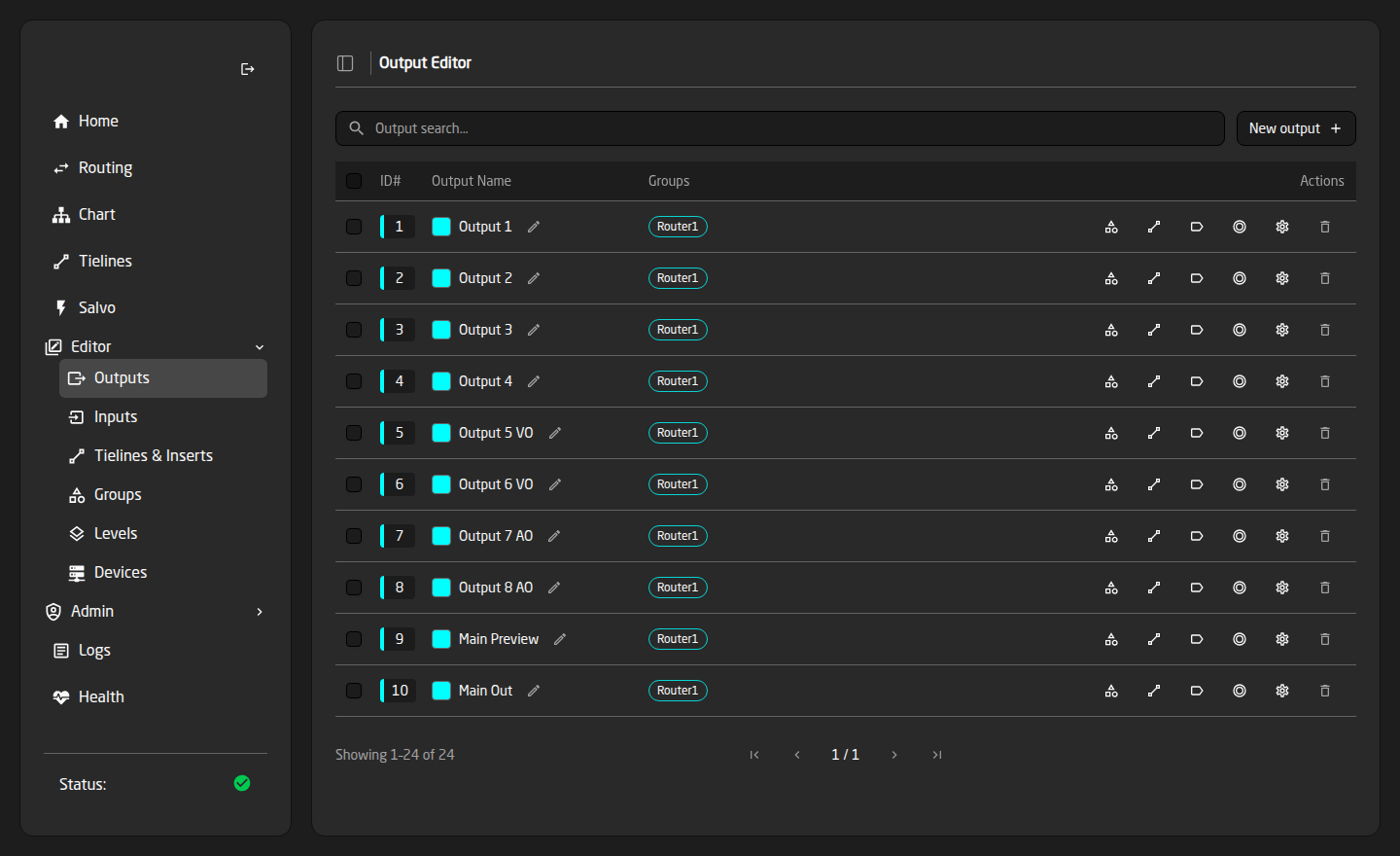
Search at the top, add with New output / New input, and edit the name and colour with the pencil in the name cell. The icons on the right of each row open, in order:
- Edit groups — which groups this channel belongs to. Live.
- Edit routing parameters — which physical port it drives, per level. Staged.
- Edit labels — dynamic UMD labelling. Staged. See Tally and Dynamic Labels.
- Edit tally — red and green sources and lamps. Staged.
- Settings (IFB, link group) — talkback returns and stereo linking. Live. See IFB Returns and Link Groups.
- Delete — structural, and a cascade.
Deleting a source or destination also removes its routing, labels and tally, and clears it from every salvo step and IFB mapping that referred to it. There is no undo — export the project first if you are not certain.
Pointing a channel at a port
Edit routing parameters gives you one card per level, so a channel can sit on a different physical port on each level.
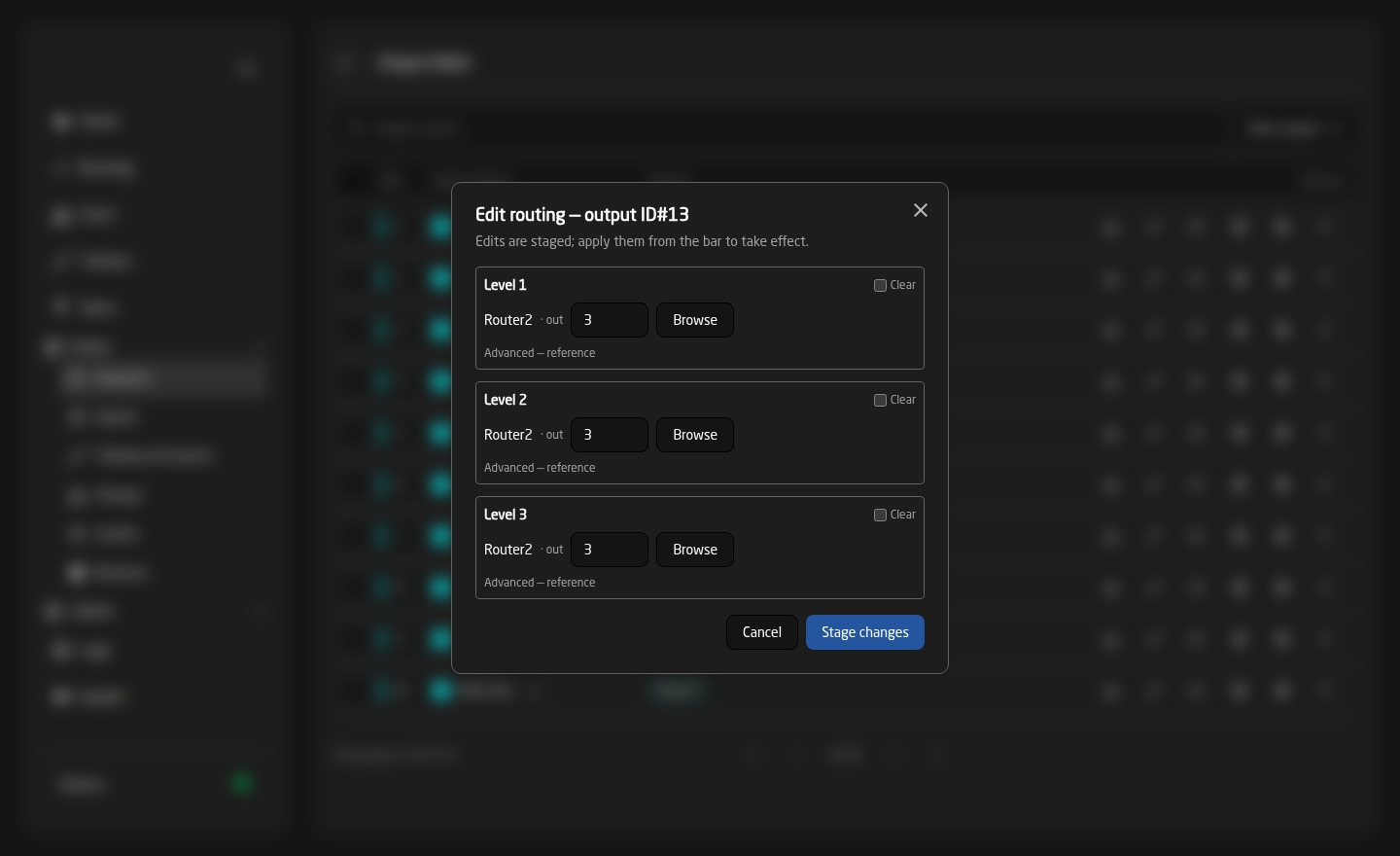
Type a port number directly if you know it, tick Clear to remove the channel from that level, or press Browse to pick from a list.
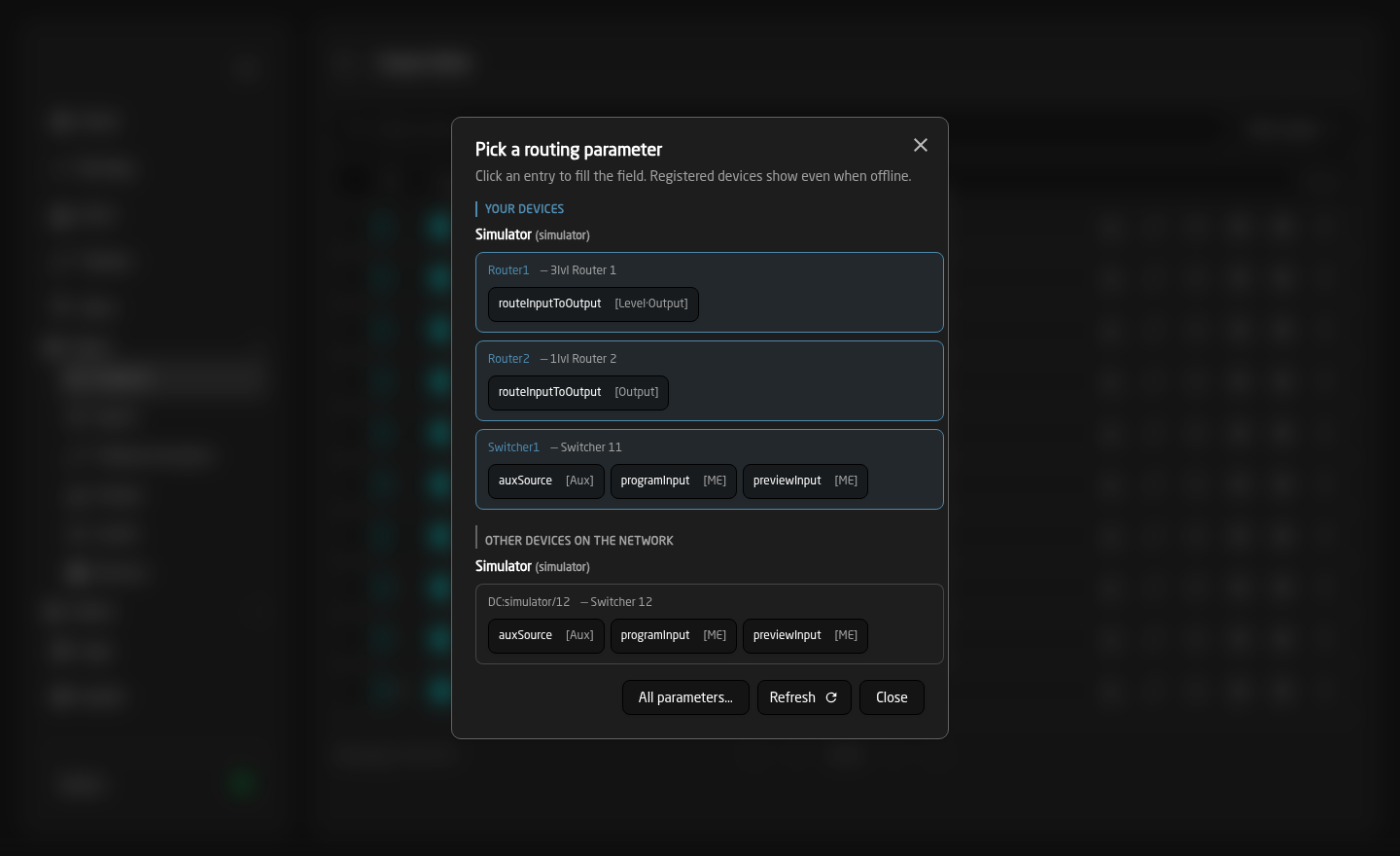
The picker opens on a shortlist of the options that actually make sense for each device, so you rarely need to know a parameter name. All parameters… opens the full list when you do need something unusual, including for devices that are currently offline.
Changing many channels at once
Tick several rows and a toolbar appears at the bottom of the page.
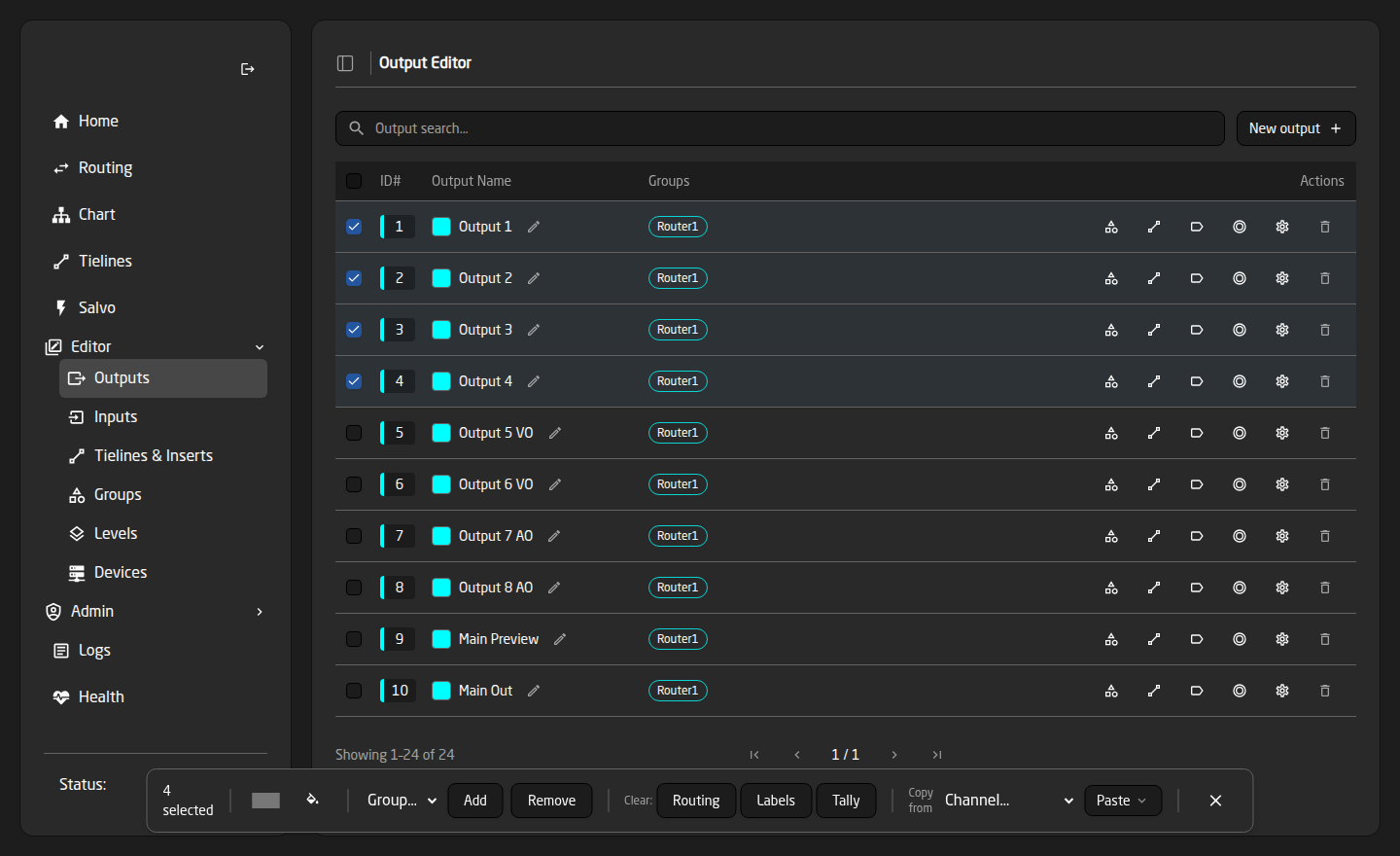
- Colour and group changes apply to the whole selection at once.
- Clear: Routing / Labels / Tally wipes that setting on every selected row (staged, so you can still discard it).
- Copy from → Paste is the big time-saver: pick one channel you have already set up correctly, tick which parts to copy — colour, label, routing, tally, label source, IFB, link group, groups — and press Paste selected.
Tick Increment numbers and every number in what you paste steps along with the rows. Set up channel 1 by hand, then paste it onto channels 2–24 and each one lands on its own port with its own lamp.
The other editors
Groups
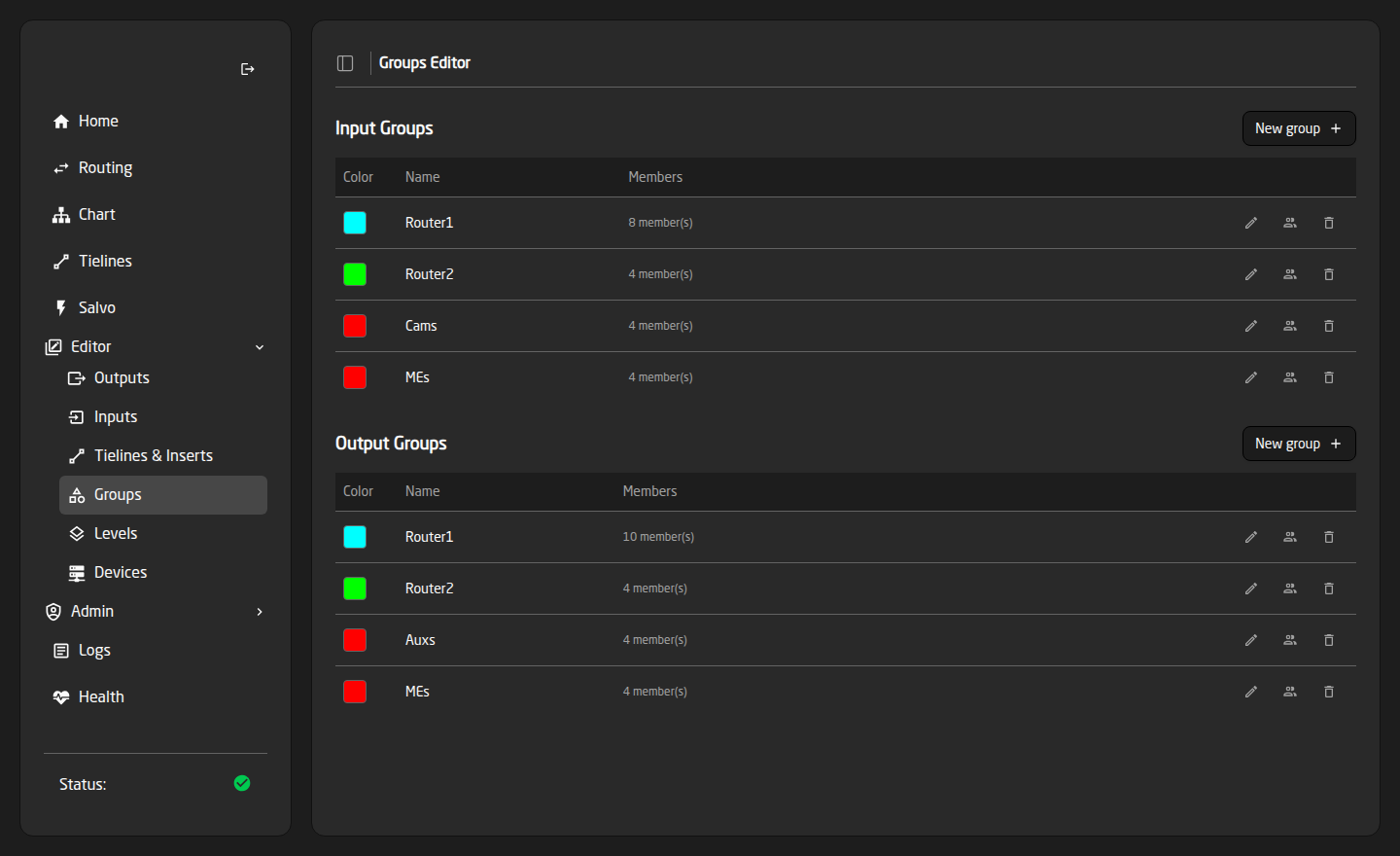
Separate lists for input groups and output groups. Create with New group, rename and recolour in place, and edit the members from a checklist. All live.
Levels
Rename-only. Levels themselves are created in the Setup Wizard, so this page just lets you fix a display name.
Devices
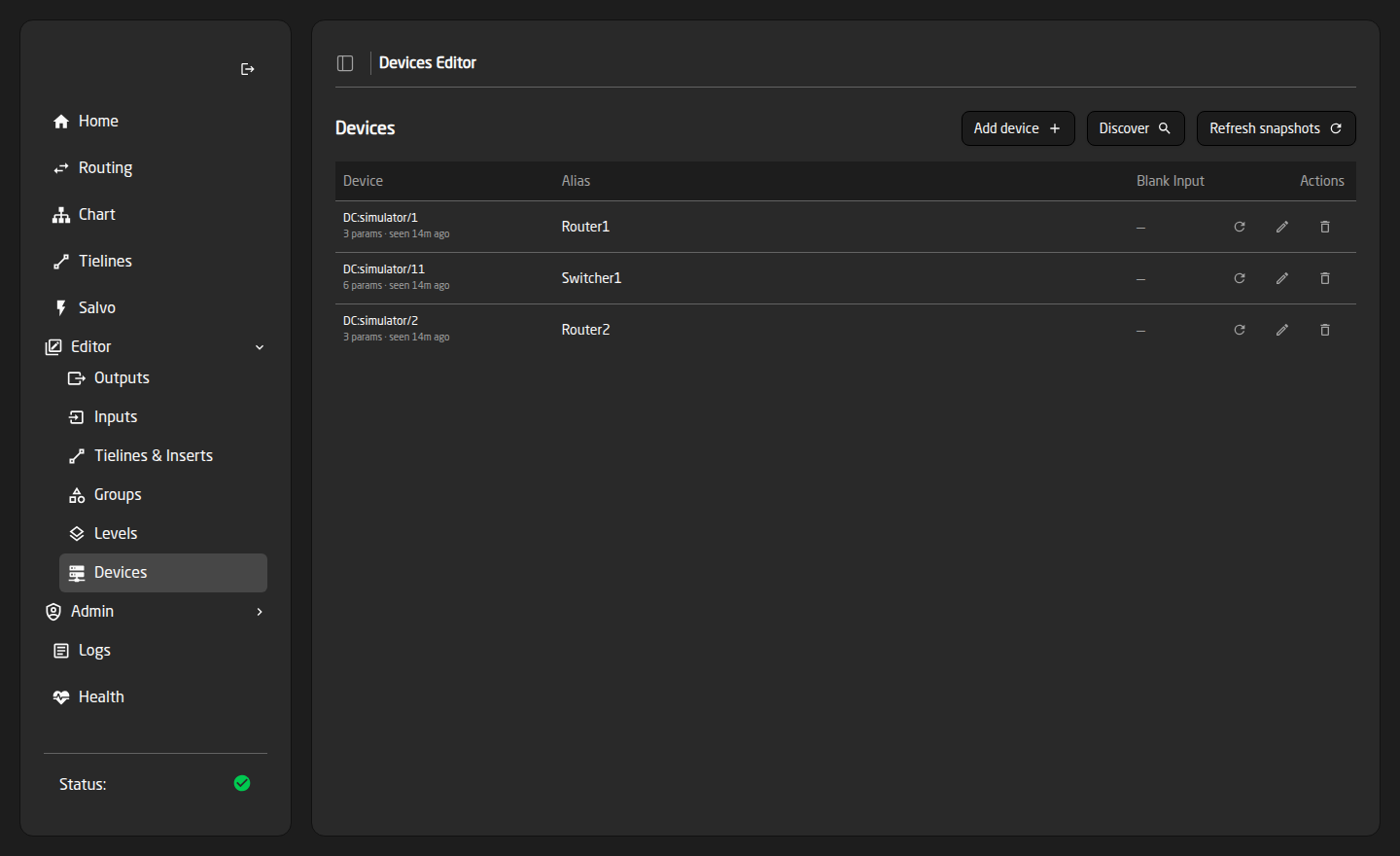
The equipment FlowGrid controls. Add device enters one by hand, Discover finds what is online, and the pencil edits a device’s alias and its Blank Input — the port a destination is sent to when it is released. Device changes are structural.
Tielines & Inserts
Covered in Tielines and Inserts.
Troubleshooting
- An edit does nothing on the hardware — it is staged or structural. Look for the bar or the amber banner at the top of the page and press Apply & reload.
- A new source or destination does not appear on a panel — the same reload is needed, or you are past the model’s or the licence’s limit. Check the License card.
- “License limit reached” when adding — exactly what it says. Remove something or upgrade.
- A device shows offline in the picker — you can still select its parameters, but nothing will happen until it is reachable.
- The whole Editor group is missing from the sidebar — your role does not have Editor access.