
AI Assisted Topology Editing
FlowGrid can let an AI assistant build and adjust your configuration from a plain-language conversation — “add eight more monitors on the second router and put them in the Gallery group” — instead of clicking through the editors.
This is an optional, expert-level alternative to the Editors. It is switched off by default, needs a Full licence, and has to be turned on deliberately. Everything it can do, you can do by hand.
What it can and cannot touch
It edits the configuration only: levels, devices, sources, destinations, their wiring, labels and colours. It never touches live routing, crosspoints, salvos or users. An assistant cannot re-route your router through this.
How a session works
Nothing the assistant does lands on the running system until a person allows it.
- The assistant opens your configuration. It gets a private working copy and a review link, which it should give you.
- It edits that copy while you talk. It can also look at what devices are on the network and what they can do, so it can find valid settings itself.
- It checks the copy — the same checks the Setup Wizard runs.
- It applies the copy, which saves it and reloads FlowGrid once. Or it discards it, and nothing at all happens.
Watching over its shoulder
The review link opens a read-only page showing exactly what the assistant has changed so far, as a difference against your current configuration. It updates as each edit lands, so you can watch a configuration being built and stop the assistant before it applies anything.
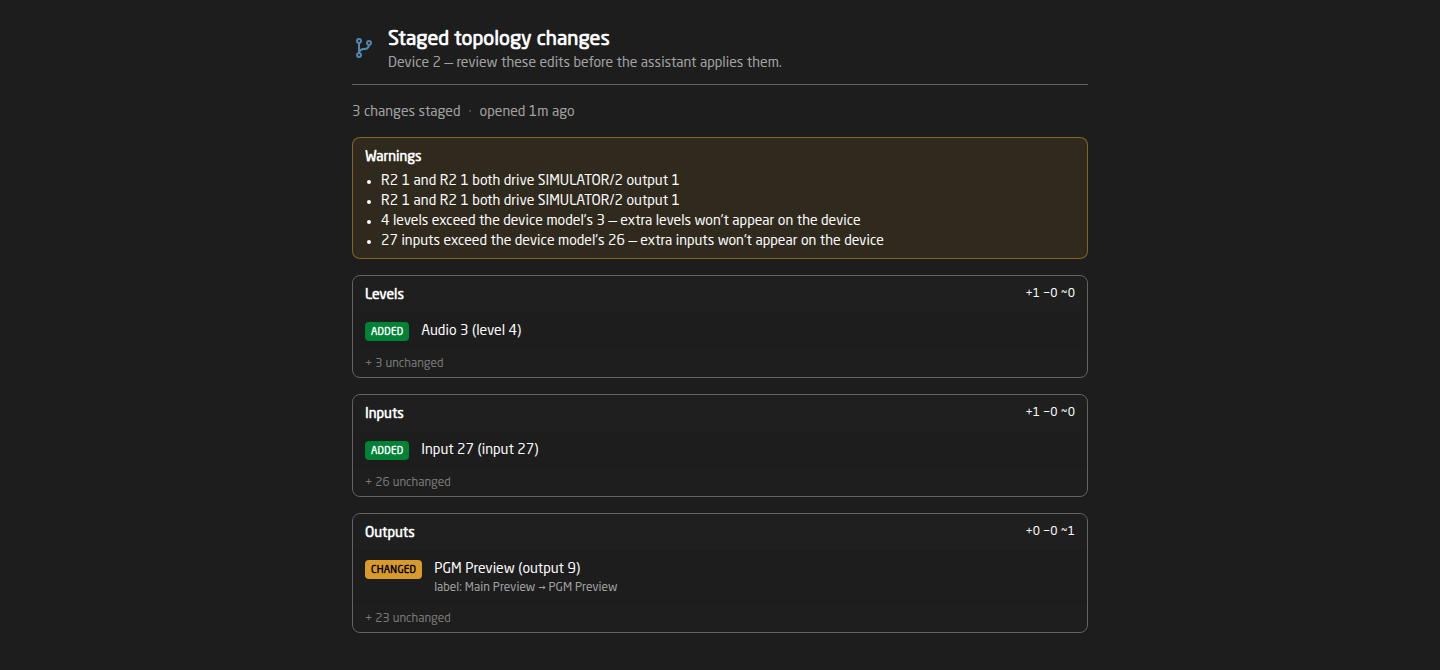
The page groups the changes into Levels, Devices, Inputs and Outputs, marking each entry added, removed or changed and showing old and new values. Above them sits the verdict: blocking problems in red, warnings in amber, or a green ‘Valid — ready to apply’.
The page is strictly read-only — nothing can be applied or changed from it — so it is safe to hand to anyone who should see the proposed changes.
What stops a bad change
Applying is refused unless all three hold:
- The system is still running.
- The working copy passes the blocking checks — a broken configuration can never reach a live router.
- Your configuration has not been changed in the web interface since the session opened. If someone edited it meanwhile, the apply is refused and the assistant must start again. Concurrent edits cannot silently overwrite each other.
A successful apply closes the session, so further edits need a fresh one. Sessions left idle for half an hour are cleaned up, and one session handles one FlowGrid at a time.
Applying reloads the configuration and briefly interrupts live routing — the same interruption as Apply & reload in the editors. Do it between shows.
Turning it on
Two settings on the FlowGrid device core:
- MCP Server Enable — off by default. Turn it on and the endpoint is served on the same address as the web interface, at the path
/ingress/flowgrid/mcp. - MCP Server Token — a password the assistant must present.
Nothing has to be installed. On the assistant’s side you point it at that address over HTTP and give it the token.
The endpoint deliberately bypasses the web login — the token is its only protection. Left blank, it runs unauthenticated, and anything that can reach the port can rewrite your configuration. Always set a token unless the system is on a trusted, isolated network.
The review page is not behind the login either. The unguessable link is what protects it; treat it as a secret, and remember it stops working once the session ends.
When it is worth using
- Bulk work — large, repetitive additions where describing the pattern is faster than clicking it.
- Exploring — the working copy is disposable, so you can try a restructure and discard it having changed nothing.
- Not for live shows. Applying reloads the system.
- Always read the review page before you let it apply. That is what it is for.
Troubleshooting
- The assistant cannot connect — check MCP Server Enable is on (it is off by default), that the licence covers it (the License card on the Health page shows MCP server), that the address is right, and that the token matches.
- It connects but applying is refused — either the working copy still has blocking problems, which the review page names in red, or the configuration was edited in the web interface after the session opened. Open the configuration again and redo the edits.
- The review page says the session has closed — it was applied, discarded, or left idle too long. Ask the assistant for a new link.