
KeyBridge V2 (core-skaarhoj-keybridge)
KeyBridge V2 lets a SKAARHOJ panel press keys, type text and move the mouse on a computer. A button can fire a shortcut in any application, type a stored phrase, or click, and a joystick can drive the cursor. The panel side is the KeyBridge V2 device core (core-skaarhoj-keybridge) in Reactor. It reaches the computer in one of two ways, and a configuration built for one works on the other.
KeyBridge V2 replaces the original KeyBridge. It is a complete rebuild for the Blue Pill platform and Reactor, with a new server app and a new device core. Use the KeyBridge V2 Server with it, not the server of the original KeyBridge.
Which model should I use?
| KeyBridgeV2 Server (network) | USB Keyboard & Mouse | |
| Connection | Over the network to the KeyBridge V2 Server app | The panel's Micro-USB port, as a plain USB keyboard and mouse |
| On the computer | Install and run the KeyBridge V2 Server app (macOS, Windows) | Nothing. Works without drivers on macOS, Windows and Linux |
| Settings in Reactor | Server IP and the 12-word key | Keyboard layout |
| Reach | Any computer on the network. One panel can control several | The one computer plugged into the panel |
| Mouse | Absolute and relative positioning | Relative movement only |
Use USB Keyboard & Mouse when the computer sits next to the panel and you don't want to install anything on it. Use KeyBridgeV2 Server when the computer is somewhere else on the network, when you need to put the cursor at an exact screen position, or when one panel controls several computers. You can mix both: add one device per computer and set each device's model.
A. KeyBridgeV2 Server (network)
1. Install the server
Download the server for your computer from the KeyBridge V2 Server releases:
- macOS (12.3 or later, Intel and Apple Silicon): unzip and move KeyBridge V2 Server.app to Applications.
- Windows (64-bit): unzip and run KeyBridge V2 Server.exe. Allow it through the Windows firewall when asked, or the panel can't reach it.
The server runs in the menu bar (macOS) or the notification area (Windows). It has no window. On first start it creates its key.
macOS: grant the Accessibility permission. macOS asks for it on first start. Without it the keystrokes and clicks are dropped and nothing happens on screen. If you missed the prompt, use Grant Input Permission… in the server's menu, or enable KeyBridge V2 Server under System Settings > Privacy & Security > Accessibility.
2. Get the IP address and key
Click the server's icon to open its menu:
- Server IP (click to copy): the computer's addresses. Click one to copy it.
- Show Key: shows the key and copies it to the clipboard.
- Connected Clients: the panels currently connected.
- Change Port: the default is 7878. Restart the server after changing it.
- Regenerate Key: makes a new key. Every panel then needs the new one.
- View Logs, About, Quit.
The key is 12 English words, for example involve night pear napkin noodle awake carry around lobster giant hard match. Capitalisation and spacing don't matter, and the first four letters of each word are enough. If a word is mistyped, the device's Core Logs say which one.
3. Add the device in Reactor
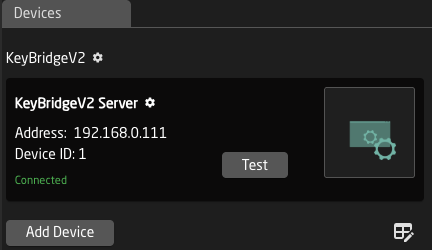
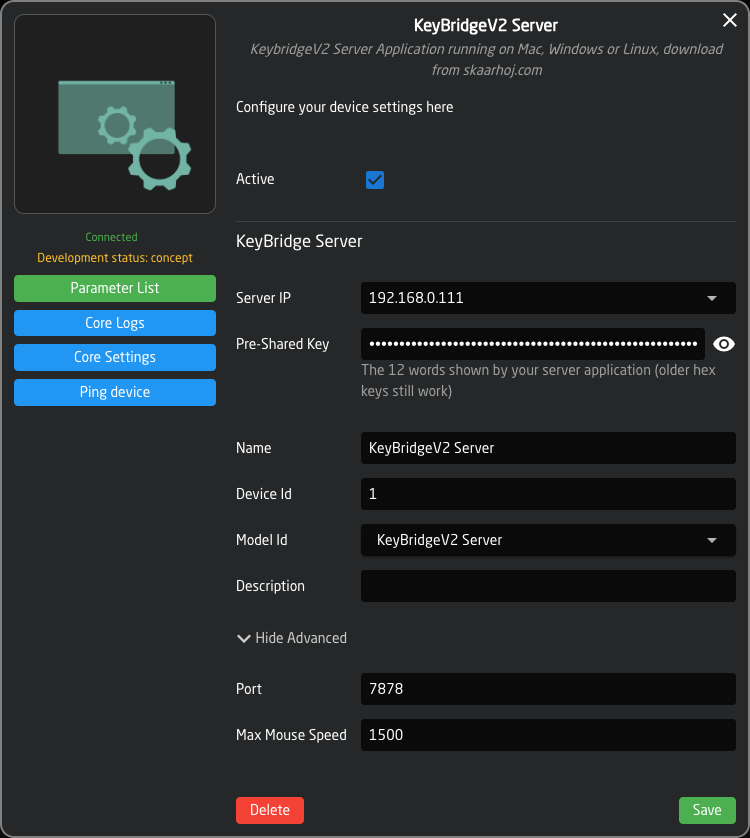
On the Reactor home page, click Add Device and choose KeyBridgeV2. Set:
- Model Id: KeyBridgeV2 Server
- Server IP: the address from the server's menu
- Pre-Shared Key: the 12 words
- Port (under Show Advanced): only if you changed it on the server
4. Test it
Click Test on the device in Reactor. The core reads the server's status and moves the cursor once in a circle on the computer. If the cursor moves, everything works. The result is shown in the Status Test parameter.
B. USB Keyboard & Mouse
The panel's Micro-USB port acts as a USB keyboard and mouse for the computer it is plugged into. The computer needs no software and there is no key to set up.
1. Turn on the USB keyboard and mouse
Currently an experiment. First turn on Enable USB Functions on the device's Experiments page (http://<device IP>/system/experiments). The Micro-USB Functions settings appear after that.
In the device's web interface, go to Settings > Advanced > Advanced System Settings > Micro-USB Functions and turn on USB Keyboard & Mouse. The core never turns it on by itself. Changing it reconnects the USB port, so the serial console drops for a moment. On panels with a USB-A port, the active USB port must be set to USB-Micro (Settings > Connections).
2. Connect and configure
Connect the computer to the panel's Micro-USB port with a data cable. Then add the device in Reactor as above, with:
- Model Id: USB Keyboard & Mouse
- Keyboard Layout: the layout the computer is set to: US, German, UK, Danish, Norwegian or Swedish
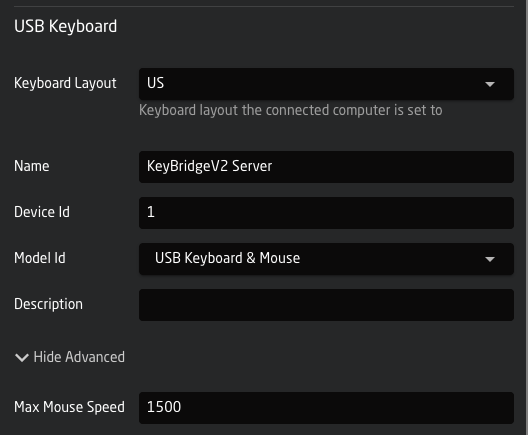
A USB keyboard sends key positions, not characters. The computer turns them into characters with its own layout, so Keyboard Layout must match it. If it doesn't, punctuation comes out wrong, and on German layouts Y and Z swap. Letters, digits, F-keys, arrows and the keypad are the same on every layout.
Click Test on the device: the core checks that a computer is connected and moves the cursor once in a circle.
What USB can't do
- No absolute positions. A USB mouse only reports movement. Mouse Move always moves relative to where the cursor is, and Mouse Click and Mouse Scroll act at the current cursor position.
- No horizontal scrolling.
- Some keys can't be sent: F13 to F24, the media keys (volume, play and so on), and the keypad's Clear and Equals. They show an error instead of doing nothing.
- Up to six keys can be held at once, plus the modifiers, like on a standard USB keyboard.
Putting functions on buttons
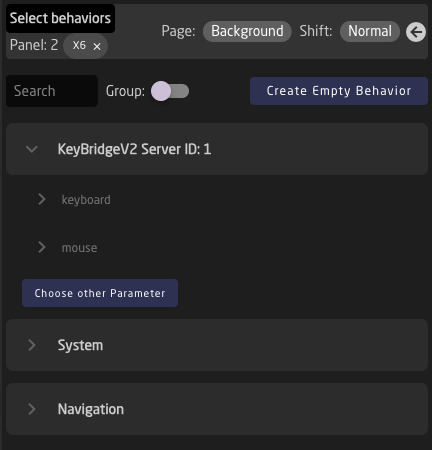
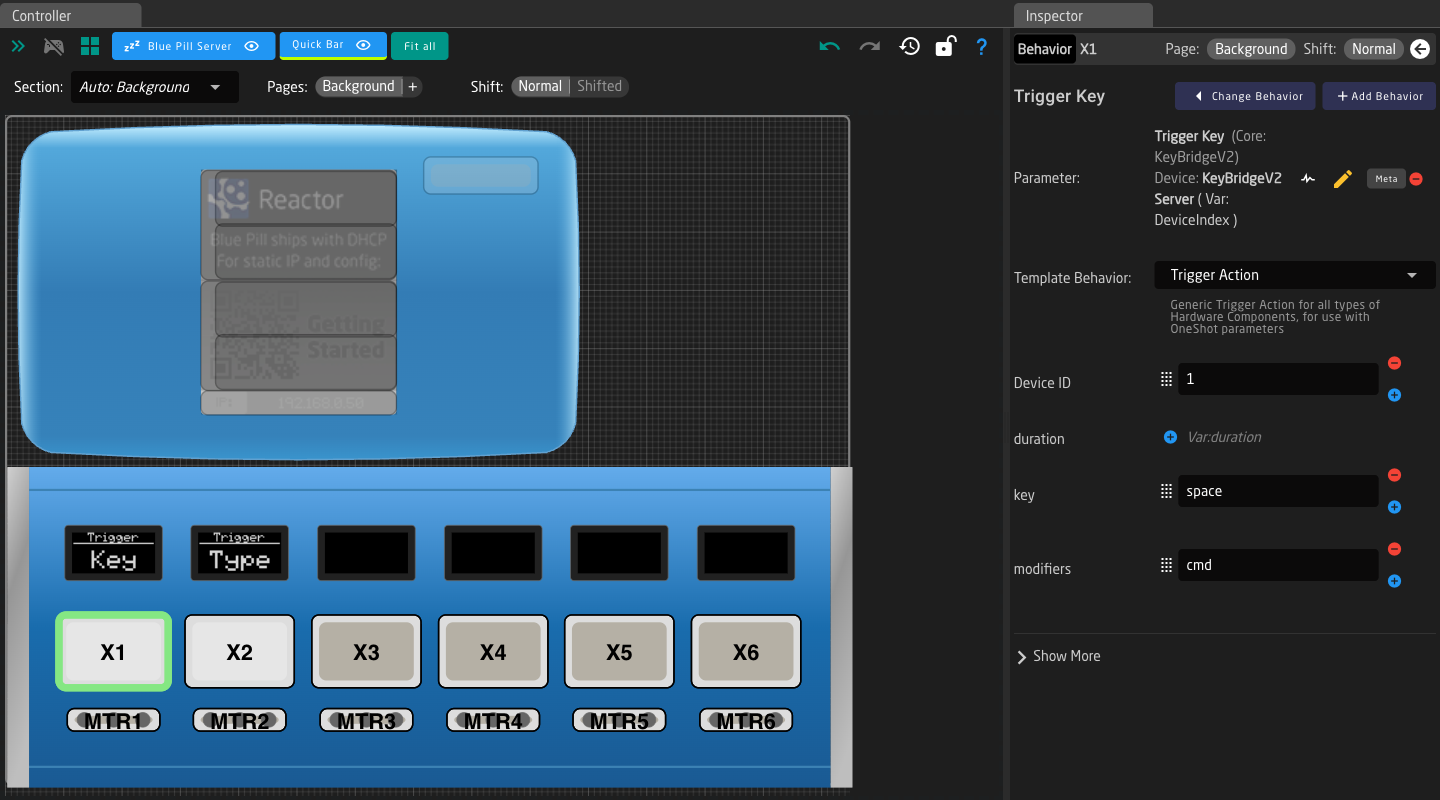
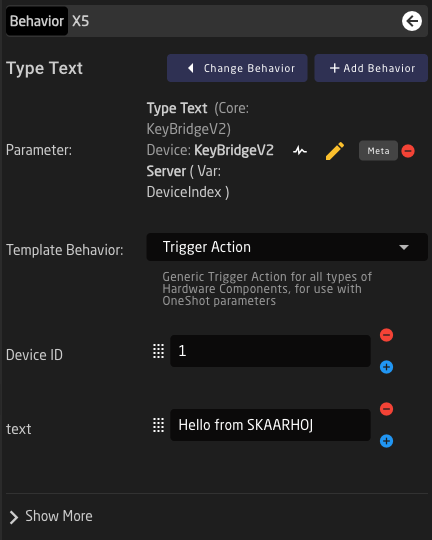
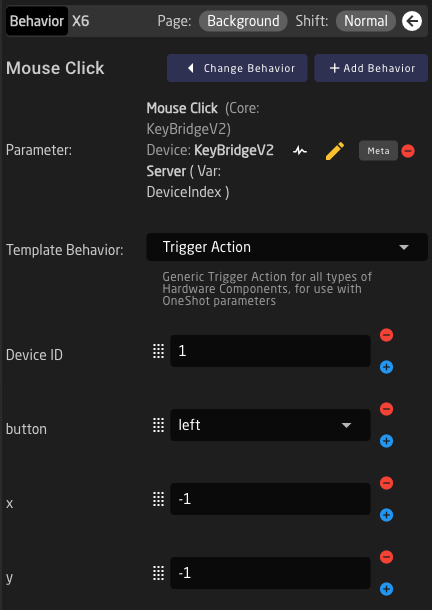
In the Reactor configurator, select a button and pick a function from the KeyBridge device, grouped into keyboard and mouse. Fill in its settings in the inspector.
| Function | Settings | Notes |
| Trigger Key | key, optional modifiers (comma separated), optional duration in ms | Duration 0 is a tap. Up to 30000 ms holds the key |
| Type Text | text | Types the text exactly as written, up to 500 characters |
| Mouse Click | button (left, right, middle), x, y | x and y at -1 click where the cursor is |
| Mouse Move | x, y, relative | Absolute: screen pixels from the top-left corner of the main screen. Relative: distance in pixels |
| Mouse Scroll | delta_y, delta_x, x, y | Negative delta_y scrolls down. x and y at -1 scroll where the cursor is |
| Mouse Speed X / Y | none, map to a joystick axis | See Joystick |
| Status Test | none | What the Test button runs |
Example: Trigger Key with key space and modifiers cmd opens Spotlight on a Mac.
Key names
For key, use a single character (a, 5, /) or one of these names:
enter,esc,backspace,tab,space,delete,insert,capslockup,down,left,right,home,end,pageup,pagedownf1tof12(network model alsof13tof24)- Keypad:
num0tonum9,num+,num-,num*,num/,num.,num_enter,num_lock printscreen,scrolllock,pause,menu- Network model only: media keys such as
audio_vol_up,audio_vol_down,audio_mute,audio_play,audio_next,audio_prev
Modifiers: cmd, ctrl, alt, shift. On Windows cmd is the Windows key. On a Mac alt is Option.
Trigger Key presses keys. Type Text types characters. To press Enter use Trigger Key with enter. Type Text with enter types the five letters.
Joystick
Map a joystick's horizontal axis to Mouse Speed X and its vertical axis to Mouse Speed Y. The cursor keeps moving while the stick is pushed and stops when it springs back. Small deflections move it slowly enough to hit a button, full deflection crosses the screen. Max Mouse Speed in the device settings (under Show Advanced, default 1500 pixels per second) sets the speed at full deflection. 1500 crosses a 1080p screen in about a second. Raise it for large or multiple screens.
If the panel or the connection goes away while the stick is pushed, the cursor stops by itself after two seconds.
Security
Anyone with the key has full control of the computer's keyboard and mouse. Treat it like a password. The connection is encrypted (Noise protocol), and only panels with the key can connect. The server listens on every network interface, so panels can reach it from anywhere on the LAN.
Regenerating the key in the server's menu locks out every panel until it has the new key. Connections that are already open stay open until they disconnect.
Servers set up with an older version may still use a 64-character hex key. It keeps working. Use Regenerate Key to switch to a 12-word key.
The USB model has no network exposure. It only controls the computer plugged into the panel.
Where the server keeps its files
| macOS | ~/Library/Application Support/KeyBridge/ |
| Windows | %APPDATA%\KeyBridge\, logs in %APPDATA%\KeyBridge\logs\keybridge.log |
The key is in keybridge.key, a changed port in keybridge-settings.json. View Logs in the server's menu opens the logs.
Troubleshooting
Network model
- Device stays disconnected: check the Server IP and port, and that the server is running. On Windows, check the firewall allows KeyBridge V2 Server.
- Core Logs say "Invalid pre-shared key": a word is mistyped or missing. The log names the word.
- IP is right, server is running, still disconnected: the key doesn't match the server's. Copy it again with Show Key. Someone may have regenerated it.
- Test works in Reactor, but nothing happens on a Mac: the Accessibility permission is missing or stale. Use Grant Input Permission… in the server's menu. If the switch in System Settings is already on, remove KeyBridge V2 Server from the list and add it again.
- Windows ignores input in some windows: Windows blocks input into programs running as administrator (UAC prompts, Task Manager, some installers). Run the server as administrator if you need to control those.
- "Server too old" on Type Text: update the KeyBridge V2 Server app.
USB model
- Log says "not enabled": turn on USB Keyboard & Mouse under Micro-USB Functions (see B.1). On panels with a USB-A port, check the active USB port is USB-Micro.
- Log says "no computer connected": the cable may be power only. Use a data cable.
- Wrong characters: Keyboard Layout doesn't match the computer's layout.
- A key reports "cannot be sent over USB": see What USB can't do.
- Clicks land in the wrong place: USB clicks where the cursor is. Move it there first with Mouse Move or a joystick.
Both
- Cursor drifts on its own: the joystick doesn't rest at zero. Calibrate it on the panel.
- Cursor too fast or too slow: change Max Mouse Speed in the device settings.