
DJI SDR Link
The DJI SDR Link app turns a pair of DJI SDR Transmission 2 units into a wireless data link between two SKAARHOJ Blue Pill controllers. The DJI units keep transmitting video as usual, and the app uses their radio link to also carry control data.
Typical uses:
- Control cameras and other devices at a remote position (a crane, a tracking vehicle, the far side of a venue) from a panel at the main position, without running a network cable.
- Share device cores between two Blue Pills, so a panel on one side controls devices connected to the other.
- Carry DMX (Art-Net), UDP, serial or CAN data across the link.
Development status: concept. All modes have been tested between two Blue Pills on a desk. Range, multiple receivers and real serial/CAN adapters have not been tested yet.
What you need
| Item | Notes |
|---|---|
| 2× DJI SDR Transmission 2 | Paired with each other: one set as TX (at the camera), one as RX (at the monitor position). |
| 2× Blue Pill | Any Blue Pill with a USB-A port. One at each end of the link. |
| 2× USB-C to USB-A cable | From the DJI unit's USB-C data port to the Blue Pill's USB-A port. A USB hub in between is fine. |
| Power for the DJI units | NP-F battery or a USB-PD charger on the DJI unit's power port. The Blue Pill's USB-A port does not power the DJI unit. |
Setup
Do these steps on both Blue Pills.
1. Pair the DJI units
Pair the two DJI SDR Transmission 2 units as described in DJI's user guide, and check that video comes through. The app detects by itself which end is TX and which is RX.
2. Switch the Blue Pill to its USB-A port
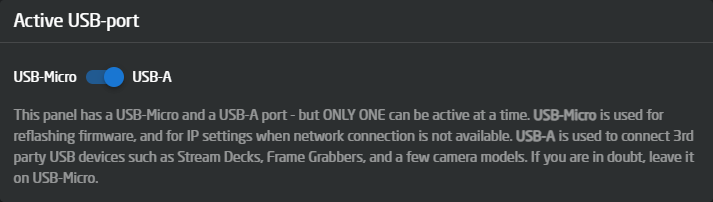
In the Blue Pill web interface, go to Settings and set Active USB-port to USB-A. While it is set to USB-Micro, the Blue Pill can't see the DJI unit.
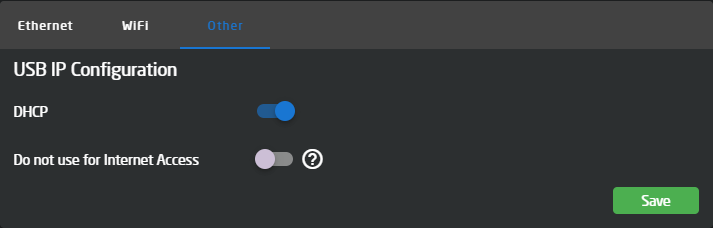
The DJI unit also shows up as a USB network adapter. This network is only used inside the DJI unit and is not needed for the link. We recommend enabling Do not use for Internet Access under Settings → Other → USB IP Configuration, then press Save.
3. Install the app
Go to Packages → Browse Package Store, find DJI SDR Link and install it. While the app is in development, enable Show pre-releases to see it. The app starts on its own after installation and keeps running in the background. It does not need to be part of a Reactor project.

4. Connect the DJI unit
Connect the DJI unit's USB-C data port to the Blue Pill's USB-A port, directly or through a USB hub.
5. Choose a link mode
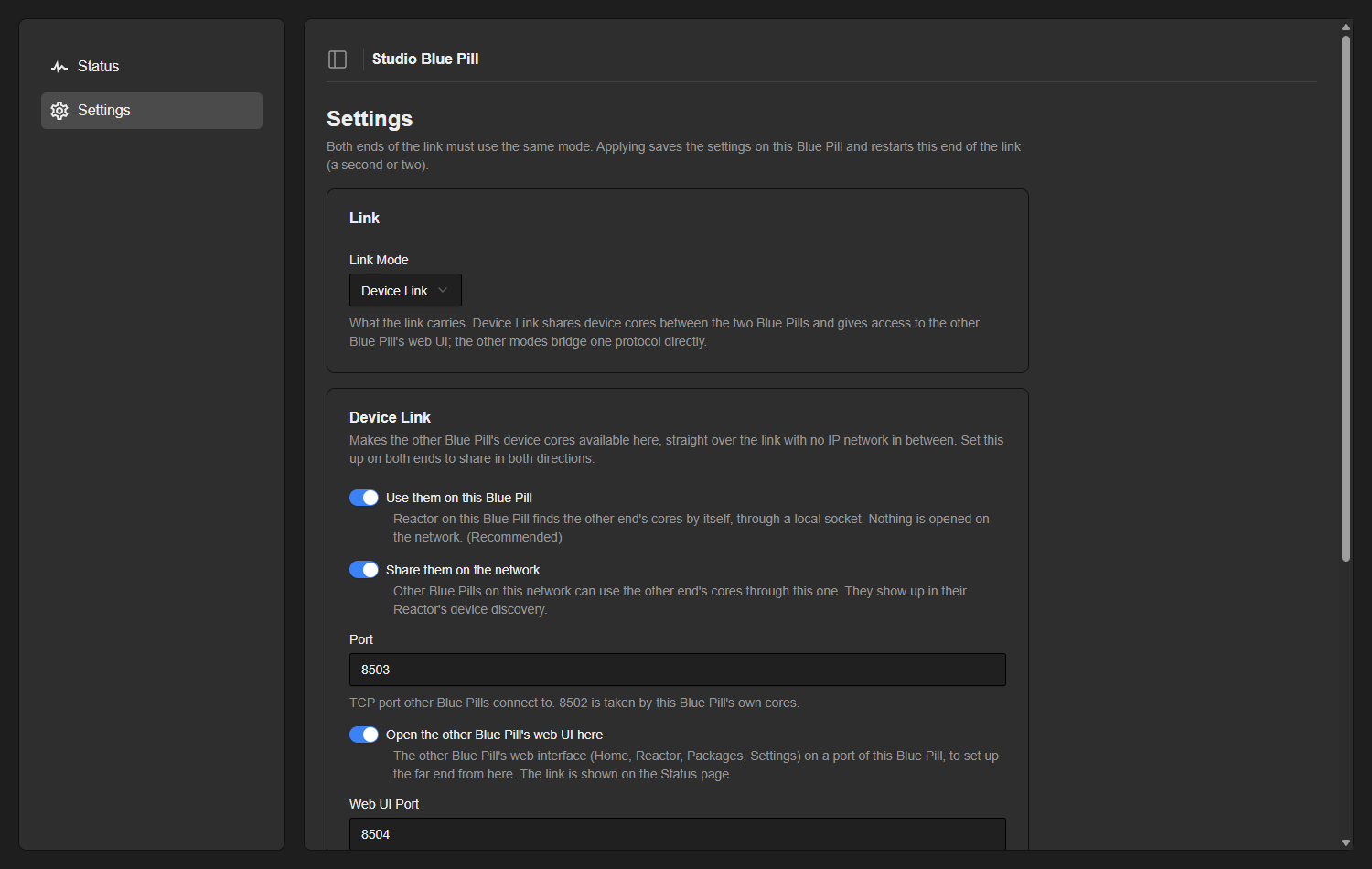
Open the app from Apps → DJI SDR Link, or with Open UI in the package list, and go to Settings. Pick the same Link Mode on both Blue Pills and press Apply. The link restarts in the new mode within a second or two.
6. Check the status
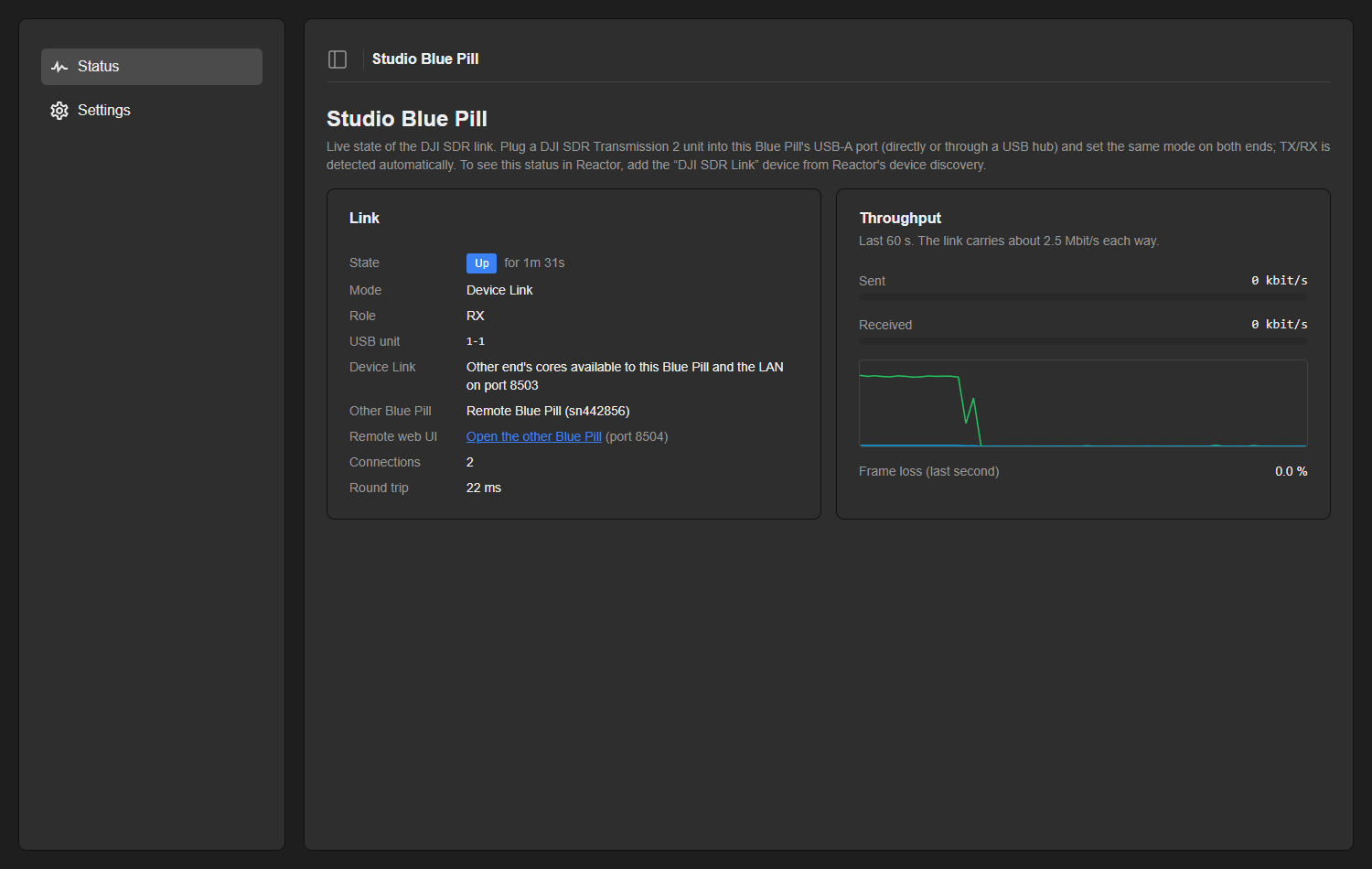
The Status page shows whether the link is up, which end is TX or RX, details for the active mode, and the data rate and frame loss for the last 60 seconds.
Link modes
Both ends of the link must use the same mode.
| Mode | What it carries | Settings |
|---|---|---|
| Device Link | The device cores of the other Blue Pill, and access to its web interface. No IP network is set up over the link, so the IP addresses at the two ends never matter. | See the Device Link section below. |
| Art-Net | DMX universes. Only changed frames are sent, plus a refresh once a second while the source is active. | First Universe, Universes (1–8 tested), Direction (RX to TX, TX to RX or Both), Interface IP, Output IP. |
| UDP | UDP datagrams received on the listen port are sent to a host and port on the other end (up to 780 bytes per datagram). | Listen Port, Forward Host, Forward Port. |
| Serial | Works like a TCP-to-serial converter: one end is a TCP server, the other end drives a serial port. Two TCP Server ends work as a virtual null-modem cable. | This End (TCP Server or Serial Port), TCP Port, Serial Port, Baudrate, Data Format. |
| CAN | CAN frames from a SocketCAN interface (for example a USB CAN adapter). A busy 1 Mbit/s bus uses about half of the link. | CAN Interface, ID Filter (e.g. 0x100-0x1FF,0x321). |
Device Link
In Device Link mode, the device cores of the other Blue Pill can be used on this one, as if the devices were connected locally. Set it up on both ends to share in both directions.
There are two ways to use the other end's cores. They can be enabled independently:
- Use them on this Blue Pill (on by default): Reactor on this Blue Pill finds the other end's cores by itself. Nothing is opened on the network. This is the recommended setting.
- Share them on the network (off by default): other Blue Pills on this network can also use the other end's cores through this Blue Pill. They show up in their Reactor's device discovery. Port sets the TCP port (default 8503).
To add a device from the other end in Reactor, open Add Device → Discover Devices. The other end's cores are listed as Shared Devicecore, with the other Blue Pill's serial number (sn…) as address. Select the device and set it up as usual.
Open the other Blue Pill's web UI
With Open the other Blue Pill's web UI here (on by default), the other Blue Pill's whole web interface (Home, Reactor, Packages, Settings) is available on port 8504 of this Blue Pill, for example http://<this Blue Pill>:8504. Use it to set up the far end without a network connection to it. The Status page has a direct link (Open the other Blue Pill). The port can be changed with Web UI Port.
Pages load at the speed of the link (about 2.5 Mbit/s). Settings and Packages open within a second. Reactor's own pages take several seconds the first time, as about 2 MB has to cross the link. To control devices at the far end, add them in your local Reactor through Device Link instead.
IP tunnel (advanced)
IP tunnel creates a network interface (sdr0) between the two Blue Pills, for other TCP or UDP traffic between them. It is off by default. Turn it on at both ends, and set the same Tunnel Subnet on both (default 10.77.0.0/30: TX end .1, RX end .2). The subnet must not overlap a network either Blue Pill is connected to.
Running Device Link next to another mode
Also run Device Link (in the other modes) runs Device Link next to the selected mode, for example Art-Net plus shared device cores. Both then share the link's bandwidth. It is off by default.
Link status in Reactor
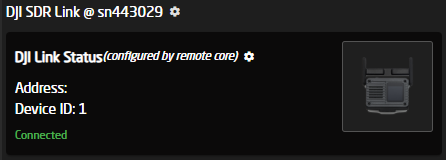
The app offers a status-only device, DJI Link Status, that you can add to a Reactor project, for example to show the link state on a panel.
- In Reactor, open Add Device → Discover Devices.
- Select the DJI SDR Link entry whose address is this Blue Pill's serial number (
sn…).
The device shows up as DJI Link Status (configured by remote core). The empty address line is normal. In Device Link mode, the status device of the other Blue Pill can be added the same way.
| Parameter | Description |
|---|---|
| Link Up | True when the other DJI unit is reachable over the radio link. |
| Link Role | TX or RX, detected from the connected DJI unit. |
| Link Mode | The active link mode. |
| Sent kbit/s | Current outgoing data rate over the link. |
| Received kbit/s | Current incoming data rate over the link. |
| Packet Loss | Frame loss over the last few seconds, in per mille. |
Bandwidth and latency
- About 2.5 Mbit/s in each direction, with 10–20 ms round trip in Device Link mode.
- All traffic shares this bandwidth, including when Also run Device Link is on or when several Blue Pills use shared device cores over the network. The throughput graph on the Status page shows how close the link is to its limit.
- Control data is plenty for this. Large transfers such as firmware updates or video are not.
Limitations
- Video: the app does not carry or capture video. Use the DJI units' own video outputs as usual. To get the received video into a Blue Pill (for example for framelink), use a USB HDMI capture device on the receiver's HDMI output.
- Radio signal quality: channel and signal strength from the DJI units are not shown yet.
- One link per Blue Pill. Setups with more than one receiver have not been tested.
- Range: tested at desk distance only.
Troubleshooting
| Symptom | What to check |
|---|---|
| Status shows No DJI unit | Check that Active USB-port is set to USB-A in the Blue Pill Settings and that the USB cable is connected to the DJI unit's data port. Try without a USB hub. |
| Status stays at Waiting for other end | Check that both DJI units are powered and paired (video is coming through), the app is running on both Blue Pills, and both ends use the same Link Mode. |
| Device Link: the other end's cores don't show up in Reactor | Check that both ends are in Device Link mode and Use them on this Blue Pill is on. Then reopen Discover Devices. |
| The other Blue Pill's web UI doesn't open | Check that the link is up and Open the other Blue Pill's web UI here is on at this end. Reactor's pages take several seconds to load over the link. |
| IP tunnel: no connection across the link | Make sure IP tunnel is on at both ends, the Tunnel Subnet is the same on both, and it does not overlap a network the Blue Pill is connected to. |