
ZeroTier
What is ZeroTier?
ZeroTier is a virtual networking platform that connects devices anywhere in the world as if they were plugged into the same local network switch. Devices join a network identified by a 16-digit network ID, and once they are authorized they can reach each other directly and securely — through NAT and firewalls, with no port forwarding or public IP addresses required.
On a SKAARHOJ Controller this is useful for:
- Reaching the controller’s web interface remotely — for example to configure or support a system that is at another location.
- Giving the controller secure access to other devices or SKAARHOJ Controllers on the same ZeroTier network, for example to share Devices. (See Sharing Devicecores)
- Joining an existing ZeroTier network that your company or site already uses.
Each device running ZeroTier has a permanent 10-digit Node ID. Networks are created and managed in ZeroTier Central, where you also authorize which devices may join and which IP addresses they receive.
Installing the ZeroTier app on your Controller
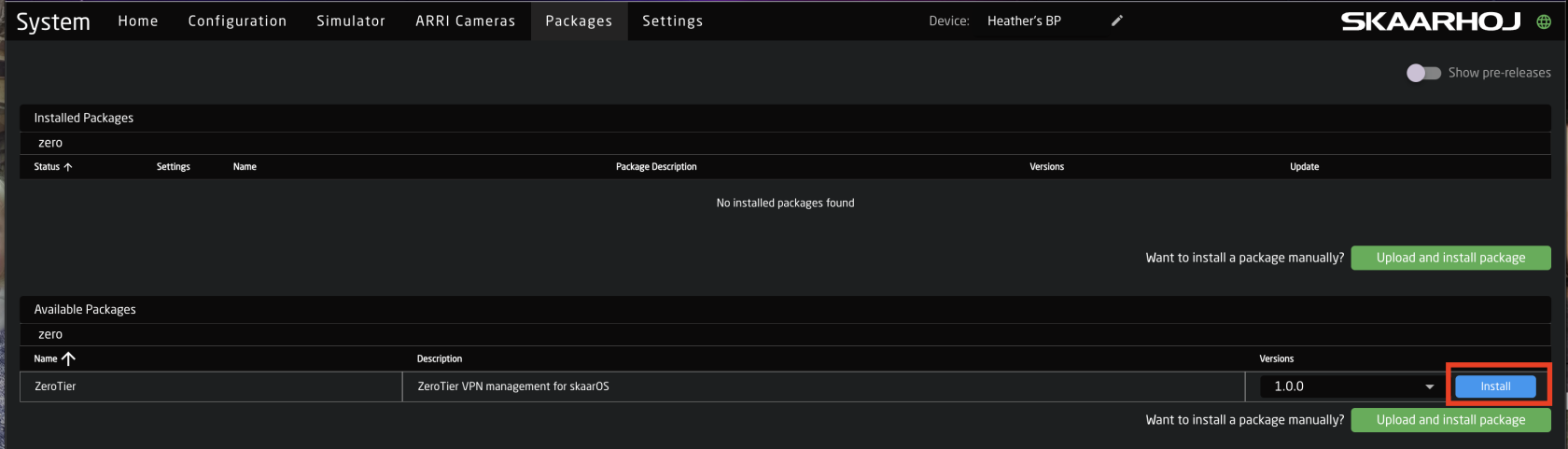
ZeroTier is delivered as an installable package in SkaarOS. Open the Packages page from the top menu (or browse to /system/), find ZeroTier in the list and install it.
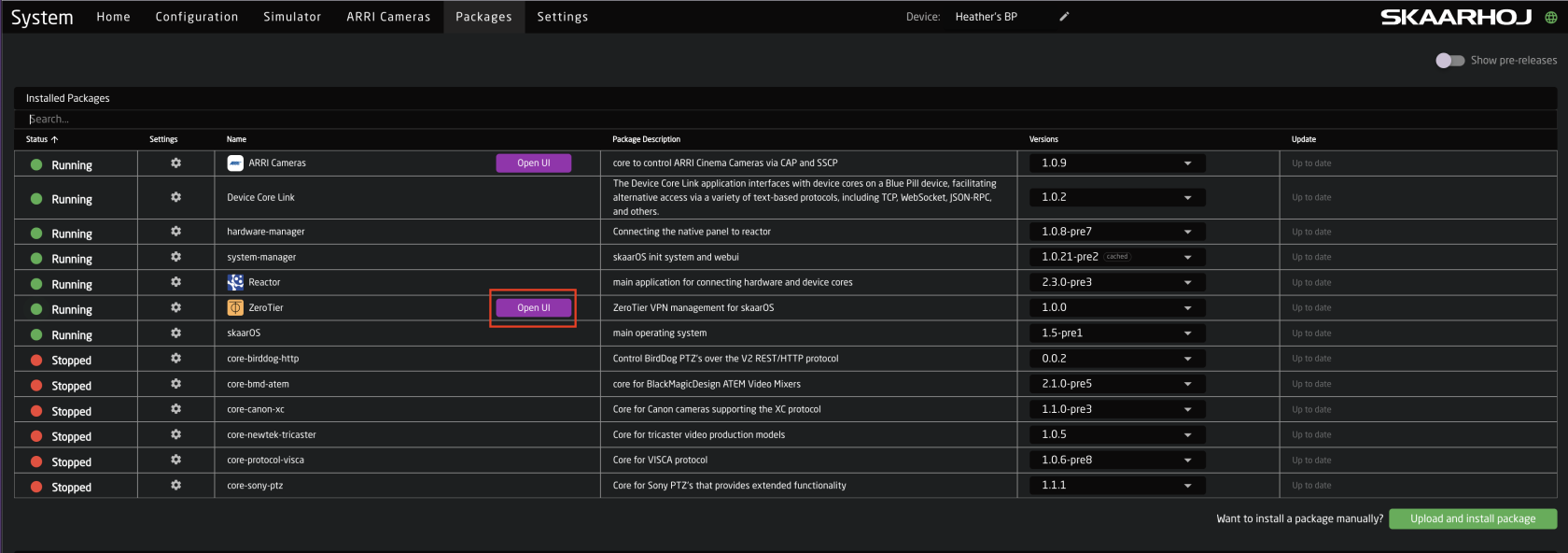
Click into the package and press Start so its status shows Running, then refresh the page. The Open WebUI button becomes available — click it to open the ZeroTier app.
Enable the Show in Menu toggle to add a ZeroTier tab to the top menu bar for quick access.
The first start after installation can take a moment while ZeroTier generates the controller’s identity. The app shows “Starting ZeroTier…” until it is ready. The identity and joined networks are stored on the controller and survive reboots.
Creating a network in ZeroTier Central
If you do not have a ZeroTier network yet, create one first:
- Sign in to ZeroTier Central (or create a free account — see ZeroTier plans below). Accounts created before 5 November 2025 use Legacy Central instead.
- Create a new network. Keep its access control set to Private, so every device has to be authorized before it can join.
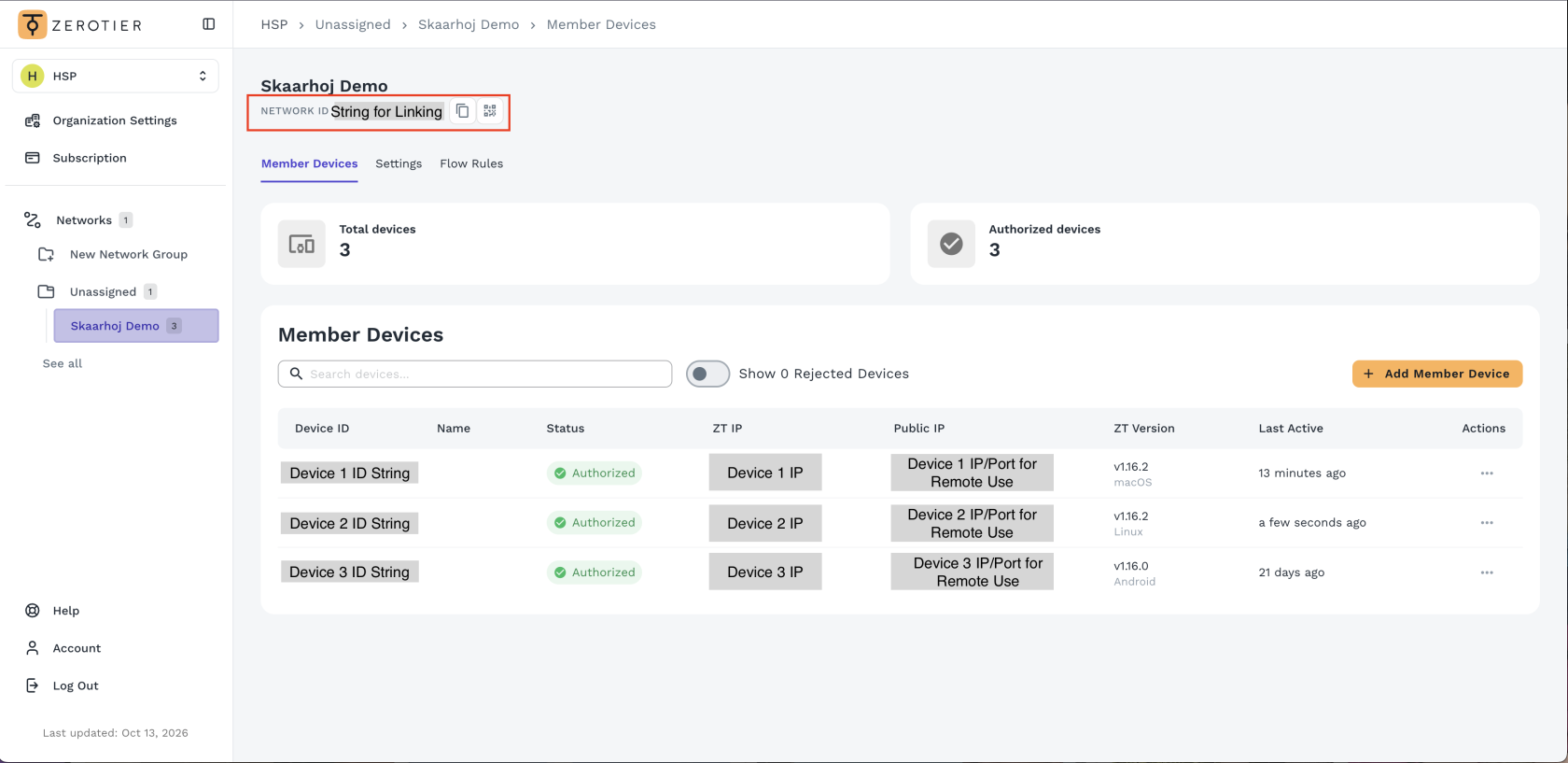
- Note the 16-digit Network ID — you will need it on the controller and on every other device.
Joining a network
Open the ZeroTier app and stay on the Networks tab.
- In the Join a Network card, enter the 16-digit network ID and click Join.
- The network appears in the list with a Requesting config… or Not authorized badge. This is normal for private networks.
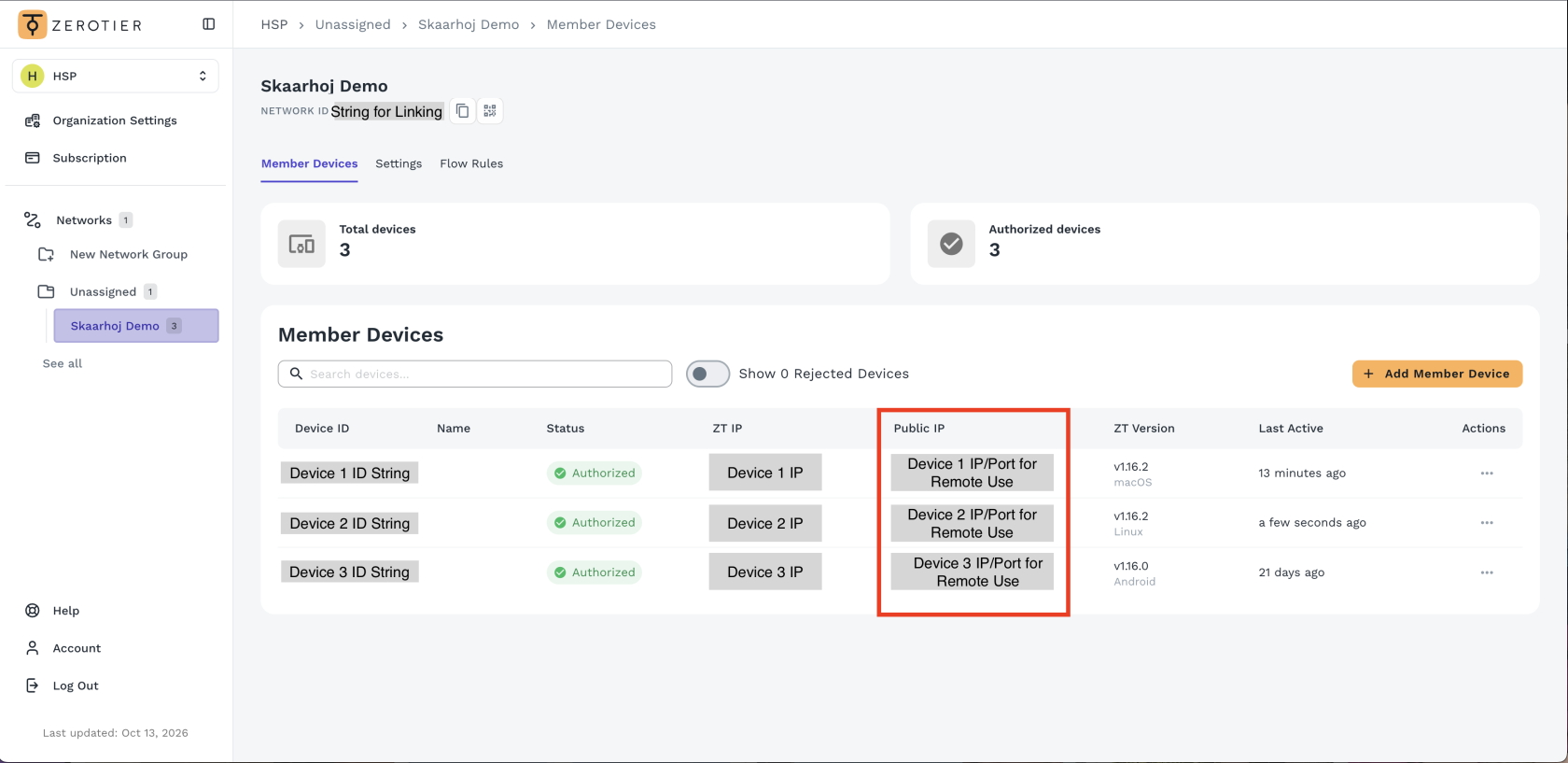
- In ZeroTier Central, open the network’s member list, find the controller by the Node ID shown in the app and authorize it.
- Within a few seconds the network switches to OK and shows the IP addresses ZeroTier Central assigned to the controller.
Use the Assigned IP to reach the controller. Once the network shows OK, look for Assigned IPs on the network card. This is the controller’s address on the ZeroTier network. From your other devices on the same network, use this IP and not the controller’s local LAN IP. Use the copy button next to it.
Using the App in Blue Pill
The app has two tabs in the left sidebar: Networks and About. The Networks tab refreshes automatically.
Node
The Node card shows the controller’s ZeroTier status:
- Status — Online once the controller has reached the ZeroTier service on the internet, Connecting… while it is still trying.
- Node ID — the controller’s ZeroTier address, with a copy button. This is the ID you look for when authorizing the controller in ZeroTier Central.
- Version and Port of the running ZeroTier service.
From here you can Refresh the status or open ZeroTier Central to manage your networks. If your ZeroTier account was created before 5 November 2025, use the Legacy Central button instead.
Networks
Each joined network is shown as its own card with:
- Network ID — with a copy button.
- Status — OK when connected. Requesting config…, Not authorized or Auth required mean the controller still has to be authorized in ZeroTier Central. Not found means the network ID does not exist.
- Interface — the network interface name on the controller.
- Assigned IPs — the controller’s addresses on this network, each with a copy button. Use these to reach the controller from other devices.
- Type — Private or Public.
Click Leave to disconnect the controller from a network. To join it again later, enter the network ID again.
A controller can be a member of several ZeroTier networks at the same time.
ZeroTier plans
ZeroTier offers a free Personal plan for personal, non-commercial use, with 10 devices on one network and one network admin.
For commercial use, ZeroTier requires one of its paid plans, which include a commercial license. For the current plans and exact limits see the official ZeroTier pricing page.
Install ZeroTier on your other devices
To reach your SKAARHOJ Controller remotely, install ZeroTier on the devices you want to connect from — your laptop, phone or another server — join them to the same network and authorize them in ZeroTier Central. Clients are available for:
- Windows
- macOS
- Linux
- iOS
- Android
Downloads and installation instructions for all platforms are available at zerotier.com/download.
All devices must be members of the same ZeroTier network, and authorized in ZeroTier Central, to see each other.