
UniSketch Panel Hardware Calibration
This guide is for doing hardware calibration on analog hardware components of UniSketch panels that are integrated into a Blue Pill workflow. For information on hardware calibration on analog hardware components of Blue Pill inside panels please see: https://wiki.skaarhoj.com/books/blue-pill-reactor/page/hardware-calibrator
For the analog calibration the Skaarhoj Firmware Updater application is needed. It can be downloaded here: https://www.skaarhoj.com/legacy-downloads
UniSketch Analog Hardware Component calibrations are stored in the panels EEPROM and are used when controlled by a Blue Pill panel.
1. Connect the UniSketch panel to the computer via the Micro USB port on the port side of the panel.
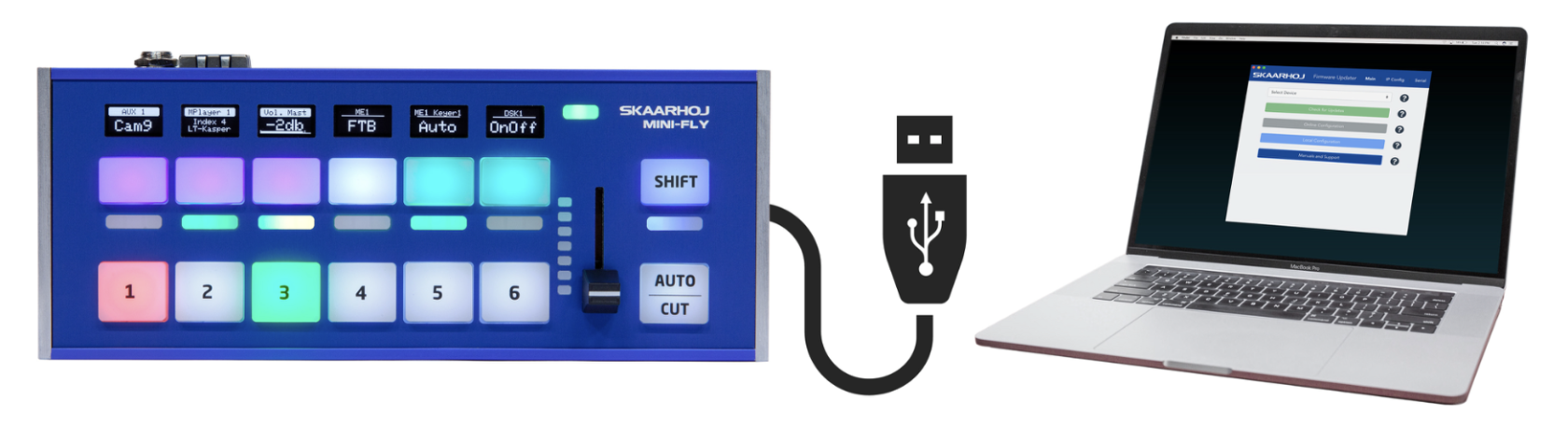
2. Open the Firmware Updater Application.
3. Select the device in the port section of the updater.
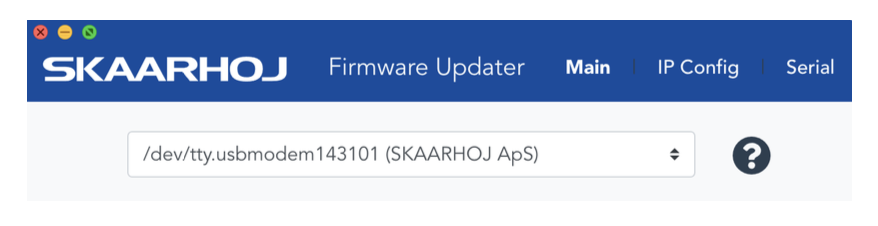 4. Click over to the Serial Monitor tab.
PTZ Joystick
To see the values of the PTZ joystick deadzone use the command:
“show joystickDeadzone” Shows joystick deadzone values if they have been set via “joystickDeadzone=X,Y,Z”
To set the values of the PTZ joystick deadzone use the command:
“joystickDeadzone=X,Y,Z” Set deadzone values for a joystick component
X = Pan deadzone in percentage
Y = Tilt deadzone in percentage
Z = Zoom deadzone in percentage
Default values are 20%. Applicable values are between 1% and 100%
Example: “joystickDeadzone=5,10,20” equals 5% pan, 10% tilt and 20% zoom deadzone
RCP Joystick
Serial monitor commands can be use with non motorized faders and t-bars but were designed for the RCP Joystick.
To see the available analog components available:
”list analog” Lists analog hardware components on the controller with number, description and three calibration values (start/end/tolerance)
To show the current analog calibration values:
“show analog X” Shows readings from analog component X where X is the number given by “list analog”. The readings indicate the value and noise level for the read out. This is useful for debugging. If you move the analog component you should see values change.
To hide the analog values:
“hide analog” Stops the display of “show analog”
To calibrate the analog component:
“calibrate analog X” Starts calibration of analog component X. Instructions will be posted in the serial monitor. The steps involve moving the analog component to various positions. When instructed to move the joystick to the end point (all the way up or all the way down, it does not matter which) then in the serial monitor type ok. Continue to follow the instructions as prompted.
To reset the calibration to defaults:
“clear analog X” Resets calibration data for analog component X to default. If X is not given it resets calibration data for all components.
To force calibration values:
“set analog X=start,end,tolerance” Forces calibration data “start”, “end”, and “tolerance” for component X. This is best used when needing to up the tolerance.
For full list of available serial monitor commands for UniSketch panels, see page 23 of the UniSketch Installation and Operations manual here: https://github.com/SKAARHOJ/Support/blob/master/Manuals/SKAARHOJ/SKAARHOJ_Manual.pdf